
The Asset Tracker is where all your organization's devices are registered and managed in Deel IT. Devices must be in the Asset Tracker before you can request services like clearance, store for reuse, or reassignment. This article explains how to add devices, manage them, and resolve common issues, including devices that may be missing after migration from Hofy to Deel IT.
Add an organization-owned device to Asset Tracker
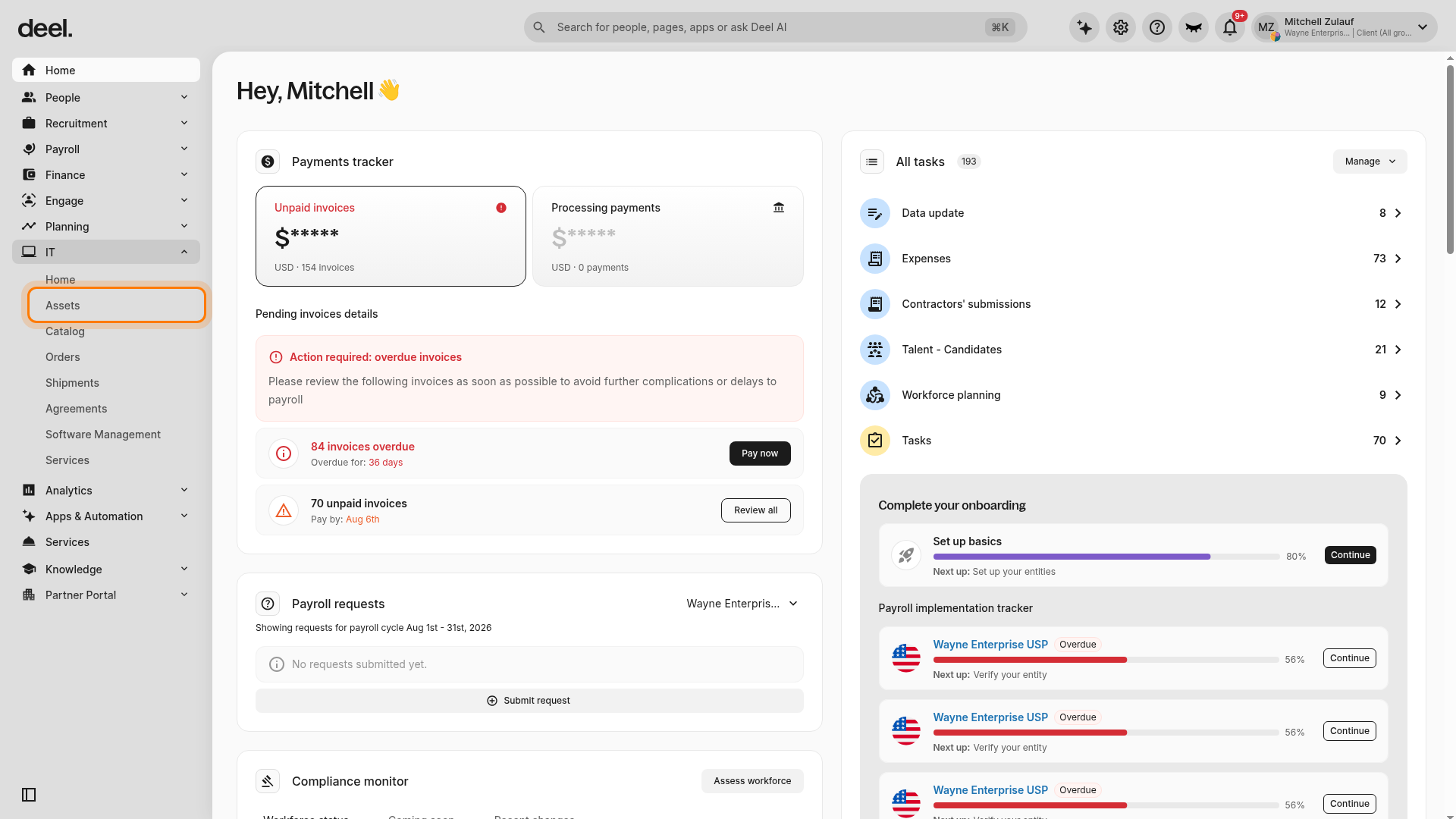
- In the left sidebar, select IT to expand its submenu, then select Assets. The Assets page opens on the Track and manage tab.
- On the Assets page, click Add asset in the upper-right corner.
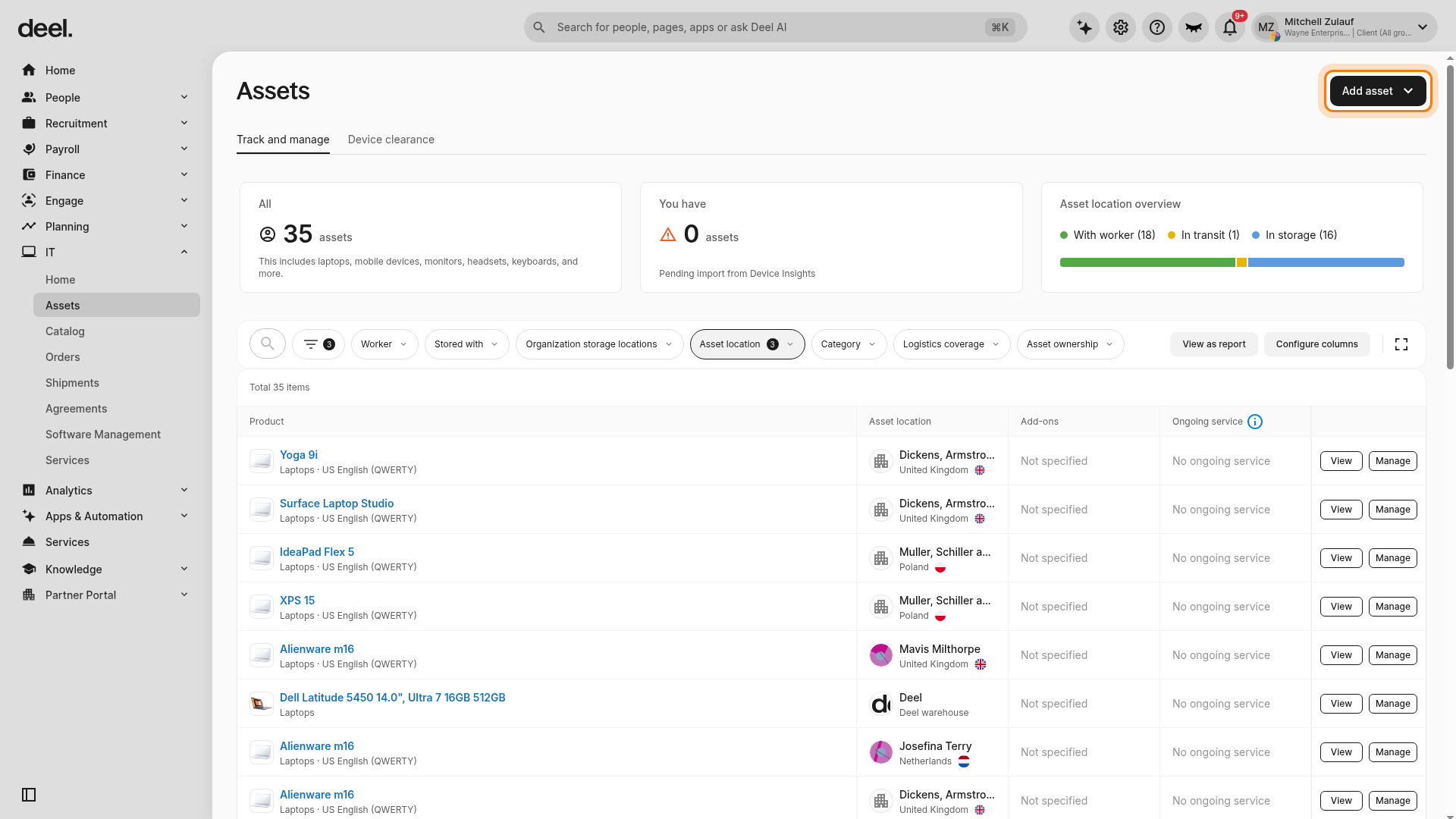
- From the Add asset menu, select Manually. Use this option for an organization-owned device you are creating directly in Asset Tracker. Do not select Upload CSV or From Device Insights.
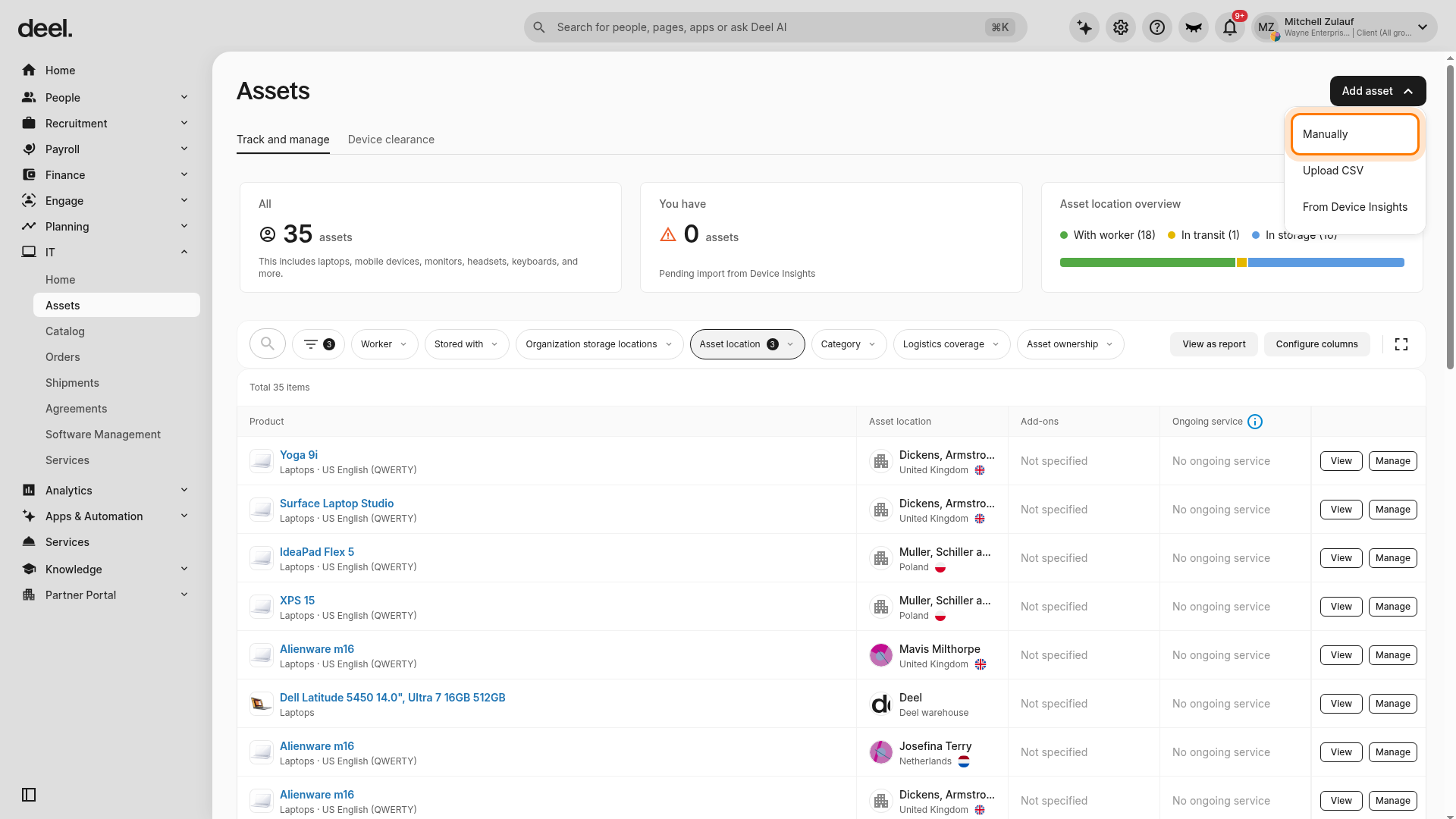
- Complete the Create new asset form. In Asset specification, enter the required fields, including Category, Model, Brand, Operating system, and Serial number. Required fields are marked with an asterisk.
- Click Next and complete the assignment and condition details, including the assigned worker or storage location. Submit the asset.
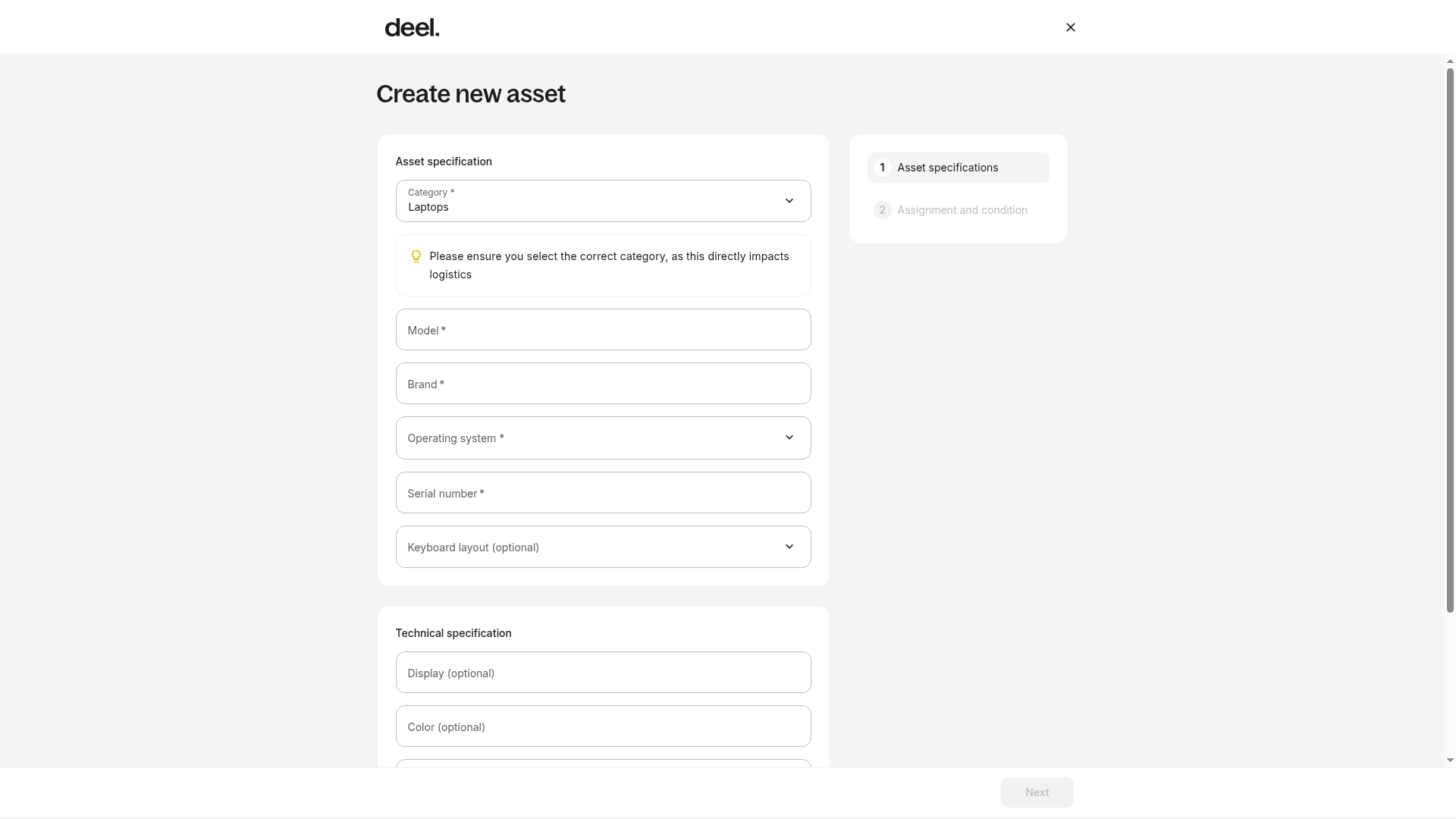
Find a device in Asset Tracker
- In the left sidebar, select IT to expand its submenu, then select Assets.
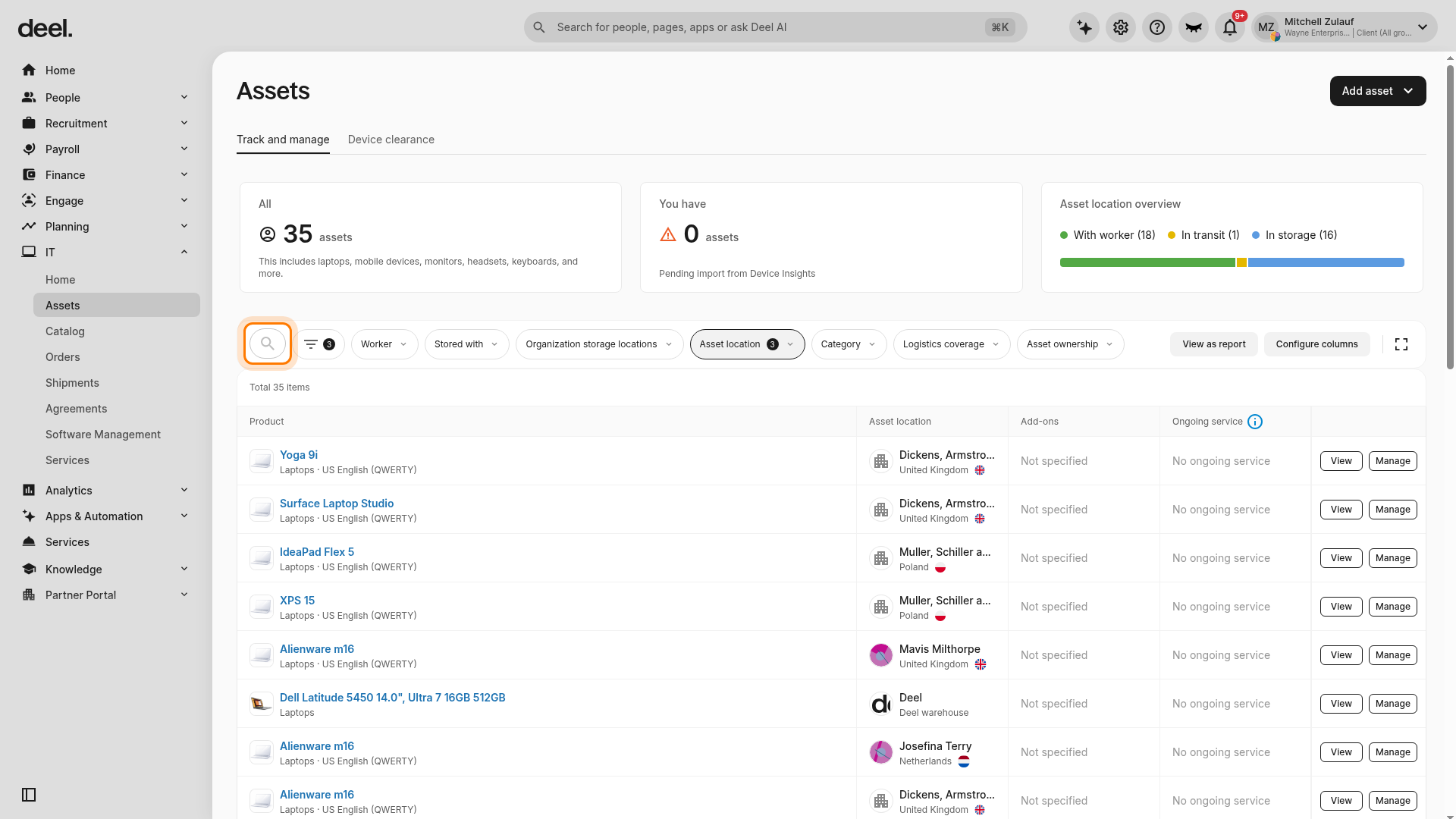
- Select the magnifying-glass control at the beginning of the filter row to expand the Search field. Enter identifying information, such as the device name, serial number, asset ID, worker name, or worker email.
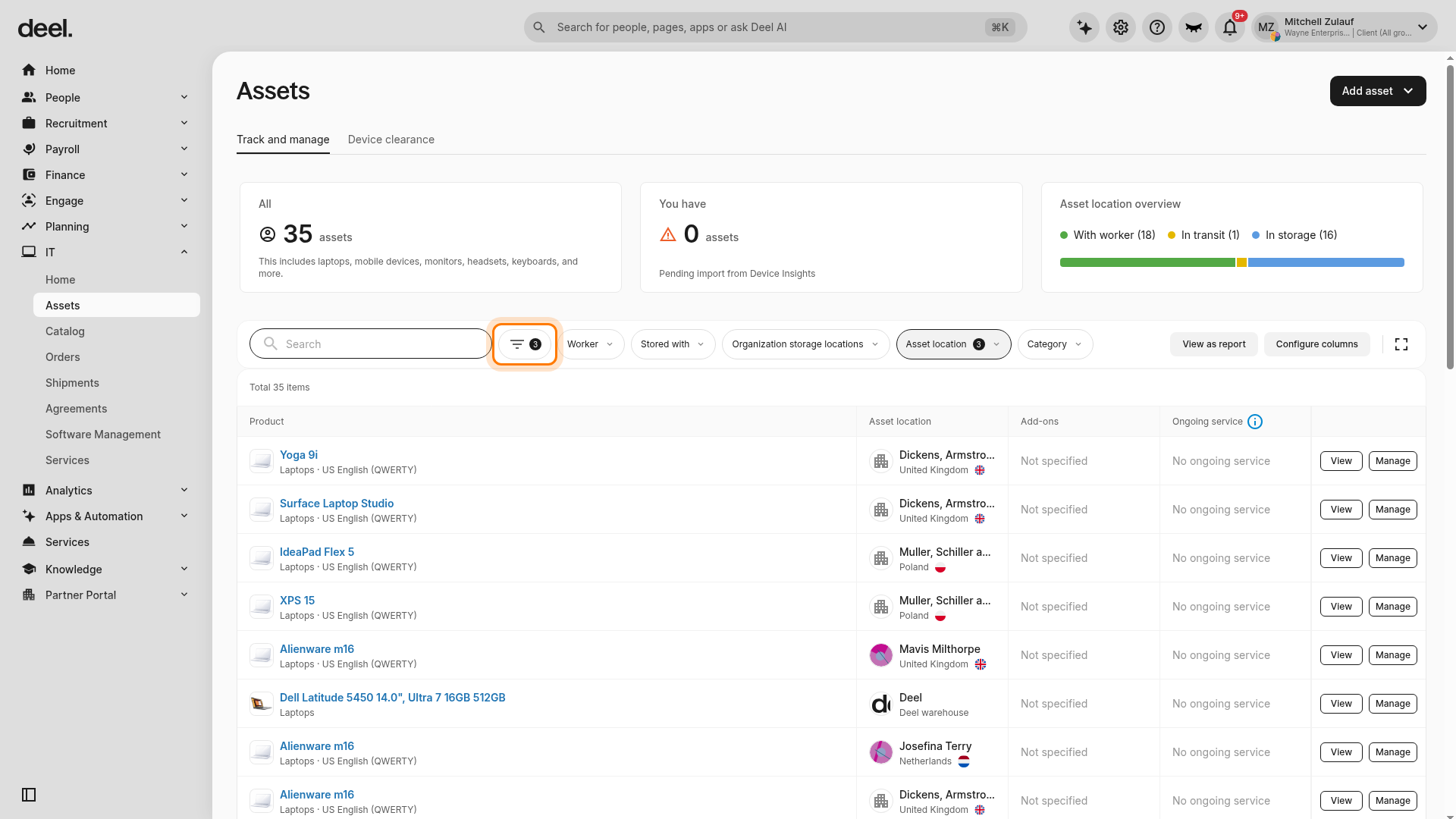
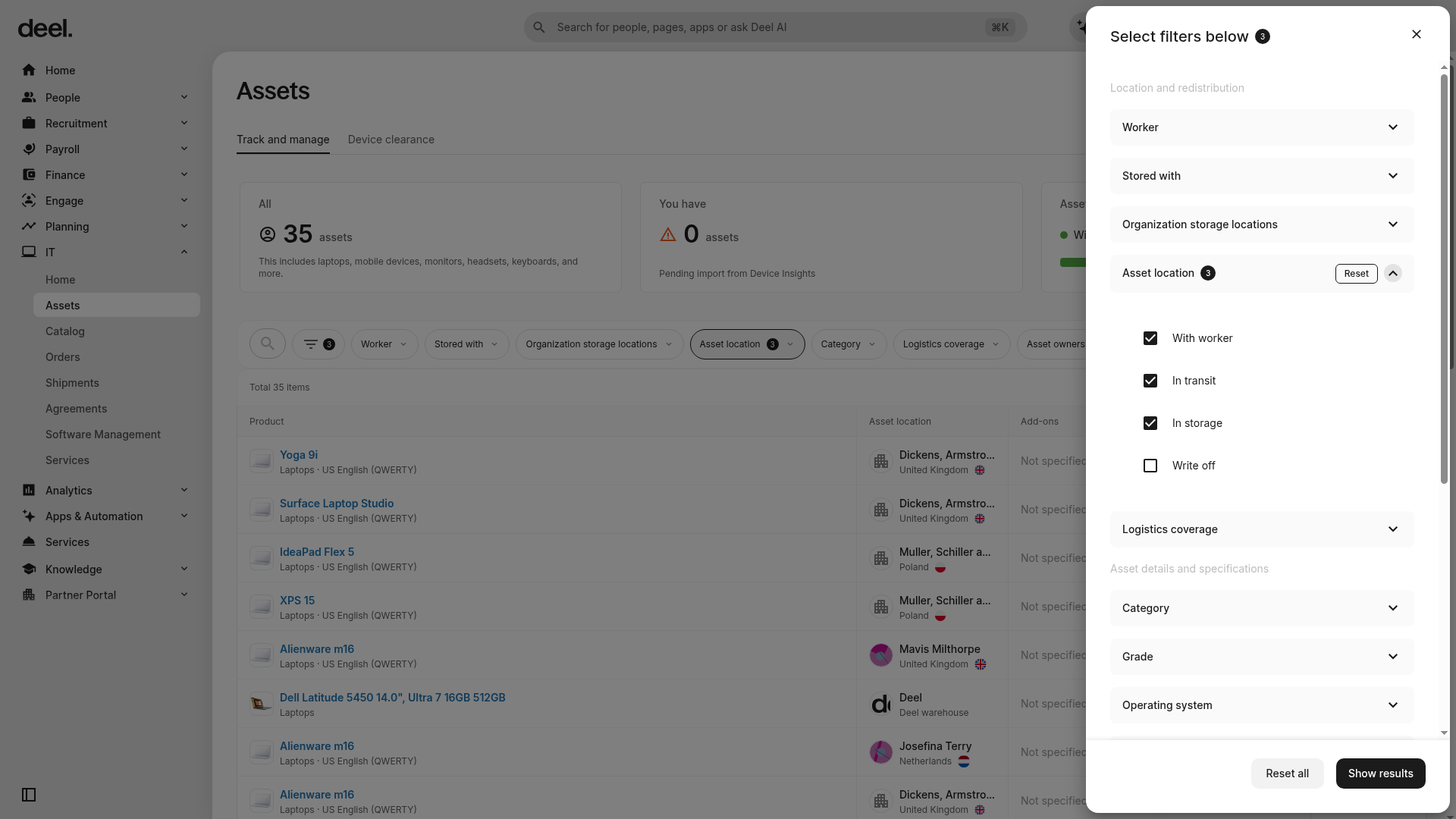
- To filter the list, select the filter control beside Search to open the Select filters below panel, then expand Asset location. Select one or more current location filters and click Show results: With worker, In transit, In storage, or Write off.
Manage your Assets with the Unified Asset Service Workflow
Manage all your IT asset requests - whether storing, reusing, reassigning, or clearing equipment - through one intuitive workflow. This unified experience consolidates asset lifecycle management, giving you clarity and control over your organization's equipment. Some actions may not be available depending on equipment type, service agreements, or your Deel IT seat tier.
Before you begin
You must be:
- Logged in to your Deel IT account
- Have access to manage assets (organization admin or authorized user)
Step 1 - Open the Manage Asset panel
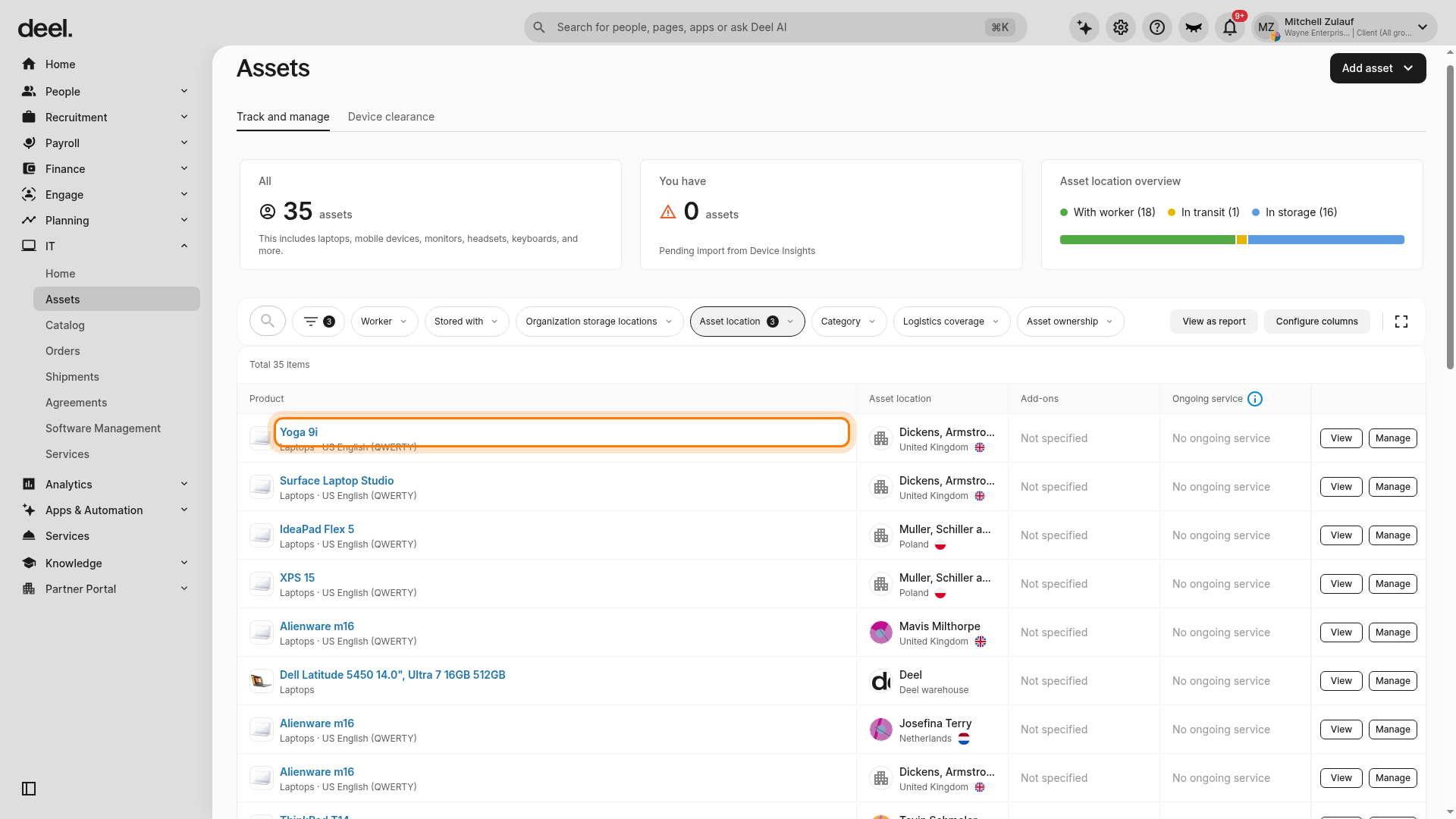
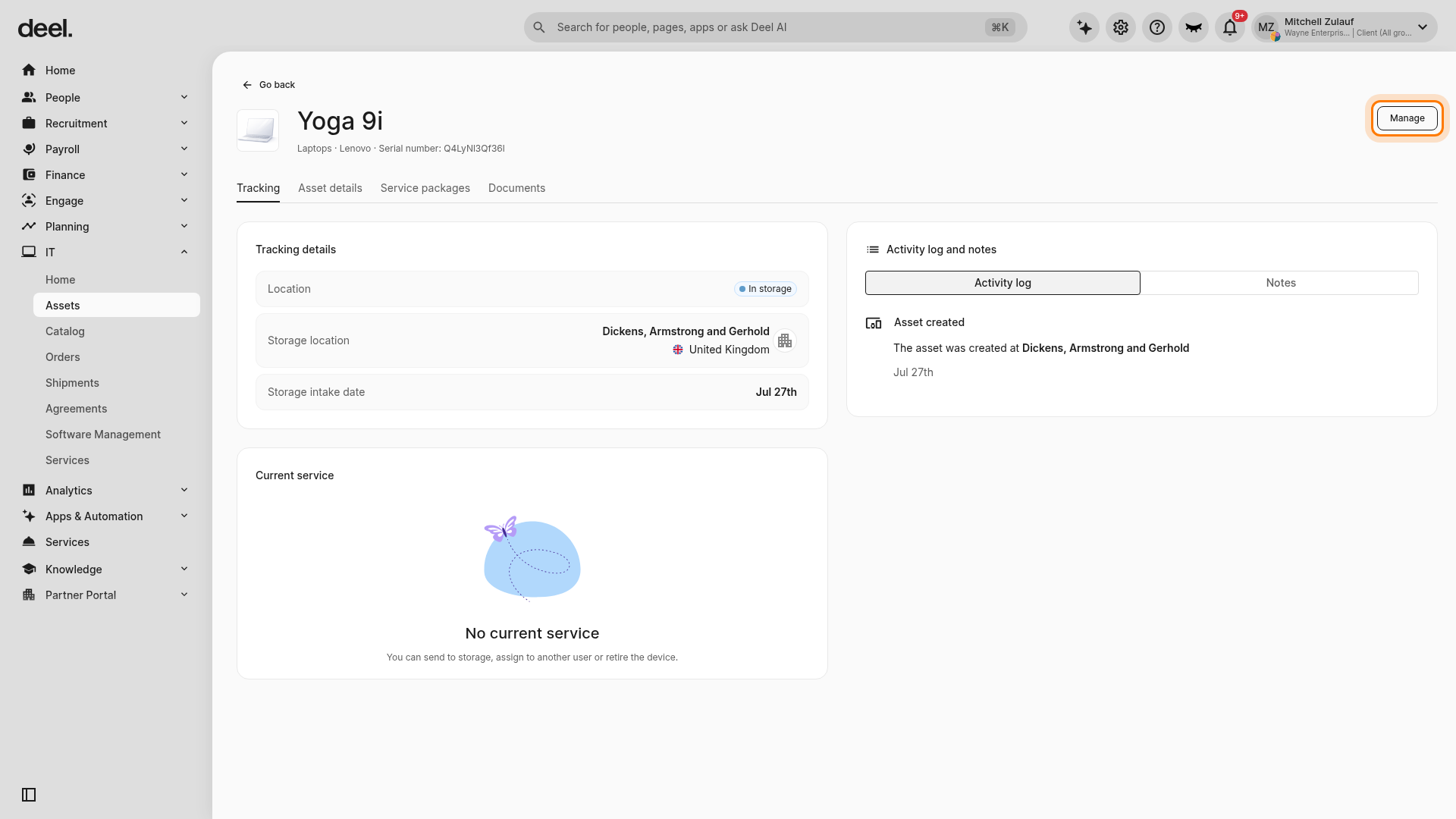
- In the Assets list, select the device name in the Product column to open its detail page.
- Confirm that the device details match the asset you want to manage, then click Manage in the upper-right corner.
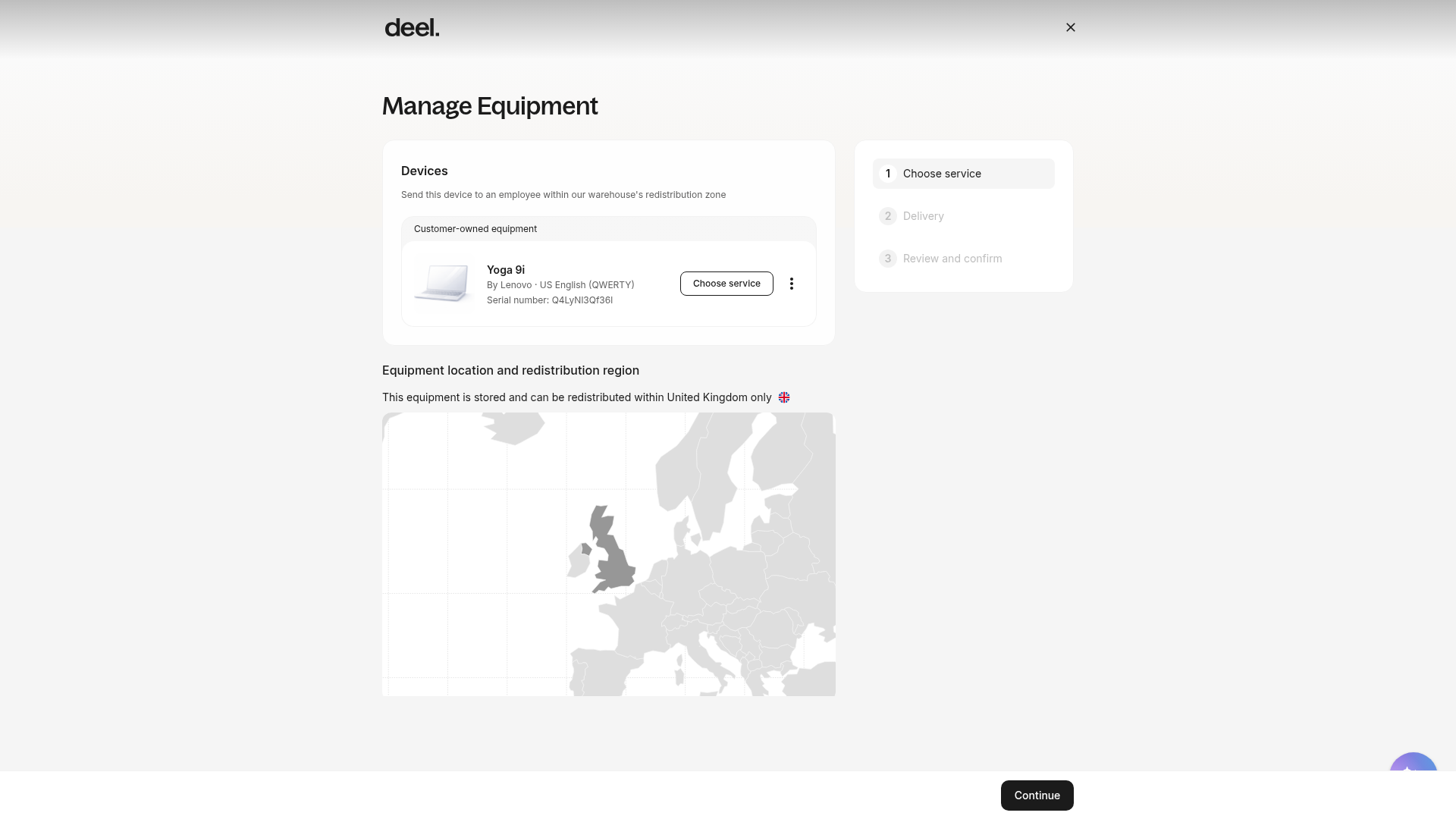
- Verify that the Manage Equipment screen opens and that the selected device appears in the Devices section with 1 Choose service active.
Step 2 - Select a service action
- Select Choose service for the device, then choose one of the available service actions:
- Store & Reuse (Local) - Store equipment within your region and request it back for reuse.
- Store & Reuse (Extended Zone) - Store equipment in one region and reuse it in a different eligible region.
- Clearance - Send equipment to clearance and safely dispose of it.
- Reassign to Worker - Transfer the equipment to another team member.
- Archive - Mark the equipment as no longer in use.
- End Lease & Return - Return a leased device to Deel.
- Cancel Lease & Return - Cancel a leased contract and return the device to Deel.
Step 3 - Review the asset map (if applicable)
- When selecting a service that involves moving or storing equipment, review the equipment location and redistribution region shown in the workflow.
- Use this information to confirm the device's current location, eligible redistribution area, and any available destinations or timelines.
- Hover over any location to see the country name, available services, and expected processing time.
Step 4 - Review the confirmation summary
- Examine the confirmation screen, which includes: the asset(s) you're managing, the service you've selected, the destination (if applicable), estimated timeline, and any costs involved.
- Review all details carefully.
Step 5 - Submit your request
- Click Submit to complete your request.
- You'll receive a confirmation and can track the status in your asset dashboard.
Step 6 - Manage multiple assets (optional)
- To process multiple assets at once, select multiple items and apply the same service action.
- For bulk operations, you can archive multiple accessories or peripherals at once.
- Choose whether to use the unified service workflow or manually update asset locations.
Tip: Bulk operations are faster than processing requests individually, especially during offboarding.
Troubleshooting
| Problem | Did you try? | How to fix |
| Assets is not visible under IT | Expanding IT in the left sidebar | Select IT again to expand its submenu. If Assets remains unavailable, confirm that your role has IT Asset Tracker access. |
| I cannot find Add device | Looking for the current action label | Use Add asset in the upper-right corner of the Assets page, then select Manually to open Create new asset. |
| The Search field is not visible | Checking the start of the filter row | Select the magnifying-glass control to expand Search. |
| I cannot find the older In use or Archived filters | Opening the Asset location filter | Use the current labels: With worker, In transit, In storage, and Write off. |
| The device is not in the list | Reviewing the displayed list, search, and filters | Clear or adjust filters, search for identifying information, or select another available device if a specific device is not required. |
| The Manage button is unavailable | Opening the asset detail page | Select the device name from the Assets list to open its detail page. If Manage is still unavailable, the asset may not be manageable with your permissions; contact your IT administrator. |
| Service action not available for my asset | Checking whether your organization has the required service agreement | Contact your administrator to confirm your Deel IT seat tier and available services. |
| Unable to select a destination for storage or reuse | Reviewing the equipment location and redistribution region | Verify the asset type is eligible for that service and your region has active partnerships. Refer to this article for more information on storing and reusing devices with Deel. |
| Request submission fails or returns an error | Confirming all required fields are completed | Verify asset details are correct and resubmit; contact support if the error persists. |
Frequently Asked Questions
[ACCORDION]Why can't I initiate a clearance or store for reuse request?
The device must be registered in the Asset Tracker first. If the device is visible but a service is unavailable, check that it has a valid, manageable location or status and that you have the correct permissions (Deel IT Admin + Approver + Manage).
[ACCORDION]Can I add devices that weren't purchased through Deel IT?
Yes. Organization-owned devices purchased from any supplier can be added. You will need the device's serial number and basic specifications.
[ACCORDION]What devices can be stored in a Deel IT warehouse?
Only laptops, tablets, and mobile devices. Peripherals and accessories (keyboards, monitors, mice, chargers) are not accepted for warehouse storage.
[ACCORDION]Who can add or manage devices in the Asset Tracker?
Users with Deel IT Admin + Approver + Manage permissions. Contact your organization's Deel IT admin if you need access.
[ACCORDION]What if a device appears in the wrong status after migration?
Contact Deel IT support with the asset ID or serial number. The team will review and correct the status manually.
[ACCORDION]What if I don't have a paid Deel IT seat?
Some services require a paid Deel IT seat. Add team members to an IT seat in the request flow to unlock these services.
[ACCORDION]What's the difference between Store & Reuse (Local) and Store & Reuse (Extended Zone)?
Local storage keeps equipment within your region. Extended Zone lets you store equipment in one region and reuse it in other eligible regions.
[ACCORDION]How long does an asset request take to process?
Timelines vary by service and destination country. The confirmation screen shows the estimated timeline before you submit.
[ACCORDION]What happens to archived assets?
Assets removed from active use may be represented by the Write off location filter in the current interface. Use that filter to locate these assets when available.
[ACCORDION]Can I manually update an asset's location without using a service?
Yes. Use the Update Location Manually option if you only need to record a location change without using Deel IT services.
[ACCORDION]What assets can I archive?
You can archive individual equipment or bulk archive accessories and peripherals. Deel does not collect accessories - handle them per your organization's internal policies.