
As an employee, the payment will be made in local currency and deposited directly into their bank account.
There are no other options for getting paid; the salary will be deposited into the employee's bank account.
From the Deel Home dashboard, select Finance in the left sidebar.
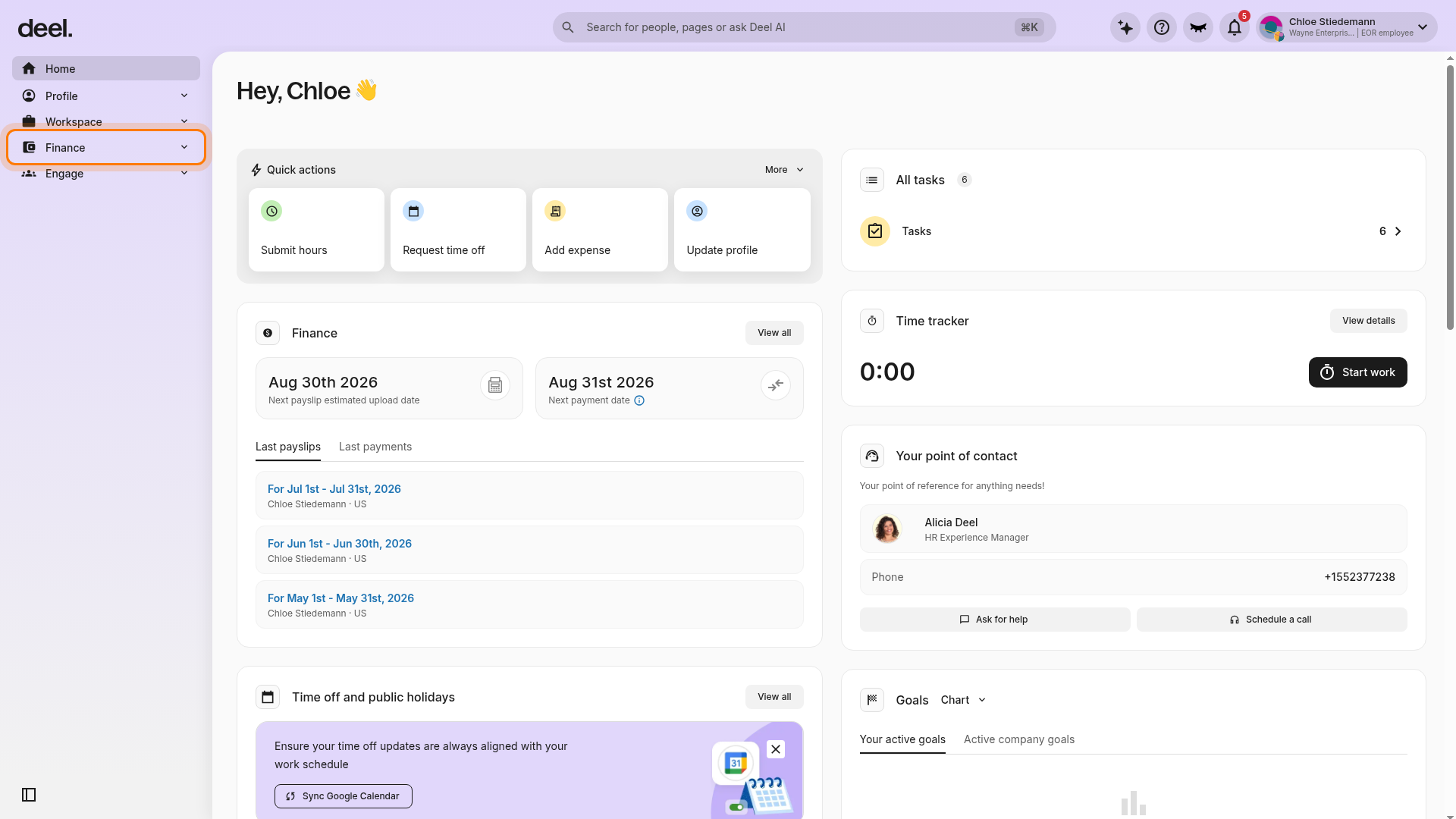
This expands the Finance section and shows its related navigation options. If it is already expanded, continue to the next step.
Under Finance, select Payslips and payments.
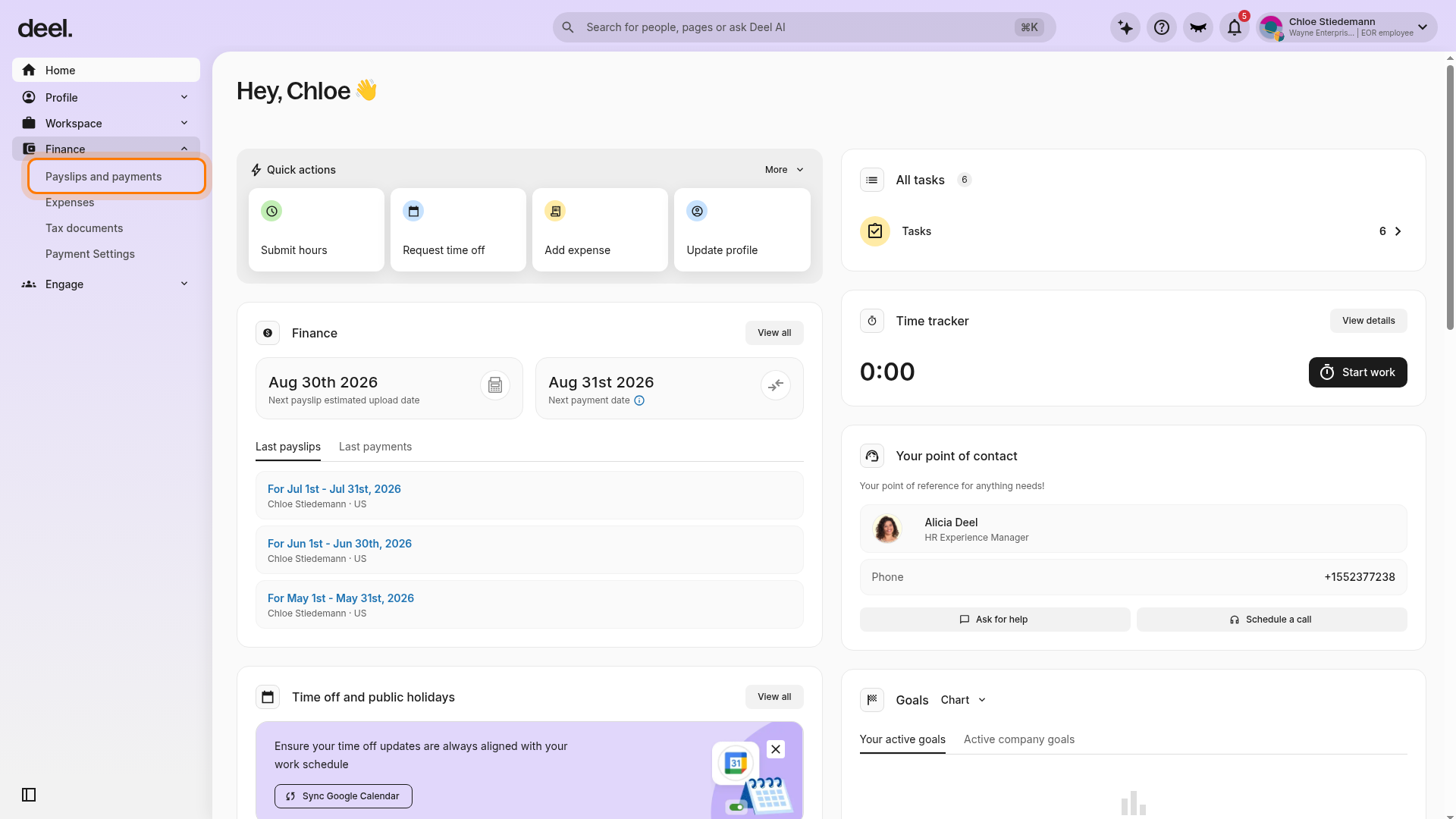
The option appears above Expenses, Tax documents, and Payment Settings.
Wait for the page to load and confirm that the page heading reads Payslips and payments.
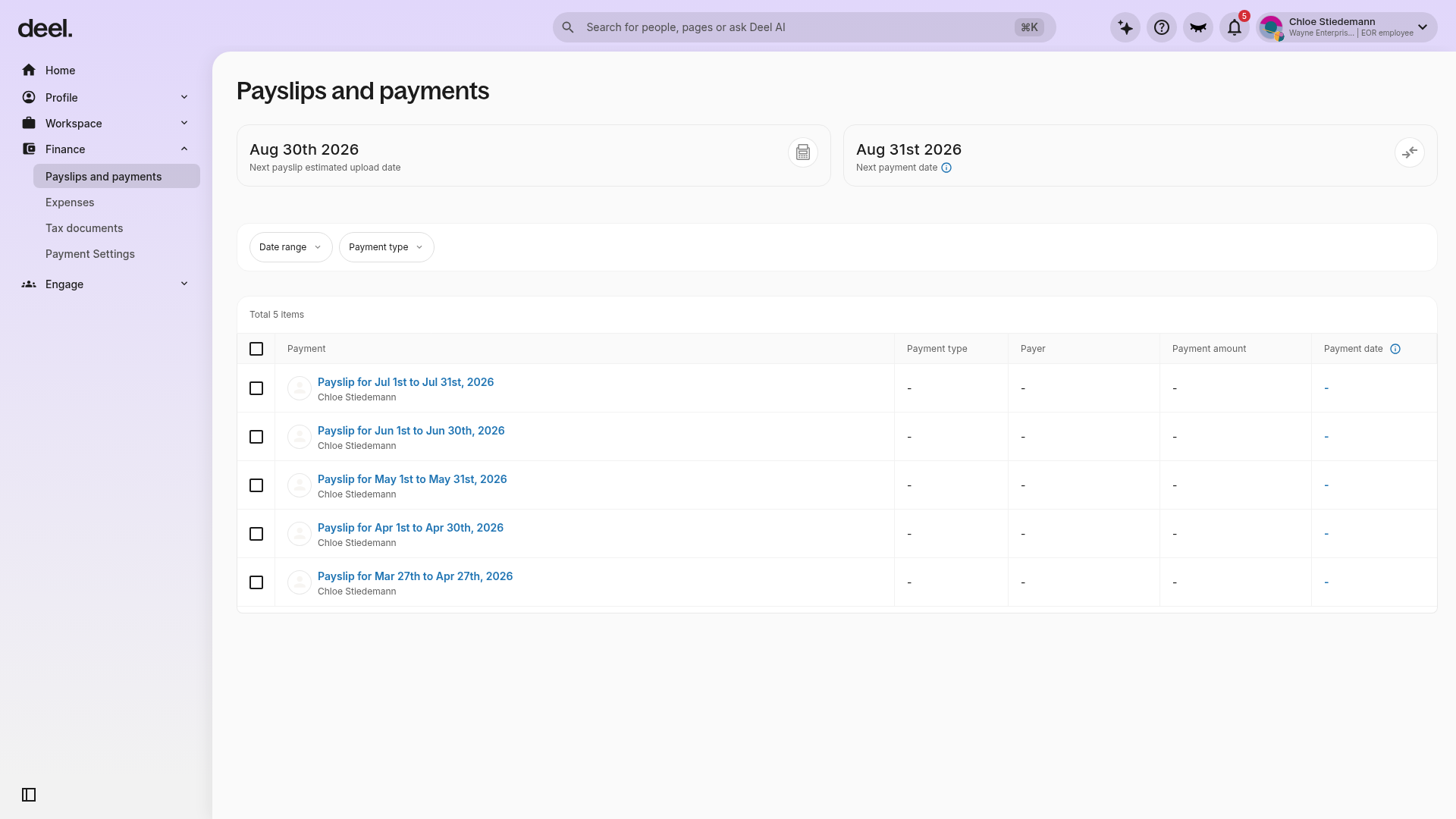
The page may show upcoming payslip and payment dates, filters such as Date range and Payment type, and available payslip records. The dates, filters, and records shown vary by account.
Find the Last payslips section and select the payslip entry for the pay cycle you need.
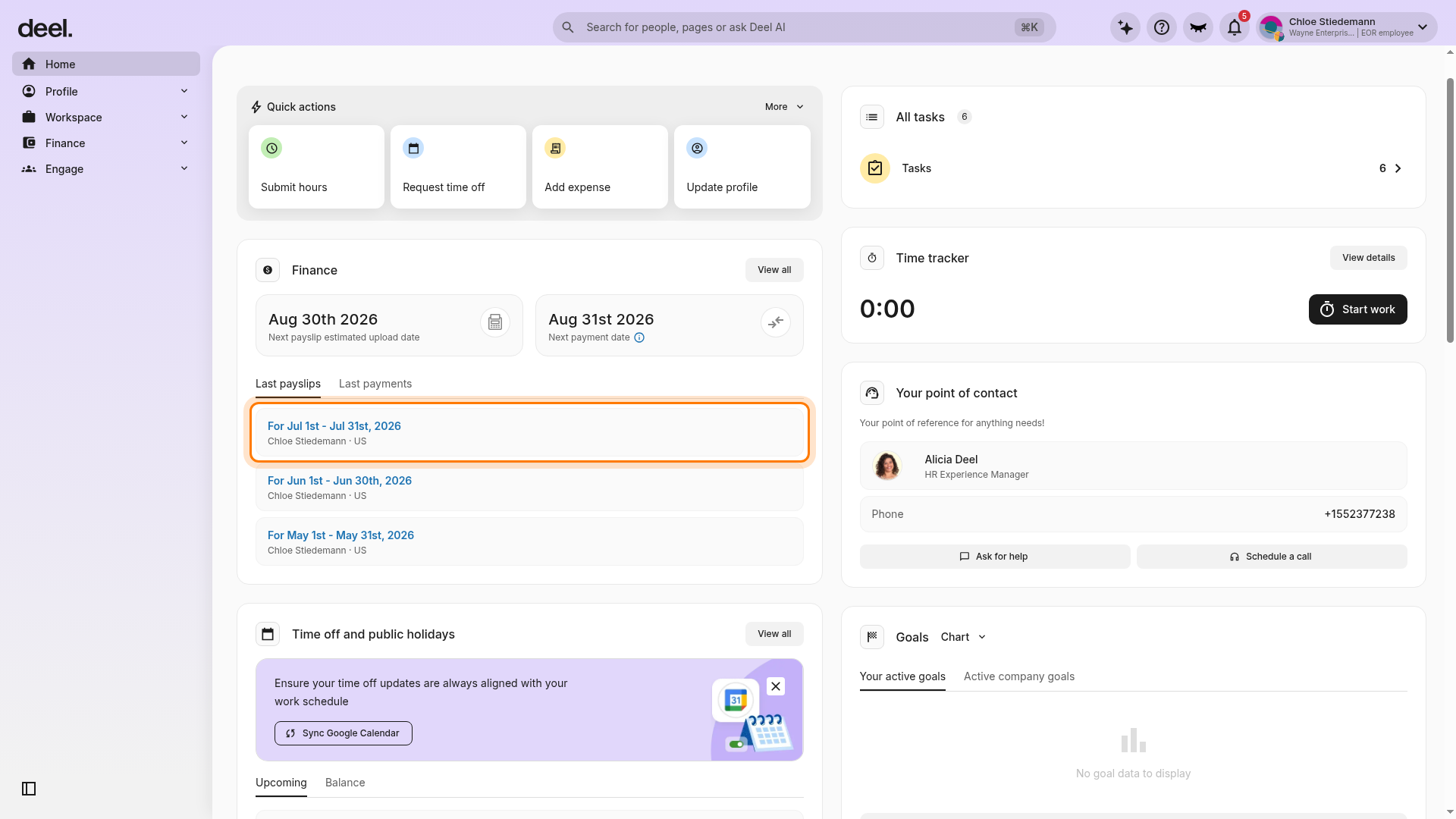
Use the dates shown in the entry to identify the correct cycle. A payslip document viewer opens over the page.
Confirm that the viewer title matches the pay cycle you selected, then select the Download icon in the upper-right toolbar. The icon is a downward arrow into a tray.
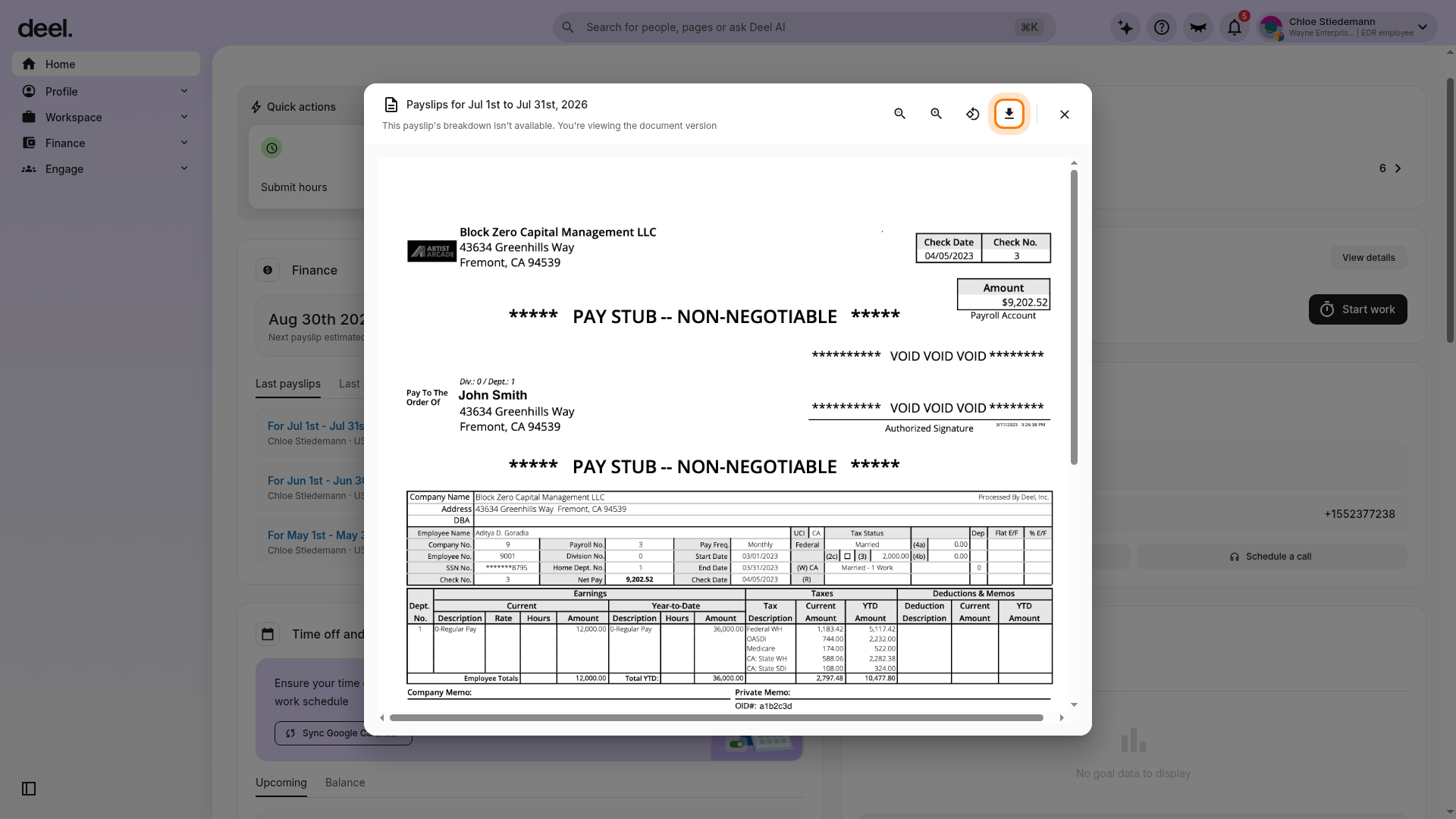
Your browser starts downloading the payslip as a PDF. If prompted, choose where to save the file and confirm the download.
Check your browser’s download indicator or your device’s Downloads folder for the PDF.
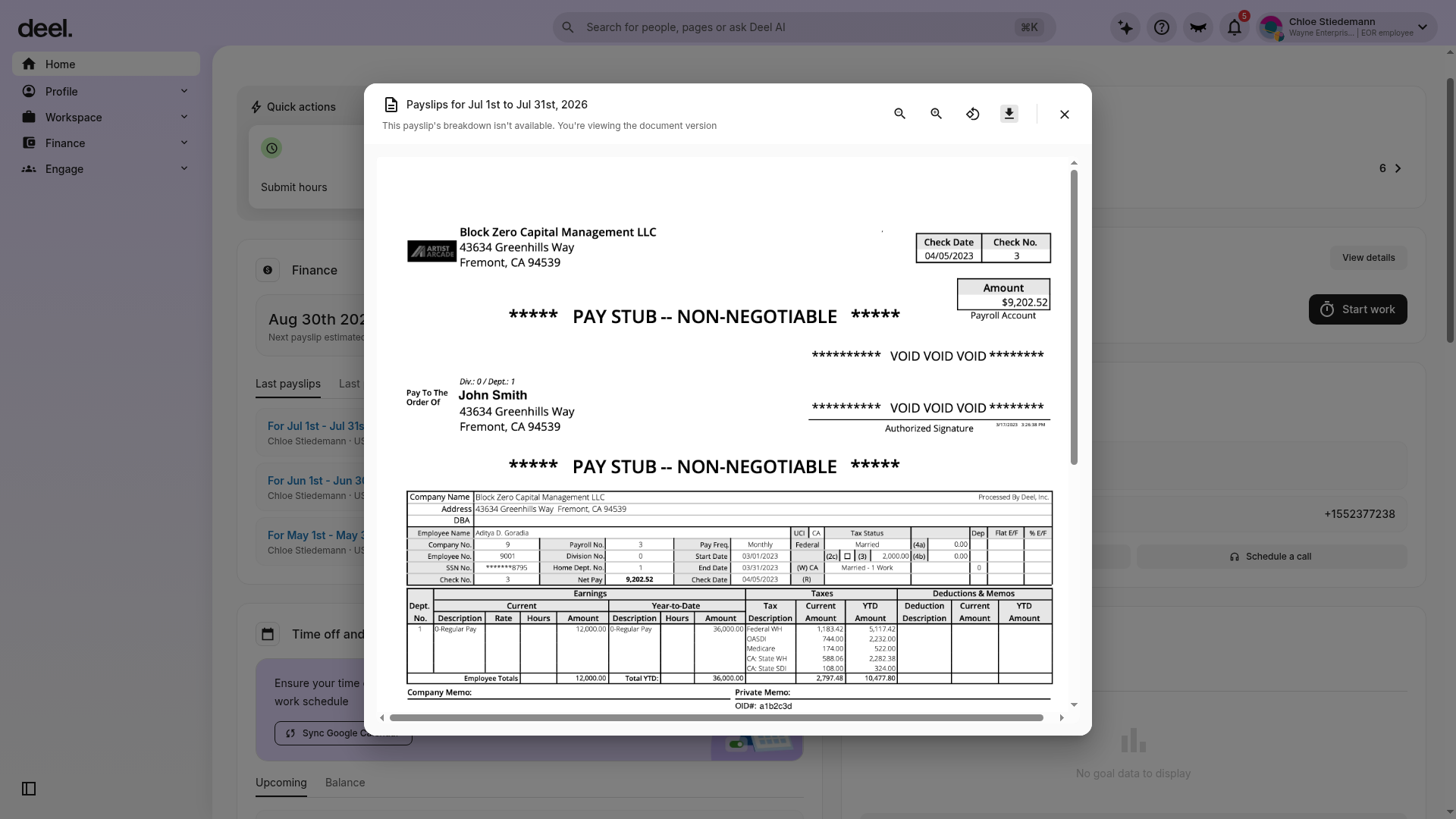
It is normal for the document viewer to remain open after you select Download.
Every payslip will include the gross salary, tax withholdings, and net salary. The payslip includes all legally required deductions.
The PTO balance is updated monthly and may be found at the bottom part of each payslip.
Note: Tax rates are calculated by the relevant tax authority in the country of employment.
Employees can find their payroll number directly on their payslip, in a field labeled Payroll Number. This number is the same as the employee's Deel OID, which can also be found in their Employee Information or Contract Details.