
This article explains how the off-cycle Deel Payroll- US process works and how Deel Payroll- US clients can run an off-cycle payroll from the Payroll cycles workspace.
The same payroll report items that can be submitted during a normal cycle can also be submitted via an off-cycle.
In this article
- Off-cycle processing timeline
- How to create an off-cycle report for employees
- Important details on off-cycle processing
Off-cycle Deel Payroll- US process
- Create Off-Cycle Payroll: Select the entities and employees to be included in the off-cycle payroll.
- Submit Payroll Report: Add payroll items and submit the payroll report for processing.
- Payroll Processing: Deel will complete processing within 1 business day and notify the client once this is done.
- Approve Off-Cycle Payroll: The client will have 1 business day to approve the off-cycle payroll.
- Fund Payroll: Fund the off-cycle payroll.
- Employees Get Paid: If employees are paid via Deel (Payment by Deel method), it will take between 1 – 3 business days for the payment to arrive after funding. If employees are paid directly by the client, a list of payments to be made will be provided, similar to a regular cycle.
How to create an off-cycle
Prerequisites
- You must be a client admin with Payroll Admin or equivalent permissions, including access to Payroll cycles and permission to create an off-cycle payroll.
- Your organization must be enabled for Global payroll off-cycles. If the Create off-cycle button is missing or disabled, contact your Deel administrator.
- Your legal entity must be approved and set up in Deel.
- Deel Payroll must be enabled for your organization.
✅ Step 1 – Enter off-cycle details
Follow the steps below to initiate a new off-cycle payroll and reach the off-cycle details page.
-
Navigate to Payroll
In the left sidebar, click Payroll. If the section is collapsed, clicking it expands the available payroll options.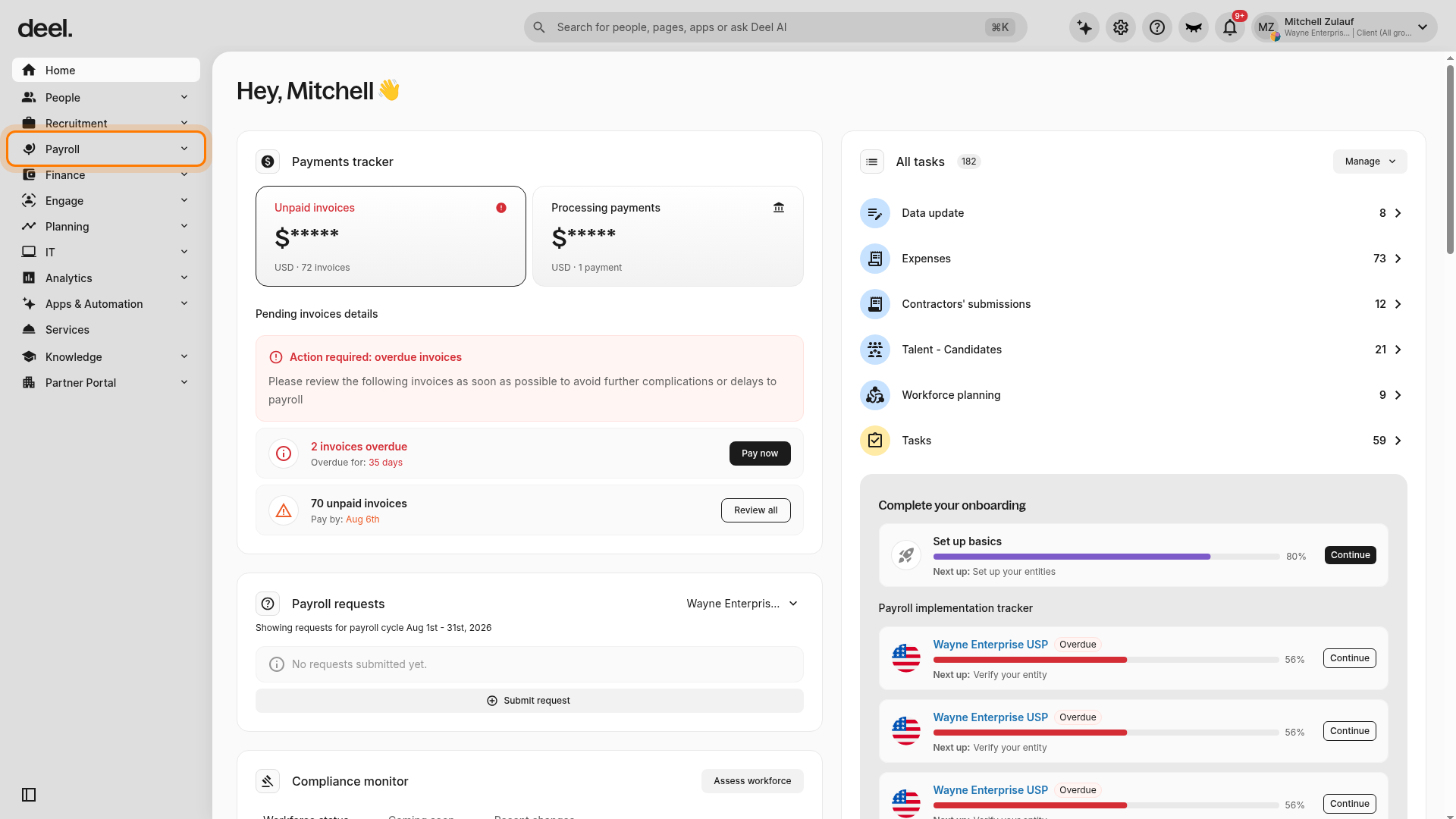
-
Open Payroll cycles
Under the expanded Payroll section, click Payroll cycles. The Payroll cycles workspace opens.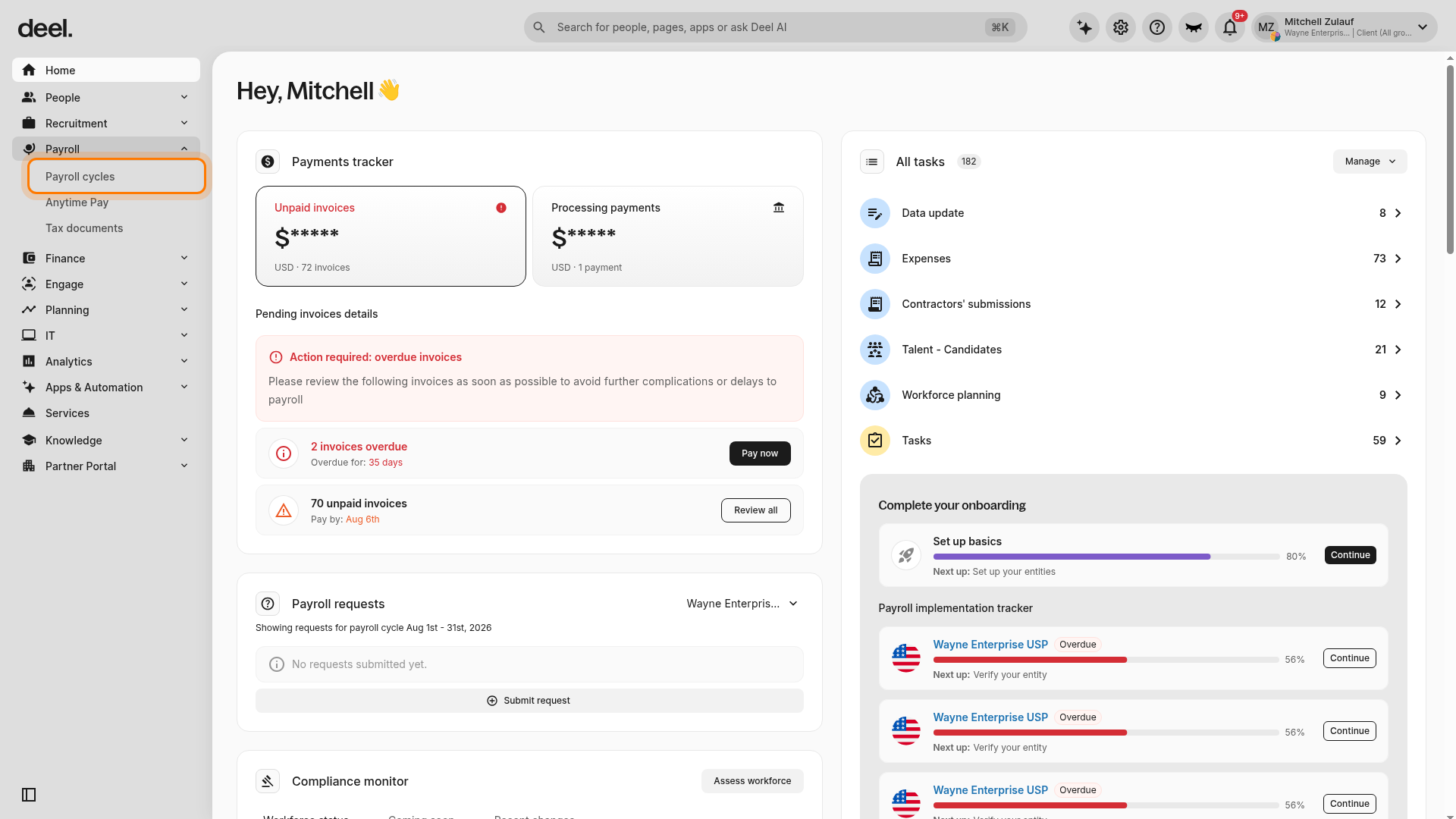
-
Create an off-cycle
Click Create off-cycle in the upper-right corner.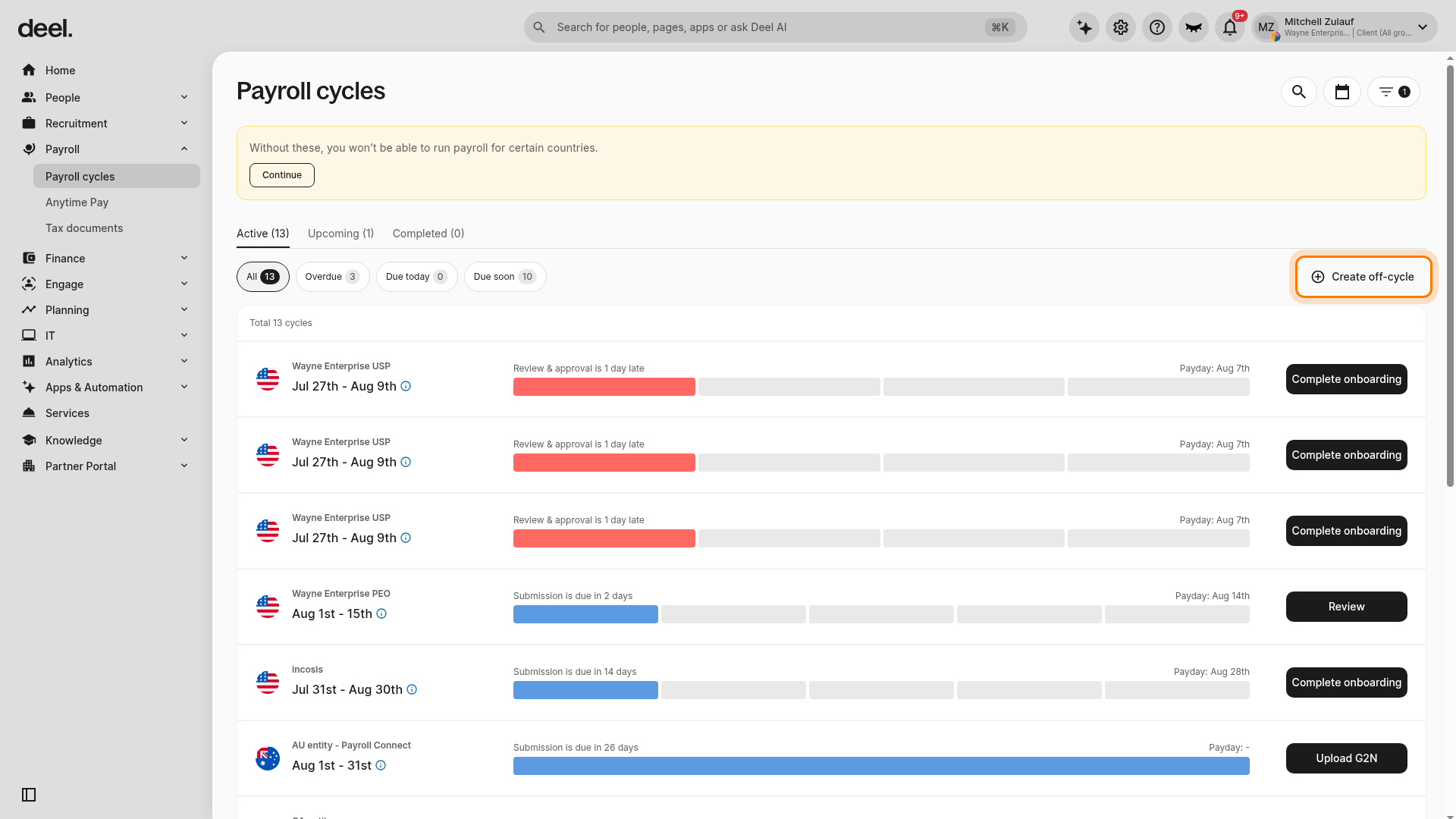
-
Review instructions
In the modal titled How to run an off-cycle, review the key steps, including any notice that off-cycle fees may apply, and click Start.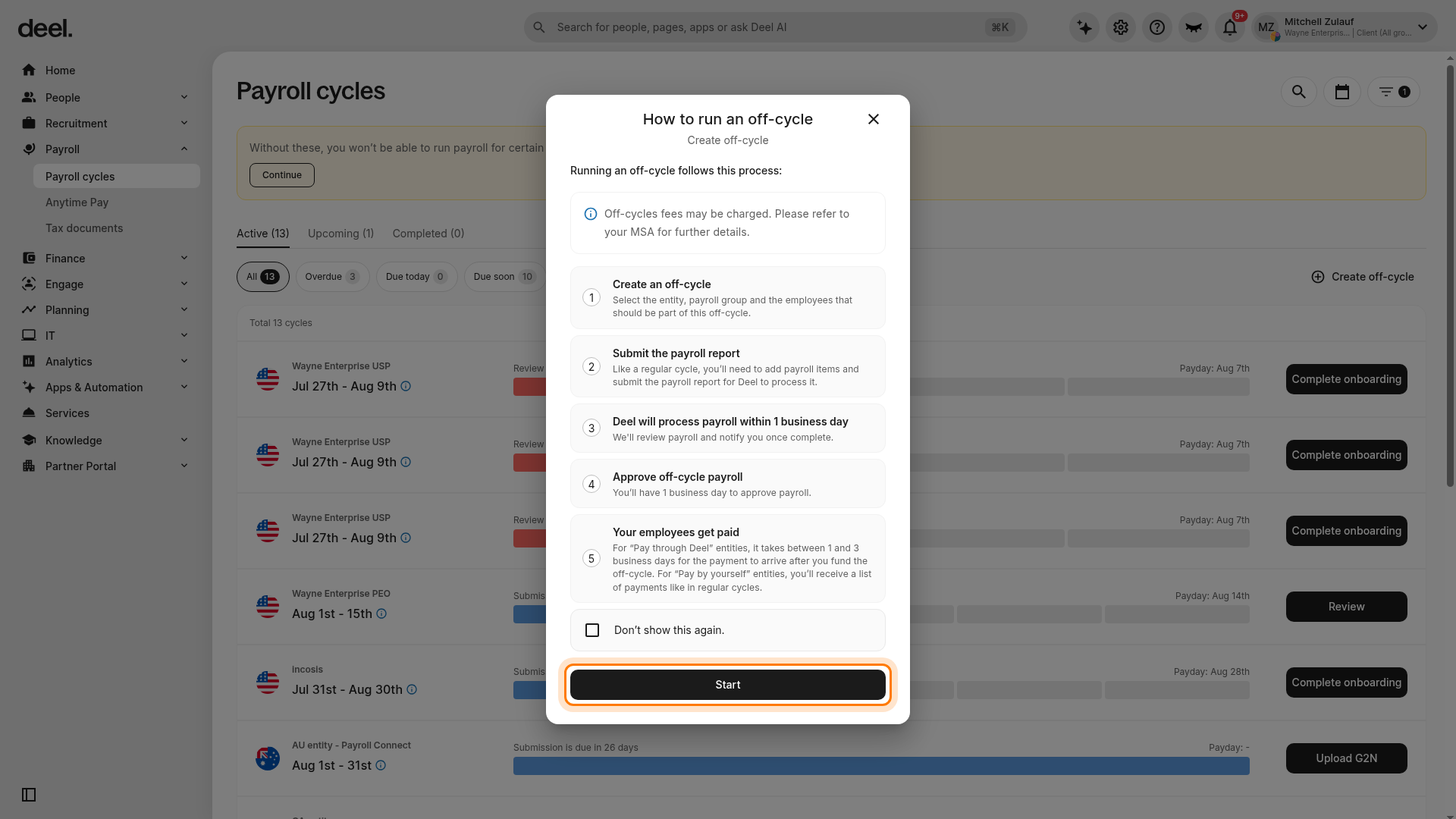
-
Verify the legal-entity selection page
You should now see the New off-cycle payment page. The progress panel shows 1 Off-cycle details, followed by steps such as Select employees and Scheduling.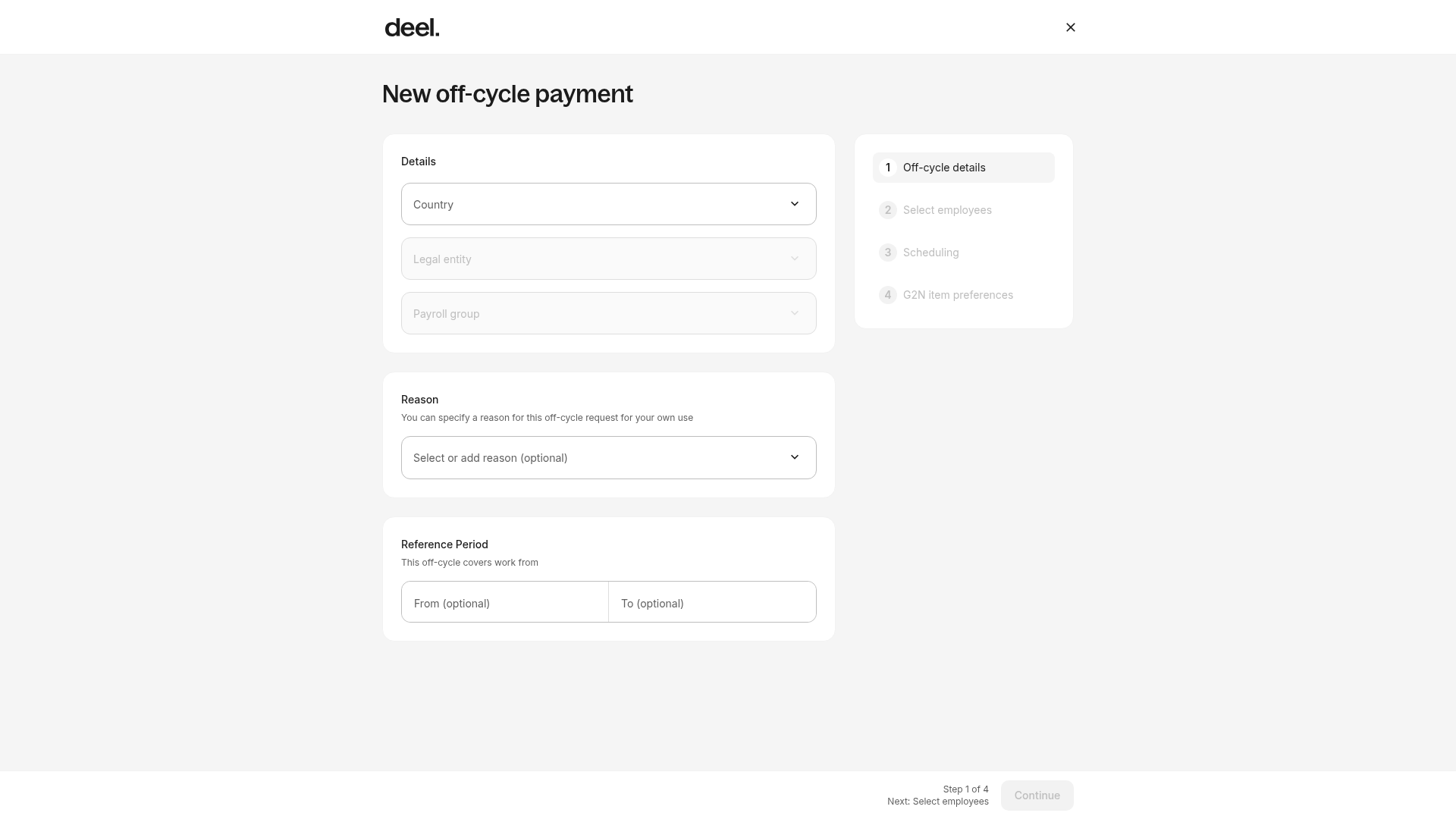
Troubleshooting * Missing Payroll / Payroll cycles options: Confirm your permissions with your Deel admin and select Payroll in the left sidebar to expand its submenu.
Create off-cycle button not visible: Your organization may not support off-cycles, or you lack access rights.
Modal does not open: Refresh the Payroll cycles page, clear cache, or try a different browser.
✅ Step 2 – Select employees
On the New off-cycle payment page, select the Country, Legal entity, and Payroll group, then click Continue. Select the employees to include in the off-cycle report. You can also mass-select all employees in the chosen entity. Click Continue.
✅ Step 3 – Set the payment date
Select a date from the calendar for the off-cycle payment.
- You cannot choose a pay date that overlaps the processing window of another payroll.
- Certain dates (e.g., federal holidays) are blocked to prevent payment-processing errors.
- The Deel app blocks pay dates that fall within four business days before a regular cycle.
Blocked dates appear greyed-out on the calendar.
✅ Step 4 – Add payroll items, review, and submit
Add the required payroll items for this off-cycle. The same item types available in a regular cycle are available here. You can bulk-edit variable data (amounts, time-off, etc.) in the template. Verify all items before clicking Submit report, as no changes can be made after you submit the report.
✅ Step 5 – Approve the off-cycle payroll
Once Deel finishes processing (typically within 1 business day), you will receive a notification to review. Approvers have 1 business day to approve the off-cycle payroll. After approval, no further changes are possible.
✅ Step 6 – Fund the payroll
- In the left sidebar, select Payroll, then navigate to Payments.
- Select the checkbox next to Item to select all off-cycle invoices.
- Click Pay selected at the bottom-right of the table, then confirm the funding banner appears.
Known issue – Pay selected button missing or not triggering a confirmation
In some UI versions, the Pay selected button may not appear after selecting a payment, or may not trigger a confirmation. If you experience this:
Confirm you have selected at least one payment.
Check the action (three-dots) menu; funding options may have moved.
If the button is still absent, contact Deel Support with screenshots.
If a browser upgrade dialog appears instead of the confirmation banner, update your browser and retry the payment step. As a workaround, you can fund via bank transfer using the reference on the invoice until the UI is restored.
Important details on off-cycle processing
- You cannot select a pay date that falls within the processing window of another payroll.
- Certain days may be blocked out in order to prevent payment processing errors due to federal holidays, bank schedules, and end-of-cycle calculations.
- Pay dates within 4 business days before a regular pay cycle are blocked.
- Past dates cannot be selected for future payrolls.
- You can make an off-cycle payment on the regular pay-cycle date itself.