
This article will guide the clients on how they can manually adjust time off balances for their workers on-platform.
Time off balance is the balance available to the worker, including all-time off taken to date and future approved requests. Adjusting time off balances helps you effectively manage your team's time off balances by increasing or decreasing balances as needed, setting effective dates for the adjustments, and maintaining an audit trail by providing reasons for each change.
In this Article
How to add an adjustment to the Time off balance
How to edit Time off balance adjustment
How to add an adjustment to the Time off balance
✅ Step 1 - Select the Employee
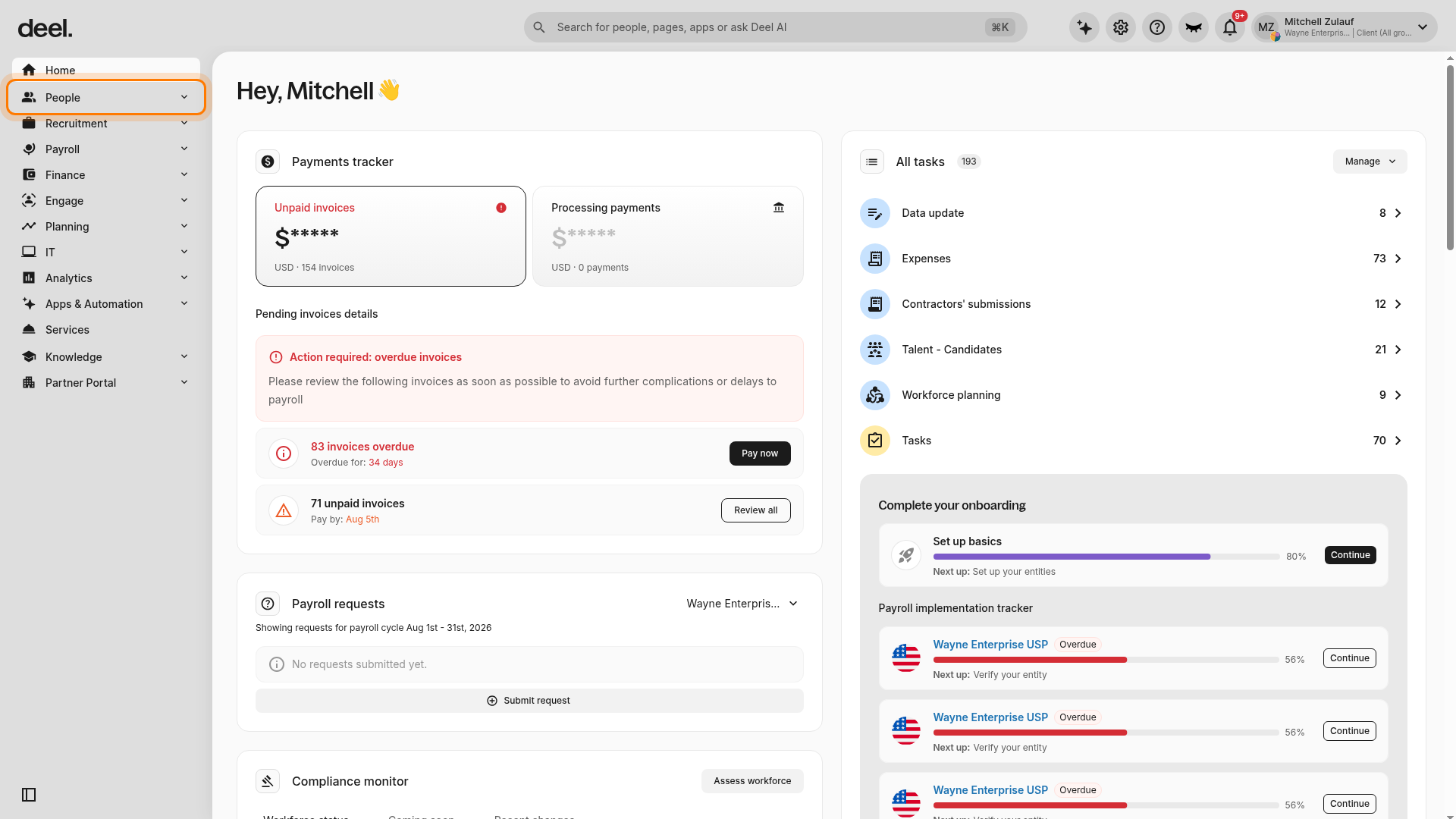
In the left sidebar, click People to expand the People menu.
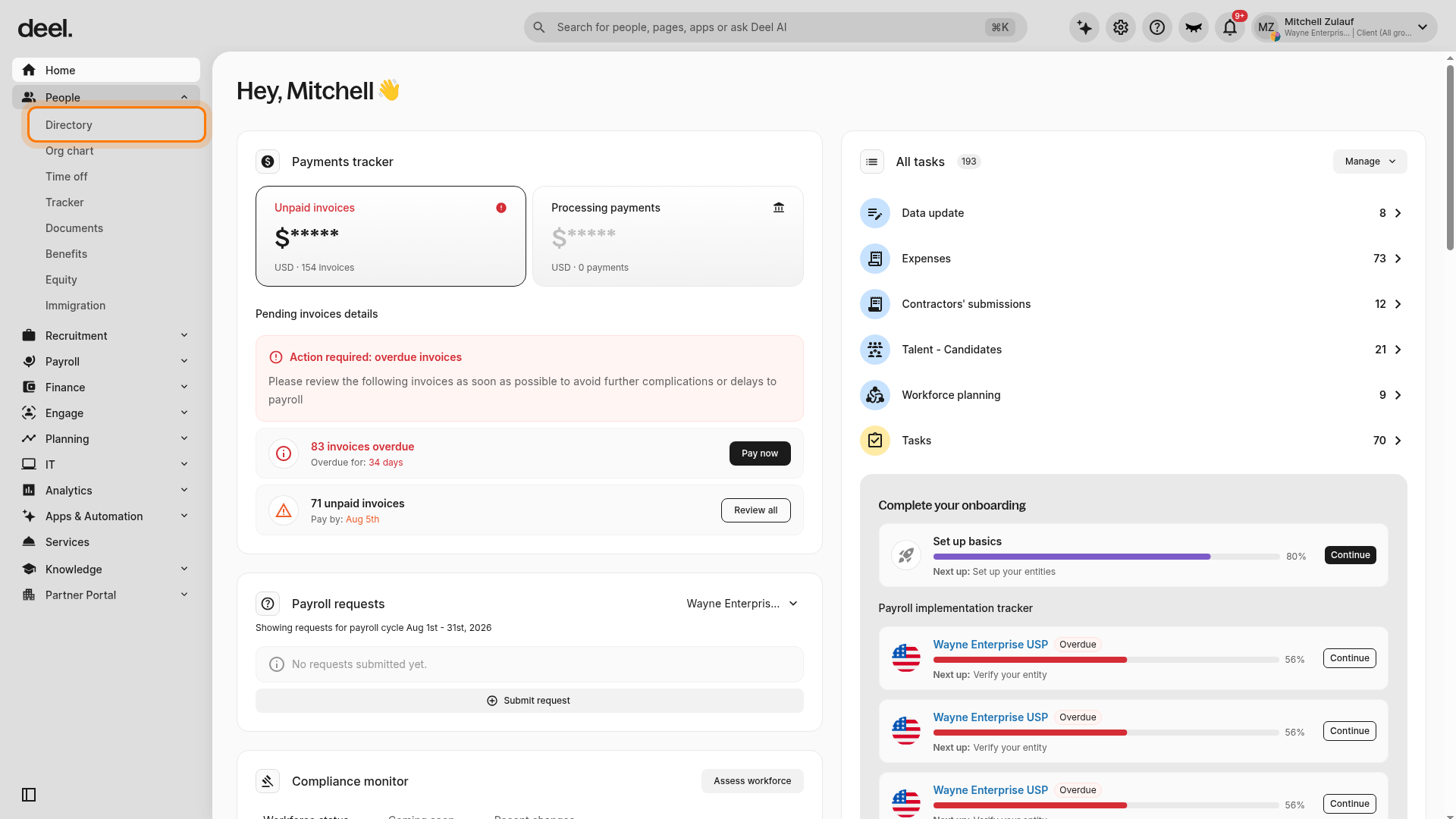
Under the expanded People menu, click Directory.
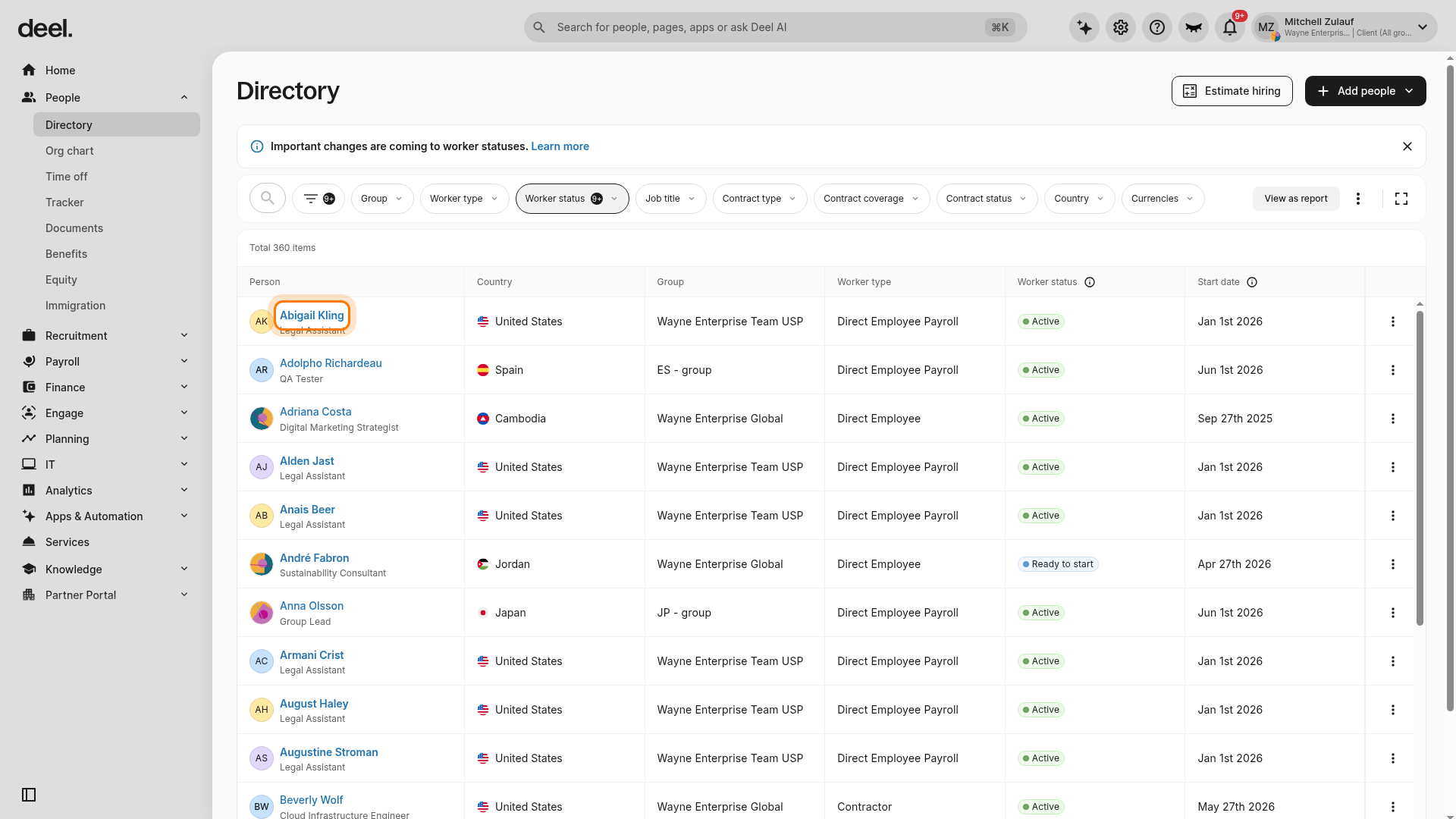
On the Directory page, find the worker whose balance you want to adjust and click their name in the Person column.
You can use the search and filter controls to find the worker if they are not immediately visible. Select the worker’s name, not the three-dot menu at the end of the row.
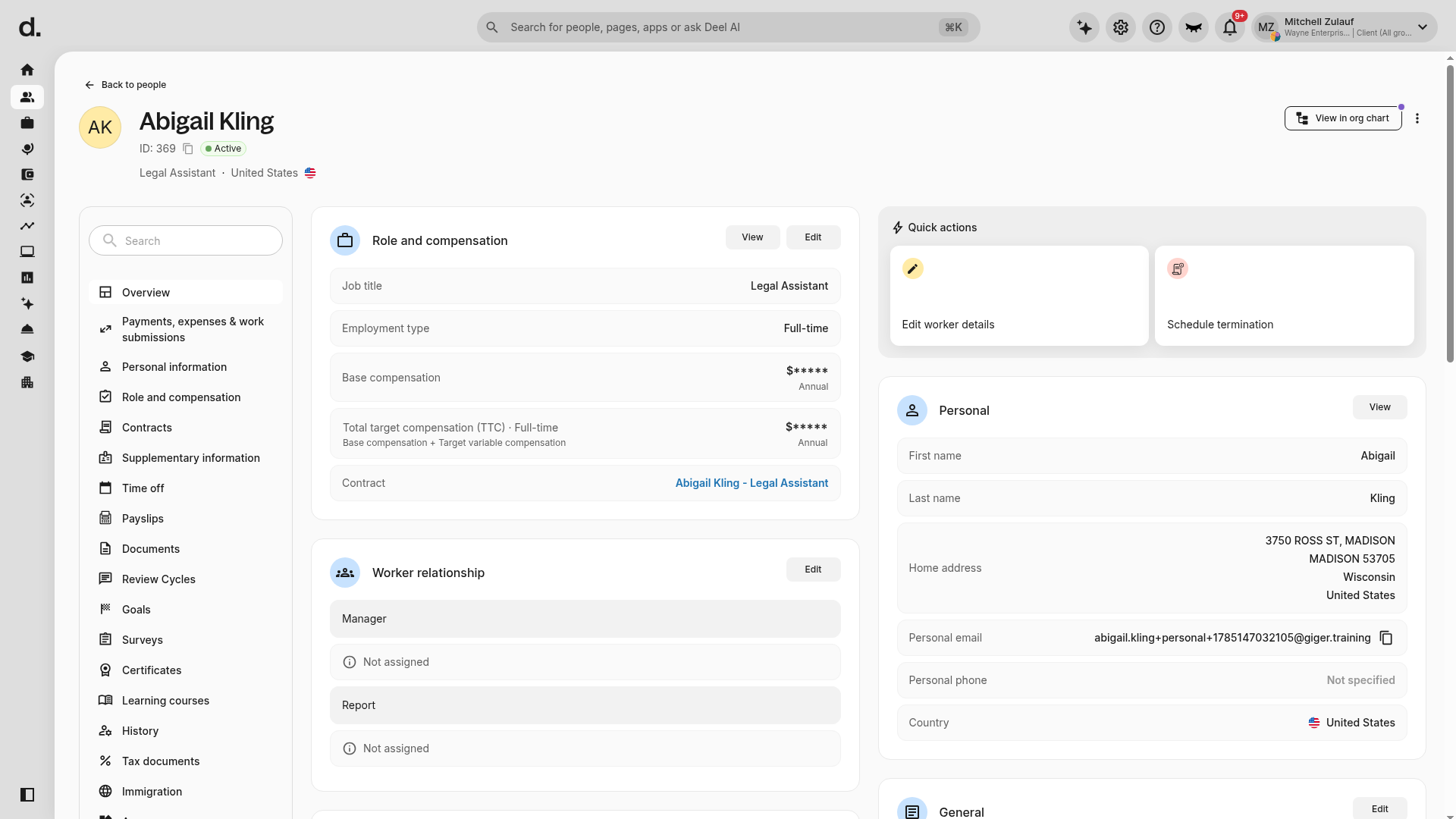
Confirm that the selected worker’s profile opens and that Time off is available in the profile navigation.
✅ Step 2 - Select the Time Off section and Time Off Policy
In the worker’s profile navigation, click Time off.
In the Your policies section, select the applicable time-off policy.
On the policy page, click View balance timeline to view and manage the worker’s balance.
✅ Step 3 - Click on Add Adjustments
Click Add adjustments.
Select the type of time-off adjustment and choose whether to add or subtract time off.
Please note that only balance adjustments can be added in a worker's first tracking period.
Enter the number of adjustment days and a description explaining the reason for the change.
Click on Add.
How to edit Time Off balance adjustment
✅ Step 1 - Select the Employee
In the left sidebar, click People to expand the People menu, then click Directory.
On the Directory page, find the worker whose balance you want to adjust and click their name in the Person column.
You can use the search and filter controls to find the worker if they are not immediately visible. Select the worker’s name, not the three-dot menu at the end of the row.
✅ Step 2 - Select the Time Off section and Time Off Policy
In the worker’s profile navigation, click Time off.
In the Your policies section, select the applicable time-off policy.
On the policy page, click View balance timeline to view and manage the worker’s balance.
✅ Step 3 - Review, manage, or make edits to this time off balance
On the time off policy page, you can now review, manage, or make edits to this time off balance.
Click on Balance adjustment to make an edit to this balance.
Edit the adjustment details and click on Update.