
This article guides clients on how they can configure and manage Time off Approval Policies for various processes within their organization.
By configuring approval policies, clients can select a list of approvers within their organization who can efficiently review and approve requests submitted by workers.
Approval Policies enable clients to construct multi-layered approval processes and assign approvers for worker requests, ensuring key features such as Data Change Policy, Time Off Policy, and Time Tracking Policy adhere to specific organizational requirements.
Approvers can refer to this article for a detailed walkthrough on how they can review and manage worker requests.
In this Article
Understanding Approval Policies
How to Configure Approval Policies
Understanding Approval Policies
Approval policies are configurable sets of rules that determine how approval processes work for different features. These can include time off requests, time tracking timesheets, data change and other feature requests by the workers.
Types of Approval Policies
- Pre-created Policies: These are default policies set up by Deel for specific use cases. Pre-created policies can be modified but not deleted.
- Custom Policies: Policies that clients can create and configure to fit their organization's unique needs.
How Approvers Work
When configuring approval policies, it is important to understand how approver roles function within the platform:
-
No Additional Admin Configuration Required
- Once a user is assigned as an approver within a policy, no further configuration is needed in their organization settings.
- Their permissions are automatically enabled by the policy assignment.
-
Approvers Can Be Any Organization Member
- Any member of the organization can be assigned as an approver, regardless of whether they hold a managerial role.
- Approval rights are based solely on their assignment within the policy.
-
Manager Role Does Not Automatically Grant Approval Access
- Being designated as a "manager" in Deel does not automatically allow a user to approve requests from their direct reports.
- To act as an approver, managers must also be explicitly added to the relevant approval policy.
- To know more about assigning managers in your organization refer to this article.
How to Configure Custom Approval Policies
✅ Step 1 – Navigate to Approval Policies Page
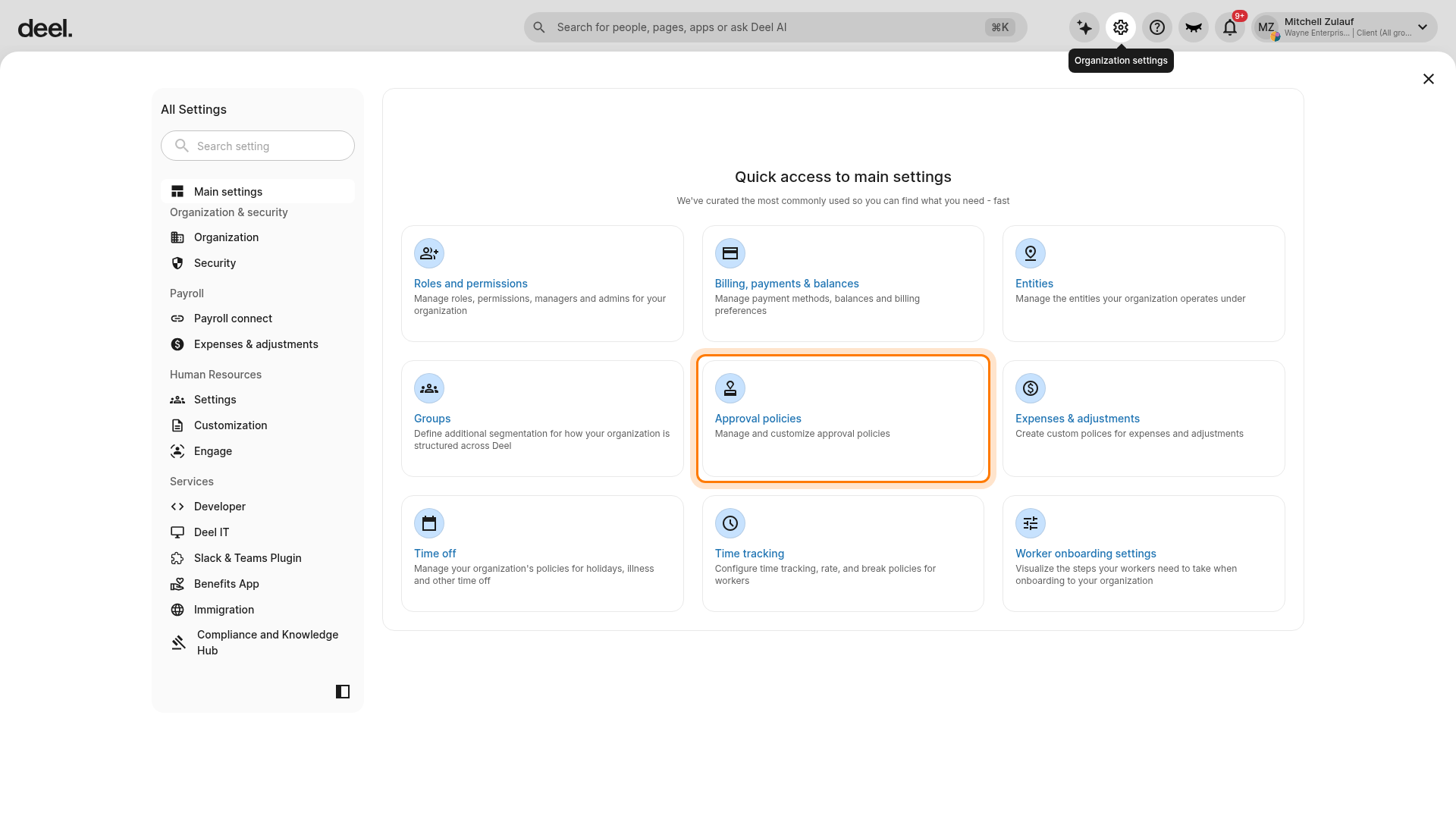
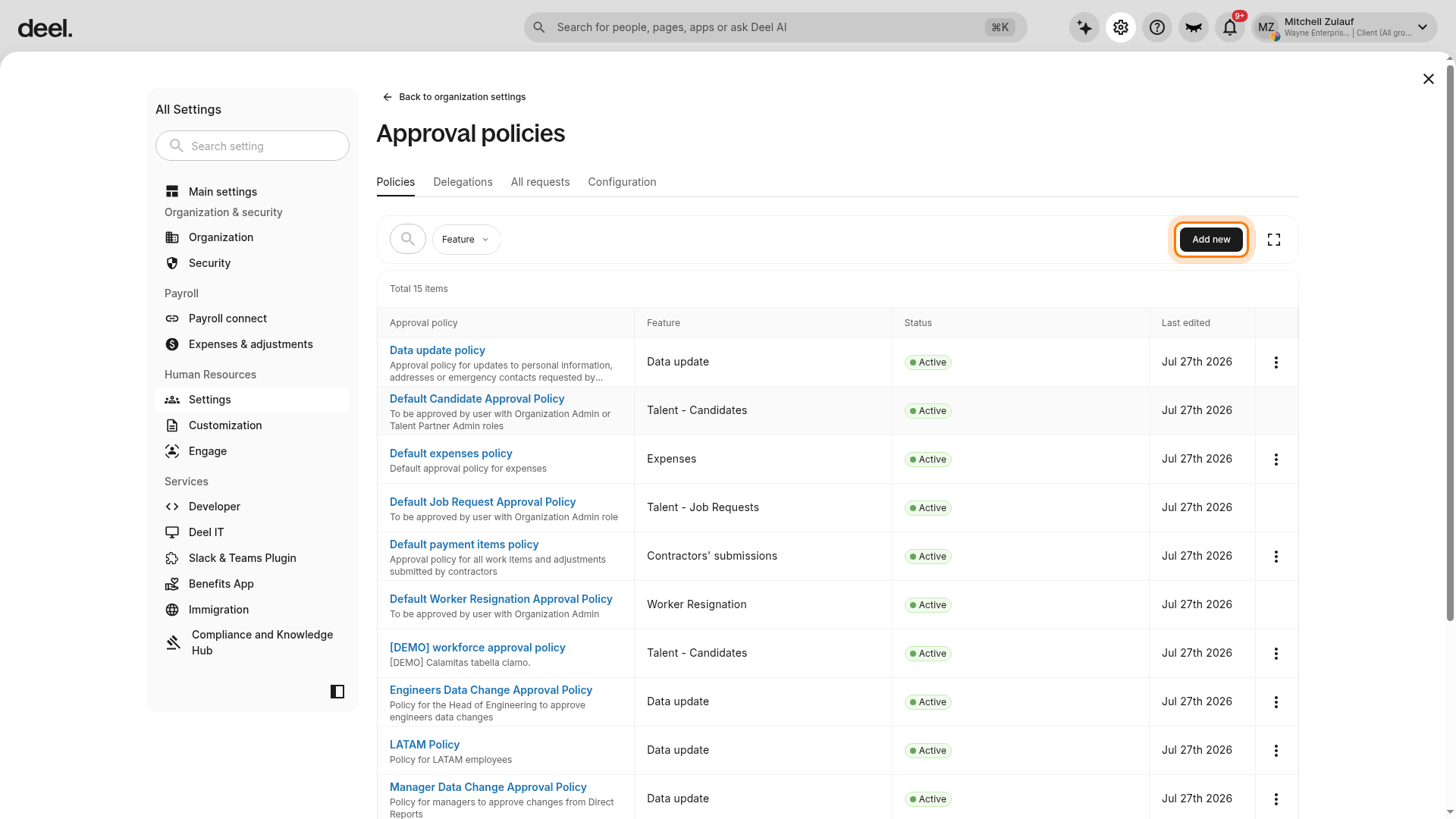
From the Deel Home dashboard, select the Organization settings gear icon in the upper-right corner. Under Quick access to main settings, select Approval policies. The card is labeled Manage and customize approval policies.
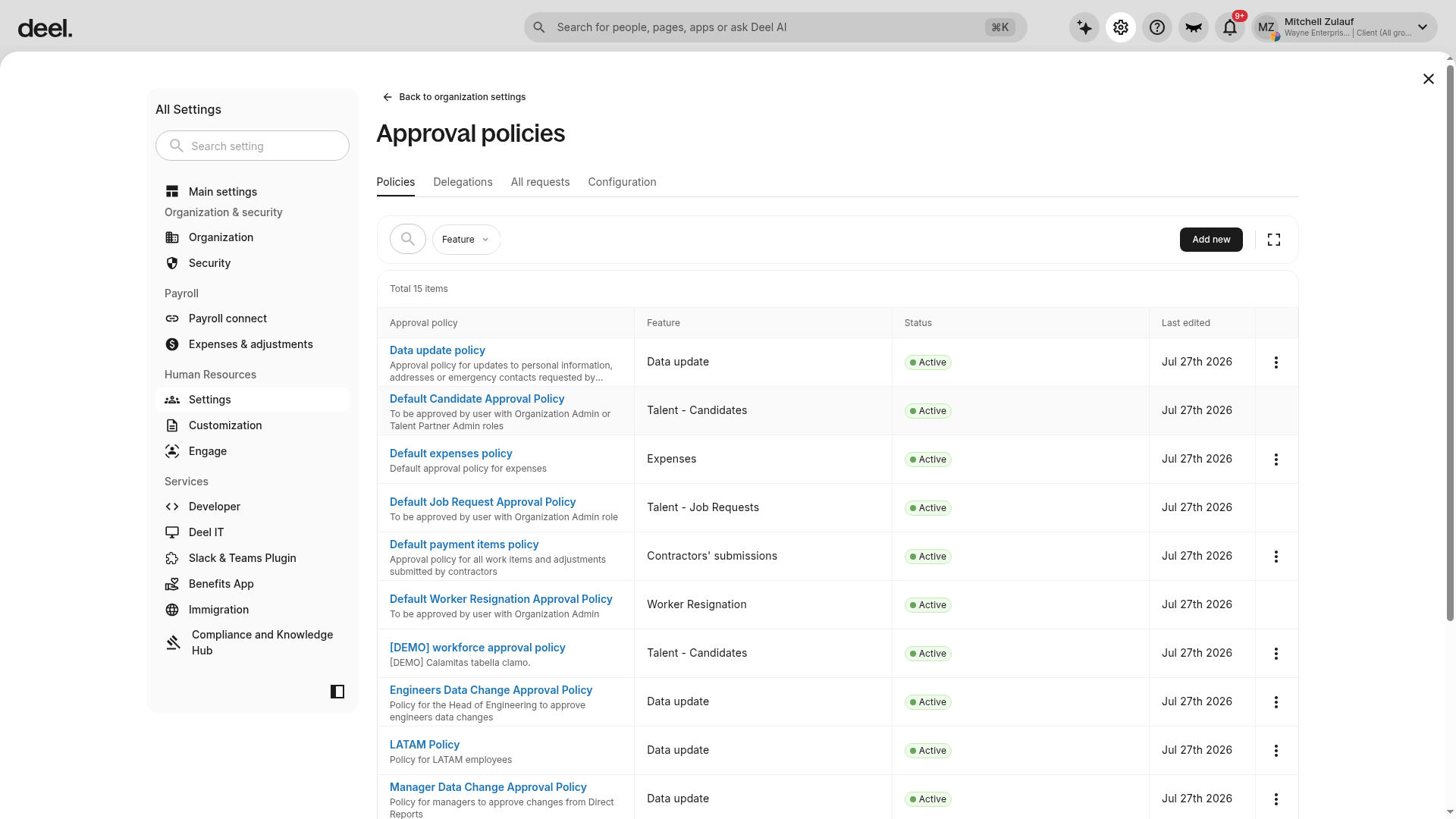
On the Approval policies page, select the Policies tab if it is not already active, then wait for the policy list to load. The active tab has a dark underline; no manual refresh is required.
✅ Step 2 – Select or Create New Approval Policy
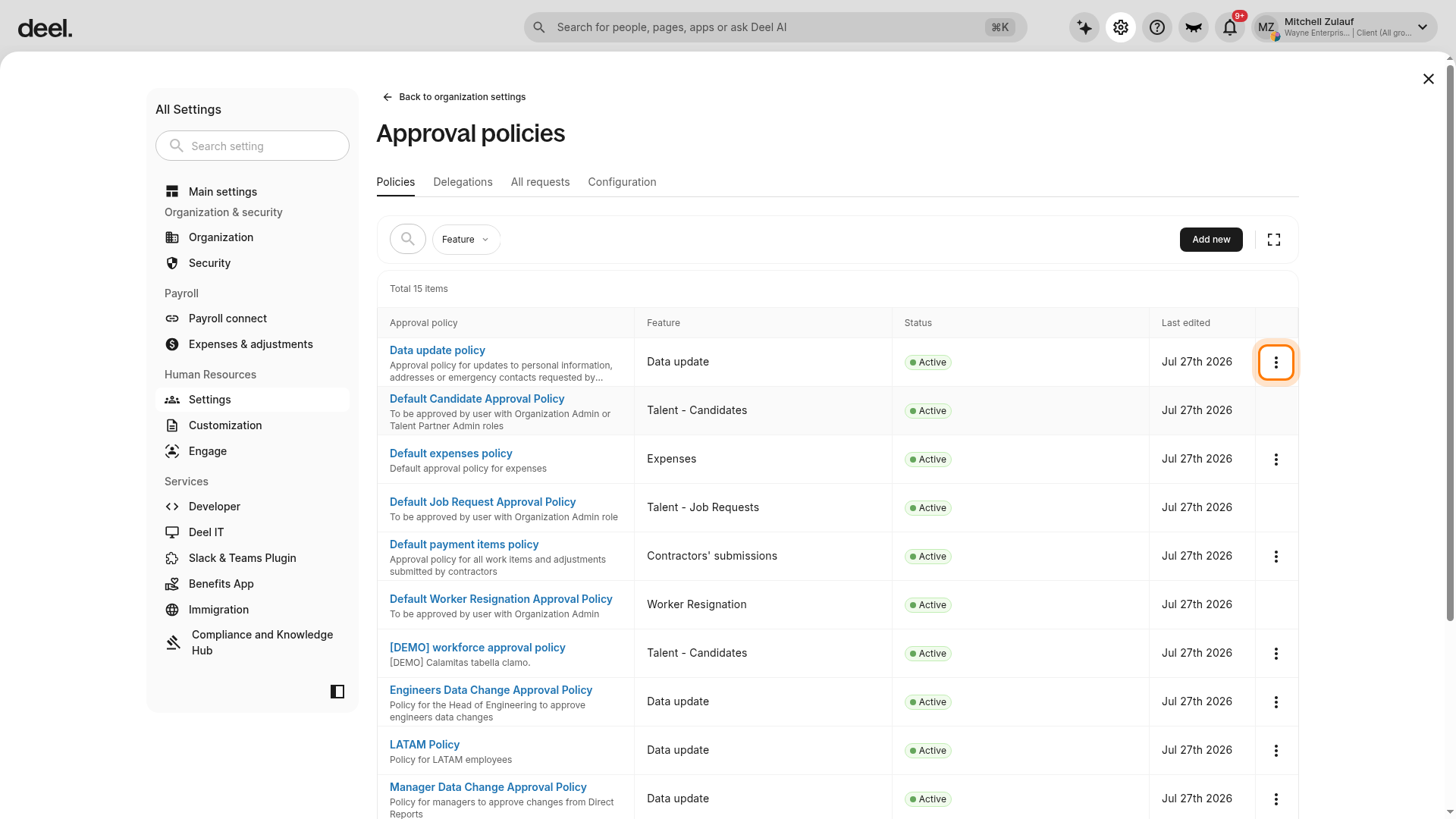
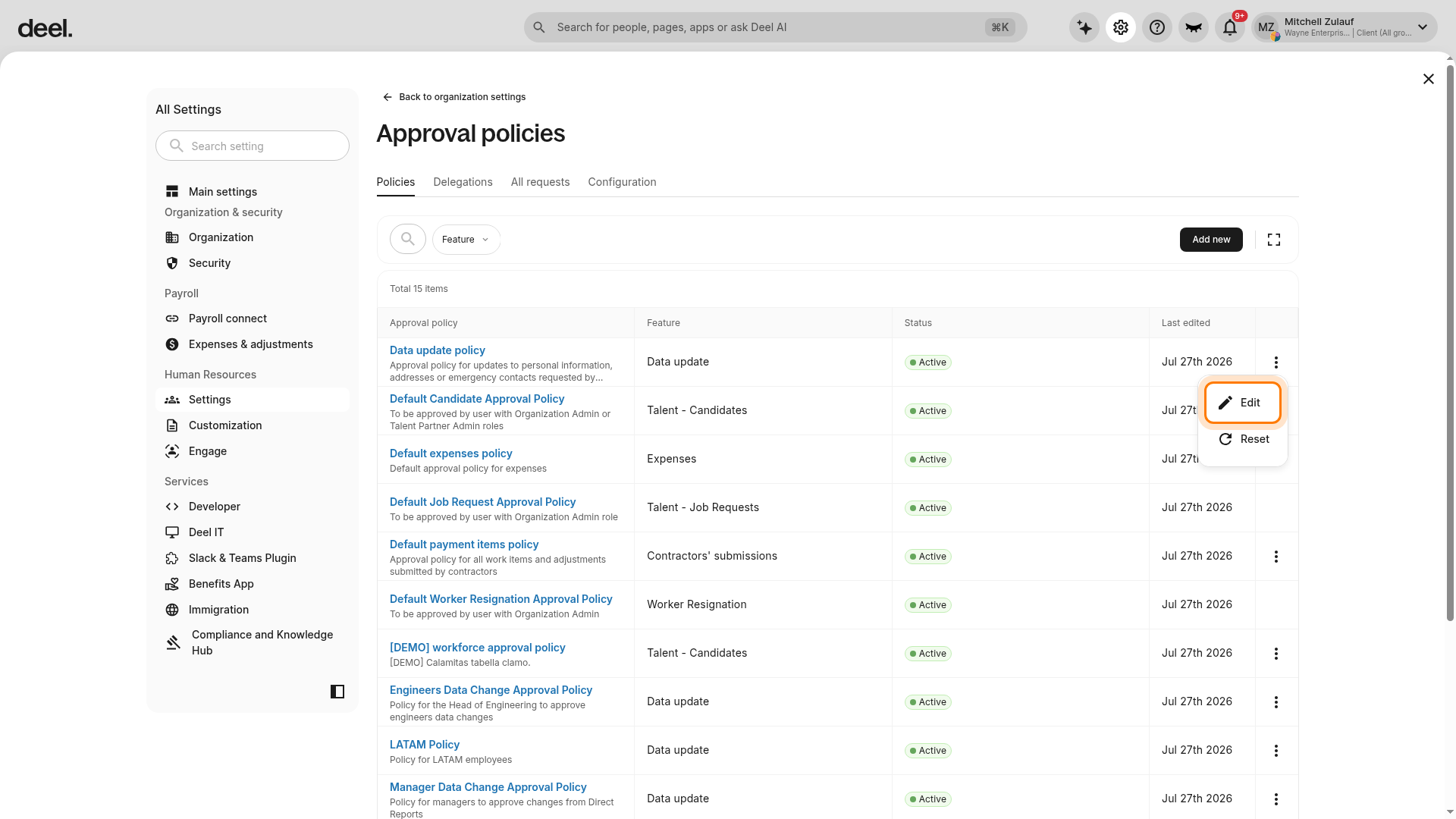
By default, policies such as Data Change Policy, Time Off Policy, Expense Approval Policy and Time Tracking Policy etc are predefined on the platform. To manage an existing policy, locate it in the policy list, select the three-dot menu at the far right of its row, and select Edit. Use search or the Feature filter to find a policy if needed. Select Reset only when you intend to restore an eligible default policy rather than edit it.
Additionally, you can create a custom Approval Policy by selecting Add new in the upper-right corner of the policy list.
✅ Step 3 – Enter Approval Policy Information
After selecting Add new, confirm that the New approval policy form opens.
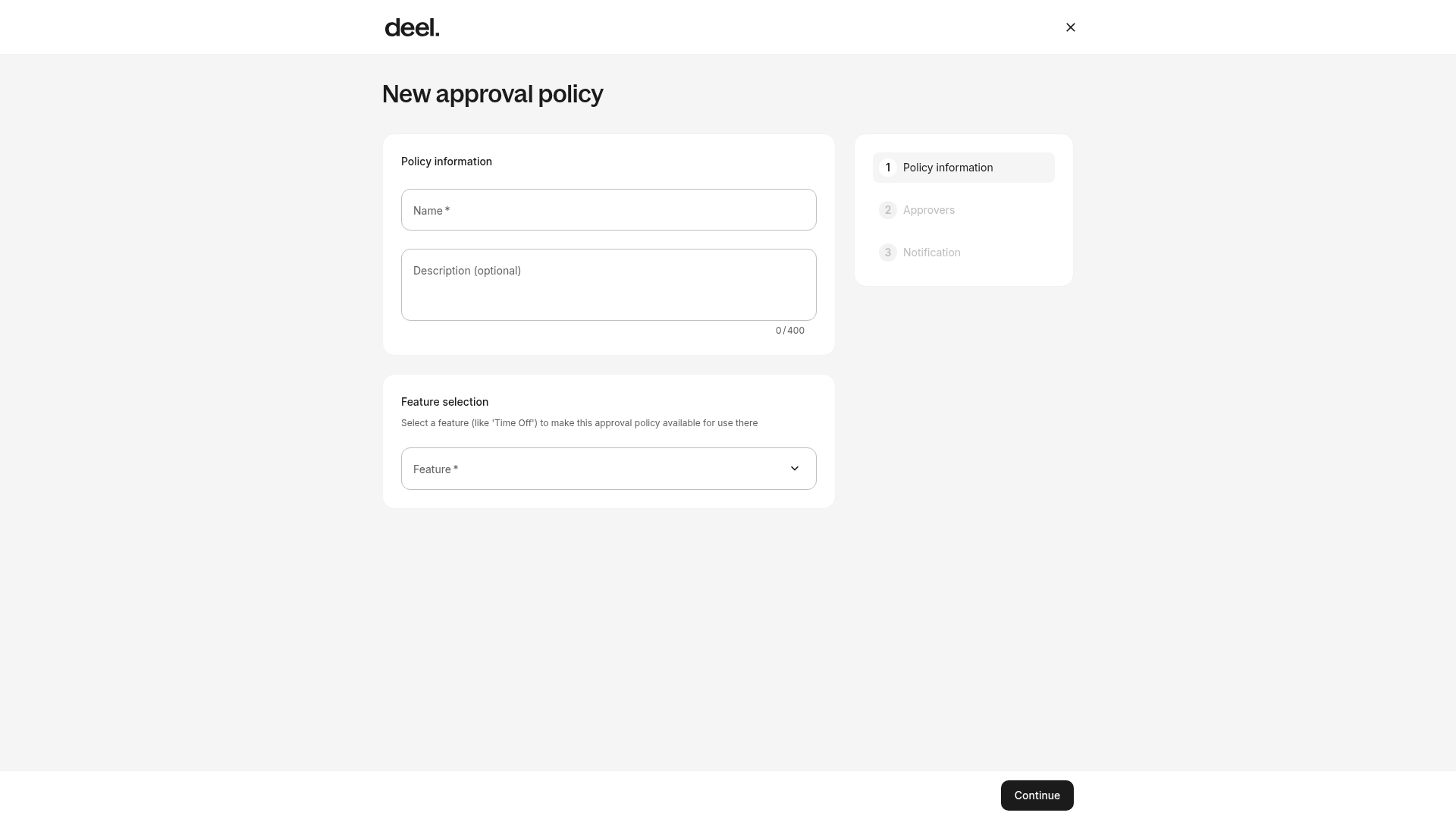
You can now name the approval policy and describe it. If you are creating a custom policy you can select the applicable feature on which the policy is based.
Select the feature for the approval policy, such as Time off, Data update, or Time tracking. Once the feature is selected, worker requests related to this feature will be flagged for approver review. Select Continue to configure approvers.
✅ Step 4 – Select Policy Approvers
You can now create one or more approval levels. For each level, select Add approver and choose one or more employees. You can also configure multiple approvers within a level.
In the Approver section, select the type of approver based on a list of selections. You can also set up a Substitute approver, who may approve the submitted timesheet hours in the absence of the approver. If needed, define conditions for when an approval level is triggered.
You can also set notifications and reminders to the approvers of a particular policy. In the Notification step, enable email reminders so approvers are notified about pending requests.
Complete the workflow and select Save to store a new policy. To update an existing policy, select Update after making changes. The edit form opens with the selected policy's information prefilled.
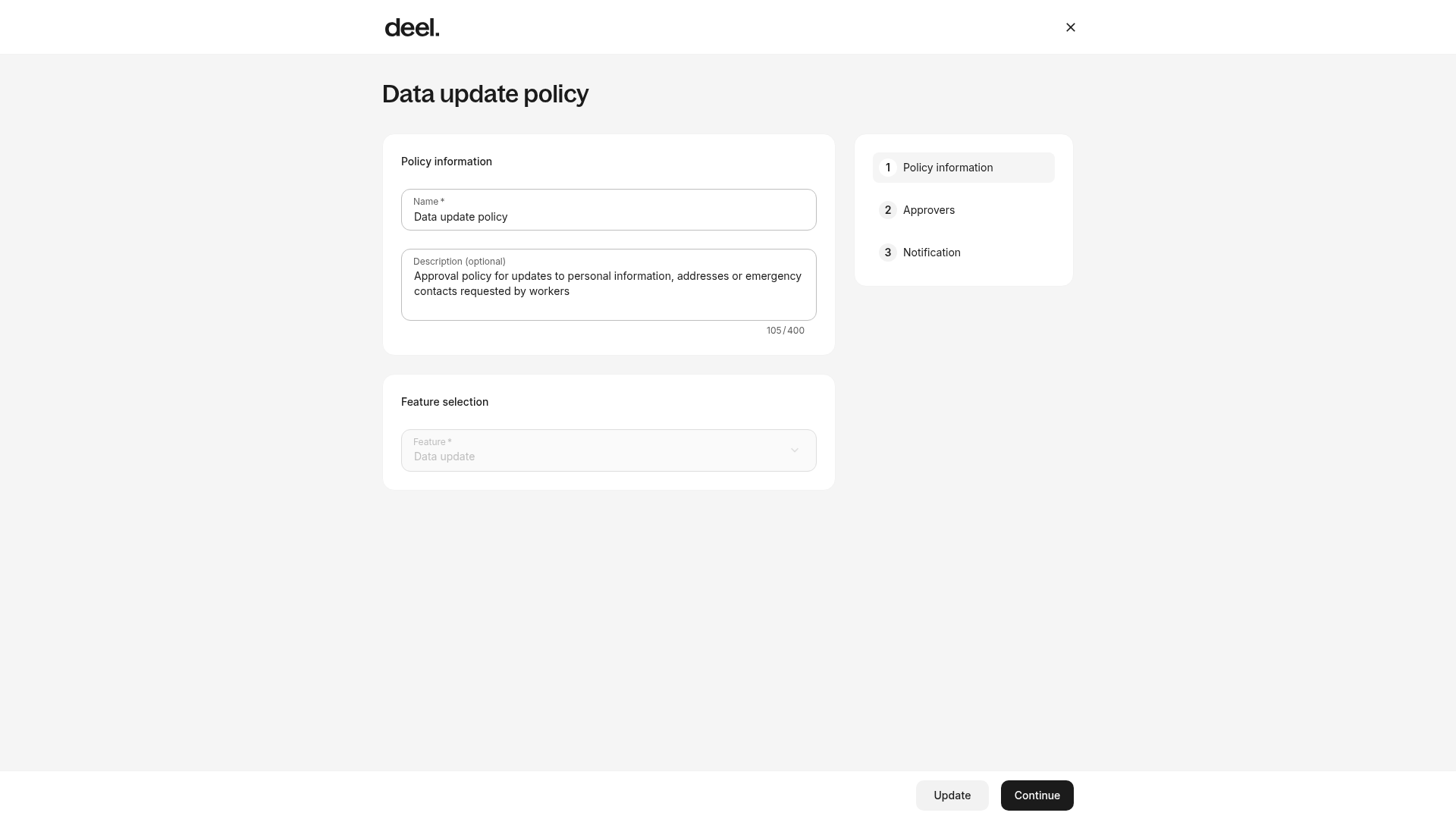
Return to the Policies tab to confirm that the policy appears in the list and review its status. Pre-created policies can be modified or reset but not deleted. A policy cannot be deleted while it is applied to a feature.
Frequently Asked Questions
[ACCORDION] How to view and edit the Approval Policies?
The Approval Policies option displays both default and custom approval policies, including those created by the clients. Open Organization settings, select Approval policies, then select the Policies tab. Find the policy by using search or the Feature filter if needed, select its three-dot menu, and choose Edit. Pre-created policies can be edited or reset but not deleted; policies applied to a feature cannot be deleted.
[ACCORDION]Will new approvers see submissions made before they were added to the approval policy?
No, submissions made before a new user is added to an approval policy are not visible to them.
Approval workflows are based on the list of approvers at the time the request was submitted. If a newly added approver needs to review a previously submitted item, that item must be cancelled and resubmitted for it to be visible for approval to the newly added approver.
[/ACCORDION]
[ACCORDION] Can approvers manage time off requests on behalf of workers ?
The approvers can request, edit, and delete time off requests on behalf of any workers or configure any policy on which they are an approver.