
If your organization tracks time off or working hours outside of Deel - for example, using a system like Workday - you can submit that data directly in the Deel payroll submission report. This ensures your payroll cycle runs automatically and the data syncs correctly to Deel Local Payroll (DLP).
You do not need to send spreadsheets or documents to your Deel team.
In this Article
How to Submit Time Off and Time Tracking data in the Payroll Submission Report
Before you start
This process applies if you do not use Deel Time Off and need to submit leave days or hours during a payroll cycle, or if you do not use Deel Time Tracking and need to submit tracked hours from an external system.
If you'd prefer to manage time off or time tracking entirely within Deel, contact your Deel team.
How to Submit Time Off and Time Tracking data in the Payroll Submission Report
Step 1: Check whether you use Deel Time Tracking or Deel Time Off
- Confirm whether your organization currently tracks time off or working hours in an external system (for example, Workday).
- If you'd like to manage this directly in Deel instead, reach out to your Deel team for guidance on enabling Deel Time Off or Deel Time Tracking.
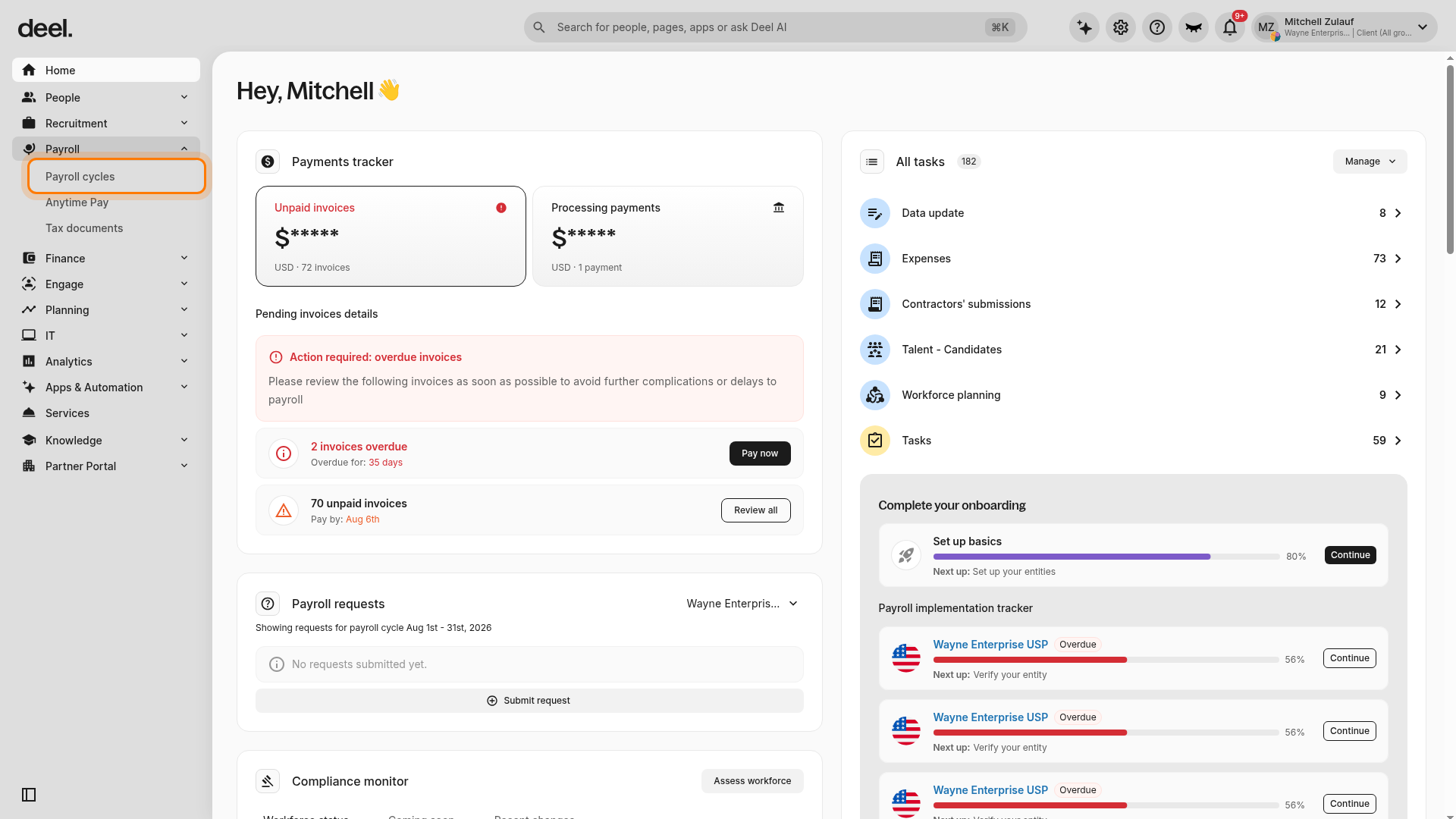
- If you prefer to continue using your external system, open the payroll submission report for the active payroll cycle. In the left sidebar, click Payroll to expand its submenu, then click Payroll cycles.
- Confirm that the Active tab is selected and active payroll cycles are displayed.
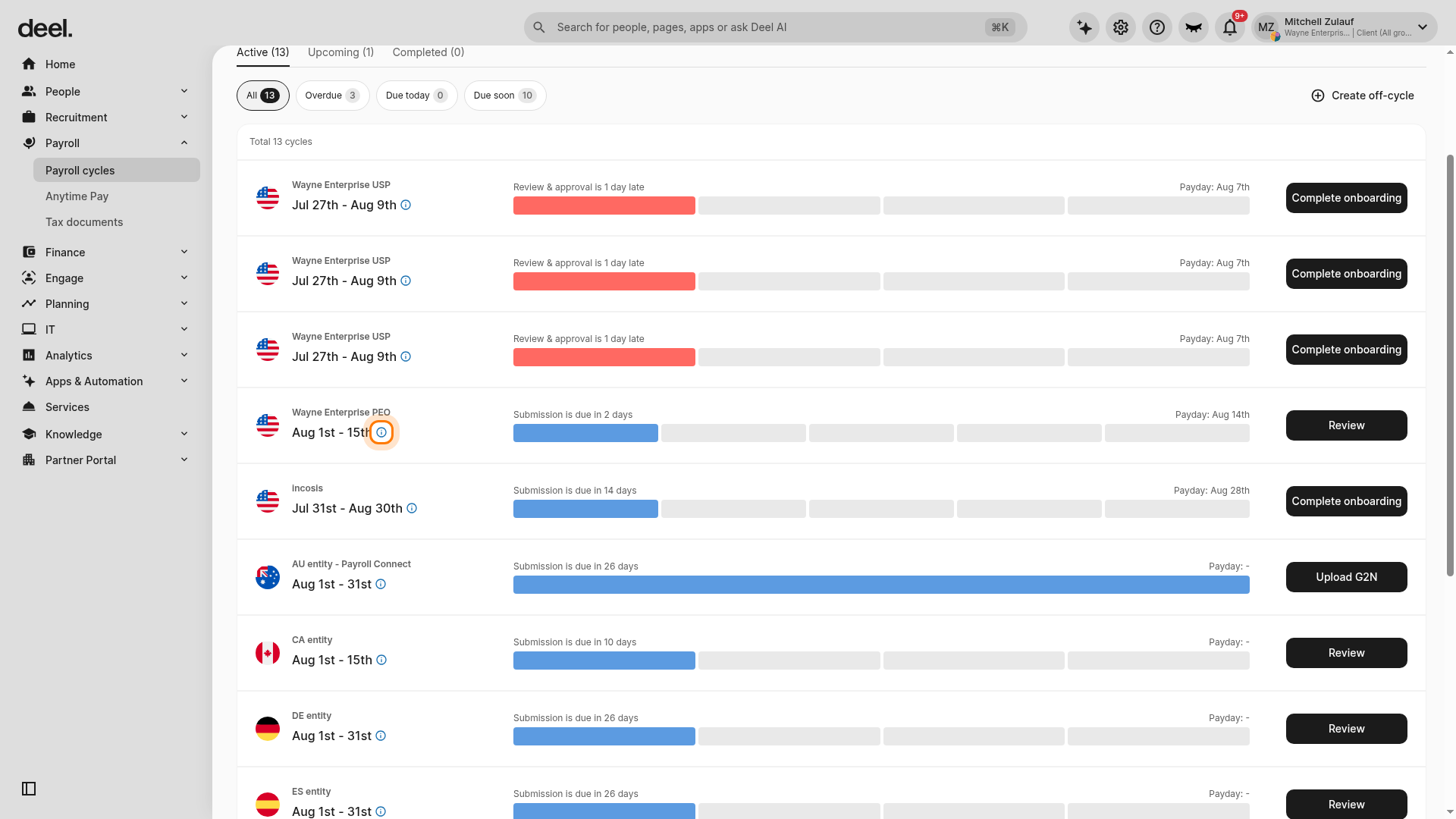
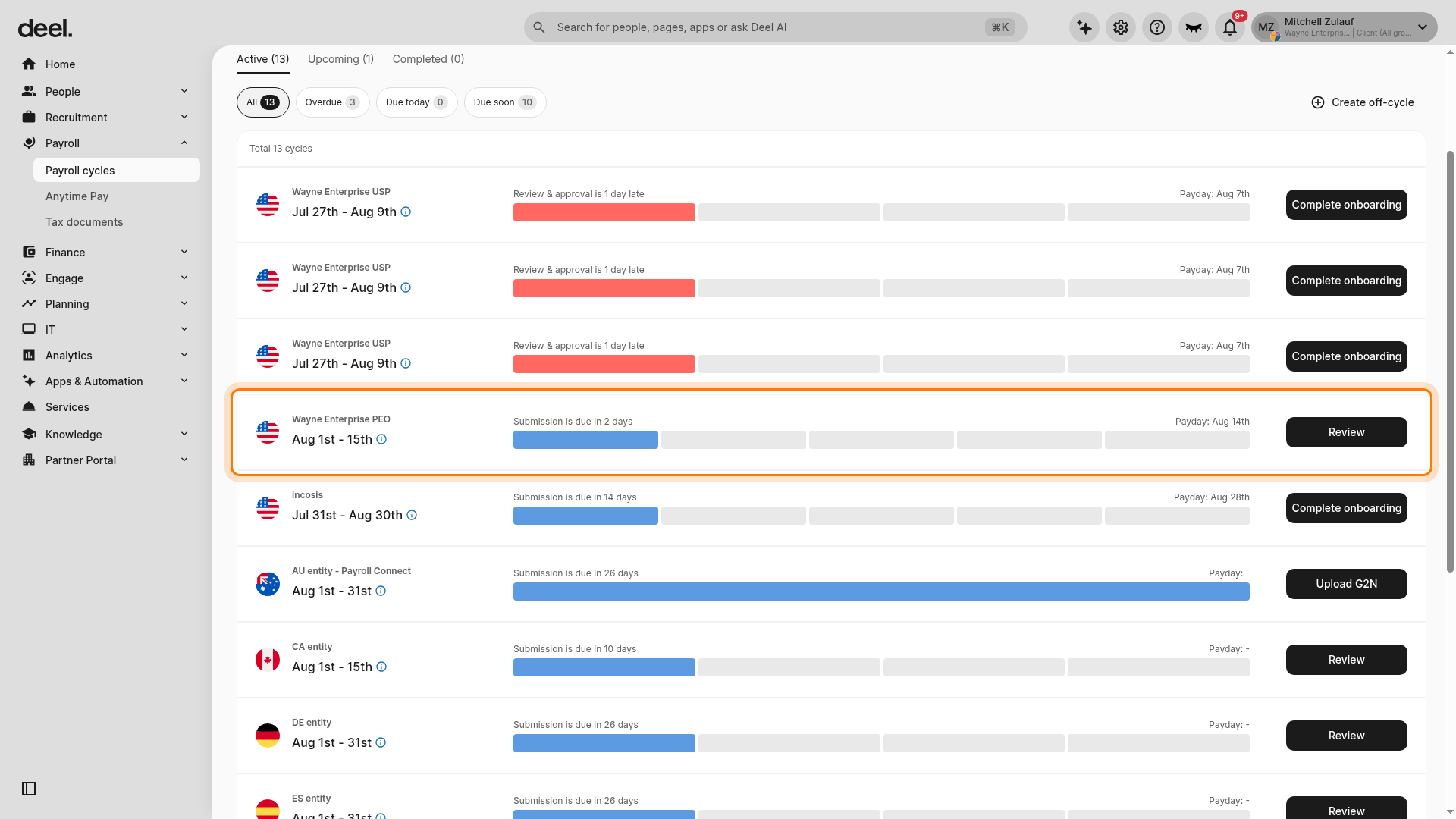
- Locate the cycle you need and confirm its entity name, pay period, submission status, and payday. Select a cycle with a Review button or a selectable cycle row. Do not select a cycle that only displays Complete onboarding; that option starts onboarding instead of opening a payroll report.
- Select the cycle row to open its payroll submission report. If the row includes a Review button, select the row rather than Review; Review can open a separate payroll review workflow.
- Confirm that the selected cycle overview opens. You should see the pay period and entity, submission progress and payday information, payroll summary cards, and the Payments and Documents sections, including Submission documents.
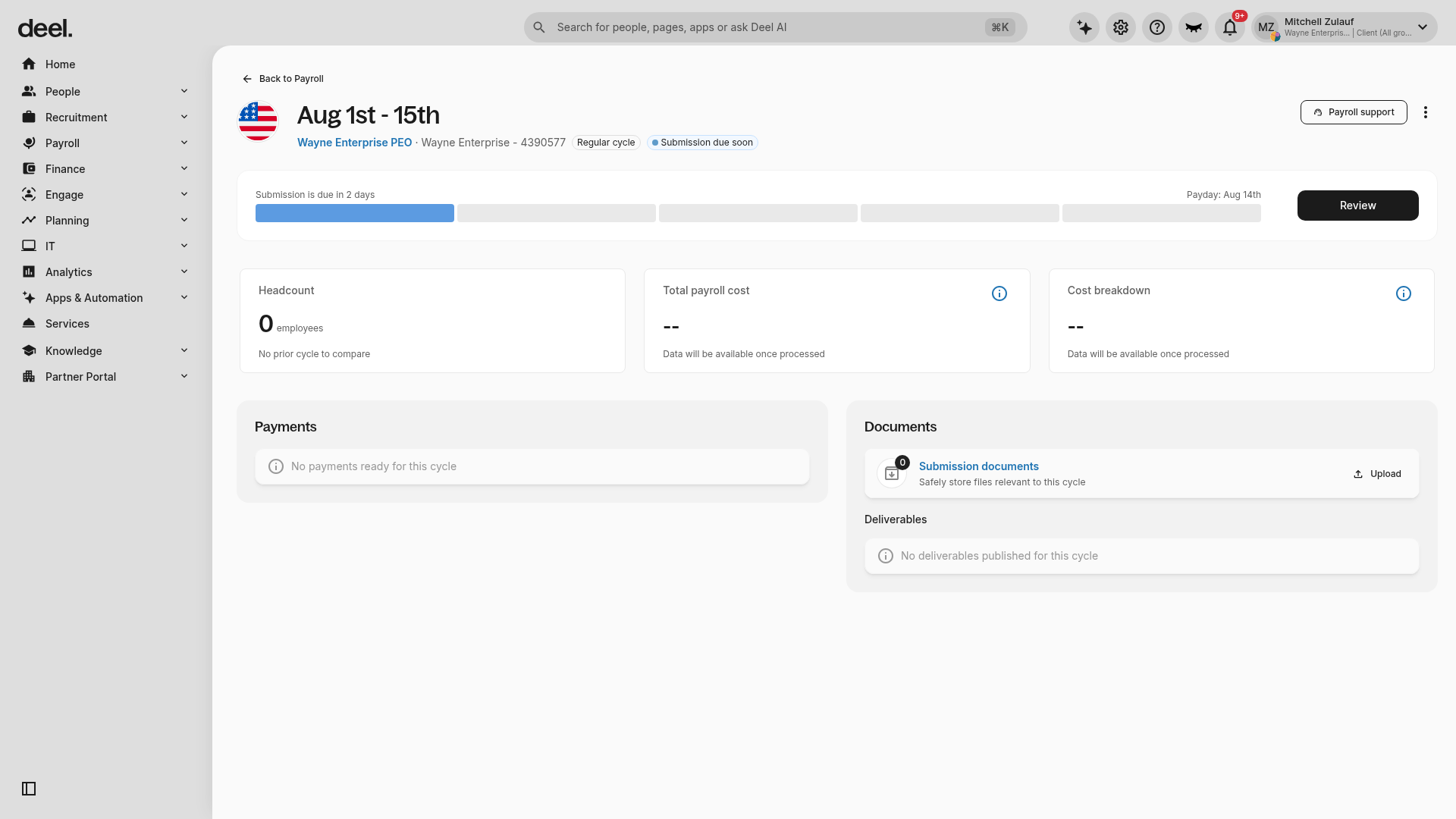
Note: For an active cycle that has not yet been processed, payroll summary values such as total payroll cost may display --. This is expected and does not mean the report failed to open.
Step 2: Confirm the required columns appear in your payroll submission report
Before entering data, check that the correct columns are available in your payroll submission report.
Note: Work with your Deel team to ensure all relevant columns are appearing in the payroll submission report. If any columns are missing, your Deel team will arrange for them to be added and activated.
Step 3: Activate time off or time tracking components
Once the Deel team has confirmed that payroll components have been created, you or your admin can activate them to make the columns visible in the report.
- Go to Organisation Settings.
- Select Entities.
- Choose the relevant entity.
- Open the Payroll section.
- Click on the Payroll Group.
- Click Manage next to Payroll Report.
- Activate all relevant time off and time tracking components.
- Click Save.
Step 4: Enter time off or time tracking data in the payroll submission report
Once the required columns are visible in the payroll submission report, enter your data using one of the two methods below.
Option A: Enter data manually in the submission grid
- Locate the time off or time tracking columns in the submission grid.
- Click the relevant cell for each employee.
- Enter the number of hours or days for each employee directly in the grid.
- Review all entries to confirm they are correct.
- Complete your payroll submission as normal.
Option B: Upload data in bulk using a CSV file
Use this method if you have a large number of employees or are exporting data from an external system.
- Download the payroll submission report template (CSV file) using the download option in the report.
- Open the CSV template and locate the time off or time tracking columns.
- Copy the hours or days from your external tracking system and paste the values into the corresponding columns in the CSV file.
- Save the CSV file.
- Return to the Payroll Submission Report in Deel and upload the completed CSV file.
- Review the submission grid to confirm all hours or days appear correctly for each employee.
- Complete your payroll submission as normal.
Note: Always review the submission grid after uploading your CSV to confirm the data has populated correctly before submitting payroll.
Frequently Asked Questions
[ACCORDION] What happens if the time off or time tracking columns are not visible in my payroll submission report?
The columns may not be visible if the required payroll components haven't been created or activated yet. Work with your Deel team - they will coordinate creating and activating the relevant components so the columns appear in your report.
[ACCORDION] Do I need to enter time data every payroll cycle?
Yes, if you track time off or hours in an external system, you need to submit the relevant data in the payroll submission report each cycle. The data does not carry over automatically from external tools.
[ACCORDION] What should I do if the data I uploaded via CSV does not appear correctly in the submission grid?
Review your CSV file to confirm the columns are correctly mapped and values are in the expected format (hours or days). If the issue persists, contact your Deel team for support before completing payroll submission.