
This article guides clients on how to create and configure their Data Change Approval policies, assign them to specific employee data fields, and adhere to specific organizational requirements.
Data change policies allow the clients to configure custom policies for managing updates to employee personal information, addresses, and emergency contacts.
Clients can set up approval workflows based on their organization's specific needs and compliance requirements, and apply these policies globally or on a country-by-country basis.
Data change policies can also be set up with multi-step approval processes that ensure robust control over which employee data fields trigger approvals, who reviews and signs off on changes, and how the approval process should be routed.
In this Article
How to create data change policy
How to Create Data Change Policy
✅ Step 1 – Go to the Organization Settings Icon and Click on the Data fields Settings option
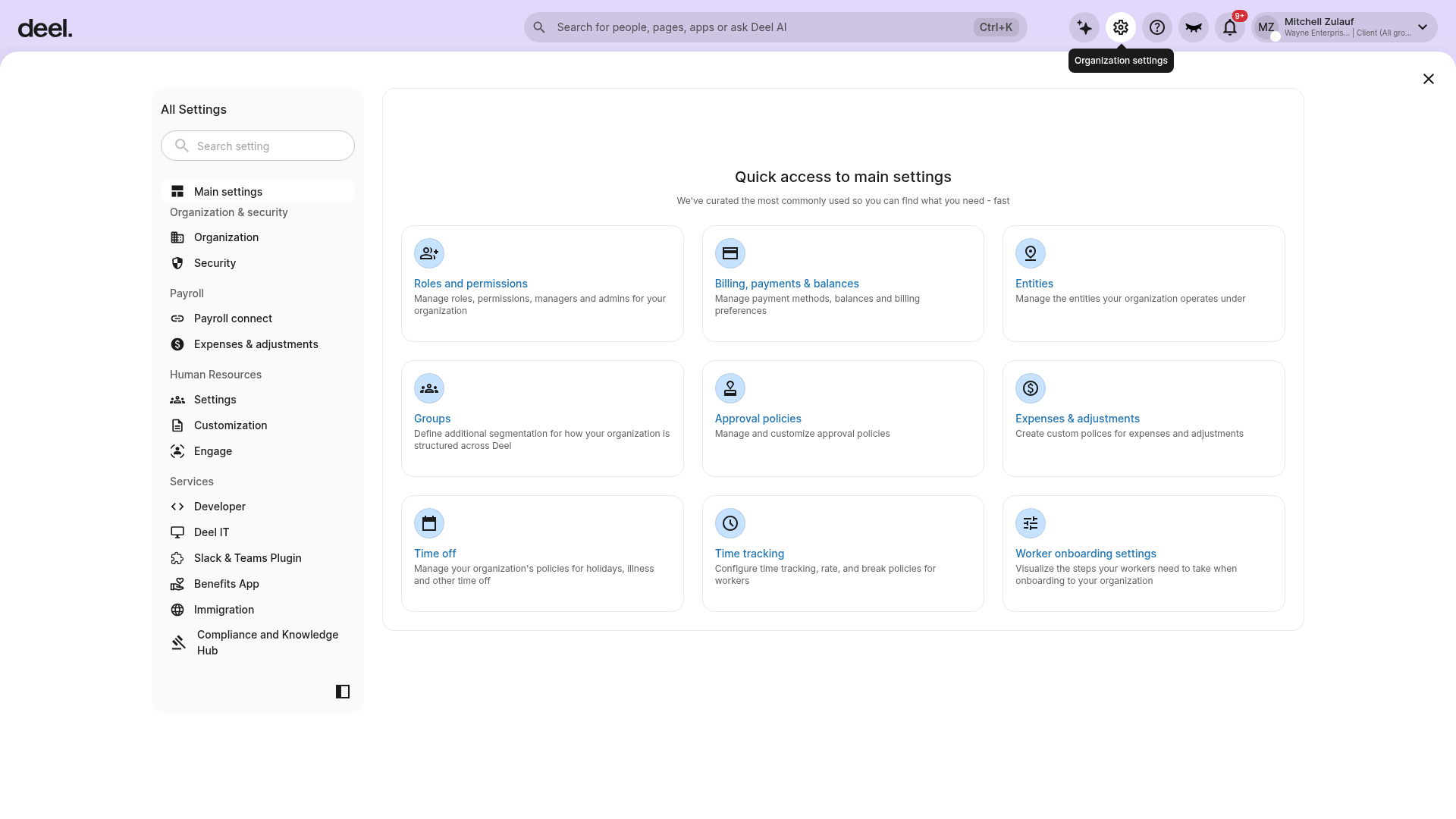
Select the Organization settings gear icon in the top-right corner to open the All Settings panel.
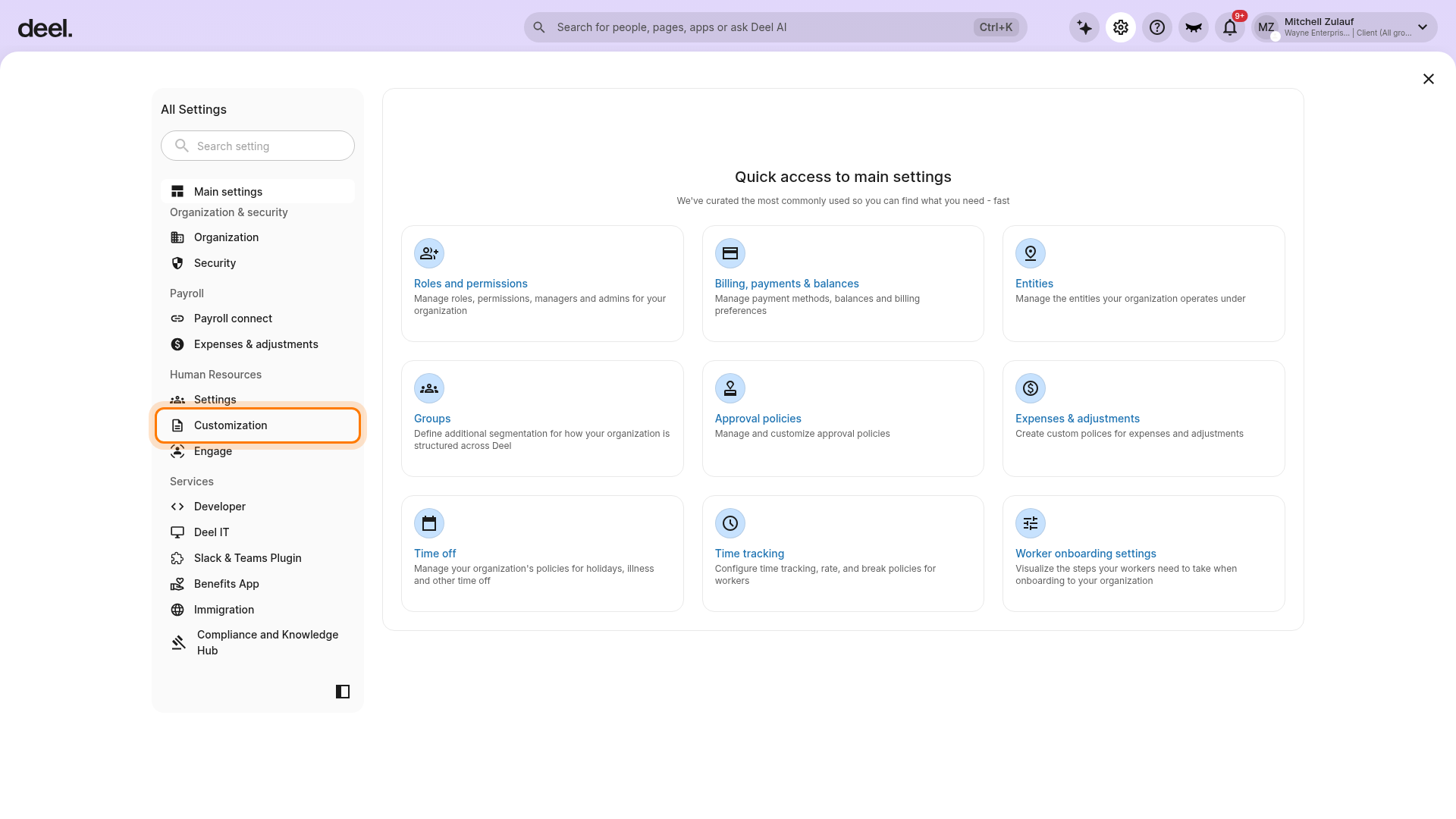
In the left settings navigation, under Human Resources, select Customization to expand its sub-items.
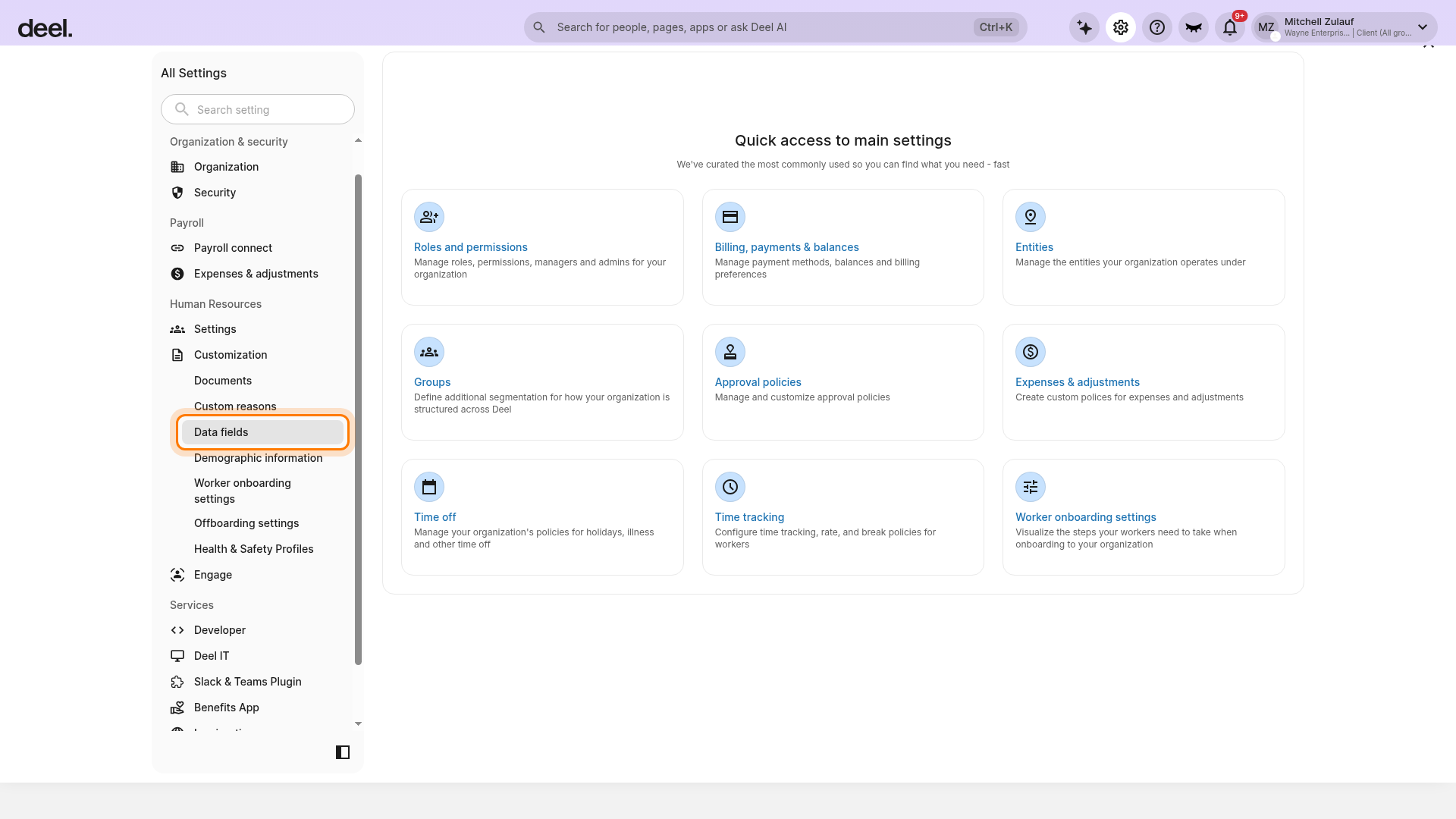
Select Data fields.
On the Data Fields page, select the Data update policy tab and wait for the policy list to load.
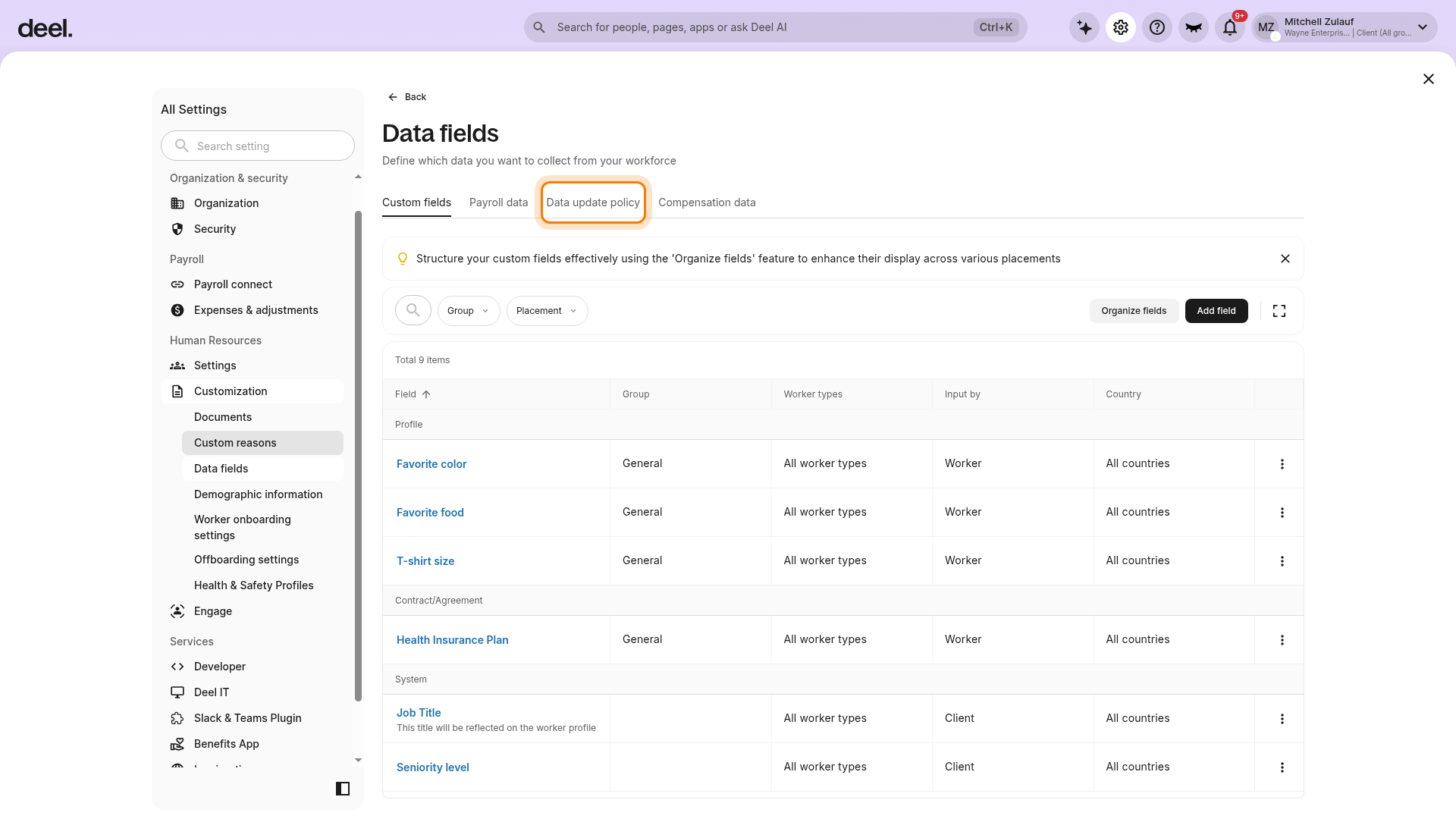
The tab is open when it is underlined, a policy table appears, and Create data update policy is visible.
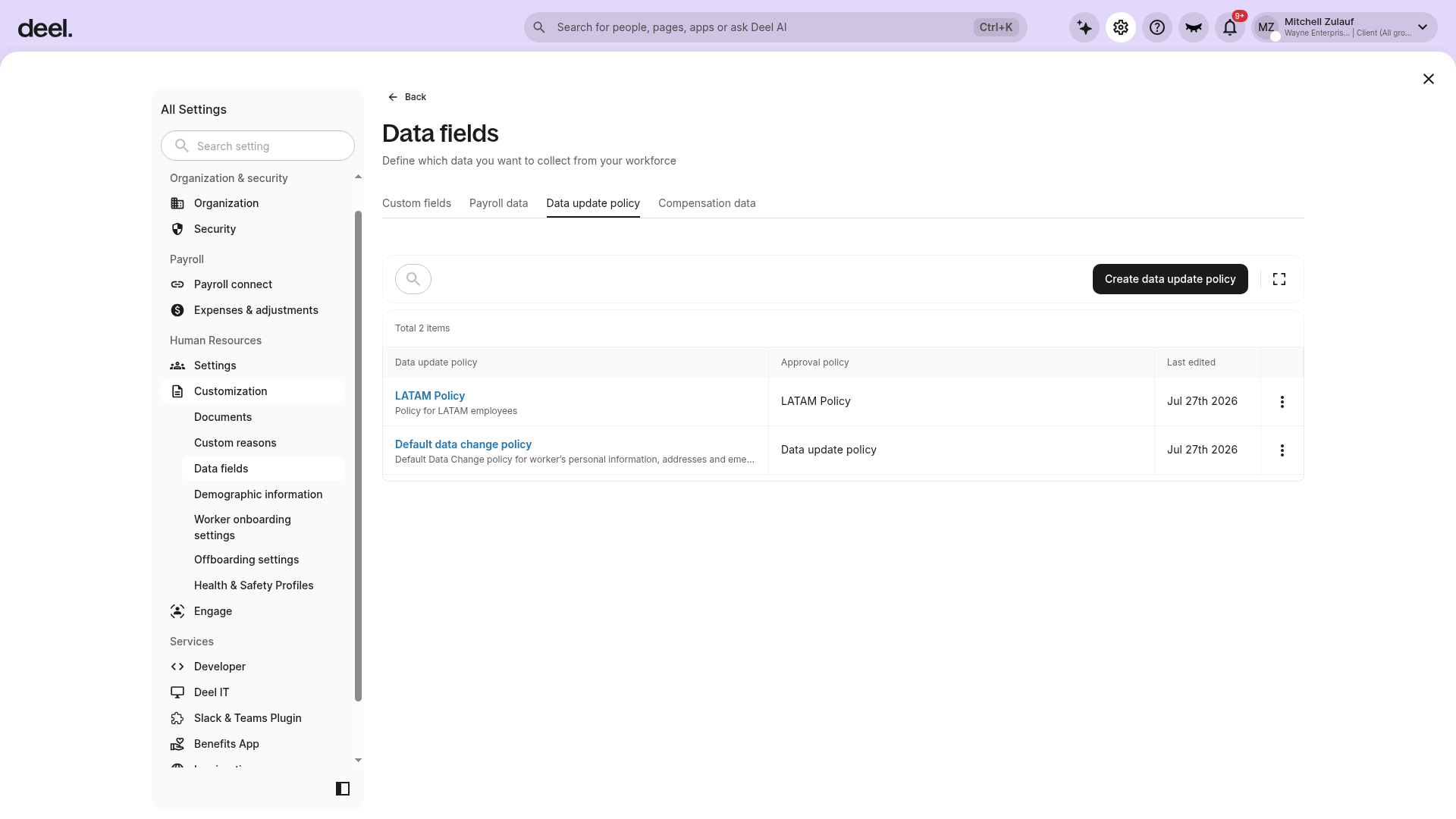
Do not use the Data update policy item on the Approval policies page for this workflow. That item opens an approval-policy record, not the Data fields tab.
✅ Step 2 – Click on Create Data Change Policy
In the Data update policy tab, you can see the default data change policy.
To edit an existing policy, select the applicable policy from the list and click on the three dots to edit the policy.
You can edit the default data change policy or create a new data change policy from scratch.
Click on the Create data update policy button.

Please note that the Default Data change policy cannot be deleted.
✅ Step 3 – Add Policy details
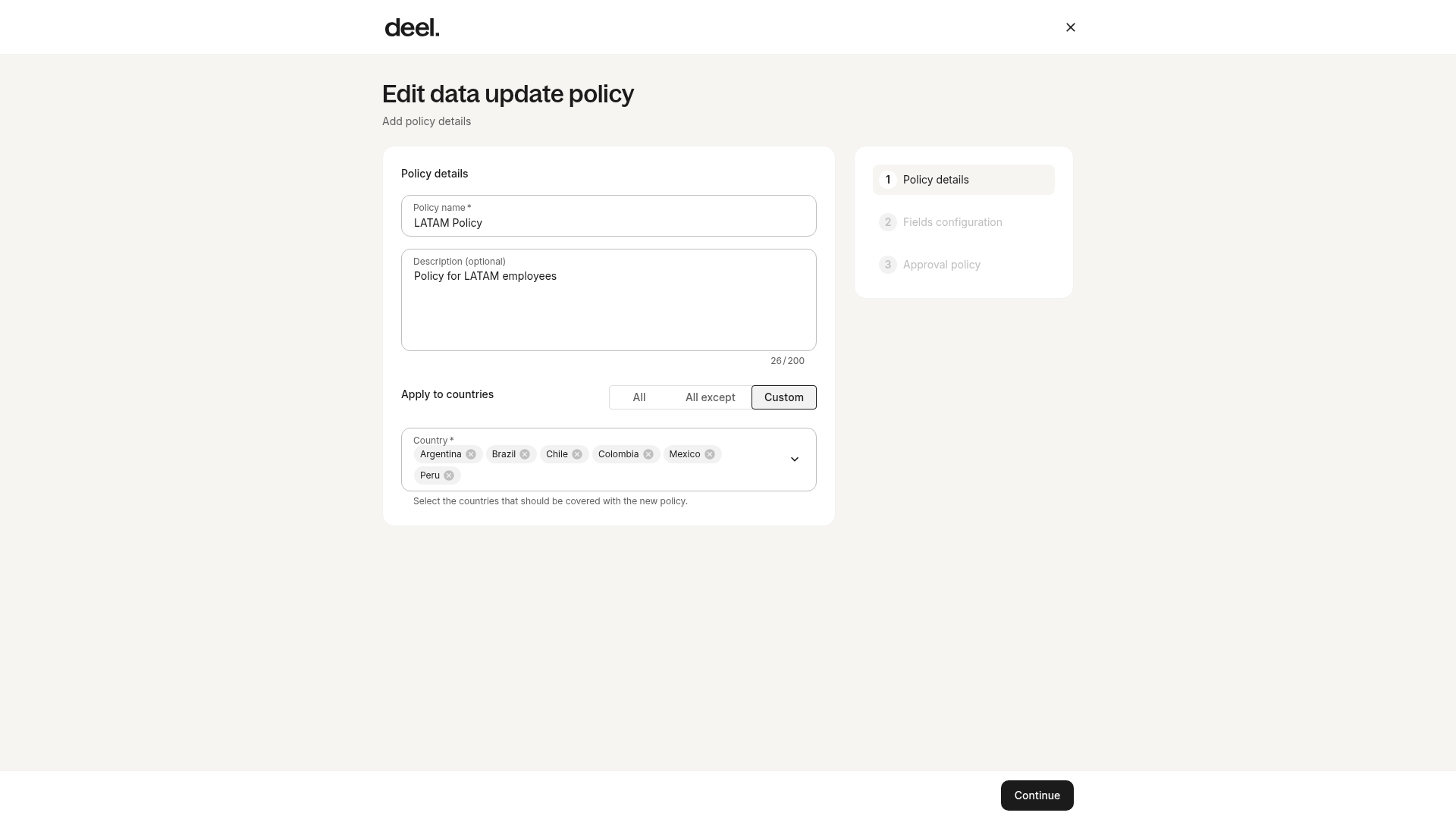
Enter a policy name and, optionally, a description. Select the countries where the policy applies: All, All except, or Custom.
Click Continue.
✅ Step 4 – Configure data fields and select approval policy
In Fields configuration, clients can configure which fields need approval when the worker makes changes. These fields include employee personal information, addresses, emergency contacts, etc.
In Approval policy, select the default approval workflow for the selected data fields.
Click on Create.
Frequently Asked Questions
[ACCORDION] How to edit an existing data change policy?
To edit an existing data change policy, open Organization settings and navigate to Human Resources > Customization > Data fields > Data update policy.
In the policy table, find the applicable policy and confirm the policy name before proceeding.
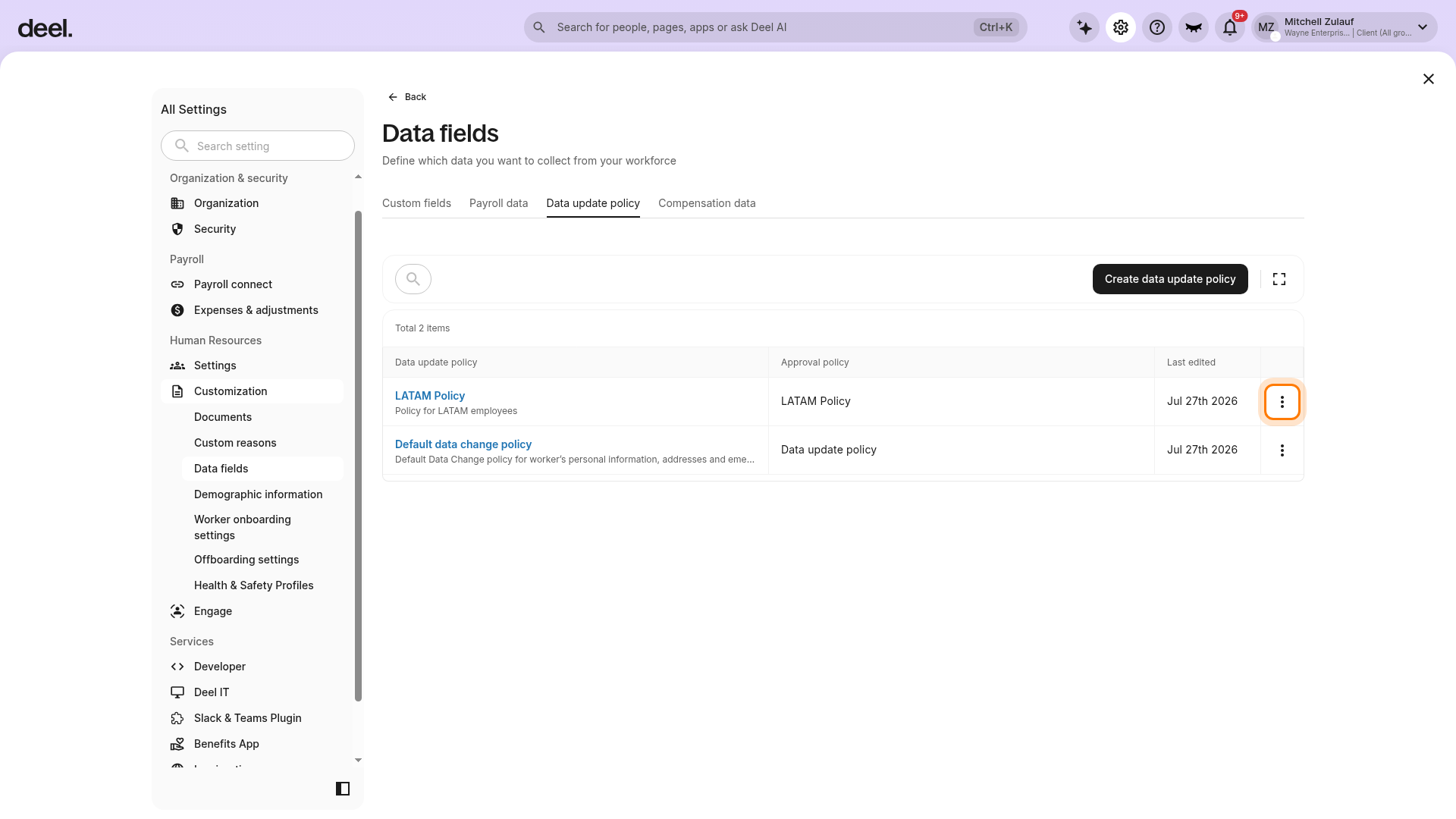
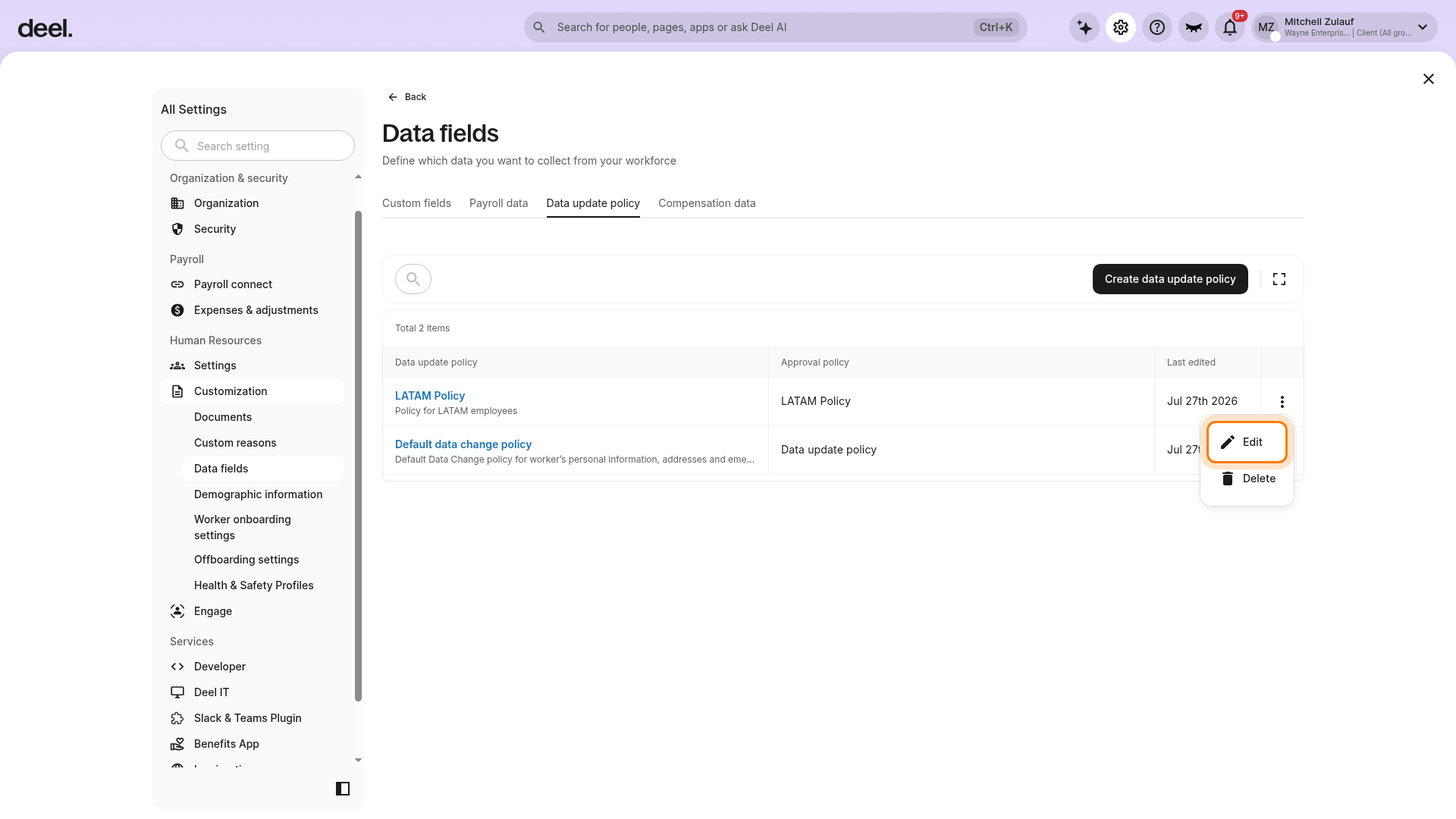
Click on the three dots at the far right of the policy row, then select Edit.
Verify that the Edit data update policy screen displays the existing policy name, description, and country scope. Update the policy details as needed, then select Continue.
Update the covered fields or approval policy as needed, then select Save or Create to save the updated configuration.
[/ACCORDION]