
Clients can create custom ATS admin roles with customized permissions. These roles allow for tailored access control, ensuring team members have the appropriate level of visibility and functionality.
This article explains how clients can create and assign custom ATS admin roles.
Before creating interviews or job posts, admins must set up hiring roles (managers, members, and participants). This guide covers permissions, access levels, and how to assign roles.
Custom ATS Admin Roles
Org Admins can create restricted ATS Admin roles with permissions limited to hiring (no access to other platform features).
This article explains the admin roles available on ATS and how to set up them up.
In this article
Here’s what you’ll find in this article:
- Before you begin
- Create and assign ATS manager role
- Add a ATS participant
- Add a ATS member
- Key differences in ATS roles permissions
Before you begin
To successfully set up ATS admin roles, you’ll need a user with an org admin role on Deel.
Create and assign ATS manager role
To create custom admin role:
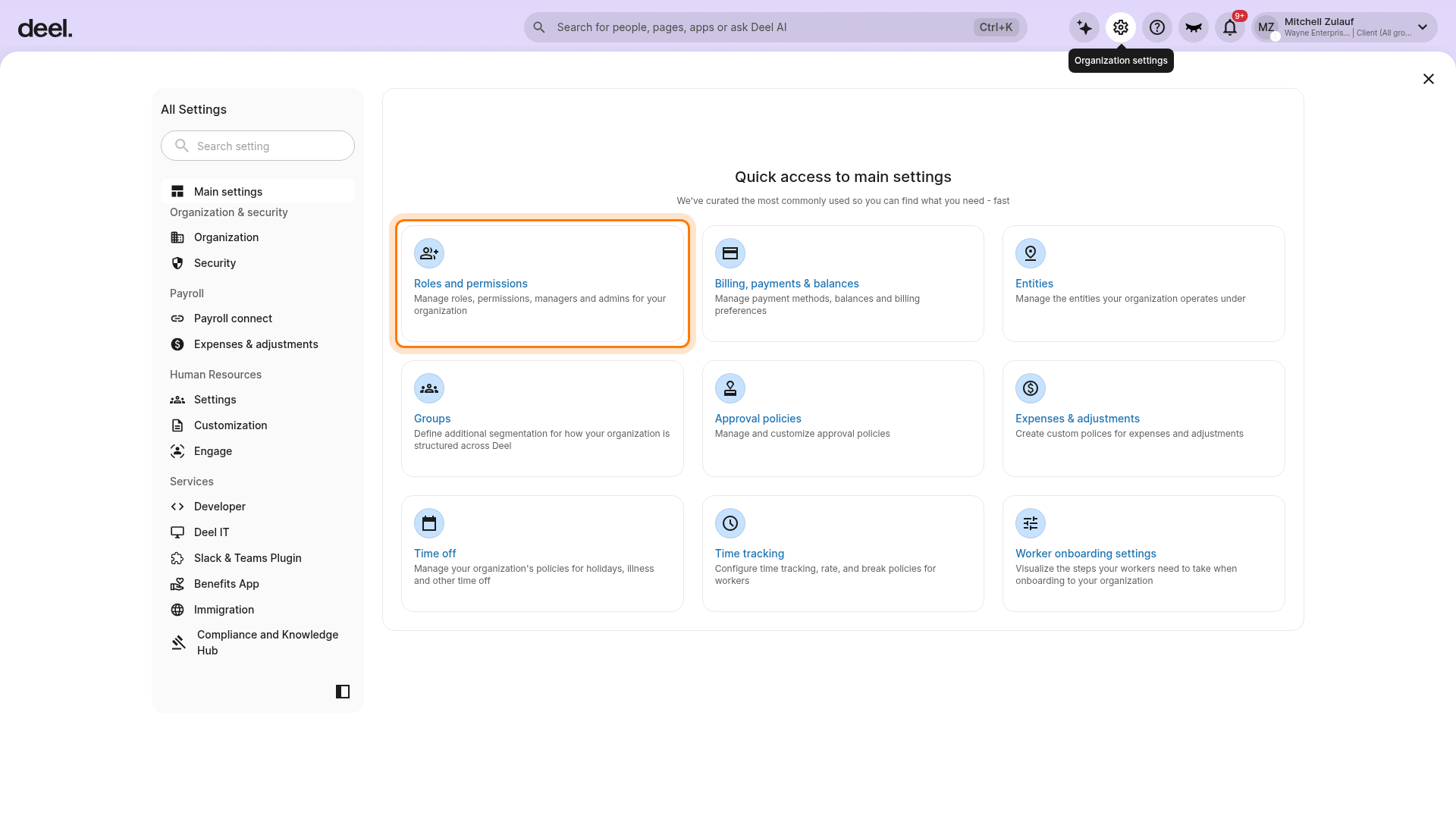
1. Select the Organization settings gear icon.
2. Under Quick access to main settings, select Roles and permissions. This is the current name for the former Access management area.
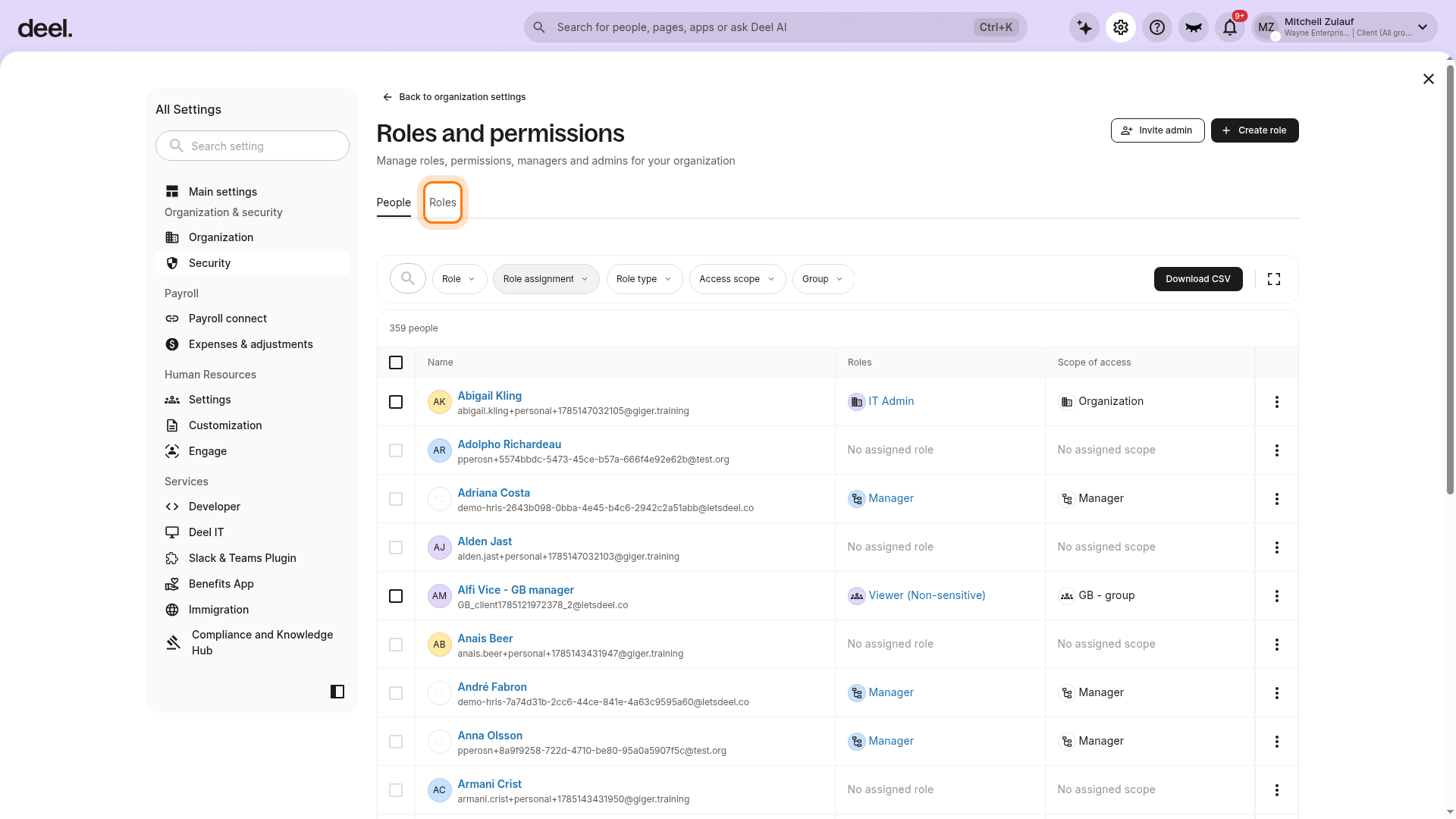
3. Select the Roles tab. This is the current equivalent of the former Admin Roles tab.
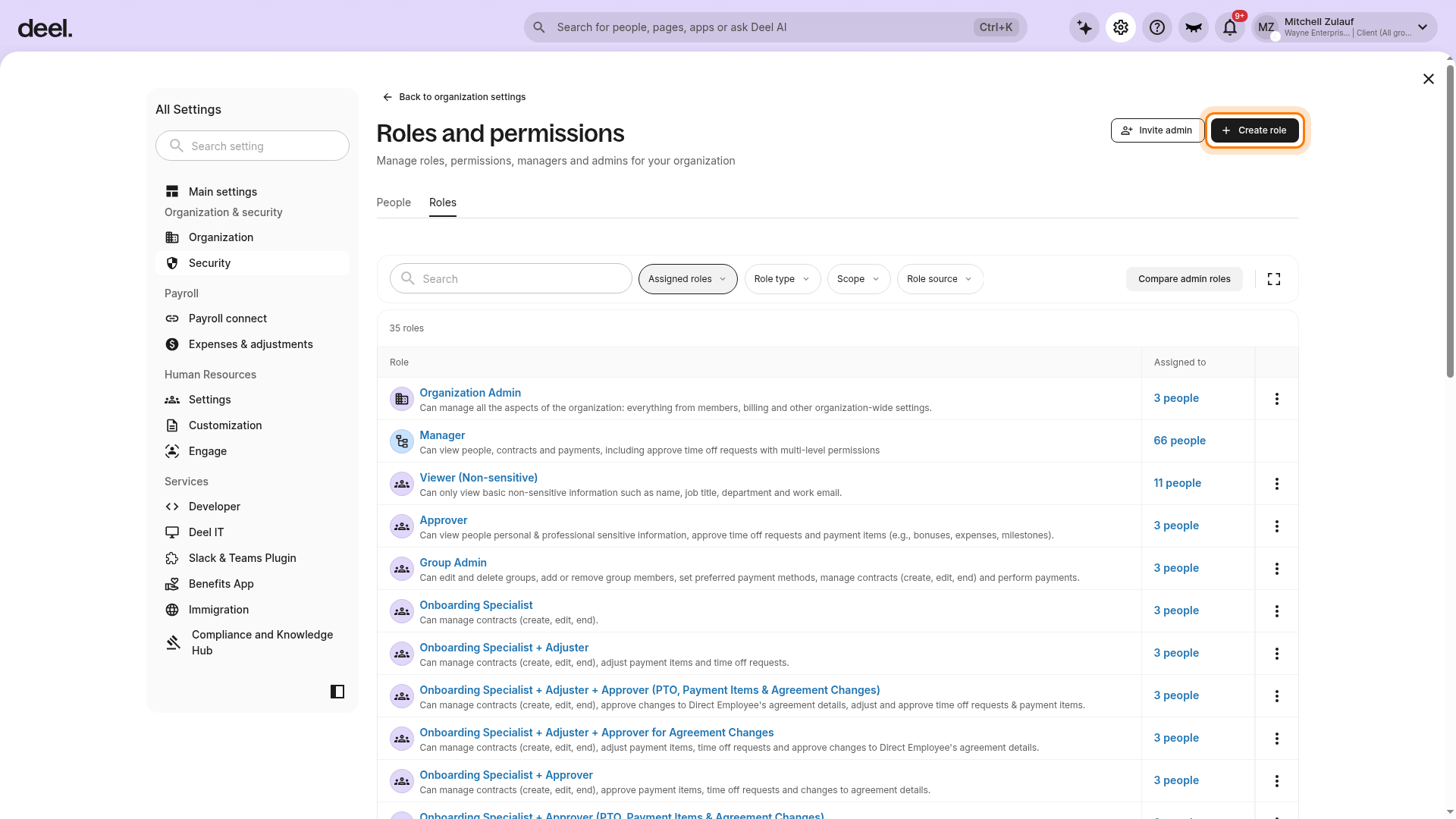
4. Select Create role in the upper-right corner.
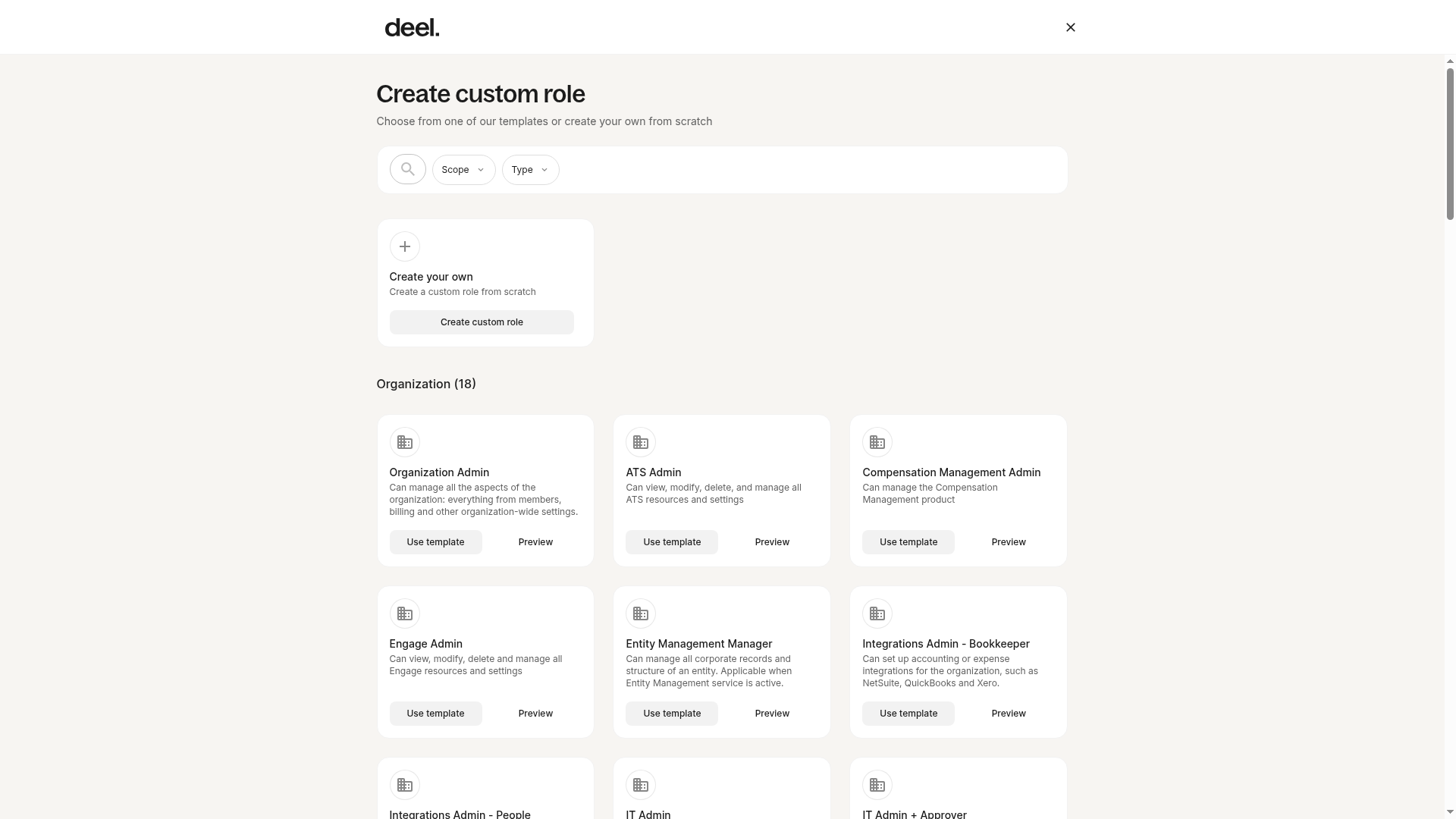
5. On the Create custom role page, select the ATS Admin template under Organization, when available. Alternatively, select Create your own to configure a role from scratch.
6. If you create the role from scratch, select organization-level access, enable the ATS permission to manage ATS resources, then name and create the role.
After creating a custom ATS admin role, you can now assign it.
To assign a custom ATS admin role:
1. In Organization settings, select Roles and permissions.
2. On the People tab, find the administrator whose role you want to update. This is the current equivalent of the former Admin tab. Use search or filters if needed.
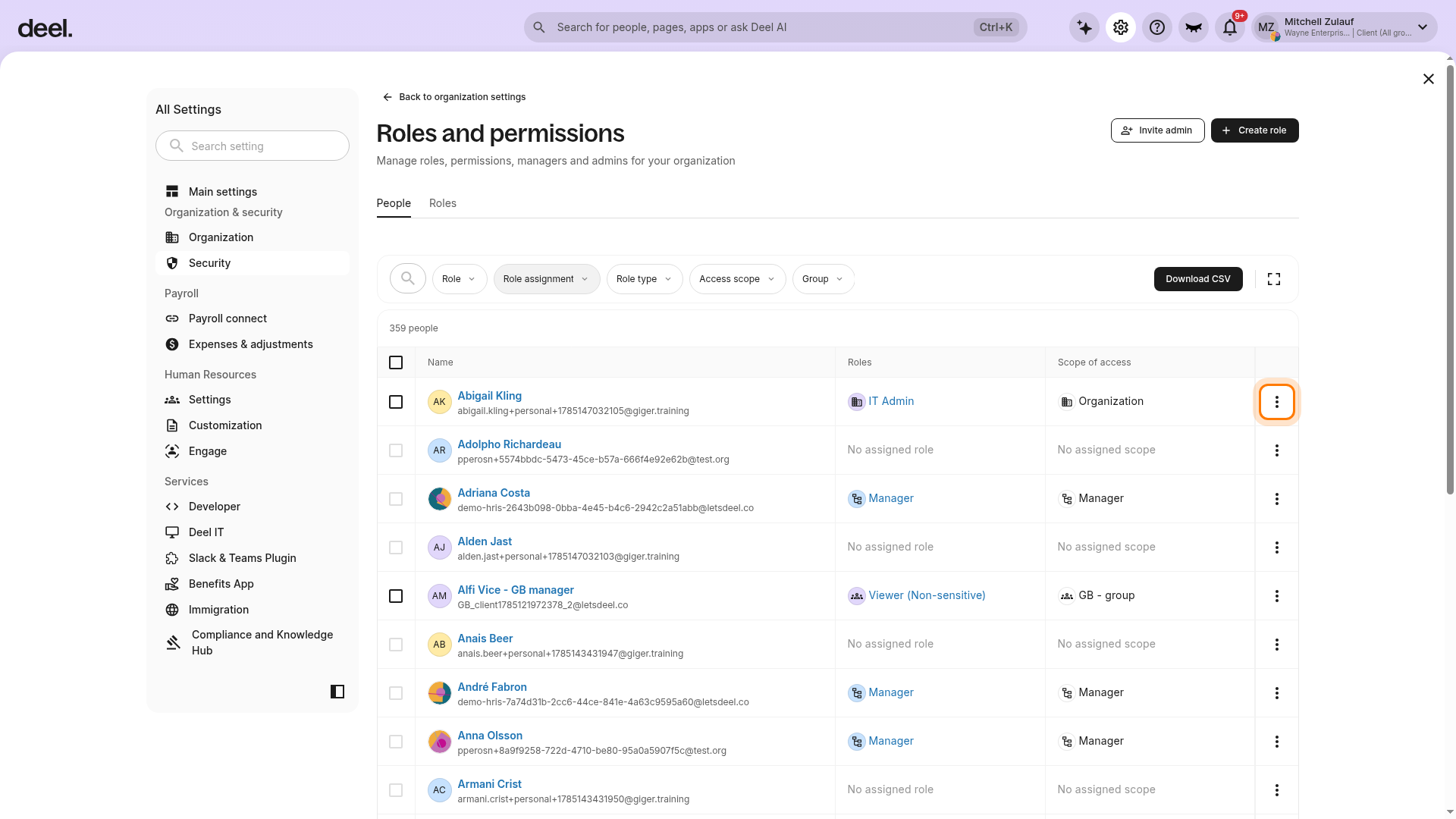
3. Select the three-dot menu at the end of the administrator’s row, then select Manage roles. This is the current action that opens the former Assign role workflow.
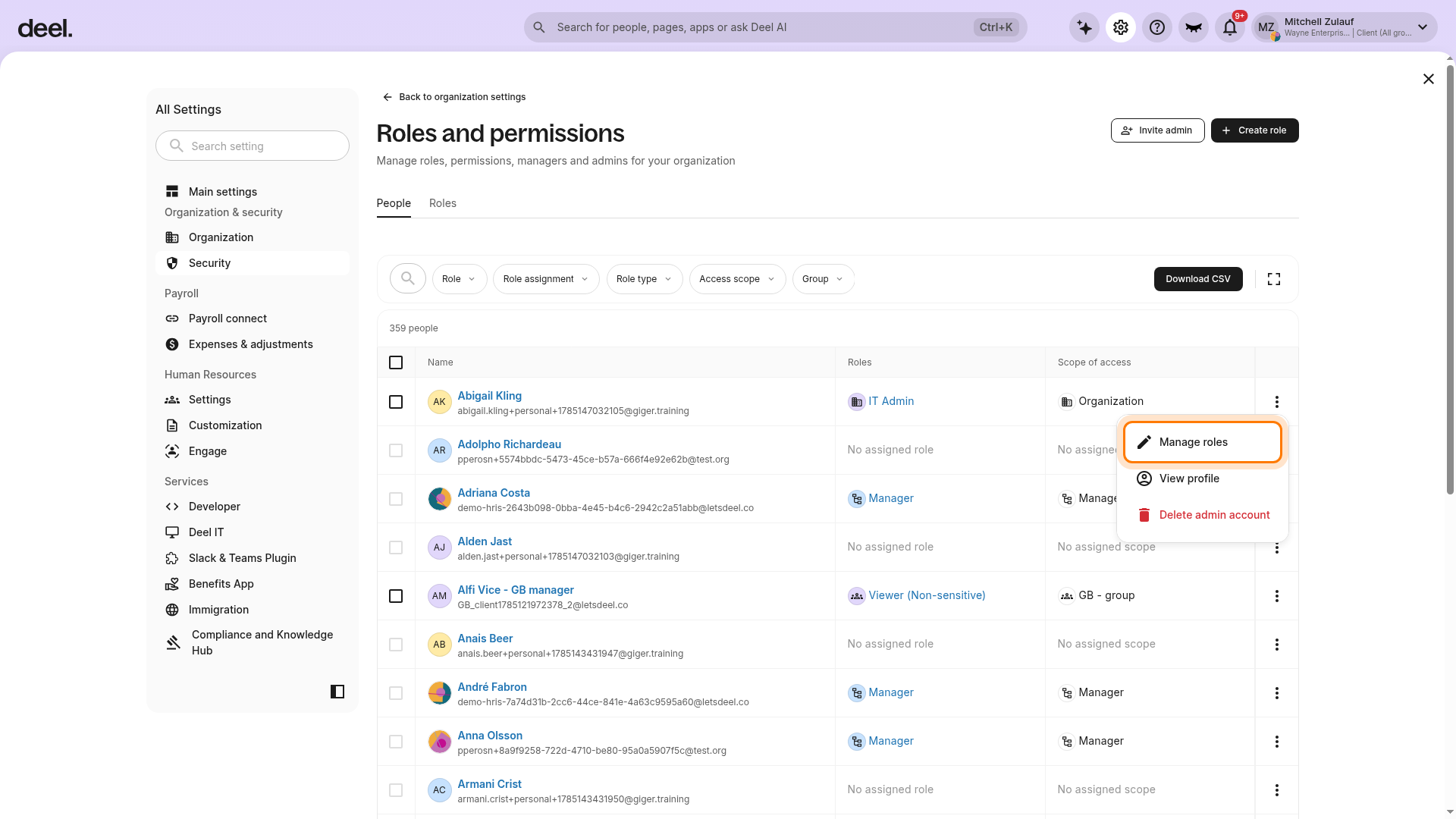
4. Confirm that the Edit access page shows the correct person. The page includes Organization access and Group access, with the steps Access level and Review & submit.
5. Select or edit the organization-level role. Choose ATS Admin, then continue to Review & submit and submit the change.
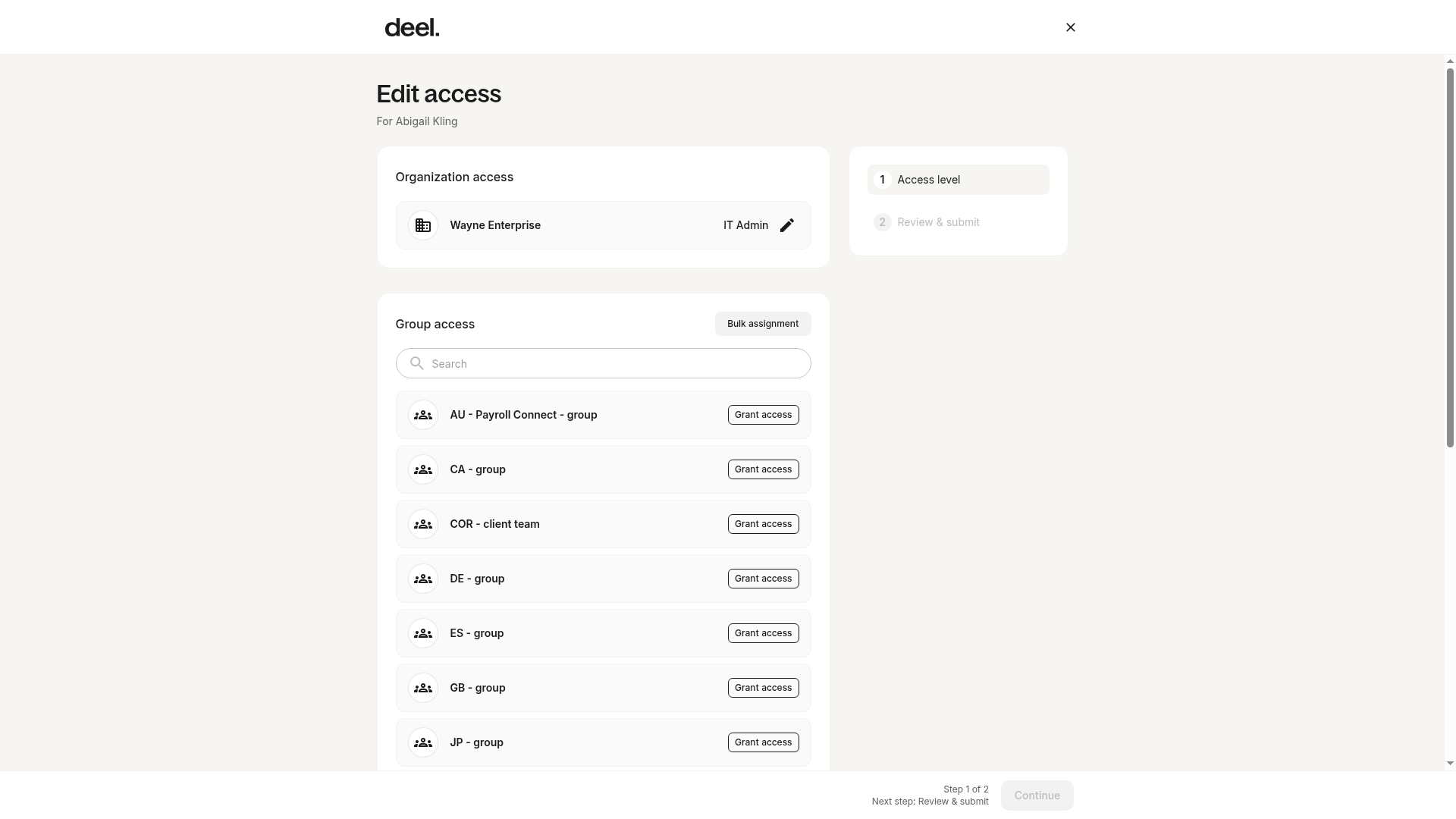
This admin role is limited to ATS only (full access) but restricted for other areas.
Add an ATS participant
Participants are active ATS users. They need to have a worker profile, and as soon as they are added to the company and visible in the UI, they can be added.
How to add ATS participants:
1. Go to Organization settings > Hiring > Workers without access.
2. On the Workers without access tab, select users and click Activate.
Assign an ATS member
All organisation or group-level admins and participants can be assigned as ATS members. Admins can choose to add managers and give them custom roles with limited access to other features and company/people data.
To add ATS Members:
1. In the left sidebar, select Recruitment to expand its submenu, then select ATS.
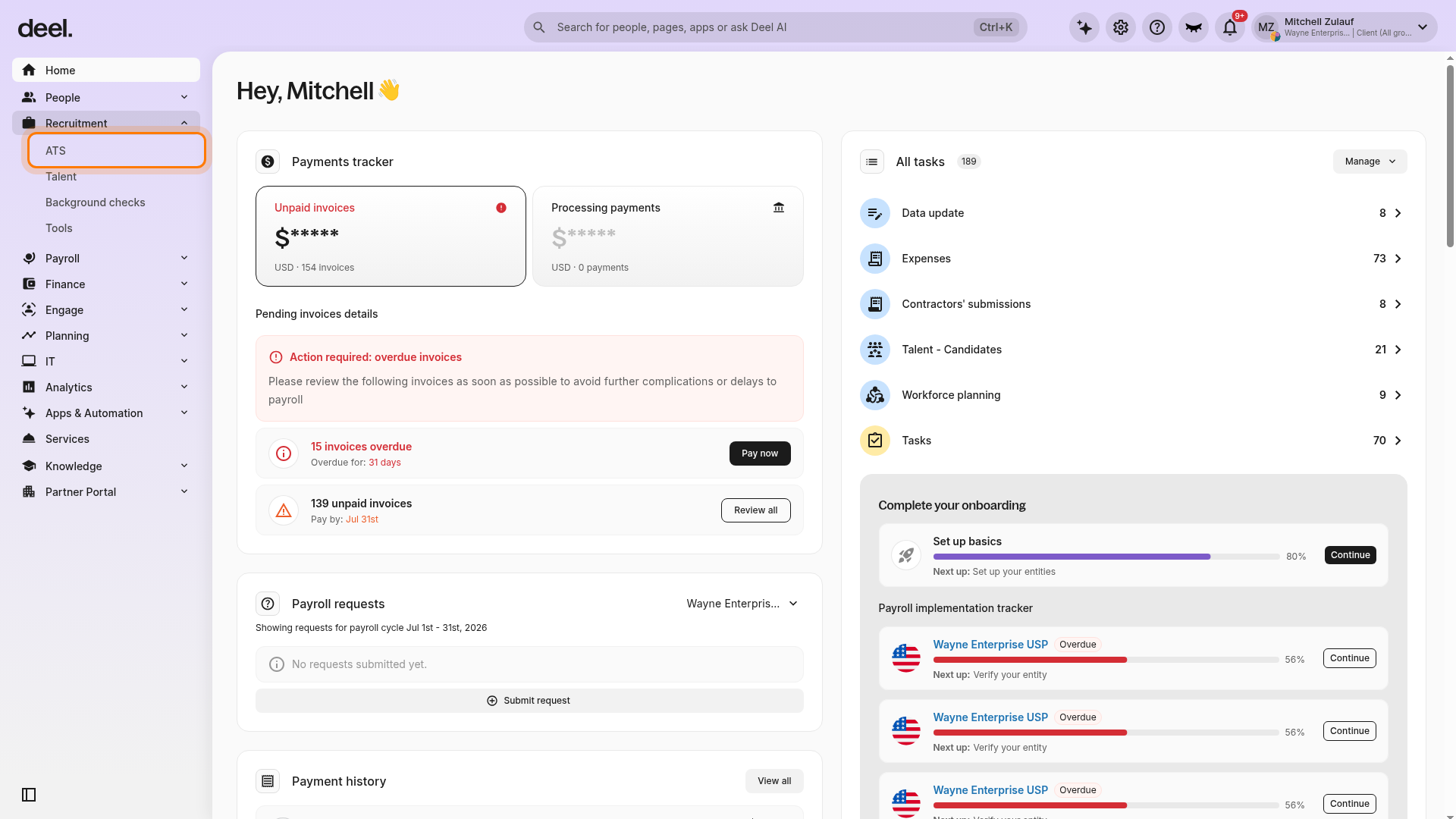
2. In the ATS workspace, select Jobs.
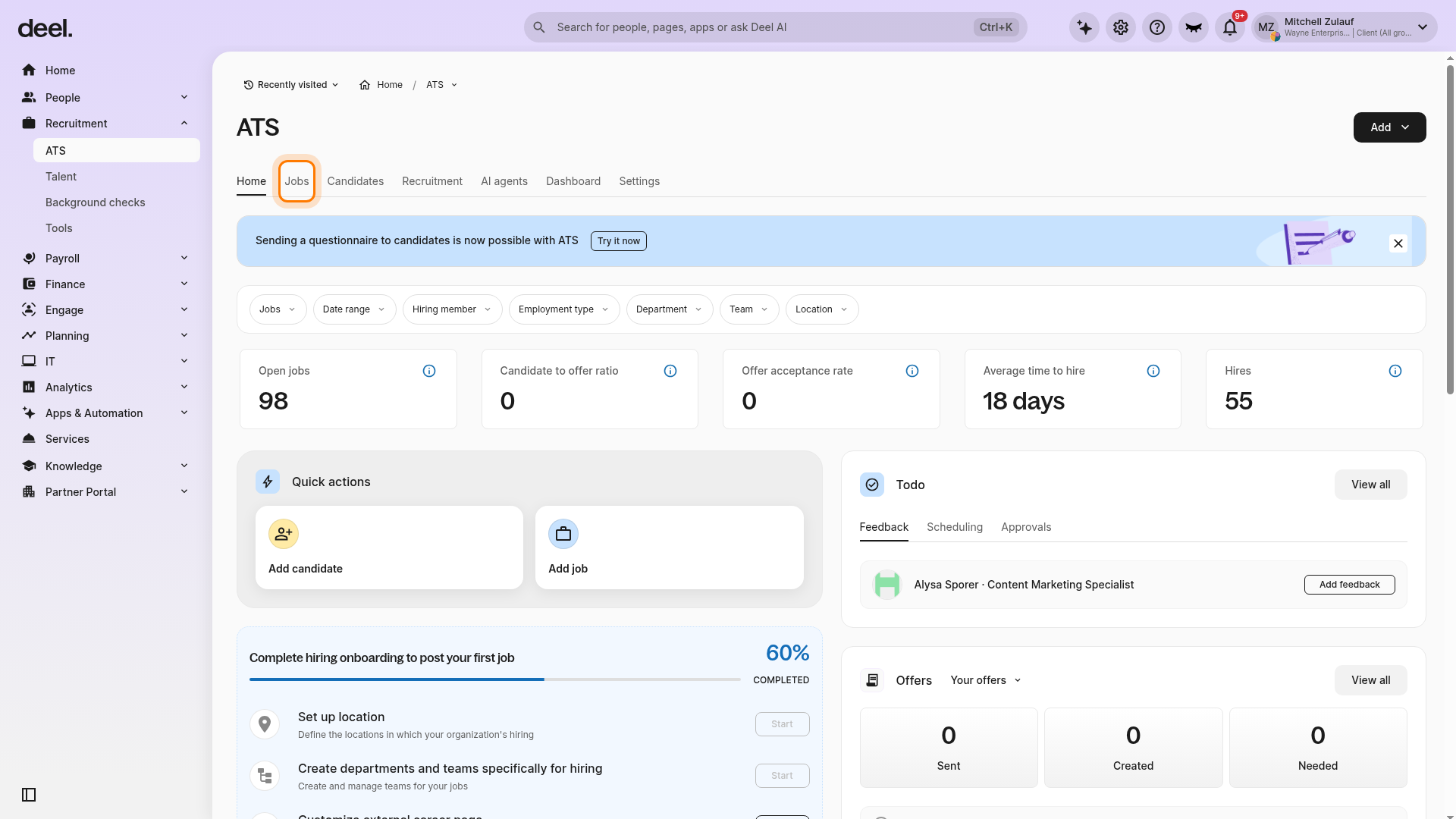
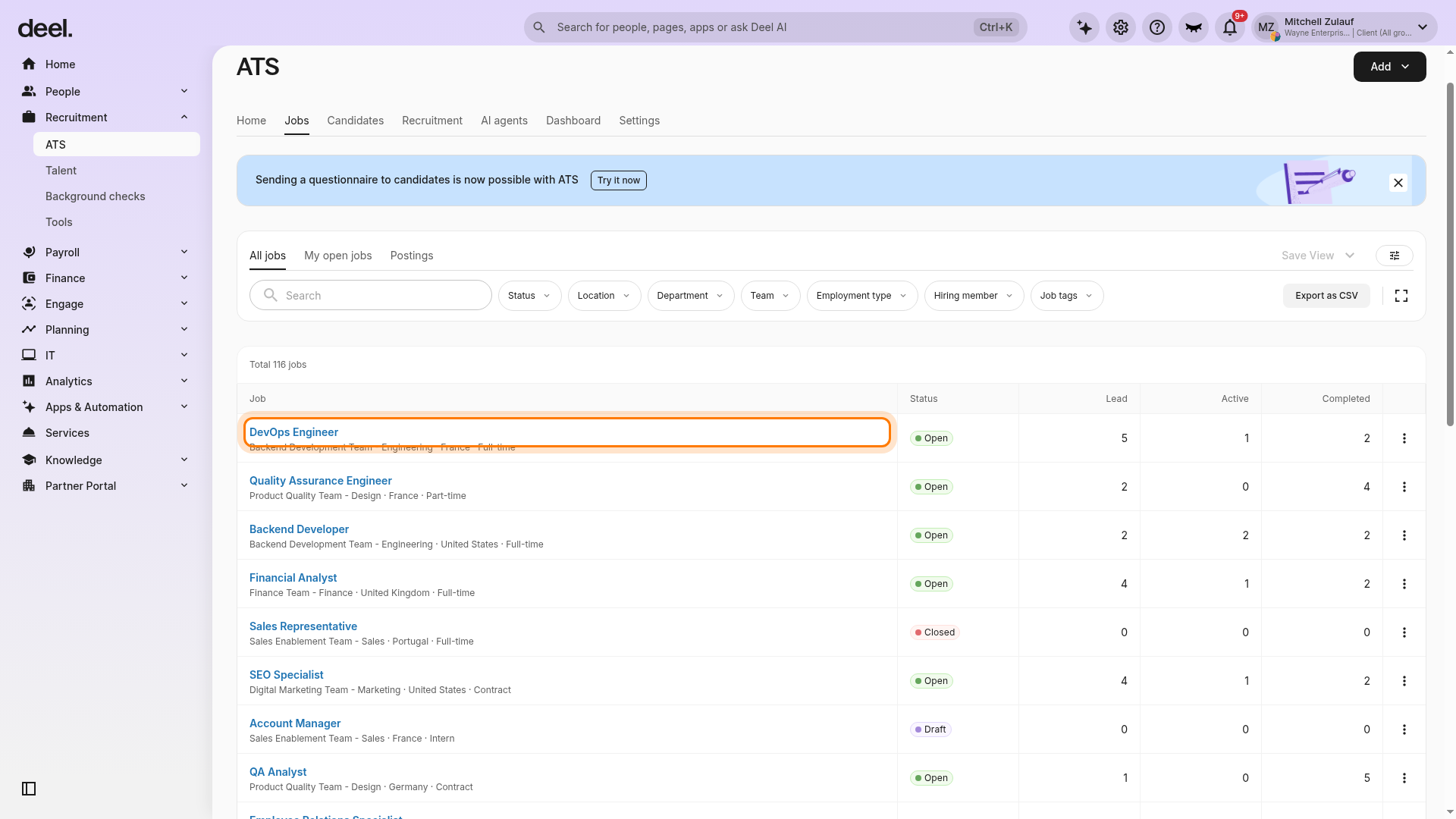
3. Select the job that needs a hiring-team member. Use search or filters if needed.
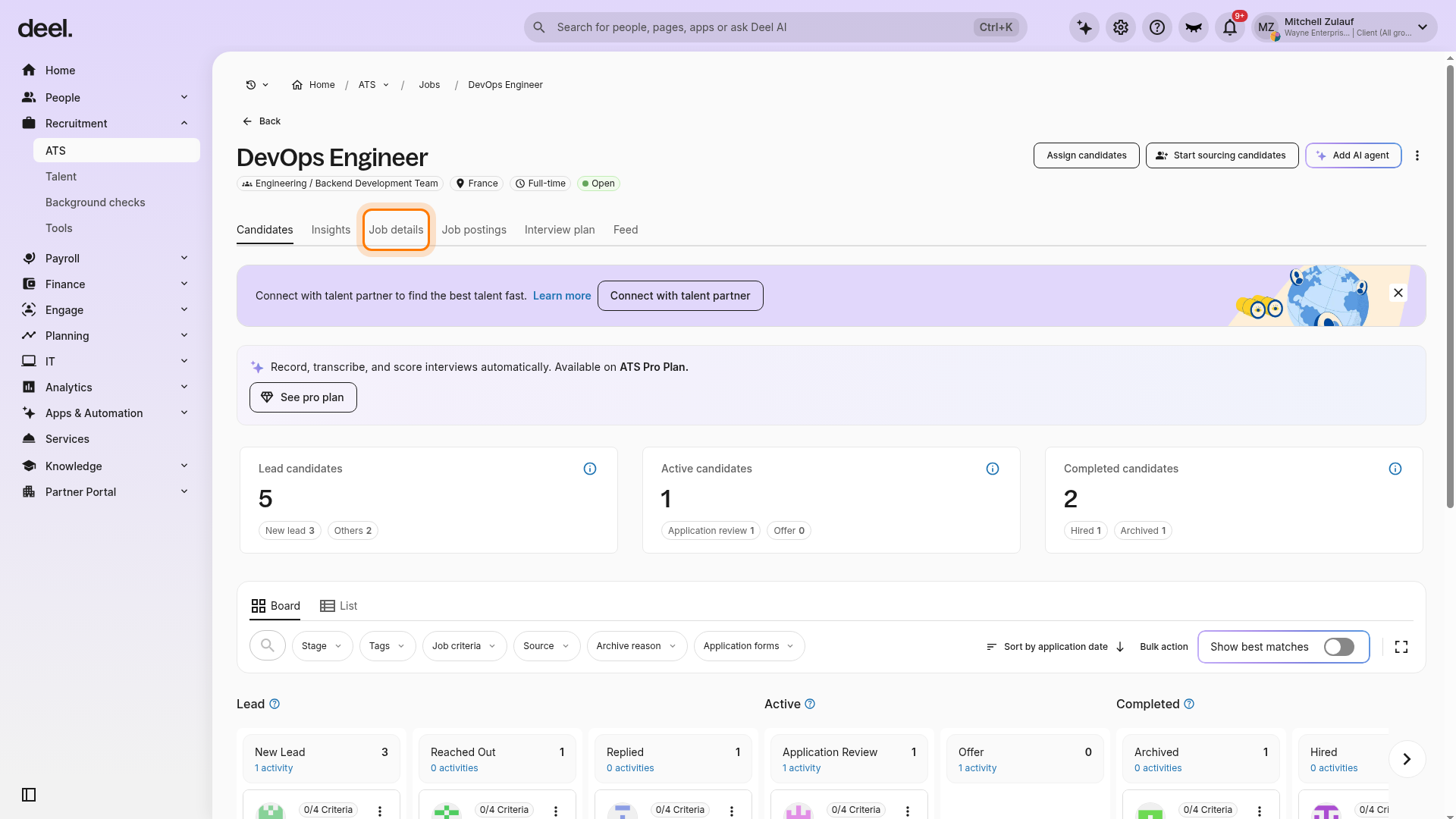
4. On the job page, select Job details.
5. In the Hiring team card, select Assign member.
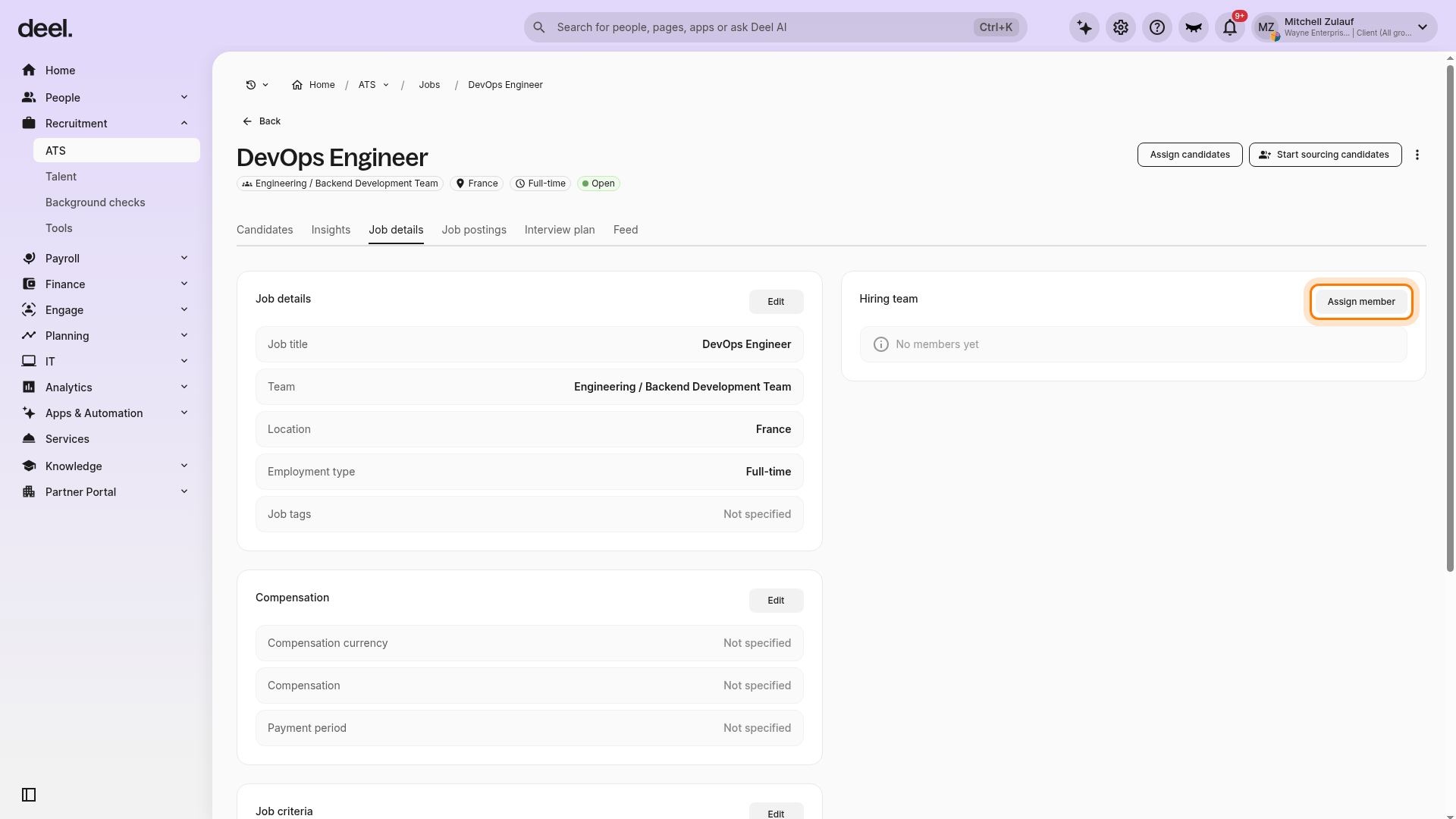
6. In the right-side Assign member panel, search for and select the administrator. Select Continue to add them to the hiring team.
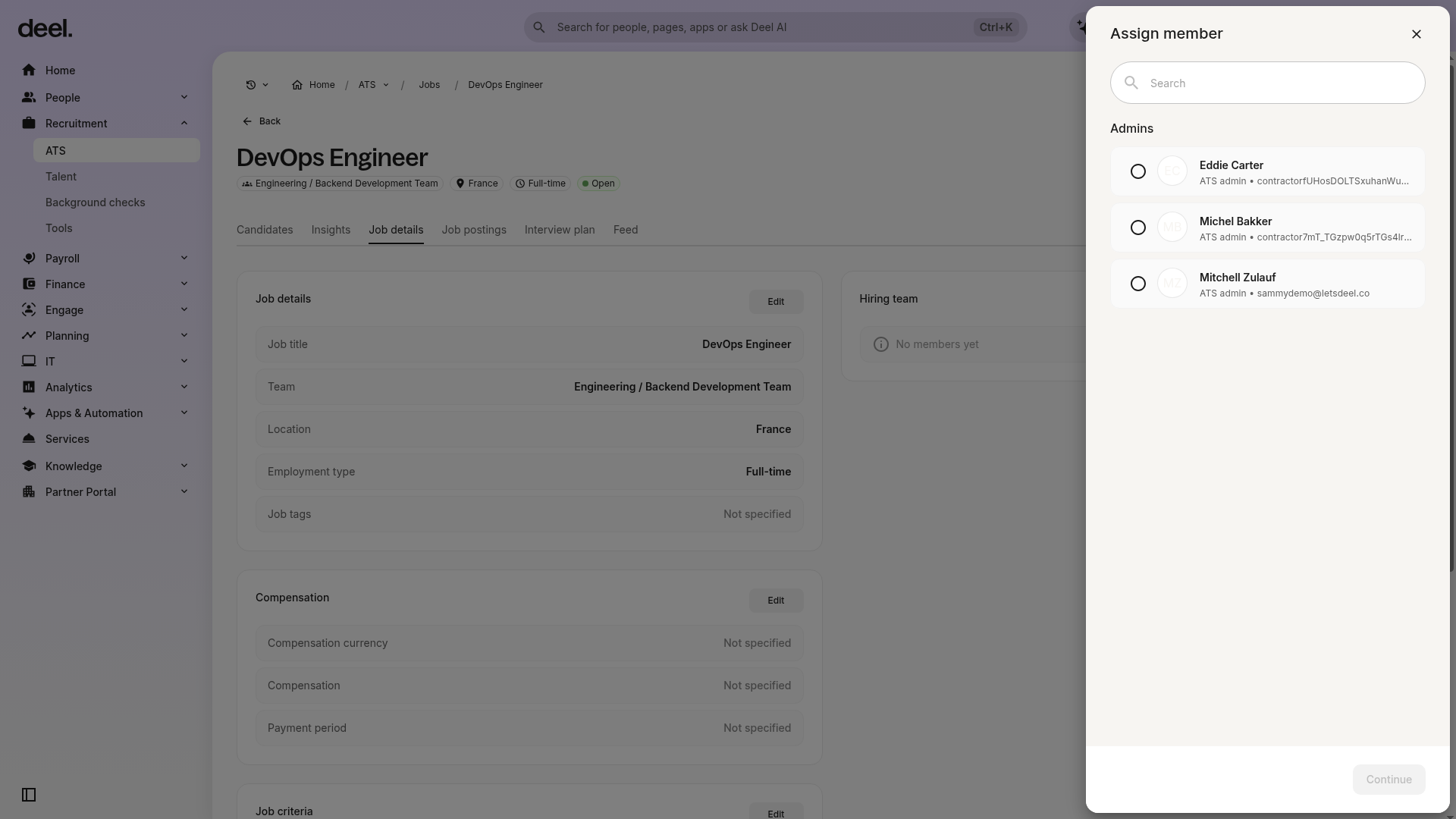
The Continue button remains unavailable until you select a member.
7. On the job page, select Interview plan and open an active task.
8. Select New activity, then select Submit.
9. Add the reviewer or reviewers, then select Submit.
Key differences in ATS roles permissions
| Role | Access Level |
| ATS Manager (Admin) | Full hiring access across all job posts |
| ATS Member | Only sees assigned job posts (cannot create new ones) |
| Participant | Assigned per stage (e.g., reviewing applications) |