
This article explains how to create reports in Deel Analytics 2.0, add visualizations (line, bar, donut, area), configure fields and filters, and save your work as a standalone report or to dashboards.
It also covers grouping, sorting, and best-practice tips for building clear and reliable insights.
Note: Some features described in this article are part of Analytics 2.0, which is currently in progressive rollout. If you do not see these options, your account may still be using the legacy Analytics experience.
In this article
Access the new Analytics 2.0 platform
Create a report from a template
Configure fields, filters, sorting, and grouping
Add visualizations (line, bar, donut, area)
Save your report (single report, existing dashboard, new dashboard)
Prerequisites and access
Before you start:
- You must have Analytics access in your Deel account.
- Ensure you have access to the new analytics permissions in Analytics 2.0 to view the data sources you plan to report on (e.g., Payroll, Headcount, Time Off).
- Data in Analytics updates according to your workspace’s refresh schedule.
- If you cannot see Analytics or a specific data model, contact your Org admin.
Access the new Analytics 2.0 platform
If your organization has access to Analytics 2.0, you can access Analytics from the left sidebar.
Step 1 - Navigate to Analytics
In the left sidebar, select the expand arrow next to Analytics. The submenu includes Analytics overview, Dashboards, Reports, and Salary insights. Select Reports to open the report library.
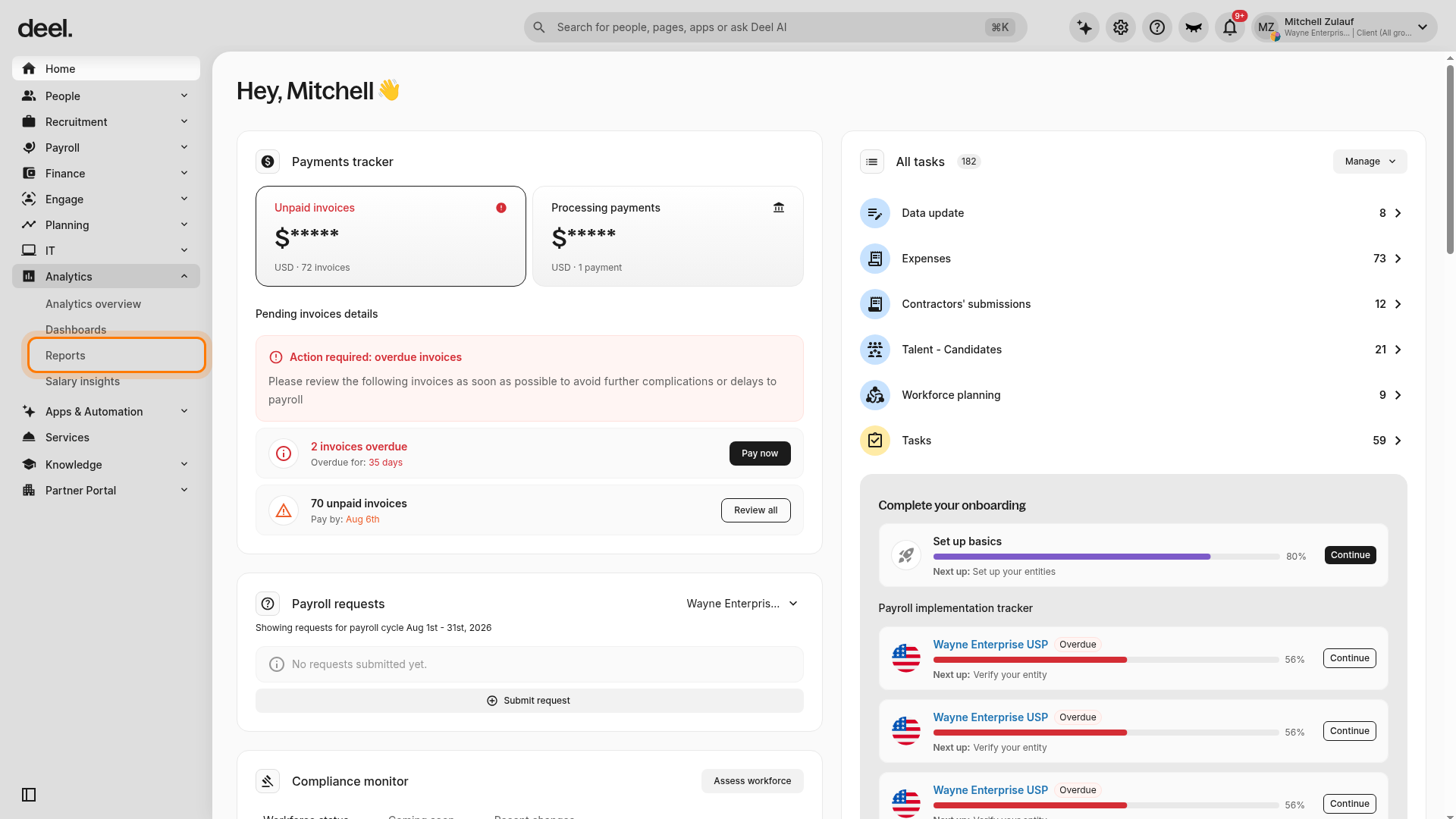
Analytics 2.0 includes three key sections:
- Overview – Your personalized landing page for quick insight
- Dashboards – Visual collections of saved report tiles
-
Reports – The workspace for building, customizing, and analyzing data
How to create a Report from a Template
Templates provide a quick way to start with preconfigured columns, filters, and chart types. These are ideal for repeatable business use cases.
Step 1 - Navigate to Analytics
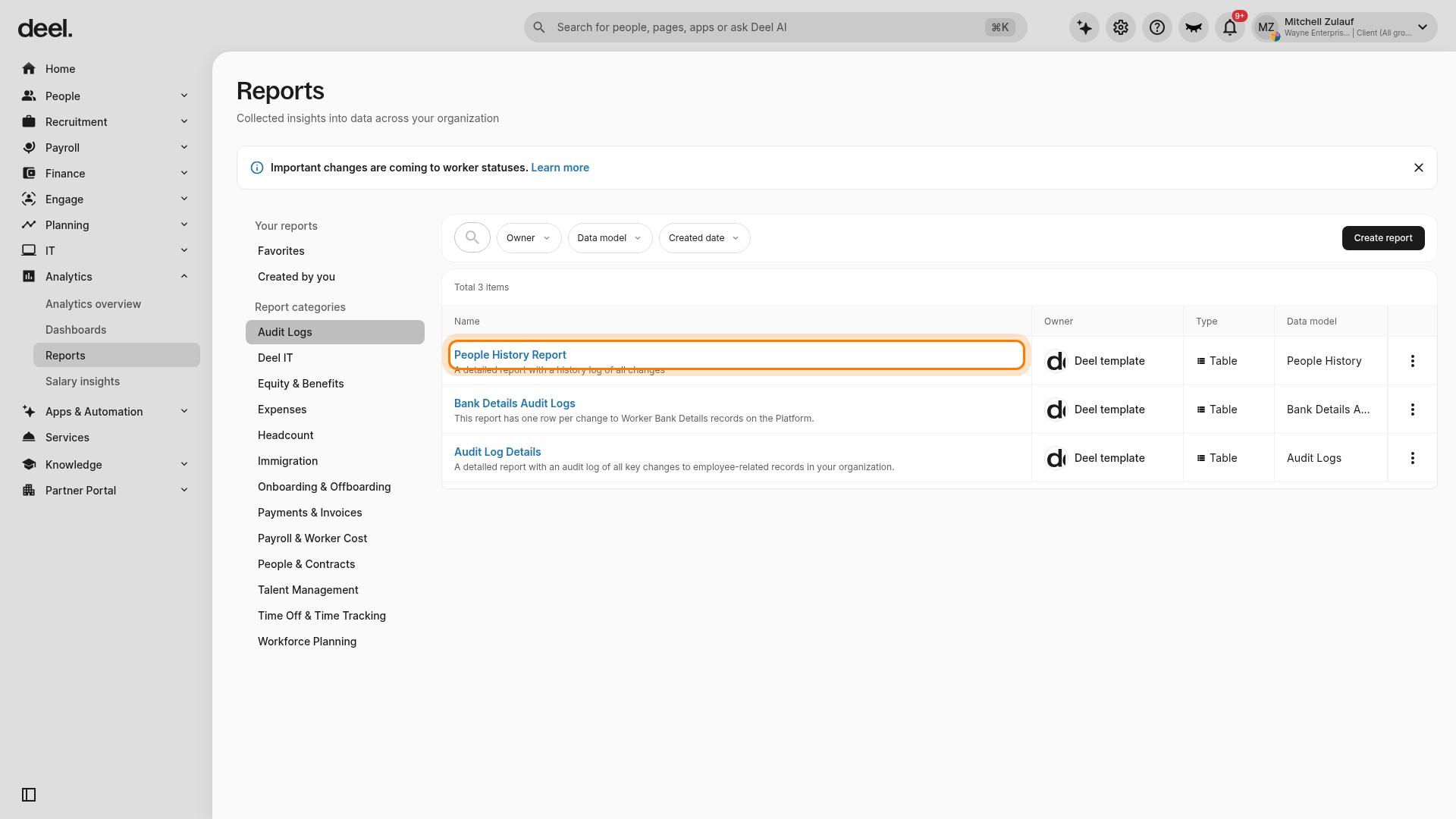
Go to the Analytics page and select the Reports tab to open the report library. The Reports page displays report categories on the left and available reports and templates in the main area.
Step 2 - Choose the applicable template to base the report on
You can select from a list of available templates and configure them to suit your organizational needs. Select the report template you want to use. For example, select People History Report.
Available templates vary by workspace and category. Depending on the template, the default view may be a table or a chart (bar, area, line, donut).
Step 3 - Configure the fields
Wait for the report builder to load. Verify that the selected template name appears at the top of the page. The builder includes Filters, Available fields, table controls, and Run and Save buttons.
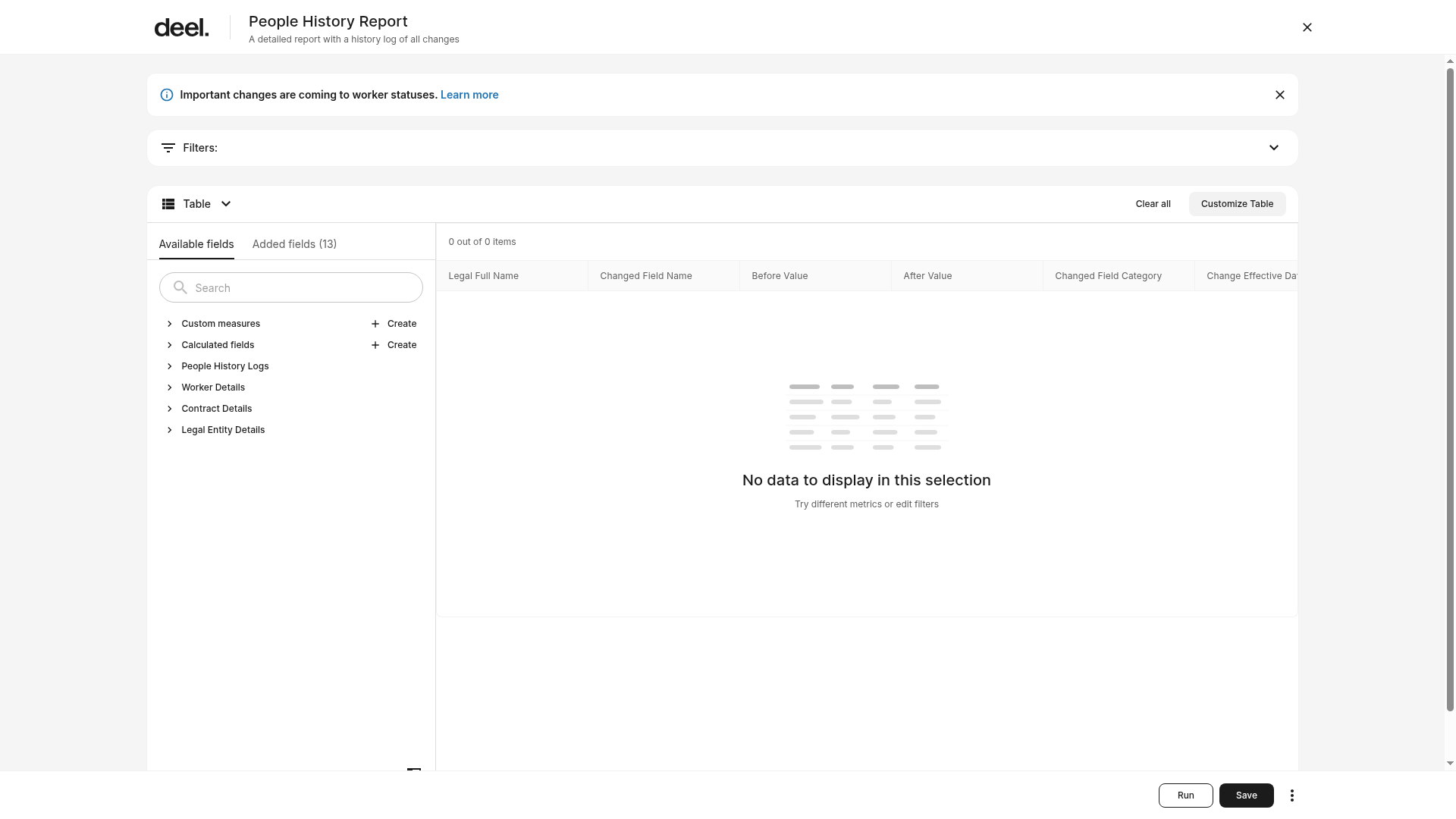
A message such as No data to display in this selection does not mean that the template failed to load. The template is open when the builder controls are visible.
In the Available Fields panel, you can:
- Add, replace, or remove table columns.
- Use fields from supported data sources.
- Create custom measures or calculated fields when available.
You can find fields by data source or category.
Step 4 - Adjust the Filters and Run
Use Filters to refine the report, such as by date range, country, or worker type. Combine filters using AND/OR logic where available. Sort table results to bring important values to the top, and group by categories, such as Country and then Department, to create roll-up totals and clearer comparisons.
For trend reporting, select an appropriate date interval, such as Monthly, Quarterly, or Yearly. Start with simple filters and add complexity gradually, as complex filters may affect performance. Select Run to refresh the results.
Configure fields, filters, sorting, and grouping
Use these tools to refine your dataset before turning it into a visualization.
Fields (Columns)
- Add or remove columns to control what appears in the table.
Filters
- Apply filters to refine your dataset.
Example: Country = "UK" + Date = "This quarter". - Combine filters using AND/OR logic for precision.
Grouping
- Group by category (e.g., Country → Department) to create roll-up totals.
Date and Time Grain
- Choose Monthly, Quarterly, or Yearly intervals for trend reports.
Tips:
- Start with simple filters and build up, complex filters may slow performance.
- Use grouping to clarify comparisons and summarize totals.
How to Add Visualizations
Visualizations help you turn data into meaningful insights.
Step 1 - Choose a visualization
Open a report in Report Builder. If an informational banner covers the workspace, close it using the X.
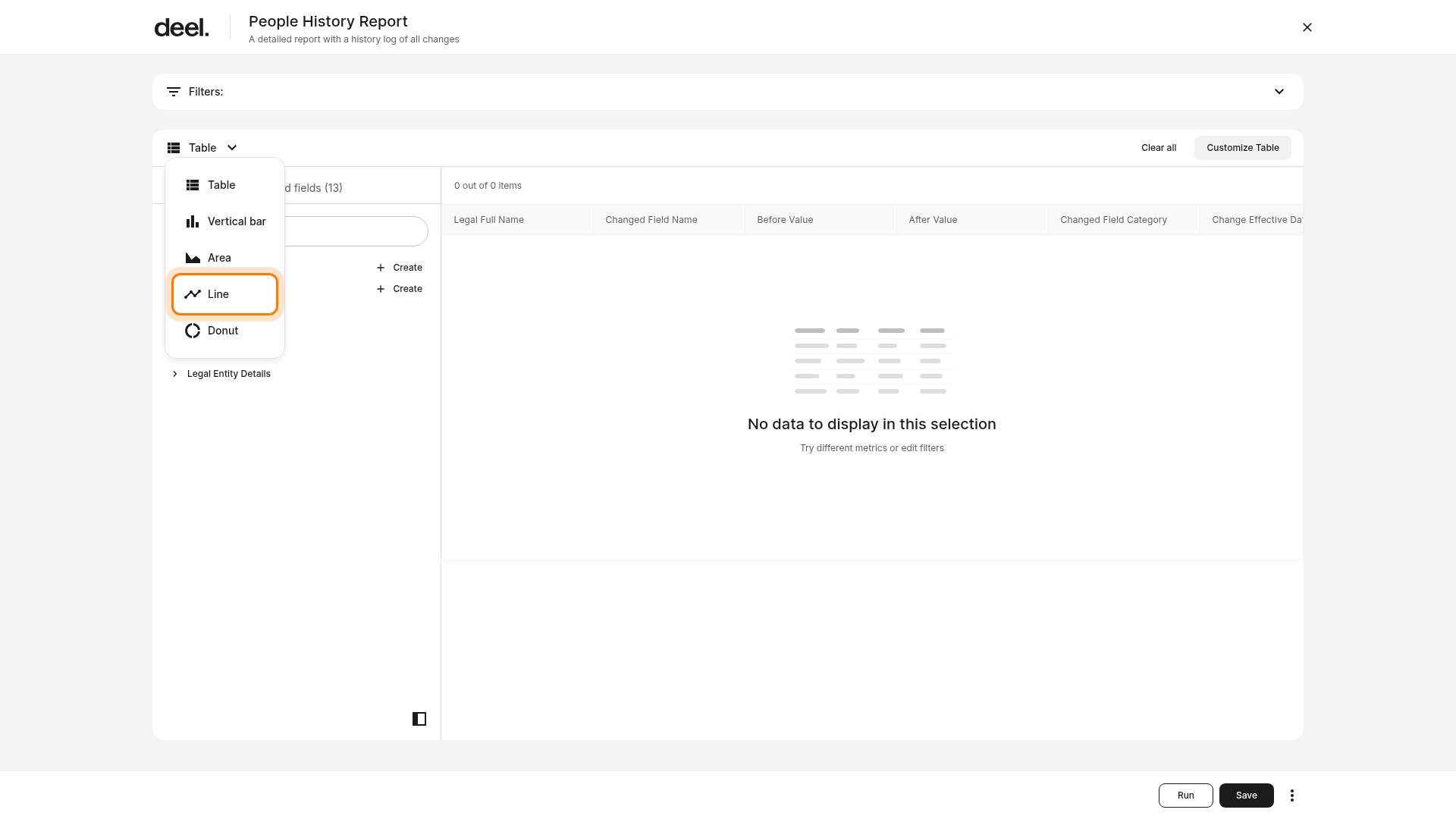
At the upper-left of the report canvas, select the current visualization control, such as Table. Then select a chart type:
- Line – Trends over time, such as monthly payroll cost.
- Vertical bar – Comparisons across categories, such as cost by country.
- Donut – Parts of a whole, such as headcount by department.
- Area – Trends over time with emphasis on magnitude or cumulative volume.
Step 2 - Configure the visualization fields
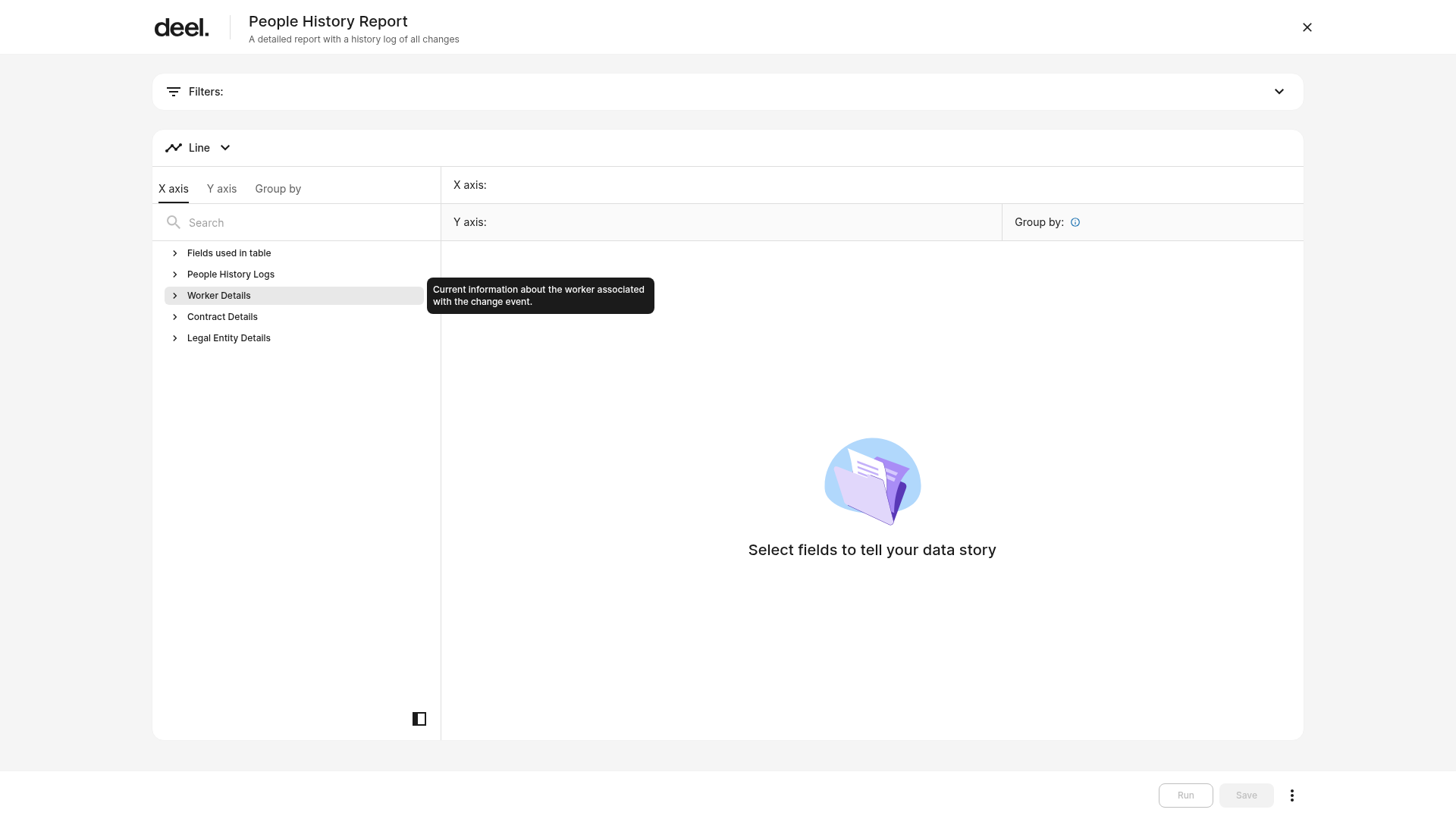
After you select a chart, the configuration panel displays X axis, Y axis, and Group by options.
- Select an X axis field, such as Date or Country.
- Select a Y axis field, such as Total Cost or Headcount.
Optionally select a Group by field to split the data into series or segments. Fields already used in the table can be available under Fields used in table.
Step 3 - Generate the Visualization
For time-based charts, use a date field on the X axis. A prompt to select fields is expected until the required axes are configured.
Click Run to generate or refresh the visualization. You can also configure labels, legends, sorting, or category limits where available.
Tips:
- Each visualization can display one dataset, add multiple for different angles.
- For time-based visuals, the X-axis must be a date field.
How to Save a Report
Choose the save method that fits your workflow. Additionally, you can also make click on the bottom three dots and mark the report as a favorite.
Save as a Single Report
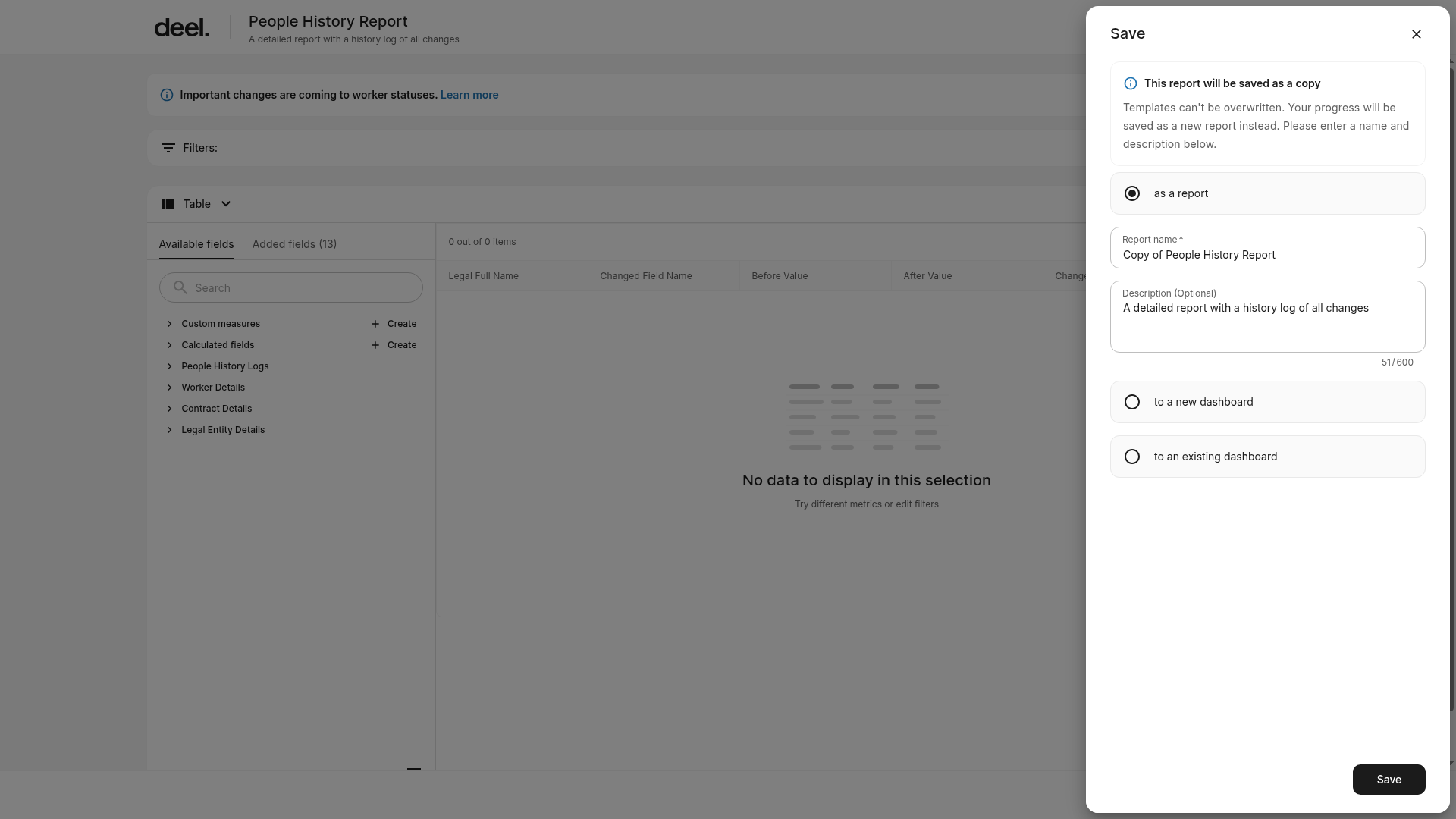
Use Save in the bottom-right toolbar of Report Builder, beside Run. The Save panel provides three destinations: as a report, to a new dashboard, and to an existing dashboard.
When saving a template, Deel saves your work as a copy because templates cannot be overwritten.
- Click Save.
- Select as a report.
- Enter a required report name and optional description.
- Click the lower Save button.
Your report appears under Analytics → Reports.
Best practices:
- Use naming conventions (e.g., Payroll Cost - Q3 -US).
- Add a description for teammates (date ranges, key filters, data sources).
Add to an Existing Dashboard
Before starting, ensure that at least one dashboard is available to you.
- Click Save.
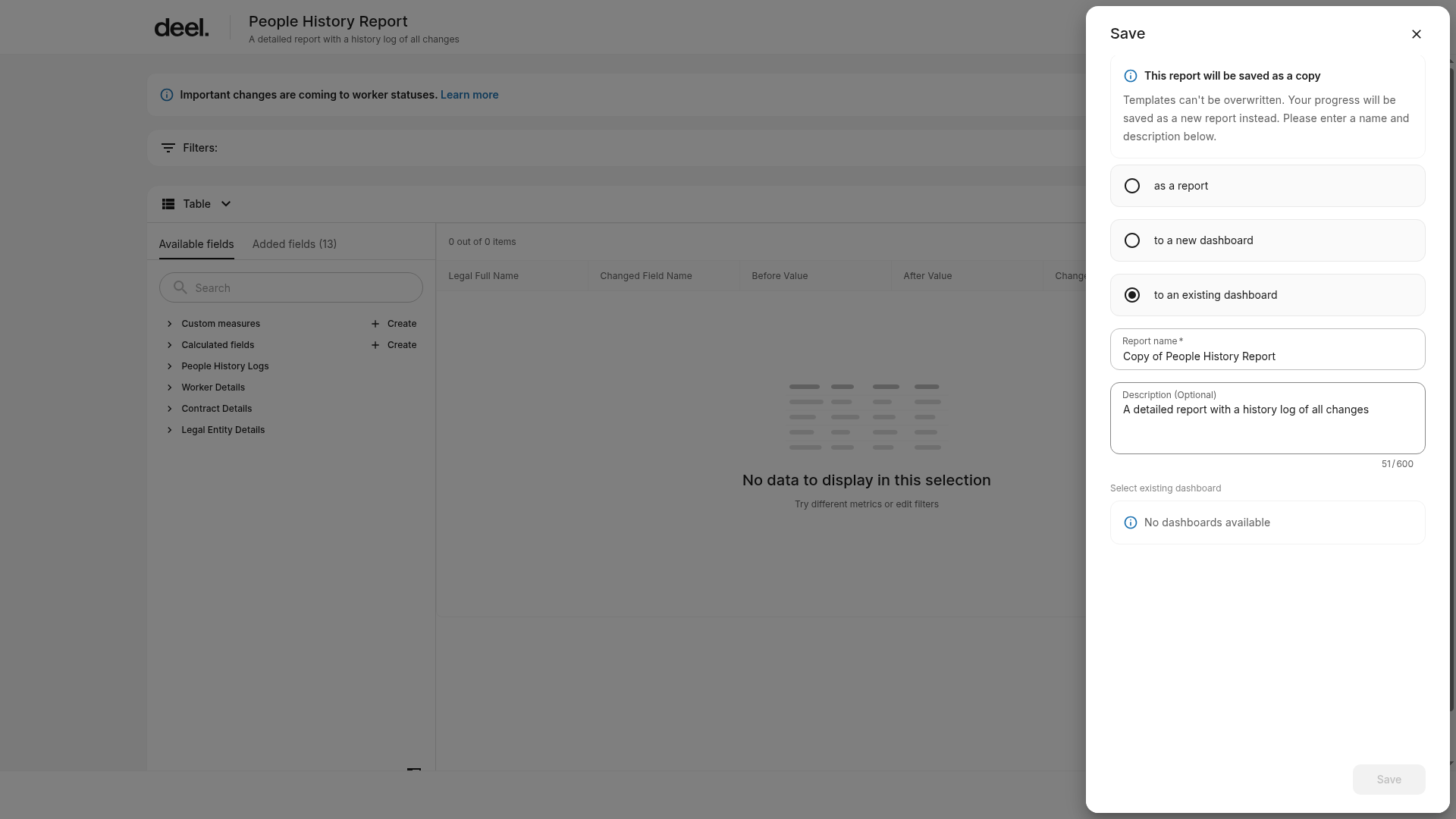
- Select to an existing dashboard.
- Enter or update the required report name and optional description, choose the dashboard under Select existing dashboard, and click Save.
The report is saved as a copy when needed and added to the selected dashboard. If the panel displays No dashboards available, the Save button remains disabled. Create a dashboard first or ask the dashboard owner or administrator to grant you access, then repeat the save flow.
Best practices:
- Group related charts together (e.g., trend + breakdown).
Save as a New Dashboard
- Click Save.
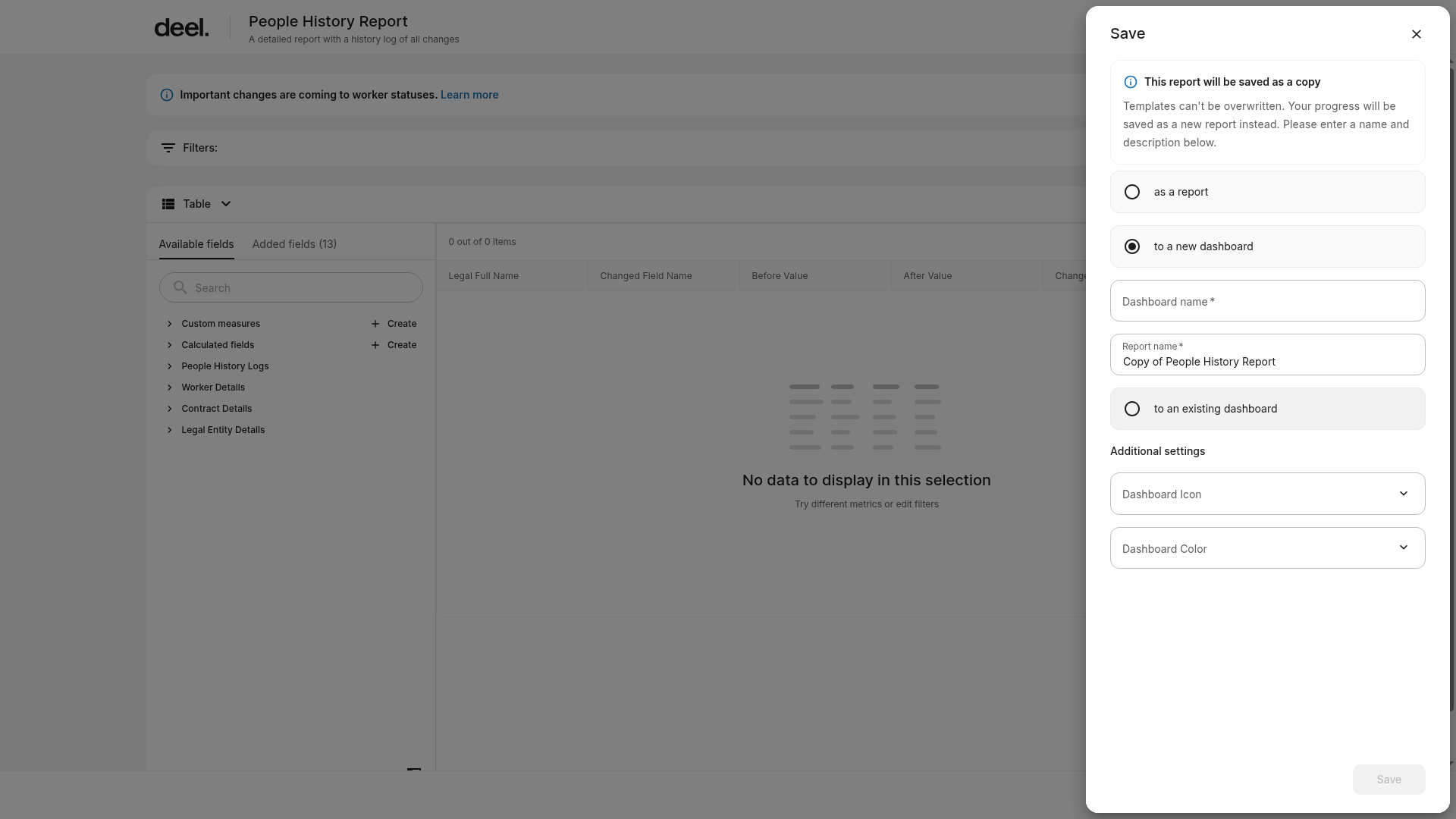
- Select to a new dashboard.
- Enter a required Dashboard name and confirm or update the required Report name. Optionally choose a Dashboard Icon and Dashboard Color under Additional settings, then click Save.
The Save button is unavailable until the required dashboard name is provided.
Best practices:
- Create separate dashboards for distinct goals (e.g., Workforce KPIs, Payroll Metrics).
- Use clear naming conventions.
Frequently Asked Questions
[ACCORDION] What’s the difference between saving a report and adding it to a dashboard?
A saved report stores your dataset and configuration. A dashboard displays one or more visualizations for quick monitoring.
[ACCORDION] Can I edit or delete a report after saving it?
Yes. Go to Analytics → Reports, open the report, and select Edit or Delete.
[ACCORDION] Do charts update when data changes?
Yes. Visualizations refresh automatically with the latest available data.
[ACCORDION] Why does my chart show “No data”?
Check your filters, fields, and date ranges. For line or area charts, ensure the X-axis uses a date field.
[ACCORDION] How can I compare periods (e.g., this quarter vs last quarter)?
Duplicate the visualization and change the date filter, or use fields that include prior-period values if available. For example, using the pivot function.