
This article explains how to create dashboards in Deel Analytics 2.0 so you can organize visualizations, monitor key metrics, and share insights with your team.
You’ll learn how to build dashboards from scratch and from templates, add and arrange tiles, apply dashboard-level filters, and manage your dashboard settings.
In this article:
Create a Dashboard from Scratch
Create a Dashboard from a Template
What dashboards are
Dashboards in Analytics let you bring multiple visualizations together in a single view. They help you:
- Track KPIs in one place
- Compare trends and breakdowns side by side
- Monitor data over time
- Create views tailored to different teams (HR, Finance, Ops, etc.)
Dashboards update automatically as underlying data changes.
How to Create a Dashboard from Scratch
This method allows you to build a new dashboard from scratch
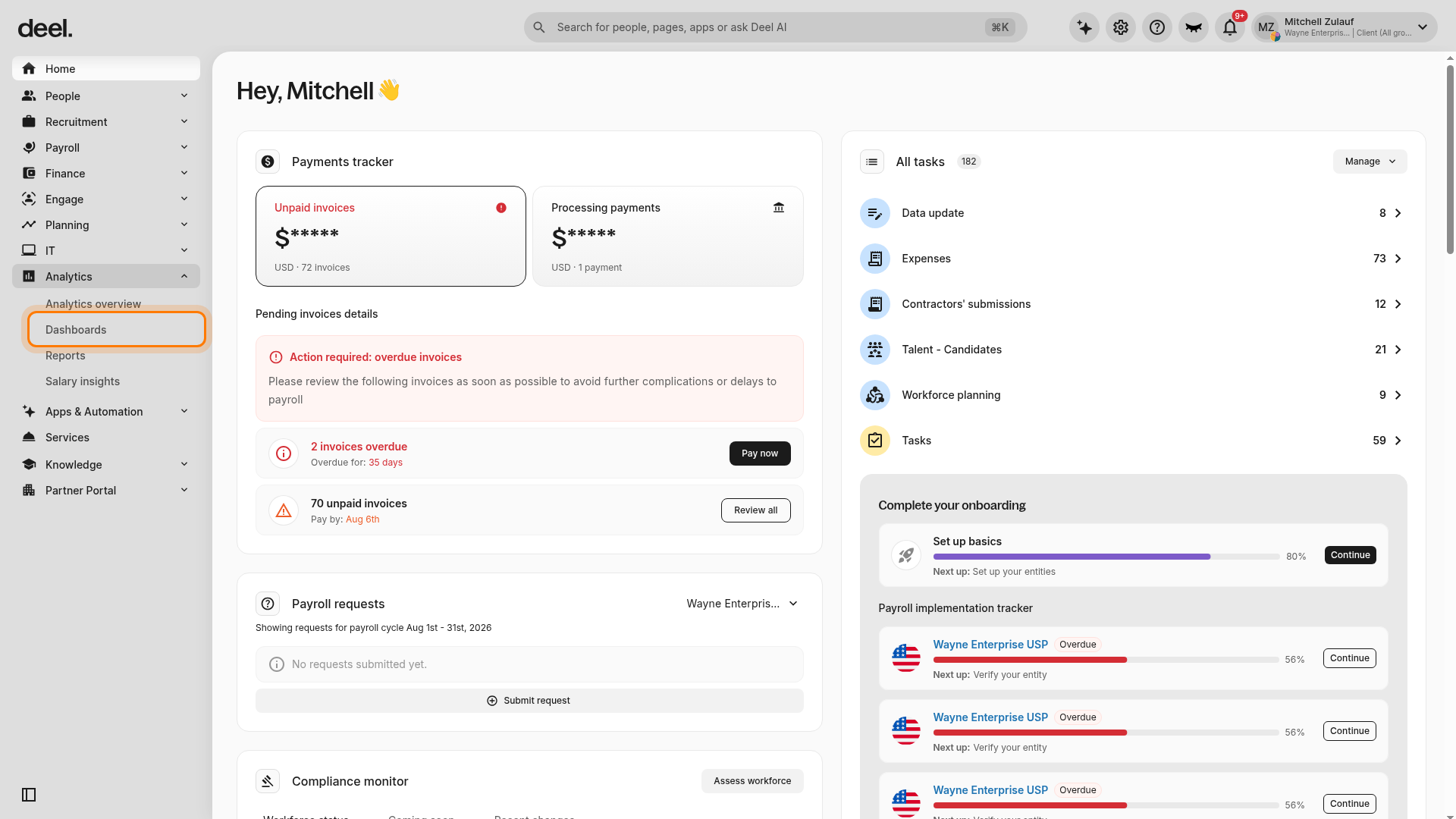
Step 1 - Navigate to Analytics
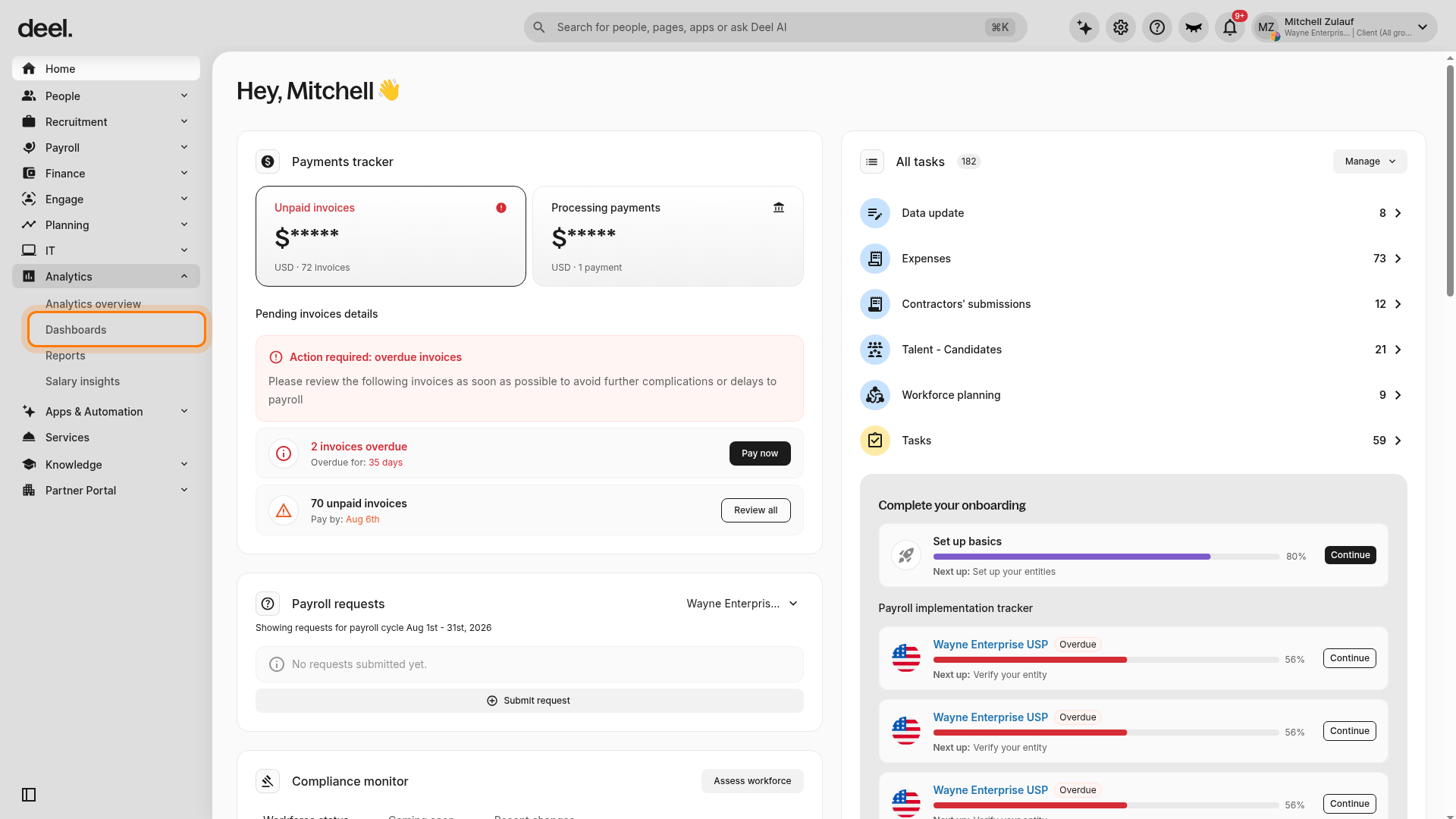
In the left sidebar, select Analytics or its expand arrow to expand the Analytics section. Then select Dashboards in the expanded submenu.
The Dashboards page opens.
Step 2 - Add a Report
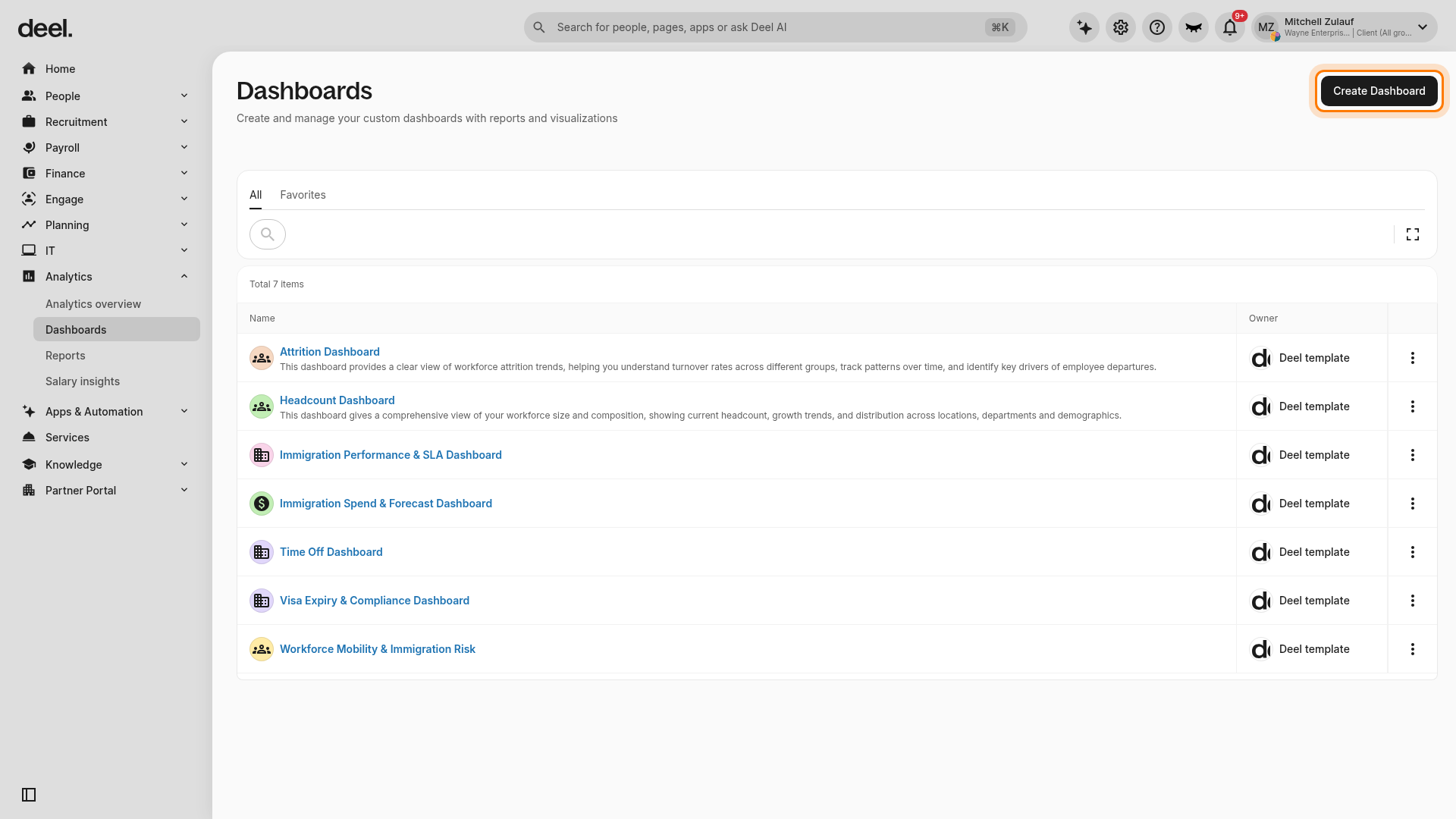
On the Dashboards page, select Create Dashboard in the upper-right corner.
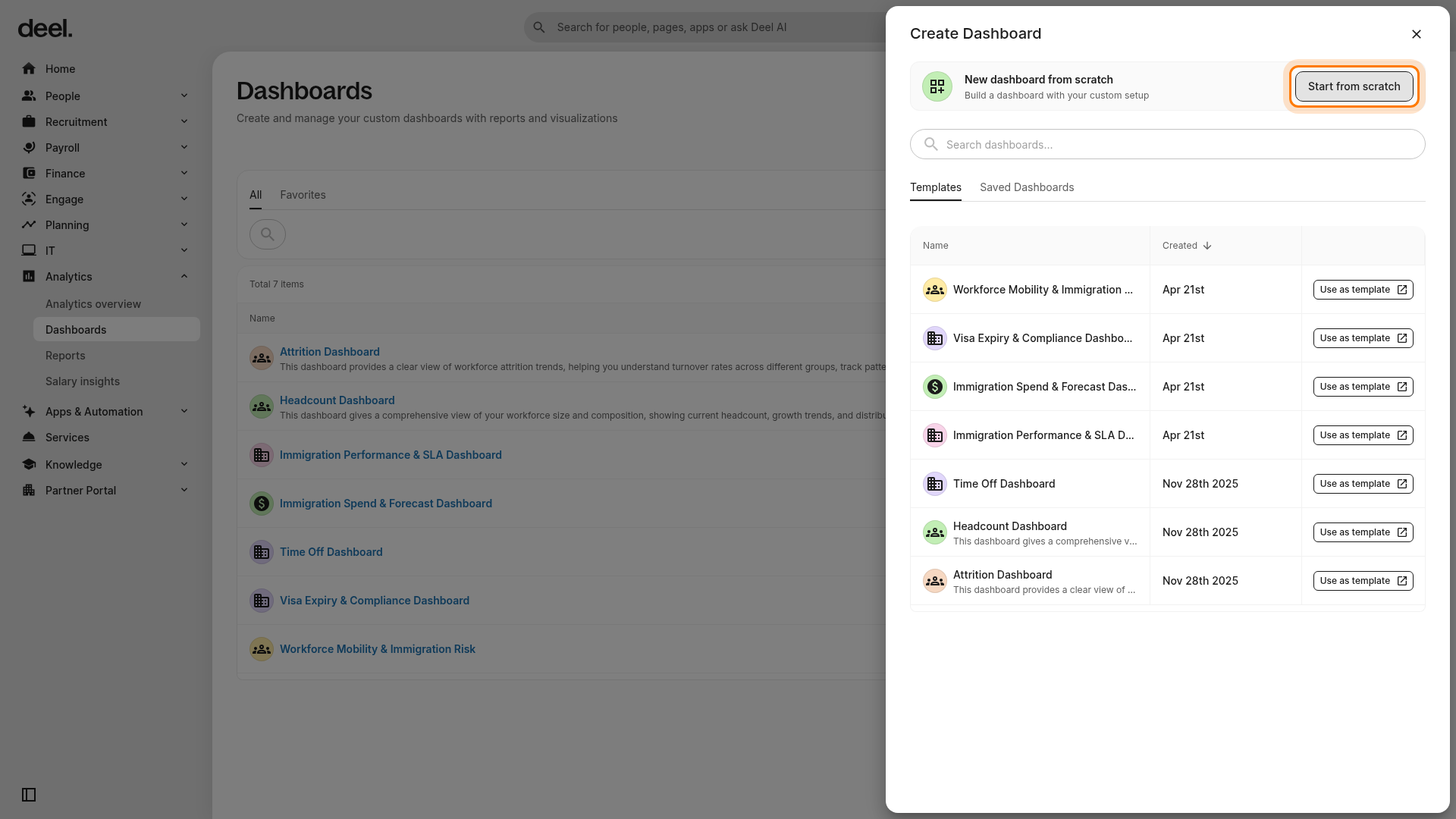
In the Create Dashboard panel, under New dashboard from scratch, select Start from scratch.
Choose Start from scratch, not Use as template, to open a dashboard without preconfigured content.
Step 3 - Review and Save Your Dashboard
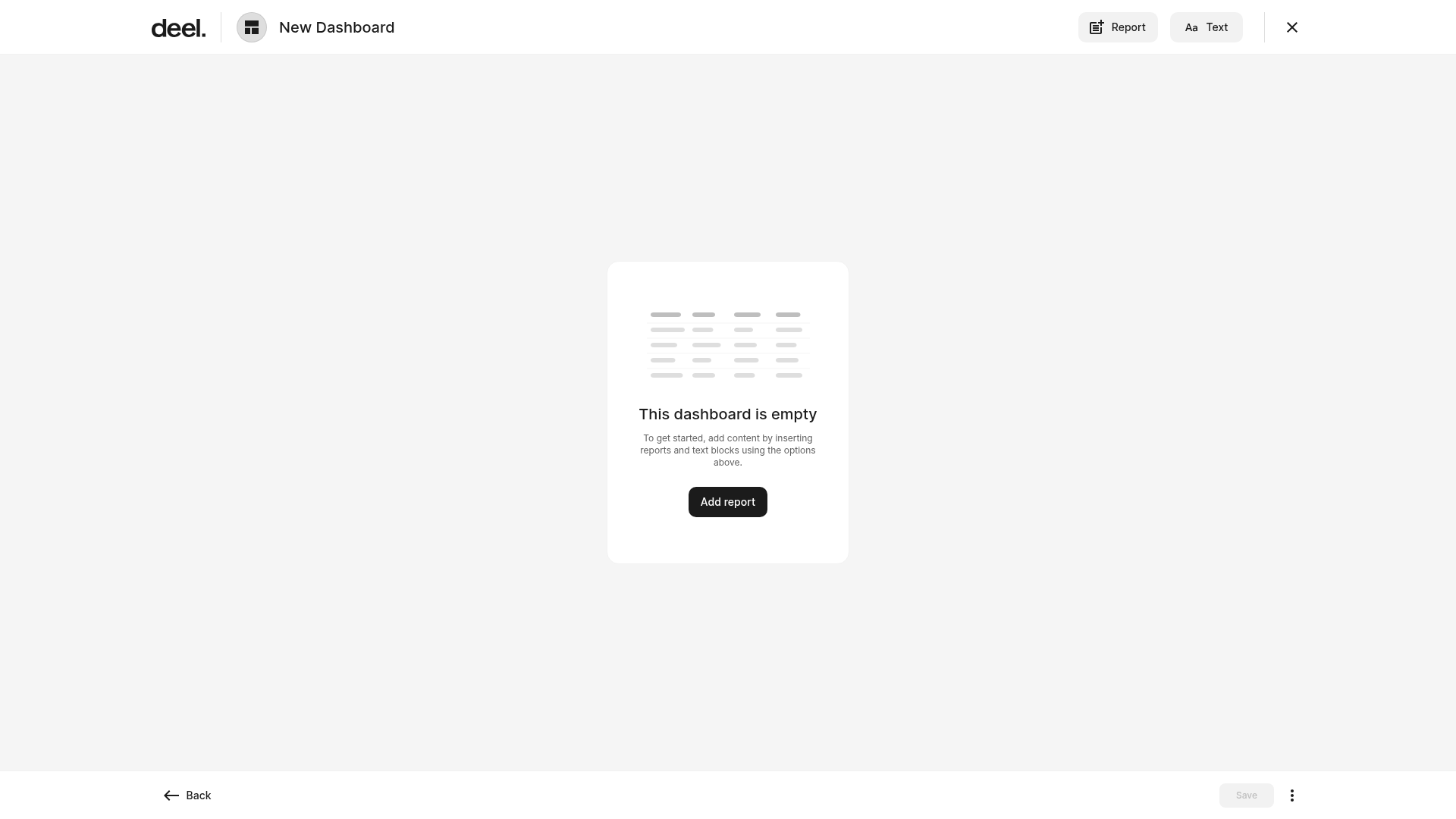
The dashboard editor opens with the default title New Dashboard and the message This dashboard is empty.
Select Report or Add report to add a report tile. You can add a report from templates, add a saved report, or create a report from scratch. Select Text to add a text block, such as a title or section heading.
Each report appears as a tile that you can arrange and customize. Add as many tiles and text blocks as needed, then give the dashboard a name, icon, and description and select Save.
Your saved dashboard appears in the Dashboards list.
How to Create a Dashboard from a Template
If you want to start from a ready-made layout, you can create a dashboard based on a predefined template.
Step 1 - Navigate to Analytics
In the left sidebar, select Analytics to expand its submenu. Then select Dashboards.
The Dashboards page opens.
Step 2 - Select the Dashboard Template
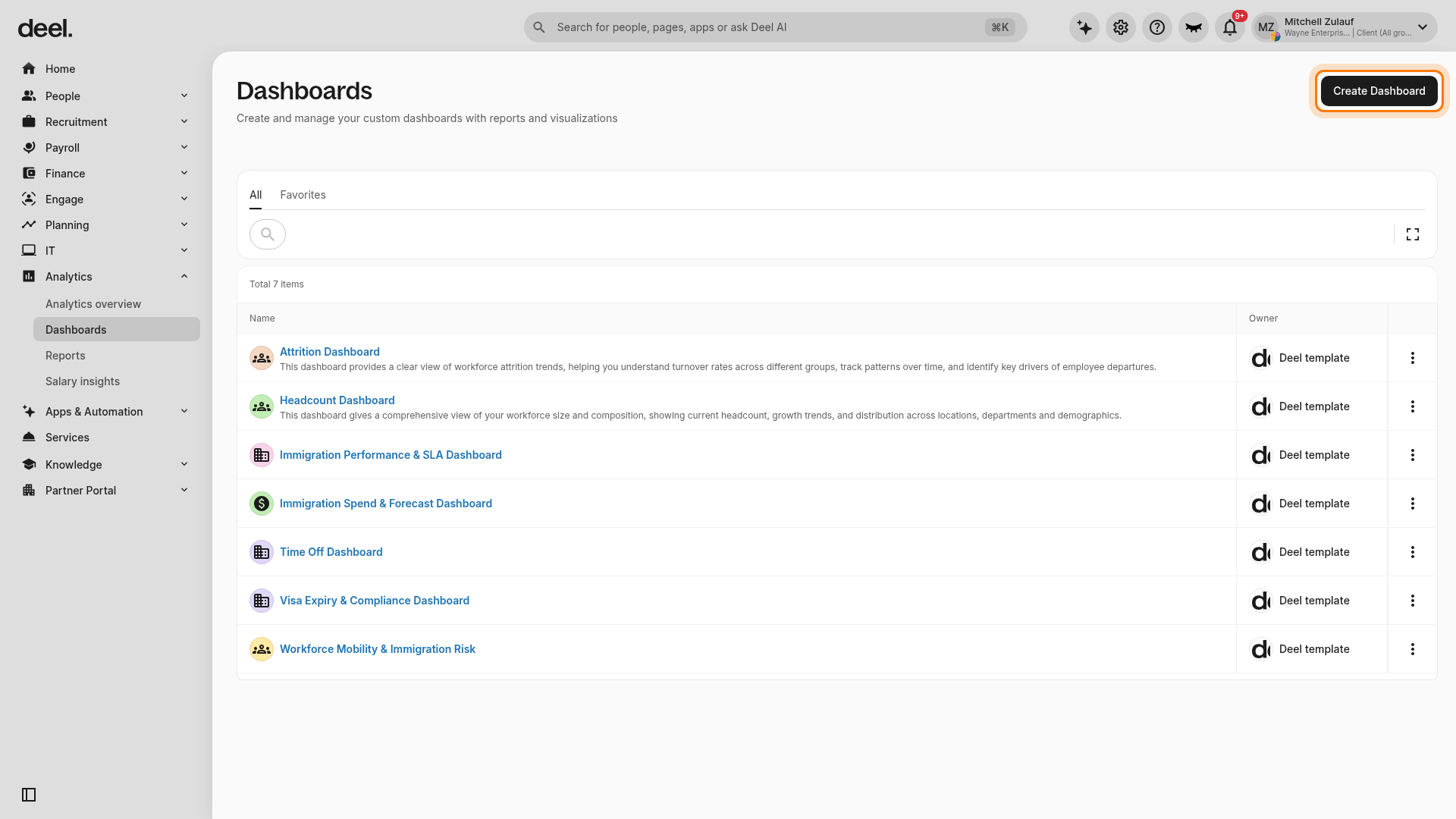
Select Create Dashboard in the upper-right corner.
In the Create Dashboard panel, keep the Templates tab selected. Locate the template you want to use. Use Search dashboards... if needed.
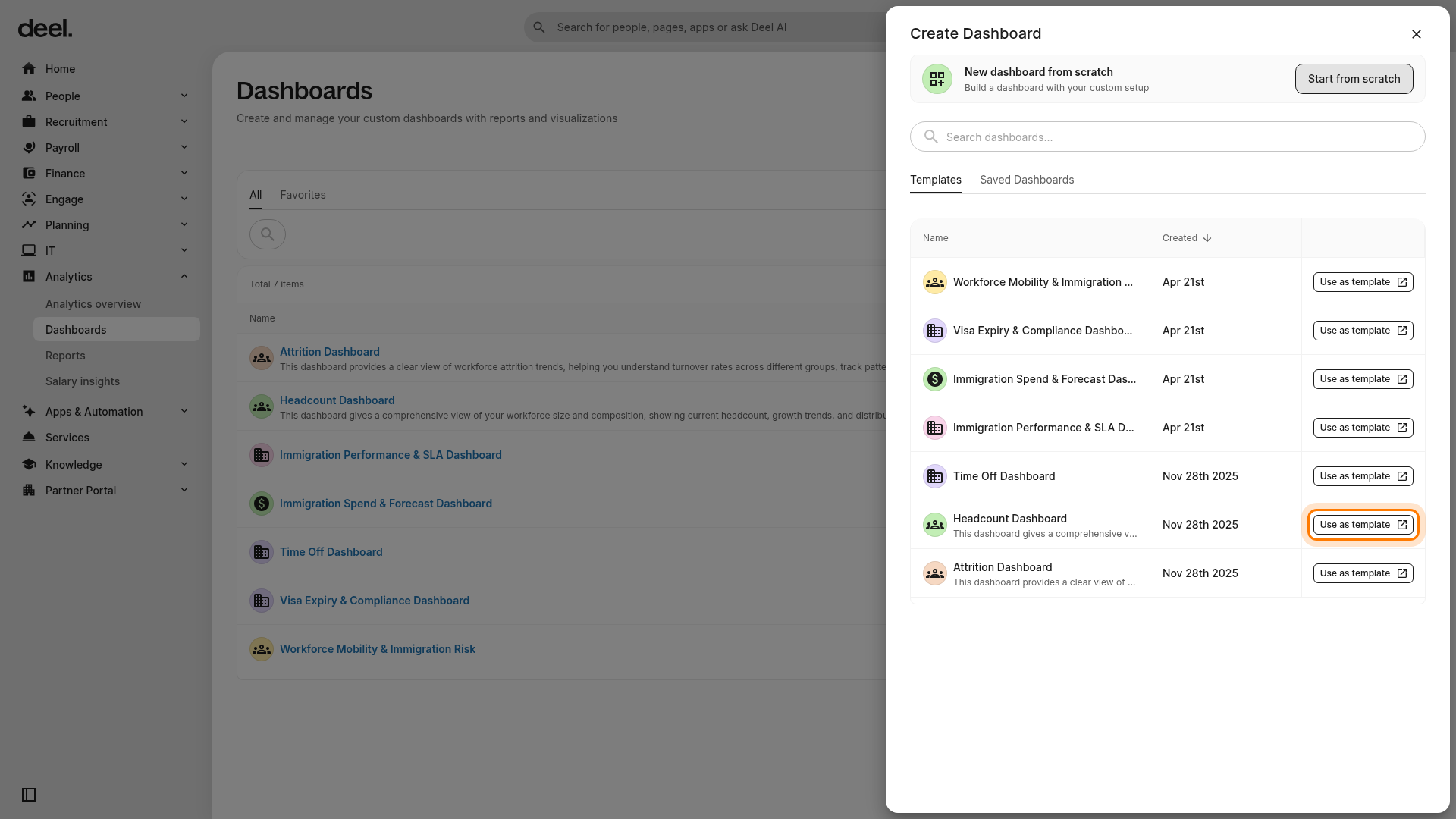
Select Use as template on the template’s row.
Deel creates a copy of the selected template and opens it in the dashboard editor. Do not select Start from scratch if you want to use a prebuilt layout.
Step 3 - Adjust the fields and add reports to the dashboard
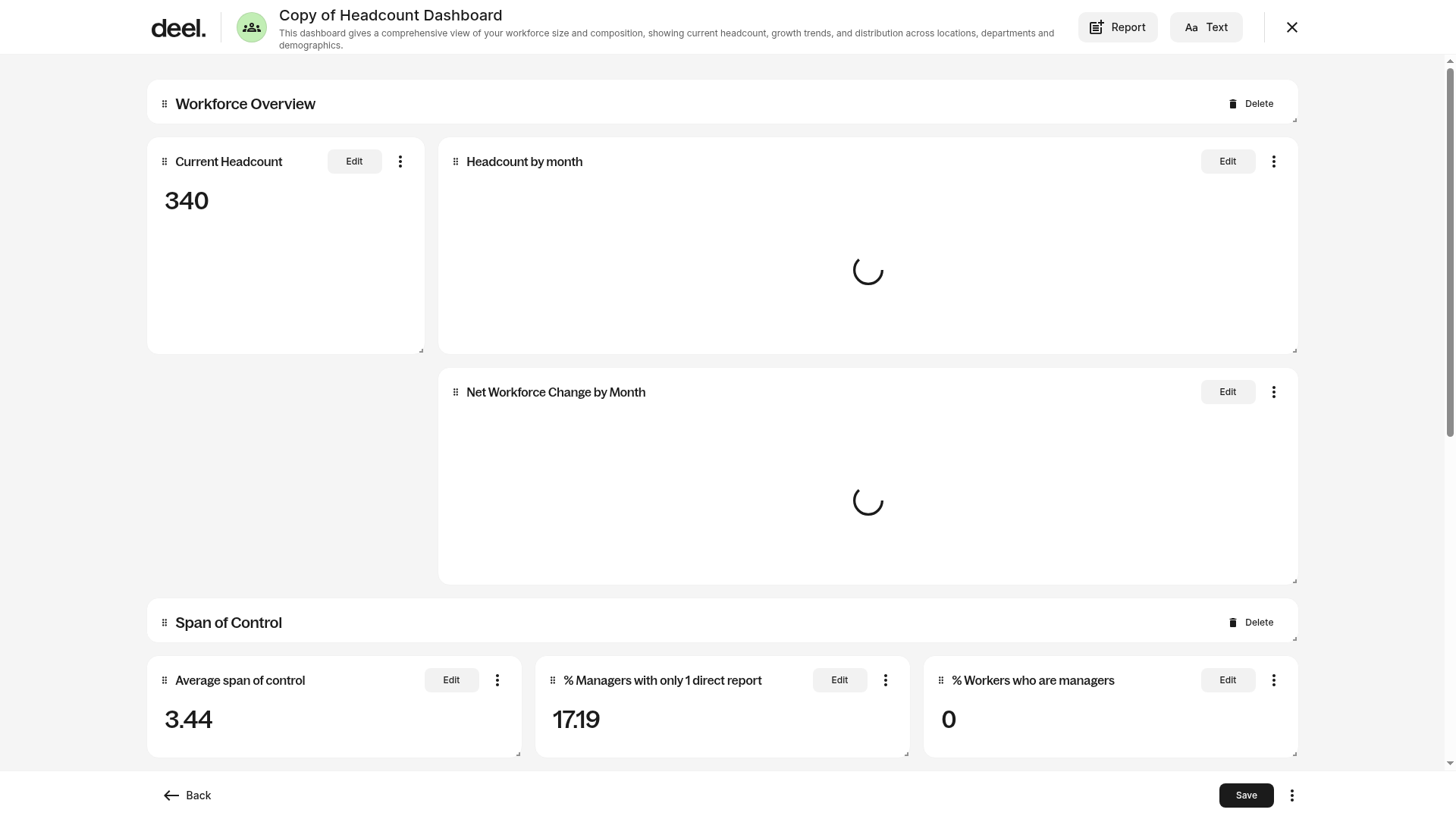
Confirm that the editor opens for a copied dashboard, such as Copy of Headcount Dashboard. The dashboard includes preconfigured sections and report cards with Edit controls.
You can edit report fields, modify or reorder tiles, add reports, and add text blocks. When your updates are complete, select Save.
Frequently Asked Questions
[ACCORDION] Can I edit a dashboard after saving it?
Yes. Open the dashboard and use the edit options to change tiles, reorder content, or update the dashboard name or description.
[ACCORDION] Will my dashboard update automatically?
Yes. Dashboards refresh automatically as underlying data sources are updated.
[ACCORDION] Can I remove a tile without deleting the report?
Yes. Removing a tile only removes it from the dashboard. The report remains available under Analytics → Reports.