
This article explains how the Analytics Overview page works in Deel Analytics 2.0, including how to access it, customize it with your favorite reports and dashboards, and use it as your central landing page for insights.
In this article:
What is the Analytics Overview?
Tips for using Overview effectively
What is the Analytics Overview?
The Analytics Overview is the homepage of Analytics 2.0. It provides a personalized and consolidated view of your most important dashboards and reports, so you can quickly access the insights that matter most.
With the Overview, you can:
- Pin your favorite reports
- Pin your favorite dashboards
- Preview key metrics at a glance
- Use it as a central starting point when navigating Analytics
It is designed to give you a quick, centralized snapshot of your most commonly used analytics without navigating deep into menus.
Access the Analytics Overview
If your organization has Analytics 2.0 enabled, you can access the Overview anytime.
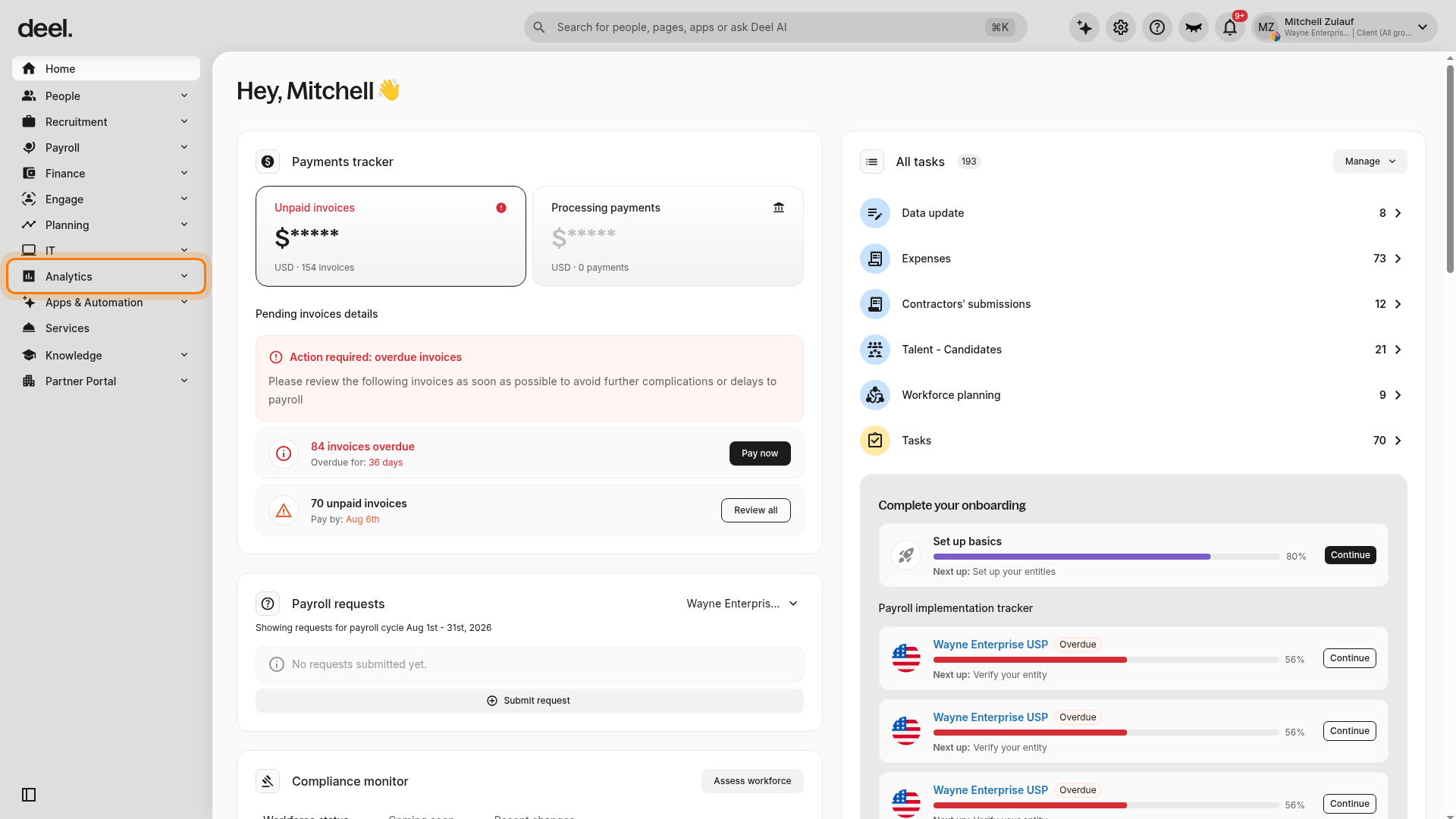
- In the left sidebar, click Analytics. The Analytics section expands to show its submenu items.
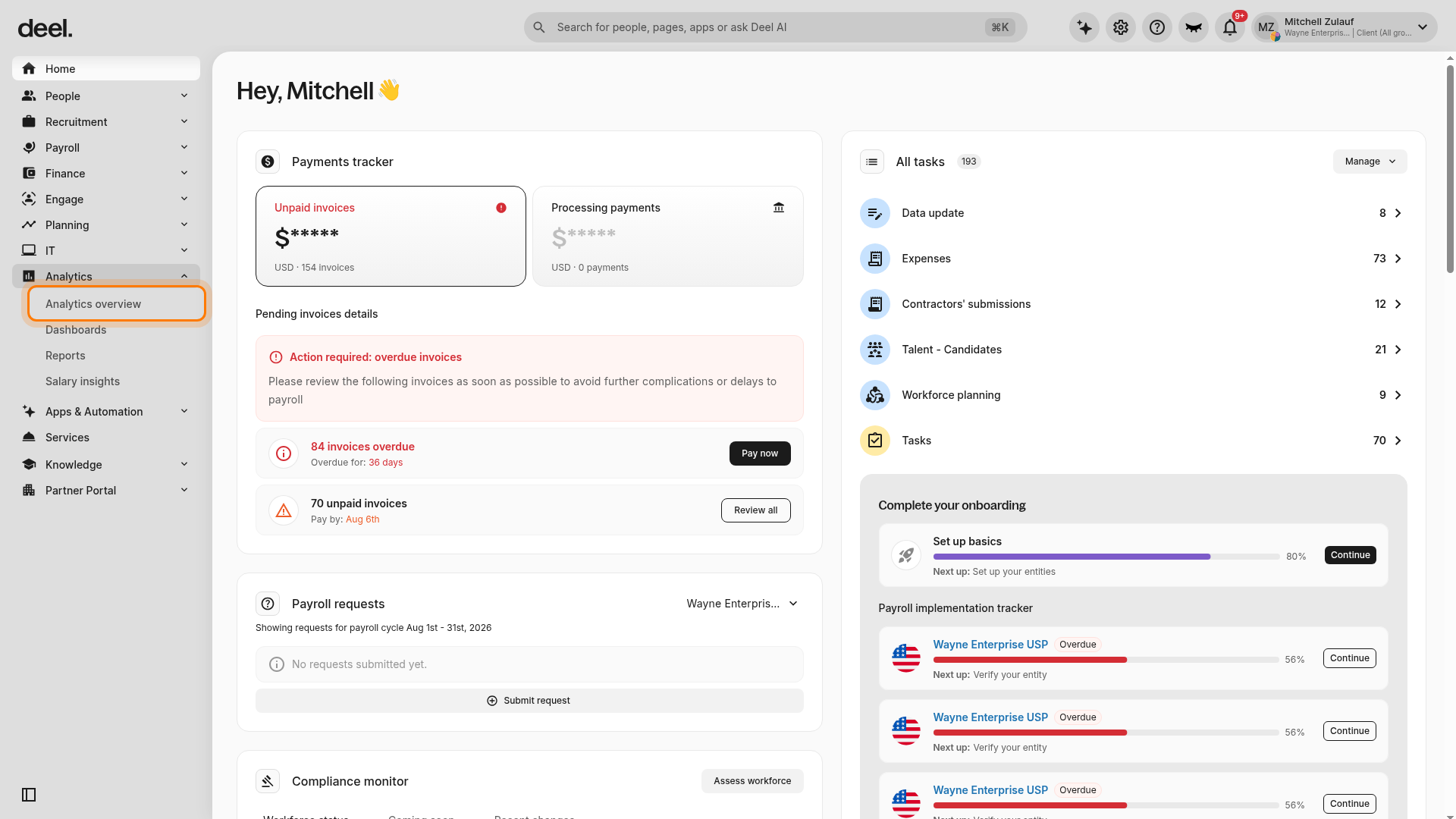
- In the expanded Analytics section, click Analytics overview, the first submenu item. Make sure you select Analytics overview, not Dashboards, Reports, or Salary insights.
- Wait for the page to load. Confirm the main heading reads Analytics, Analytics overview is highlighted in the left sidebar, and the page shows Reports and Dashboards sections.
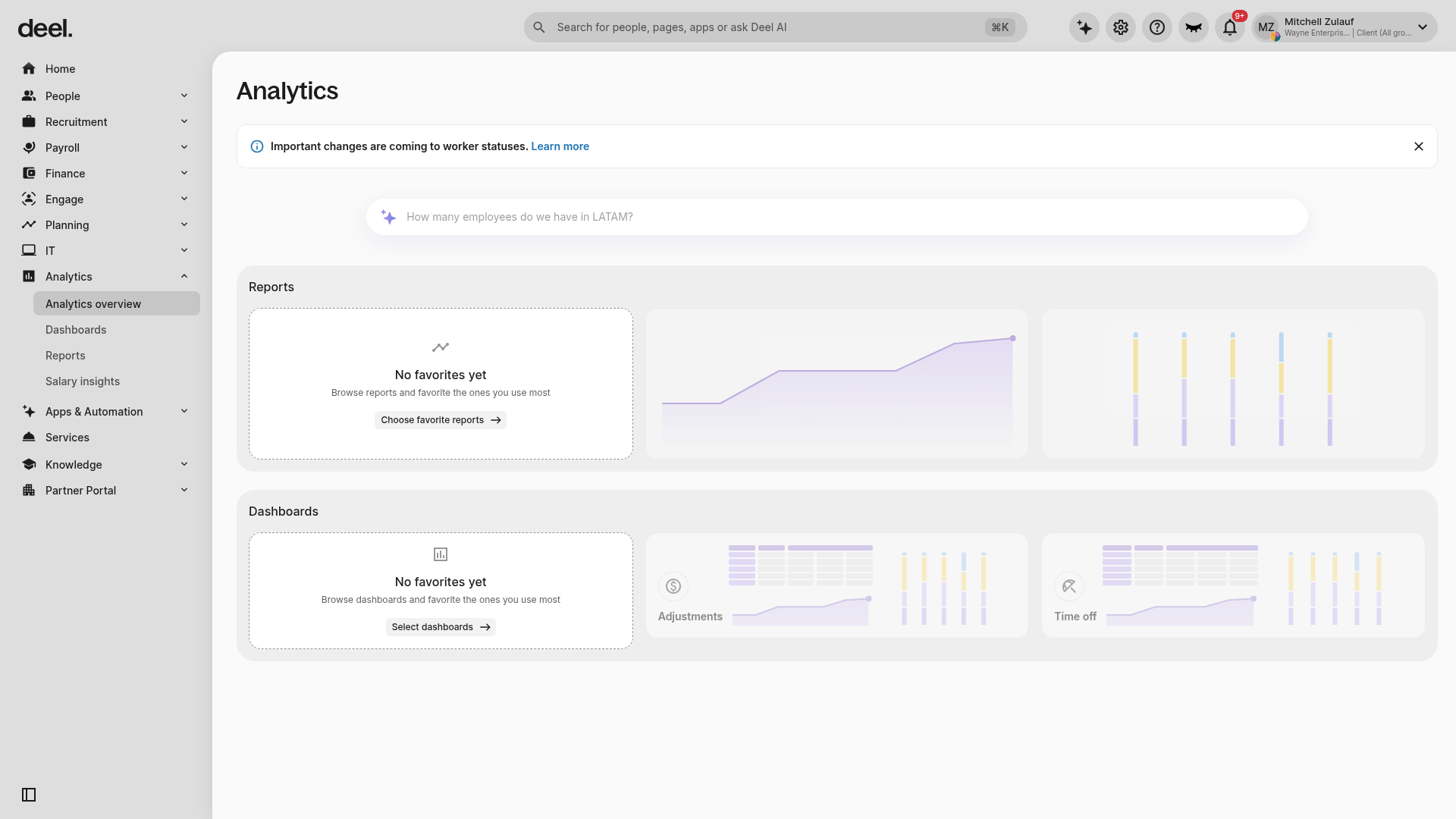
Note: If you do not see the Overview page, your account may still be using the legacy Analytics platform.
How to Add favorite reports
You can add frequently used reports to the Overview to create quick shortcuts.
Step 1 - Navigate to Analytics
On the Analytics Overview page, click Edit.
Step 2 - Add a report
Under Favorite Reports, click Add and select reports from your saved list. Click Update to add them.
Preview tiles for each report appear on the Overview.
How to Add Favorite Dashboards
You can also pin dashboards for quick access.
Step 1 - Navigate to Analytics
On the Analytics Overview page, click Edit.
Step 2 - Add a Dashboard
Under Favorite Dashboards, click Add. Choose the dashboards you want to pin and click Apply.
Dashboards will appear in a dedicated section of the Overview, showing their title and quick navigation links.
Rearrange or remove items
You can customize the layout of your Overview at any time.
Rearrange
Drag and drop report or dashboard tiles to reorder them according to priority.
Remove
- Click Edit.
- Hover over any tile.
- Click Remove to unpin it.
- Click Save when finished.
Tips for using Overview effectively
- Pin your top KPIs: Add dashboards or reports you use weekly or monthly.
- Minimize clutter: Keep only essential items, use dashboards for deeper analysis.
- Prepare for meetings: Use Overview as a quick pre-meeting reference to check metrics.
-
Switch perspectives: Add dashboards related to different departments (e.g., HR, Finance, Operations).
Frequently Asked Questions
[ACCORDION] What is the difference between Overview and Dashboards?
The Overview is a personalized homepage showing your pinned favorites. Dashboards show detailed visualization collections.
[ACCORDION] Can teammates see my Overview?
No. Your Overview is personal to your account. Only the dashboards themselves can be shared.
[ACCORDION] Why can’t I see the Overview section?
Your organization may still be using the legacy Analytics platform. Contact your Org admin to check if Analytics 2.0 is enabled.
[ACCORDION] Can I pin visualizations individually?
You can pin the report or dashboard that contains the visualization. Individual tiles cannot be pinned alone.
[ACCORDION] Does Overview auto-refresh?
Yes. Data updates follow your workspace's standard refresh schedule.