
- Overview
- Before you begin
-
Workflow
- Step 1 - Check whether wallet funding is available
- Step 2 - Accept the terms when prompted
- Step 3 - Submit the accepted terms
- Step 4 - Open Wallet and cards
- Step 5 - Confirm the Wallet and cards tab is open
- Step 6 - Check for Fund wallet
- Step 7 - Transfer funds into your wallet
- Step 8 - Use multicurrency balances
- Step 9 - Withdraw funds from your Deel Card to your Deel Balance
- Step 10 - Understand Deel Card refunds
- Troubleshooting
Overview
You can fund your card wallet from your Deel account balance, and then make purchases with the funds using your card. If you have multiple cards, they all share the same card wallet.
The Deel Card supports multicurrency balances, allowing contractors to hold, view, and spend from multiple non-USD currency balances directly within their card wallet.
Before you begin
You must be:
- Using an existing virtual Deel Card that is active and eligible for funding.
- Able to access the Fund wallet action.
You must be aware that:
- The Deel Card can only be directly funded from your Deel balance. It is not possible to fund the card with outside funds.
- You may only fund your Deel Card wallet after your card request has been reviewed and the virtual card is active.
- The maximum funding limit allowed on the card is $18,000 USD.
- The minimum funding amount is $5.00.
- Restrictions on maintaining funds on your Deel Card vary by country. Check your Deel Card page for details.
If the card is marked IN REVIEW, or if your account shows Get Deel Card, wallet funding is not available yet.
Workflow
Step 1 - Check whether wallet funding is available
- From the Home dashboard, scroll to the Deel Card section.
- If a promotional announcement or browser-support message covers the dashboard, close it using the X in the upper-right corner before continuing.
- Check the status and available action in the Deel Card section.
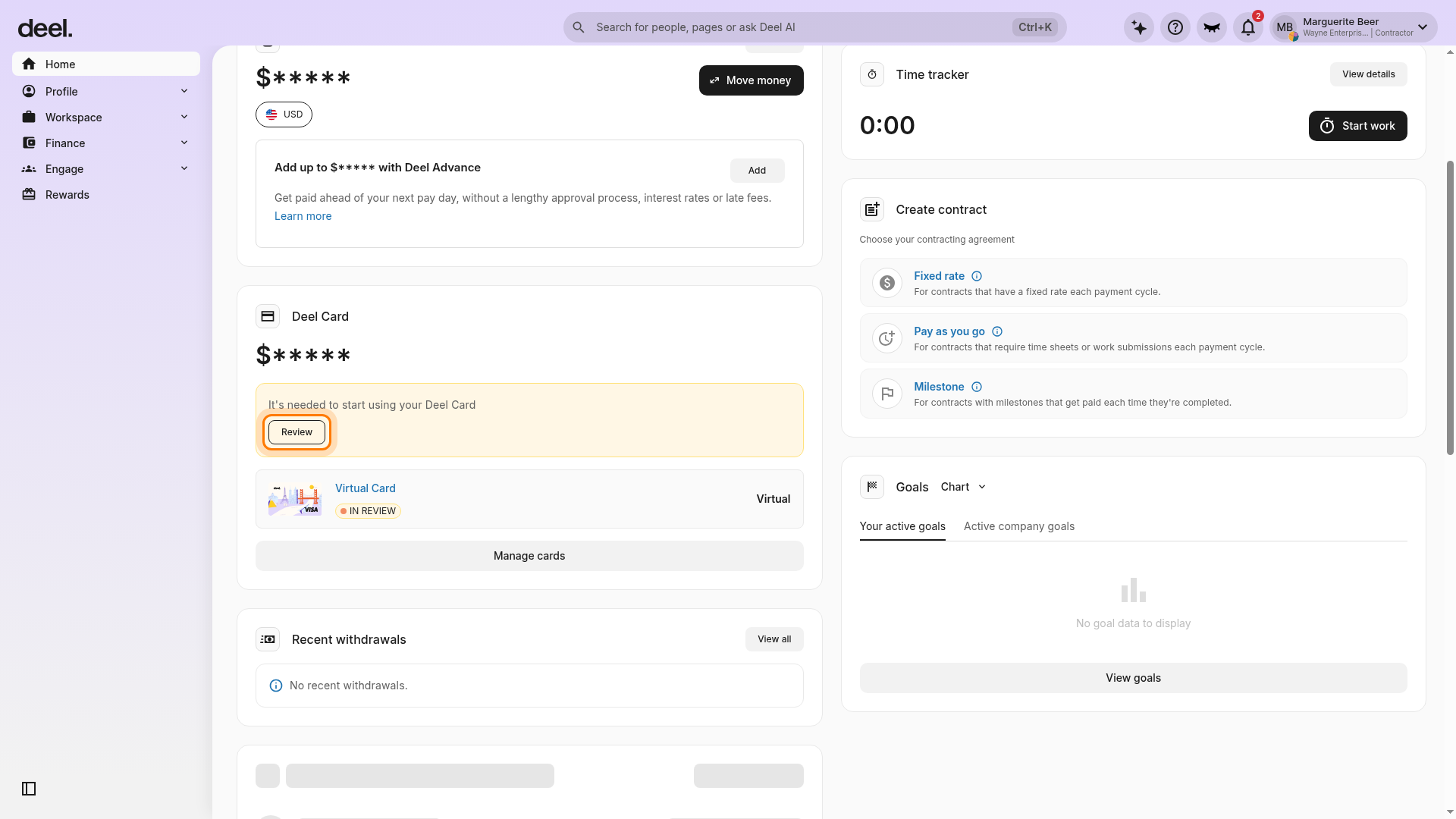
- If you see Get Deel Card, you are in the card setup flow. Create and complete review for a virtual card before attempting to fund the wallet.
- If you see Review and a Virtual Card marked IN REVIEW, the card is not yet eligible for wallet funding.
- If your virtual card is active, continue to open card management.
Step 2 - Accept the terms when prompted
If the Deel Card section shows Review, select it to review the required Deel Card terms and conditions.
- In the Review Deel Card terms and conditions dialog, wait for the terms to load.
- Select I accept Deel Card terms and conditions.
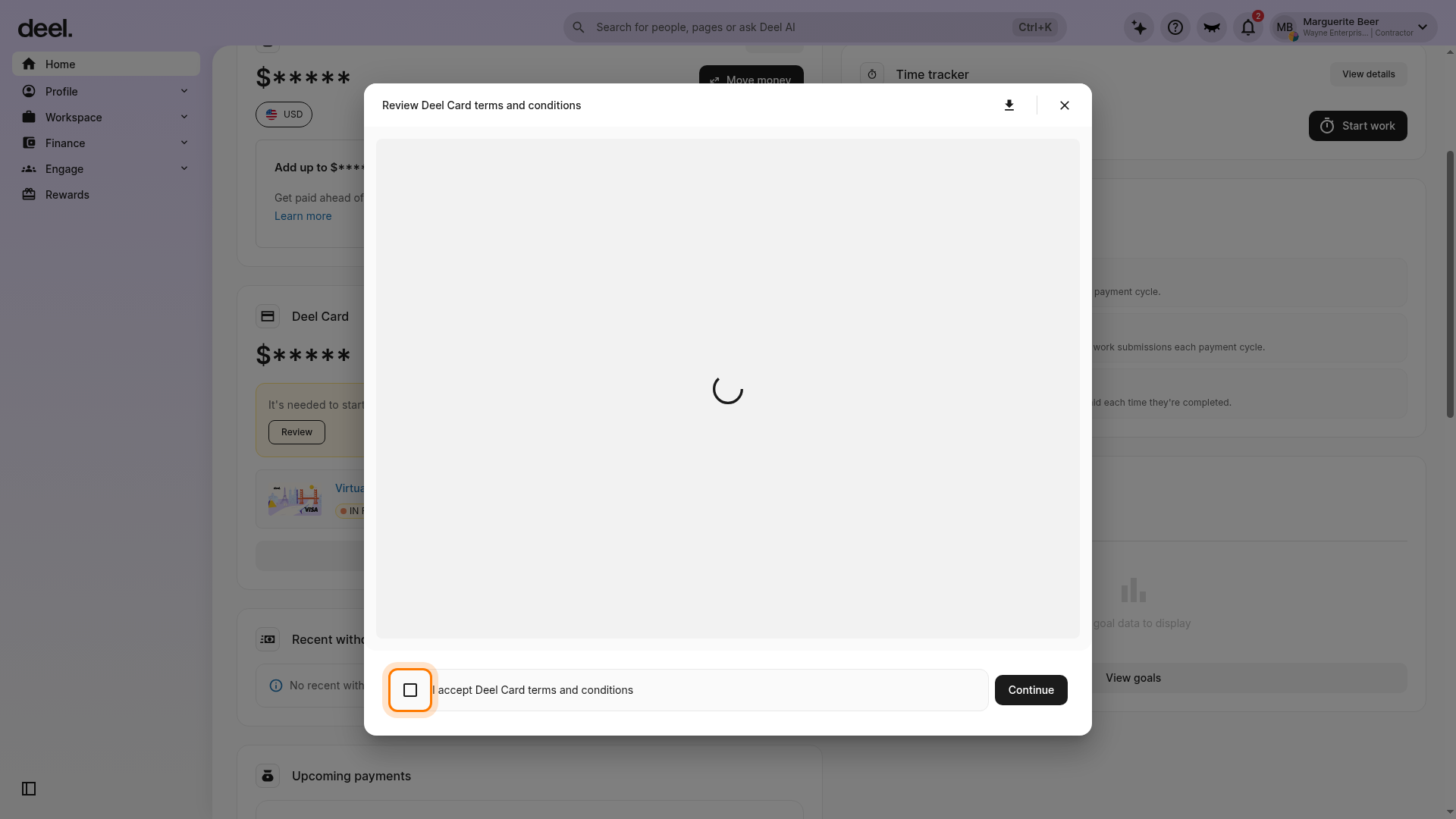
- Wait for the Deel Card terms and conditions to load.
- Select the acceptance checkbox.
Step 3 - Submit the accepted terms
- Select Submit.
- Before you select the checkbox, the action may be labeled Continue.
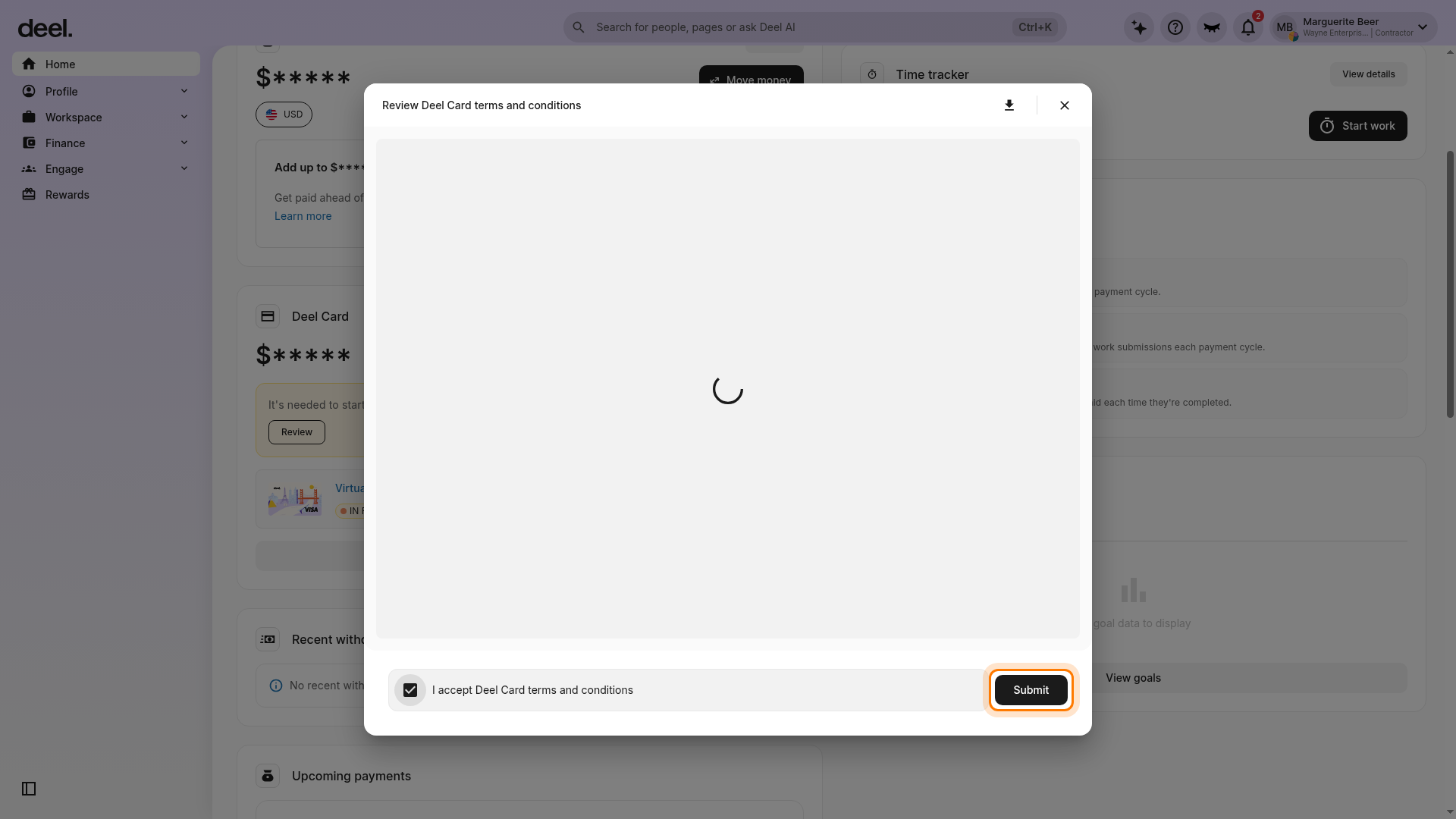
- Select Submit after accepting the terms.
- Accepting the terms does not necessarily activate the card immediately. If it remains IN REVIEW, wait for review or activation to finish before funding the wallet.
Step 4 - Open Wallet and cards
- In the Deel Card section on Home, select Manage cards.
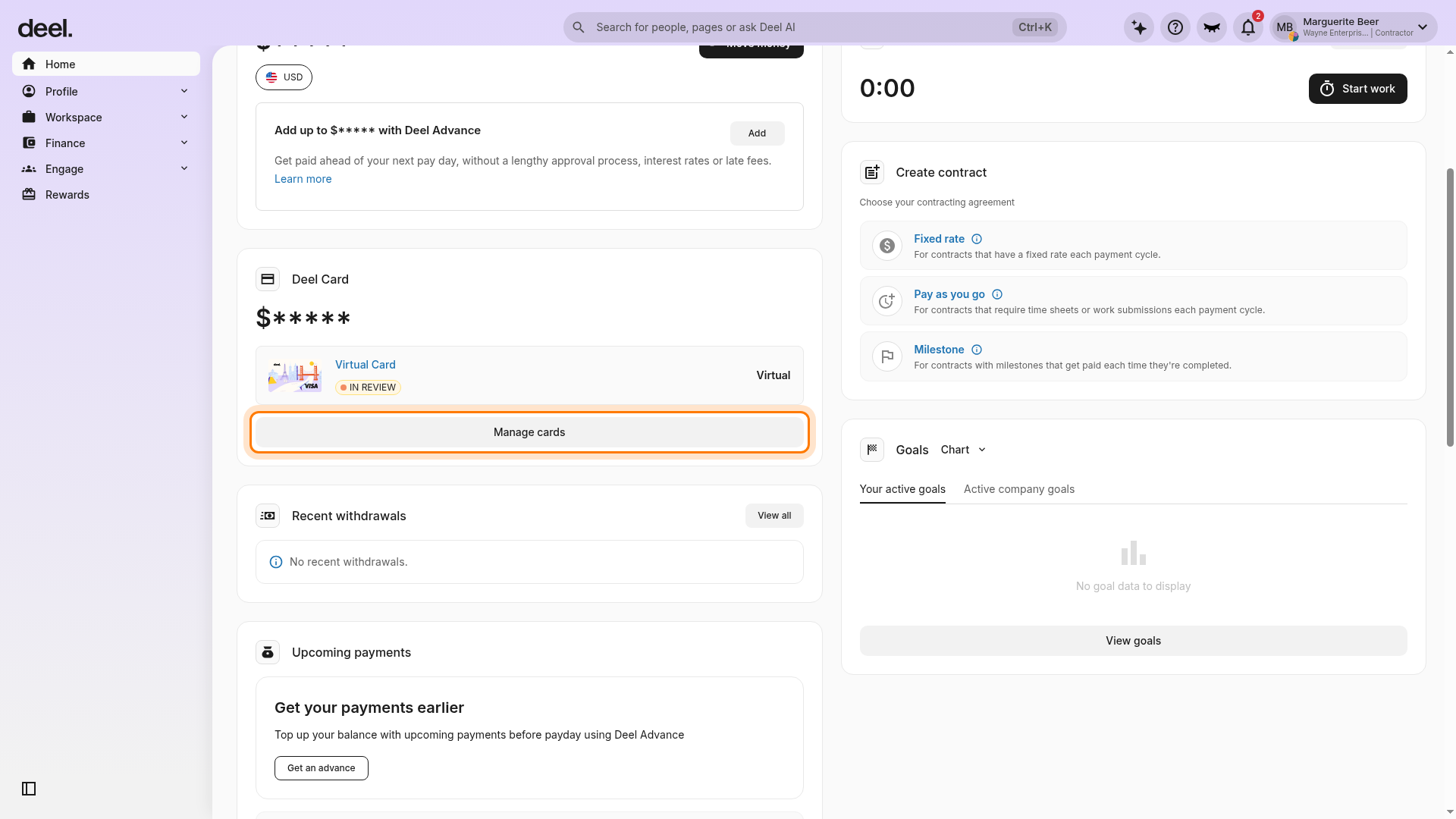
- Select Manage cards from the Deel Card section on Home.
Step 5 - Confirm the Wallet and cards tab is open
- On the Deel Card page, confirm the Wallet and cards tab is open.
- Confirm you can see a Wallet area with All balances, a balance in an available currency such as US Dollar, and a Your cards area containing your Virtual Card.
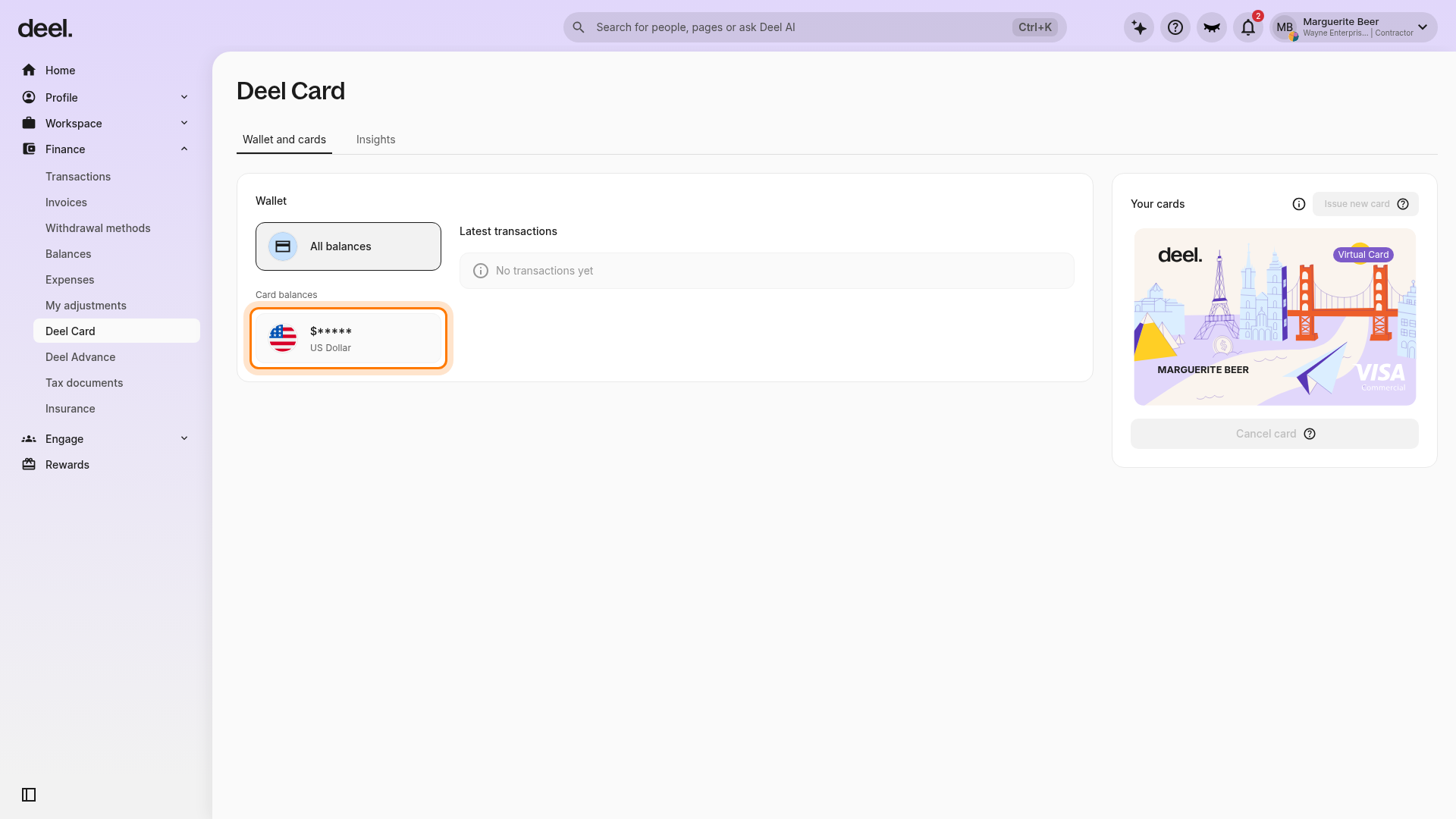
- Confirm the Wallet and cards tab is open.
- Confirm the Wallet, available balance, and Virtual Card are visible.
Step 6 - Check for Fund wallet
- Look for Fund wallet on the Wallet and cards page.
- If Fund wallet is visible, select it to open the wallet funding prompt.
- If it is not visible, the card is not currently eligible for funding. Check whether it is still IN REVIEW or whether card controls are disabled.
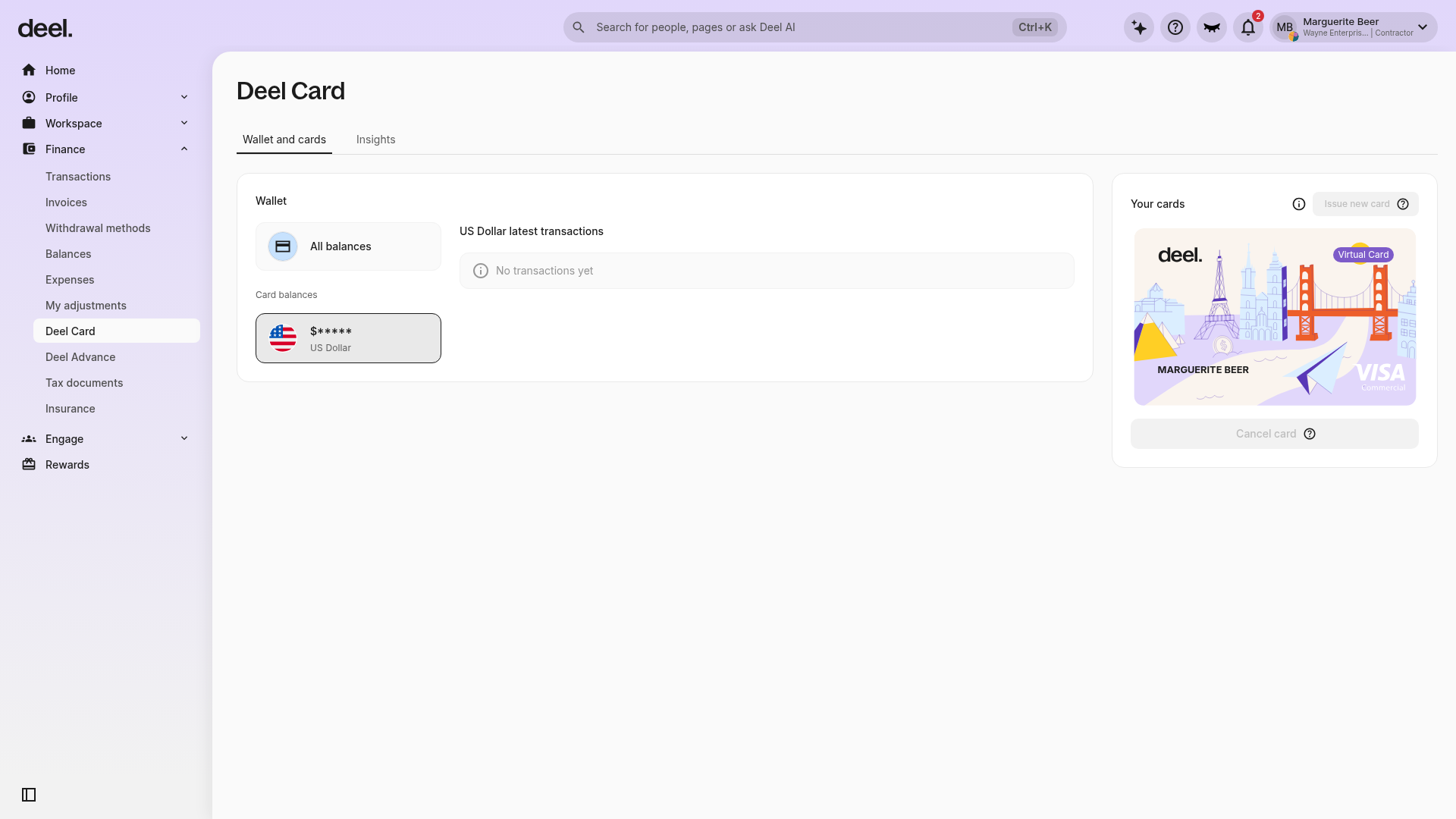
- If Fund wallet is not visible, the card is not currently eligible for funding.
- Check whether the card is still IN REVIEW or whether card controls are disabled.
If you select a virtual card that is still under review, its details may show only card information and Rename. This state does not provide Fund wallet.
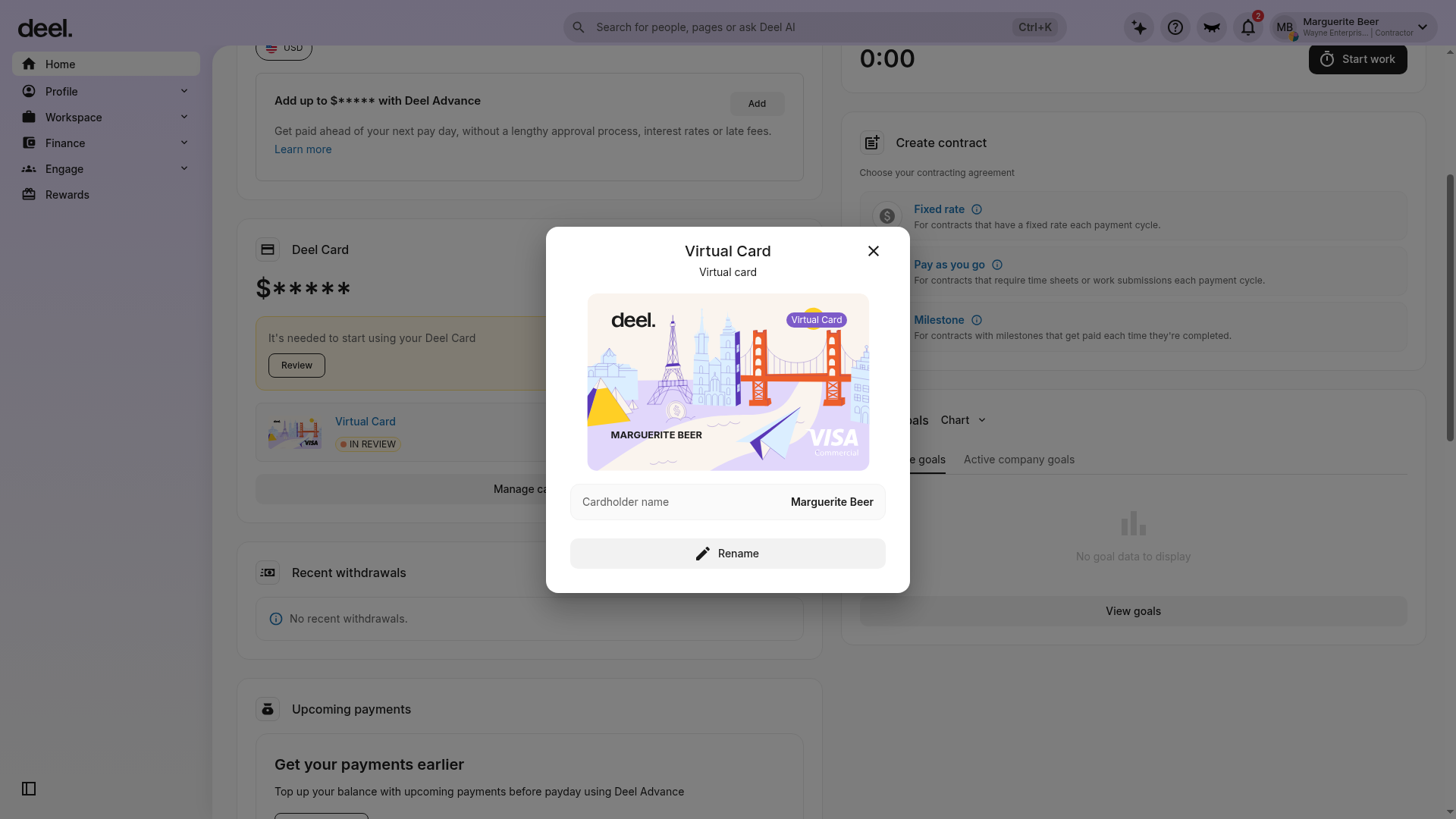
- A virtual card still under review may show only card information and Rename.
- This state does not provide Fund wallet.
Expected result: The Wallet and cards page shows your existing virtual card and a visible Fund wallet button.
Step 7 - Transfer funds into your wallet
- On the Wallet and cards page, select Fund wallet.
- Enter the amount you want to transfer from your Deel Balance to your card wallet.
- Select the funding currency and confirm the transfer.
Funds are added to your wallet in the currency selected during funding.
If the currency is supported as a direct billing currency—for example, USD, AUD, CAD, SGD, NZD, HKD, JPY, EUR, GBP, or CHF—it is held as a separate balance in that currency.
If you fund in a non-supported currency, the funds are automatically converted to USD.
You must be aware that:
- The first time you fund your wallet, any applicable new-card fees are deducted automatically. The amount you fund must be at least $5.00 and must cover all pending card fees. For a physical card, this includes the card fee and shipping cost.
The task is complete when selecting Fund wallet on an active virtual card opens the wallet funding prompt.
If the virtual card is visible but Fund wallet is absent, navigation is complete but funding is not currently available for that card state.
Step 8 - Use multicurrency balances
- You can fund your wallet in supported non-USD currencies.
- Your card wallet can hold separate balances for each supported currency.
- When you spend in a currency you hold, the transaction is deducted directly from that currency balance.
- If that currency balance is insufficient, the transaction automatically falls back to your USD balance.
- Currency balances and fee-free eligible transactions are visible in your Deel Card wallet.
When a purchase is made in a supported direct billing currency, the Deel Card automatically charges the transaction from the matching local-currency balance, so no FX fees apply.
Step 9 - Withdraw funds from your Deel Card to your Deel Balance
You can withdraw funds from the Deel Card back to your Deel Balance at any time while your card is active.
- Open Wallet and cards from the Deel Card section on Home.
- Select Withdraw.
- Enter the amount you want to transfer from your Deel Card to your Deel Balance.
- Confirm the withdrawal.
If you withdraw funds in a different currency from the one held in your card wallet, the funds are converted automatically.
Once confirmed, the money is returned to your Deel Balance instantly.
If your card is inactive or cancelled, you cannot withdraw its balance yourself. Contact Deel support to move the remaining Deel Card wallet balance to your Deel Balance.
Step 10 - Understand Deel Card refunds
Refunds and reversals are two different situations. Check which one applies to you before you contact Deel support.
Refund
A refund is a return of funds that the merchant initiates for a purchase. Refunds can take up to 31 days to appear in your Deel Card wallet after the merchant initiates the refund. This wait is standard.
- If the refunded amount is smaller than you expected, check whether a 1.5% non-USD transaction fee was applied to the original purchase. Only the purchase amount is refunded, not that fee.
- Before you contact Deel support about a missing refund, confirm the date the merchant initiated the refund. If that date is less than 31 days ago, wait until the full 31 days have passed. Requests sent earlier are declined.
- If 31 days have passed since the merchant initiated the refund and the funds still have not appeared, contact Deel support. Have written proof of the merchant refund confirmation ready to share, such as an email or chat message.
Reversal or dispute
A reversal or dispute applies when the merchant refuses to refund you or does not respond to your refund request, or when a transaction is unauthorized or fraudulent. In these cases, do not wait 31 days.
- The merchant does not respond or refuses to refund: contact Deel support right away. Have written proof ready, such as an email chain or screenshots of your messages with the merchant.
- You do not recognize a transaction, or you receive unexpected one-time password (OTP) prompts: cancel your card first if it is still active, then contact Deel support right away.
Disputes must be filed with the card issuer within 120 days of the transaction date. If a merchant stops responding, do not wait for the full 31 days before you contact Deel support.
Troubleshooting
| Problem | Did you try? | How to fix |
|---|---|---|
| I do not see a Fund wallet button | Open Home > Deel Card > Manage cards and check the Wallet and cards page. | If your virtual card is marked IN REVIEW, funding is unavailable until the review or activation process is complete. If card-management controls are disabled and Fund wallet is absent, wait for card review to complete or contact Deel support or your account administrator for card-status next steps. If prompted to review terms, select Review, accept the Deel Card terms and conditions, and then check the card status again. |
| The app opens Get Deel Card instead of wallet funding | Check whether your account has an active virtual card available for wallet funding. | You are in card setup rather than card funding. Complete the card creation and review process, then return to Home > Deel Card > Manage cards. Funding becomes available only after an existing virtual card is active and Fund wallet is shown. |
| A dialog blocks the Home dashboard | Close promotional or announcement dialogs with the X in the upper-right corner. | Continue to the Deel Card section. Do not select promotional actions unless you intend to use those features. If a Please update your browser to continue message prevents access to card controls, use a supported browser such as Mozilla Firefox, Google Chrome, or Microsoft Edge, then repeat the workflow. |
| How do I know I am in the wrong flow? | Check whether you see Get Deel Card and setup steps such as Add cards, Your details, Terms and conditions, and Review & order. | You are in the card-creation flow. That flow creates a card; it does not fund an existing wallet. For wallet funding, reach Deel Card > Wallet and cards with an active existing virtual card and a visible Fund wallet button. |
| Funding fails with error 409 ("Request Failed with status code 409") | Confirm the funding amount is at least $5.00 and covers any pending card fees. | The system rejects funding with a 409 error when the amount is below the $5.00 minimum or does not cover pending card fees. Fund at least $5.00, and enough to cover all pending fees for the card. For a physical card, this includes the combined card fee and shipping cost. If the error continues after you have funded enough, contact Deel support. |
| I cannot withdraw the balance from an inactive or cancelled card | Check the card status on the Wallet and cards page. | You cannot withdraw from an inactive or cancelled card yourself. Contact Deel support to move the remaining balance from your card wallet to your Deel Balance. |
| My Deel Card refund has not arrived | Check the date the merchant initiated the refund, and confirm you have the merchant refund confirmation in writing. | If the merchant initiated the refund less than 31 days ago, wait until 31 days have passed. If 31 days have passed and the funds have not appeared, contact Deel support with the written refund confirmation from the merchant. If the merchant is not responding or refuses to refund, or the transaction is unauthorized, contact Deel support right away. See Step 10. |