
Clients can track and manage EOR and contractor time off requests on the Deel platform. They will receive a notification each time an employee submits a time off request.
The clients can also set approvers for a given time off policy and assign workers under that time off policy. The approvers of a time off policy can review and approve the time off requests from the workers. The approvers can also request, edit, and delete time off requests on behalf of any workers or configure any policy on which they are approvers.
Local rules for PTO and other leaves vary by jurisdiction.
Deel offers a two-way time off sync between the Deel time off (OOO) plugin and the time off service on the Deel platform. OOO requests and working schedule adjustments can be made either on Deel or via the plugin for a seamless experience.
In this article:
How to Review Time Off Requests
How to view Time off stats for all the workers
Different Leave Types
There are three different types of leave on the Deel platform.
Vacation is the employee’s annual paid time off (PTO) allocation. This leave type will deduct days from their annual PTO balance.
Sick Leave is used when illness renders the employee unable to work. Rules regarding documentation and full or partial payment of wages while on sick leave vary by jurisdiction.
Other leaves covers all other types of paid and unpaid leave, including maternity and parental leaves, life-events, and civic duties.
Important: The available leave types will vary by country and are configured on Deel to match the local laws of each country
How to Review Time Off Requests
Time off requests will appear on the approver's homepage on the Deel platform.
✅ Step 1 – Click on View Tasks
Clients and approvers can find pending Time Off requests in the For You Today section on their homepage.
✅ Step 2 – Select a request to review
Click a pending request to open its details. Review the request description, the employee’s total vacation-day balance, and the days they have already used.
✅ Step 3 –Approve or Deny the request
Select Approve or Deny, then confirm the action. When denying a request, you can add an optional reason. The employee receives an automatic notification of the decision.
To mass approve time off requests, select the checkboxes next to the requests and then select Approve all.
You can also select the History tab to view the reviewed time off requests.
How to view Time off stats for all the workers
Clients can review the time off stats for all workers in unison and identify any compliance risks via the time off dashboard.
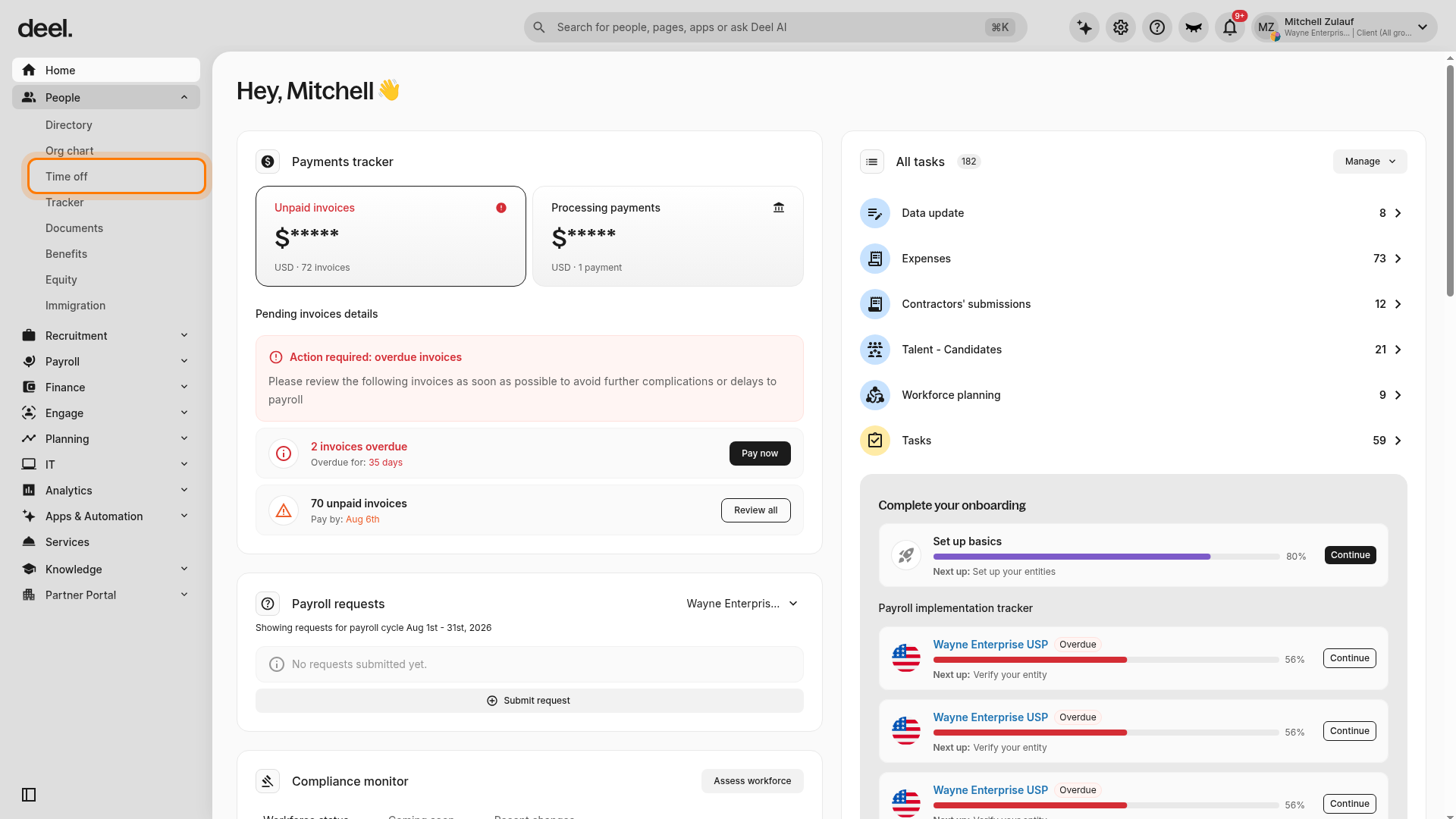
✅ Step 1 – Click on the People Icon and Select the Time Off tab
In the left sidebar, click People to expand its submenu, then click Time off.
The Overview tab is selected by default. It provides high-level information about compliance issues, requests, potential payouts for unused vacation, workers who could lose unused vacation, and reports. Available card content can vary by organization.
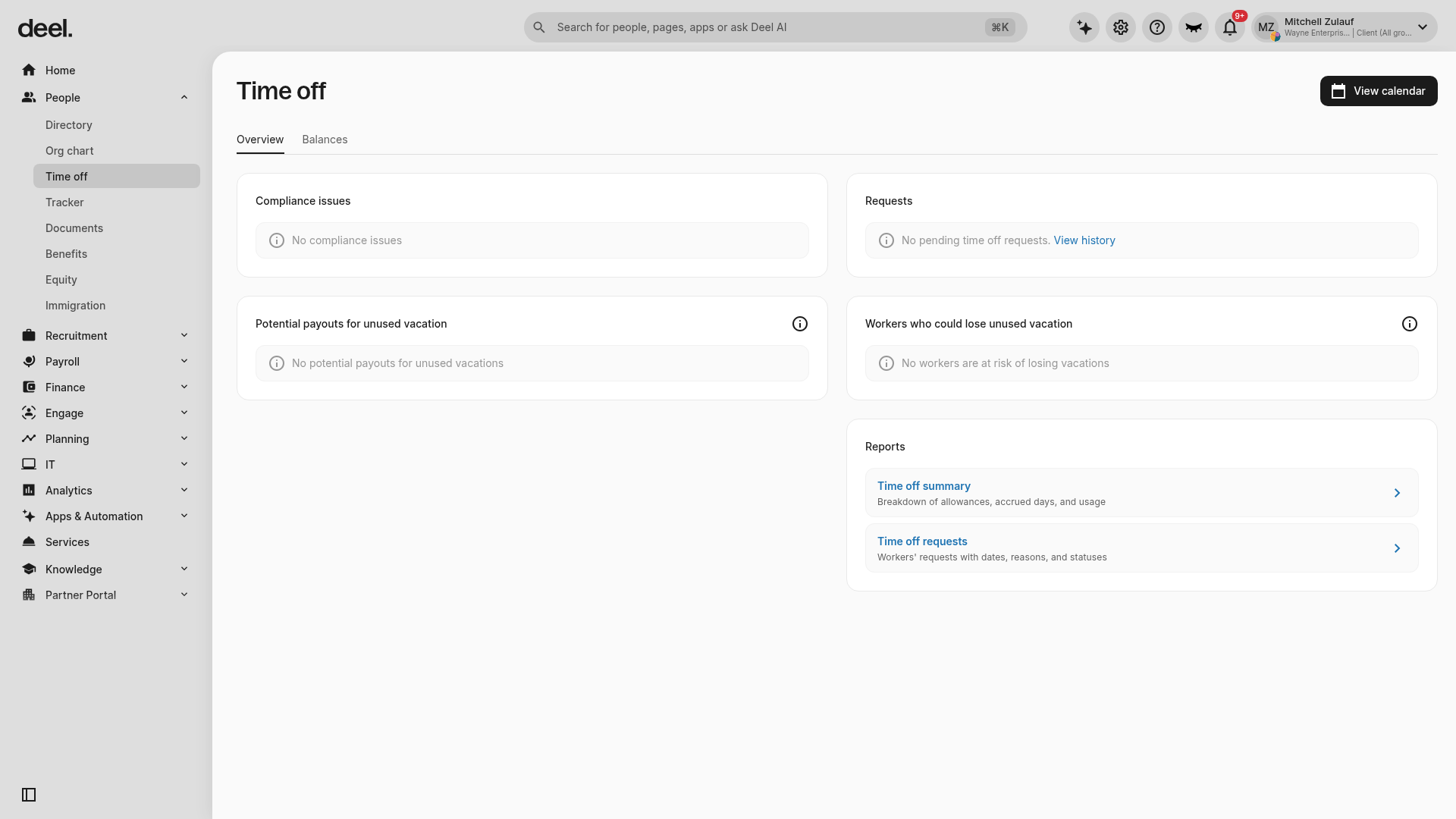
Select View calendar in the upper-right corner to view scheduled Time Off for workers.
✅ Step 2 – Check the Worker balance
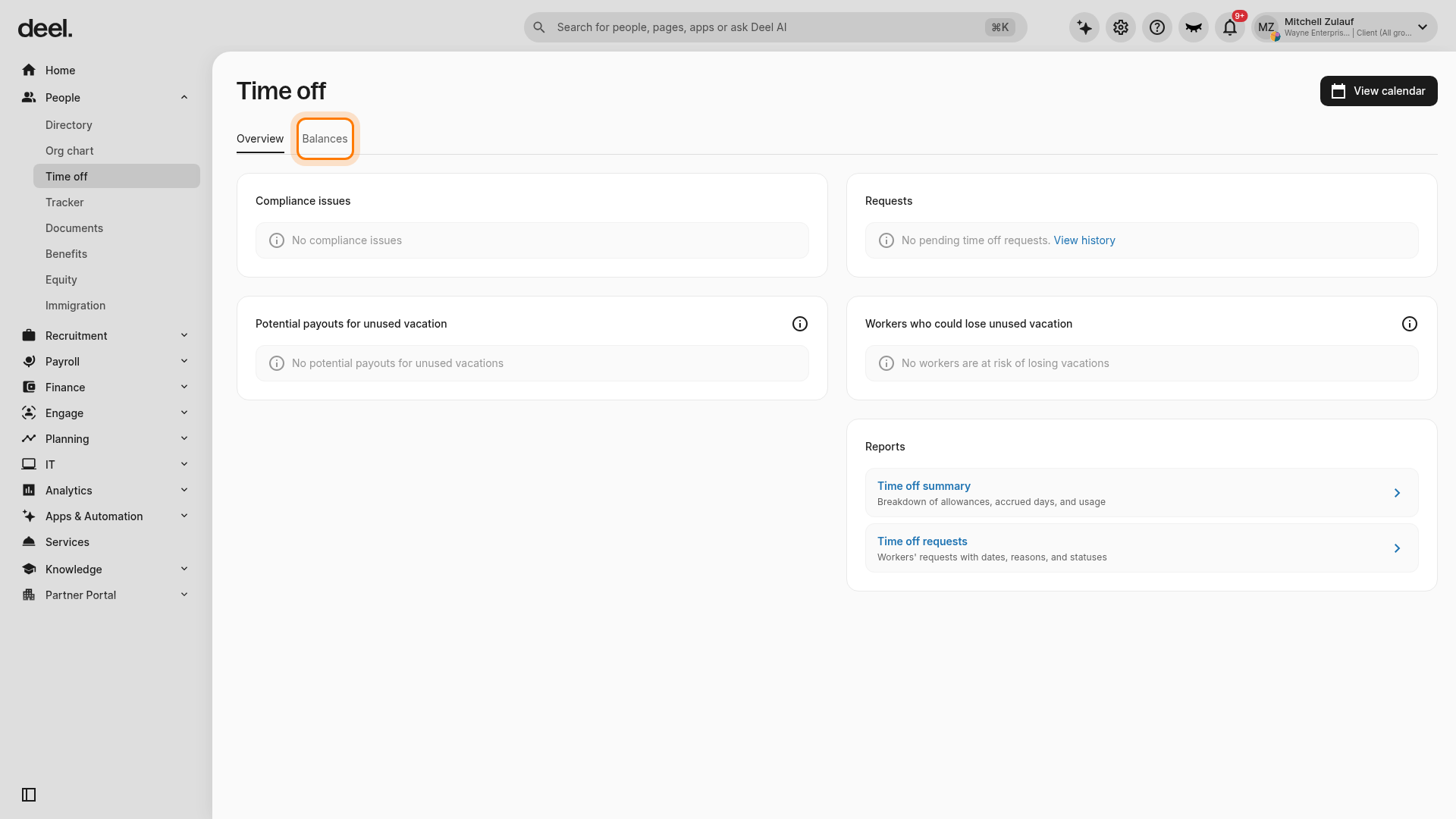
On the Time off page, select the Balances tab.
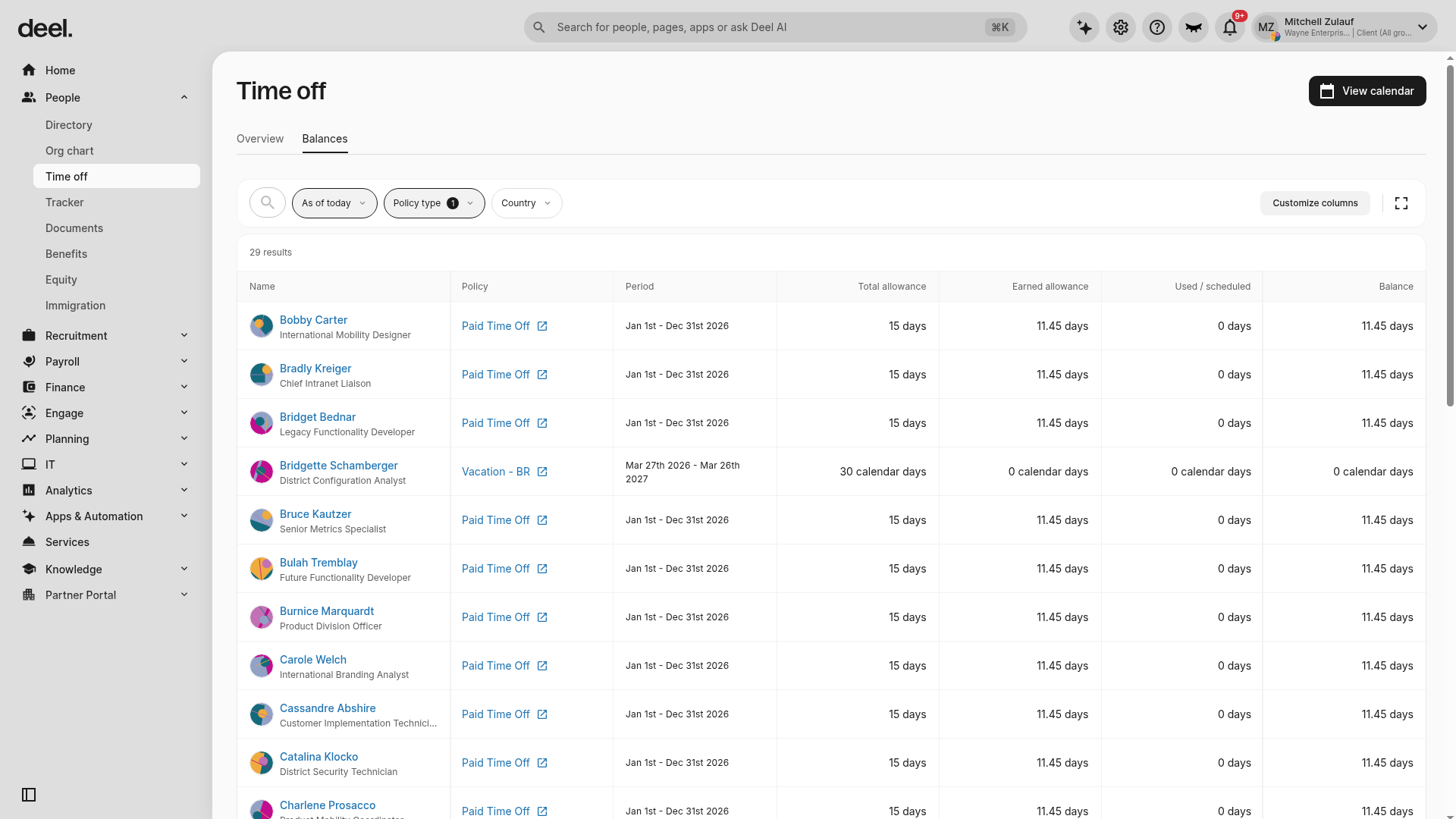
Wait for the worker balance table to load. Use the available search and filters, such as date, policy type, and country, to refine the results. Review each worker’s time-off policy, period, allowance, used or scheduled time, and remaining balance.
The table can include Name, Policy, Period, Total allowance, Earned allowance, Used / scheduled, and Balance.
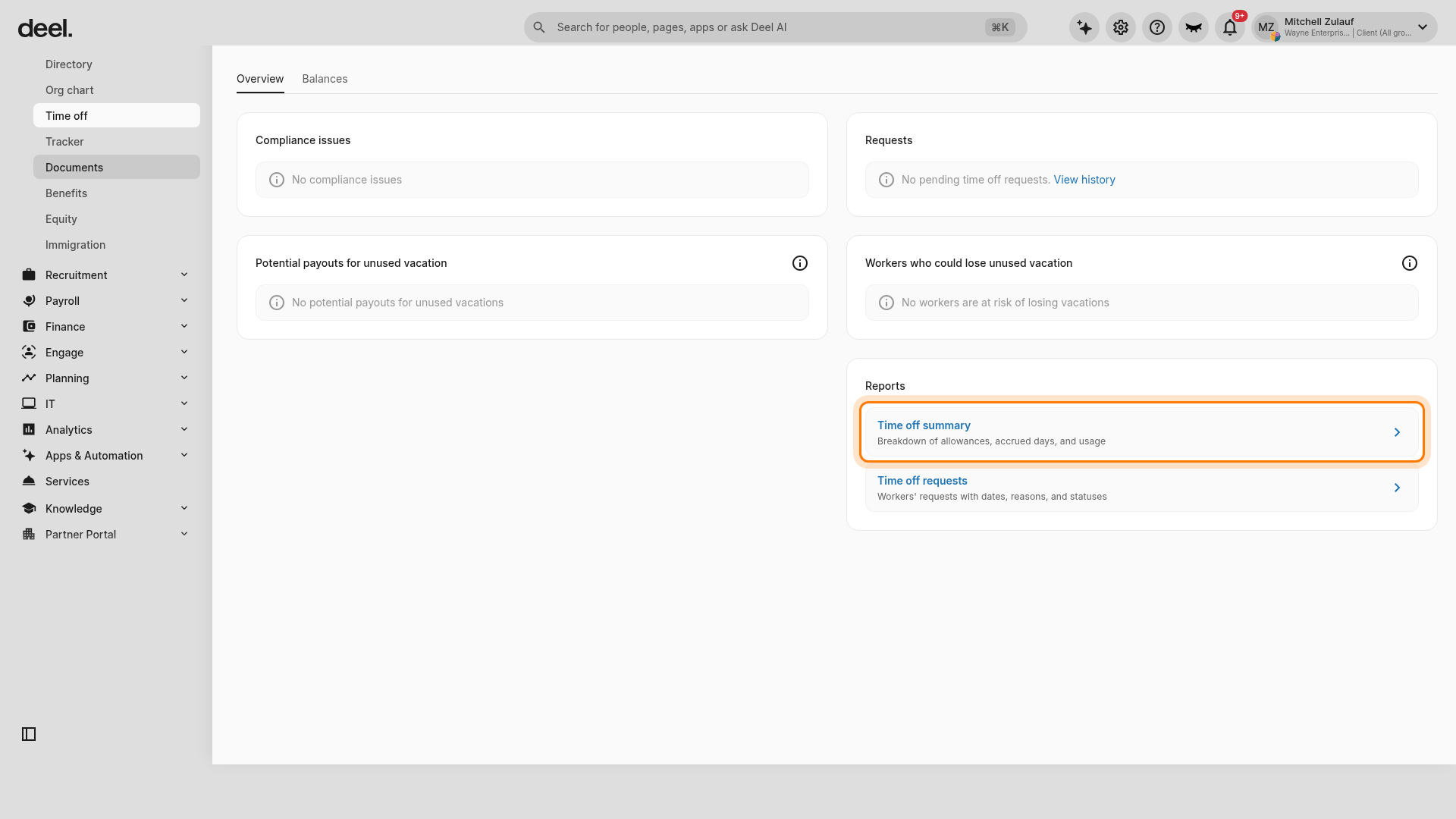
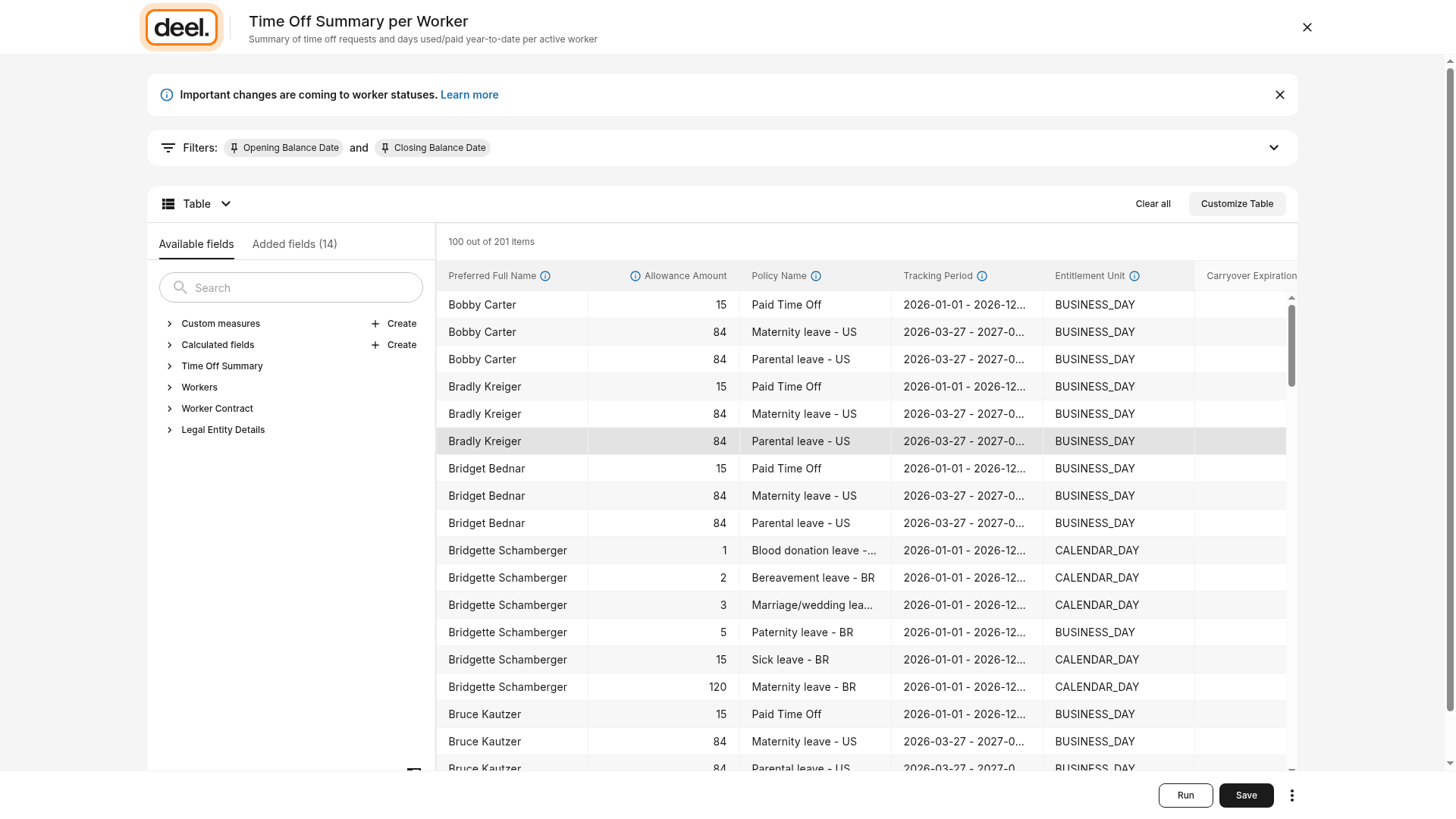
To access reports, select the Overview tab and scroll to the Reports section. Select Time off summary to open the Time Off Summary per Worker report editor, which provides a breakdown of allowances, accrued days, and usage.
In the report editor, adjust filters or table fields as needed and select Run after changing filters. Use the available report-editor actions to save, download, or export the report, based on your permissions.
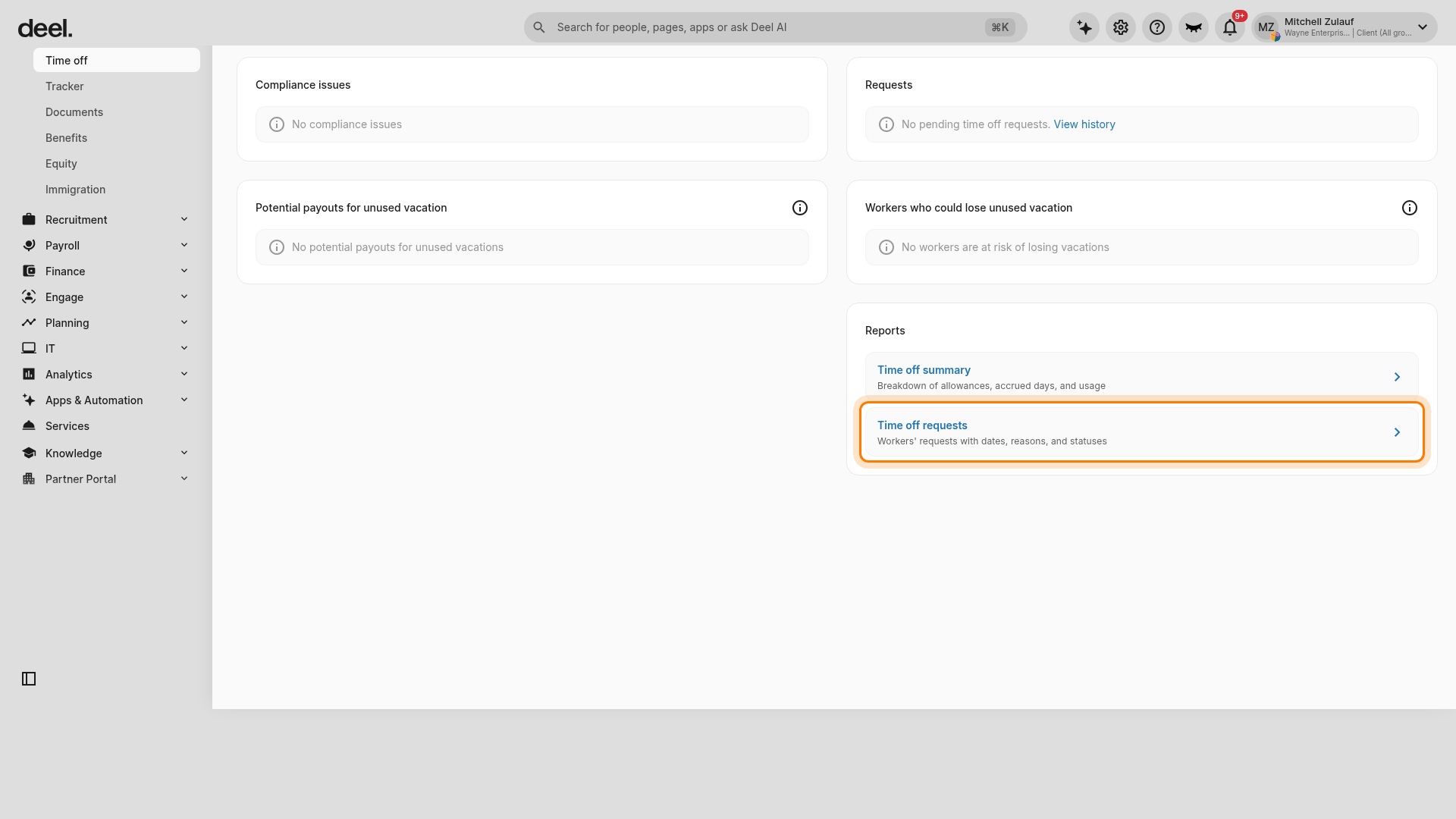
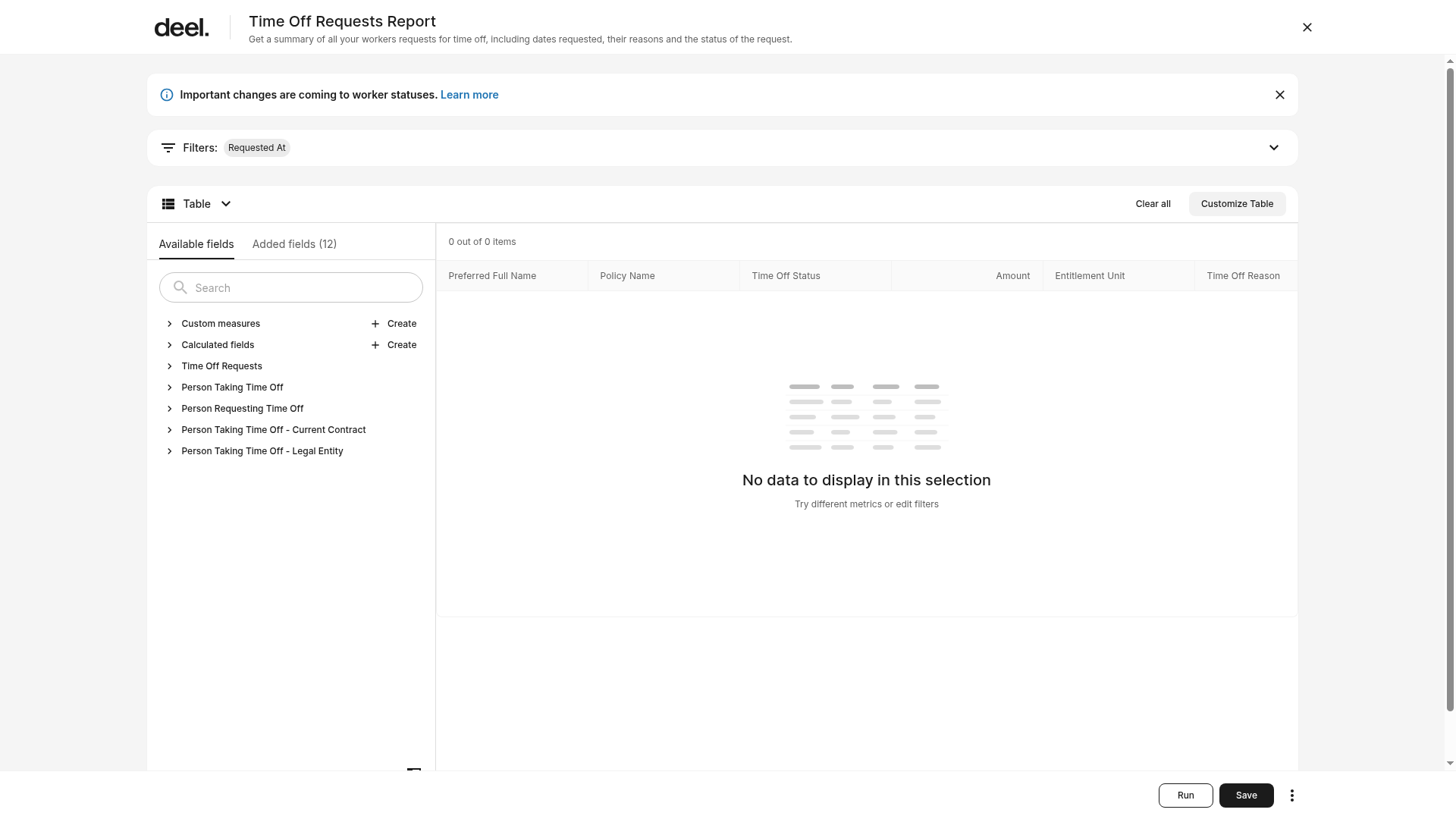
Return to the Time Off Overview page, then select Time off requests to open the Time Off Requests Report. This is the current interface label for the report previously called Time off request details. It includes workers’ requested dates, reasons, and statuses.
Review the report filters and data. The report can include columns such as Preferred Full Name, Policy Name, Time Off Status, Amount, and Time Off Reason. Select Run to refresh results after changing filters, then use the available export action if permitted.
Frequently Asked Questions
[ACCORDION] Can the client add a note when denying a request?
Yes, clients can add an optional reason for denial when denying a time off request.
[ACCORDION] What if the employee requests more than their time off allowance?
Depending on how country policies are configured the employee may be able to request more than their PTO allowance. Both the client and the employee will have visibility of their balance and the client can choose how to proceed.
[ACCORDION] Can clients pay employees even during an unpaid leave?
In some jurisdictions, clients may be able to offer more generous leave, including full or partial payment during statutory unpaid leave. Please contact us for more information.
Due to local rules, these requests are handled on a case-by-case basis.