
This article explains how organization admins can automatically create 24/7 Tech Support tickets using Deel’s Workflow Builder.
With this feature, organizations can automatically generate support tickets during key employee lifecycle events, such as onboarding, offboarding, or department changes. This helps ensure workers receive the tools and access they need at the right time without requiring manual ticket creation.
Automations can be configured to create tickets for software requests or general IT support tasks and can be combined with other automated workflow actions.
Creating an Automation to Generate a Tech Support Ticket
Before Starting
- Your organization must have 24/7 Tech Support enabled.
- The worker profile must exist in Deel (in active or draft state).
- You must have the required permissions to access the Automation section.
If the Automation option is not visible, contact your Deel administrator for access.
Step 1 – Open workflow builder
From the Deel Home dashboard, expand Apps & Automation in the left sidebar and select Agentic workflows.
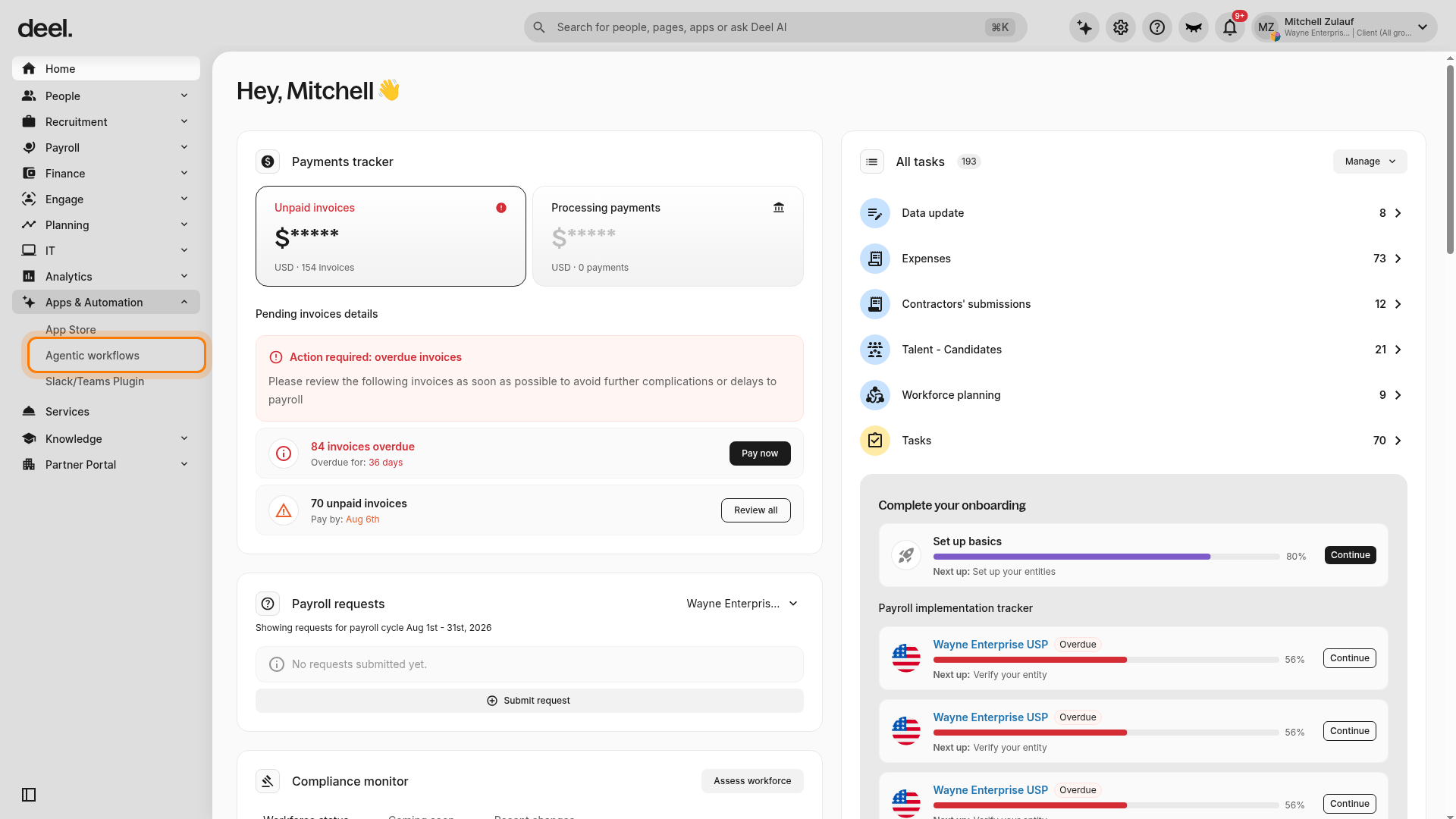
- In the left sidebar, click Apps & Automation to expand its submenu.
- Select Agentic workflows.
On the Agentic Workflows page, click Create new in the upper-right corner. If a second Create new button appears in the introductory panel, either button opens the same editor.
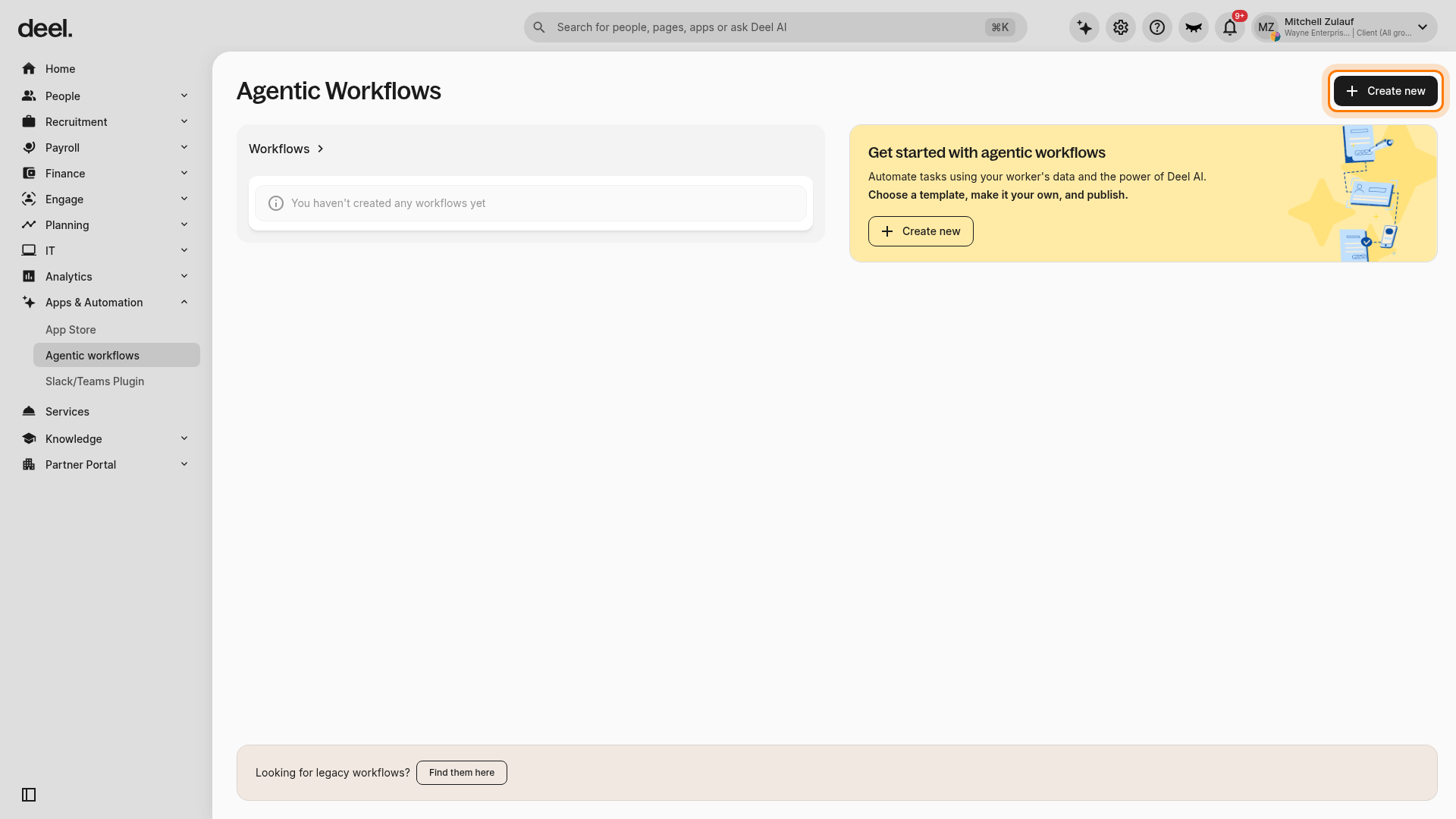
- Click Create new.
- Wait for the blank workflow canvas to load.
In the current interface, Create new opens a blank workflow canvas directly; there is no separate Start from Scratch option.
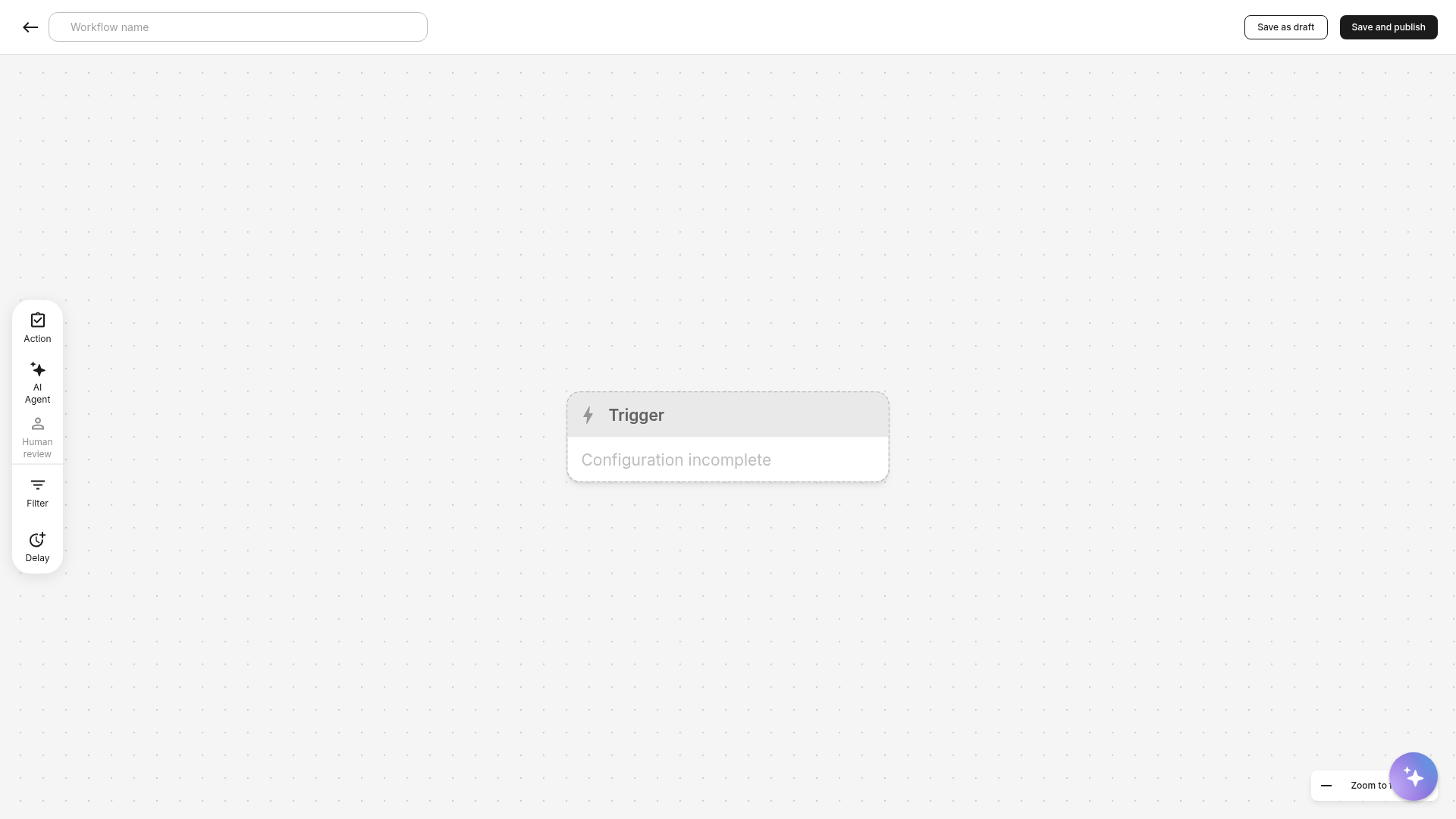
Confirm that the blank canvas is open by checking for:
- A Workflow name field at the top
- A dotted canvas with a Trigger card labeled Configuration incomplete
- A left-side palette with components such as Action, AI Agent, Human review, Filter, and Delay
- Save as draft and Save and publish controls in the upper-right corner
Step 2 – Select a trigger
Choose the event that will start the automation.
Common triggers include:
- Worker start date
- Offboarding date
- Worker profile updated
The trigger determines when the support ticket will be automatically created.
Step 3 – Add the 24/7 Tech Support action
After selecting the trigger:
- Click Add Action.
- Select 24/7 Tech Support.
This action automatically creates a support ticket when the workflow runs.
Step 4 – Configure the support ticket
Configure the ticket details.
Request Type
- Choose Software request or General IT request.
Ticket Description
- Include details about the request.
- Use Dynamic Fields to automatically populate worker profile information, such as their name, department, or start date.
- Custom fields created by your organization can also be used as dynamic values.
Priority
- Select the priority level for the request.
Worker Visibility
- Choose whether the worker can view the ticket.
Step 5 – Name and save the workflow
- Enter a descriptive name in the Workflow name field.
- Click Save and publish to activate the automation.
- Select Save as draft instead if you want to finish configuration later without activating it.
The workflow will automatically generate Tech Support tickets when the trigger event occurs.
After the workflow is created, use its three-dot menu to delete, deactivate, or duplicate it.
You can combine this action with other actions, such as MDM actions to lock or wipe a device, IAM actions to disable access or change passwords, and email notifications. You can also use branches, delays, and filters to run different actions based on conditions or timing.
Requirements and Integrations
To ensure smooth automation, teams should be aware of the following technical requirements and product dependencies:
Deel HR is Required
A worker profile must exist in Deel for these automations to trigger. The worker does not need to be active or have access to the Deel platform. Creating the profile in a draft state is sufficient.
Integration-Friendly
It does not matter how the profile was created. Profiles created directly in Deel or imported via integrations (such as BambooHR or HiBob) will work as long as the relevant HR fields (such as Start Date) are populated in Deel.
No IT Seats Required
Deel IT seats have no impact on whether these automations run or trigger. Automations will work for workers with or without an assigned seat.