
Use the Time Off by Deel plugin to streamline how you and your employees request, track, and review time-off usage – all from within Slack.
How does it work?
You can use Time Off by Deel to:
Centralize time-off requests and approvals by allowing employees and managers to coordinate seamlessly in Slack.
See who’s out in any channel at a moment’s notice.
Hand off tasks and responsibilities before leaving.
Download reports for your team directly from Slack.
Before you begin
(Prerequisites & Environment Requirements)
- You must already have access to Slack via the desktop or web app. The Time Off by Deel plugin runs inside Slack – it is not accessible from the Deel web platform (app.deel.com).
- You need permission in your Slack workspace to install / manage apps.
• If you are not a workspace admin, ask an admin to complete the installation for you. - Make sure the email you use in Slack matches the email you use in Deel so that requests can be properly associated with your Deel profile.
- (Optional) Have your team-wide time-off policies handy – you will reference them during setup.
⚠️ Trying to open the plugin from the Deel dashboard will not work. See the "Troubleshooting" section below for details.
How to set up the Time Off by Deel plugin in Slack
- Open Slack (desktop or browser).
- Click Apps in the left sidebar and search for “Time Off by Deel.”
- Select the app and click Add to Slack (or Install if this is the first time).
- Review the requested permissions and click Allow.
- In any channel or DM, type /timeoff to open the plugin home.
- Follow the guided prompts to:
• Connect your Deel account (single-click OAuth).
• Set default approvers & hand-off channels.
• Choose the visibility of who-is-out notifications. - You’re ready!
• Employees can submit requests with /timeoff request.
• Managers will receive interactive approvals directly in Slack.
• Use /timeoff who in any channel to see who’s out.
• Use /timeoff report to generate CSV/JSON summaries.
For a full walk-through, watch the short video below:
▶️ Setup & Usage Video (2:43)
Troubleshooting & FAQs
I’m on the Deel website and can’t find the plugin
If you are looking at something like the screen below, you are still in the Deel platform – switch to Slack first.
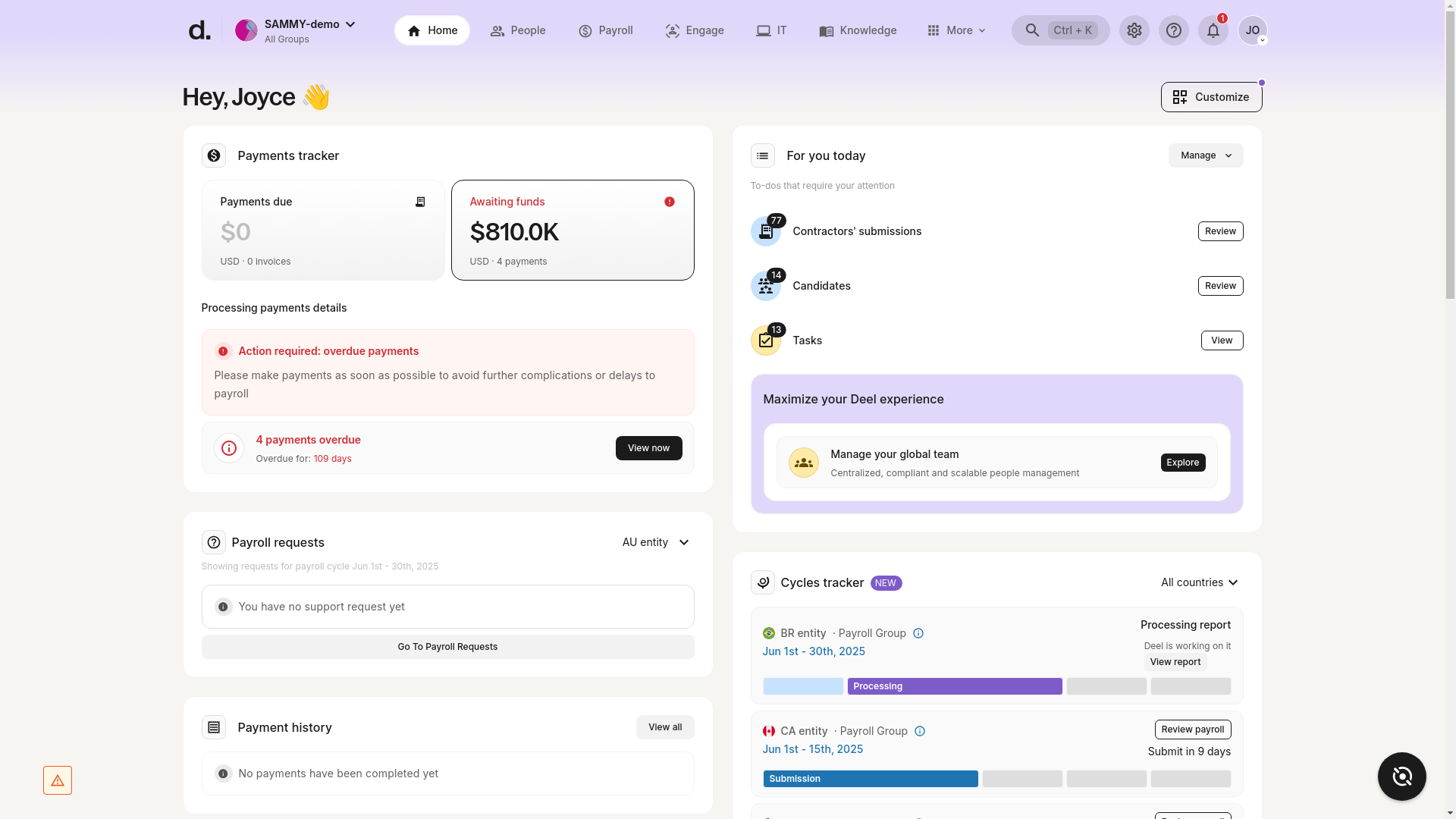
What happened? The Time Off by Deel experience lives entirely inside Slack. The Deel web platform does not embed or launch Slack automatically, so attempting to “open” the plugin from Deel will fail.
How to resolve
• Launch Slack separately and follow the setup steps above.
• Once Slack is open, type /timeoff to confirm installation.
"App not allowed" message in Slack
Your workspace may restrict app installs. Share the following with a Slack admin:
"We need to install Time Off by Deel (https://slack.com/apps/A024V7J0Y2A). It lets us manage PTO approvals directly in Slack and connects securely to our Deel account."
After the admin approves, retry the Add to Slack step.
Need more help?
• Visit the Help Center article (help.deel.com > Time Off plugin)
• Email support@deel.com
• Or type /timeoff help in Slack to see all commands