
Connecting Deel to your Workday is a one-way sync integration. Workday is the source of truth for your employees' time-off balances. Deel's platform displays whatever balance state Workday reports, including negative balances if your Workday time-off plan allows them. This article guides you on how to enable the PTO plugin as well as how to prepare your Workday tenant by setting up an API Client for Integration with the necessary permissions to access Time Off and Staffing data.

In this article:
Before you begin
Permissions:
- Be an Org Admin, IT Developer Admin, or Integrations Admin-People.
- Have Workday rights to create integration system users and manage security groups
Connect Workday to Deel
Step 1 - Create an Integration System User (ISU)
Run Task "Create Integration System User" to create an ISU in Workday.
Step 2 - Create a Security Group for the ISU
Run task "Create a Security Group" to create a security group for the previously created ISU
Select "Type of Tenanted Security Group": "Integration System Security Group (Unconstrained)
Make sure to add the ISU in "Integration System Users"
Step 3 - Add required permissions to the Security Group
Run "Maintain Permission for Security Group", select the previously created Security Group, and add the following "Domain Security Policy Permissions":
Finally, activate the permission changes by running "Activate Pending Security Policy Changes"
Step 4 - Create an API Client For Integrations by running "Register API Client for Integrations"
Click "Ok" and copy the "Client ID" and "Client Secret" that will be displayed, these will be required later.
Step 5 - Run the "View API Clients" task
Run the "View API Clients" task, in API Clients for Integrations select "Manage Refresh Tokens for Integrations"
In the modal displayed, select the ISU initially created, and click OK.
Next, select "Generate a new refresh token", make sure it's non-expiring, and confirm.
Copy the refresh token displayed.
Going back to "View API Clients", copy the displayed "Workday REST API Endpoint"
Step 6 - In Deel, connect API Client
- In the Deel left sidebar, select Apps & Automation to expand the submenu, then select App Store. If the optional welcome prompt appears, select I'll do that later to close it.
-
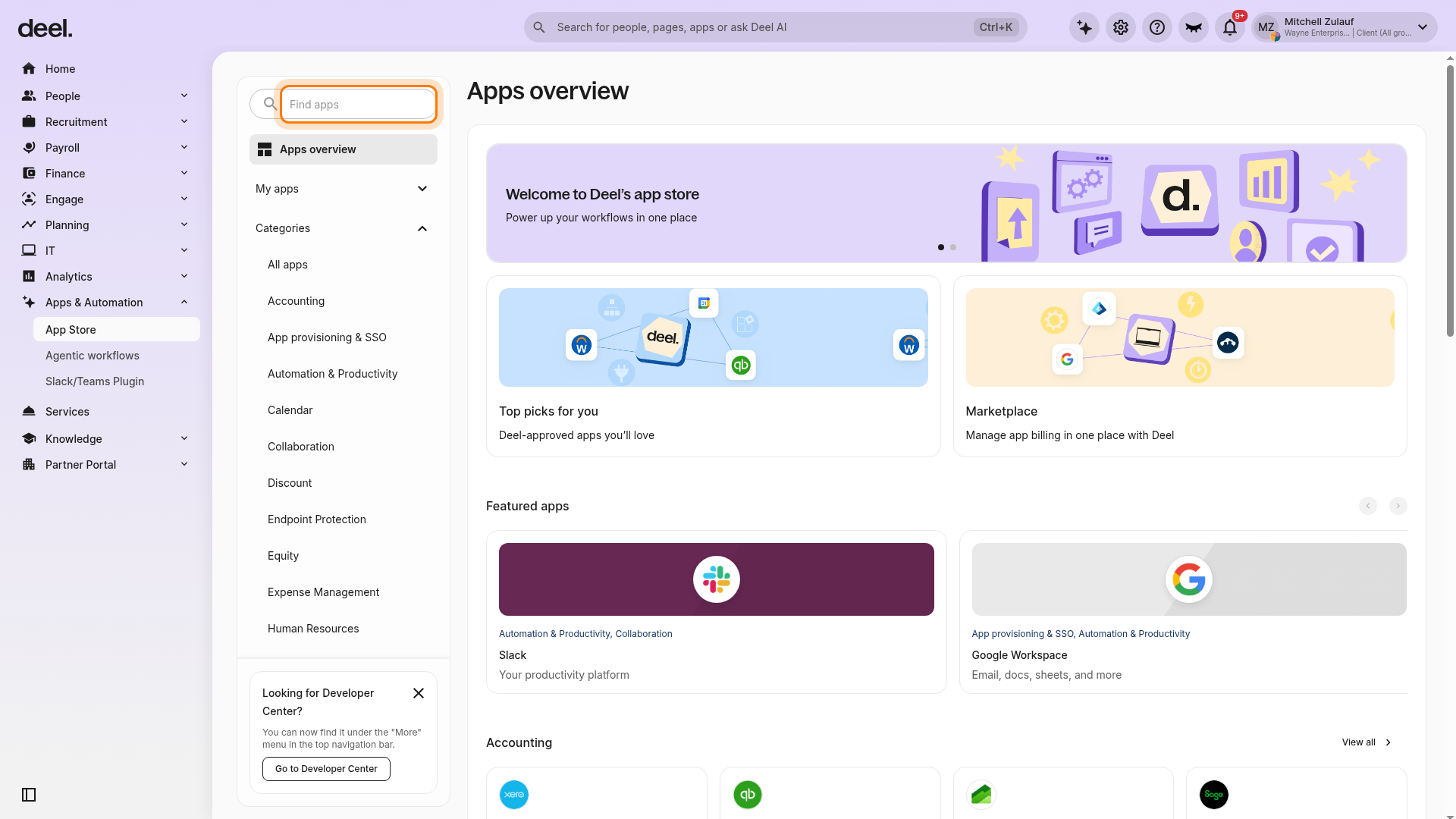
On Apps overview, use the Find apps field and enter Workday.
-
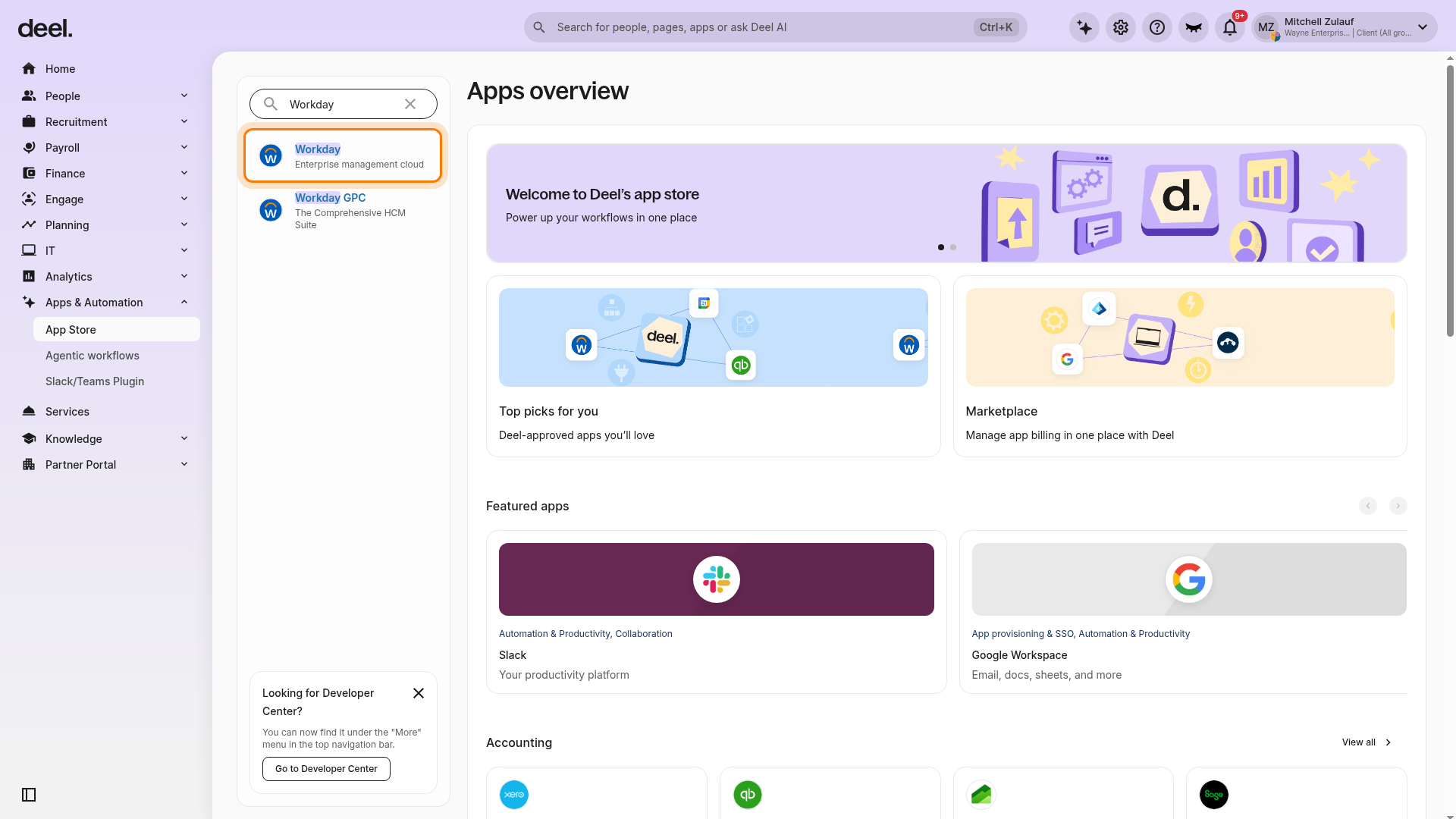
Select Workday with the description Enterprise management cloud. Do not select Workday GPC, which is a separate integration.
-
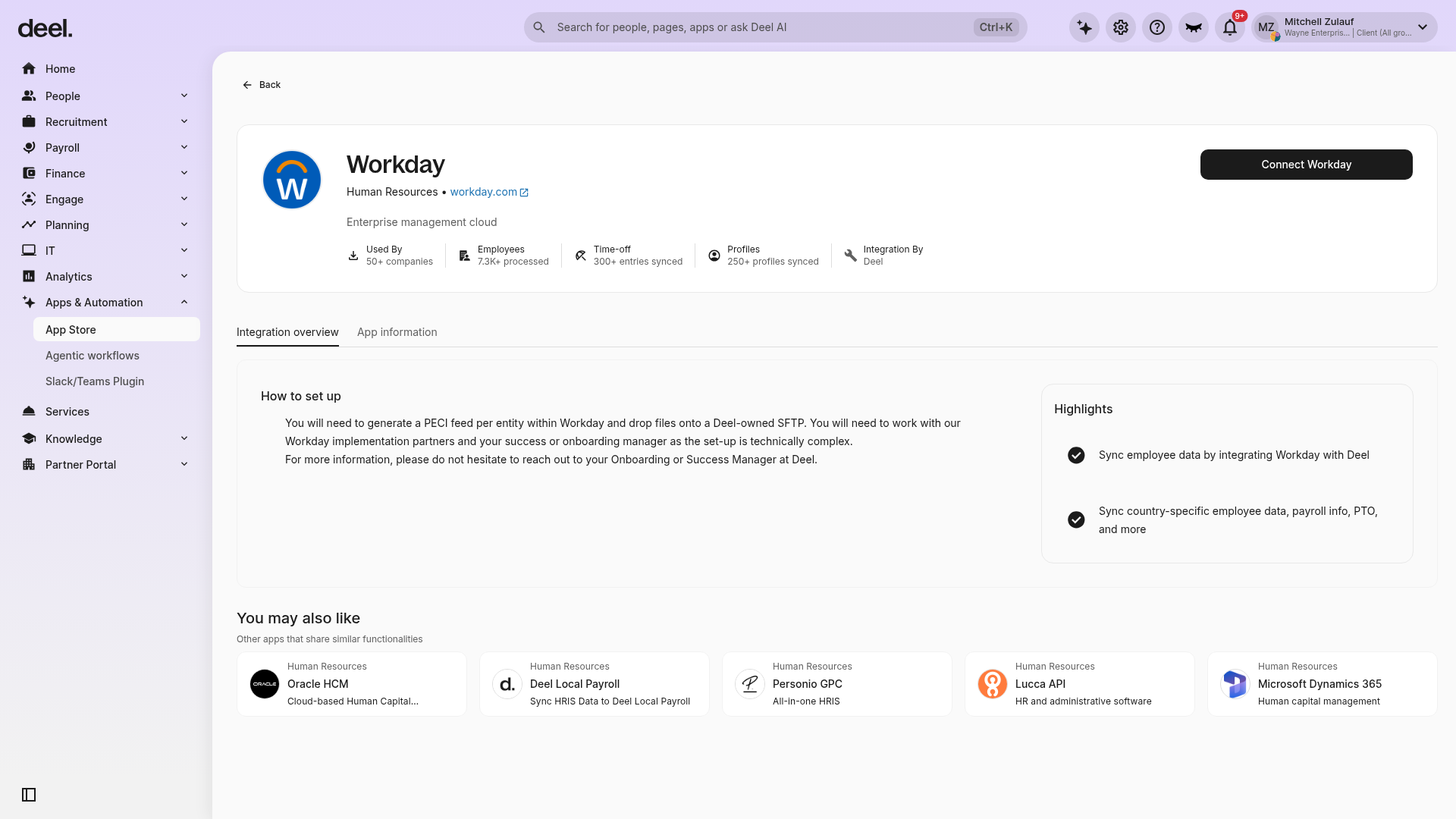
Confirm that the integration details page shows Workday, the Human Resources category, and Enterprise management cloud. Select Connect Workday to start the connection setup.
EOR Time-Off plugin
Enable EOR time off sync
-
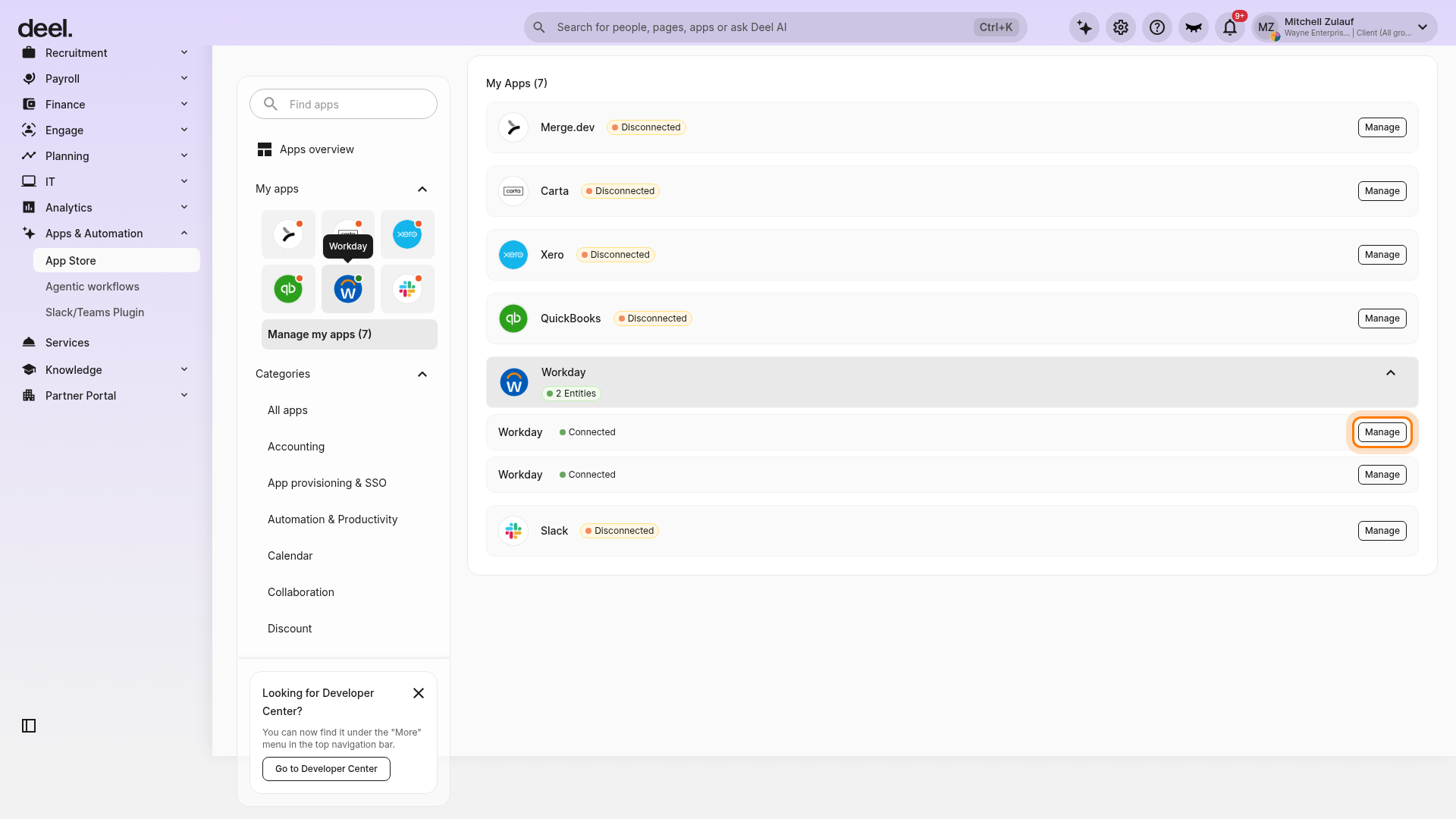
If Workday is already connected, in the Deel left sidebar select Apps & Automation, then select App Store. If the welcome prompt appears, select I'll do that later. On Apps overview, locate Workday under My apps, select it to expand its connected entities, then select Manage beside a Workday entity marked Connected.
-
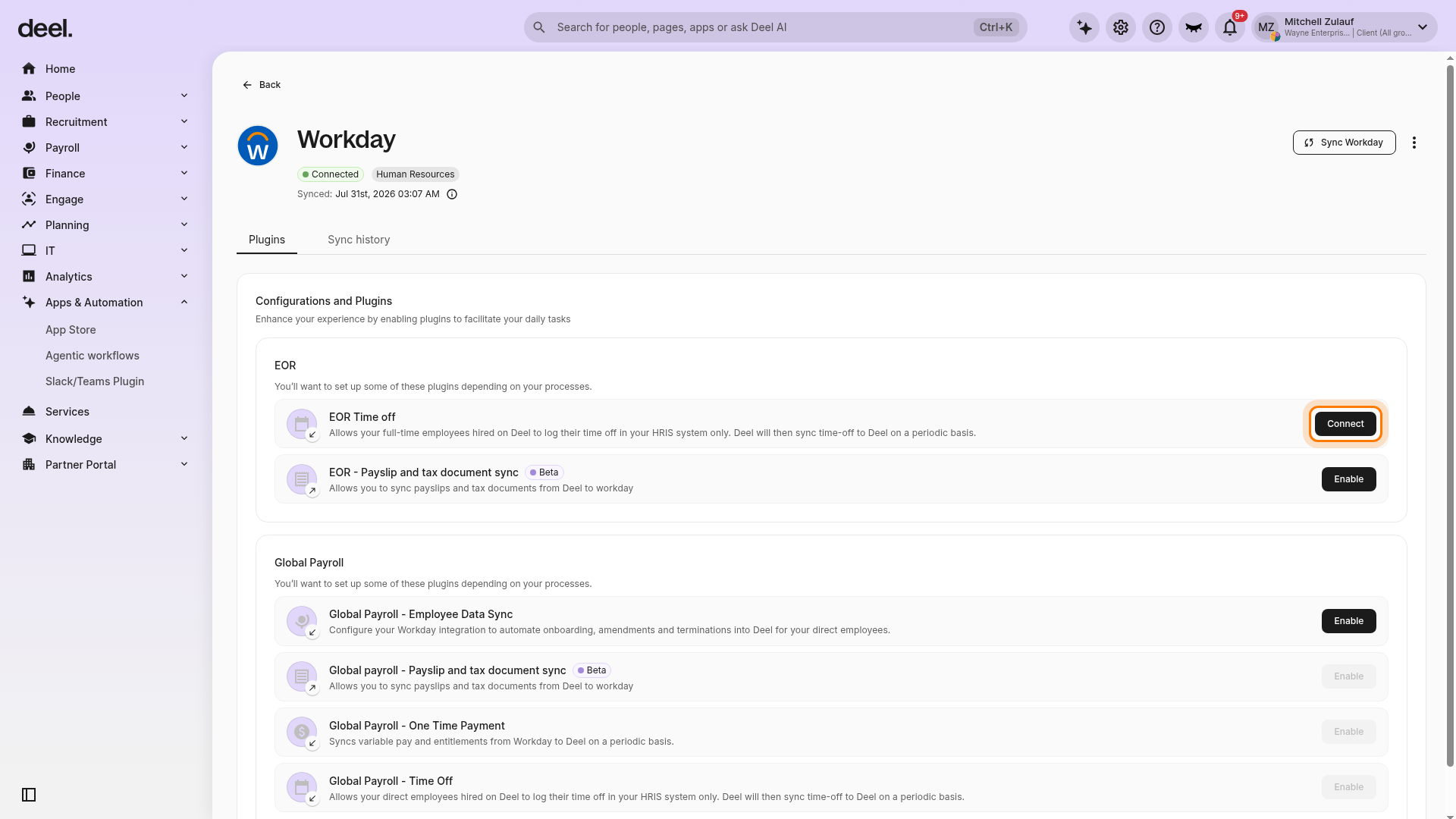
On the Workday page, keep the Plugins tab selected. Under Configurations and Plugins, find the EOR section and click Connect on the EOR Time off row. Do not select Enable for EOR - Payslip and tax document sync or for a Global Payroll plugin.
-
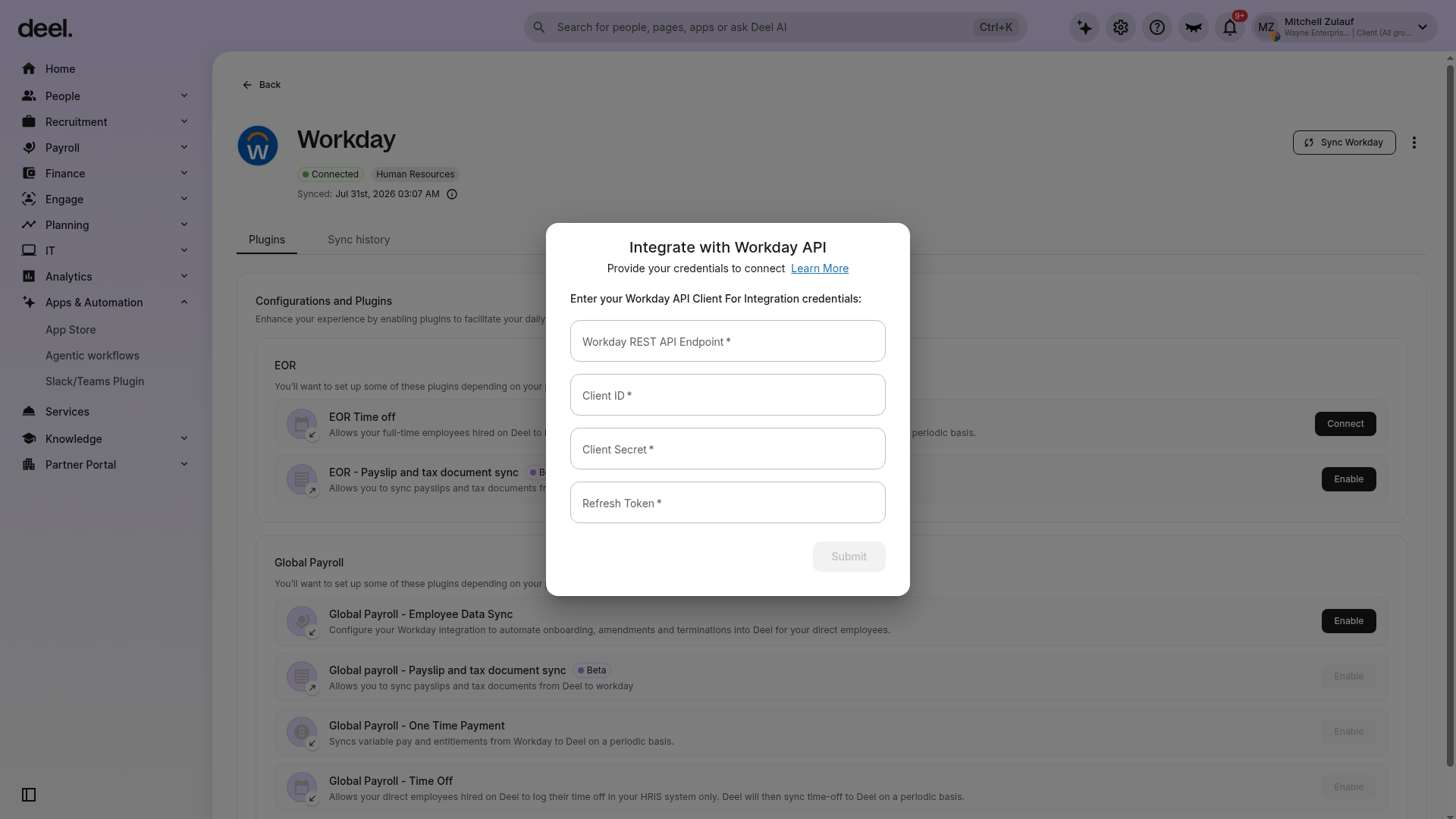
In the Integrate with Workday API modal, enter the Workday REST API Endpoint, Client ID, Client Secret, and Refresh Token. Select Submit.
- Configure your Workday time-off plan to control negative balance behavior. Before mapping time-off types, review your Workday time-off plan configuration:
- If your policy allows negative or overdraft balances in Workday, employees will be able to have negative balances in Deel (as Deel reflects Workday's state).
- If your policy does not allow negative balances in Workday, negative balances cannot be created in Workday, so they will not appear in Deel.
- To prevent negative time-off balances from appearing in Deel, disable negative/overdraft balances in your Workday time-off plan setup. If you are unsure whether your current plan allows negative balances or wish to change this setting, consult your Workday administrator or system setup documentation.
- Once connected, map the Workday time-off types to the following Deel categories:
- Vacation
- Sick
- Other
- Save your mapping.
Enable EOR one-time payment sync
Talk to your Deel representative before enabling this plugin One-time payment types must be configured by Deel first so that they appear in the mapping step.
- In the Plugins tab, locate the EOR - One Time Payment plugin and click Enable.
- Click Configure next to an entity.
- Map the Deel and Workday one-time payment types, then click Confirm.
- On the confirmation dialog, click Enable.
- Repeat for any remaining entities.
People Match plugin
This plugin helps match Deel and Workday users by checking email addresses. For this integration to work, profiles between the two systems must align. If any users in Deel cannot be located in Workday, it's likely due to an email mismatch.
To fix this, ensure each Deel user has a matching Workday profile with the same email.
Frequently asked questions (FAQs)
[ACCORDION] Can this integration be completed without technical experts in a group?
Deel offers an end-to-end implementation service in collaboration with Workday consultants, which includes complete setup and testing in a sandbox environment first. Please approach your assigned Onboarding Manager if interested in this service.
[ACCORDION] Does the integration sync time-off balances from Workday?
Yes. Deel's platform displays the time-off balance state sent from Workday. Workday is the source of truth for time-off balances in this integration. Deel reflects whatever balance Workday reports, including negative balances if your Workday time-off plan configuration allows negative or overdraft balances. This is a one-way sync: Deel does not push balance changes back to Workday.
[ACCORDION] Why do I see a negative time-off balance in Deel?
A negative balance can appear if: (1) your Workday time-off plan is configured to allow negative or overdraft balances, and (2) an employee's balance has gone below zero in Workday. Deel reflects this Workday-generated state as-is. To prevent negative balances, disable negative/overdraft balances in your Workday time-off plan configuration. If a negative balance has already appeared and you want to correct it, contact your Deel Customer Success Manager.
[ACCORDION] Why do we have discrepancies in balances between the two systems?
Workday is the source of truth for time-off balances in this integration. Discrepancies may arise if: (1) your Workday time-off plan policies differ from Deel's (e.g., different accrual rules or carryover limits), or (2) an employee's balance in Workday differs from what you expected in Deel. To resolve this, verify your Workday time-off plan configuration and ensure it matches your intended policy. If you need to adjust Deel's contracts or policies to match your Workday setup, contact your assigned Customer Success Manager (CSM).