
On-Call is a feature that allows you to manage and compensate employees for work outside their regular hours. This feature empowers you to:
- Set up an on-call system and determine how much workers are paid for it.
- Assign workers to on-call duties based on their job roles.
- Check and approve on-call hours submitted by workers.
Additionally, workers can:
- Specify when they are on-call.
- Record when they handle issues during on-call periods (referred to as "call-outs").
- Get paid for their call-out hours.
Note: Submitting on-call hours requires workers to be assigned to a schedule, which serves as the basis for hourly rate calculations. You can review workers without schedules in Organization Settings > Time Tracking.
This article guides clients on how they can Manage on-call custom rates and their application for your hourly and salaried workers.
In this Article
How to Set Up On Call Custom Rates for your workers
How to Set Up On Call Custom Rates for your workers
✅ Step 1 - Navigate to Time Tracking
Select the Organization settings gear icon in the top-right corner.
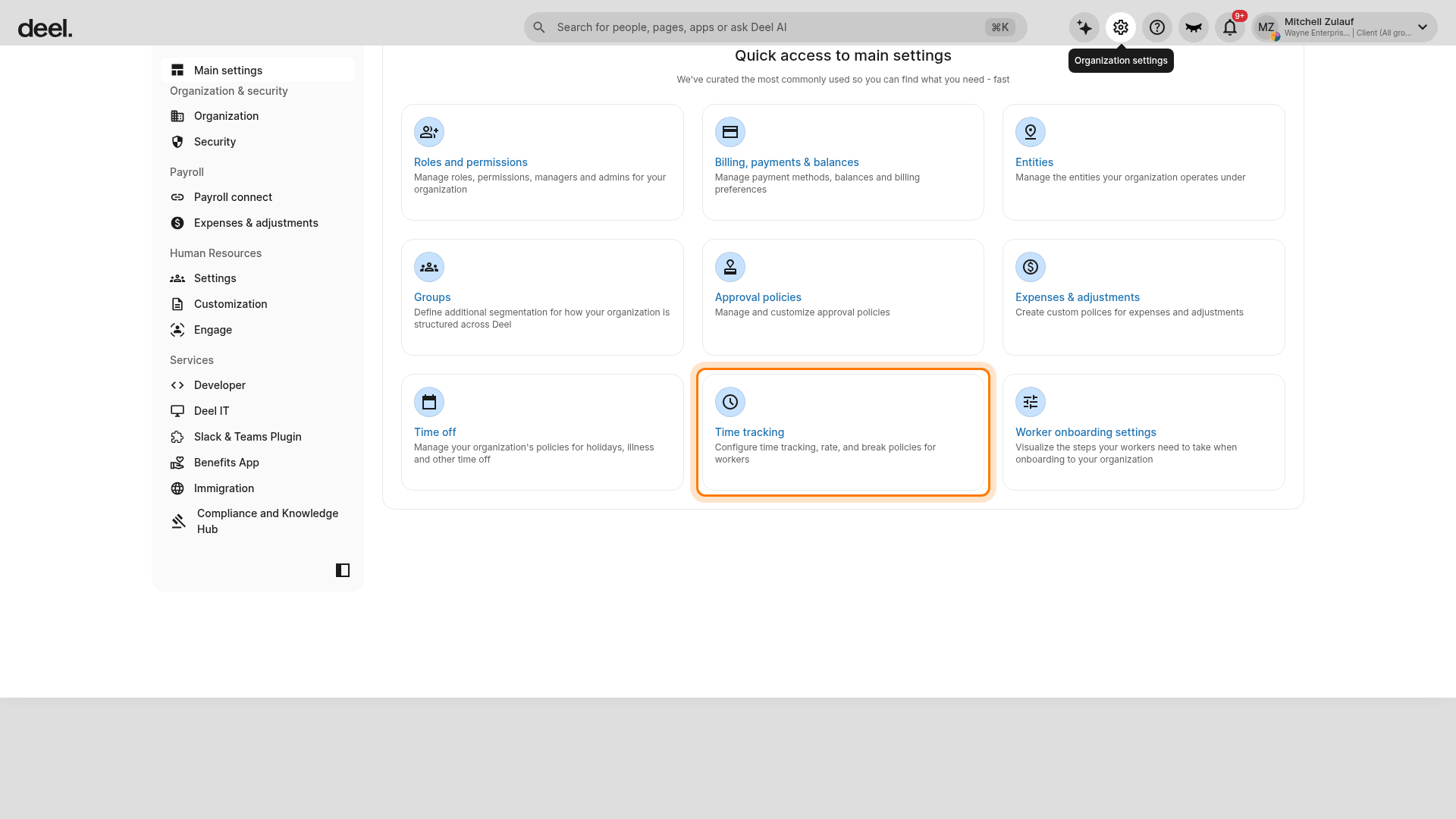
On the Organization settings page, select the Time tracking card.
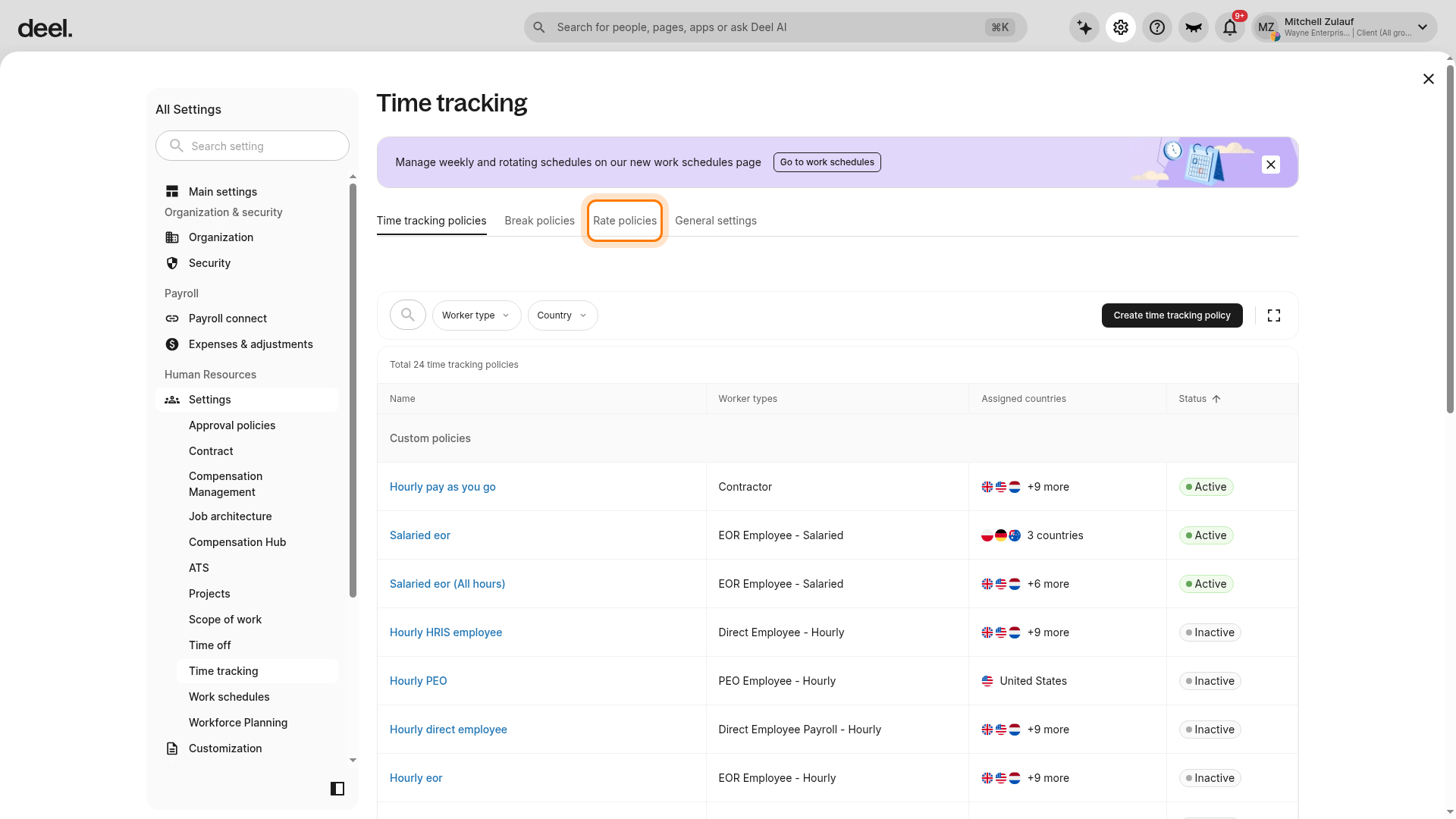
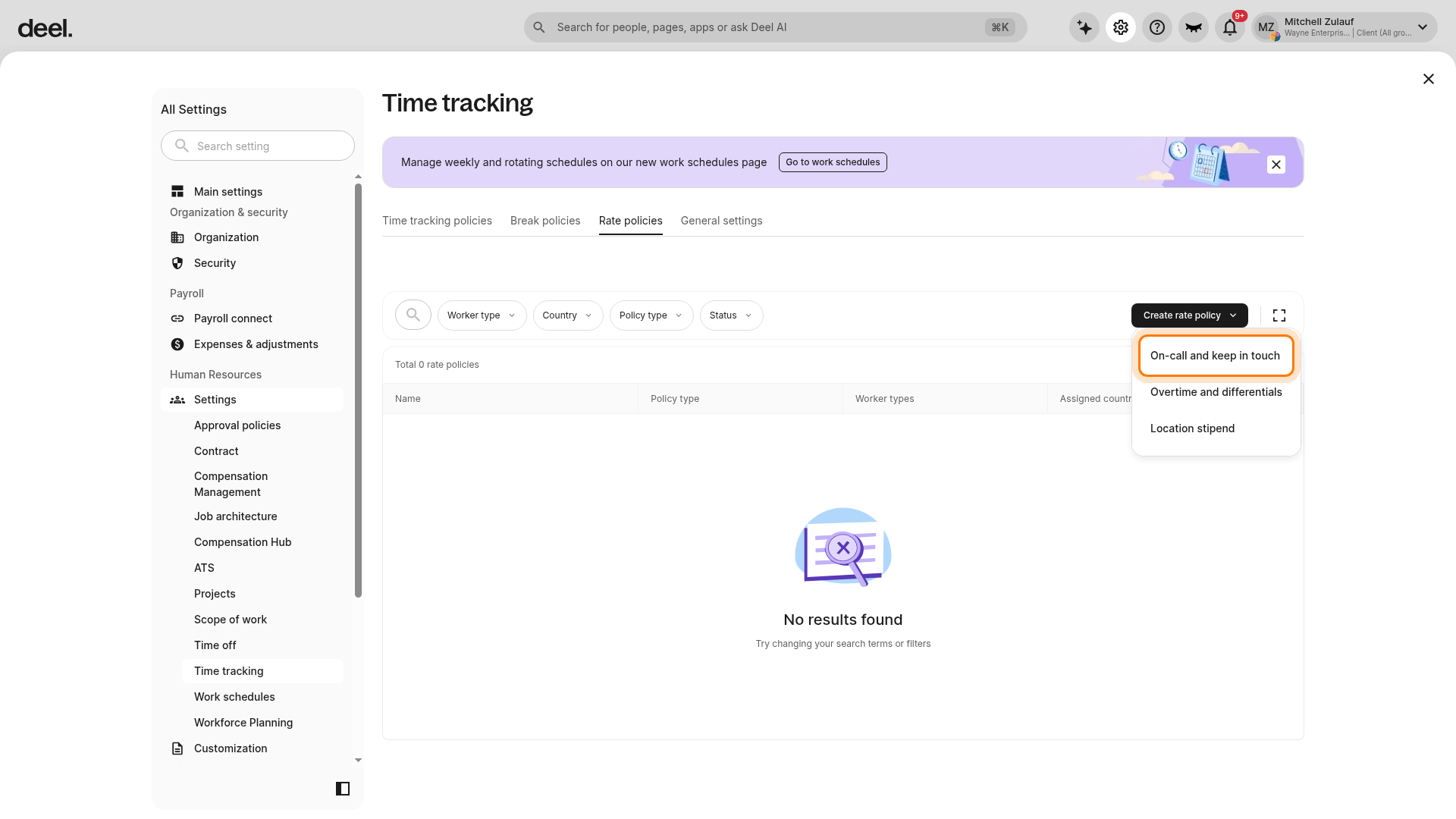
On the Time tracking page, select Rate policies from the tab row. The page may initially open on Time tracking policies.
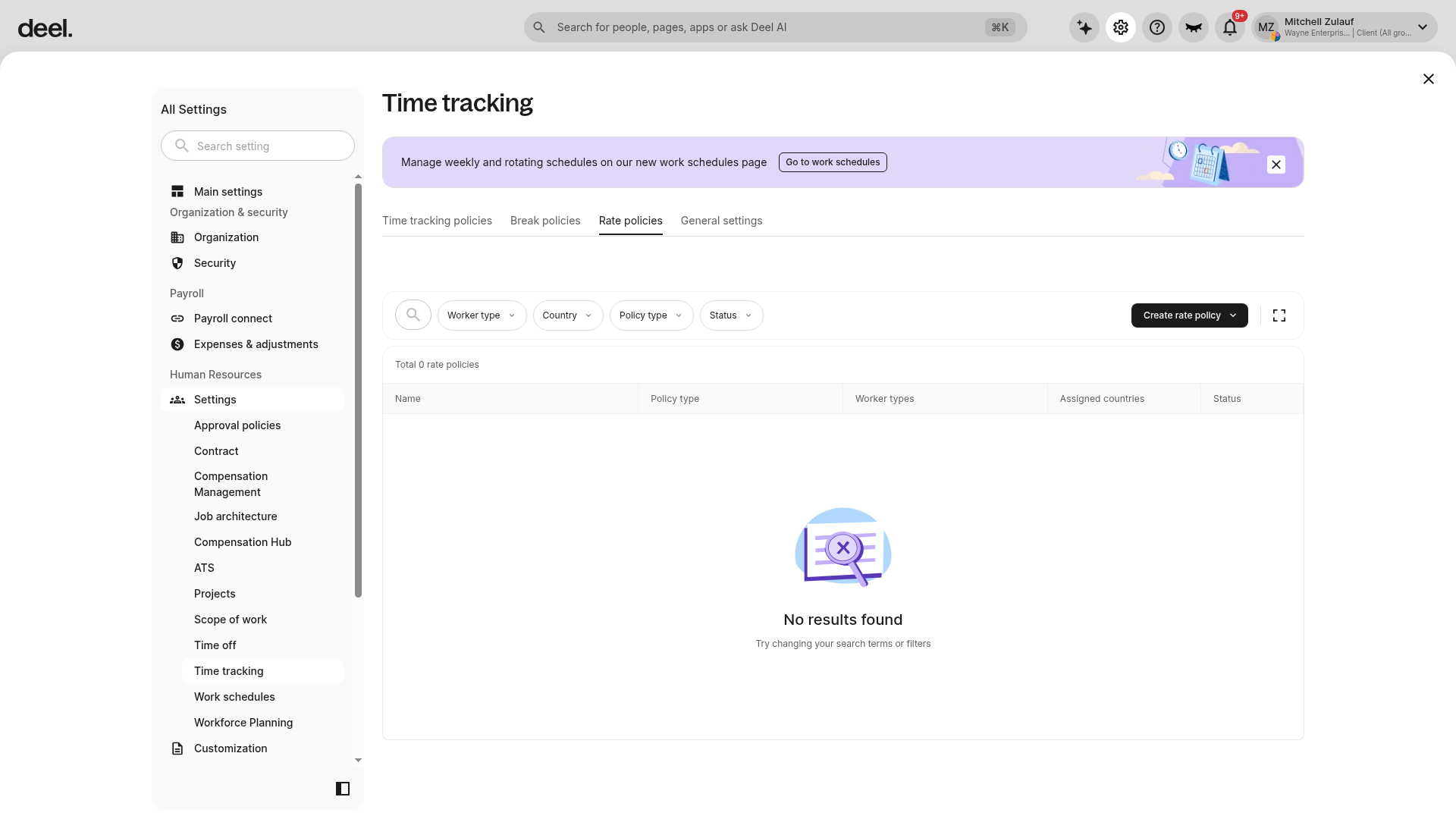
Verify the result:
- The page heading is Time tracking.
- Rate policies has the active underline.
- The Create rate policy button appears above the policy list on the right.
The list may show existing policies or No results found; either result is valid as long as Rate policies is active and Create rate policy is visible.
✅ Step 2 - Create a Rate Policy
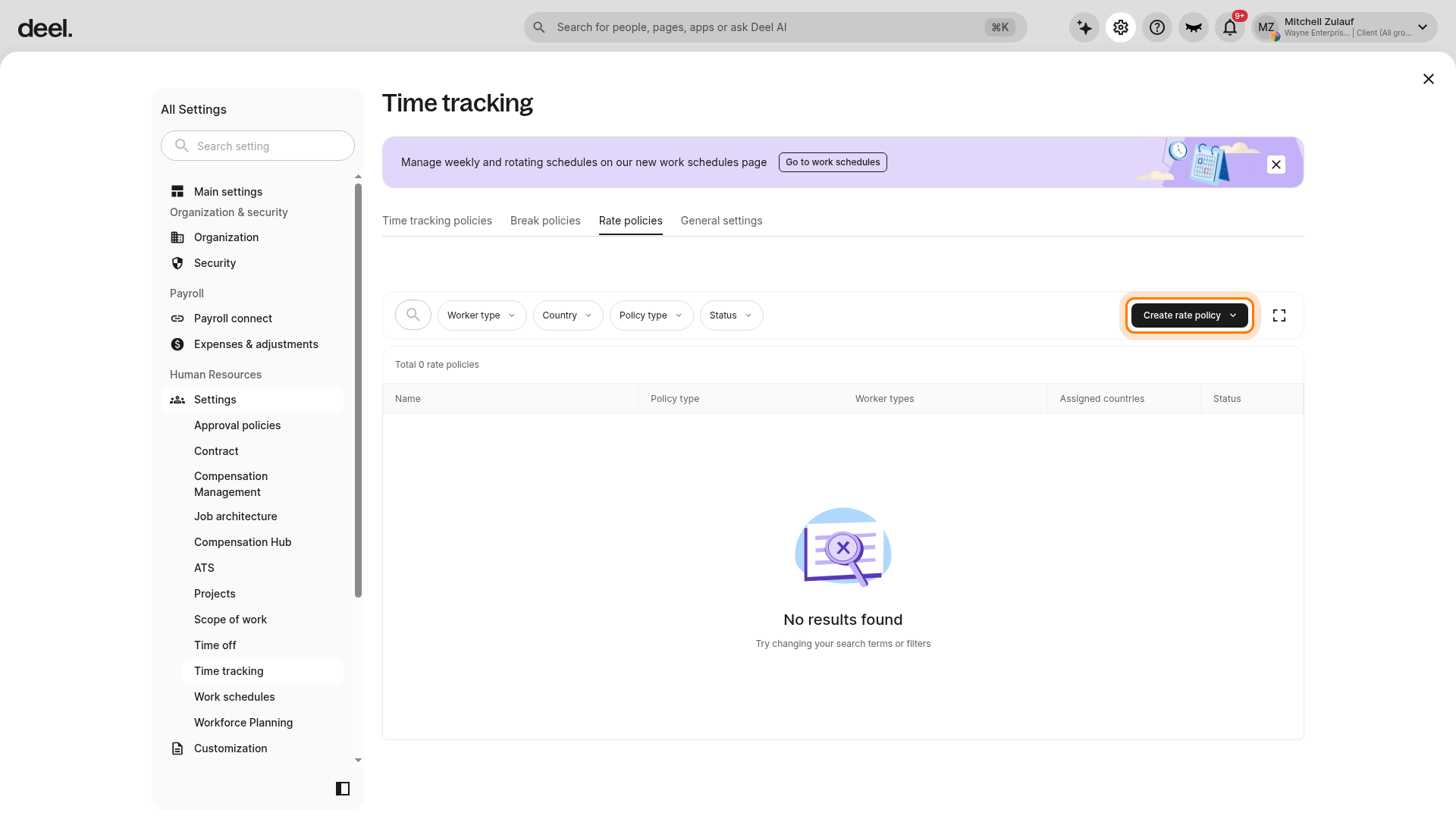
On the Rate policies page, select Create rate policy.
From the menu, select On-call and keep in touch.
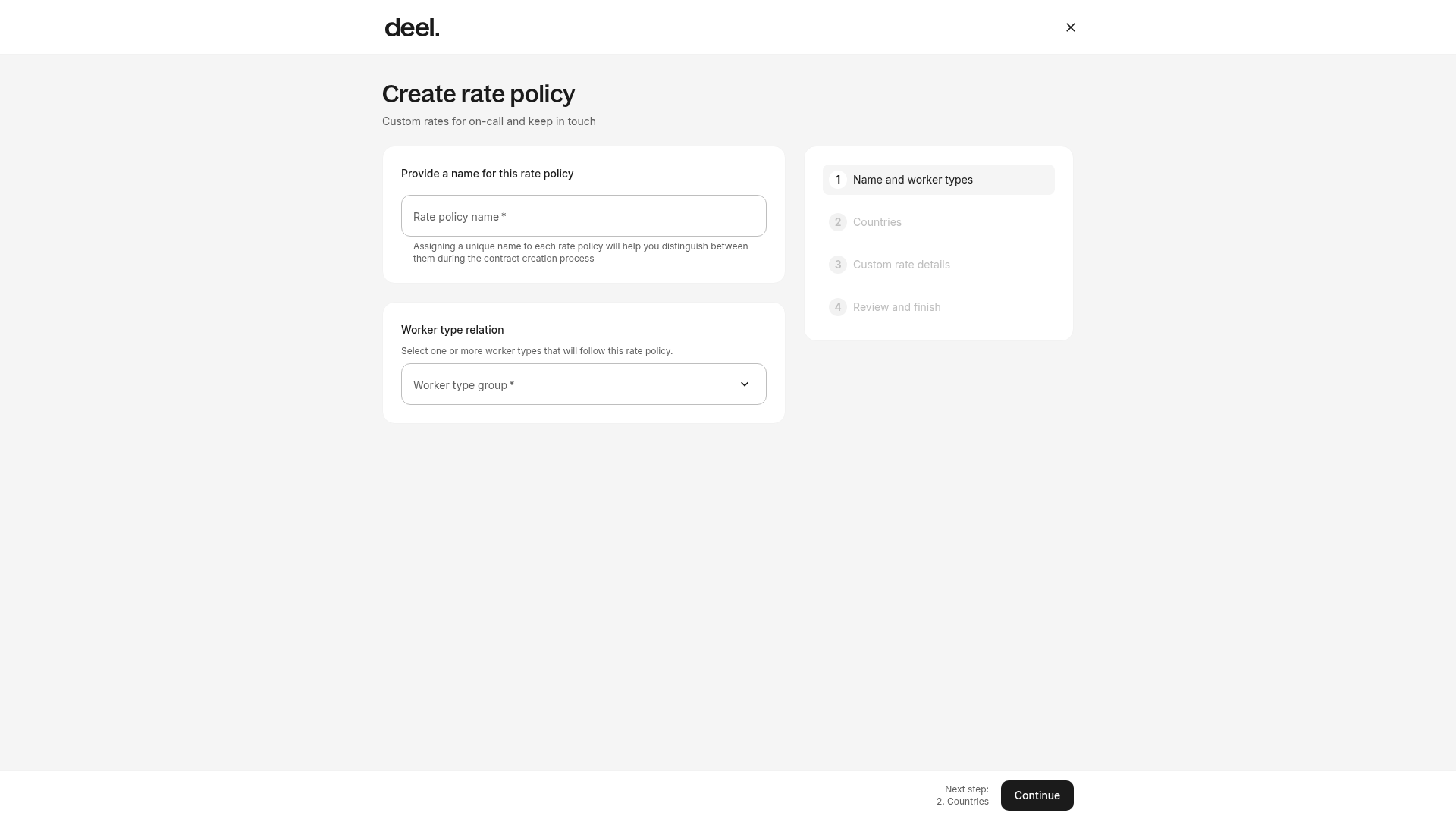
On the creation form, enter a Rate policy name and select the applicable Worker type group, such as hourly or salaried. Then select Continue.
Verify the form:
- The heading is Create rate policy.
- The subtitle is Custom rates for on-call and keep in touch.
- Step 1, Name and worker types, is active in the progress panel.
- The required Rate policy name field and Worker type group selector are visible.
Note: Do not use global search to find Rate policies or On-call and keep in touch. These searches can return No results. Use Organization settings → Time tracking → Rate policies instead.
✅ Step 3 - Add Custom Rate Details
Specify the countries where the rate policy applies, then continue to Custom rate details.
Select the on-call rate type:
- Progressive Multiplier: A percentage of the worker’s base hourly rate.
- Additional Flat Rate: A fixed amount per hour.
- Fixed Amount Per Day: A fixed daily amount.
Enable the Call-out Rate toggle to pay workers for call-outs. You can also configure applicable conditions, including rate changes after a set number of hours, the time calculation method, minimum payable hours, and rounding rules.
Please note that workers can submit call-out periods regardless of this option, but they will only be paid if Call Out Rate toggle is activated.
✅ Step 4 - Specify the On-call overnight shift rate
Define the on-call overnight shift rate to apply when a shift falls between a regular day and a public holiday. This setting will only apply if custom rates are set for both on-call hours on regular days and public holidays.
Note: Overnight shifts that span pay cycles are paid as part of the day the shift starts and are included in the previous pay cycle.
Once all settings are configured, review the rate policy and save your changes.
Frequently Asked Questions
[ACCORDION] What is the hourly rate for salaried workers?
The hourly rate for salaried employees is calculated by dividing the gross monthly salary by the number of hours they are estimated to work in a month.
[ACCORDION] How is Holiday Pay and Night Differential calculated if a shift falls on a holiday?
Deel Time Tracking calculates Holiday Pay and Night Differential based on the shift start time through to the next day, rather than the actual hours worked during a specific holiday period.
For example - if June 6 is a holiday and the employee’s shift is from 10 PM (June 6) thru 6 AM (June 7), the system will calculate Holiday Pay until the end of the shift on June 7 - even though much of the hours worked didn't fall on the holiday anymore.
However, if the shift starts on June 5 and ends on June 6, the system will not apply Holiday Pay, as the shift did not start on the holiday
[/ACCORDION]