
This article explains how clients can define and assign Custom Rates for overtime and differentials, such as public holidays, rest days, and other special pay conditions for their hourly and salaried workers.
Clients can define a custom rate policy that determines how additional compensation is applied for overtime, like daily or weekly overtime, public holidays, and rest days, based on the country and employee type.
In this article:
About Custom Rate for Overtime and Differentials
Create an Overtime Custom Rate Policy
About Custom Rate for Overtime and Differentials
Clients can set the custom rates for overtime and differentials by choosing between the following :
-
Multiplier: A percentage of the worker’s base hourly rate.
- The multiplier rate types multiply the specified percentage of the worker's base hourly rate by the number of hours worked.
-
Additional Flat Rate: A fixed amount in local currency.
- This adds the specified amount to the worker’s payment for the overtime.
You can also add condition references to define how and when these rates apply:
- Late Hours: Applies a different rate for a specific time window each day.
-
Overtime: Applies a different rate after a set number of worked hours.
Create an Overtime Custom Rate Policy
✅ Step 1 - Navigate to the Custom Rates settings
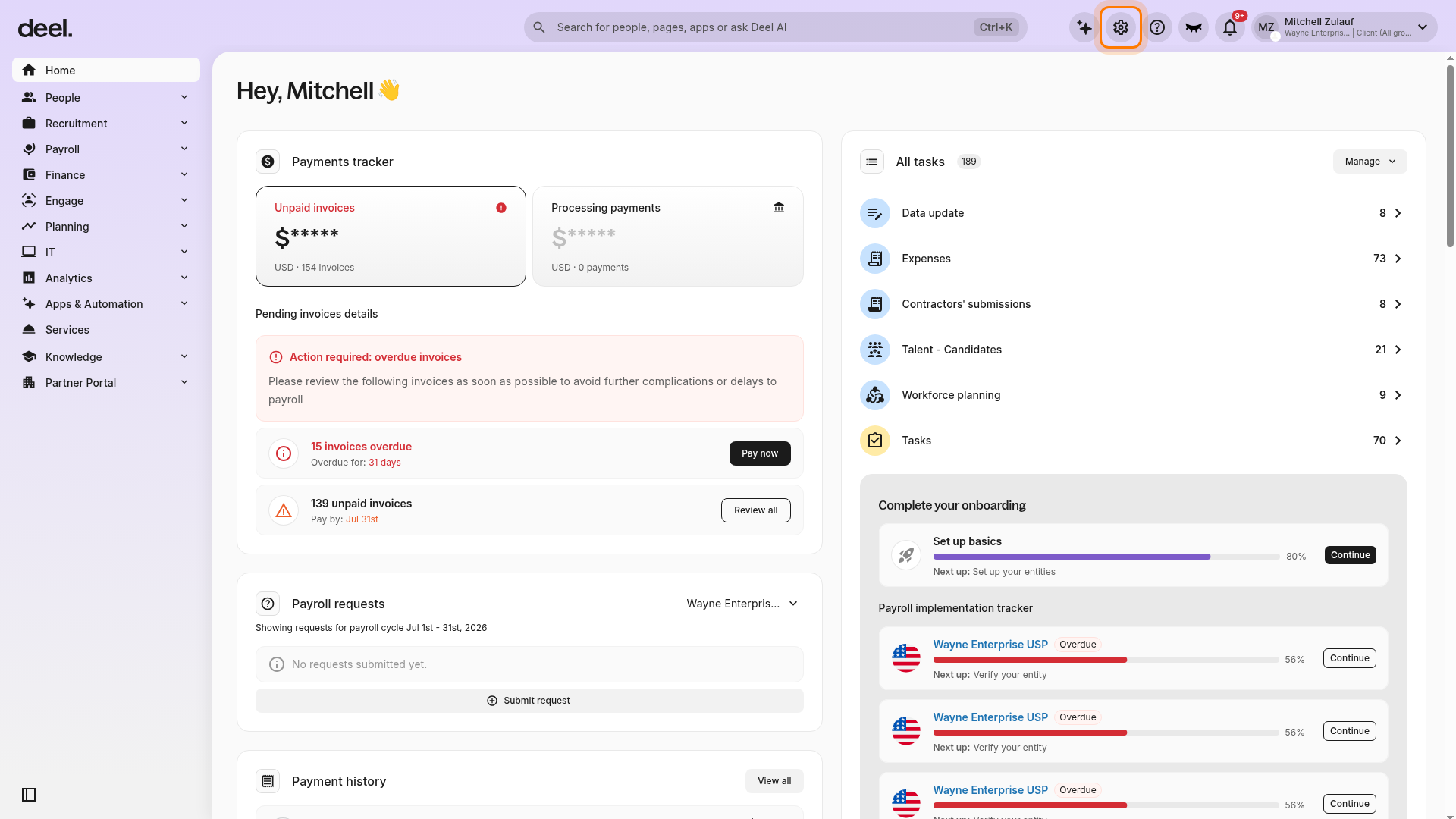
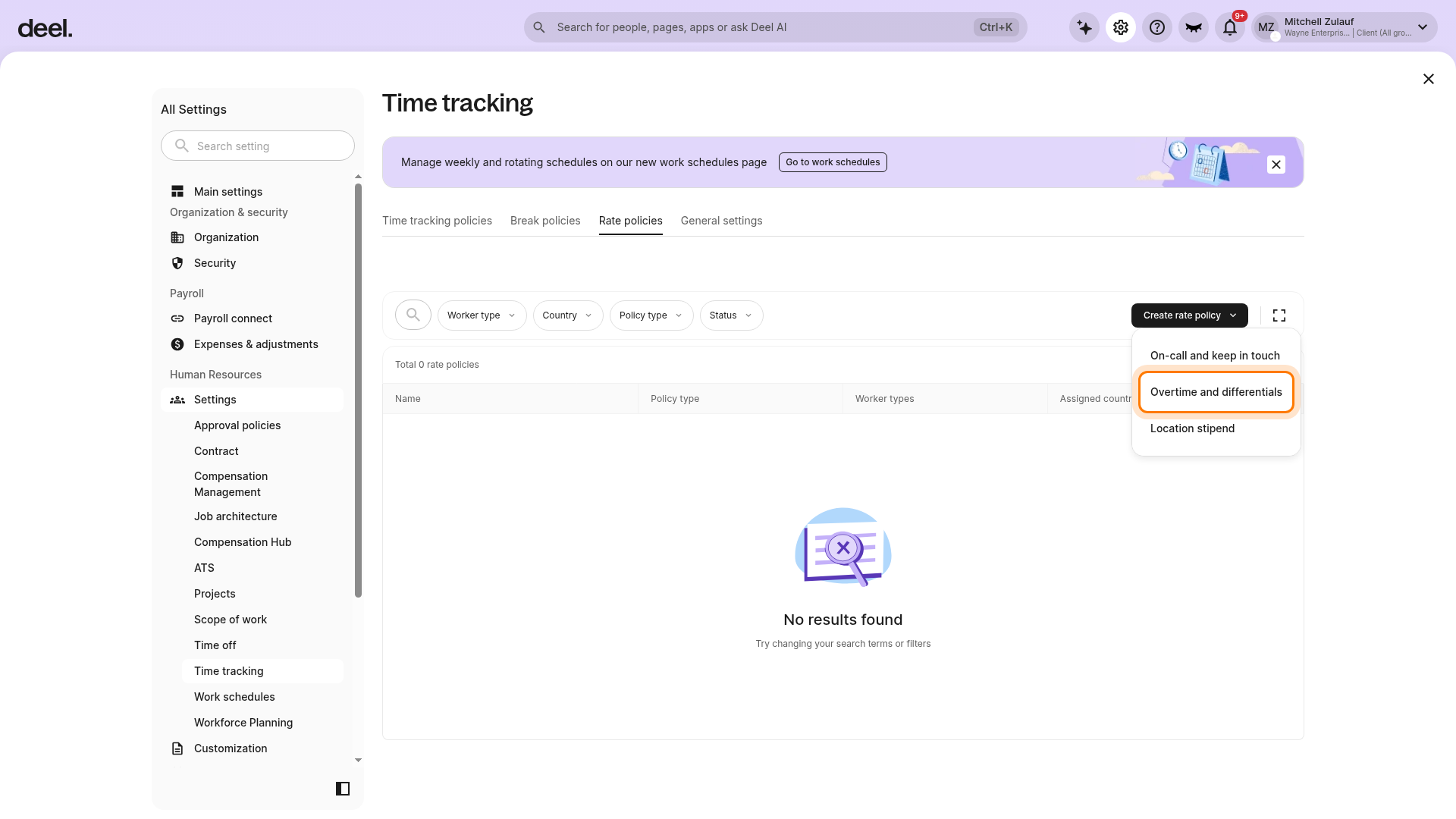
Select the Organization settings gear icon in the top-right corner.
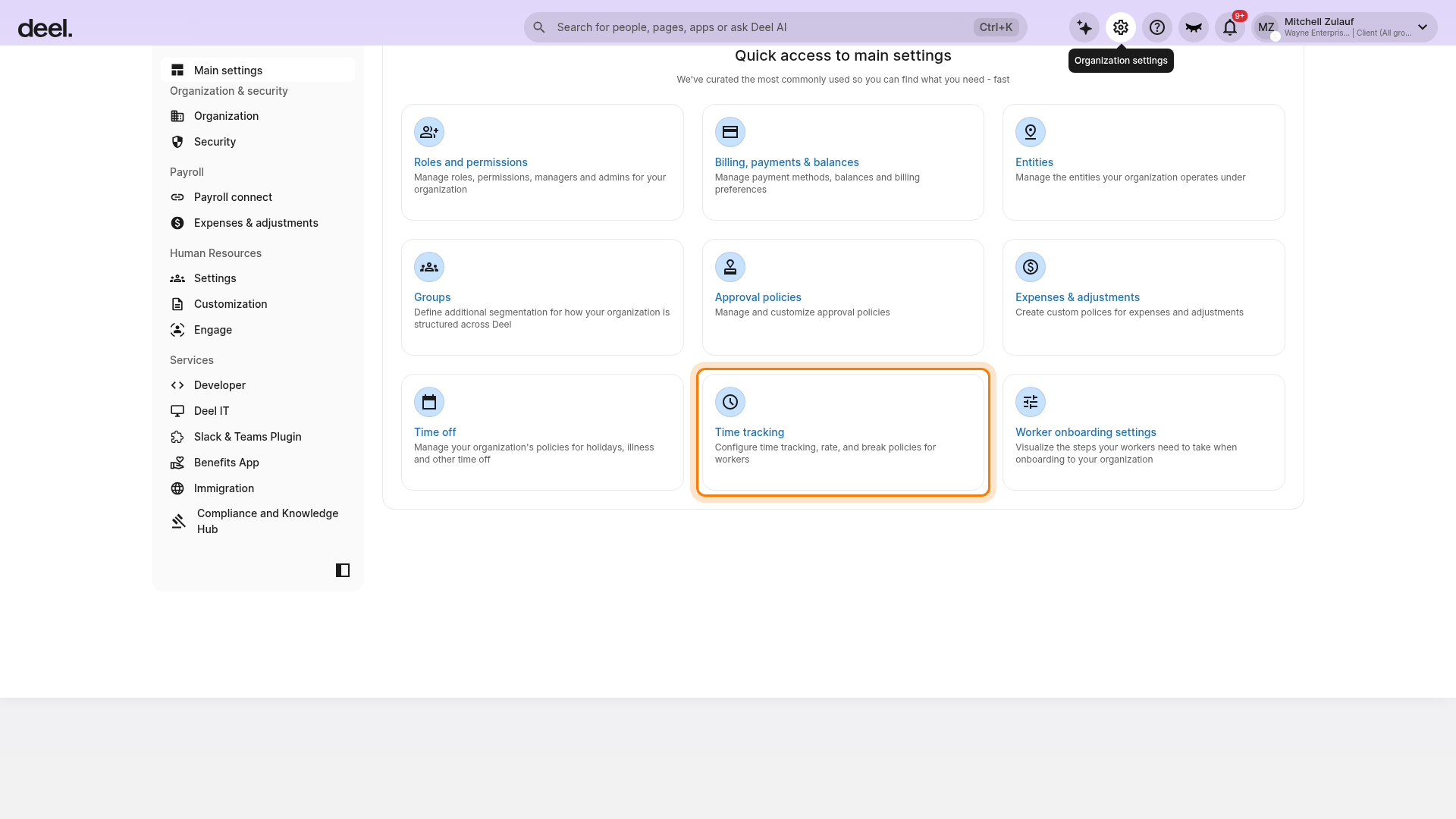
On the Organization Settings page, select the Time tracking card.
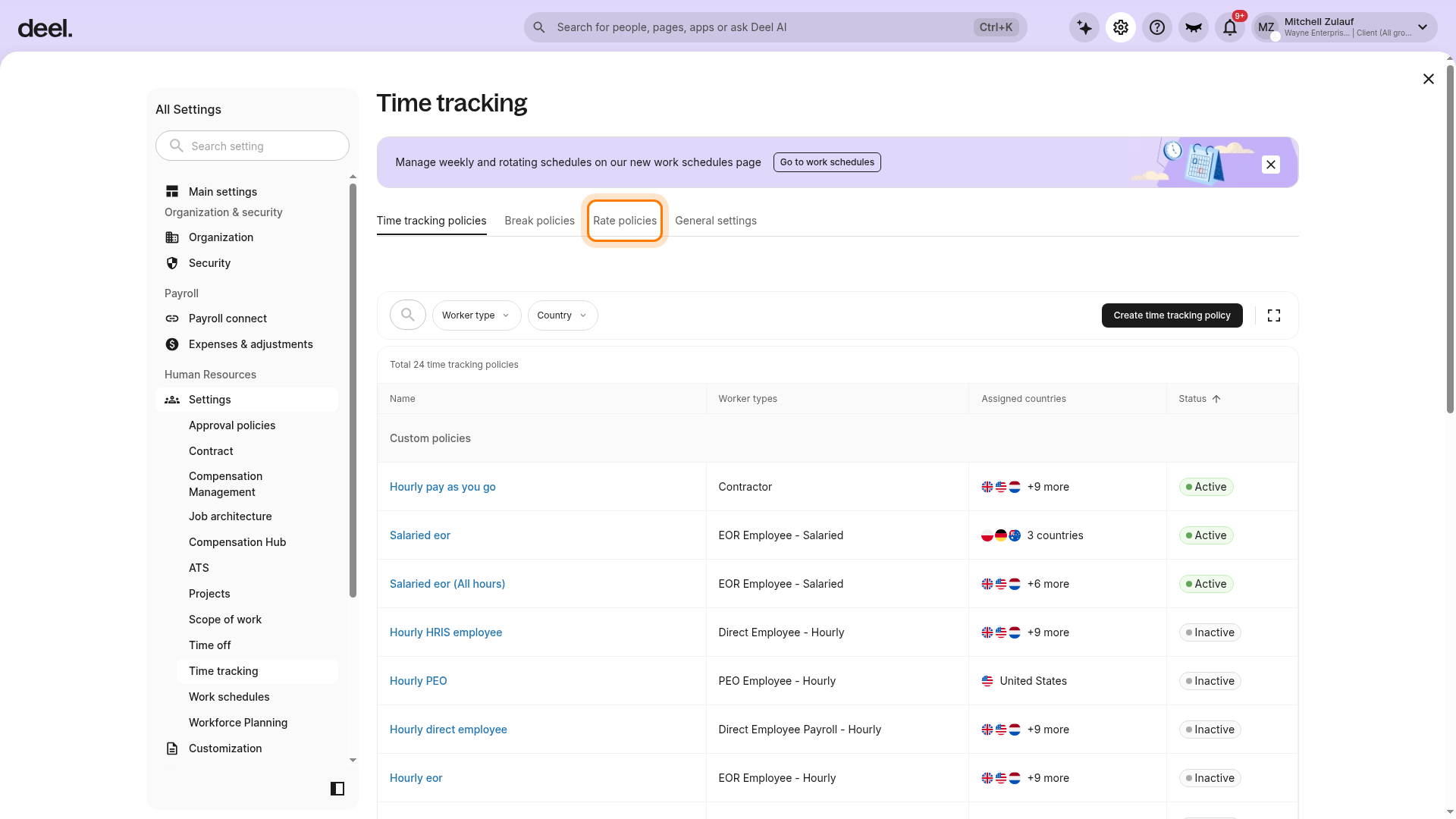
Select Rate policies.
Select Create rate policy near the upper-right of the rate policies list.
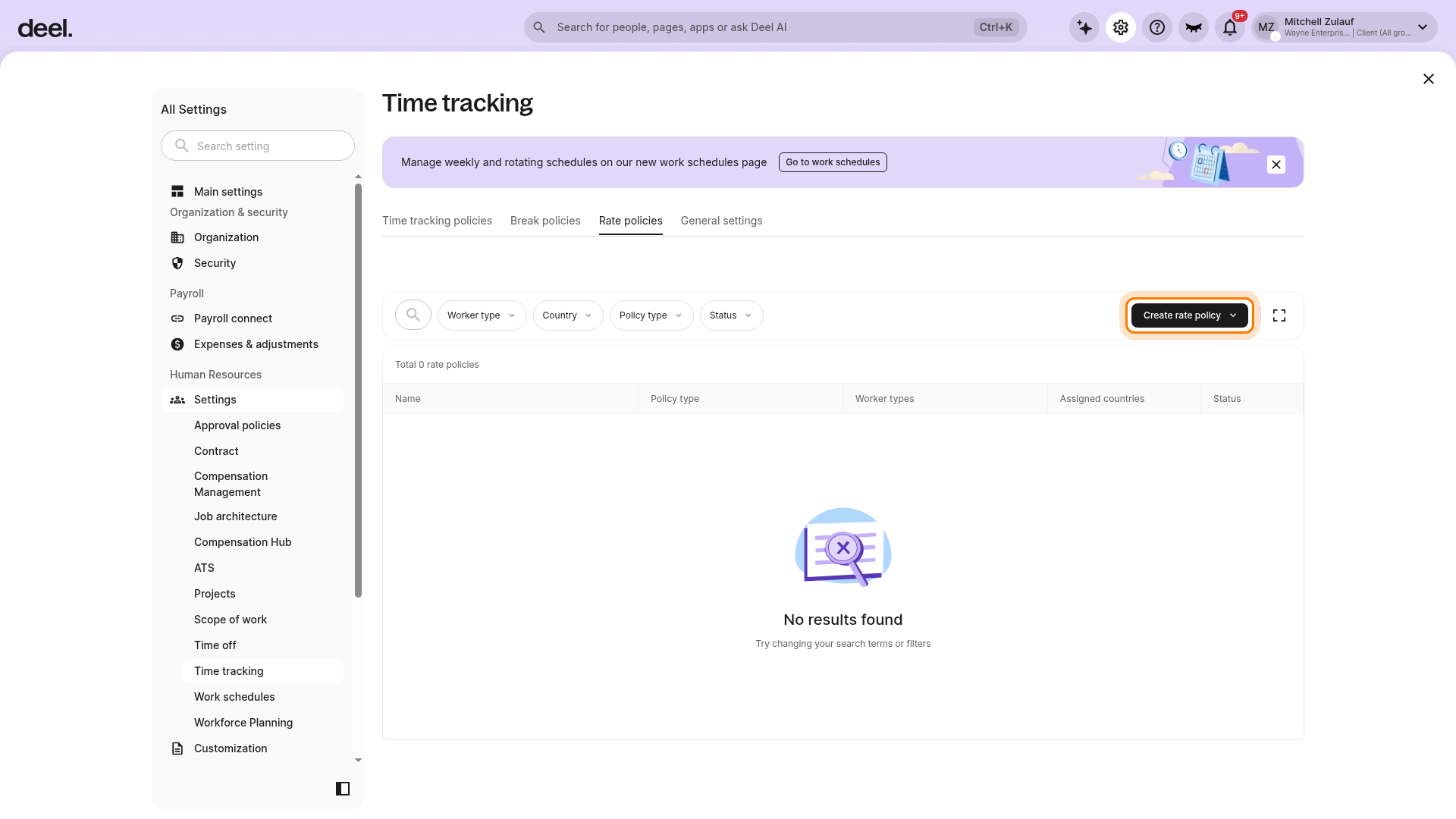
From the dropdown, select Overtime and differentials.
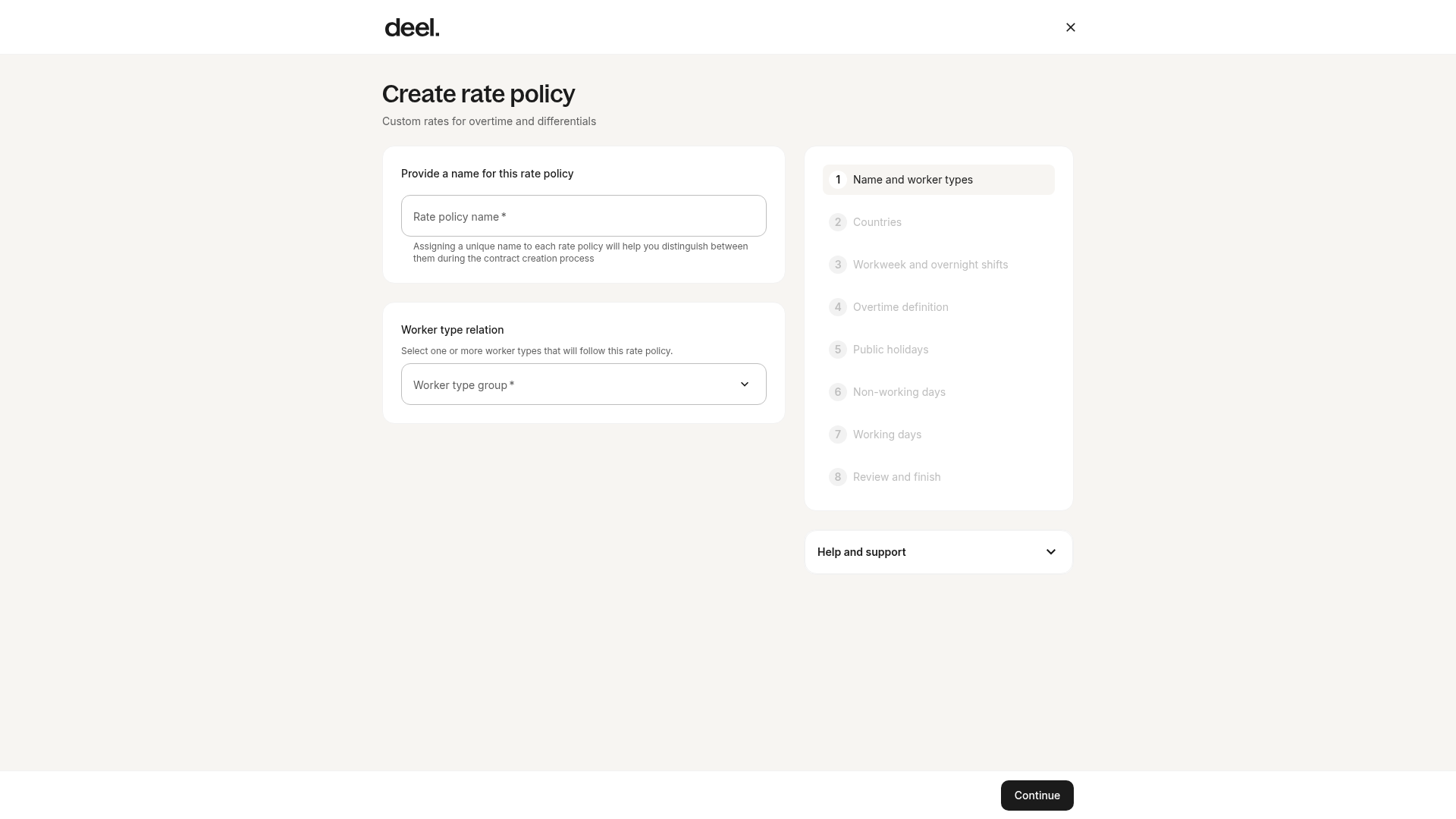
Confirm that the Create rate policy form displays the subtitle Custom rates for overtime and differentials.
✅ Step 2 - Define the policy
Enter a policy name. Select one or more employee types. Choose the countries where this policy applies, then select Continue.
Please note that Deel validates compliance rules (e.g., minimum overtime rates per region).
✅ Step 3 - Enter Policy Details
Define the workweek start day along with overnight shifts that define which date is used as a reference for the overnight shift compensation.
Select the Overtime definition to define how and when overtime hours are calculated: Daily, Weekly, or Daily + Weekly.
If you select the Weekly overtime definition, then you must create at least one weekly overtime rule by defining the weekly overtime threshold and selecting the rate types. Select Continue when finished.
✅ Step 4 - Create Public Holiday Rule
You can now define how working hours are rated on public holidays by specifying the public holidays and selecting the rate type.
Please note that in case of overlapping rules, you can define a differential rate and add conditions for the public holiday rules by setting a condition reference. Select Continue when finished.
✅ Step 5 - Define Rest Day and Overlapping Days Rules
Define how the working hours are rated on the rest days.
Please note that for Workers already assigned a work schedule, their rest days override the selected days in this step.
Click Continue to set the overlapping day rules to manage overlaps between public holiday and rest day rules.
✅ Step 6 - Set Working Day Rule
Define how working hours are rated on standard working days.
The working days are defined as the non-selected days as rest days.
By default, the rate is 100% of the base hourly rate but you may add conditions to customize it.
Select Continue, review the policy, and select Publish.
Note: Once a policy is enabled, it will apply by default to all workers in the selected country
Frequently Asked Questions
[ACCORDION] Can I define consecutive day overtime rules?
No, currently the clients cannot define consecutive day overtime rules.