
Overview
This guide provides step-by-step instructions for navigating to the Create custom role page in Deel. By following these steps, you will reach the interface where you can create a new custom role from scratch or use an available template to define tailored permission sets and access scopes for your organization.
Expected Outcome: You will arrive at the Create custom role page, where you can choose to create a new role from scratch or use an available template.
Prerequisites
- You must have permission to view Organization settings and manage Roles and permissions in Deel.
Step-by-Step Instructions
Step 1 - Navigate to Organization Settings
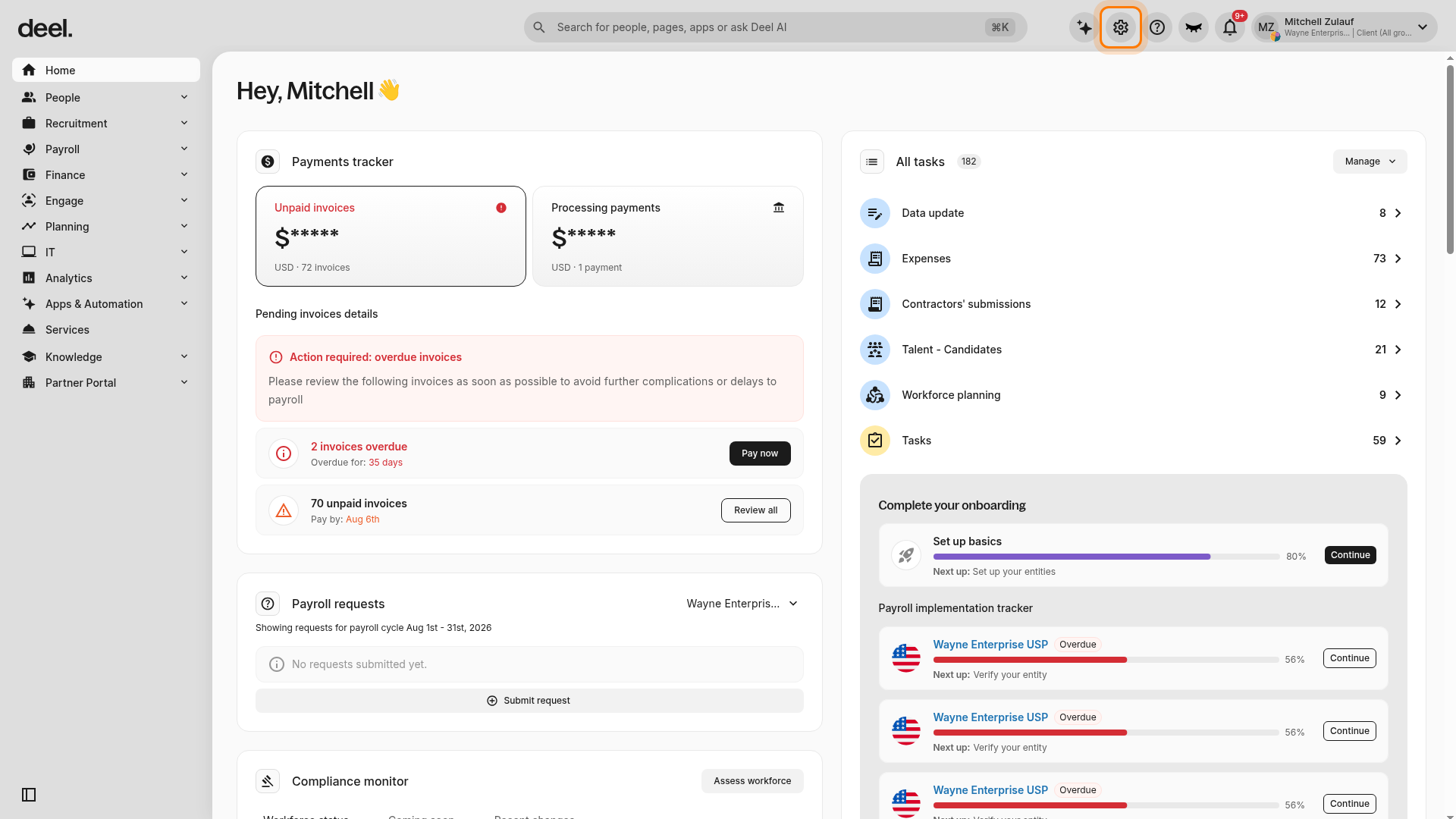
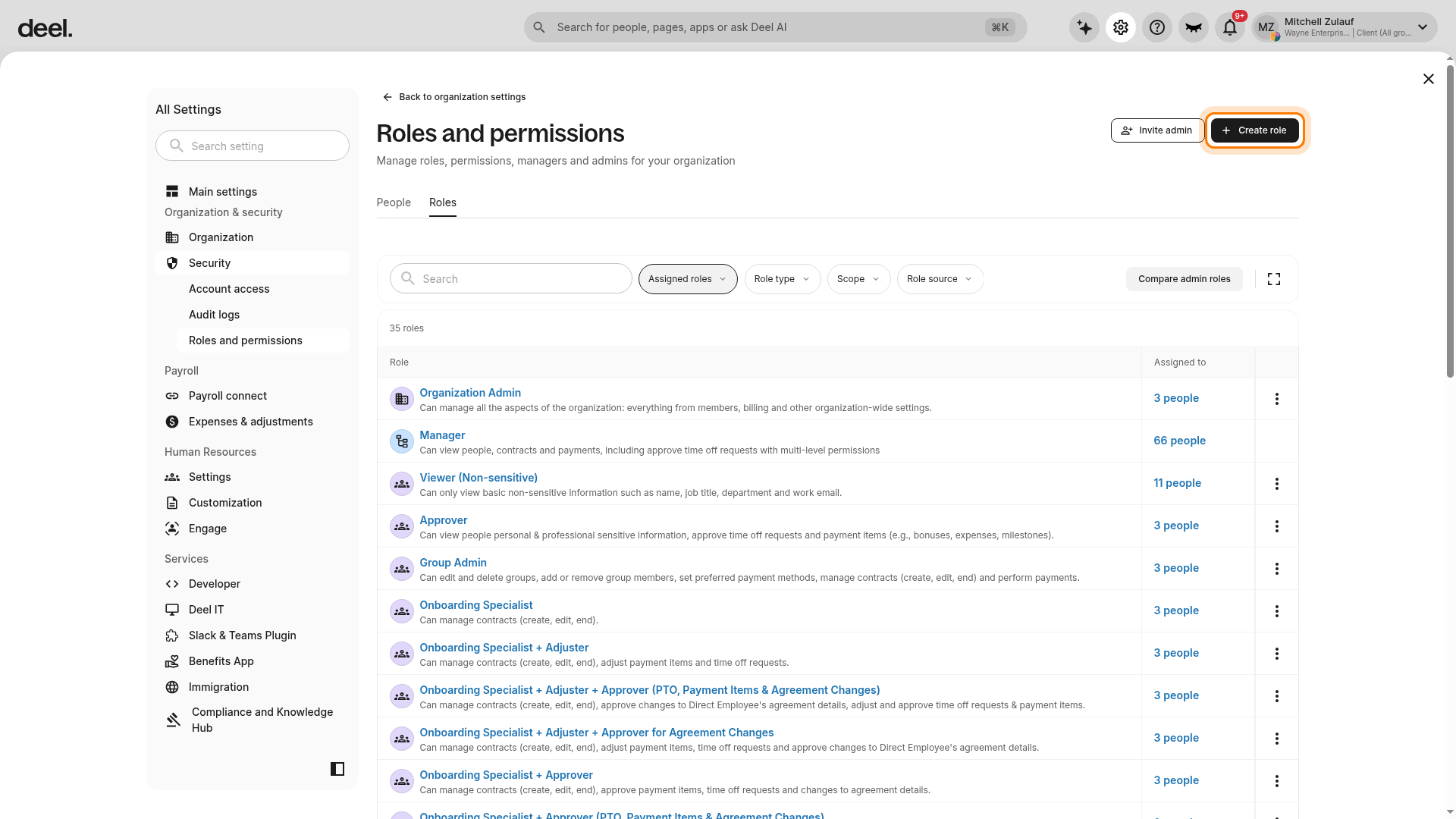
From the Deel dashboard, locate and click the Organization settings icon (gear symbol) in the upper-right corner.
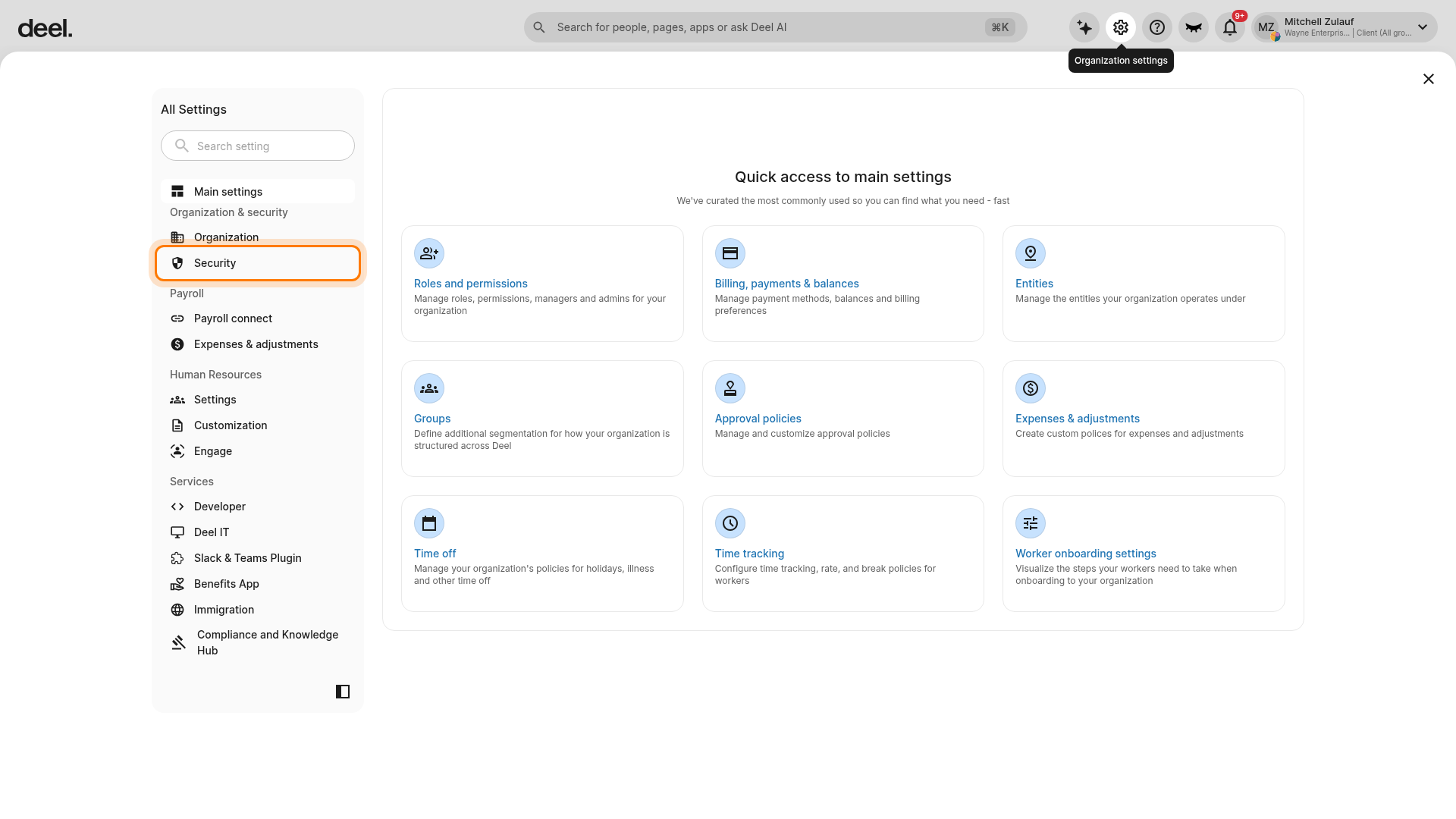
Navigate to the Security Section. In the left-hand settings navigation, find and click the Security section to expand it.
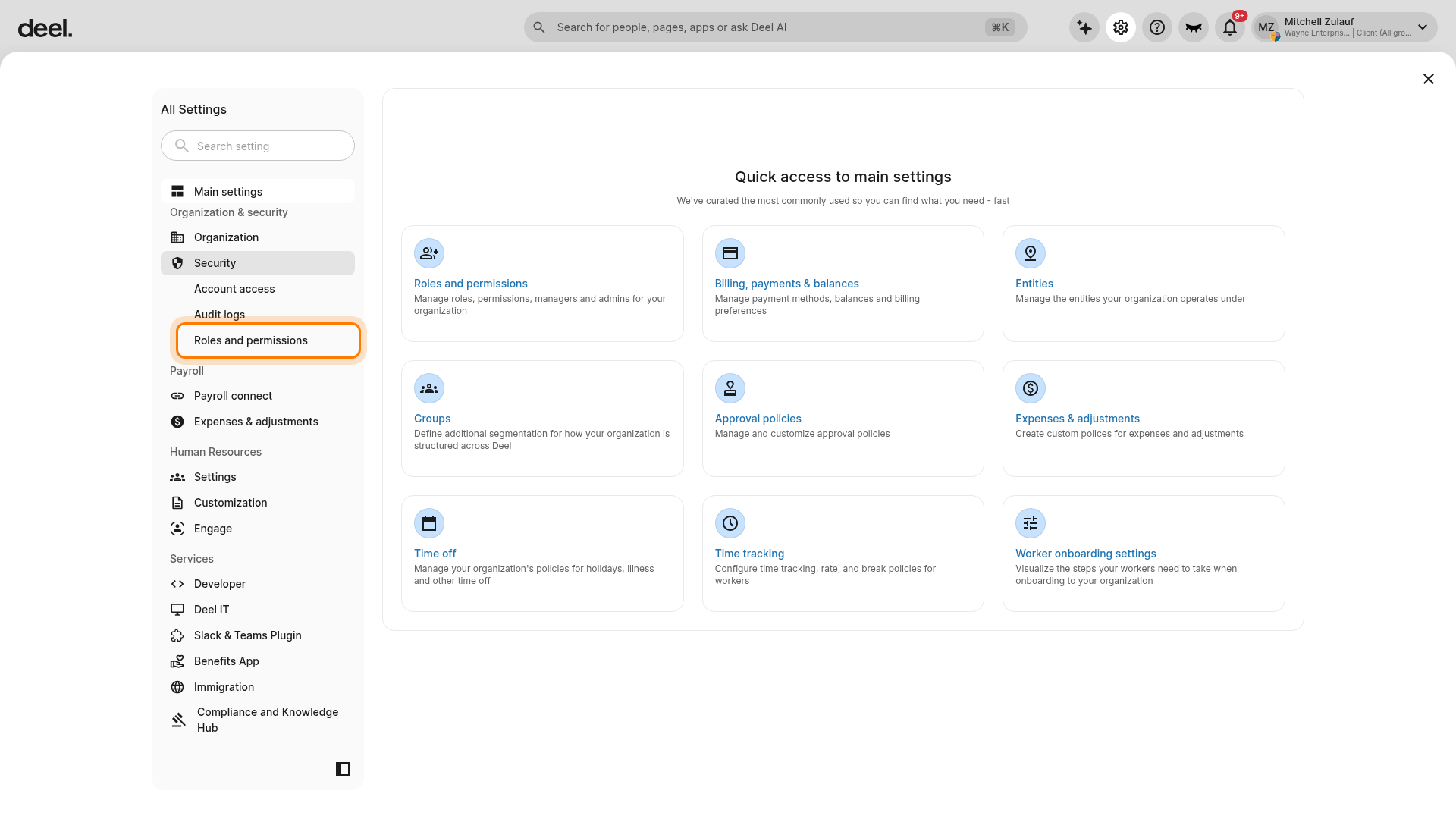
Under the expanded Security section, click Roles and permissions.
Expected Outcome: The Roles and permissions workspace opens.
Step 2 - Start Creating a Custom Role
At the top of the Roles and permissions page, click the Roles tab. Confirm that Roles is active and that the page displays a list of roles.
In the Roles tab, click the Create role button located in the upper-right corner.
Expected Outcome: You are taken to the custom role creation page, where you can choose to create a role from scratch or use a template.
Step 3 - Verify the Custom Role Creation Page
Confirm that the page title is Create custom role. You should see a Create your own card and available templates, such as Head of Department.
To build a role from scratch, select Create custom role in the Create your own card. To use a template, select Use template on the template that best matches the role you want to create.
Define the role name, permissions, and access scope, then save the role.
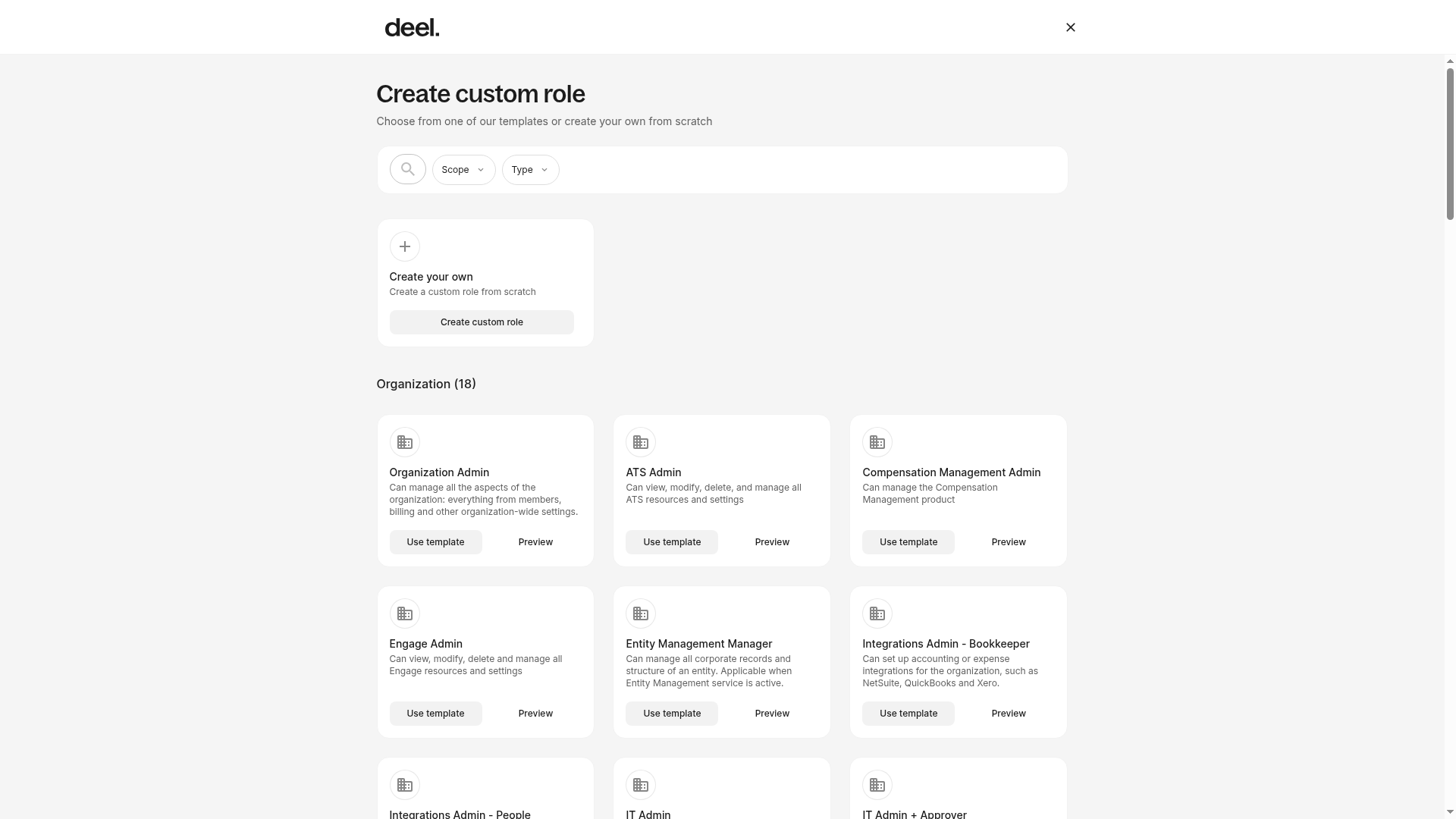
Success Criteria: The custom role creation page is displayed, showing options to create a new role from scratch or use a template. You can now define the details and permissions for your new custom role.
Troubleshooting
- Missing Access: If you do not see the Organization settings icon, the Security section, or Roles and permissions, verify that your account has permission to view Organization settings and manage Roles and permissions.
- Roles Tab Not Active: If you see the People tab instead of the role list, click the Roles tab. The People tab is used to manage people and their role assignments, not to create roles.
- Create Role Missing or Unavailable: Confirm that you are on the Roles tab. If the button still does not appear or cannot be selected, ask an organization administrator to grant the required role-management permission.
- Page Not Loading: If any page fails to load, try refreshing your browser, clearing your cache, or checking your internet connection. You can also try a different browser.
If you encounter persistent issues, contact your organization's Deel administrator or Deel support for further assistance.