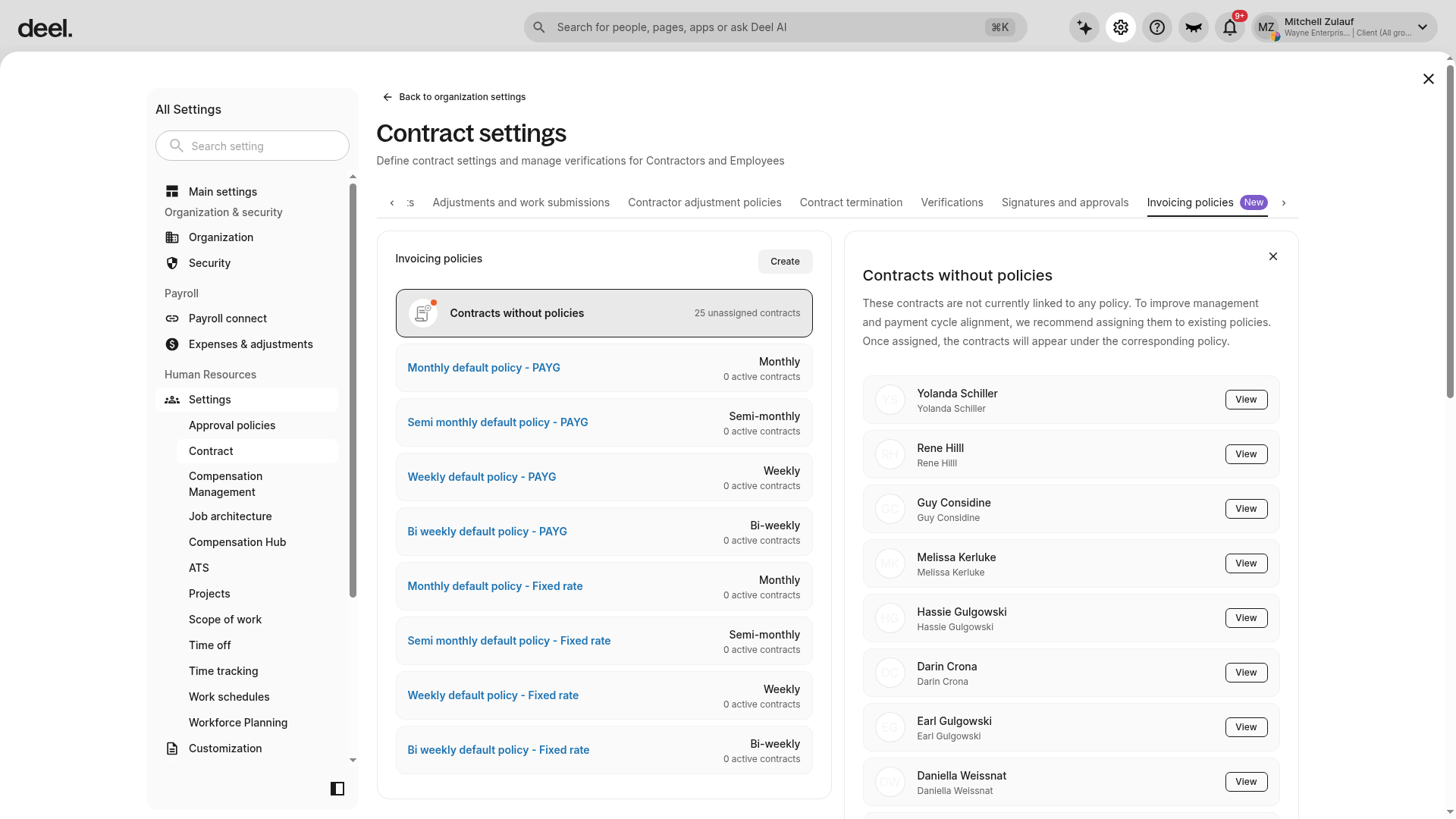
The Invoice Policies section within the Contract Settings tab provides a simple way to manage and track payment cycles, contract statuses, and invoice due dates. This feature allows users to easily create, view, and modify policies that govern the invoicing process for Fixed and Pay As You Go contracts.
Within the Invoice Policies section, Clients can create new policies and manage existing ones. Each policy row will display key information, including the payment cycle frequency, the number of active workers, and the current status of the policy.
Policy Statuses and Details
Policies can have one of the following status indicators:
- ACTIVE: The policy is live, with at least one active contract and no pending edits.
- INACTIVE: No active contracts are associated with the policy.
- AWAITING SIGNATURES: If any contract in the policy is awaiting signatures, this status will be displayed.
When clicking on a policy, clients can view:
- Payment cycle details
- Invoice due dates
- The full list of contracts assigned to the policy (active, awaiting signatures, or in other stages)
This feature offers full visibility into the status of all contracts, ensuring smooth management and compliance throughout the contract and invoicing processes. Additionally, policies can be amended and updated seamlessly, with clear status markers to help track progress.
How to Create an Invoice Policy
✅ Step 1 - Create policy
Select the Organization settings gear icon in the top-right corner.
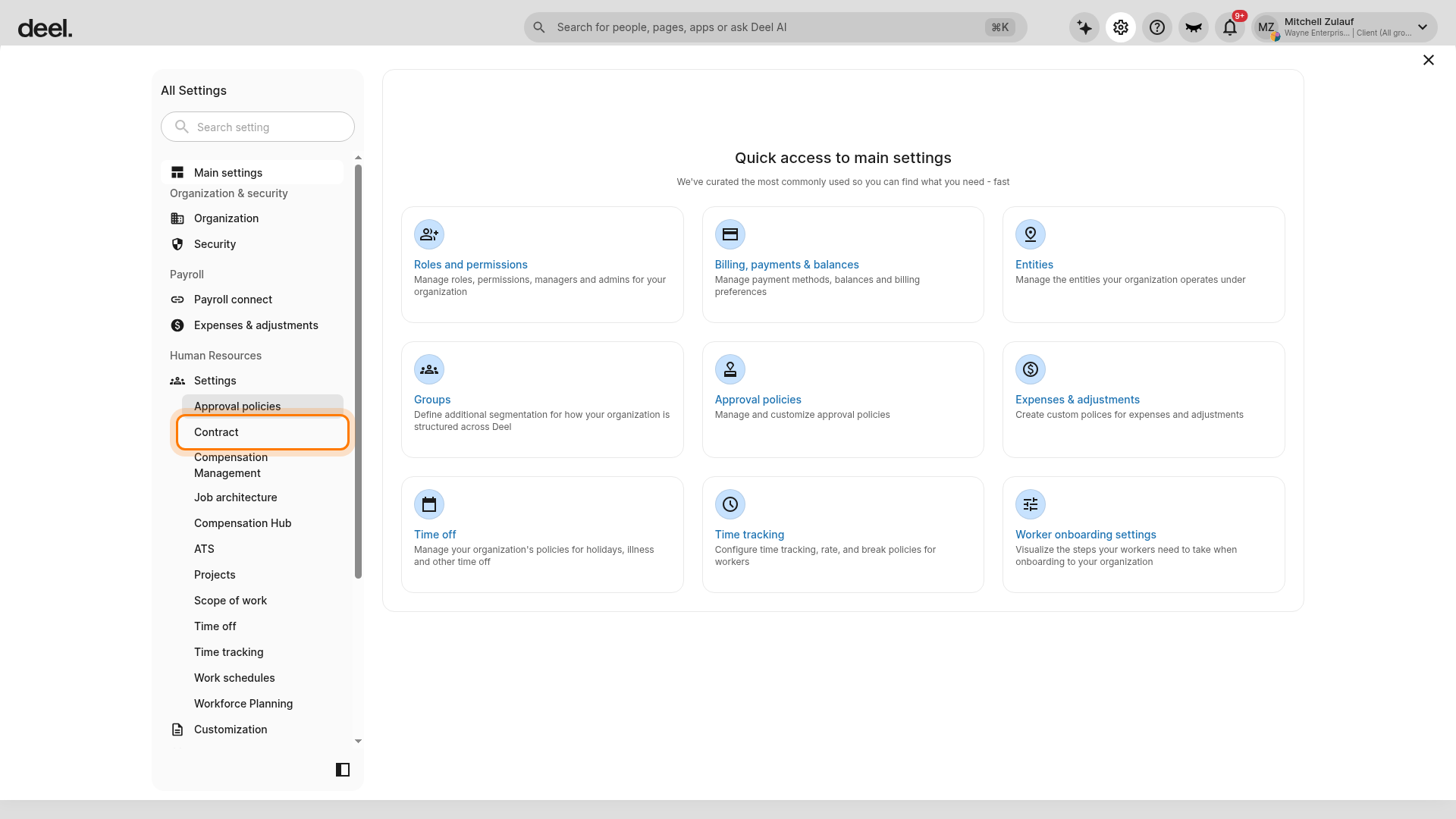
In All Settings, under Human Resources > Settings, select Contract. If needed, scroll within the settings navigation to find Contract.
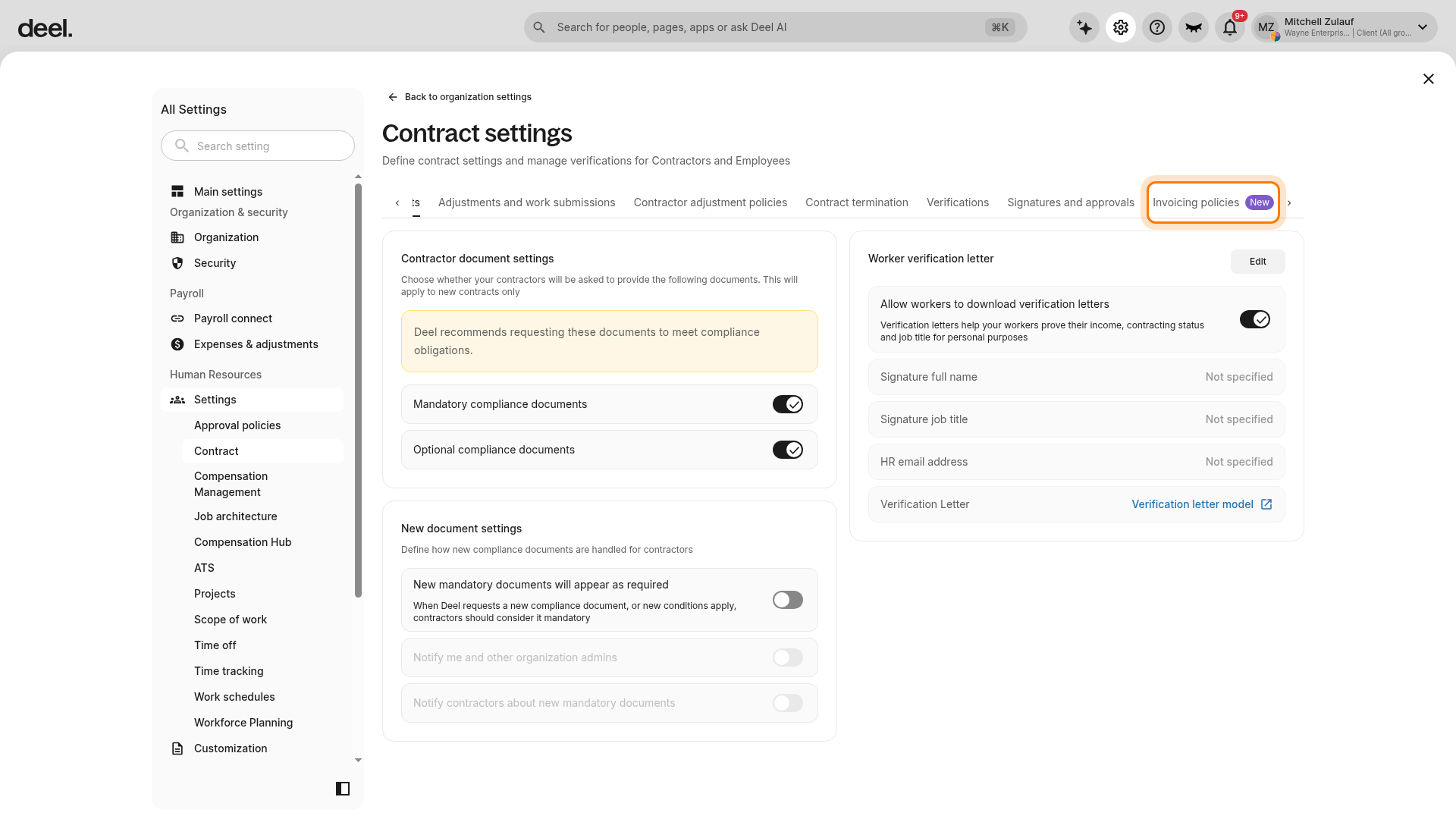
On the Contract settings page, select Invoicing policies in the horizontal tab bar. If the tab is not visible, select the right-arrow control at the end of the tab bar to reveal it, then select Create.
During the contract creation flow, clients will see some default policies, but there is also a Create Policy option in the top right corner that allows them to create a custom policy and assign it to the worker immediately.
✅ Step 2 - Add policy details
Enter the policy name and description, then select the invoice cycle: monthly, weekly, bi-weekly, or semi-monthly.
Configure the end of work cycle, invoice due date, invoice finalization date, and pay ahead of the weekend.
(See the definitions section below for what each field means.)
✅ Step 3 - Review and create policy
During contract creation, go to the Payments and Dates step. Select the invoicing policy to assign to the contractor, or toggle the option to not assign a policy. If they choose not to assign one, they won’t benefit from centralized invoice management.
Invoice Policies Definitions
- Payment frequency: Bi-weekly, weekly, monthly, or semi-monthly → indicates how often invoices are issued.
- End of the cycle: When the payment cycle ends. For example, it could be at the end of the month for monthly cycles, or on a specific date like the 25th. For weekly cycles, it might be “every Monday” or “every Friday.”
- Pay due date: The date when the invoice is due, and therefore when the contractor will receive their payment.
- Pay ahead of the weekend: If this is activated and the pay due date falls on a weekend, we will release the funds on the preceding Friday. Please note this does not account for national holidays.
- Issue date: This is when the invoice is issued. It’s related to the pay due date, typically set as “X days before the pay due date.” Currently, this can be controlled at the group level, not within the policy itself.
Contract Amendments
Similar to contract creation, via the Edit Contract flow, clients can amend any contract and either move it to a new policy or simply modify the details separately.
Editing Invoice Policies in bulk
Clients can also edit payment policies in bulk. This can be done by following these steps:
✅ Step 1 - Select the contractors
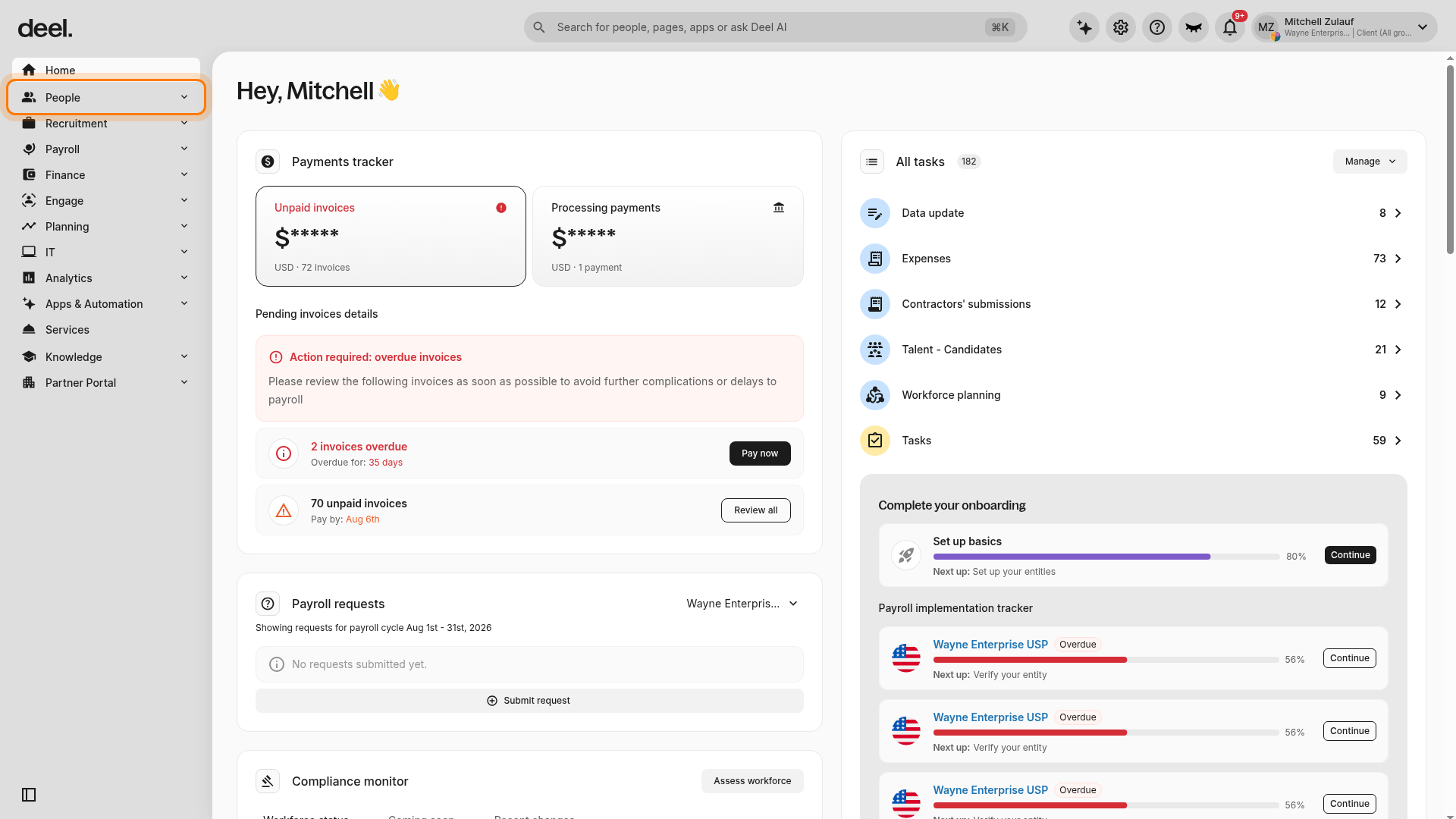
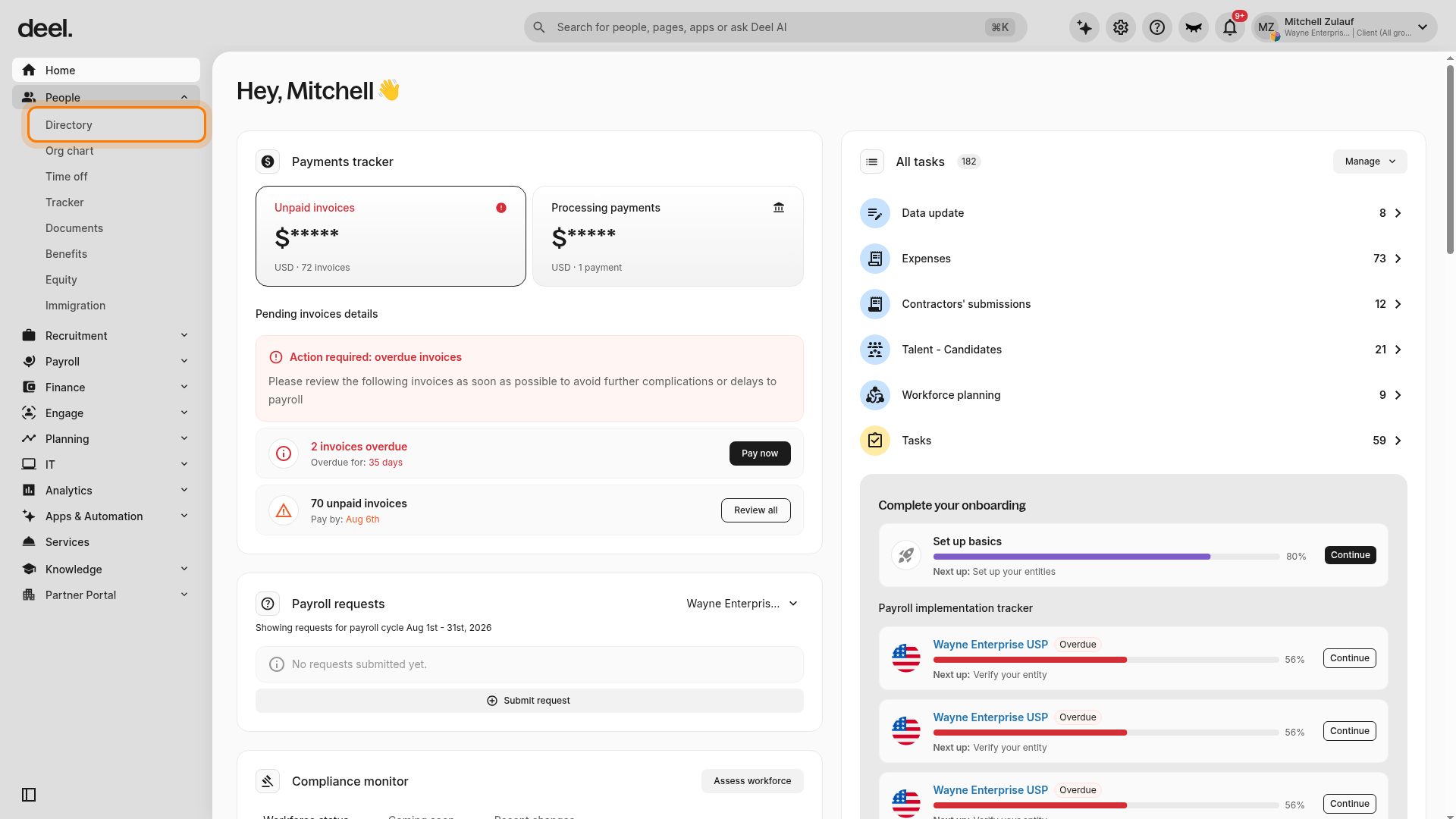
In the left sidebar, select People to expand its submenu.
Select Directory. The Directory table is the current All People view used for this workflow.
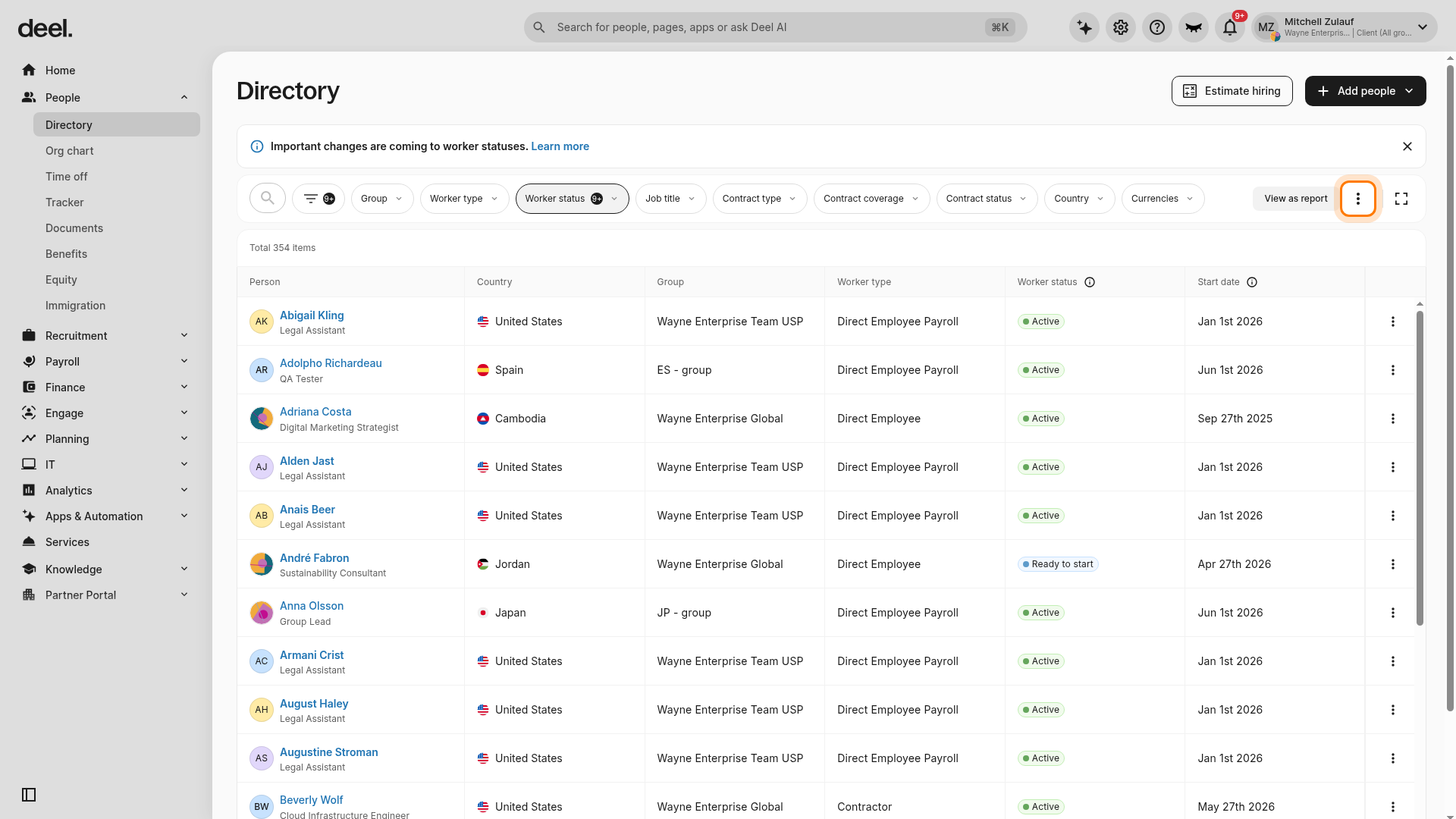
On the Directory page, select the page-level three-dot menu beside View as report above the people table. Do not use the three-dot menus in individual worker rows.
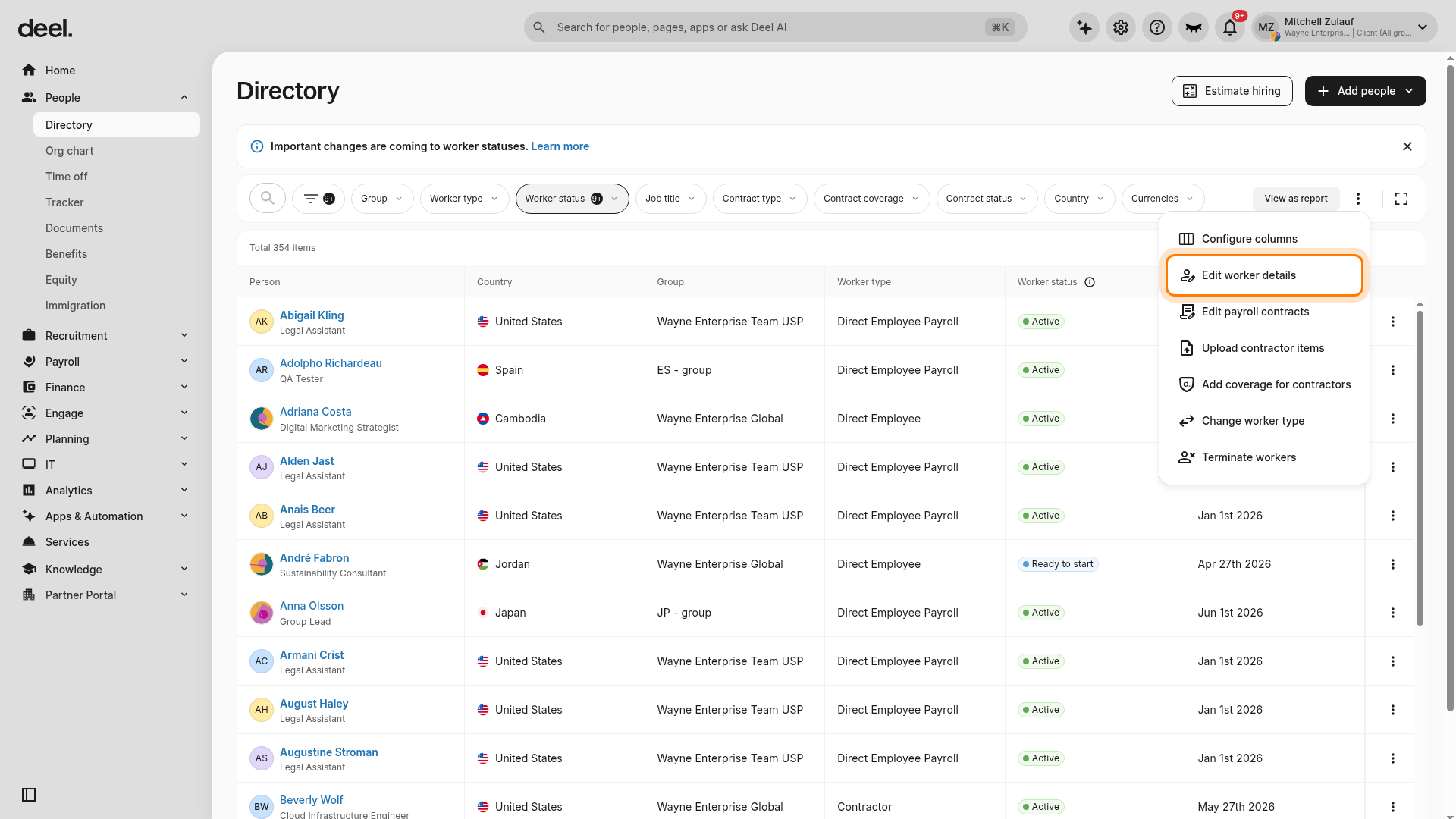
Select Edit worker details. This is the current name for the action previously called Bulk Edit Worker Details.
✅ Step 2 - Select the invoices policy
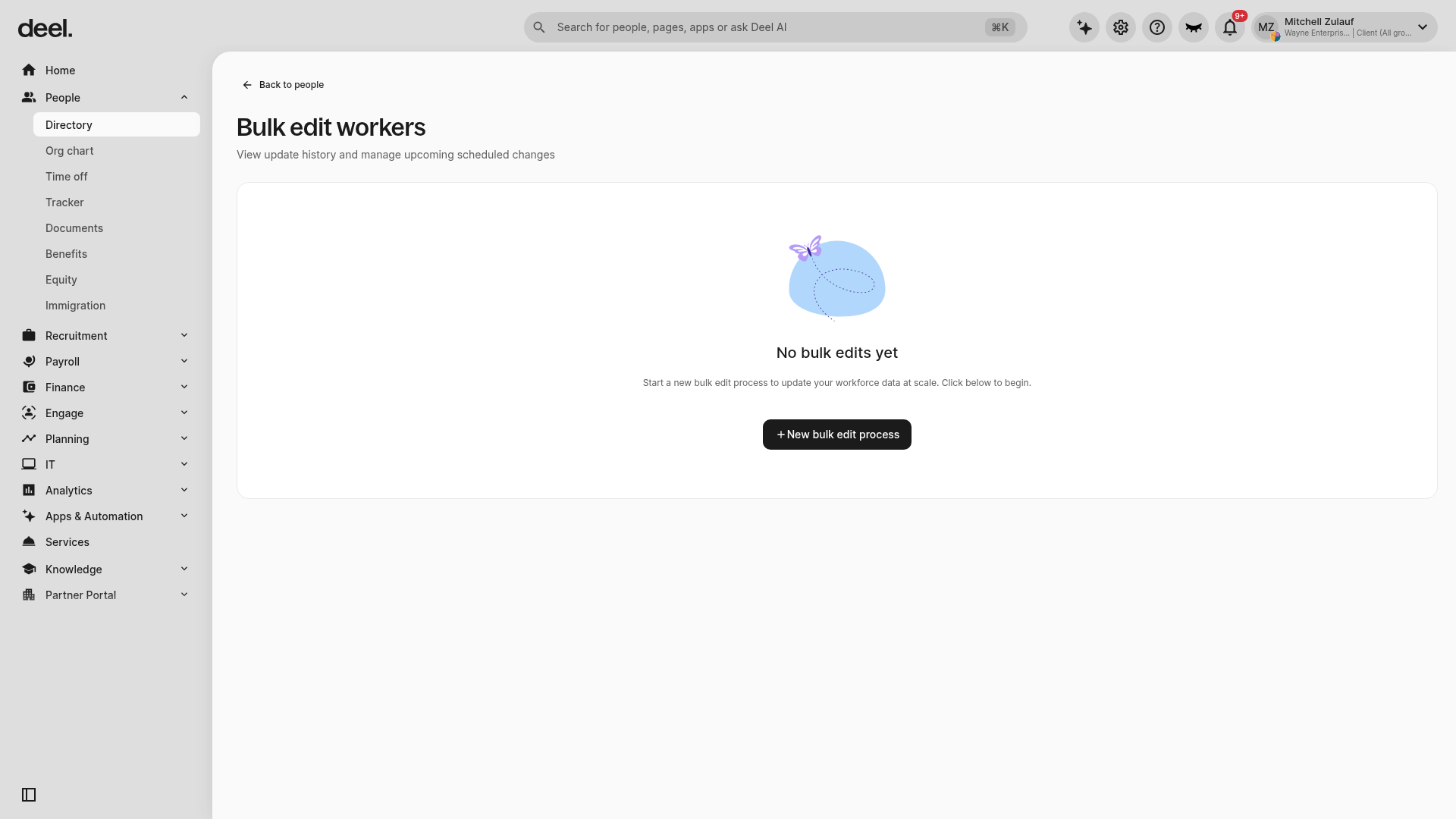
Verify that the Bulk edit workers page opens. Select + New bulk edit process if you need to start a new upload.
Click Download current data of workers and select the workers to include. When choosing which fields to include in the file, check Invoice Policy.
✅ Step 3 - Download the current data
The downloaded CSV file will contain an Invoice Policy field. Edit this field to reflect the new policy you want to assign to the selected workers.
✅ Step 4 - Upload the edited file
Once all the changes are made, upload the edited CSV file back to the platform.
- When updating payment policies in bulk, the first payment date will automatically be set to the closest upcoming payment date. Unlike the single contract edit flow, there isn’t an option to choose a custom first payment date in bulk.
- For fixed-rate contracts that require prorated payments, the system calculates the pro rata amount based on calendar days. If needed, clients can manually adjust these invoices after the bulk update.
Important
For fixed-rate contracts, when editing a policy that involves a payment cycle change (for example, from monthly to semi-monthly), the rate is not automatically adjusted. Clients must update the rate manually to match the new cycle.
Example: If a monthly rate is set to USD 5,000 and the cycle changes to semi-monthly, the rate should be updated to USD 2,500. Otherwise, the client would pay USD 5,000 twice per month.
Contact Without Invoice Policy
From the Invoice Policies section, clients can see the distribution of all their contractors across existing policies, as well as any contracts that currently don’t have a policy assigned.
By clicking on Contracts Without Policies within the Invoice Policies section, clients can:
- Assign these contracts to an existing policy (individually or in bulk)
- Create a new policy using the current configuration
- Move them to another policy (note: this requires a contract amendment, and contractors will need to sign the updated contracts reflecting the new policy)
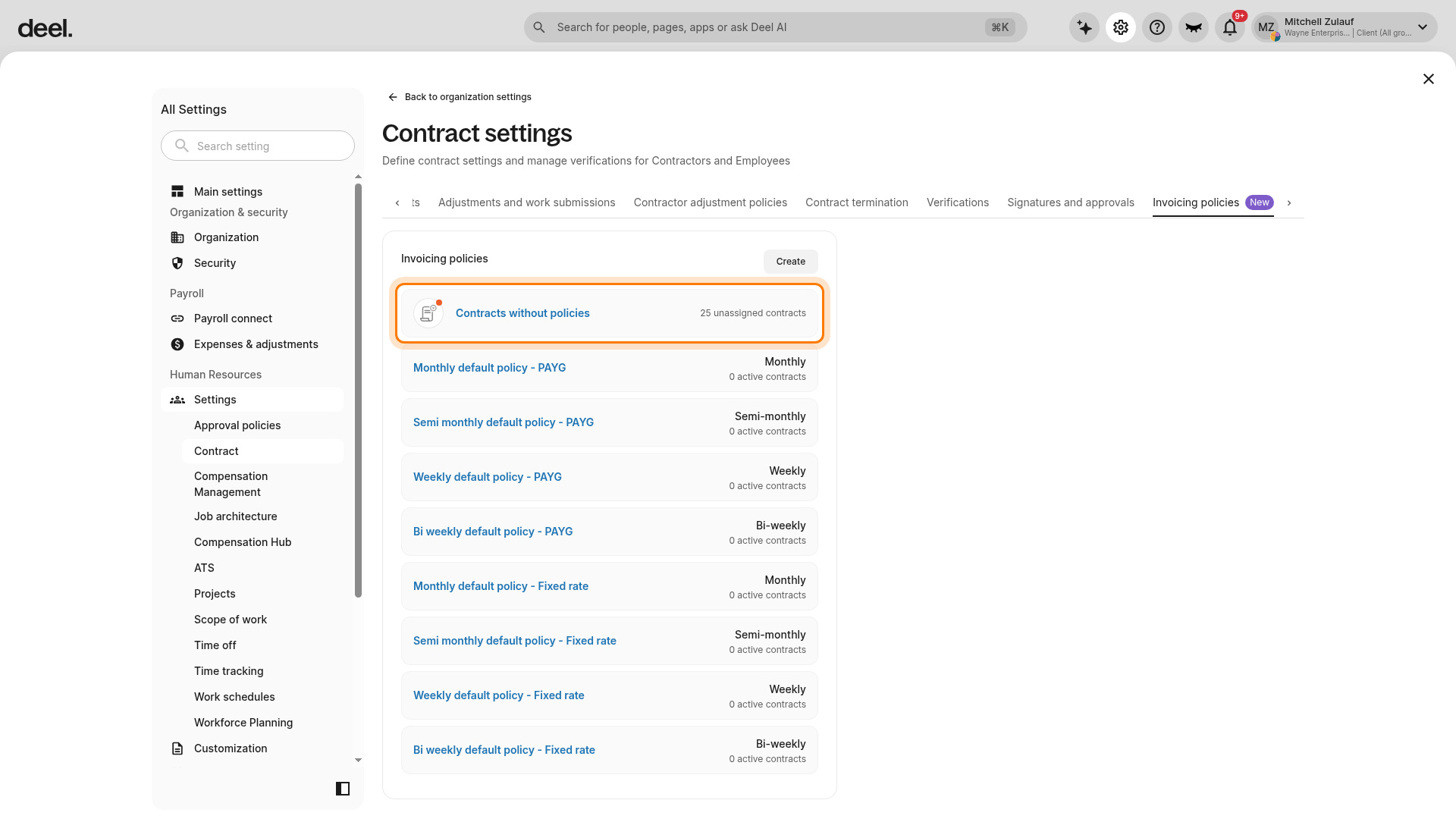
A right-side Contracts without policies panel opens and lists contracts that are not linked to a policy. Select View for a contract, then assign it to an existing policy, create a new policy using its current configuration, or move it to another policy through a contract amendment.