
Deel's Offboarding Tracker allows clients to manage and review terminations and resignations for EOR, PEO, IC, and GP employees.
This article explains how to use the offboarding tracker for various contract types on the Deel platform.
In this Article
Navigate to the Offboarding Tracker
Navigate to the Offboarding Tracker
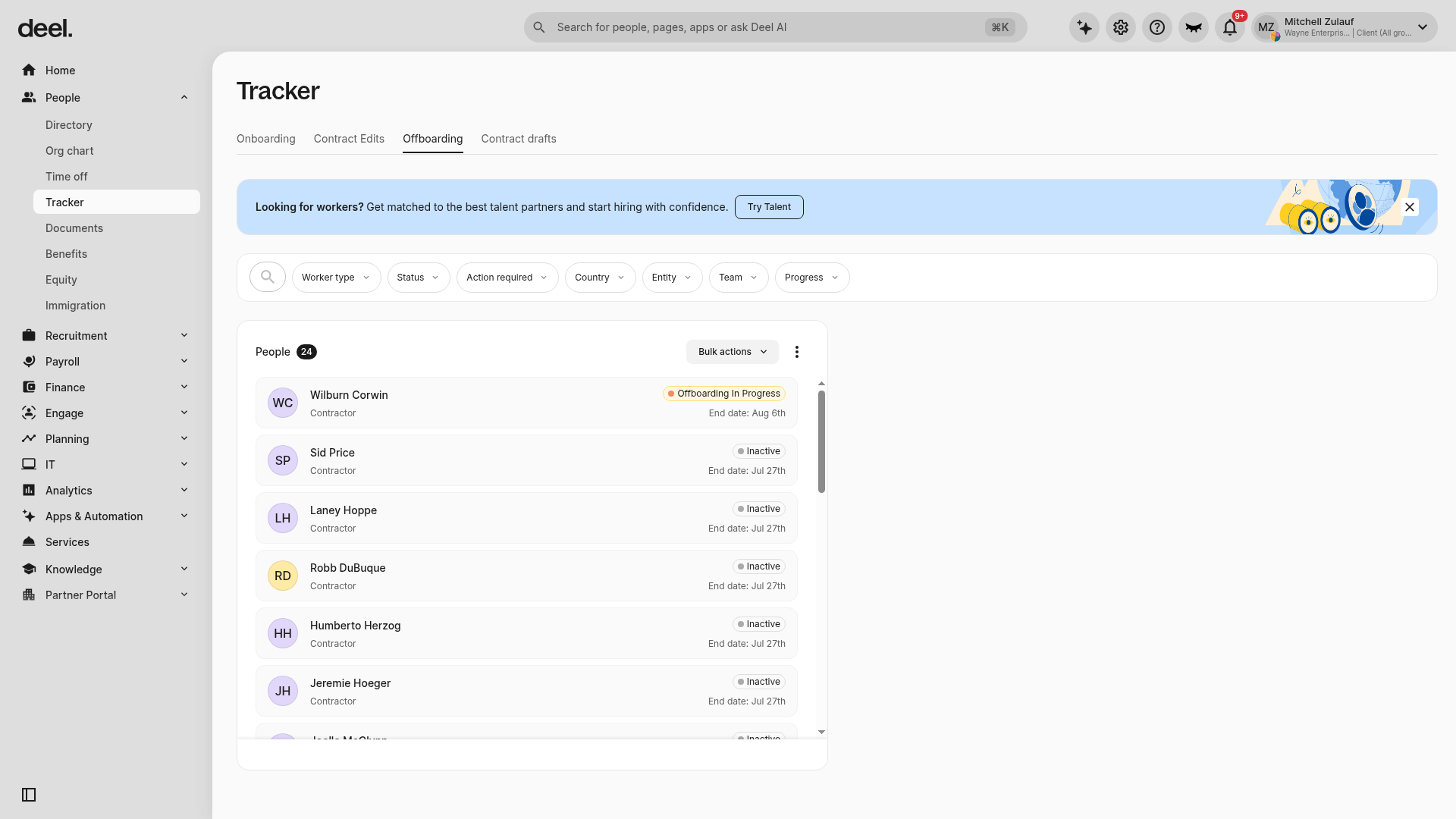
Clients can access all offboarding activities, both scheduled and completed, from a single place:
-
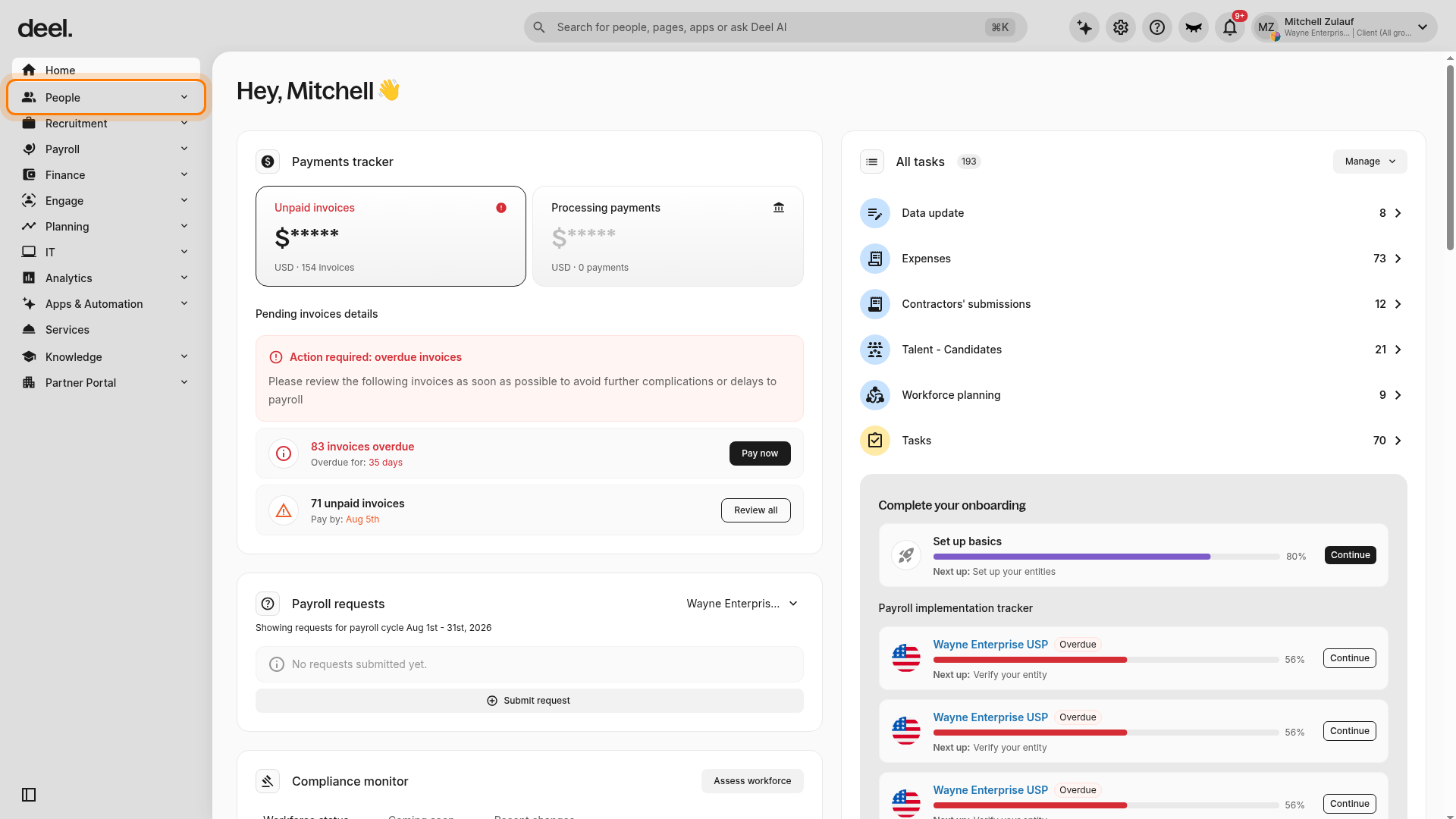
From the Deel Home page, select People in the left sidebar to expand its submenu.
-
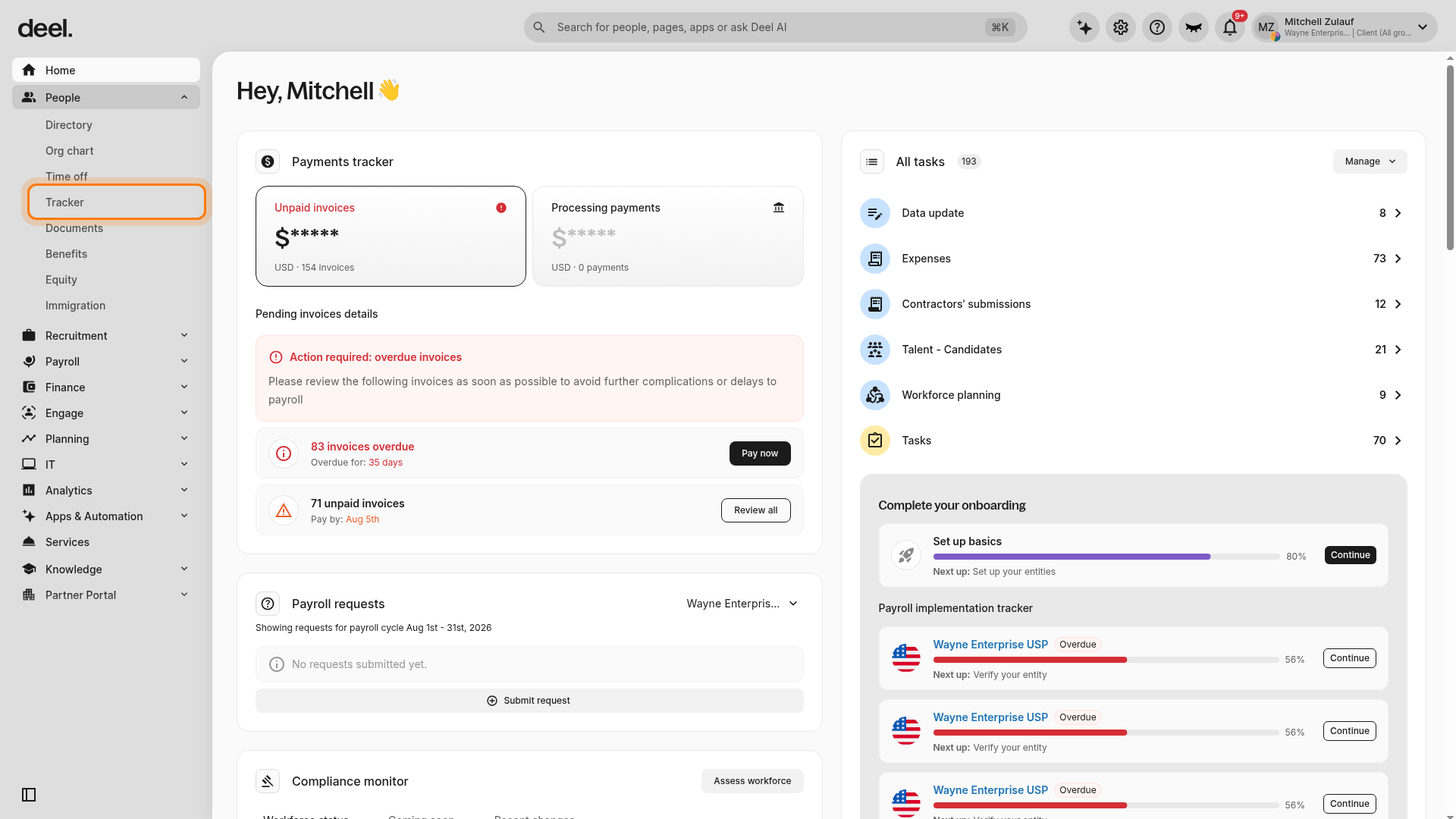
Select Tracker from the expanded People submenu.
-
On the Tracker page, select the Offboarding tab.
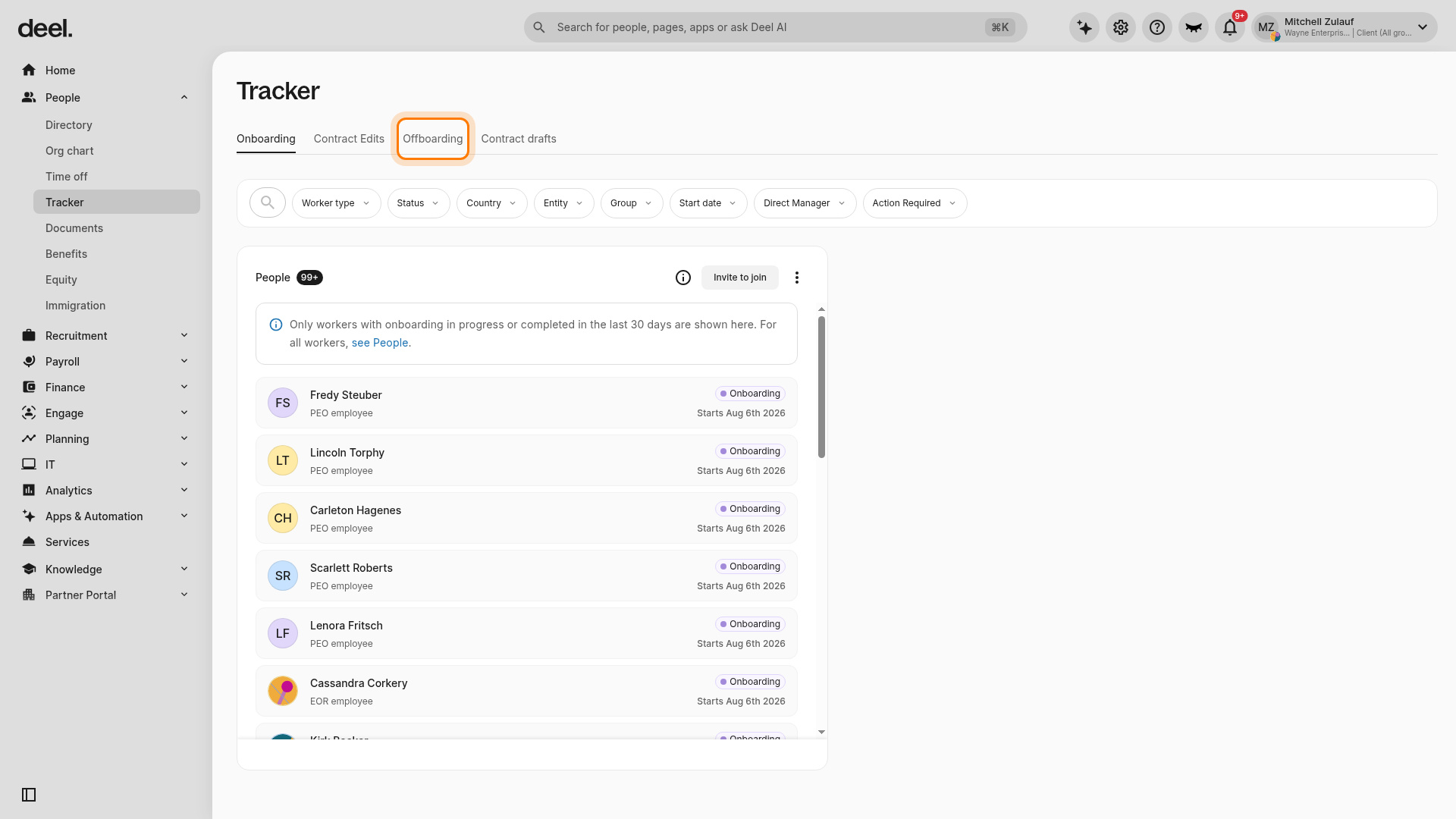
Clients can also use tracker tabs to switch between onboarding, change requests, and offboarding views.
Managing Offboarding for EOR, PEO, IC, and GP Employees
Offboarding can be triggered automatically based on a contract’s end date or entered manually as a termination.
-
For HRIS-triggered terminations, clients must review the record and submit additional details before termination proceeds:
Locate the worker in the people list.
Click Submit Termination Details and complete the required form.
For manually entering terminations or resignations for direct employees, How to Begin the Termination Process and Offboard Employees.
Export Offboarding Data
Generate reports for compliance or record-keeping.
From the Offboarding Tracker, click Export in the upper-right corner.
Choose CSV, PDF, or Excel.
Save the file to your device.
Apply filters (e.g., date range or status) before exporting to refine your dataset.
Frequently Asked Questions
[ACCORDION] Does the tracker show scheduled terminations?
Yes, the offboarding tracker shows both recent and scheduled offboardings.
[ACCORDION] Can I export data for a custom period?
Yes, clients can filter data by date or status before exporting.
[ACCORDION] What does the “Action Required” status in the offboarding tracker mean for GP employees?
When the status for an offboarding GP employee is set to “Action Required”, this means that an HRIS integration has initiated their termination. The client needs to confirm it on the Deel platform in order for the termination to proceed.