
This article explains how PEO clients can initiate terminations for multiple PEO employees at the same time.
If the client only wants to offboard an individual employee, please see: How To Begin The Termination Process And Offboard A PEO Employee
In this Article
How to initiate the Mass termination of PEO Employees
Before you begin:
Please review our article on Mutual Termination Agreements, which is a common practice that enables an employer to terminate an employee while minimizing the risk of litigation.
For detailed information about the payout deadline for every state, see On-Demand Payroll Deadlines for Terminations.
How to initiate the Mass termination of PEO Employees
✅ Step 1 – Initiate terminate worker request
In the left sidebar, select People and then select Directory.
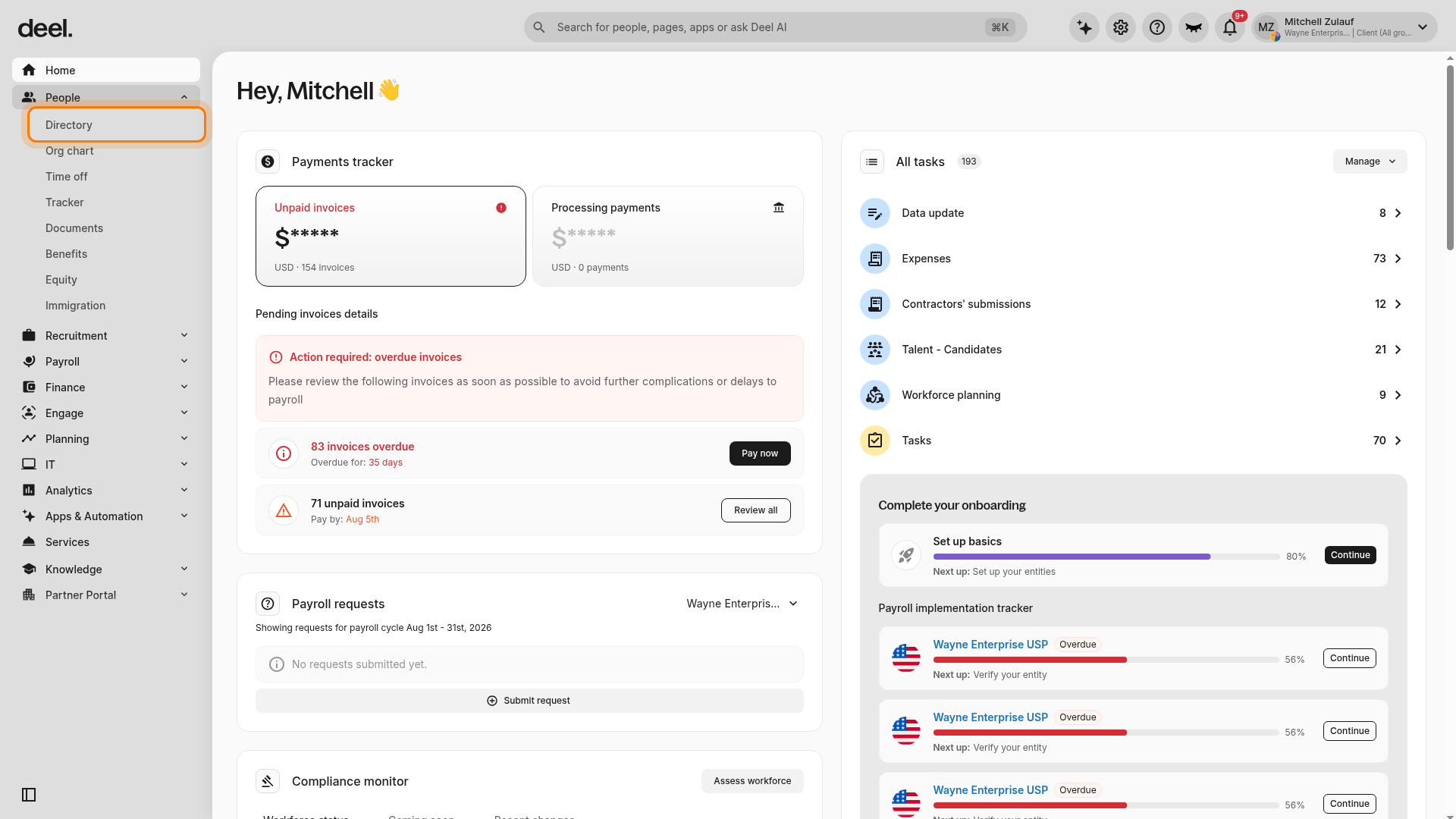
Above the Directory table, select More actions, the three vertical dots next to View as report.
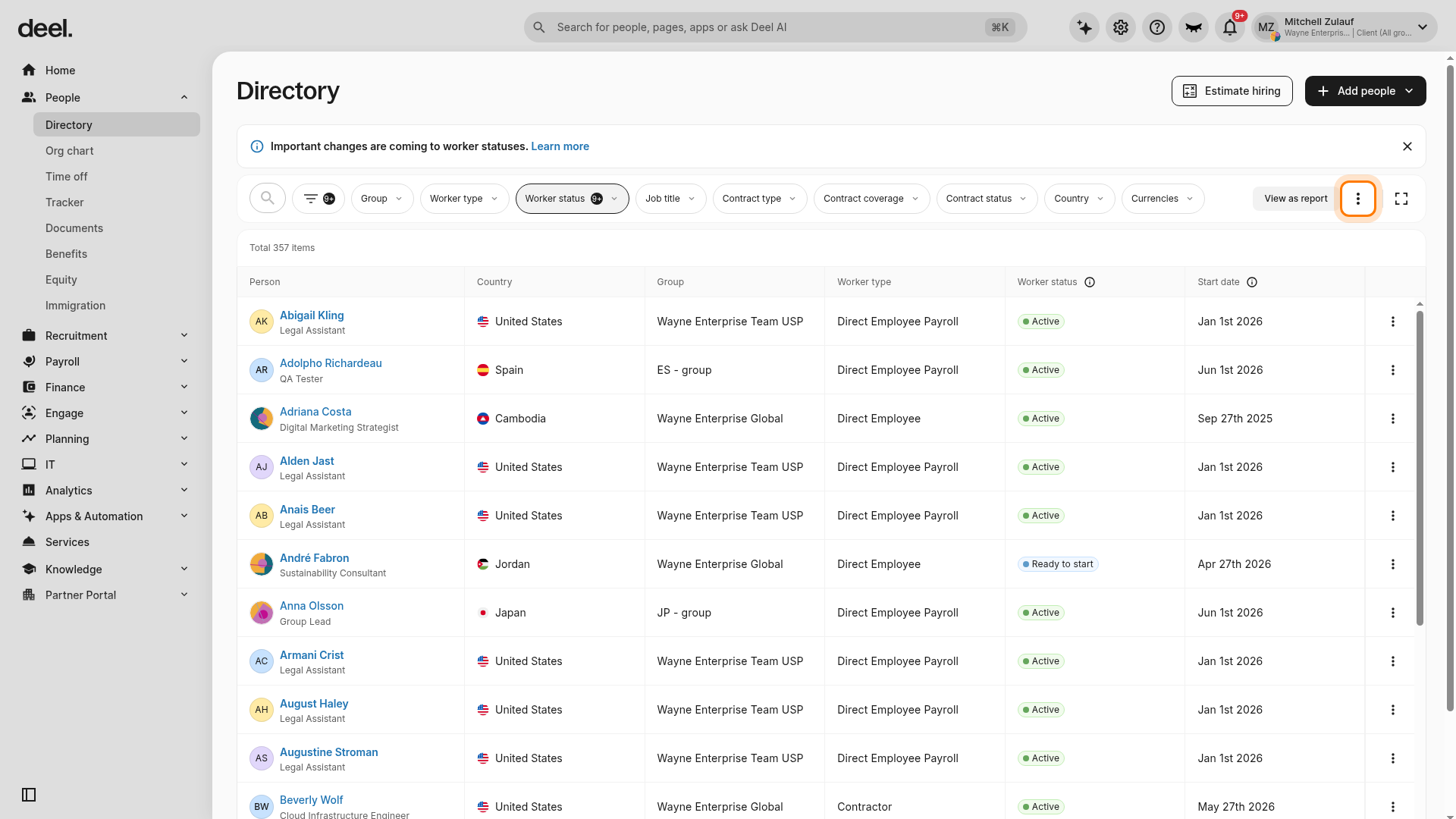
Select Terminate workers. The Offboard workers wizard opens.
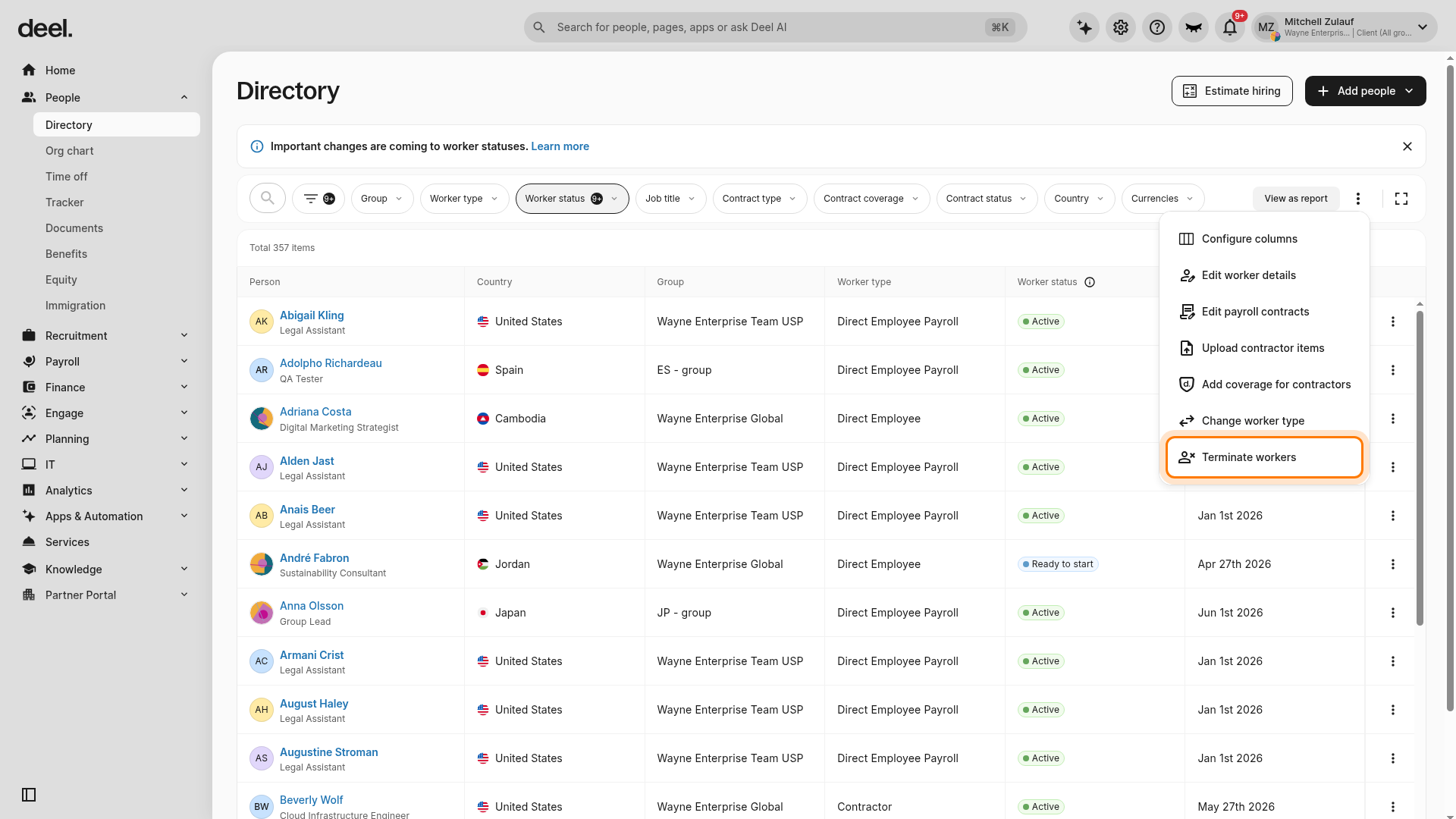
✅ Step 2 – Download list of workers to termiante
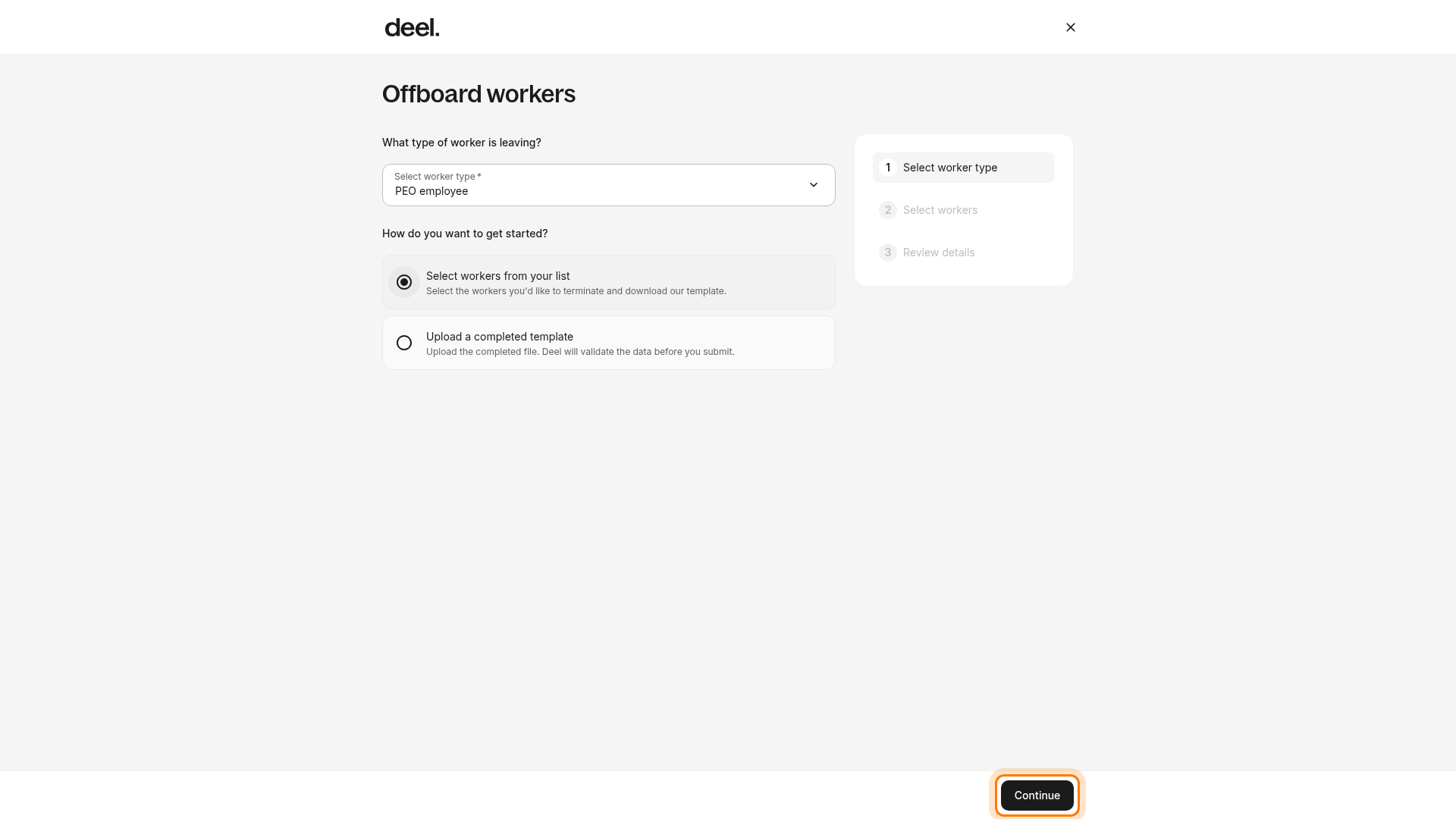
In Select worker type, select PEO employee.
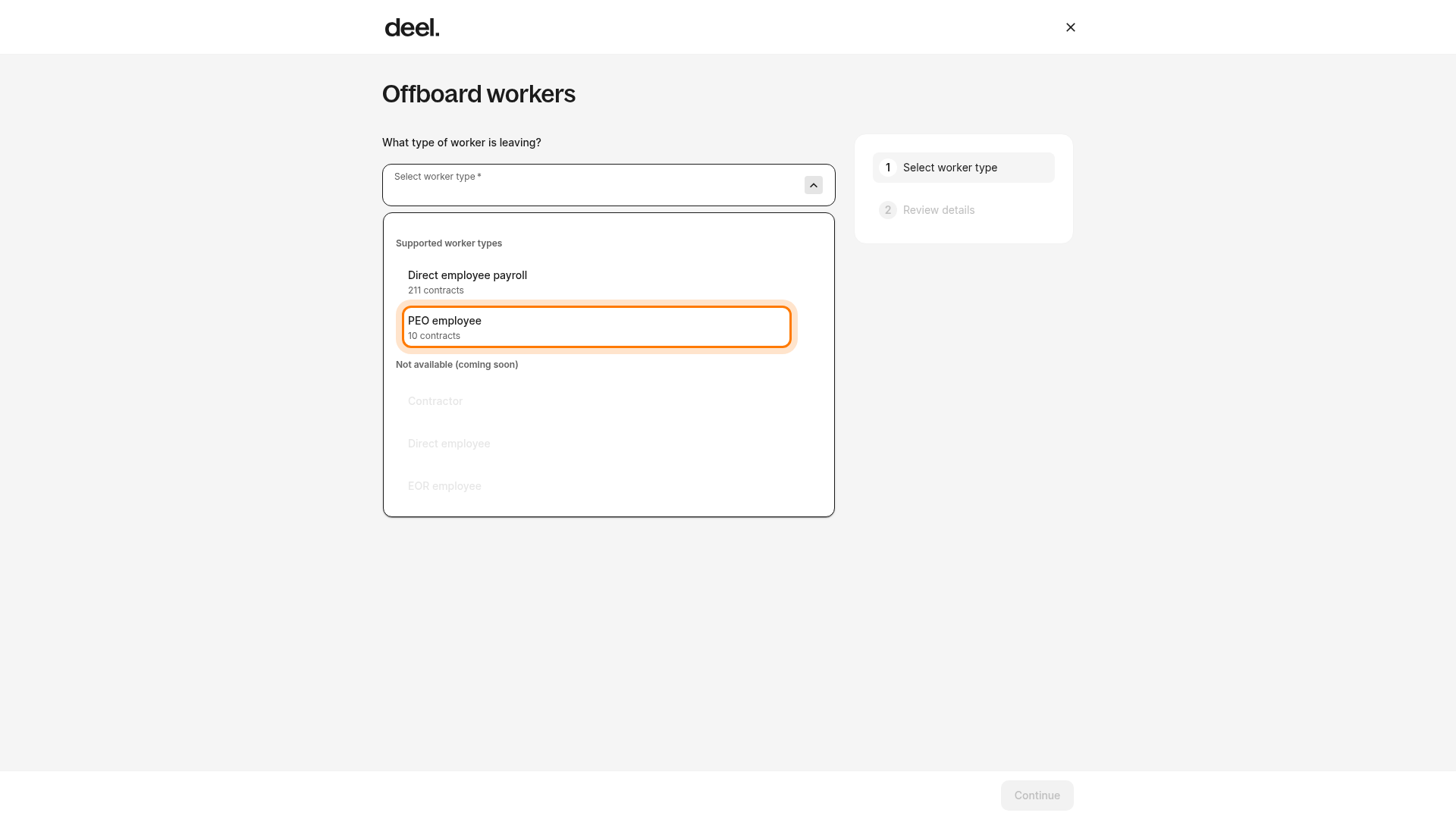
Under How do you want to get started?, select Select workers from your list, then select Continue.
From the list of available employees, select the workers you wish to terminate.
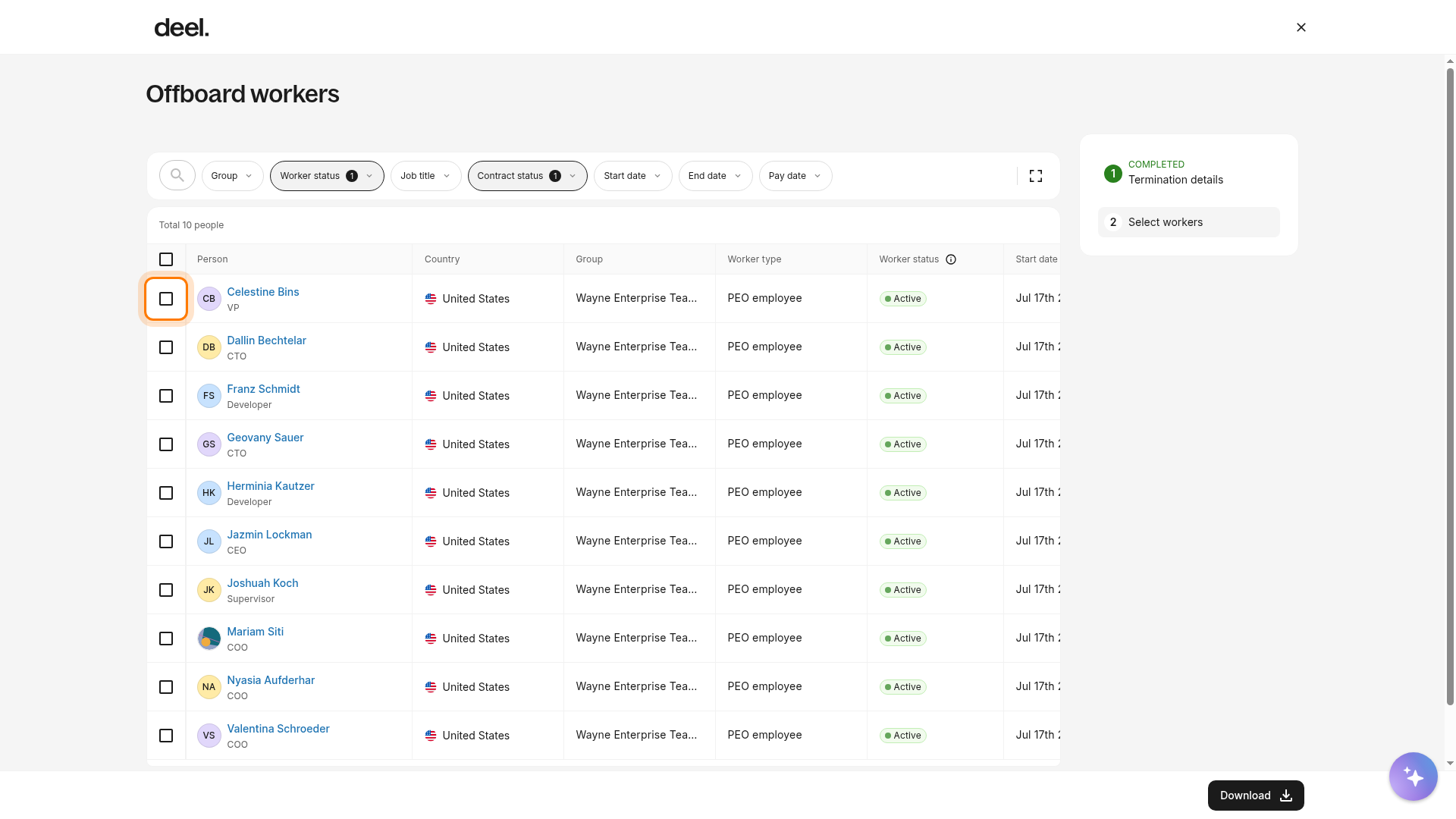
Confirm the selection count, then select Download at the bottom of the page. Deel downloads an XLS template pre-populated with the selected employees.
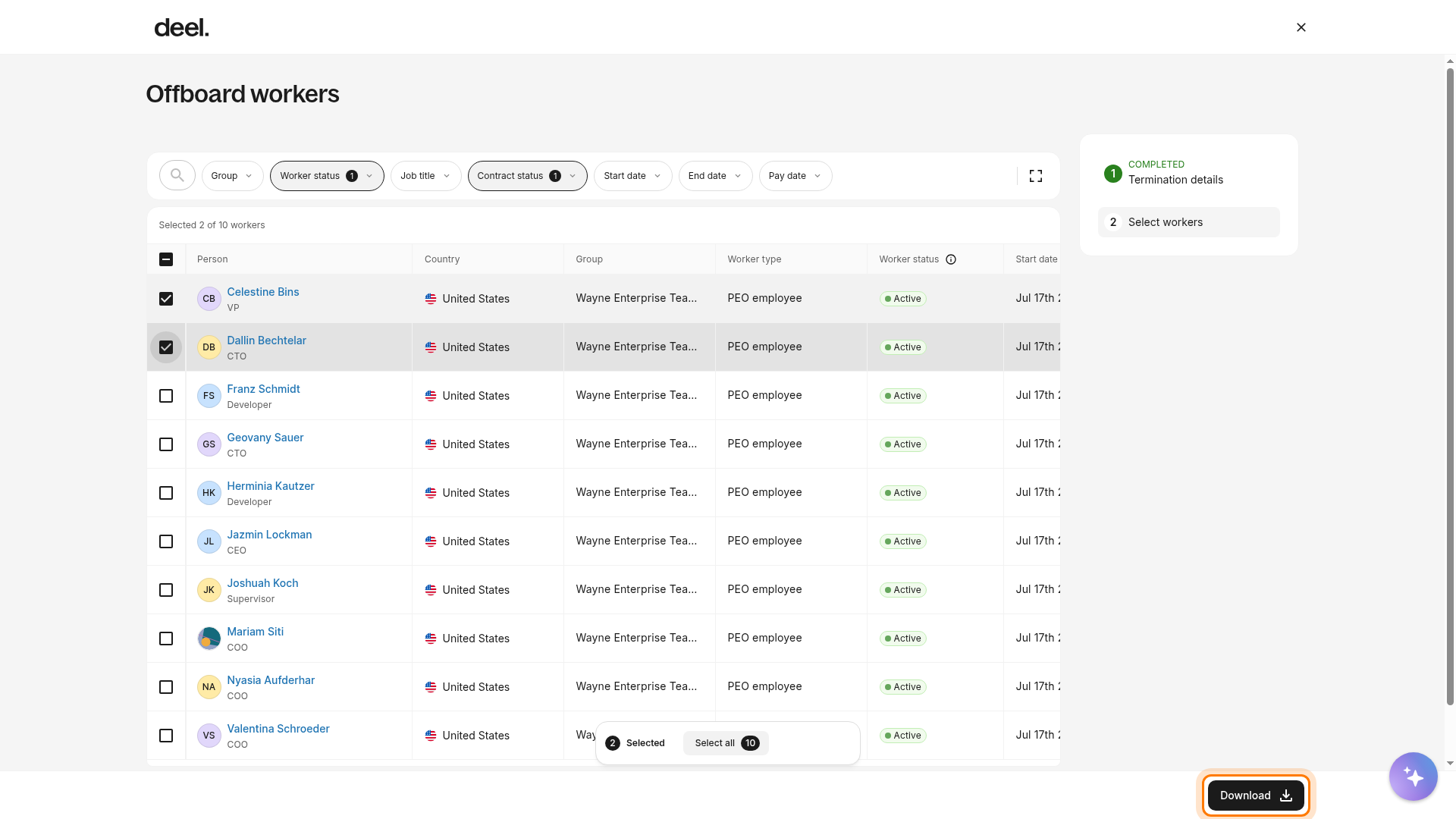
Select I'll do this later to exit and return later, or select Continue to upload after completing the downloaded template.
✅ Step 3 - Edit XLS file
Fill out the XLS file with the required termination details, such as:
- Last day of work: This is the last day that the employee will be performing their job. Usually, their access is removed on this day.
-
Desired contract end date: The last legal day of employment. The employee will be paid until this date even if they are no longer performing their job.
Note: The end date of GP contracts can be backdated. - Reason for termination: The client will state if the termination is voluntary (like a resignation) or involuntary, and include additional details.
- Offboarding payments: We will calculate how many unused PTO days need to be paid out to the employee; and also the amount of mandatory severance to be paid.
Deel may adjust the requested contract end date due after an internal review of local labor laws.

✅ Step 4 - Upload XLS file of workers to terminate
After the client has entered the termination details in the document, select Continue to upload and upload the XLS file. If the client exited the workflow, return to People, then Directory, select More actions, and select Terminate workers. Select PEO employee, then select Upload a completed template.
Deel will first validate the uploaded data. Clients can also review the fields before officially requesting the terminations.
It will take a few minutes to validate the file. If errors are discovered, we will explain where in the file the errors are located that should be corrected.
✅ Step 5 - Submit mass termination request
Please carefully review the list of names that will soon be terminated.
Our payroll group will review the details of the request, the notice period as stated on the employee contracts, and local labor laws.
Click the box to confirm that the client has reviewed the data, and click Submit.
Deel may adjust the requested contract end date due after an internal review of local labor laws.
Frequently Asked Questions
[ACCORDION] What if Deel finds an error in my uploaded XLS file?
If errors occur, the client must download the template again and correct the termination details. You will see how many errors were found. We suggest that you simply export the XLS file with the error(s) so you can fix it within that same file, and then just upload it again.
Error Description: The client can refer to column O for a description of the error and update the corresponding values accordingly.
(There is no need to delete column O before re-uploading the template, as the platform ignores its content.)