
Okta API Service is an integration that allows you to import users from Okta into Deel and use them for third-party user provisioning use cases.
This article explains how to set up the Okta API Service integration.
Want to sync your Deel data with Okta SCIM?
In this article
Here’s what you’ll find in this article:
- Before you begin
- Step 1. Prepare Okta API Service
- Step 2. Connect the integration
- Step 3. Configure the integration
- Step 4. Sync data manually
- Okta API Service integration reference
Before you begin
To successfully set up the Okta API Service integration, you’ll need:
- A user with an admin role on Deel
- A user with an admin role on Okta
- Permission to view and manage integrations in Deel
Step 1. Prepare Okta API Service
In this section, we’ll guide you through how to configure Okta API Service so that you can connect to it.
To connect Okta API Service to Deel, you’ll need to enable permissions and prepare your account credentials — including the domain URL, client ID, and private JSON key.
Enable Okta API Service permissions
Create an App Integration in Okta to enable permissions for the Okta API Service.
- Go to Applications > Applications > Create App Integration, select the API Services option and click Next.
- Name your integration and click Save.
- Navigate to Okta API Scopes and grant the following scopes:
okta.users.readokta.schemas.readokta.userTypes.read
- Under Admin roles, select Edit assignments and assign an admin role to the integration with permission to read users, schemas, and user types. You can use Organization Administrator.
Get Client ID and Private Key
After enabling the Okta API Service permissions, you need to get your Client ID and Private Key.
To get your Client ID:
On your Okta account, go to Applications > General > Client Credentials and copy the Client ID.
To get your Private Key:
- In Okta, go to Settings, click Edit, and deselect Proof of possession, then click Save.
- On Applications > General > Client Credentials and click on Edit.
- Select Public key / Private key for Client Authentication.
- Under Public Keys, click on Add key > Generate new key.
- Copy the Private Key and click Save.
Step 2. Connect the integration
In this section, we’ll guide you through how to connect Deel to Okta API Service from the Deel App Store.
- In the left sidebar, select Apps & Automation to expand its submenu.
- Select App Store.
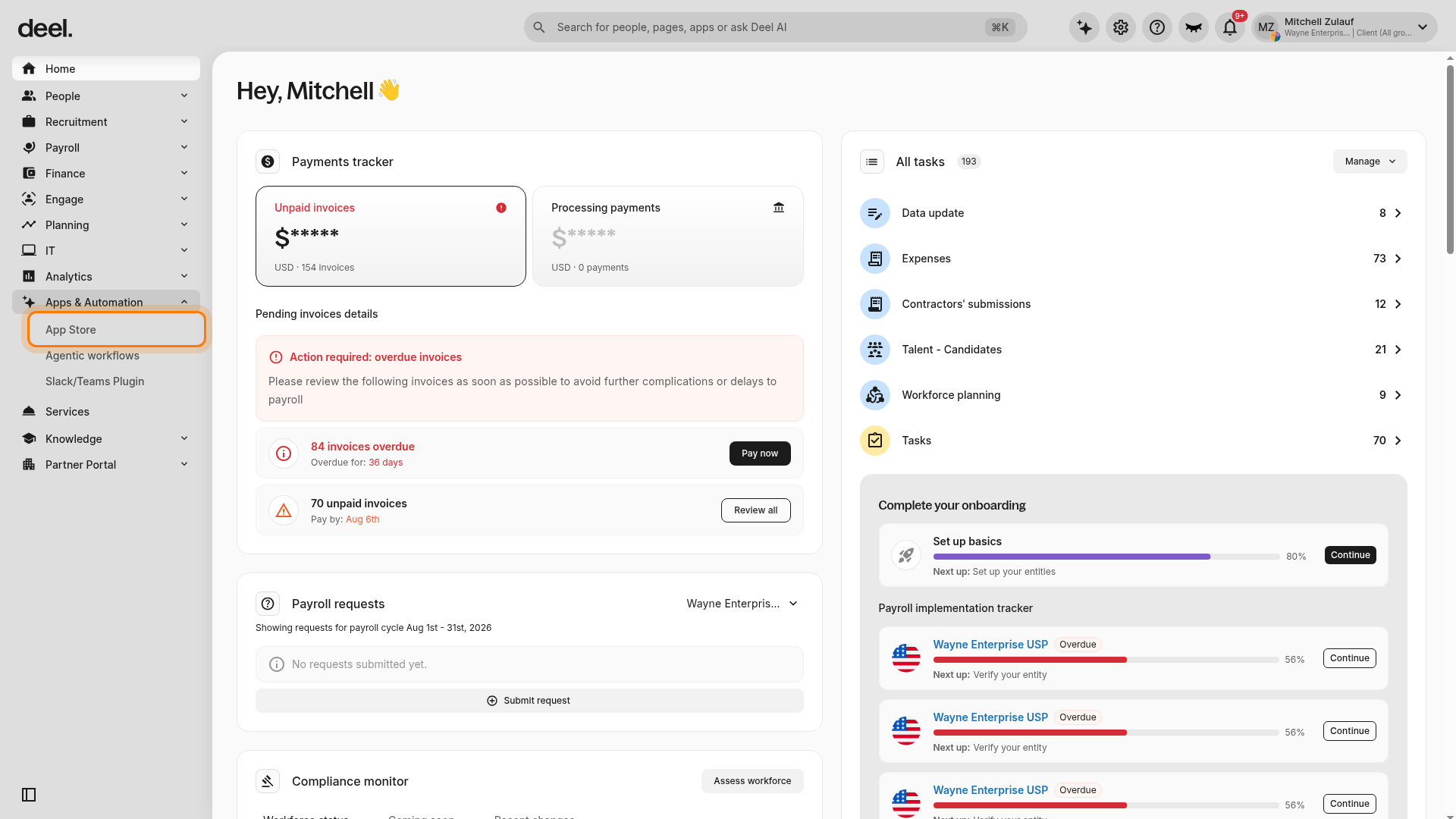
- If the Welcome to your Deel Apps & Integrations dialog appears, close it with the X or select I'll do that later.
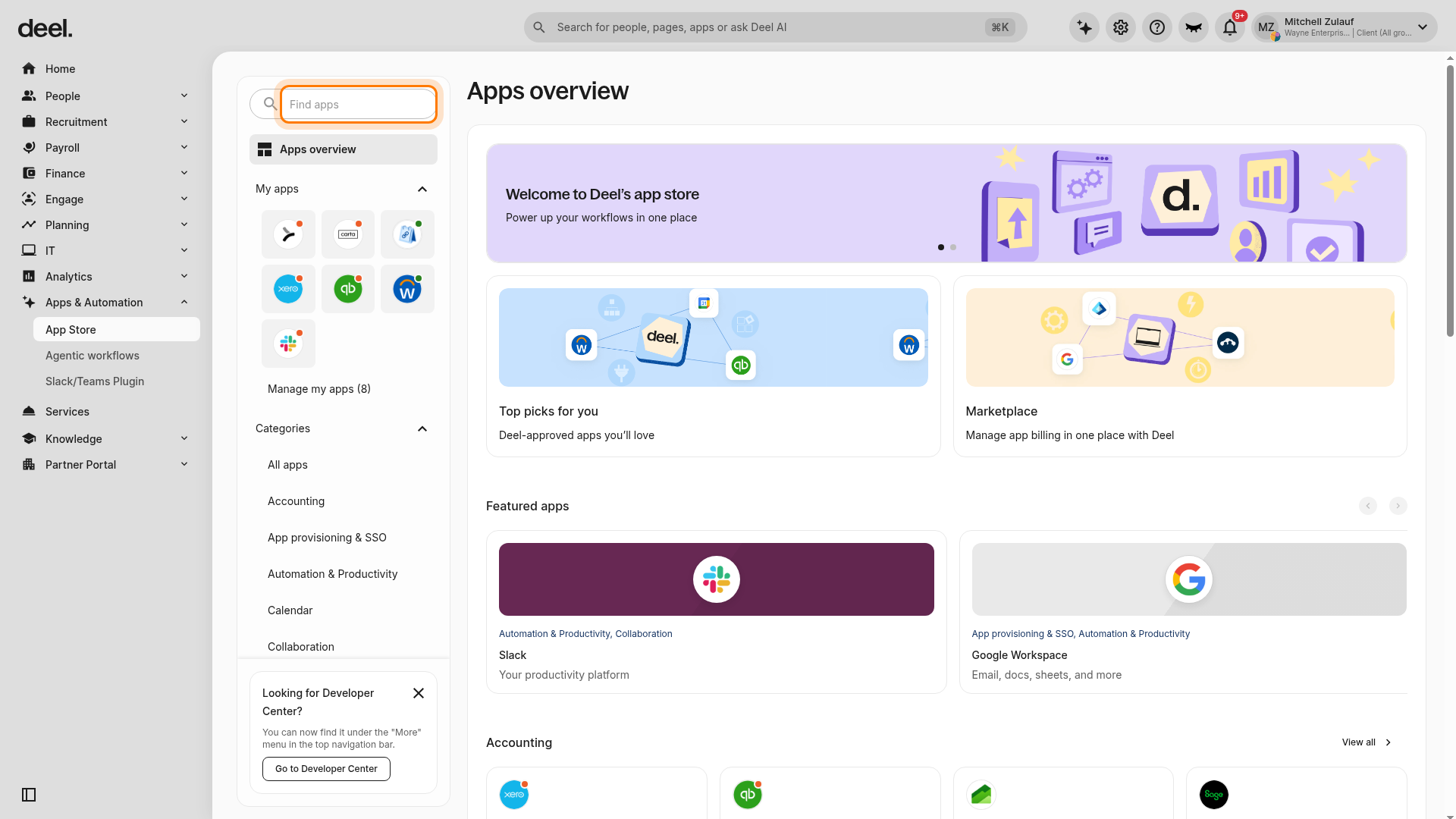
- In the Find apps search field, enter Okta API Service.
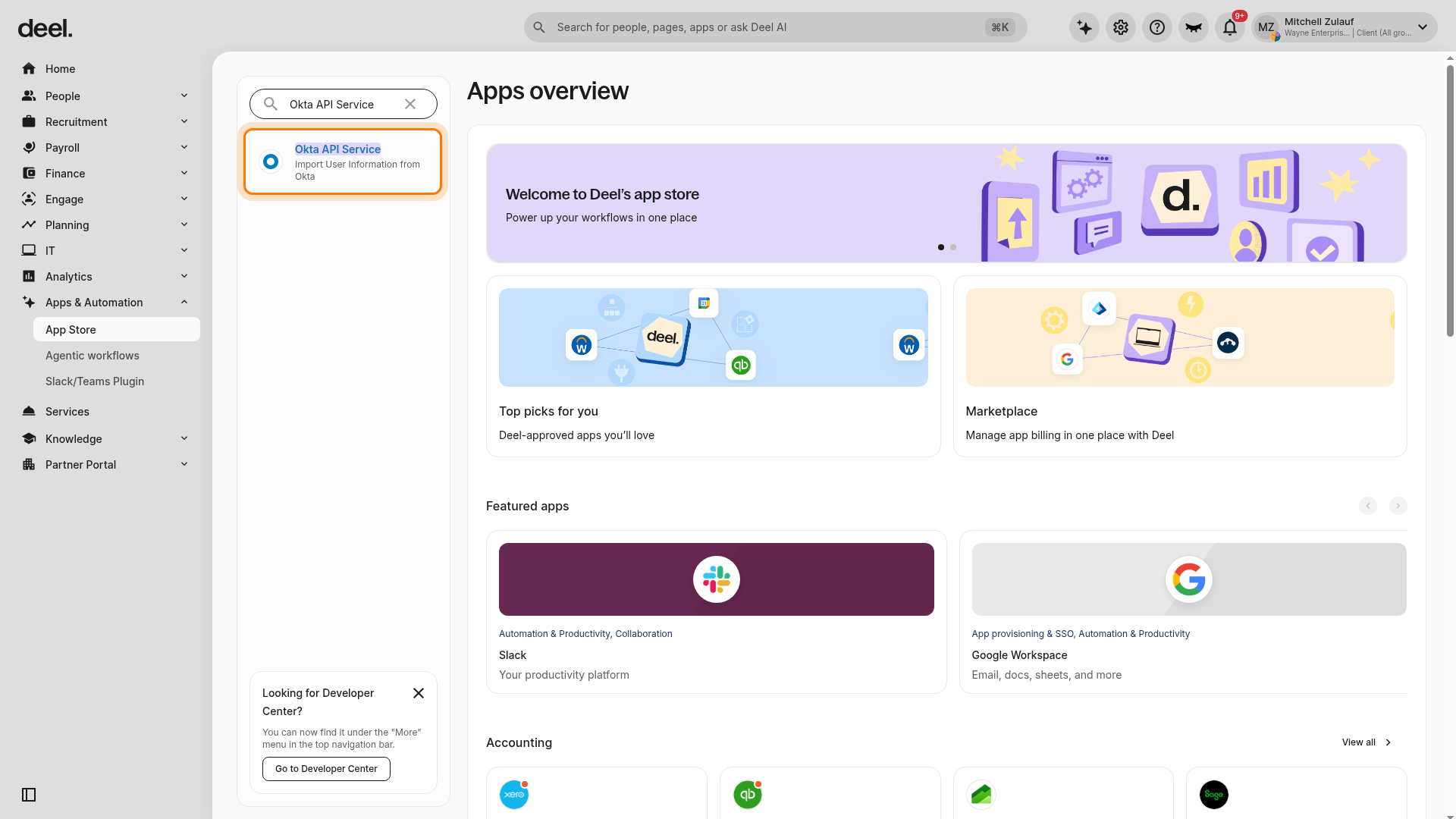
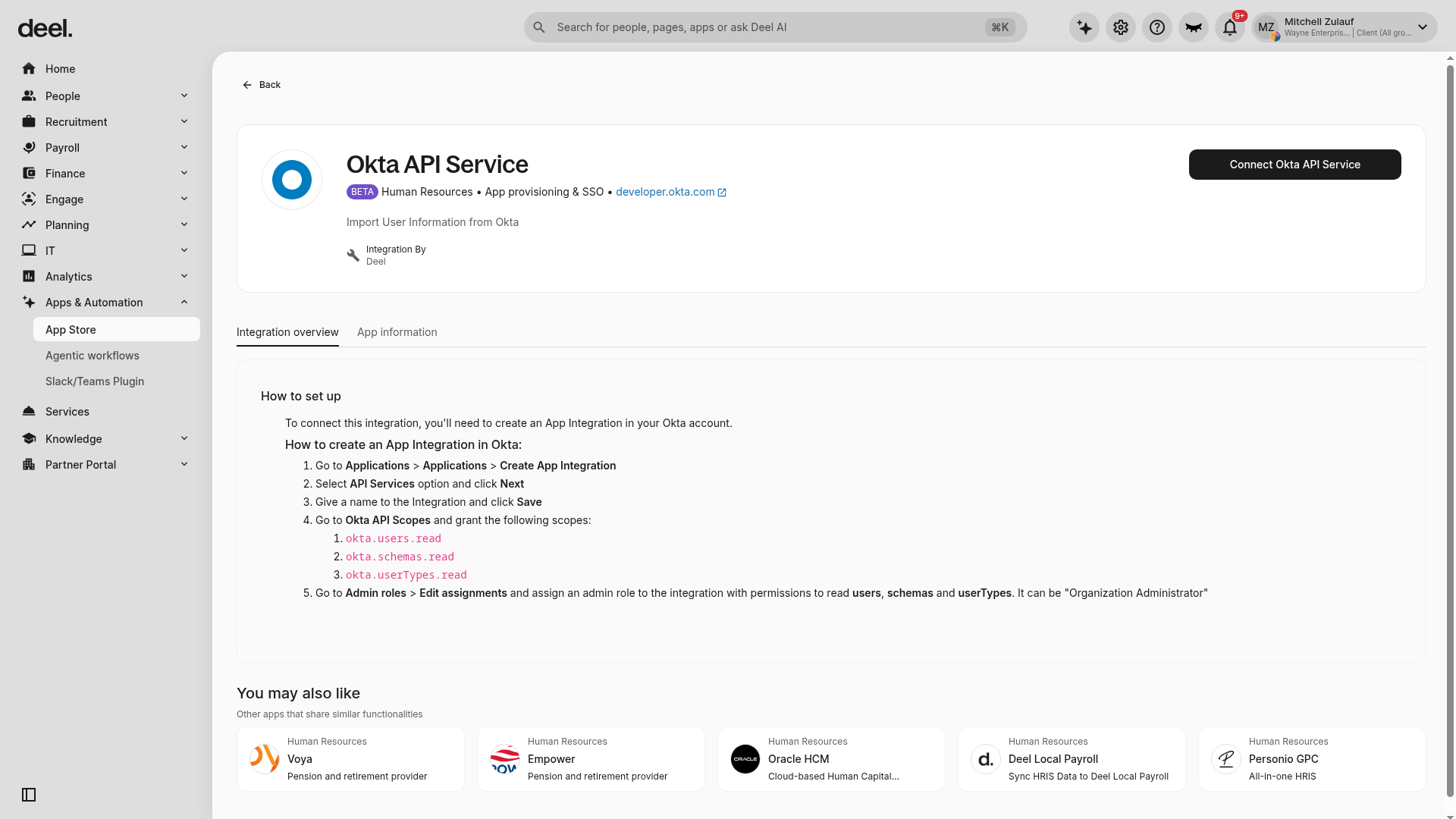
- Select Okta API Service from the filtered results. Confirm that the result description is Import User Information from Okta.
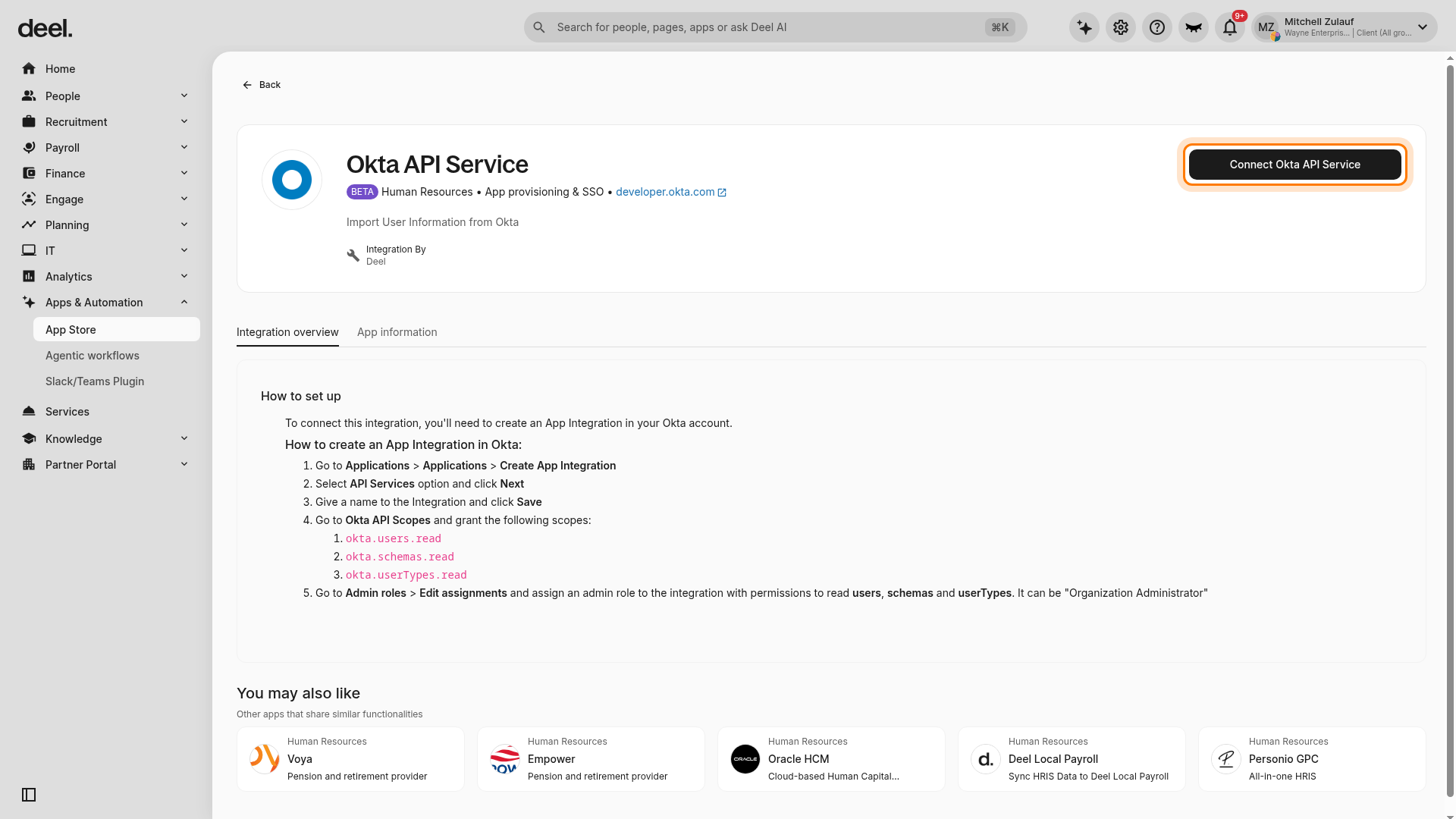
- On the Okta API Service integration details page, click Connect Okta API Service.
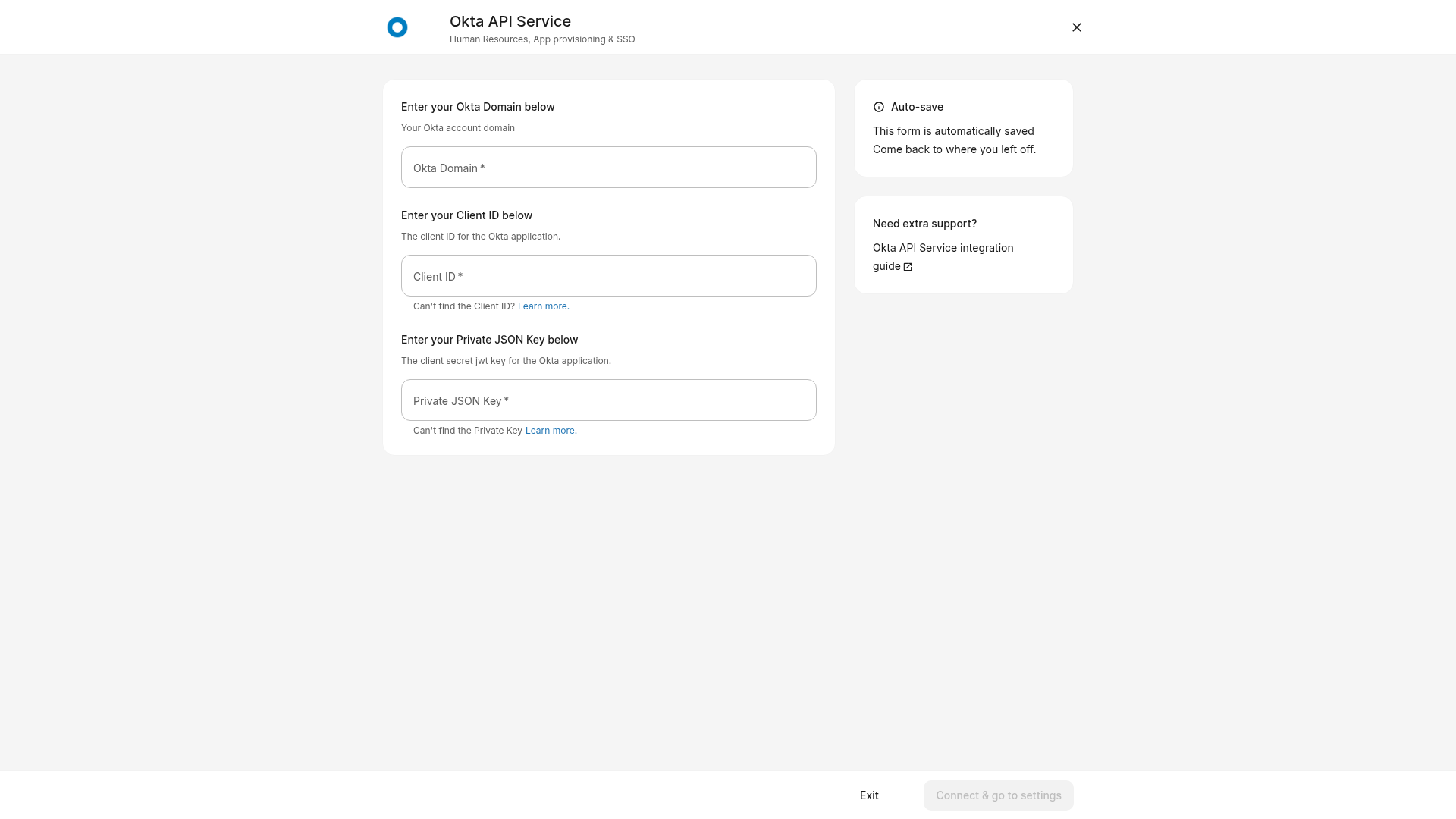
- On the Okta API Service connection page, enter your account credentials and click Connect & go to settings.
| Okta API Service credentials | Where to find it |
|---|---|
| Okta Domain | Your Okta API Service domain URL |
| Client ID | Your Okta Client ID |
| Private JSON Key | Your Okta Private JSON Key |
The integration is now connected, and you can start to configure the integration.
Step 3. Configure the integration
In this section, we’ll guide you through configuring the integration so that data can sync successfully.
To activate the worker data sync:
- On the connected Okta API Service integration page, go to Plugins and settings.
- On the Worker data sync for non-payroll plugin, click Enable.
- Acknowledge the pop-up and click Continue.
- (Optional) On the Worker data sync page, turn on automatic invitations if you want workers to be automatically invited to Deel.
- Map the Deel fields with the values coming from your HRIS system, then click Continue.
See the Okta API Service integration reference for a complete list of supported fields.
- On the Import workers tab, review which worker profiles to import based on your set criteria, then click Continue to import.
- In the Ready to Sync pop-up modal, click Sync to start importing the selected worker profiles.
The selected worker profiles will be imported into Deel from Okta. You’ll receive a notification once the results are available.
Step 4. Sync data manually
Automatic syncs occur daily, one way from Okta API Service to Deel, but you can manually trigger a sync:
- If you’ve made important changes and need them to sync immediately
- If you notice missing data or errors, that suggests that the last sync didn’t complete correctly
- In the left sidebar, select Apps & Automation to expand its submenu, then select App Store.
- Use Find apps to search for Okta API Service and select the result labeled Import User Information from Okta.
- On the connected integration page, click Sync Okta API Service.
Recent changes in Okta API Service will be synced to Deel.
Okta API Service integration reference
This section provides information about the capabilities and limitations of the integration. You can use it to understand whether the integration can sync the data you need to sync.
Supported fields
The Okta API Service integration supports the sync of the following mapping fields:
| Deel field | Required? |
| First name | Yes |
| Last name | Yes |
| Personal email | Yes |
| City | Yes |
| State | Yes |
| Address | Yes |
| Country | Yes |
| Zip code | Yes |
| Work email | No |
| Mobile phone | No |
| Hire date | No |
| Job title | No |
| Nationality | No |
| Manager details | No |
| Work location | No |
| Employment status | No |
| End date | No |
Troubleshooting
| Problem | How to fix |
|---|---|
| Connect Okta API Service is unavailable | Reopen the correct App Store result. If it remains unavailable, ask a Deel administrator to grant you integration-management access. |
| The connection form does not load | Reopen the integration details page and select Connect Okta API Service again. |
| The Import workers tab is missing | The tab is available only after the integration is connected. If the integration page shows Connect Okta API Service and only Integration overview and App information, complete Step 2, then reopen the integration page. |
| Sync Okta API Service is not available | If the page displays Connect Okta API Service instead, the integration is not connected. Complete the Okta setup and connection steps before retrying the manual sync. |