
Clients can configure how their workers submit hours by configuring time tracking policies and selecting between different time-submission methods, ensuring efficient and accurate time tracking.
Clients may enable Clock-In submission, Manual / Async timesheet submission, or both. They can also decide whether workers may edit already-submitted entries. This article explains how to create, edit, and manage time-submission setups.
In this Article
How to create a time tracking policy
How to edit an existing timesheet-submission setup
How to create a Time Tracking Policy
Prerequisites
• You must have permission to view and edit Organization settings → Time tracking.
• At least one worker type (e.g., Contractors, EOR, Direct Employees) already exists in the organization.
✅ Step 1 – Open the Time-tracking settings
- From the Deel dashboard, click the Organization settings gear icon in the upper-right corner.
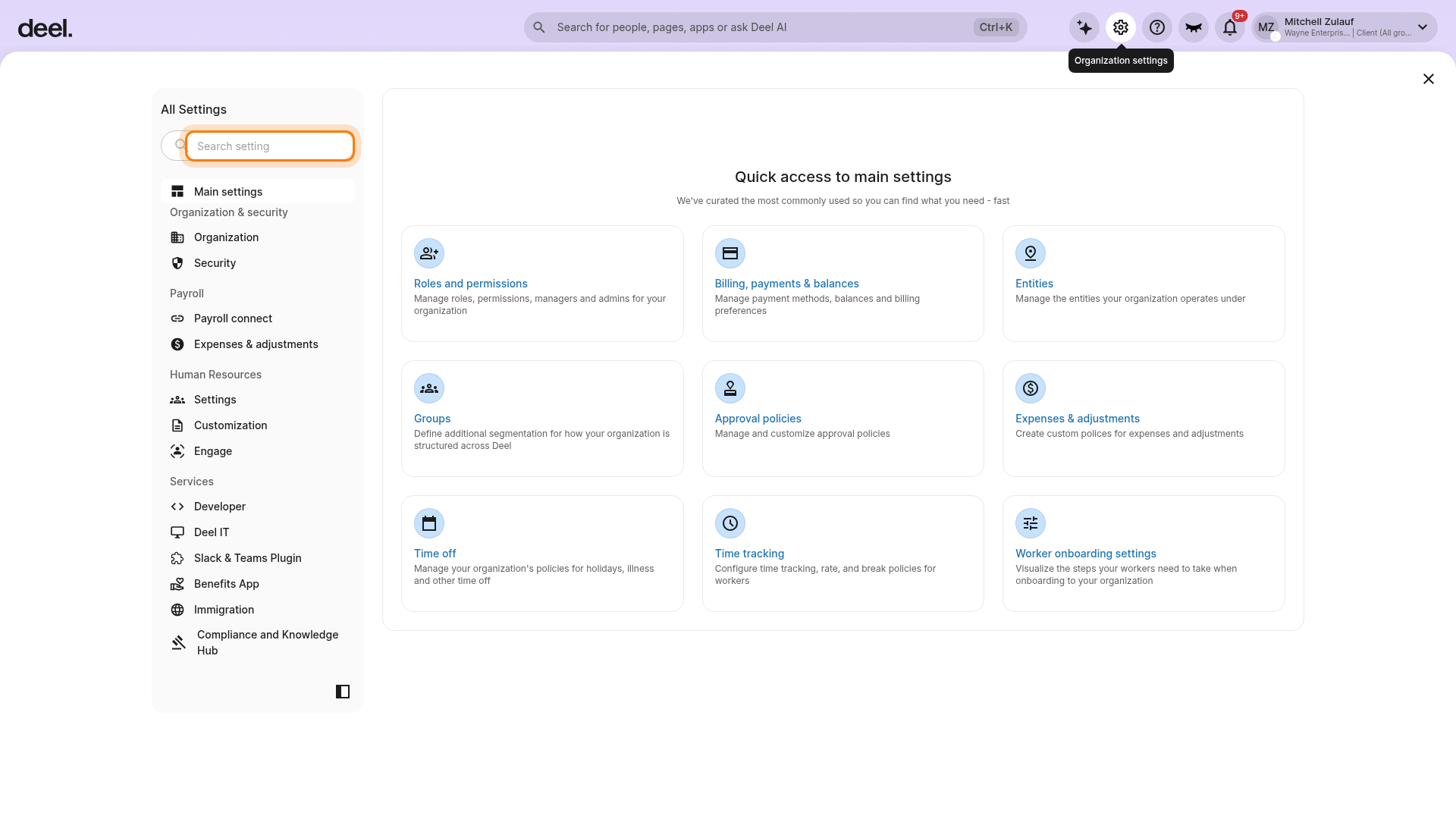
In the All Settings panel, select the Search setting field and enter Time tracking.
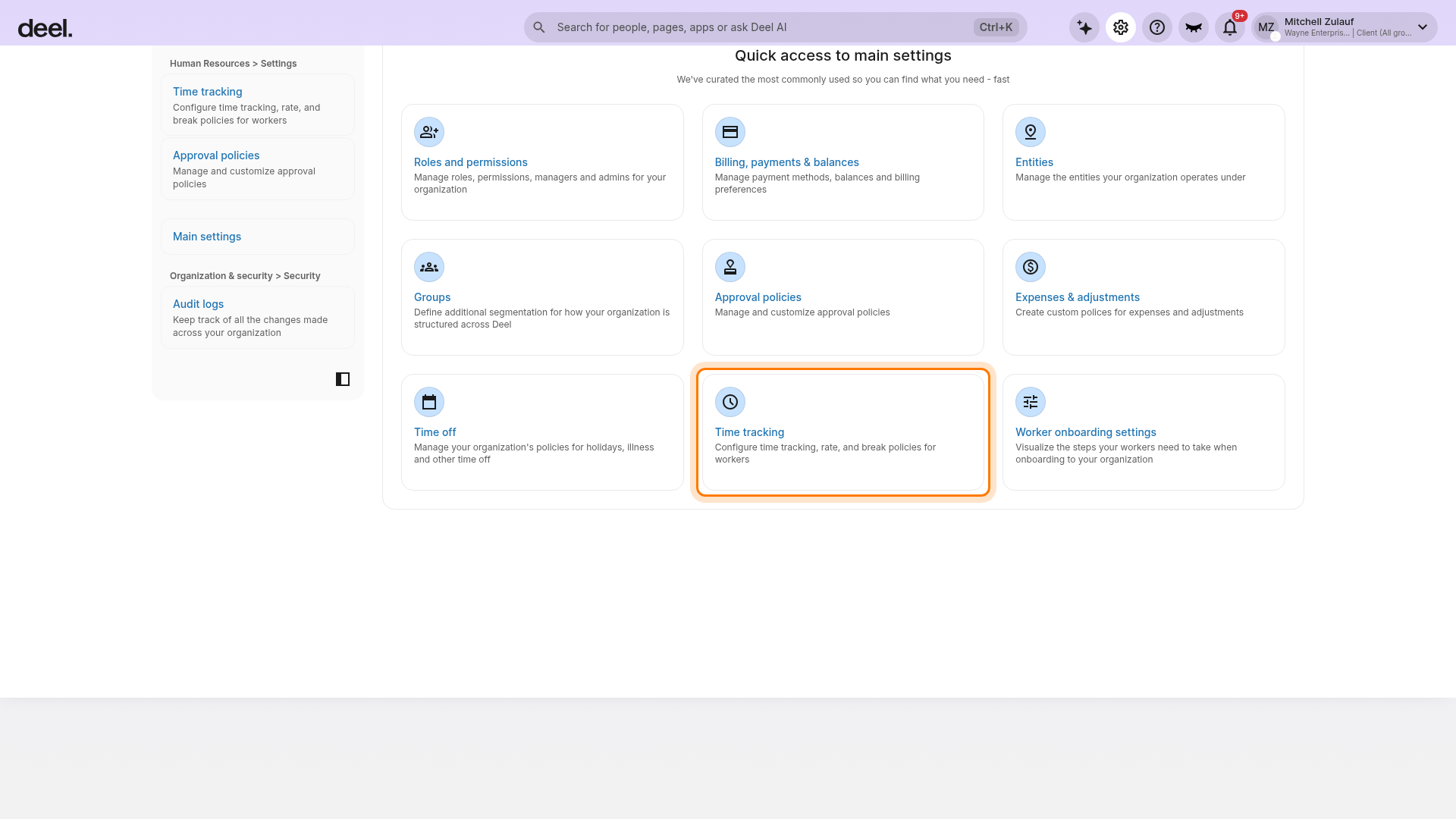
Click the Time tracking card. Do not select Time off or another similarly named setting.
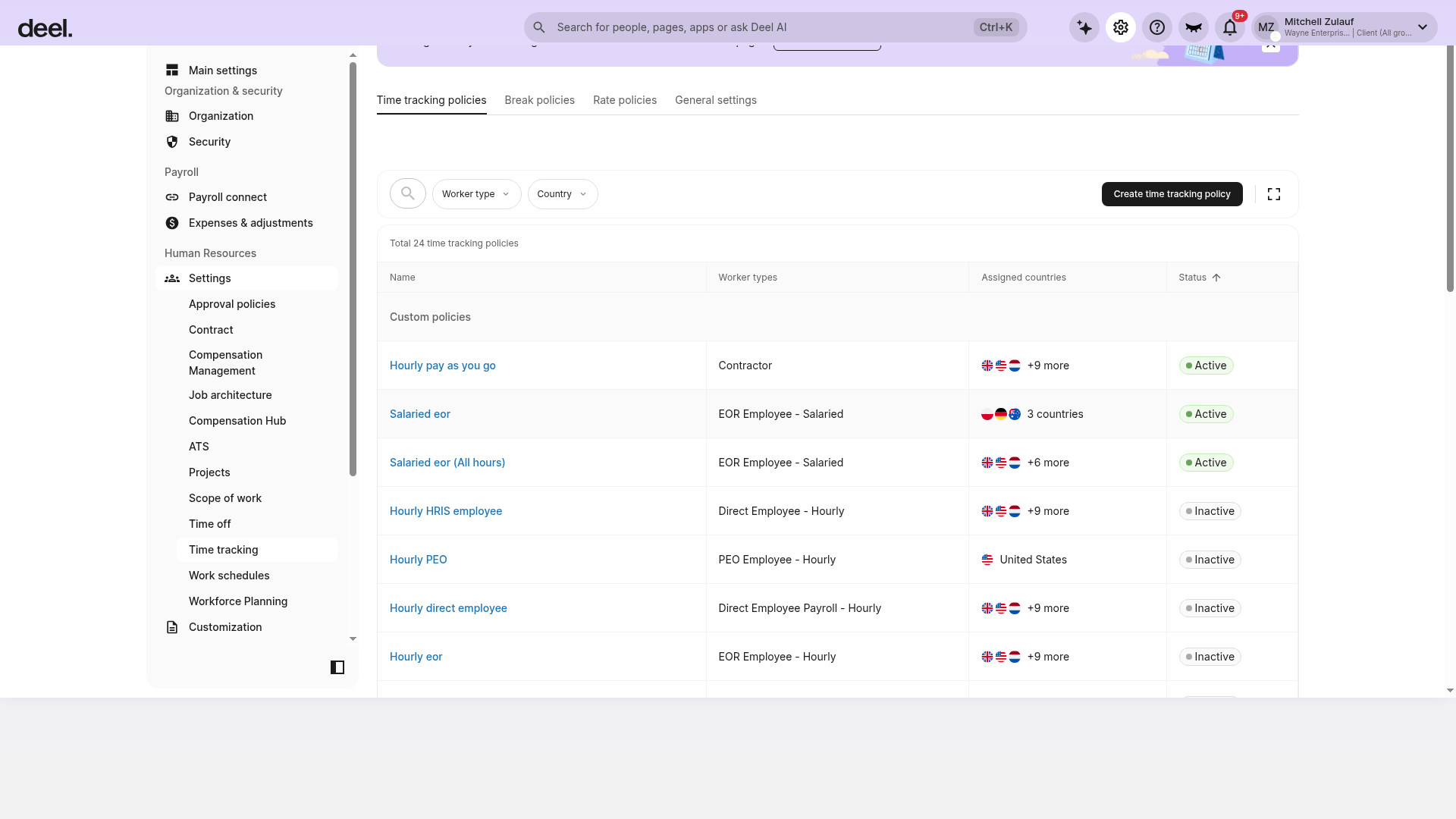
✅ Step 2 – Start a new time-submission setup
- Confirm that the Time tracking policies tab is selected, then click Create time tracking policy.
✅ Step 3 – Configure basic details
- Time tracking policy name – Provide a clear, unique name (e.g., “Brazil – Contractors Clock-In”).
- Worker type – Select the worker category this setup applies to (EOR, Contractors, Direct Employees, etc.).
- Countries – Choose all countries in which this submission method will be active and click Continue.
✅ Step 4 – Choose the time-submission method(s)
In the Submission methods step, select one or both of the options below:
• Async submission – Workers manually add hours for any day and submit at their convenience.
• Clock-In submission – Workers use a clock-in / clock-out widget for real-time tracking.
(Optional) Toggle: Allow workers to edit submitted clock-in entries if you want workers to correct their own hours before approval. Edited rows are flagged so managers can quickly review changes.
Clients can also mandate filling in the Work description for their workers.
✅ Step 5 - (Optional) Enable Work Location
Enable the work location assignment, defining whether selecting a location is mandatory for workers and whether "remote" should be an available option.
Clients can select the specific work locations available to workers under this policy. They can also manage individual locations, such as offices or sites, separately within the address list under each entity.
✅ Step 6 – Review & finish
- Review the summary.
- Click Create to activate the setup.
Troubleshooting
• Create button disabled → You do not have edit permissions for Time tracking settings.
• Form does not appear → Refresh, clear cache, or try another browser.
How to edit an existing time tracking policy
✅ Step-by-step instructions
- From the Deel dashboard, click the Organization settings gear icon and open Time tracking.
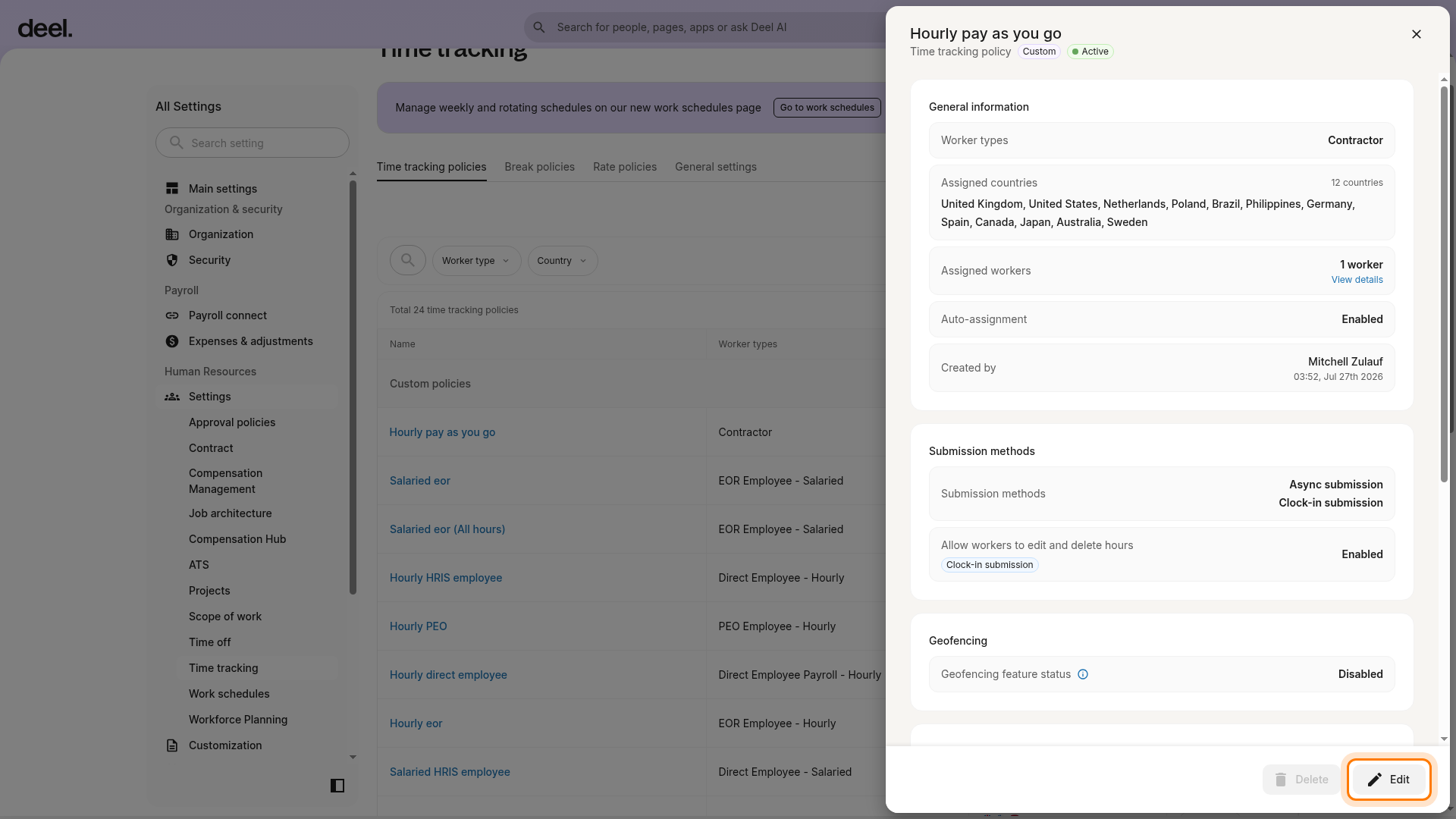
- In the Time tracking policies tab, click the name of the policy you want to update.
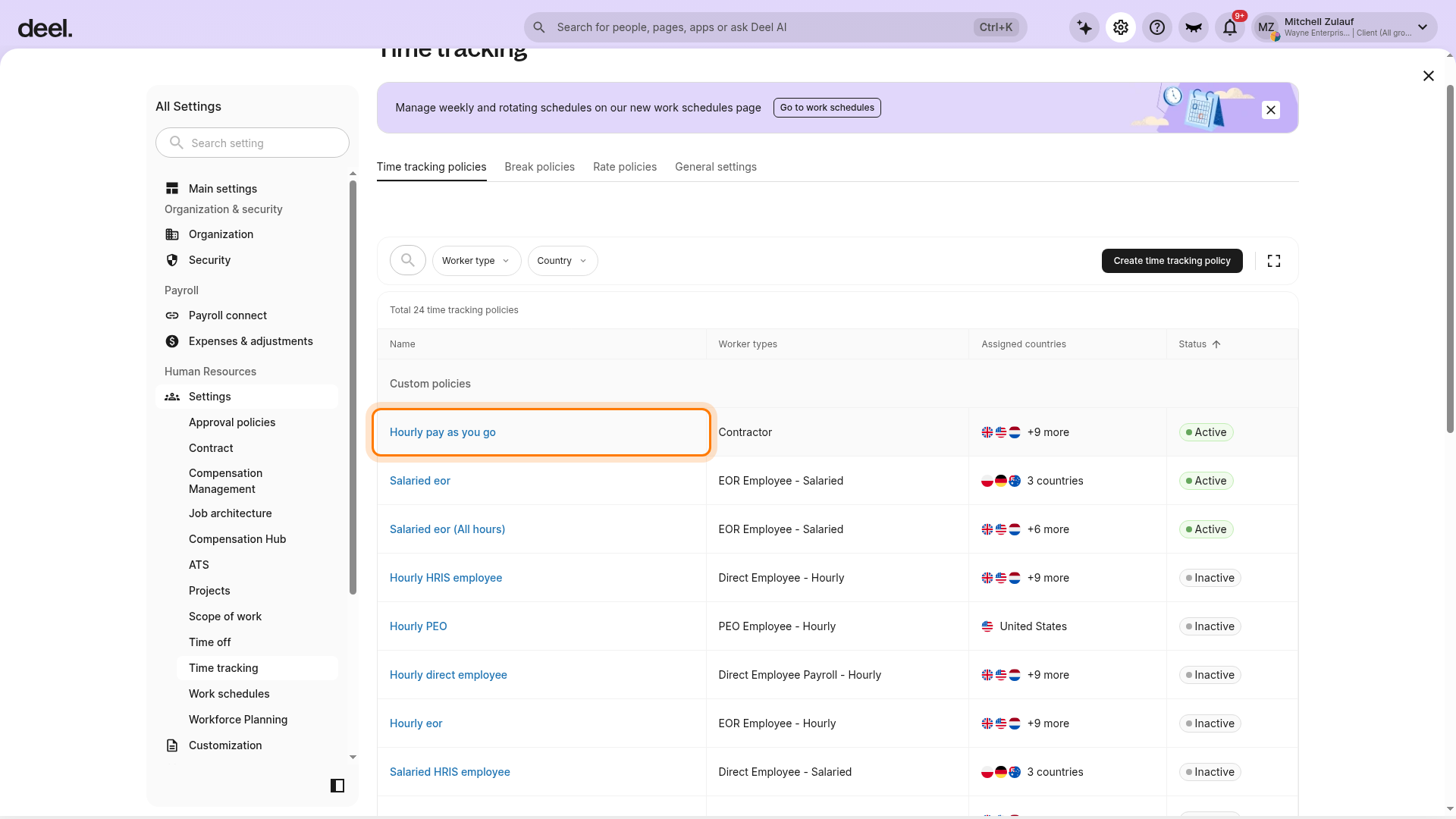
- Review the policy details in the panel that opens on the right, then click Edit.
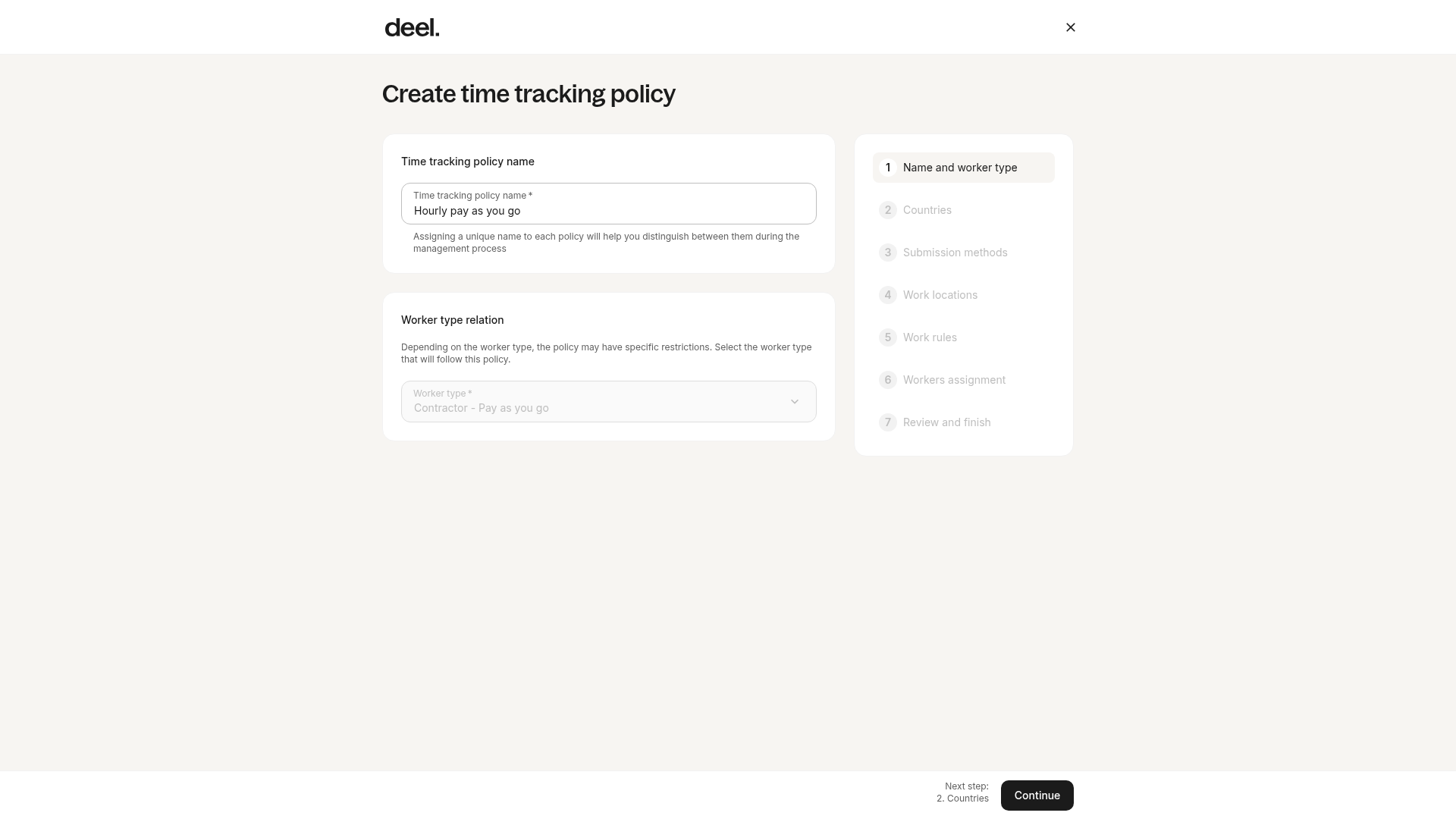
The multi-step policy form opens with the existing policy name and worker type prefilled. Update the applicable settings, including countries and submission methods, then continue through the form to review and save your changes.
Frequently Asked Questions
[ACCORDION] Can I allow workers to edit their own clock-in entries after submission?
Yes. When configuring or editing a setup, enable Allow workers to edit submitted clock-in hours. Edited rows are highlighted for manager approval.
[ACCORDION] Can I delete a time-submission setup?
Open the applicable policy from Time tracking policies, click Edit, and then click Delete. Deletion is irreversible; any contracts using the setup will need a new assignment.
[ACCORDION] What happens if I have multiple setups for the same worker type and country?
The setup applied on the worker’s contract takes precedence. Where multiple eligible setups exist, Deel prompts you to choose one during contract configuration.
[ACCORDION] How does Deel Time Tracking calculate Night Differential and Holiday Pay?
Deel Time Tracking calculates both Night Differential and Holiday Pay based on the start time of the shift. This means that if a shift begins on a holiday or during the night differential window, the system applies the relevant pay rates on the shift start time through to the next day, rather than the actual hours worked during a specific holiday period.
For example - if June 6 is a holiday and the employee’s shift is from 10 PM (June 6) thru 6 AM (June 7), the system will calculate Holiday Pay until the end of the shift on June 7 - even though much of the hours worked didn't fall on the holiday anymore.
However, if the shift starts on June 5 and ends on June 6, the system will not apply Holiday Pay, as the shift did not start on the holiday