
Organizations can now automate Time Off In Lieu (TOIL) or compensatory leaves by integrating time tracking with leave accruals.
This feature allows you to automatically compensate eligible overtime or rest-day work with compensatory leave instead of traditional payroll payments, ensuring a scalable and compliant way to reward extra effort.
This article explains how to set up Time Off in Lieu (TOIL) for Deel Payroll employees.
In this article:
Configuring Rate Policies for TOIL
Creating and Assigning Time Off Policies
The Employee Workflow & Automatic Accrual
How to Configure Rate Policies
To begin automating TOIL, you must first define which hours worked qualify for compensatory leave rather than payroll compensation.
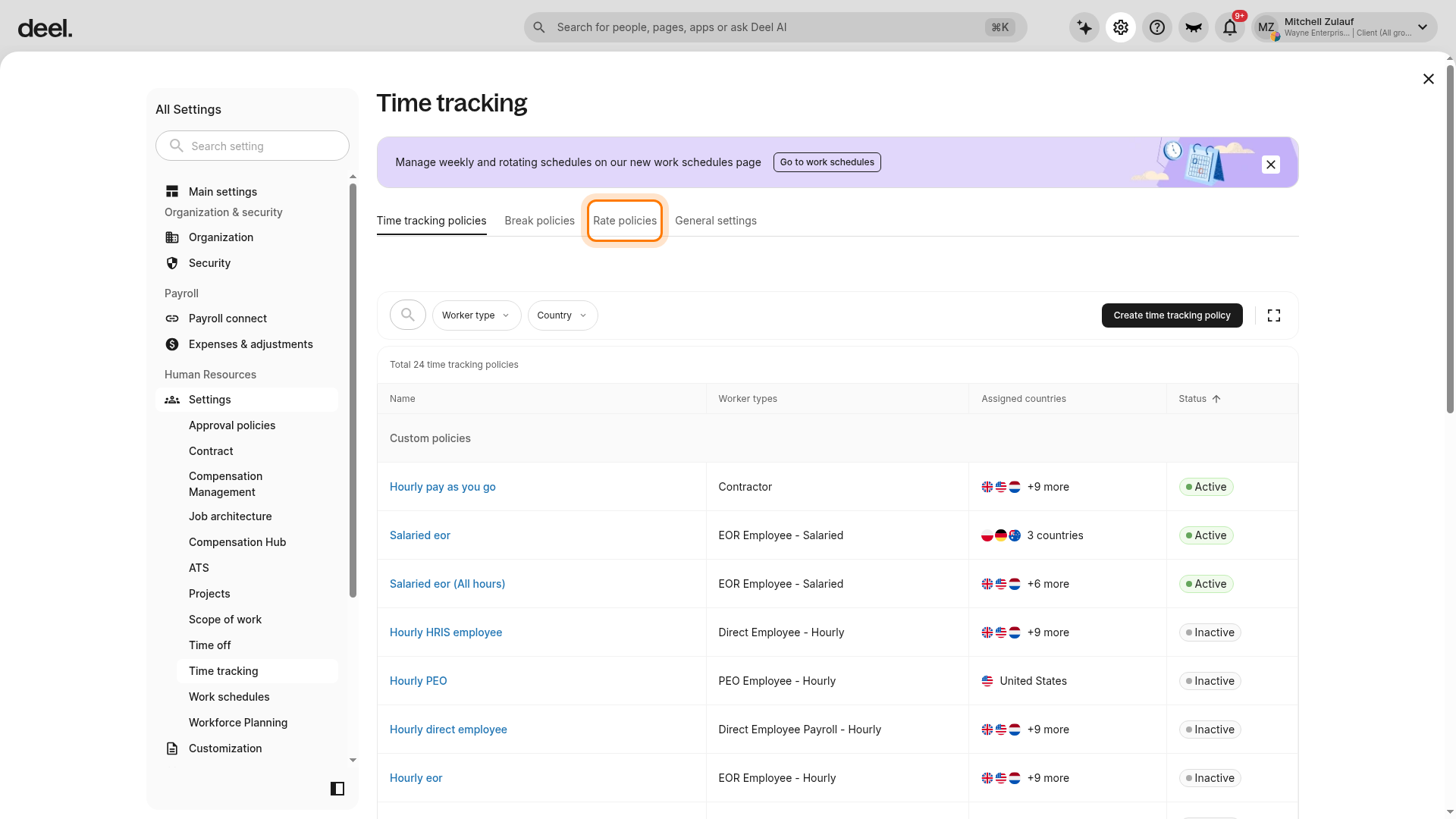
Step 1 - Navigate to Time Tracking Settings and select the Rate Policies tab
Open Organization settings, select Time tracking, and then select the Rate policies tab.
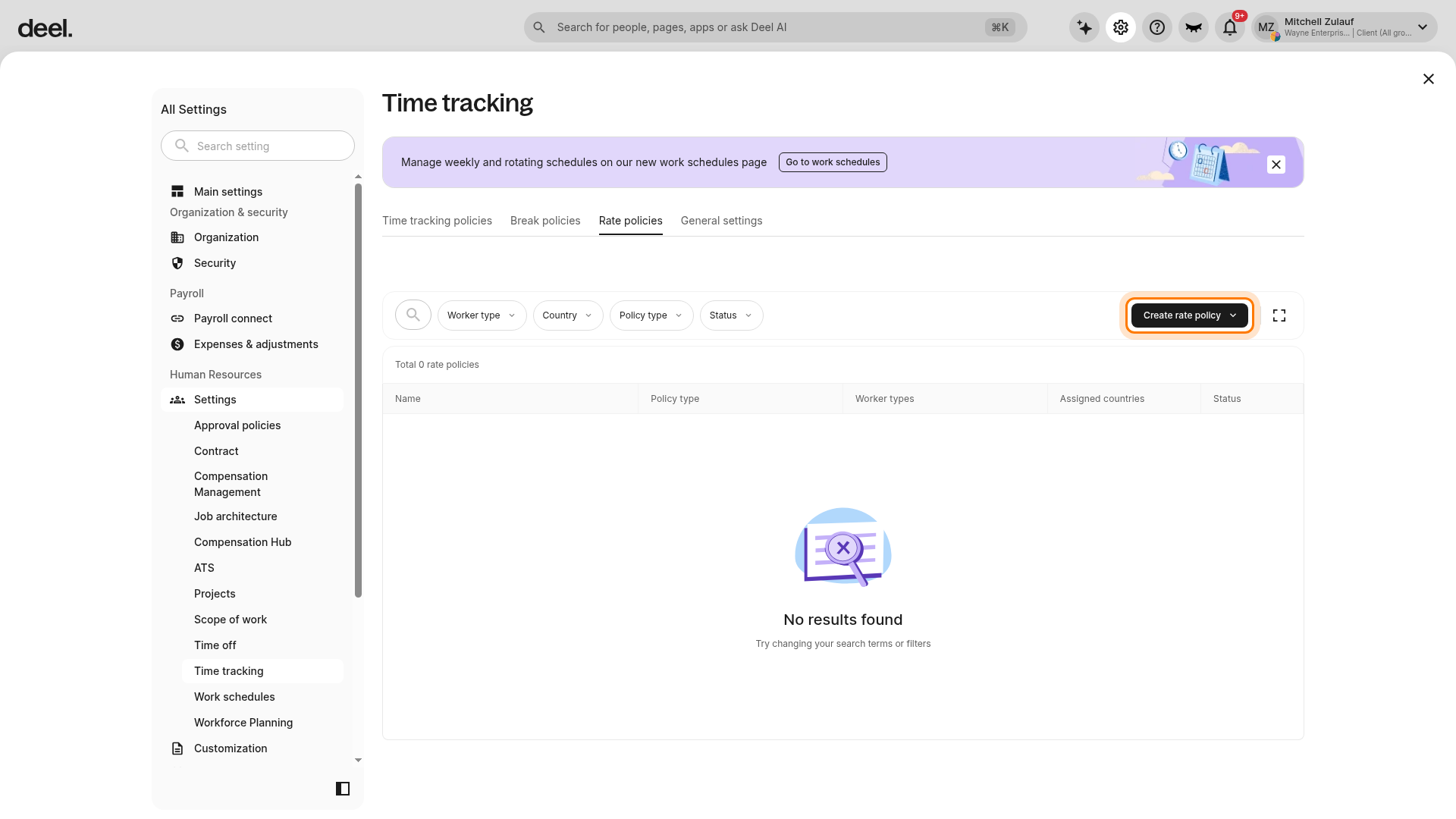
Select Create rate policy on the right side of the filters row.
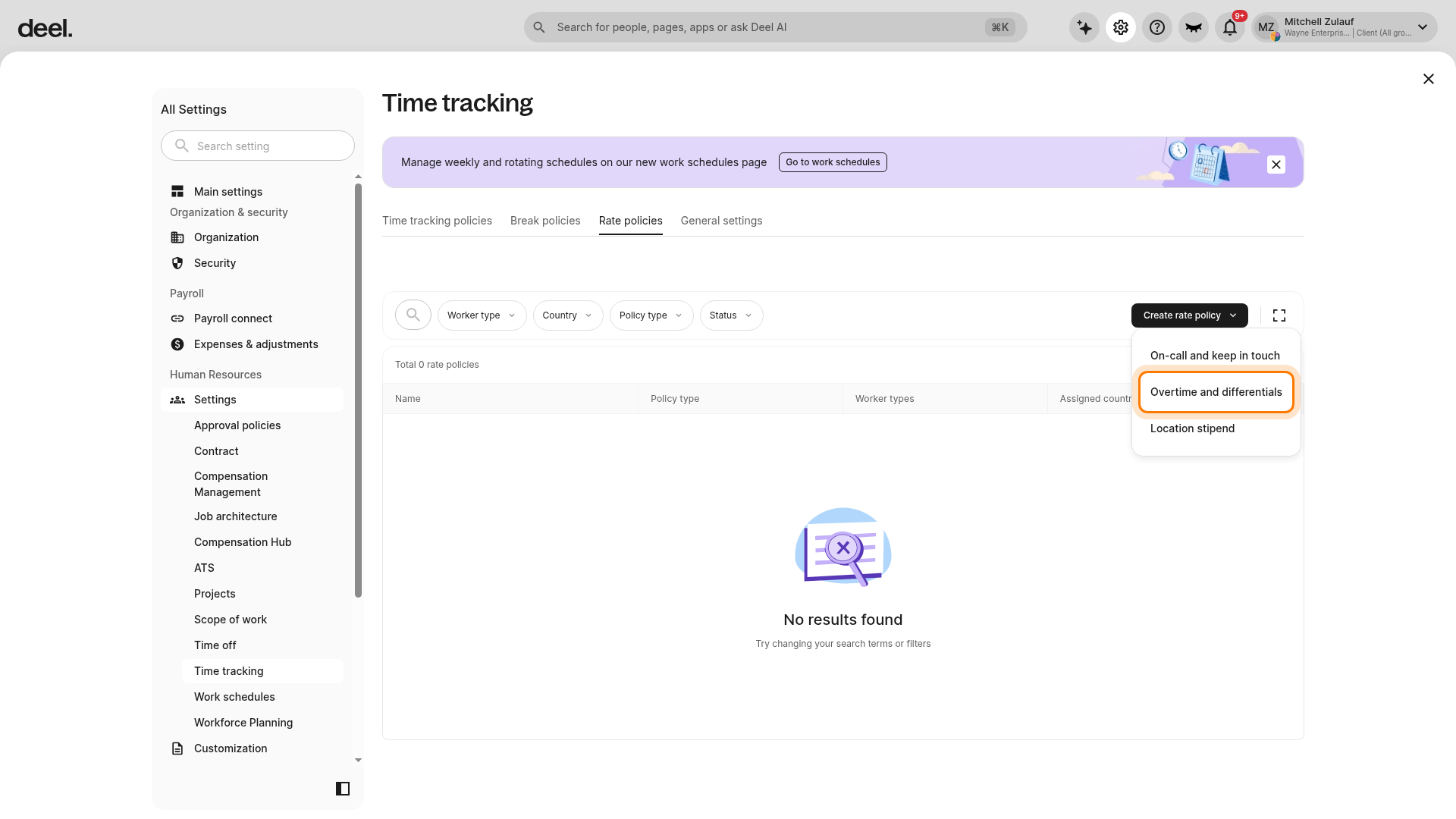
Select Overtime and differentials.
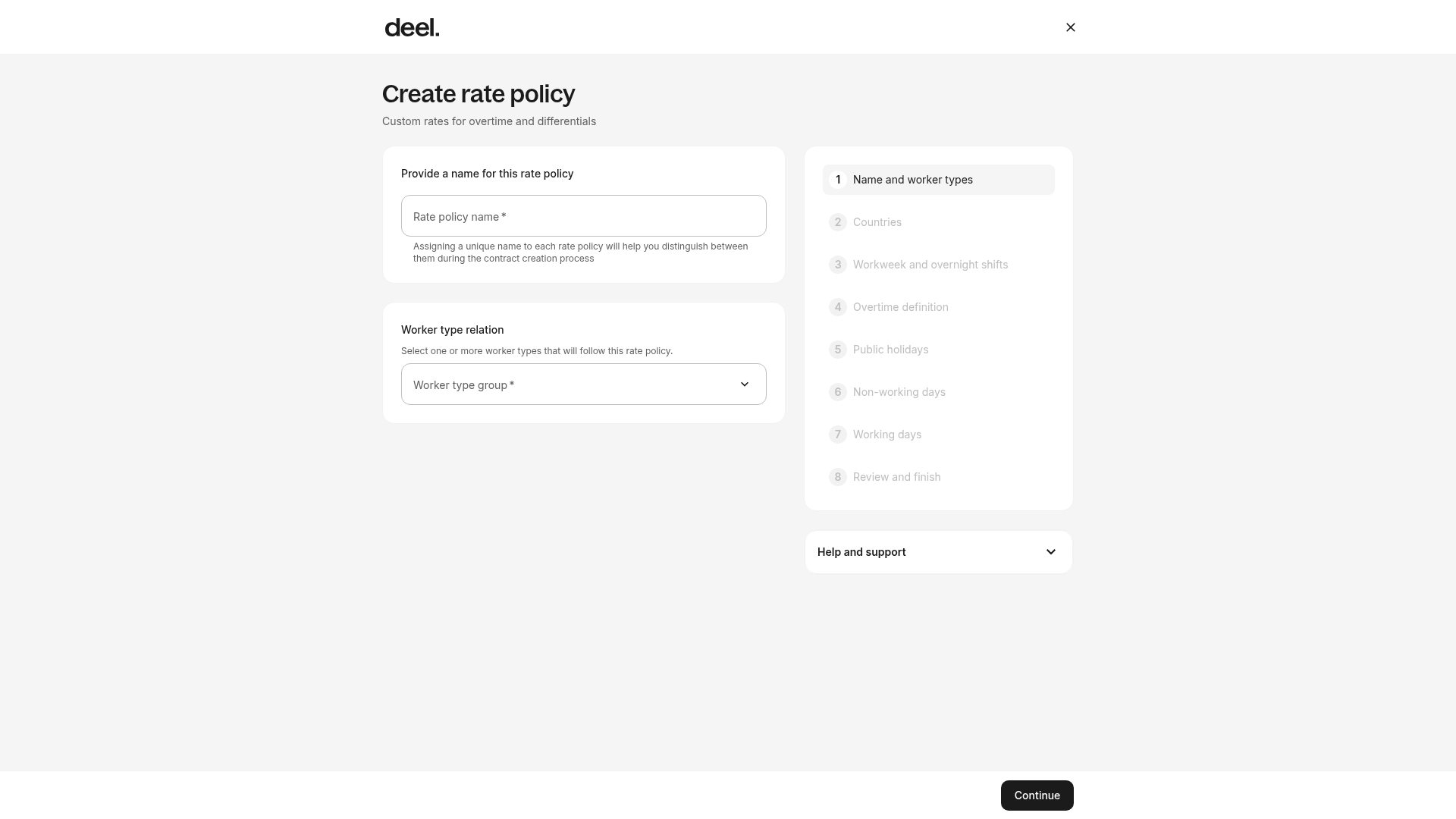
The Create rate policy form opens with the subtitle Custom rates for overtime and differentials. Confirm that Name and worker types is the active first step.
If the rate-policy list shows No results found, you can still select Create rate policy to continue.
Step 2 - Define General Settings
Enter a policy name, for example, “UK TOIL Policy,” and select the Direct Employee Payroll worker type. Choose the applicable Country.
Define your workweek start day and overnight-shift details.
Step 3 - Set Overtime Thresholds
Define your daily or weekly overtime limits.
For weekly limits, create at least one overtime rule by setting the weekly overtime threshold and compensation method.
Under Compensation Type, select Compensatory Leave and set a Conversion Rate multiplier. For example, a 200% rate means one hour worked accrues two hours of leave.
You can optionally set rules for working hours on public holidays and rest days.
Step 4 - Review Overlap and Working Day Rules
Review overlap conditions and add working-day conditions if needed by defining the rates for late or overtime work.
Review and Save: Confirm that there are no overlaps in the rules summary before clicking Save.
How to Create and Assign a Time Off Compensatory Policy
Once the rate policy is set, you need a designated "bucket" where those hours can live.
Step 1 - Go to Time Off Settings and click Add a Policy.
Open Organization settings, select the Time off card, and click Add policy.
Step 2 - Create a Custom Time Off Policy
Select Custom Policy and choose Compensatory Leave as the policy type.
Name the policy, for example, “TOIL,” and define the policy details. Refer to How to Create a Custom Time Off Policy for Workers for detailed flow.
Step 3 - Assign Compensatory Time off Policy to Workers
Assign the policy to the same group of workers configured in the rate policy, for example, all Direct Employees in the UK.
Click Publish.
Employee Workflow & Automatic Accrual
Time Off In Lieu (TOIL) enables end-to-end automation of compensatory leave accrual. Once policies are active, no manual calculations are required.
Submission: Employees submit their shifts via their Workspace in the Time Tracking section.
Approval: Managers receive a notification in their For You Today card to review and approve the submitted hours.
Accrual: As soon as the manager approves a shift that meets the TOIL criteria, the system calculates the hours based on the set multiplier and updates the employee's Time Off Balance automatically.
Example: If an employee works an 8-hour shift on a Sunday (Rest Day) with a 200% multiplier, the system will automatically add 16 hours to their Compensatory Leave balance.
Frequently Asked Questions
[ACCORDION] Which worker types are eligible for TOIL automation?
Currently, this feature is available for Direct Employees and Deel Payroll workers located outside of the United States.
[ACCORDION] Can I mix payroll and TOIL in the same policy?
Yes. You can configure the system to pay standard overtime (e.g., first 5 hours) via payroll while directing specific weekend or holiday work toward compensatory leave.
[ACCORDION] What happens if I haven't created a Time Off policy yet?
The system will trigger an alert during the Rate Policy setup. You must have a "Compensatory Leave" type time off policy active for the hours to have a place to accrue.
To create a Time off policy refer to How to Create a Custom Time Off Policy for Workers