
Overview
This guide explains how clients can upload their G2N (Global-to-National) payroll report in the Deel platform. We recommend uploading the final, approved G2N report from your local payroll vendor as soon as it is available. This ensures a consolidated view of all payroll data under the Analytics section in Deel.
Note: G2N mapping should have been completed during client onboarding.
How to Upload the G2N Report
Step 1: Navigate to Payroll Connect
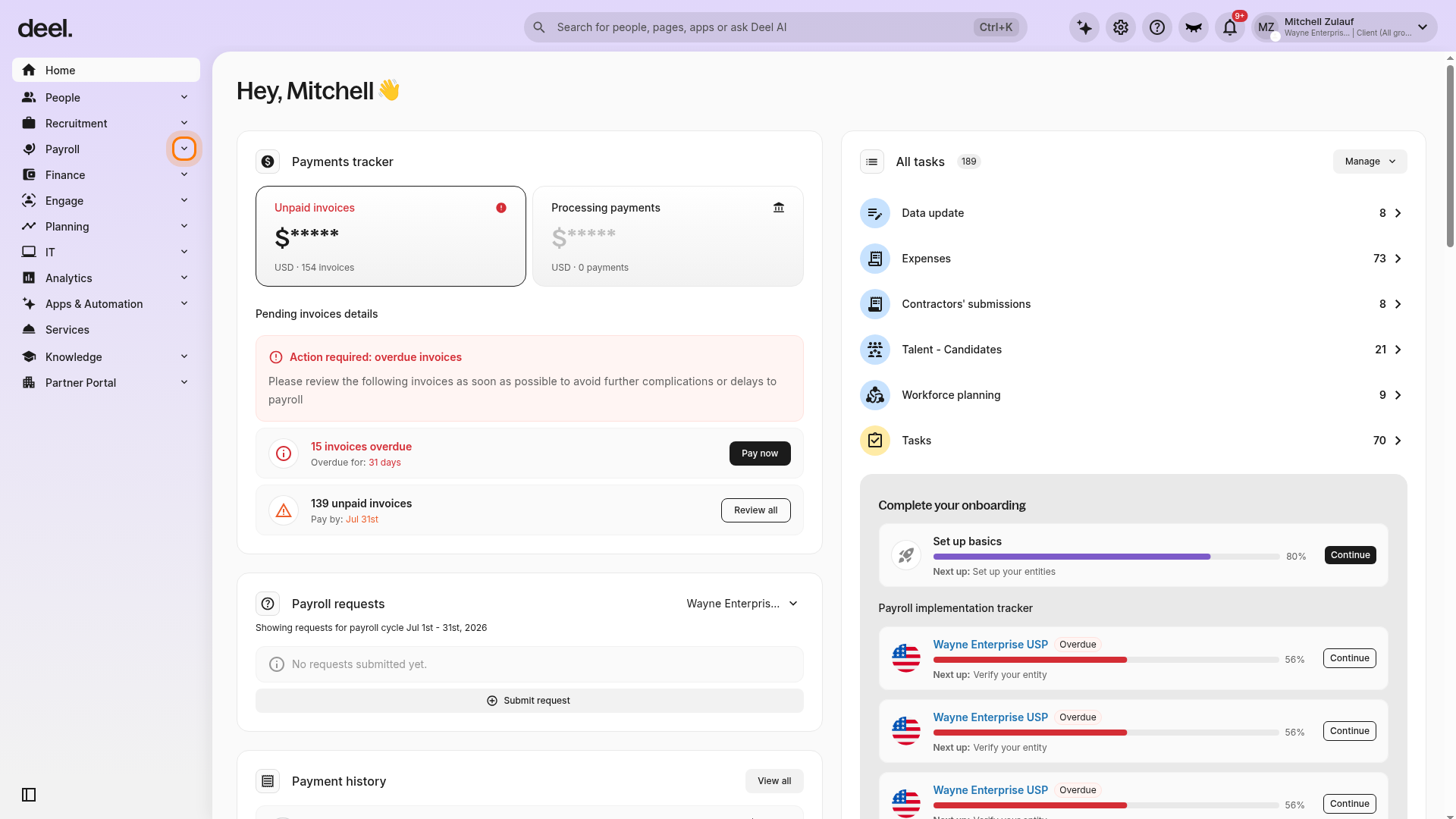
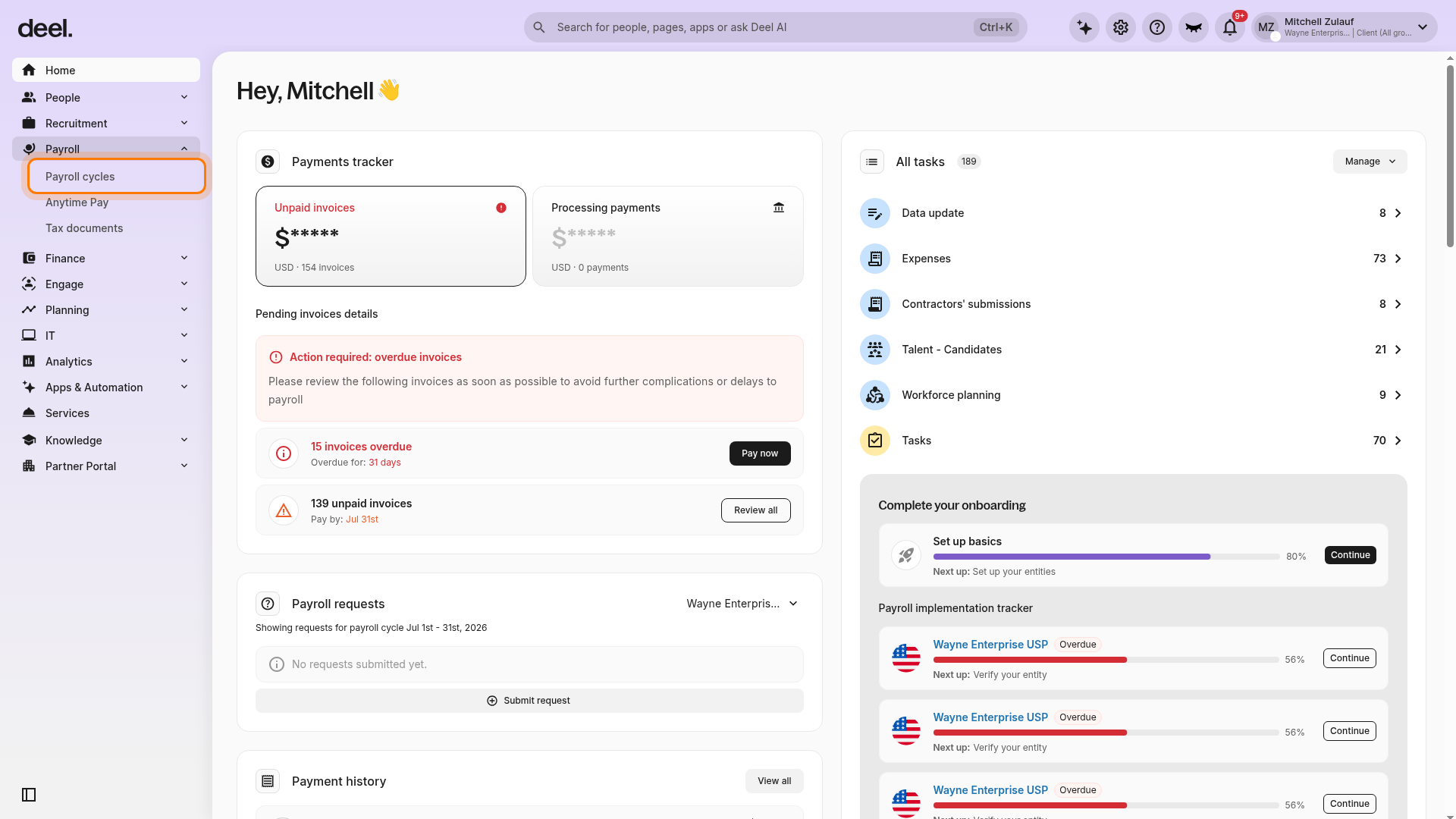
- In the Deel app, select Payroll in the left sidebar to expand its submenu.
- Select Payroll cycles. Payroll Connect is available as a Payroll Connect cycle on the Payroll cycles page, rather than as a separate sidebar item.
Step 2: Select the Payroll Cycle
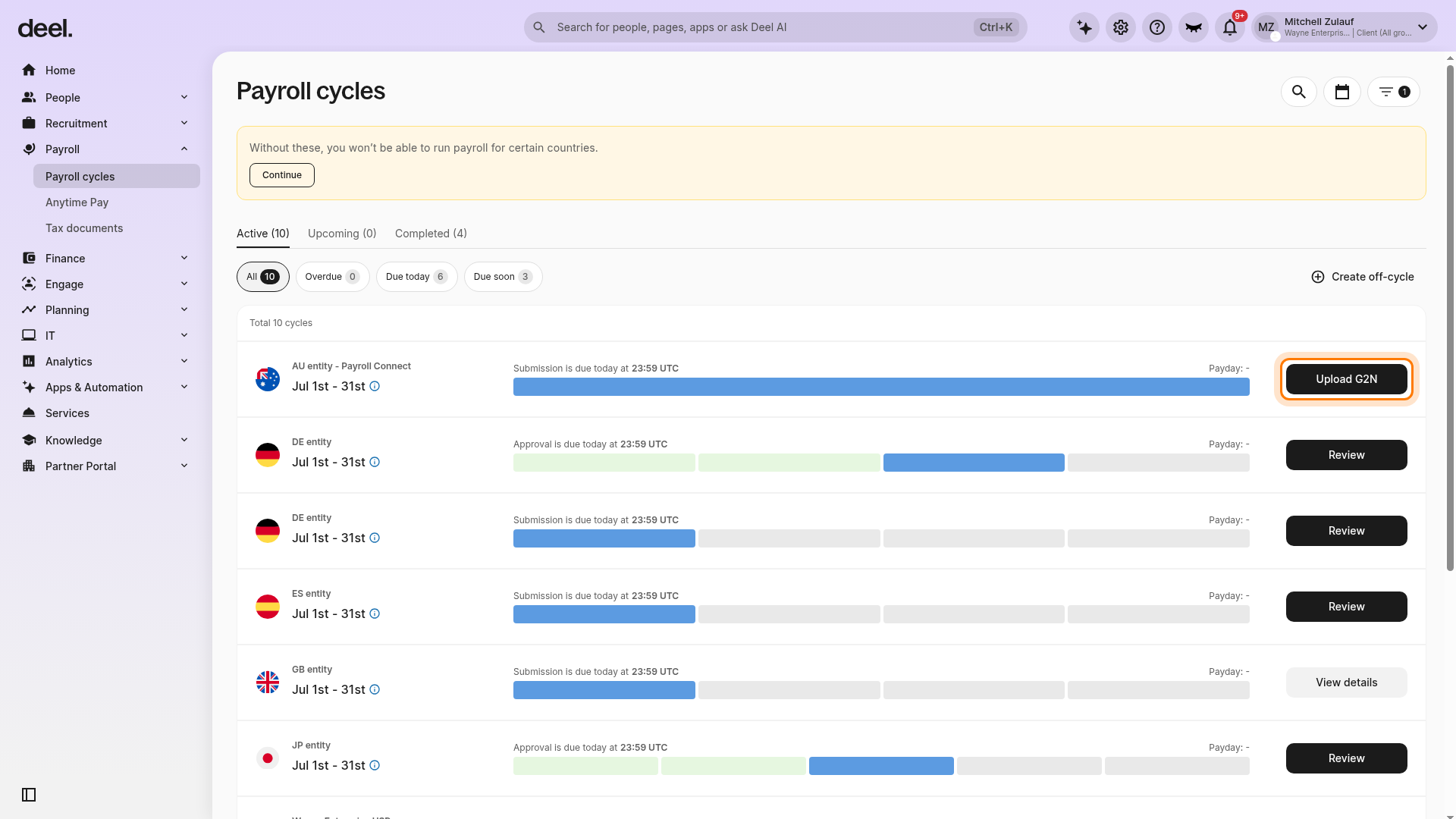
Locate the relevant Payroll Connect cycle and confirm the entity name and payroll-period dates before continuing. Select Upload G2N on that cycle’s row. This first selection opens the payroll cycle; it does not yet open the upload interface.
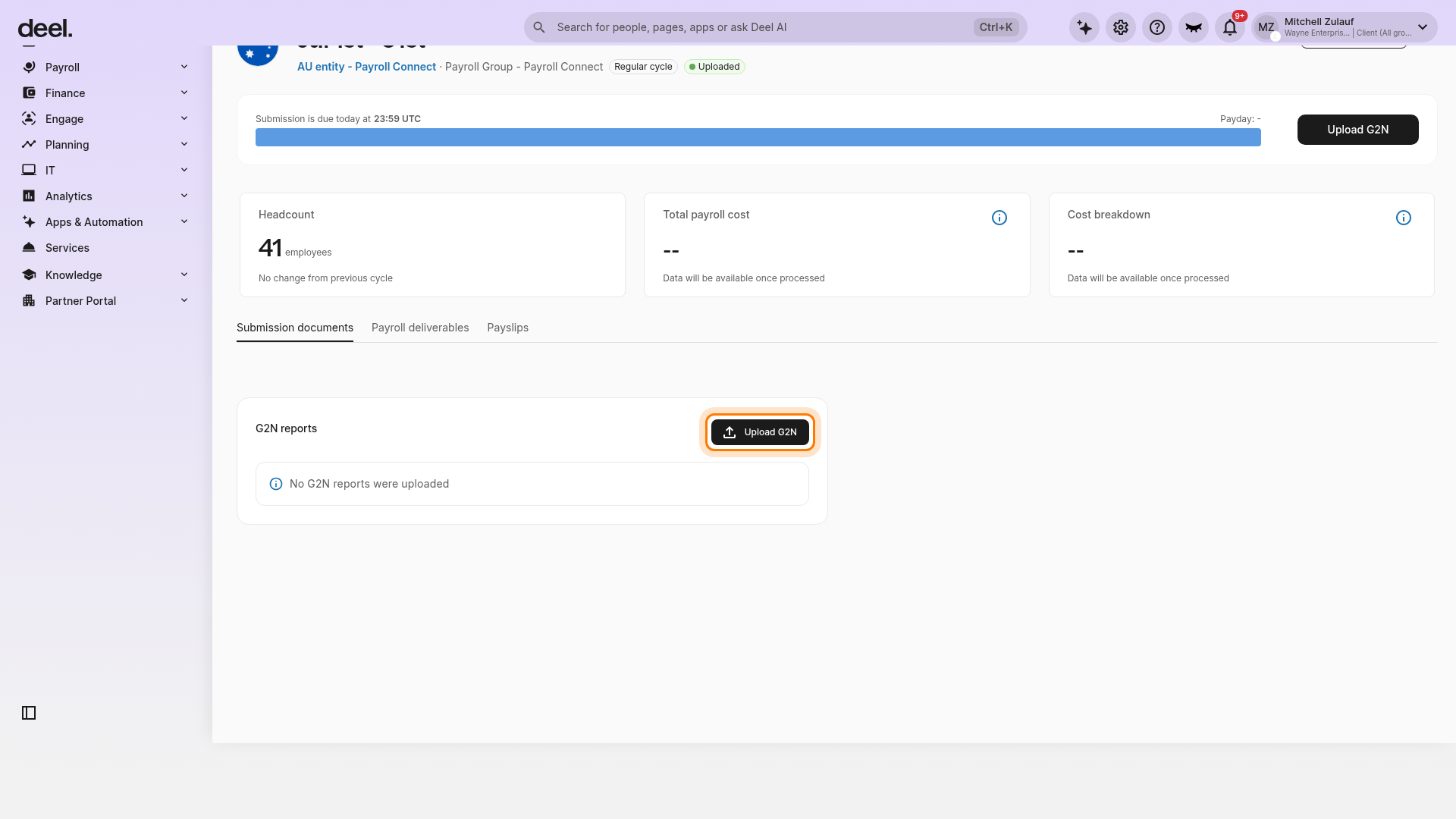
On the payroll cycle page, stay on the Submission documents tab. In the G2N reports section, select Upload G2N.
Step 3: Upload G2N
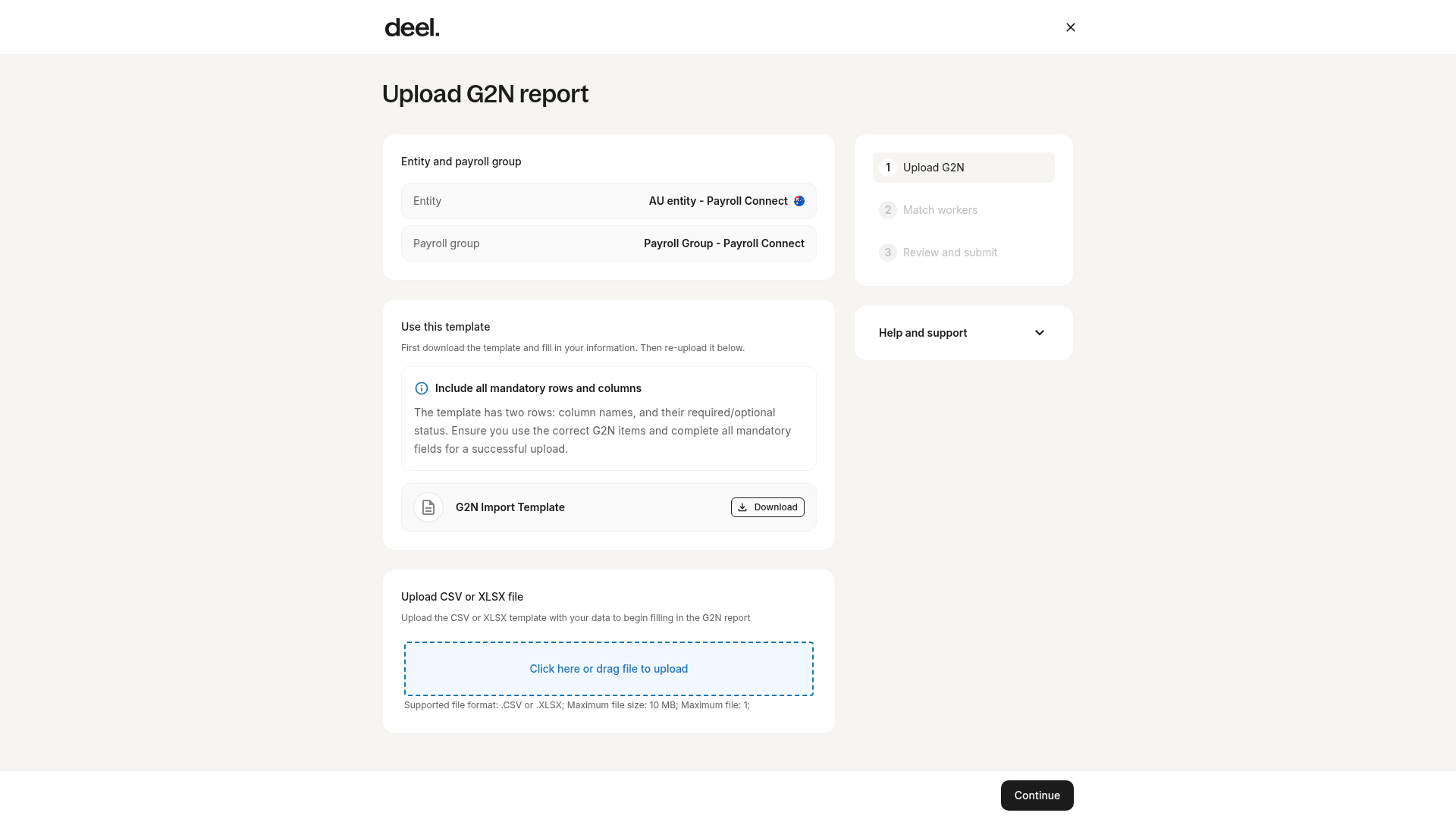
Confirm that the page heading reads Upload G2N report. Verify that the Entity and Payroll group match the cycle you selected and that step 1 Upload G2N is active.
Download the G2N Import Template if needed, complete it with your payroll data, and upload the file. The upload interface accepts one .CSV or .XLSX file with a maximum size of 10 MB.
Click Continue.
Map G2N Items
The system checks whether all columns in your uploaded file are correctly mapped to Deel’s G2N columns.
- If there are new G2N items, you will be prompted to map them to Deel’s G2N columns before proceeding.
- If any mandatory column is missing, you must add that column to your file and re-upload.
Download and Populate the G2N Import Template
- Download the G2N import template provided by Deel.
- Populate the template based on your established G2N mapping:
- For example, if your local payroll provider’s item “Base salary” is mapped to Deel’s “Basic wage,” enter all corresponding values under the “Basic wage” column.
Match Employees
The system will auto-detect any employees in the G2N report who do not yet exist in the Deel platform and flag them.
Option 1: Manual Addition (Few Employees)
- Click the Missing Information link displayed next to each flagged employee. A side panel will open.
- Fill in the required employee details and click Save.
Option 2: Mass Import (Many Employees)
- Download the Deel People Import template.
- Fill in the template according to the guidelines and sample file.
- Select the group or department to which the employees belong.
- Upload the completed import file and click Continue.
- Verify that all employees are added successfully.
Review and Submit
- Once employee data is processed, the system presents a summary of how many records were uploaded.
- Review the summary, then click Upload G2N Report to finalize.
How to Re-Upload a G2N Report
If you need to replace or revise an already uploaded G2N report, you can re-upload without restrictions on frequency.
- In the left sidebar, select Payroll, then select Payroll cycles. Open the relevant Payroll Connect cycle for the entity and pay cycle.
- Click Re-Upload G2N. Then follow the same steps outlined above in the How to Upload the G2N Report section.
Important Notes
- The Payroll cycles page displays all versions of G2N reports uploaded per pay cycle.
- Client admins may upload or re-upload G2N reports multiple times without an approval workflow, since the file reflects the approved version from your payroll vendor.
- The most recent version of the G2N report is published to the Analytics section.
- Older versions are archived under “Past Versions” for reference.
- Each upload is version-numbered incrementally (e.g., Version 1, Version 2, etc.).
- Users can view the latest G2N data in Analytics Reporting for the relevant pay cycles.