
This guide will help clients locate and view consolidated Gross-to-Net (G2N) reports and other payroll analytics directly within the Deel platform.
Deel’s Global Gross to Net Report will contain data for all of the client's entities, whether it is an internal or external payroll provider.
By navigating to your Analytics section, clients can access entity-specific data, and download reports for internal use, all from one centralized dashboard.
Access requirements: You must be a Deel client admin with reporting or payroll permissions that grant access to Analytics > Reports and/or payroll-cycle reports. Your organization must have at least one processed payroll cycle to access available report data.
For a cycle-specific report, the relevant payroll cycle must display Processing report with a View report action. A cycle that only displays actions such as Complete onboarding, Review, or Upload G2N is not yet eligible.
In this Article
How to View G2N Reports in Deel
Step 1 - Select the Analytics icon
In the left sidebar, select Analytics to expand its submenu, then select the Analytics item that opens the Analytics workspace.
Analytics opens on Dashboards by default. Select Reports.
Step 2 - View Gross to Net report
Scroll to the Default reports section.
Select View on the Global gross-to-net report card.
Step 3 - Filter as needed, then download
You can filter the paycycle, currency, country, employee type, payroll types, entity, date range, and much more.
Select Edit Columns to customize the order and presence of columns in the report.
Select Download Report to download a CSV file.
Please also see: Customizing And Downloading Gross To Net Reports For Global Payroll
Step 4 - Download a cycle-specific G2N report from Payroll
Use this workflow when you need the report for one payroll cycle, including available variance data.
Open Payroll cycles
In the left sidebar, select Payroll to expand its submenu, then select Payroll cycles.
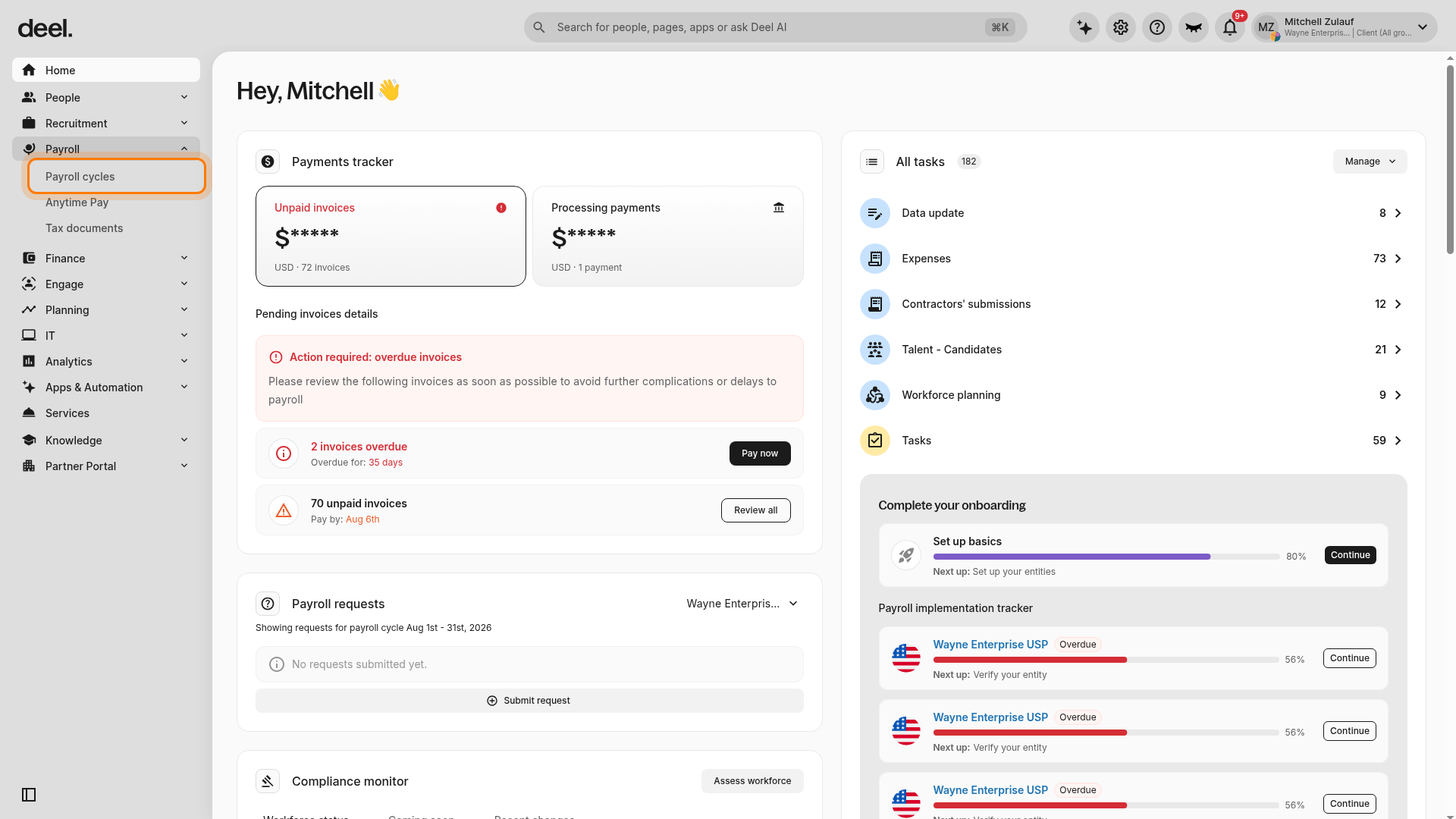
The Payroll cycles page opens with tabs such as Active, Upcoming, and Completed.
Find an eligible cycle
Open the tab containing the relevant cycle. For a finished payroll cycle, start with Completed.
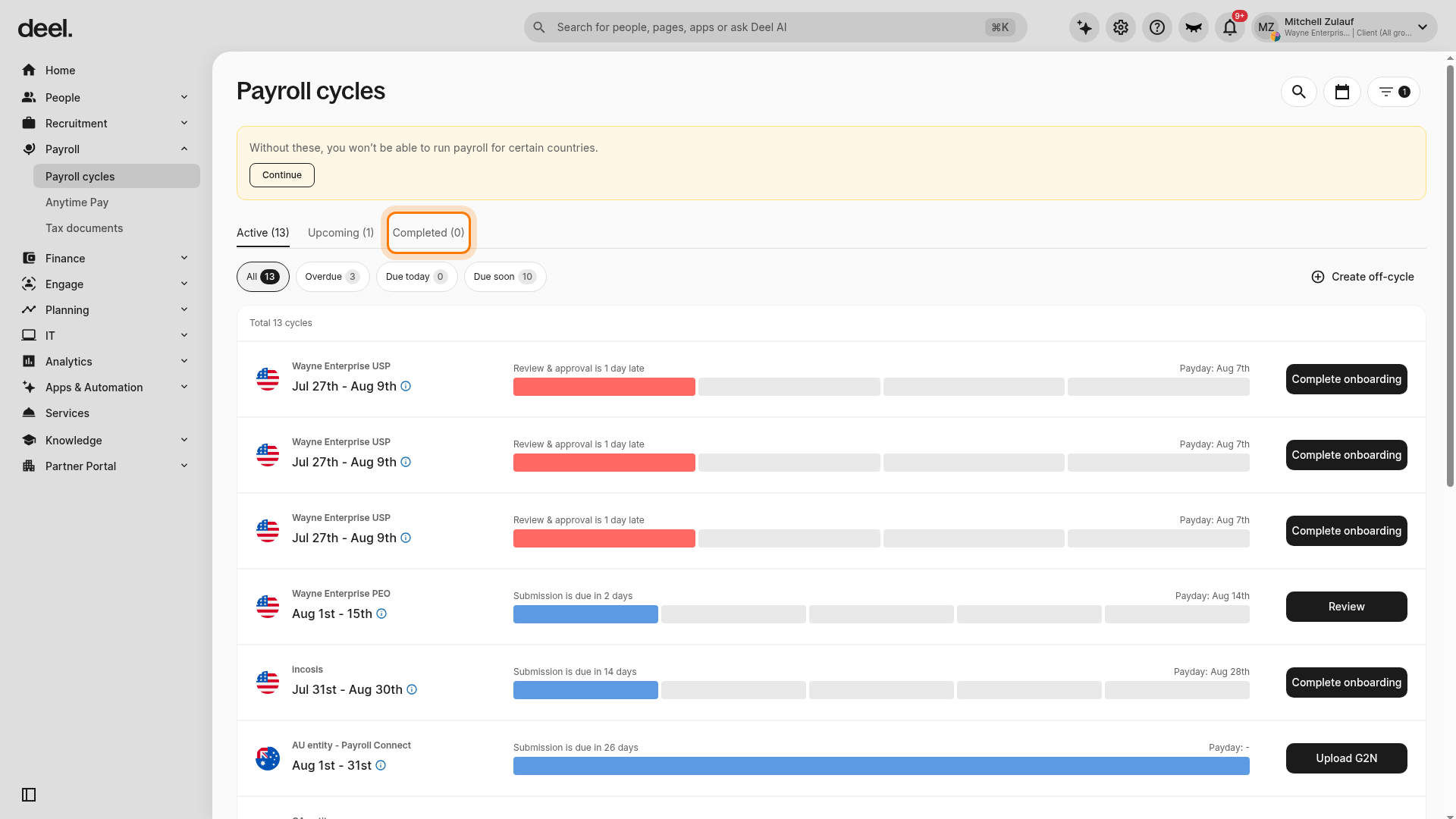
Locate the intended cycle using its entity name and cycle date range. Confirm that it has a Processing report section with View report.
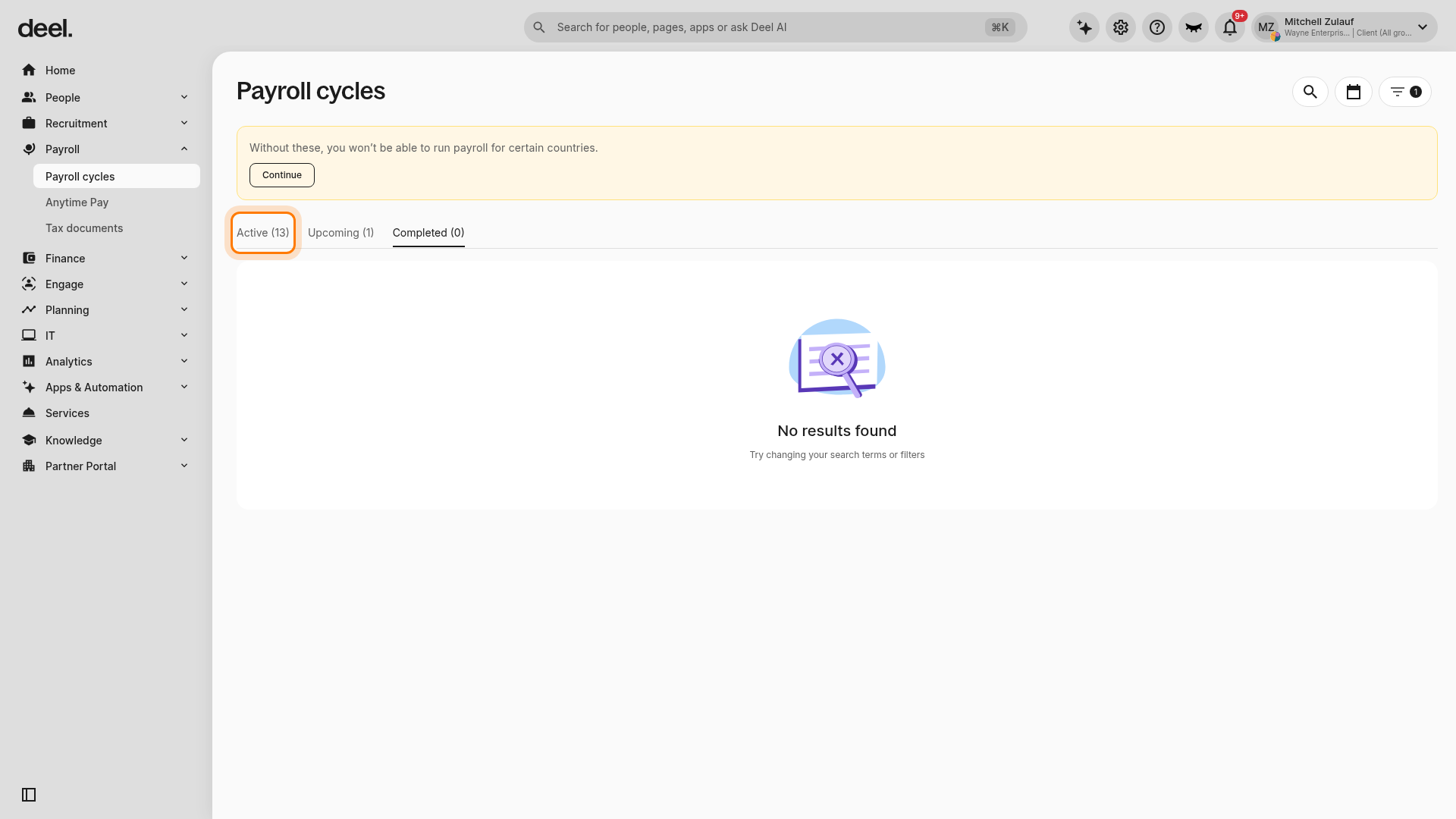
If the selected tab shows No results found, review the current date range and filters, then check another relevant tab or period.
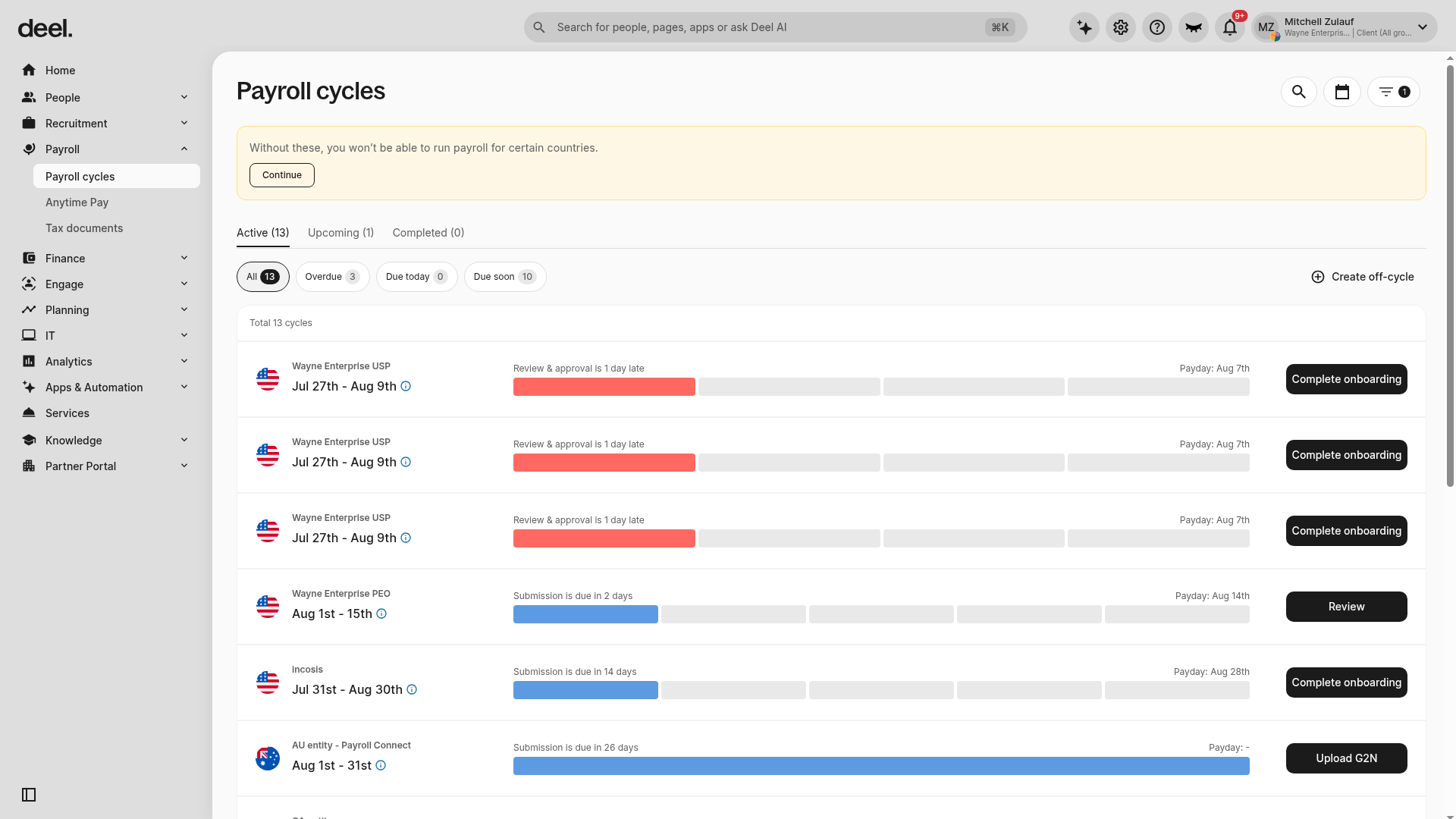
Do not select Complete onboarding, Review, or Upload G2N as alternatives to View report. These actions indicate the cycle is still in setup, submission, or review and does not currently expose the processing report.
Open and download the report
On the eligible cycle, select View report under Processing report.
On the processing report page, select Download report.
Select any available optional inclusions, such as variances, Base Pay, or backdated updates, then select Download.
Tip: Use the cycle-specific download when you need variance data. Variances are not available in the Analytics CSV export.
Frequently Asked Questions
[ACCORDION] Why is my platform headcount different from the headcount on my invoice?
The G2N (Gross-to-Net) report is the authoritative source for headcount and payroll data each cycle. Your invoice billing is calculated based on G2N headcount. If you see different totals displayed elsewhere on the platform, refer to your G2N report- this is what we use for billing.
Ensure all new hires, terminations, and status changes are reflected in your submitted Payroll Report before the cut-off date to keep your G2N accurate. If discrepancies persist, contact Deel Support with your cycle details.
[ACCORDION] Can I schedule the Gross-to-Net report to run automatically?
No. Reports must be downloaded manually from Analytics or from the Payroll cycles area. Scheduled or automated exports are not currently available.
[ACCORDION] Can I include variances in the Analytics download?
No. Variances are only available when downloading from an individual payroll cycle in the Payroll cycles area, not in the Analytics CSV export.
[ACCORDION] How do I change the column order permanently?
Select Edit columns, drag fields into the desired order, and save. The layout is stored for your user profile and applied each time you open the report.
Troubleshooting
| Problem | Did you try? | How to fix |
|---|---|---|
| Analytics is not available | Checking the left sidebar and your permissions | Expand Analytics in the left sidebar and select the appropriate submenu item. If it is unavailable, confirm that your role includes access to Analytics and Reports. |
| Global gross-to-net report card is missing | Checking permissions and date range | Confirm you have reporting permissions and that at least one payroll cycle has been processed within the selected date range. |
| CSV file does not download | Checking browser pop-up settings | Allow pop-ups for the Deel domain in your browser settings, then try downloading again. |
| The Completed tab shows No results found | Checking the intended payroll period, filters, and date controls | Adjust the date range or filters, then check the relevant cycle tab again. If the cycle is still unavailable, ask the payroll administrator to confirm that it is completed and that you can access its reports. |
| A cycle shows Complete onboarding, Review, or Upload G2N | Verifying whether the cycle exposes Processing report and View report | These actions do not open the G2N processing report. Wait for the cycle to advance, or confirm the intended cycle and status with the payroll administrator. |
| View report is missing | Checking another cycle, entity, and date range | The processing report may not be available for that cycle’s current state, or you may not have permission to view it. Check an eligible cycle or request assistance from the payroll administrator. |