
This article is for payroll clients using the Deel Payroll Connect feature and will walk through the process of setting up and managing the Payroll Management Portal on Deel (the Deel 'back office').
This is essential for payroll in-country providers (external ICPs) and their payroll managers.
In this article:
Activate payroll manager's account
Configuring the SFTP connection for external ICPs
G2N mapping [For External PRMs]
How to activate Payroll Manager’s account on Deel’s Back-office
Once clients add Payroll In-country providers and invite their Payroll Managers to Deel, the Payroll managers will receive an email to access Deel. Payroll managers should check all email folders, including spam and junk, and then activate their account by following below steps:
Step 1 - Activate account
- Open the invitation email from Deel and check all email folders, including spam and junk.
- Click "Activate Account".
Step 2 - Create your account
Fill out all personal details to create your Deel account. Please note that the email address cannot later be modified.
Step 3 - Set up Two Factor Authentication (2FA)
- Click "Get set up" and download and install an authenticator app if needed.
- Scan the QR code with the authenticator app to link it to your account, then click "Next".
- Enter the code generated by your authenticator app and click "Enable".
How to configure SFTP Connection (For ICPs/External Payroll Managers)
Secure File Transfer Protocol (SFTP) is a secure method for transferring files between systems over an encrypted SSH connection. Below is a step-by-step guide on how to set up an SFTP connection.
Prerequisites for SFTP connection
- Payroll Entity should be setup in Deel platform before enabling the SFTP connection
- You should have SFTP connection credentials and setup details available.
How to setup SFTP connection with Deel :
Step 1 - Add SFTP
Log in to your Payroll Management Portal at https://prm.deel.com/ using your PRM account. In the left sidebar, click "Settings" to expand its submenu, click "SFTP connections", and then click "Add SFTP".
If "Settings" or "SFTP connections" is not available, check the workspace label in the account or workspace menu in the upper-right corner. An employee-oriented workspace, such as "Direct Employee Payroll", does not provide access to SFTP configuration or test results.
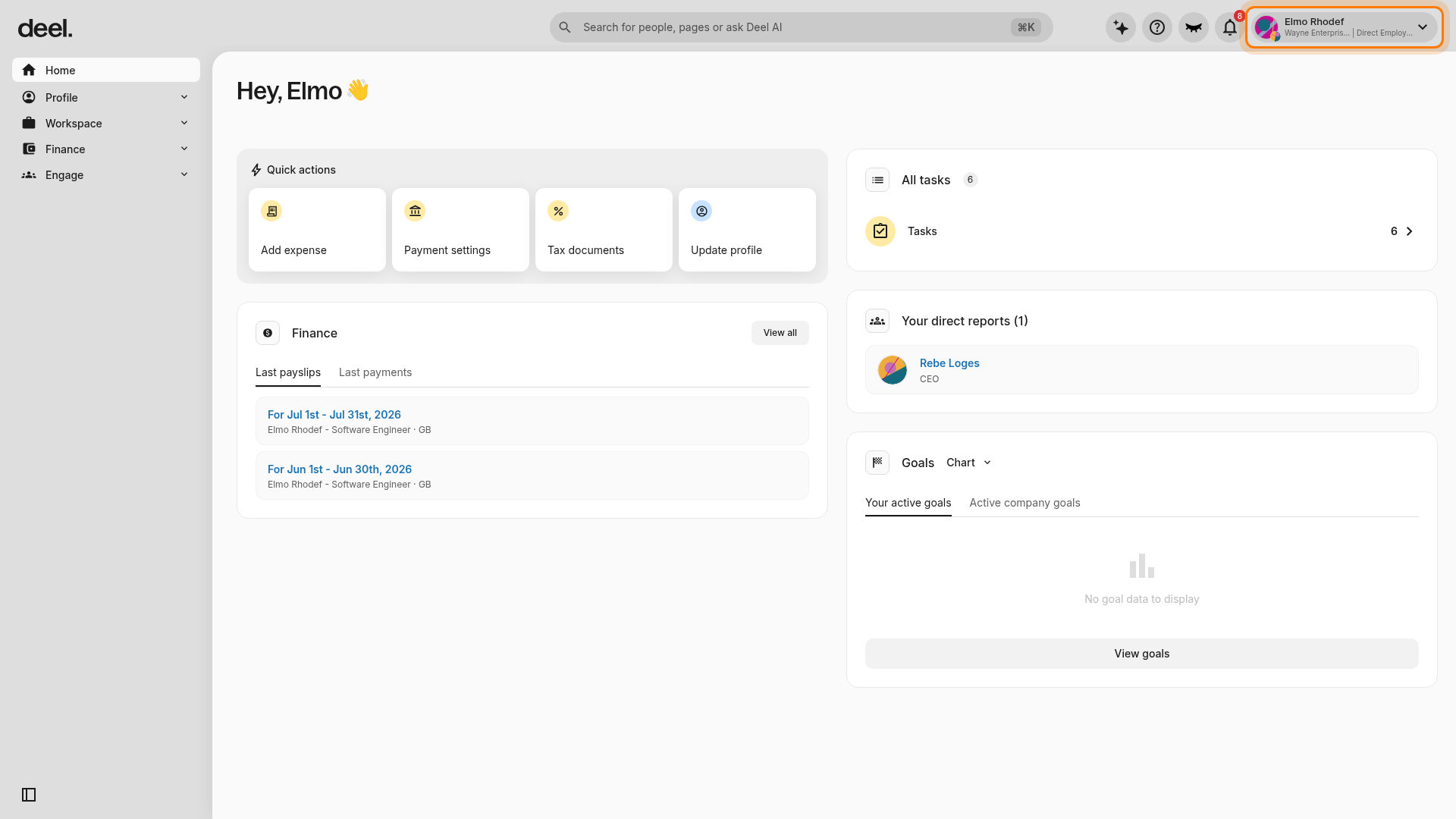
Review the account menu for an organization or administrator workspace you can access.
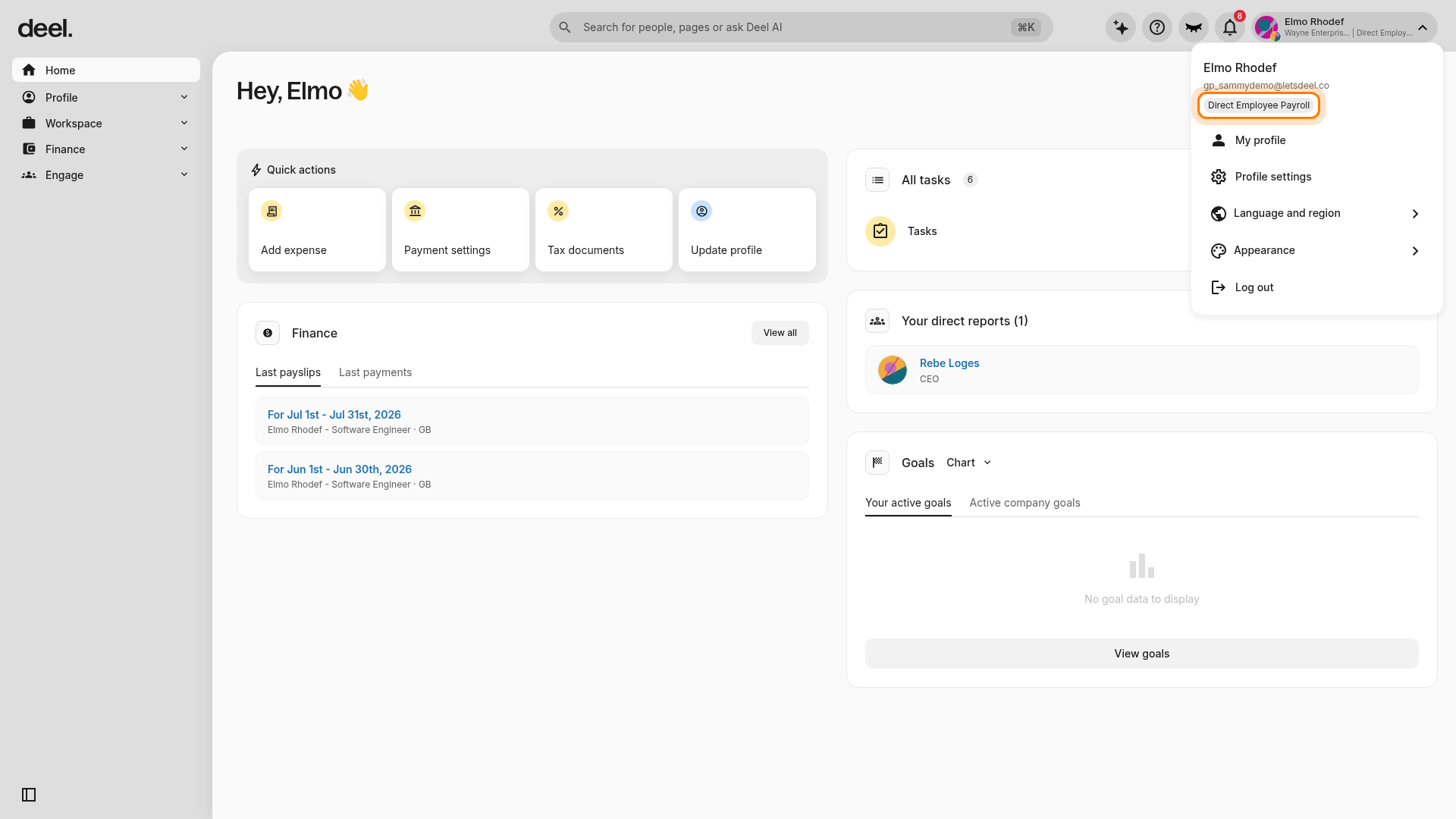
If no organization or administrator workspace is available, contact your organization administrator and ask for access to the organization workspace and the "Settings" > "SFTP connections" area. Profile-level settings do not provide access to SFTP connection test results.
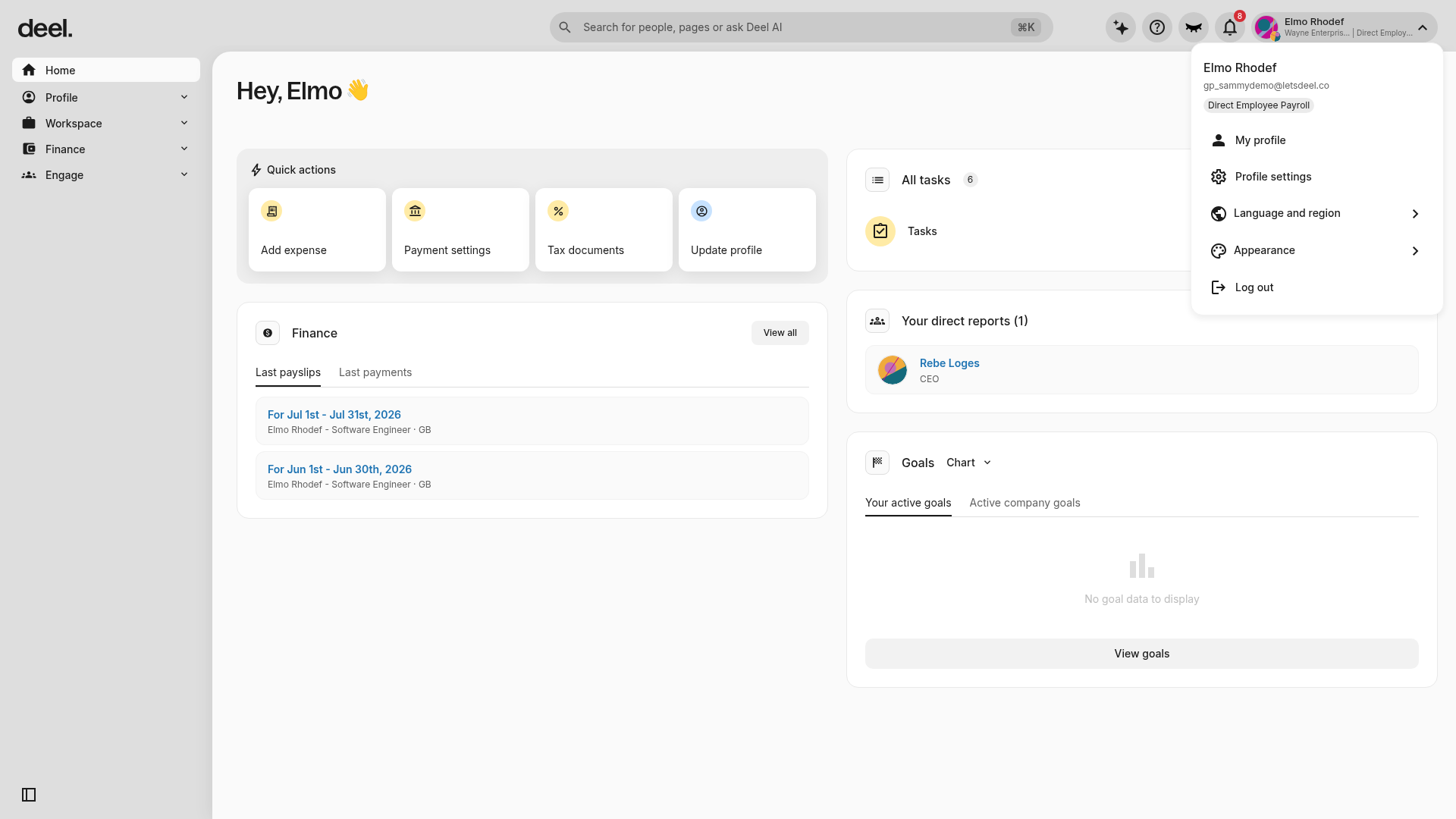
Step 2 - Add connection details
Connection setup
- Entity : Select the entity from the drop down for which you want to setup the SFTP connection
- Payroll Group: Select the relevant payroll group.
Connection details
- Host Name: <Enter the host name>
- Port Number: 22 (by default)
- Username: <Enter the username>
- Authentication with SSH private key
- Click there or drag file to upload: max file size acceptable 10 MB, rows allowed: 1000
- Passphrase (optional): <Enter the Passphrase for your SSH private key>
Step 3 - SFTP directories
File types: Select the relevant files which will be stored in the SFTP
- Payroll Inputs
- G2N reports
- Payslips
- Payroll Outputs
SFTP directory paths : <Enter the path of specific files accordingly>
Step 3 - Connection Test
Click the Run Test button to verify the SFTP connection is established and that files can be accessed.
The connection status will display "SUCCESS" if each sub-step in the connection test indicates a successful setup.
If the connection test fails, the status will show "ERROR", with corresponding sub-step indicators highlighting the specific issue. This could be due to misconfigured server settings, permission denied, directory paths, or a corrupted key file.
To view error details, in an organization or administrator workspace, open "Settings" from the left sidebar, click "SFTP connections", and wait for the connection test results to load. Click a failed test step, for example "File access validation", to check the details, correct the issue, and run the test again.
Step 4 - Notifications
Add recipients whom you want to receive the notifications for errors or new files published to SFTP directories.
If the recipient is already a Deel user, then select them from the dropdown. If recipient is new, then select add new recipient
Step 5 - Review and Finish
Click on "Finish" after reviewing all the SFTP connection steps are correct.
How to disconnect from SFP
On the "SFTP connections" page, click on the three dots action menu for the connection, click "Disconnect SFTP", and click "Yes".
Follow the pop-up windows to confirm and disconnect.
G2N mapping [For External PRMs]
Step 1- Login to Deel's back-office portal [https://prm.deel.com/login]
Log in to Deel's back-office portal using the link above.
Step 2 - Select the entity for G2N mapping
In the left sidebar, click "Settings" to expand its submenu, click "G2N Mappings", and select the relevant entity where you want to do the G2N mapping.
Step 3 - Add ICP columns
You can add all the ICP columns, meaning all the column headers (G2N codes) from your Gross to net report which come out from your local payroll software.
Click Add ICP column
- ICP column name: Enter the name of the ICP column eg. Gross Pay
- ICP column requirement or optional
- Requirement: It's a mandatory column, appears always in your local payroll's software G2N. If it doesn't exist in the G2N report which you upload in Deel platform then it will prompt an error that this column is missing
- Optional: It's not a mandatory column in your local payroll's software G2N.
- Ignored: Ignore the column & will not appear in Deel G2N
- Convert sign: It's usually used for deductions columns & it converts the sign of the computed values while generating Deel G2N if this is enabled
Step 4 - Add Deel G2N items
You can add individual items, meaning you will add entity-specific G2N items one-by-one; or add in bulk.
You can download the sample file to see how the upload file should look like
Download the template "New G2N items Template", fill the template based on your G2N codes & upload.
Step 5 - Add Mapping
Mapping means the item mapping of the local payroll providers G2N columns with Deel G2N columns, which allows for unification of all G2N codes translating into Deel G2N codes.
Click Add Mapping, or navigate from the G2N mapping page to Mapping.
Select the G2N category, G2N sub-category & G2N item from the drop down to map the ICP G2N column to Deel G2N.
If the Deel column is not appearing in the list then click on Create Deel G2N item & it will navigate you to "Adding new Deel G2N item" section, fill in the required details either for individual G2N items or in bulk.