
Talent helps you find qualified professionals across the globe, faster and more efficiently. From job postings to hiring settings, this FAQ covers the most common questions to help clients and talent partners get started and make the most out of the service and all of its features.
For more information on the feature, please see our Overview: Talent - for Clients and Overview: Talent - for Talent Partners articles.
Getting Started
[ACCORDION] How to create a job request?
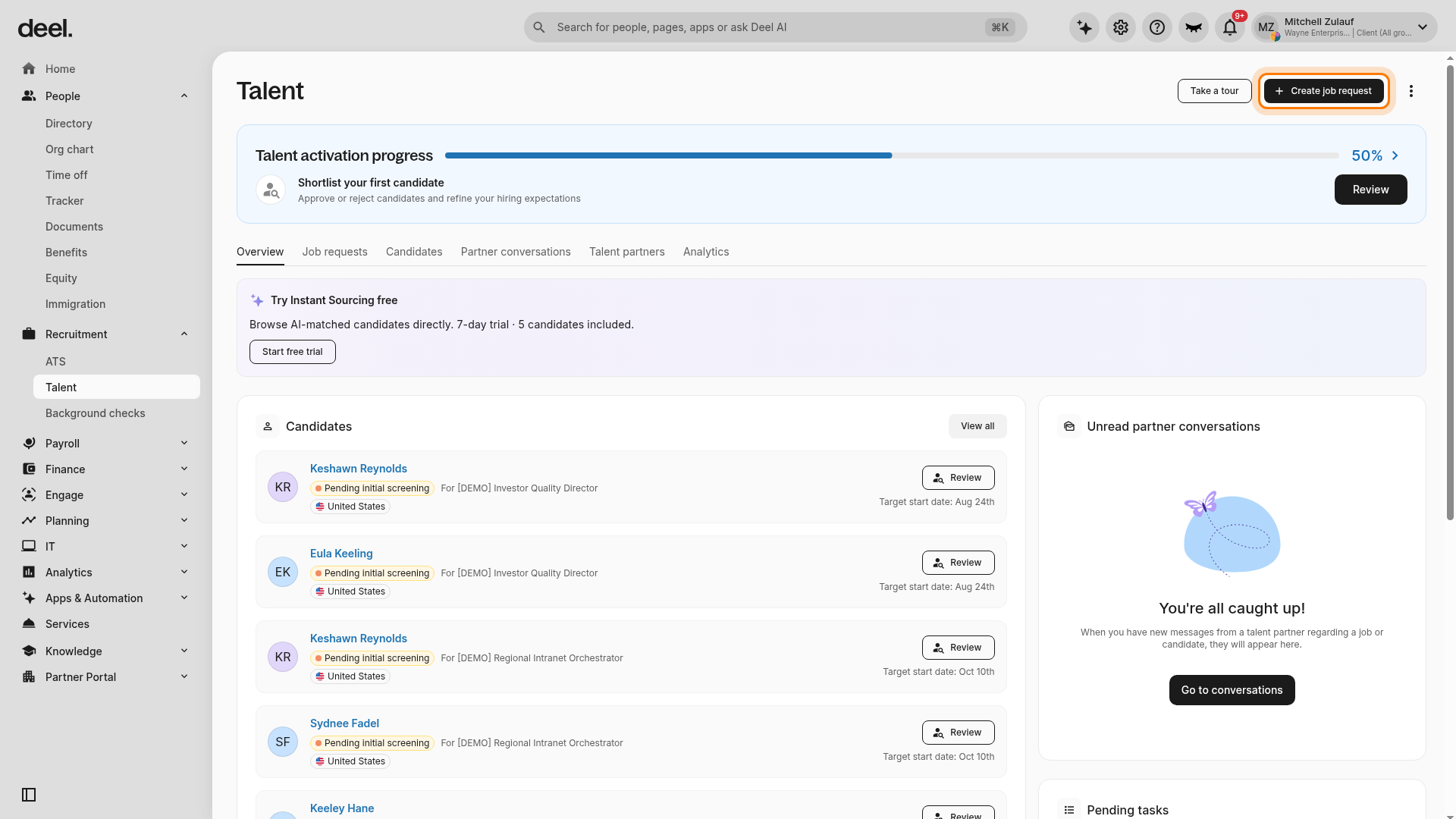
Clients can create job requests by expanding Recruitment in the left sidebar and selecting Talent. If the Welcome to Talent! dialog appears, close it using the X in its upper-right corner. On the Talent overview, click + Create job request in the upper-right corner.
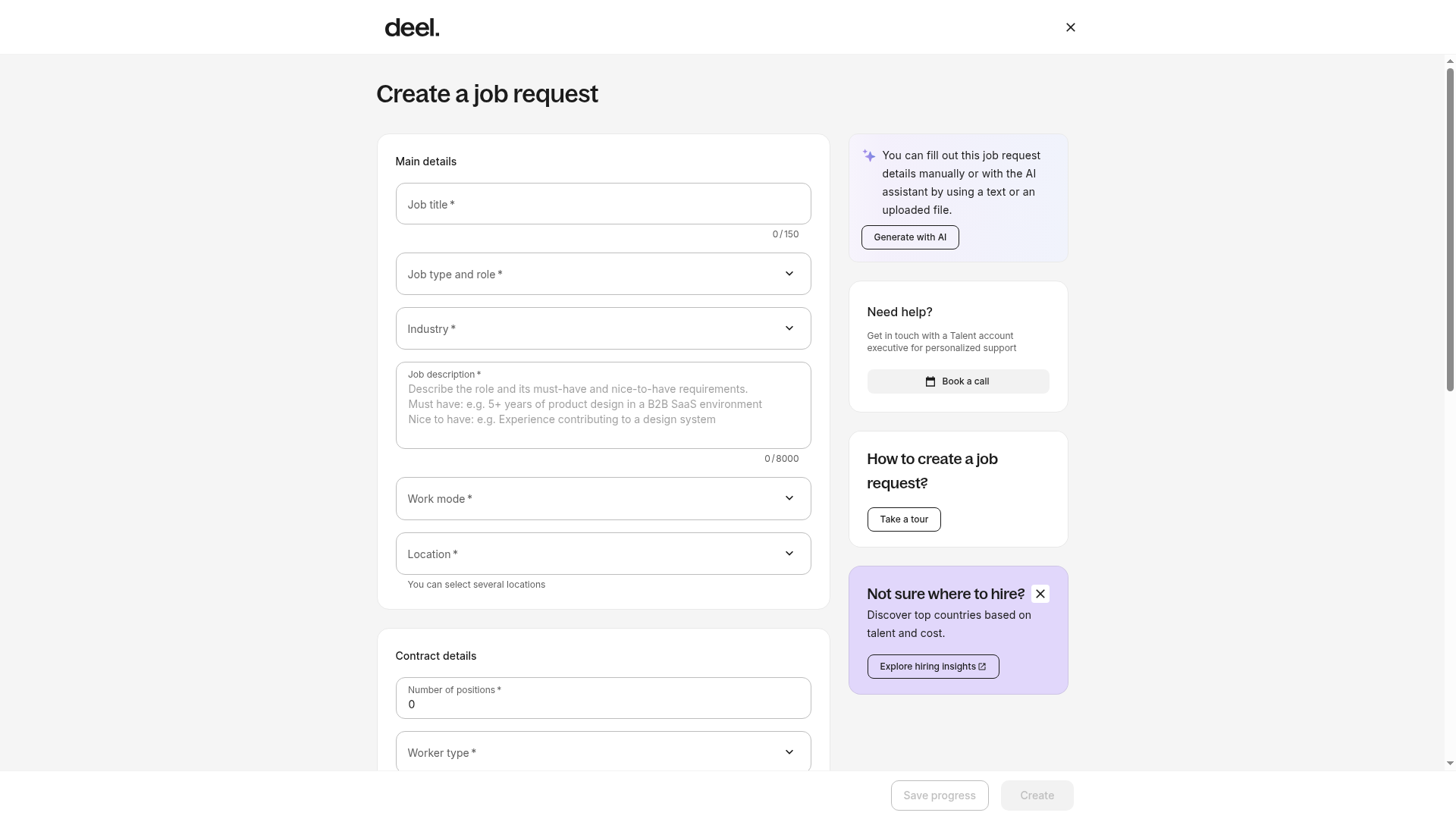
Complete the required Main details fields, including Job title, Job type and role, Industry, Job description, Work mode, and Location. Complete the required contract details, then select Create. For more details on the job creation flow, please see the Hiring With Talent article.
[ACCORDION] How to send a job request?
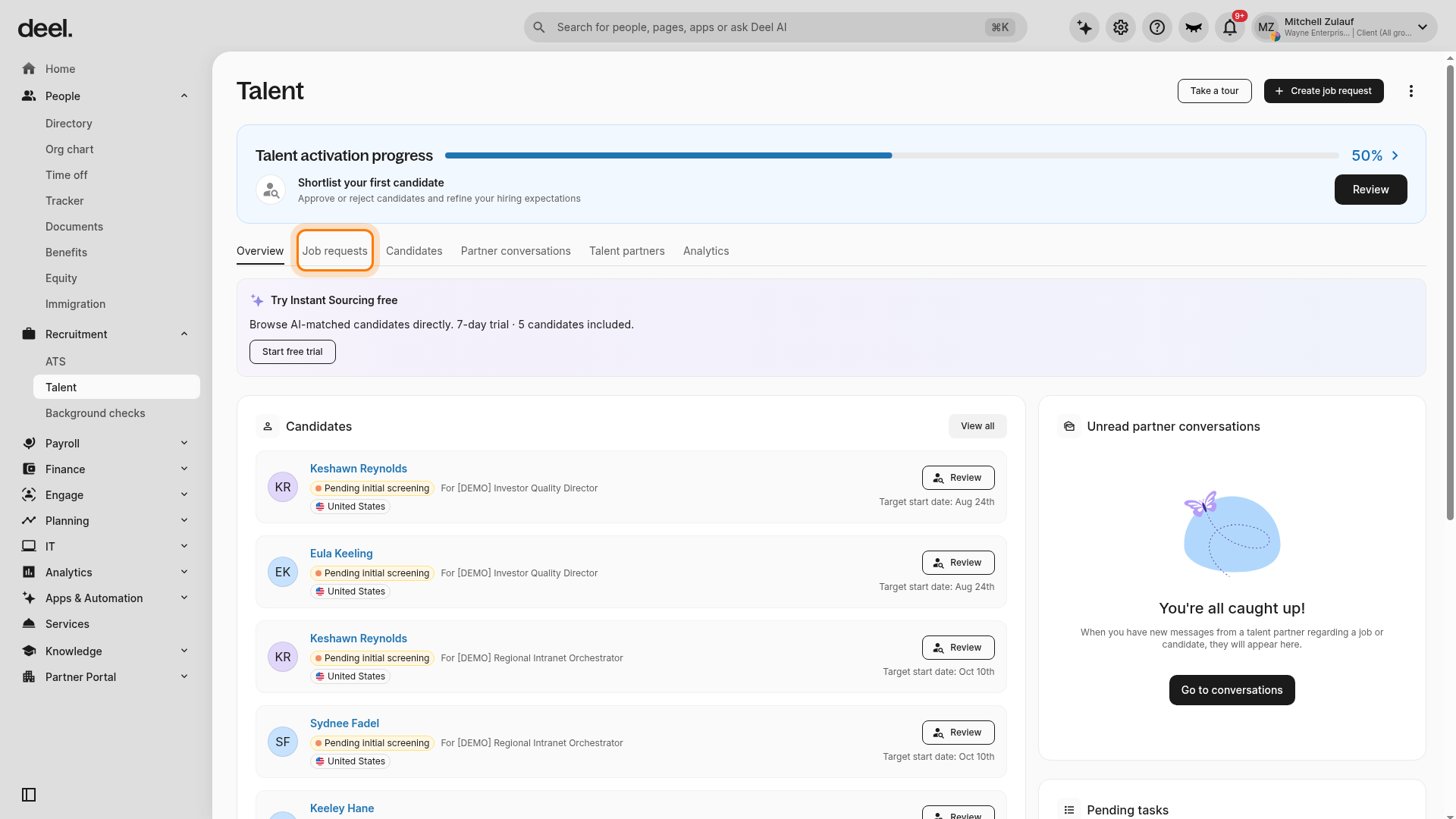
Once a job request has been created, clients need to send it to talent partners. Expand Recruitment in the left sidebar and select Talent. If the Welcome to Talent! dialog appears, close it, then select the Job requests tab. Clients can also send a created position from the Overview tab by clicking Send.
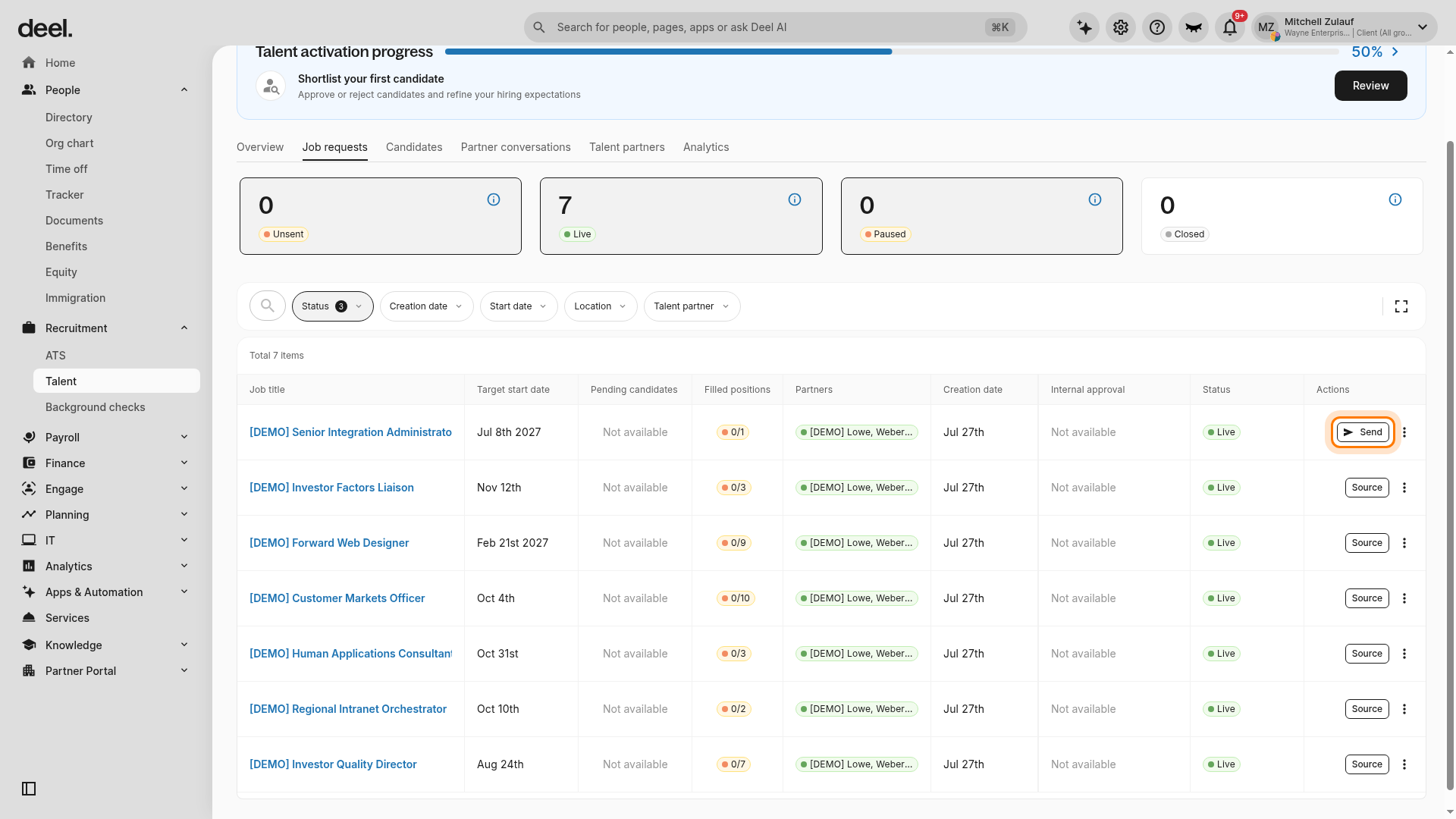
Locate the request you want to share and select Send in its Actions column. Use the status cards or the Status filter if needed, but rely on the action displayed in the table to confirm that a request can be sent.
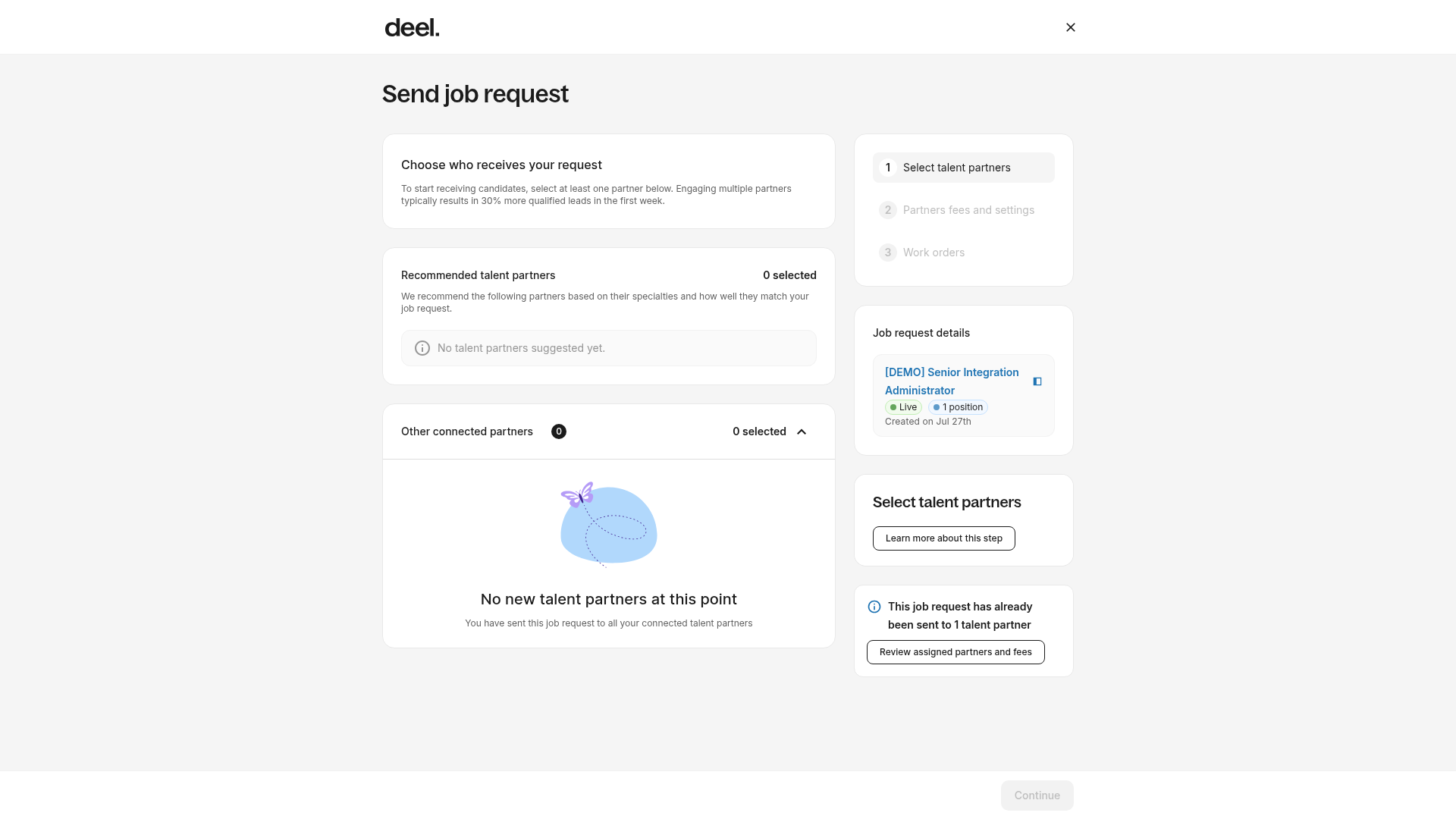
On the Send job request screen, select one or more talent partners under Select talent partners. Clients can select up to ten talent partners, and will be asked to provide the talent partner fee and, if applicable, set a candidate submission limit. They will then need to agree to and sign work orders with the selected talent partners, if required for their organization. At least one available talent partner must be selected before Continue is enabled. For more, please see the Hiring With Talent article.
[ACCORDION] How to set up team members’ access on Talent?
To access Talent, users must have either the Organization Admin role or the Talent Partner Admin role. Clients can assign these roles by selecting the gear icon, going to Roles & Permissions, and opening the Admins tab.
[ACCORDION] How to not miss any Talent notifications?
To ensure all Talent notifications are delivered individually, clients need to click the bell icon in the upper-right corner, go to Categories → Deel Talent updates, and select Real-time as the delivery method.
[/ACCORDION]
Working With Talent Partners
[ACCORDION] How to set up and agree on talent partner fees?
When sending a job request to a talent partner, clients will see a recommended fee based on Deel’s market data.
Talent offers three fee types:
- A one-time fixed fee
- A one-time percentage of the worker’s annual compensation
- A recurring percentage of the worker’s compensation
[ACCORDION] How to communicate with your talent partners?
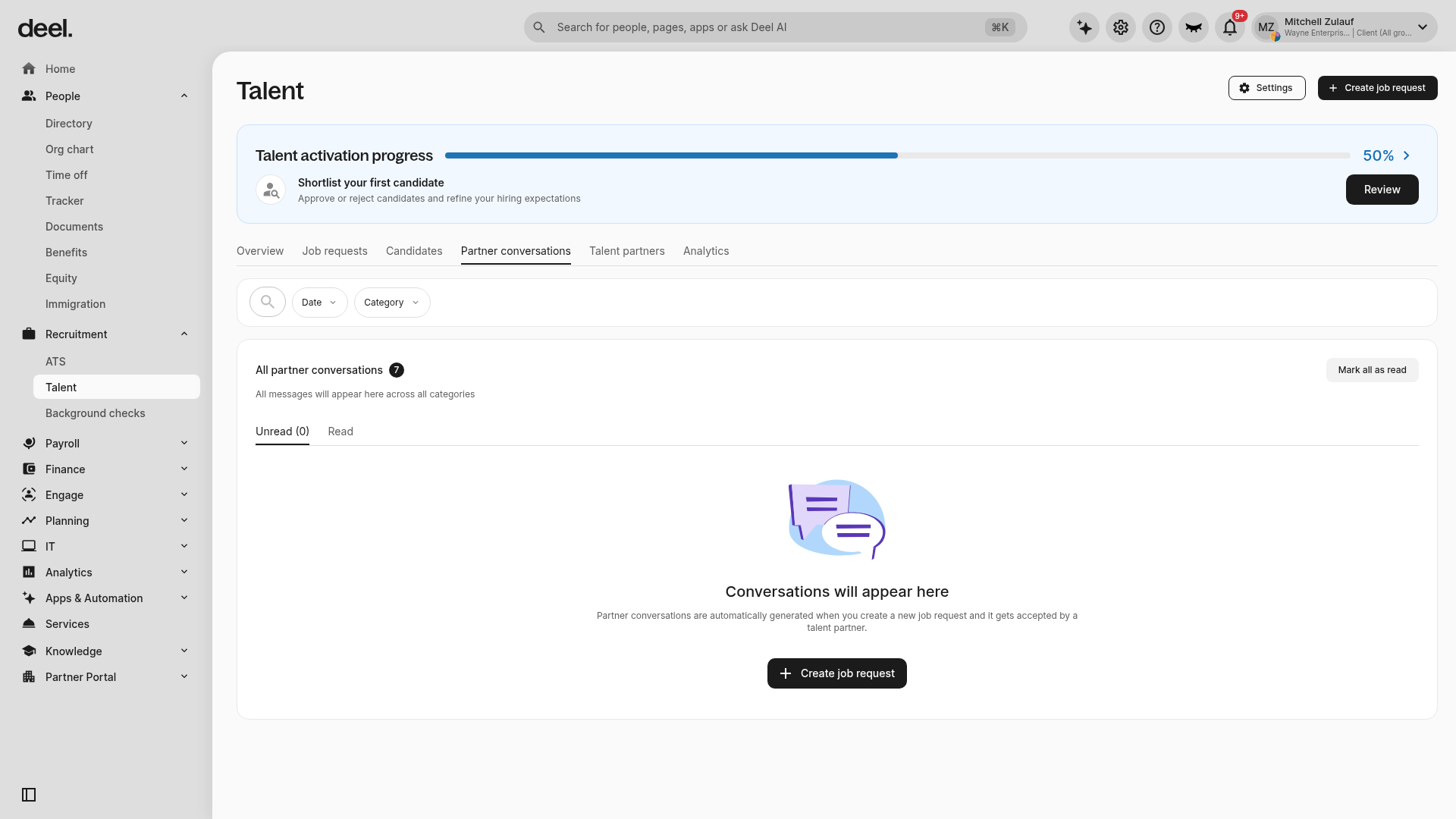
Clients can communicate with talent partners through Talent’s built-in messaging feature. Expand Recruitment in the left sidebar, select Talent, and open the Partner conversations tab.
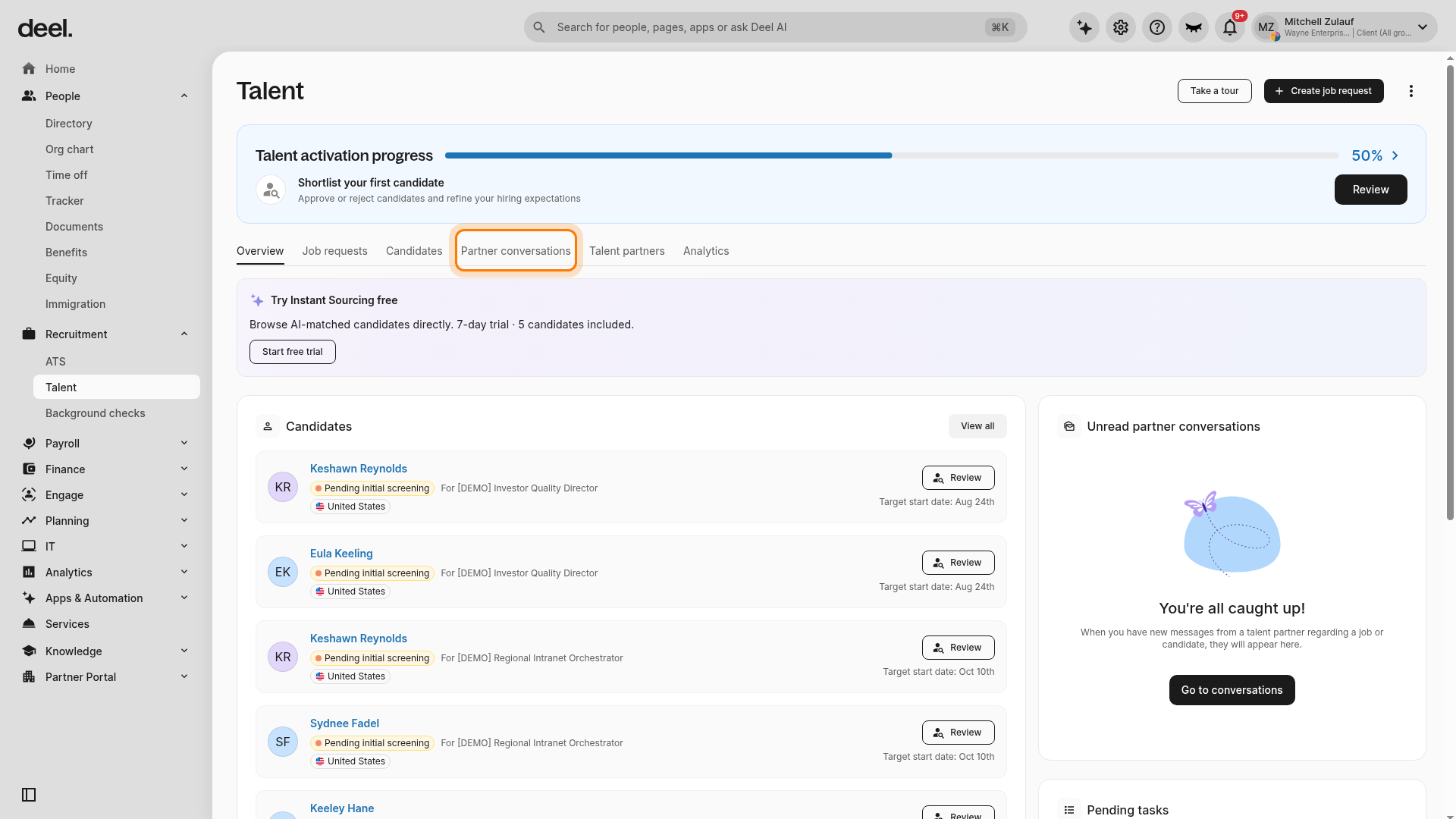
To view candidate-feedback conversations, select the Category filter.
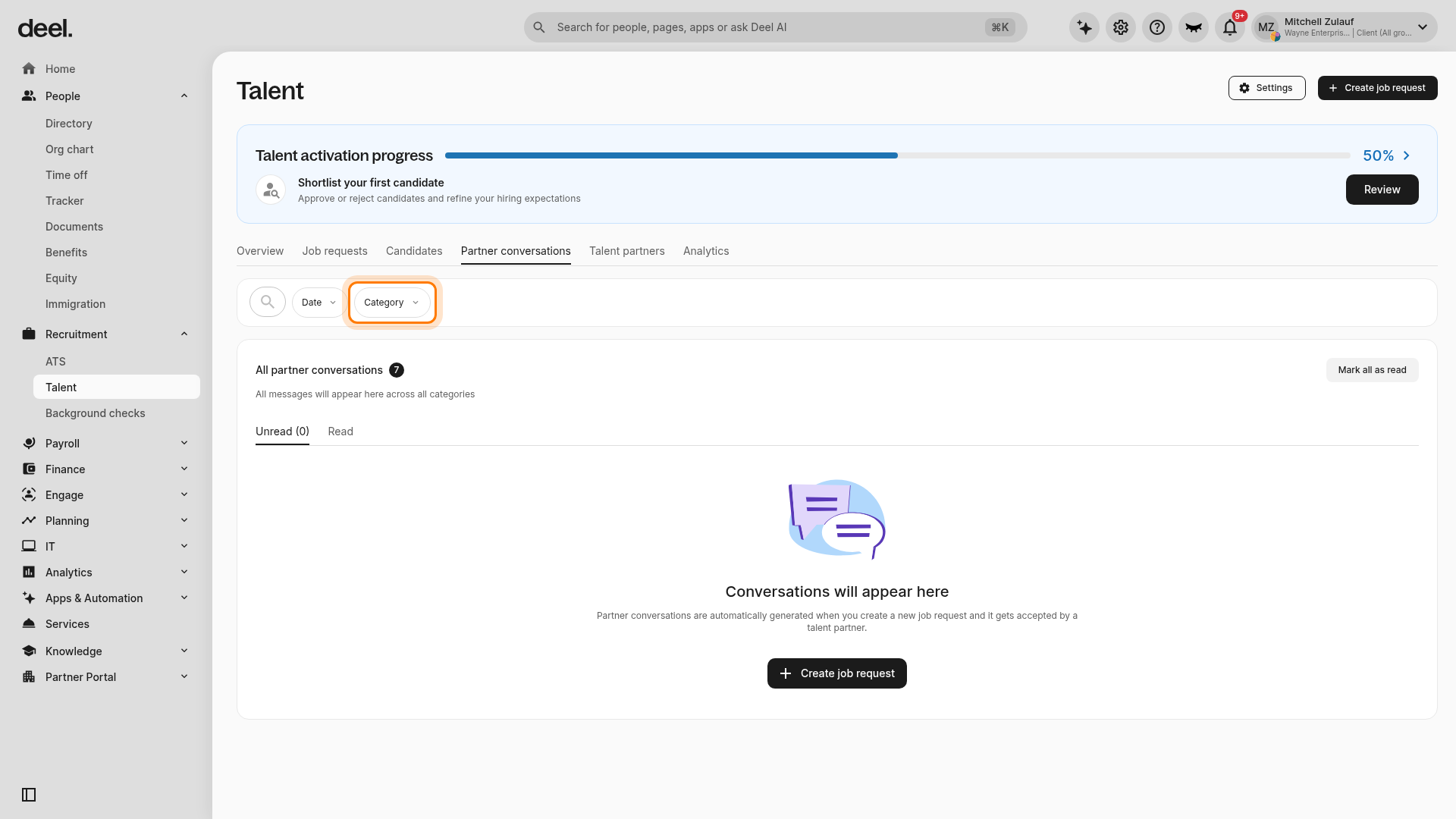
Select the checkbox next to Candidate feedback, then select Show results to apply the filter.
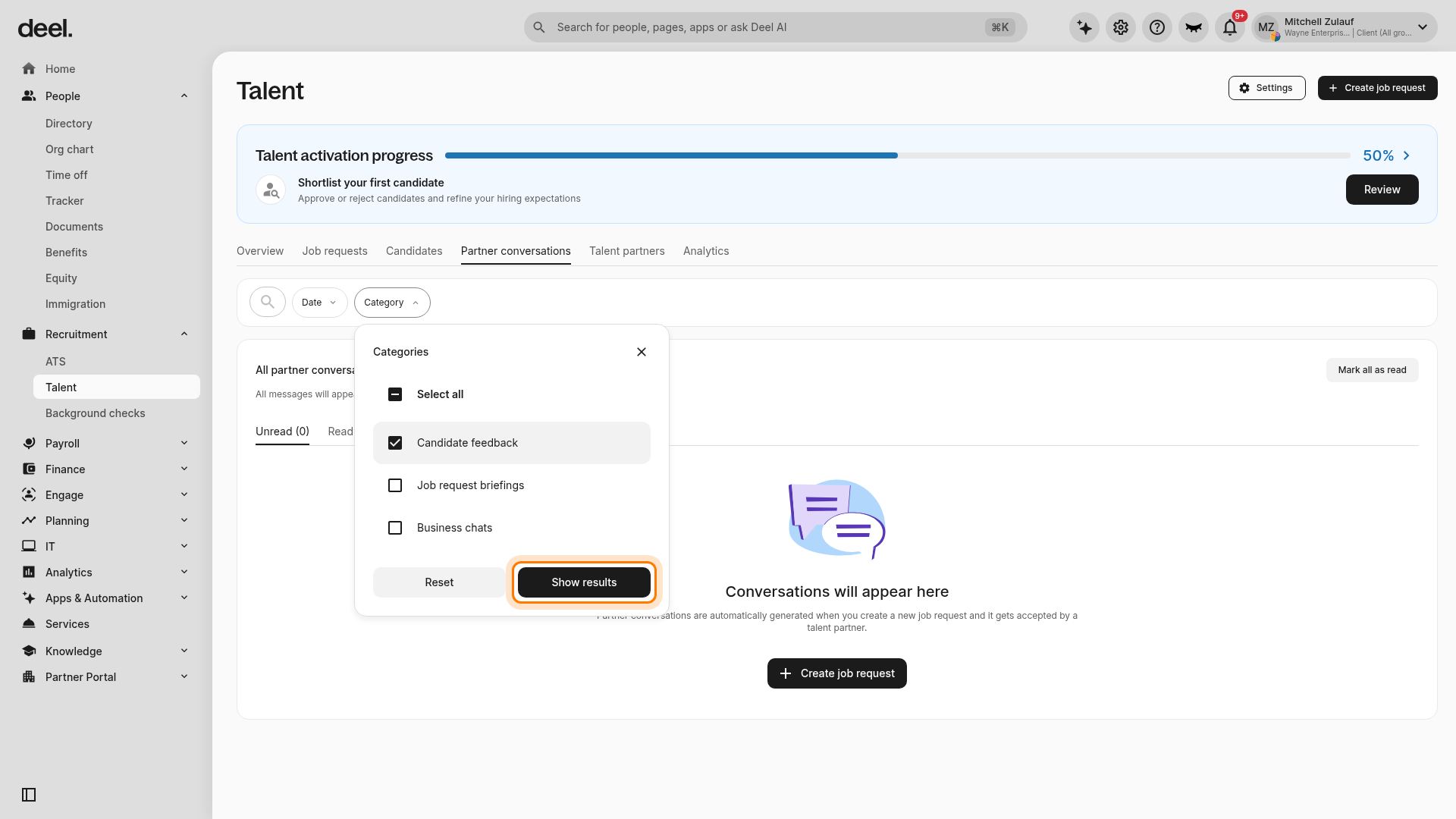
Clients can also filter conversations by available criteria, such as date, or start conversations from the candidate details page, the job request details page, or the talent partner details page. An empty Conversations will appear here state means that no conversations match the selected category.
For each job request sent to a talent partner, clients can also add a shareable calendar link from the job request details page.
[/ACCORDION]
Managing Candidates
[ACCORDION] How to review and screen candidates?
Submitted candidates can be reviewed by expanding Recruitment in the left sidebar, selecting Talent, and opening the Candidates tab, or from the job request details page. Use the Status filter to locate candidates, then select a candidate to view details and conversation history. The candidate review process has four stages:
- Initial Screening – The candidate is being screened by the client.
- Interview – The candidate is being interviewed by the client.
- Offer – Optionally, the client can send an offer to the talent partner for the candidate, or skip this step.
- Hire – The client can create a contract for the candidate.
[ACCORDION] How to send a candidate offer to a talent partner?
For candidates who have been approved, clients can send an offer by clicking the Send an Offer button, either from the candidate list or on the candidate’s details page. The offer will then be sent to the talent partner for approval.
Alternatively, clients can choose to skip the offer stage and move a candidate directly to the hiring stage by clicking the Move Forward button.
[/ACCORDION]
Hiring
[ACCORDION] How to hire a successful candidate onto Deel?
Clients can proceed with candidates who have accepted an offer and are ready to hire by expanding Recruitment in the left sidebar, selecting Talent, and opening the Candidates tab.
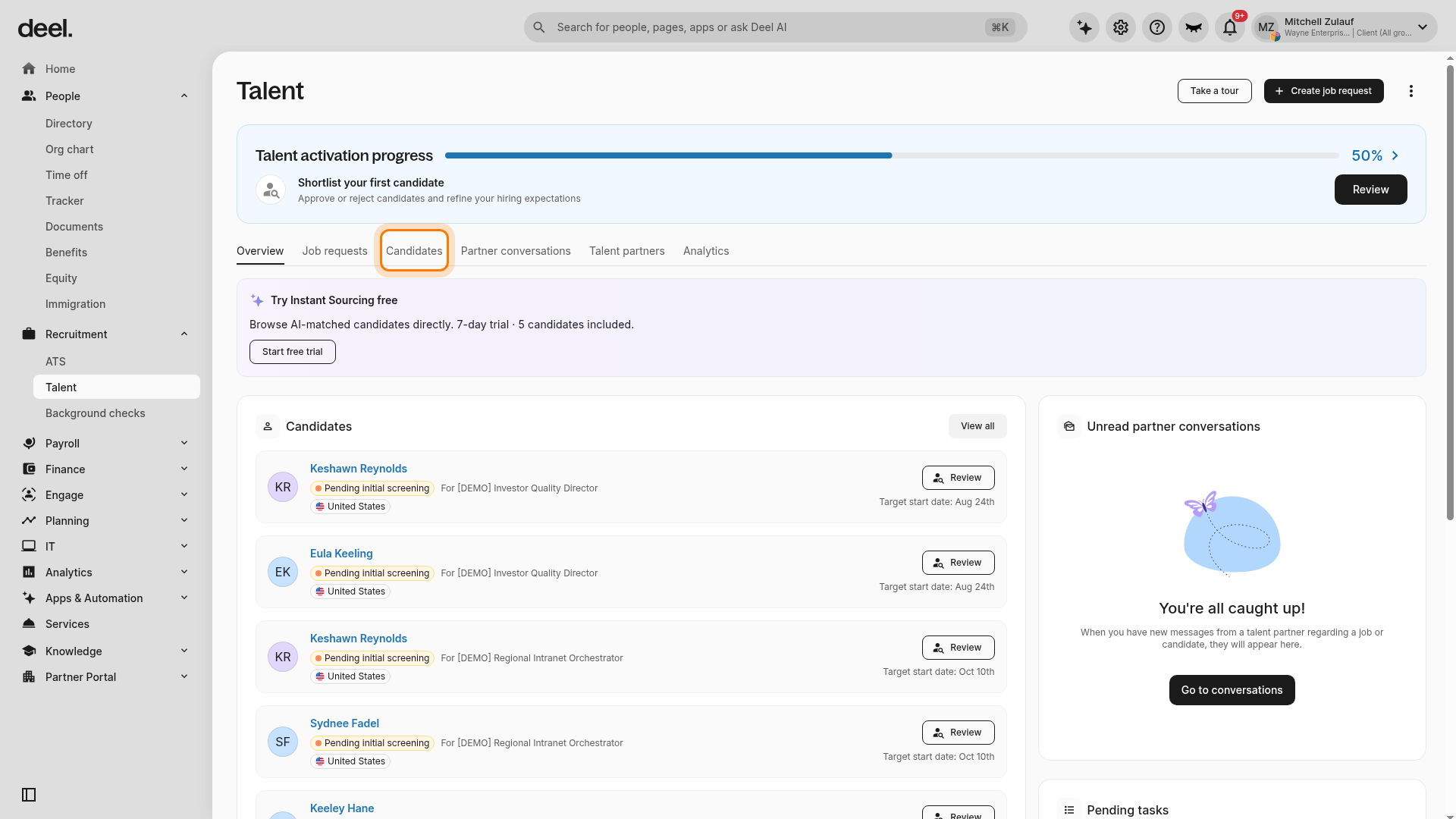
Confirm that the Ready to hire summary card shows an eligible candidate, then locate that candidate in the list. Clients can click Hire in the candidate’s Actions column or in the top right corner of the candidate’s details page. Clicking this button opens the contract creation flow, with the worker’s information pre-populated from the details submitted on Talent. Complete the remaining contract fields and select Create contract.
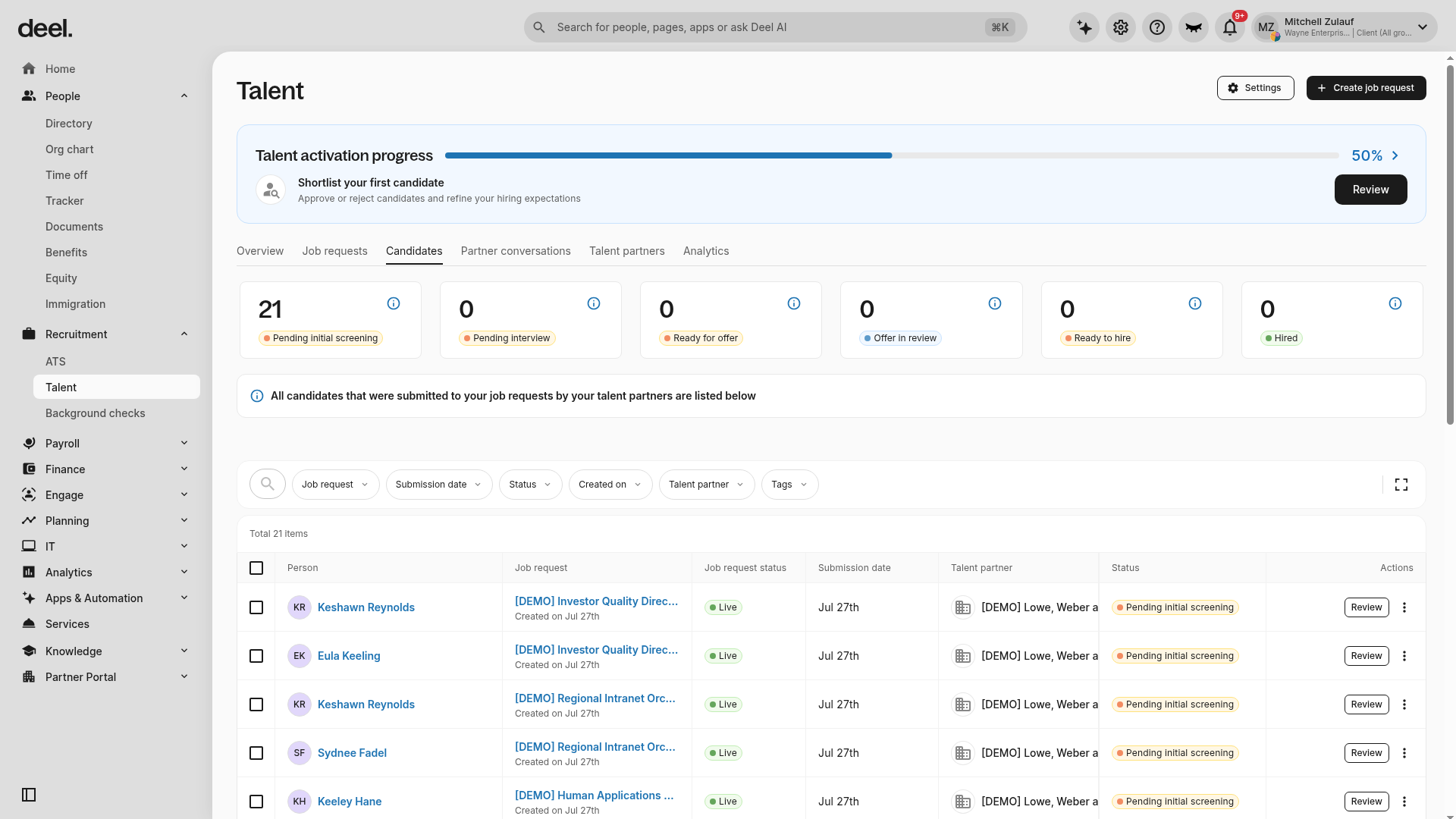
Hire is available only for candidates in Ready to hire status. Do not use Review as a replacement for Hire; it opens candidate review and does not start contract creation.