
Talent connects talent partners and clients to help them find qualified professionals across the globe, faster and more efficiently. From job postings to hiring settings, this FAQ addresses the most common questions to help talent partners get started and maximize the benefits of the service.
For more information, see:
Overview: Talent - for Talent Partners
Account Setup and Company Information
[ACCORDION] How to provide your company details?
Talent Partners can provide their company details through an onboarding form displayed when they first access the Talent product.
How to Update Company Information
- Select the Organization settings gear icon in the top-right corner of Deel.
- In All Settings, under Organization & security, select Organization. If needed, select Organization again to expand the submenu.
- Select Details under Organization.
- On the Organization details page, select Edit for the information you need to change, update the fields, and save your changes. Talent Partners can also manage/activate team members.
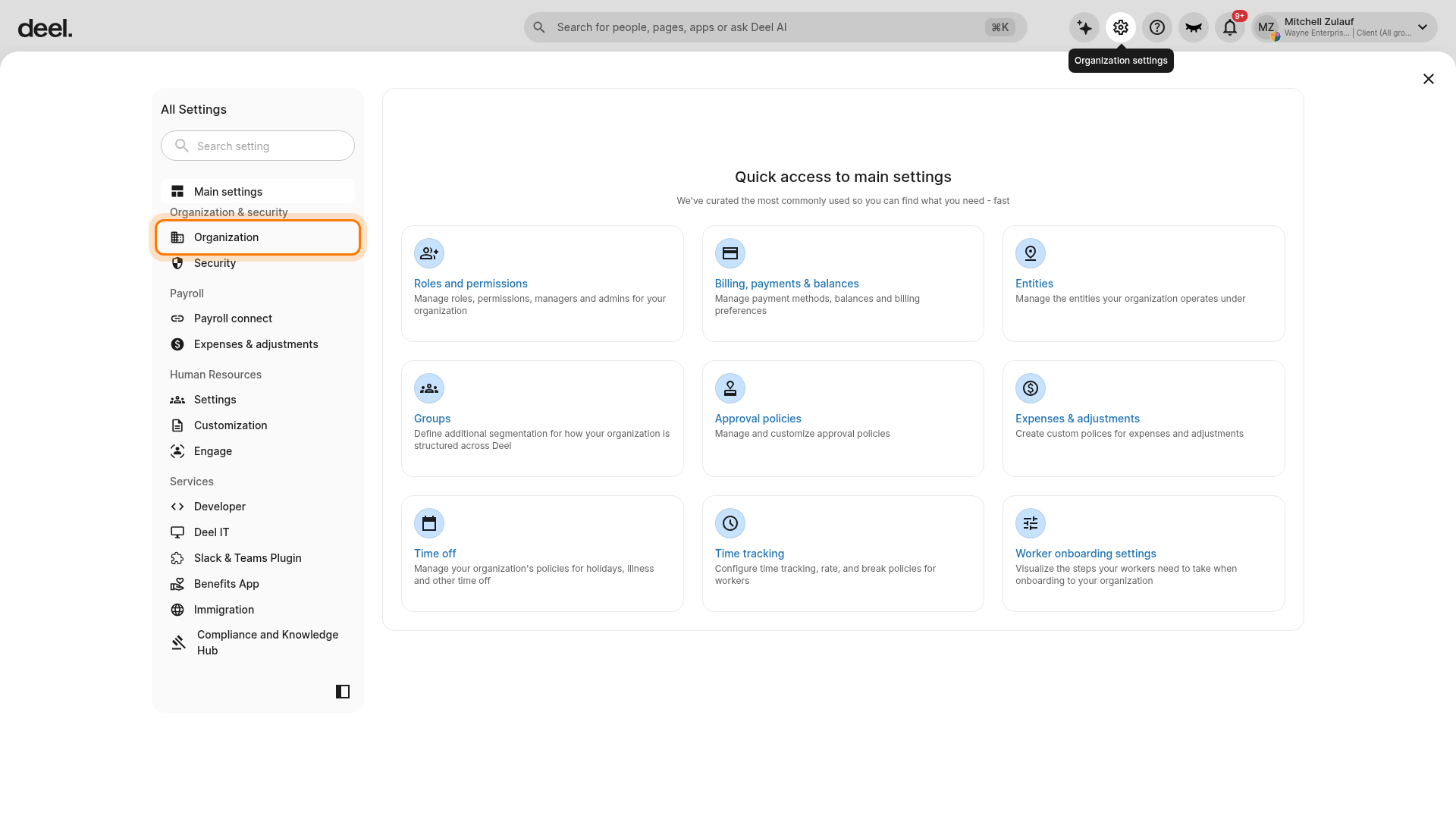
In All Settings, locate Organization under Organization & security.
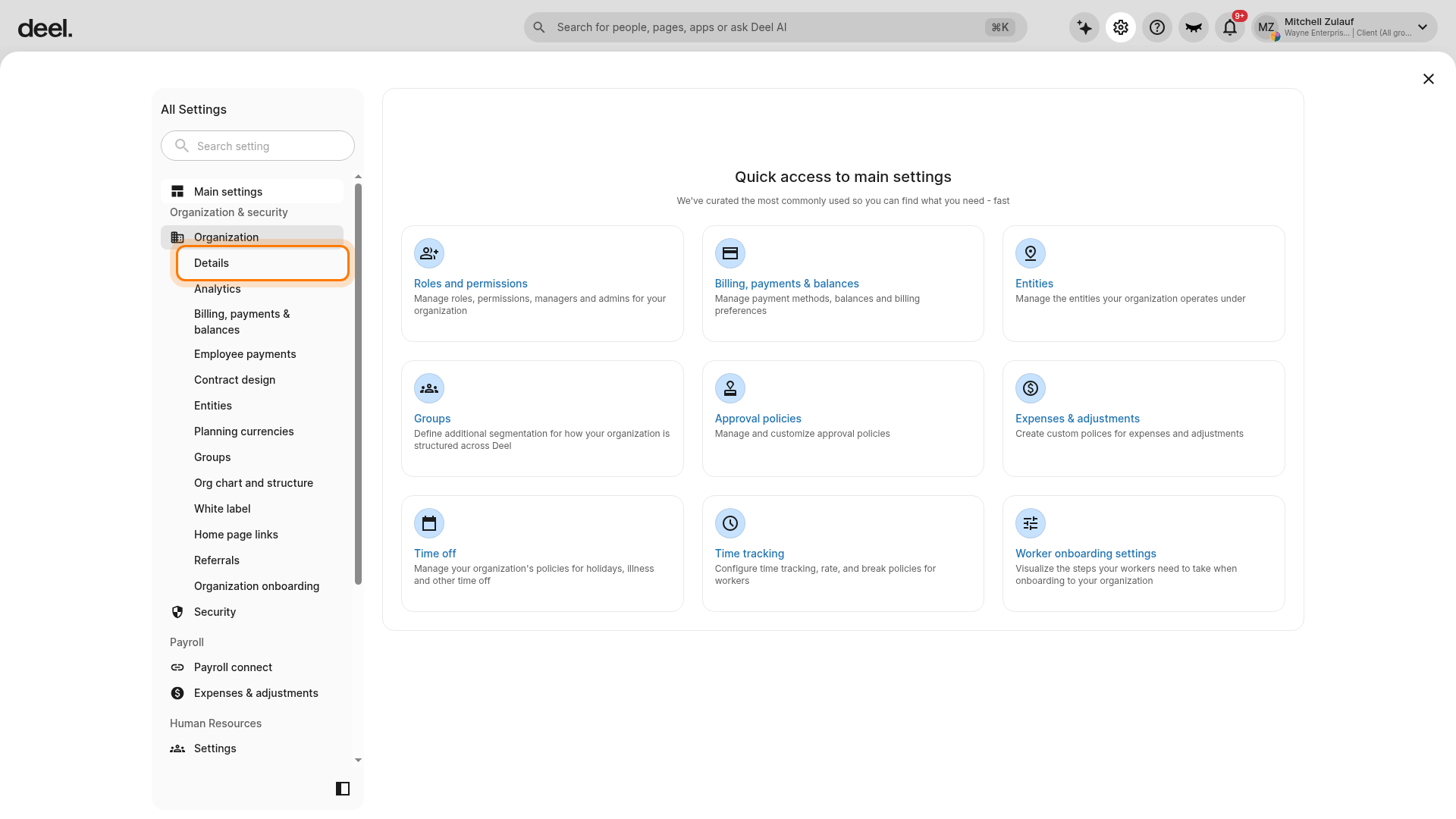
Select Details from the expanded Organization menu.
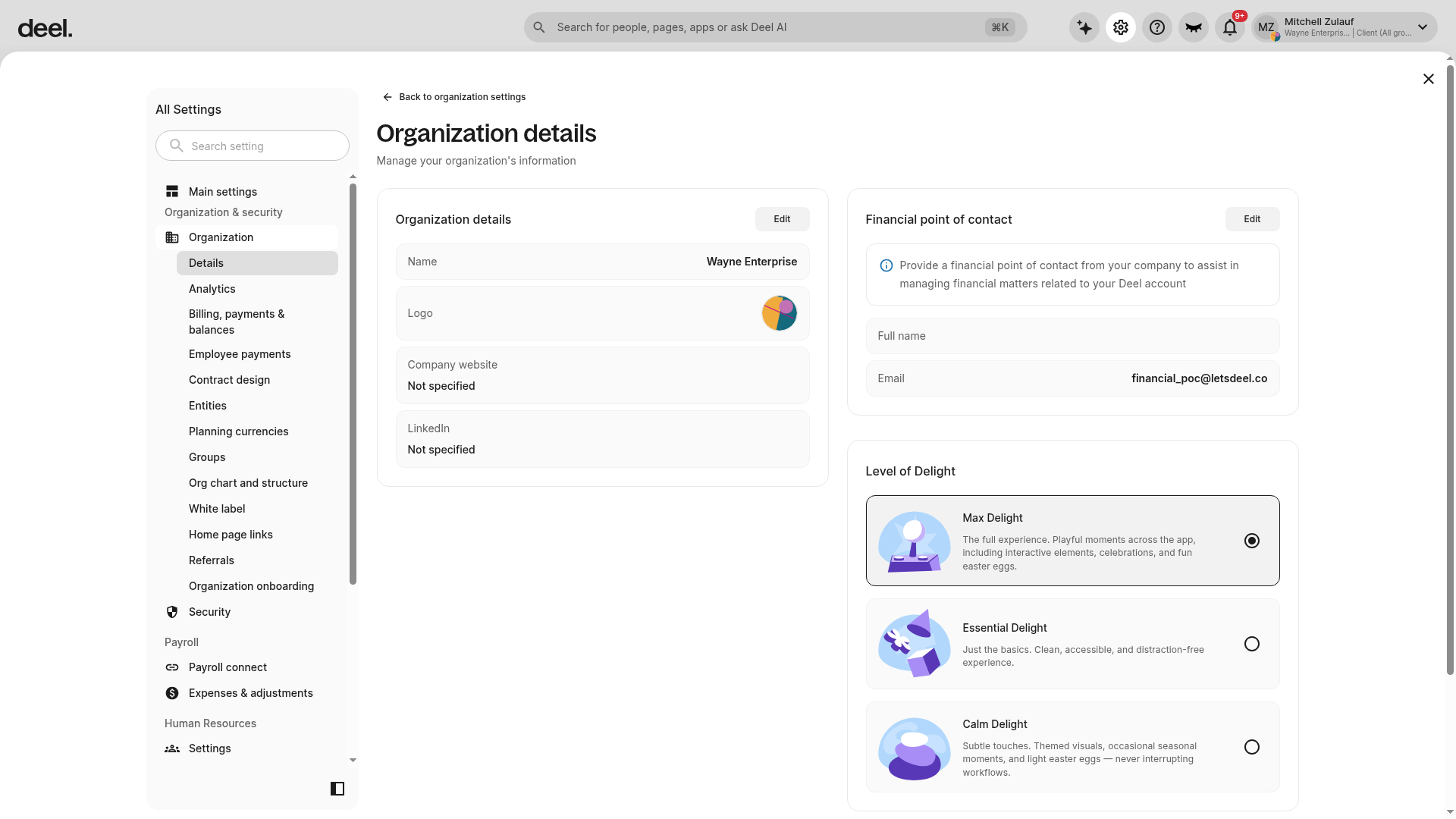
Confirm the page heading is Organization details and that it displays your organization information and the Financial point of contact section.
To update business specialties, Talent Partners should contact their Customer Success Manager (CSM).
[/ACCORDION]
Managing Candidates
[ACCORDION] How to create a candidate profile?
Candidate profiles can be created:
From any dashboard tab using Create Candidate Profile, or
Directly via a Job Request by selecting Create a Candidate Profile and filling out the required information.
If neither option is available, open the general person profile form:
- In the left sidebar, select People. If it is collapsed, select it to expand the section.
- Select Directory under People.
- On the Directory page, select Add people in the upper-right corner.
- Select Add one person. Do not select a contract-specific shortcut, such as Individual contractor, Direct employee payroll, or EOR employee, when you need the general profile form.
- Complete the required team and personal details, then select Continue.
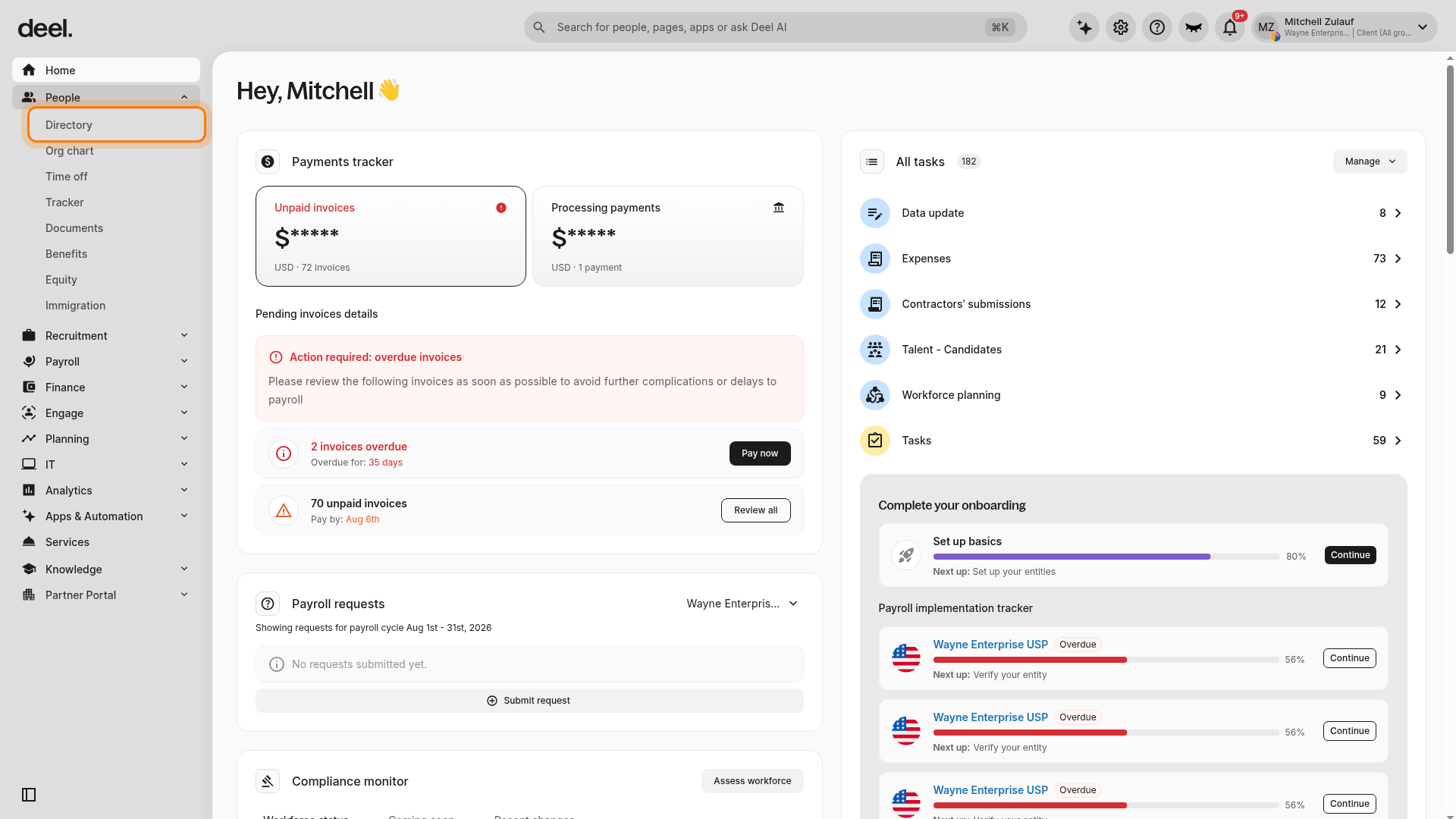
Select Directory from the expanded People navigation.
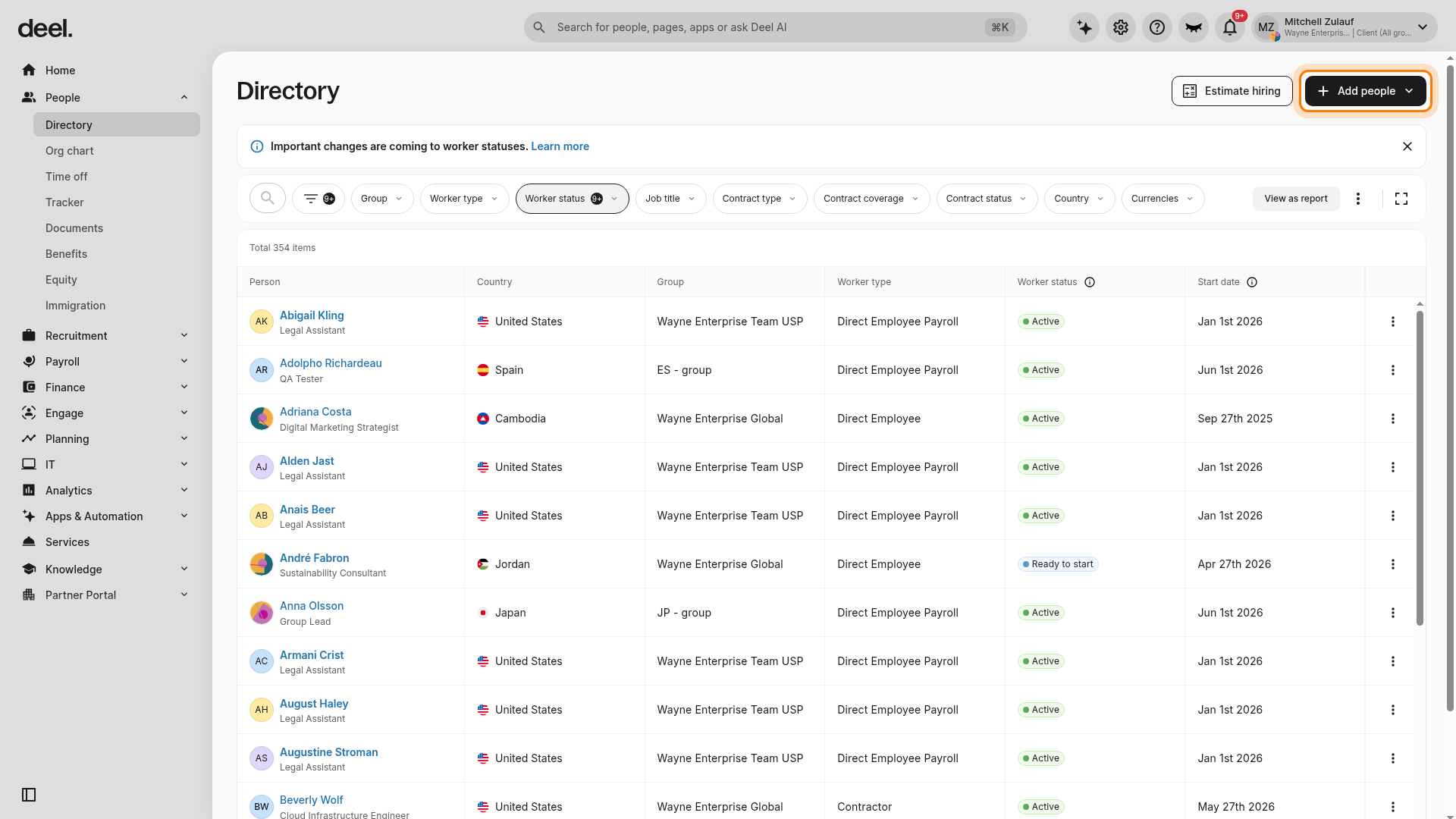
Select Add people in the upper-right corner of the Directory page.
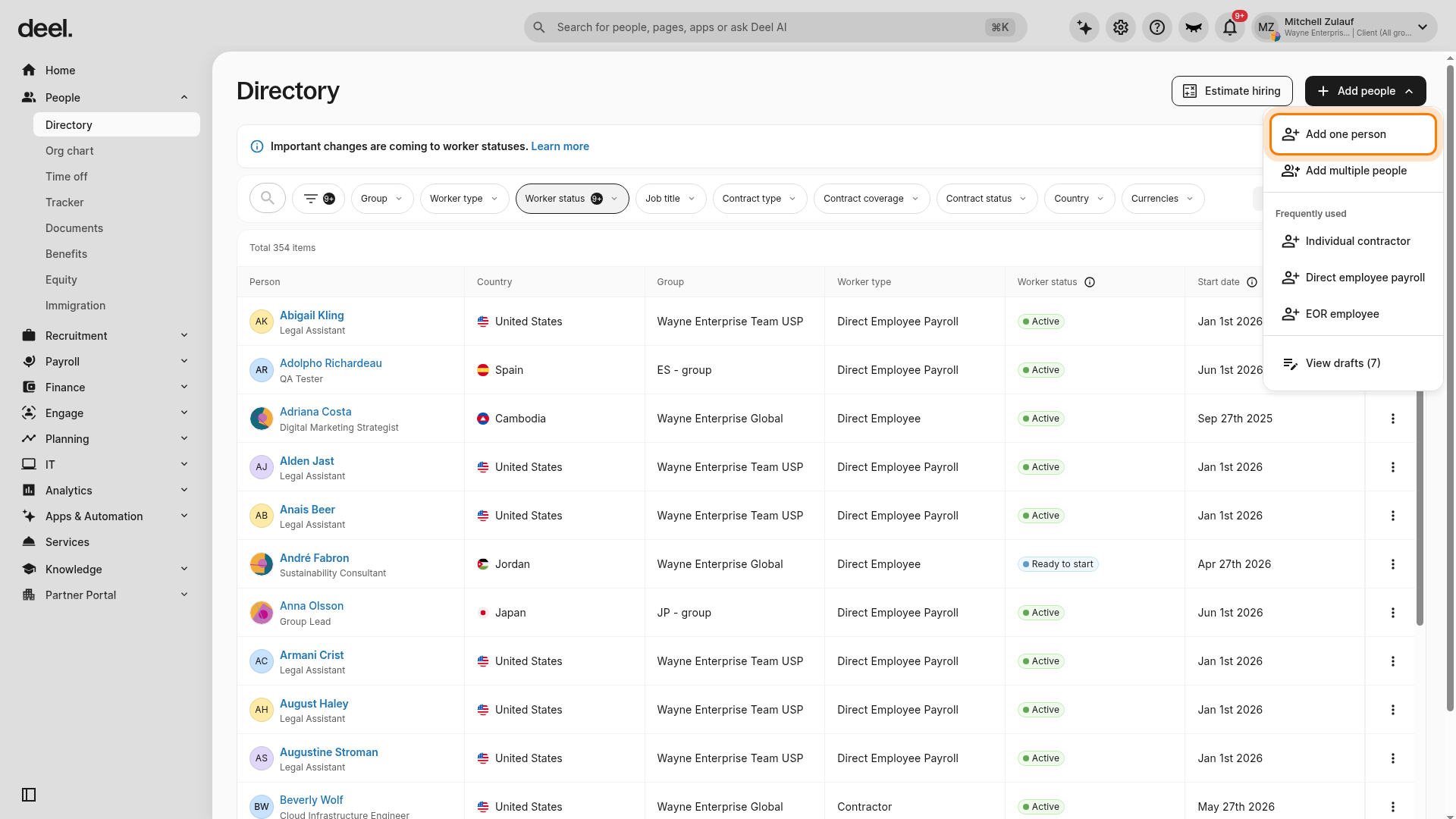
Select Add one person from the Add people menu.
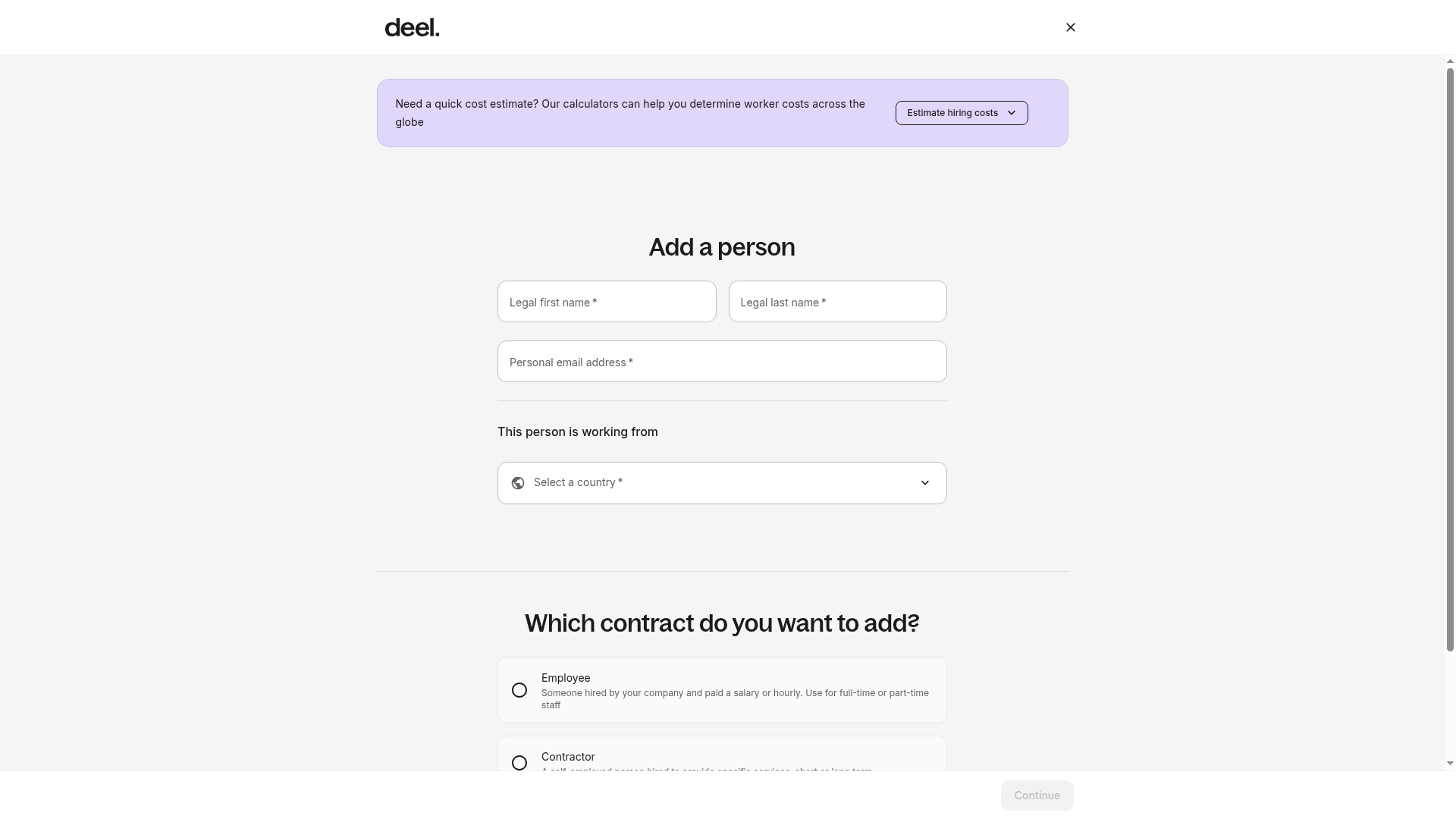
The form is ready when the Add a person heading appears and includes required legal-name, personal-email, country, and contract-type fields.
[ACCORDION] How to submit a candidate to a job request?
Candidates can be submitted to a specific job request in two ways:
- From the candidate profiles table or the candidate profile details page, by clicking Submit to a Job Request.
- From the job requests table or the job request details page, by clicking Submit a Candidate.
[ACCORDION] How to accept a candidate's offer?
Talent partners can accept a candidate's offer through the Review Offer process in Talent.
Here's how it works:
- After the client sends an offer, the talent partner receives it for review
- The talent partner can then review the details and make a decision
- They have the option to either accept or reject the offer
What happens after acceptance:
- Once the talent partner accepts the offer, the candidate's status changes to Ready to Hire
- The client can then proceed to create a contract by clicking Hire from the Candidates tab
- This directs them to the Add People flow, where a worker profile is created and linked to the candidate
Important note: The talent partner manages this process on behalf of the candidate, as candidates only engage at the final stage when the client creates a Deel account for them and sends an invitation.
[/ACCORDION]
Working with Clients and Job Requests
[ACCORDION] How to accept a client job request and its fees?
Talent Partners can review pending job requests by clicking Review on the job request details page or from the job requests list. This opens a drawer displaying all job details, including the proposed fees.
After reviewing the information and confirming that the request aligns with their capabilities, Talent Partners can accept the job request and the associated Work Order.
[ACCORDION] How to communicate with your client?
Talent partners can communicate with clients through Talent's built-in messaging feature. They can use the Client Conversations Tab, which centralizes all communication between clients and talent partners.
Within the Client Conversations tab, talent partners can:
- View conversation threads with clients
- Post new messages directly on the platform
- Leave candidate, job request, or client-specific comments, which trigger email notifications for the other party
They can also start a conversation via the candidate, job request, or client-specific details page.
[/ACCORDION]