
Companies often need to maintain an auditable log of worker information changes that are made to worker profiles.
Administrators responsible for HR information want to be able to explain who changed the worker’s record and why these changes occurred.
Deel automatically creates a log entry every time a change is made to a worker's personal, profile, or contractual information. Organizations who enable the “Modification Reason” feature will be able to record more granular information for each update.
The person submitting changes will be required to complete the additional step of providing a reason for the updates they are making. Along with a modification reason, they can add additional information (including web links) to provide more context to the edit.
Deel will capture information like the name of the worker, employee ID, name of the person making the change, date and time stamp, fields edited, changed from and changed to, and more!
The modification reason is shown as an additional column in the change log of the worker's profile. You can access the change log report for the individual or the organizational overall at any time to review and export historic changes.
In this article:
Enable and Customize Modification Reasons
Accessing Change History and People History Reports
Enable and Customize Modification Reasons
To enable Modification Reasons, clients will create a list of modifications to track directly in Deel. The modifications created will populate the drop-down list of Modification Reasons available when one of these changes is submitted.
The option to track Modification Reasons will be enabled when at least one reason has been added.
✅ Step 1 - Go to Organization Settings Icon, and click View under Custom Reasons card.
Click the Organization settings gear icon. Locate the Custom reasons card and select View.
✅ Step 2 – Add Modification Reason.
Select the Modification tab and click Add modification reason. Type in a Modification Reason Description, then select Create.
Repeat the process to add as many Modification Reasons as needed.
In the Action Menu, use the Pencil Icon to Edit and the Trash Bin icon to Delete.
Accessing Change History and People History Reports
You can access the change history on an individual worker's profile or for the organization as a whole via the People History Report.
Individual Change Log:
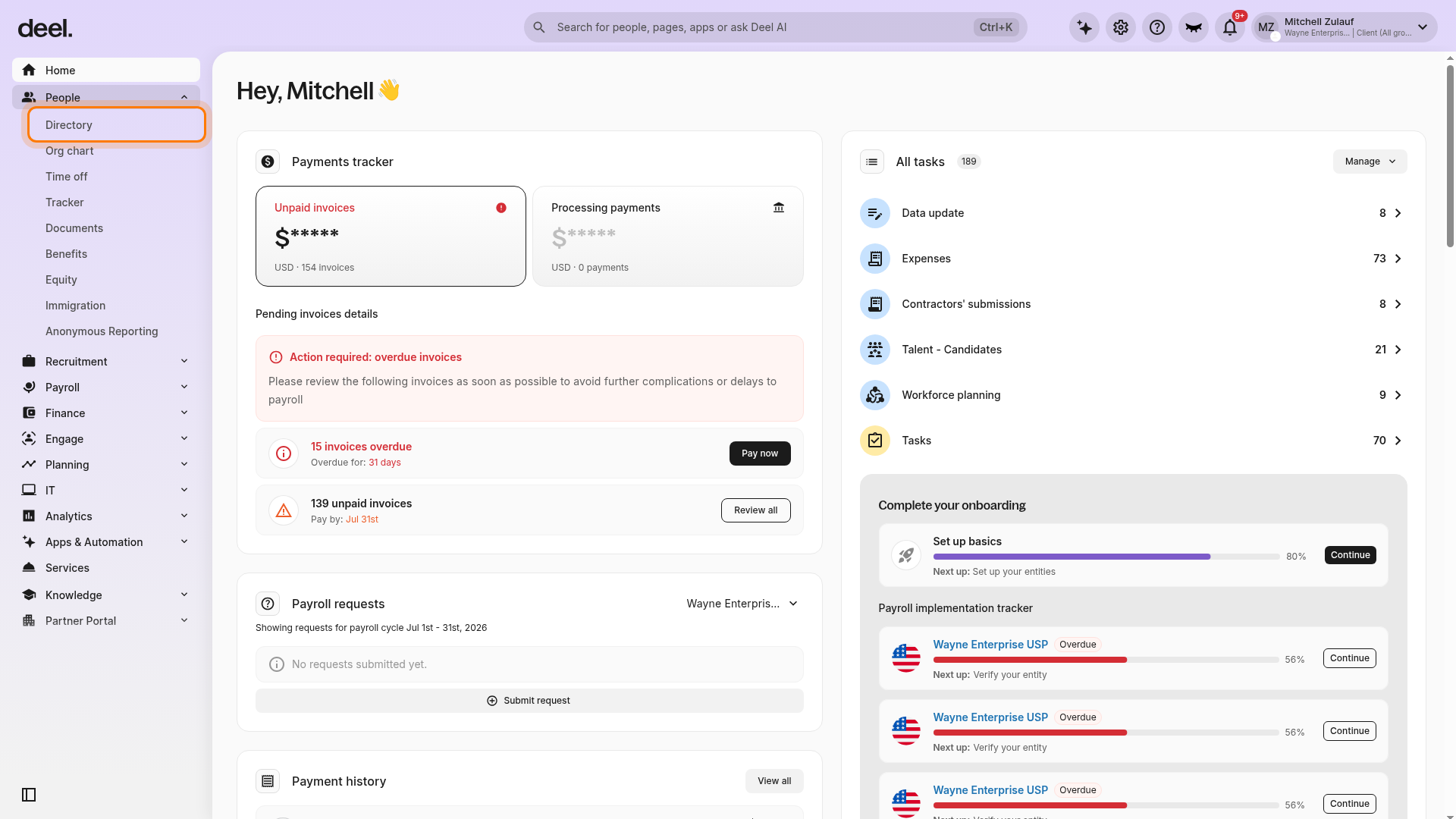
- In the left sidebar, select People to expand its submenu.
- Select Directory.
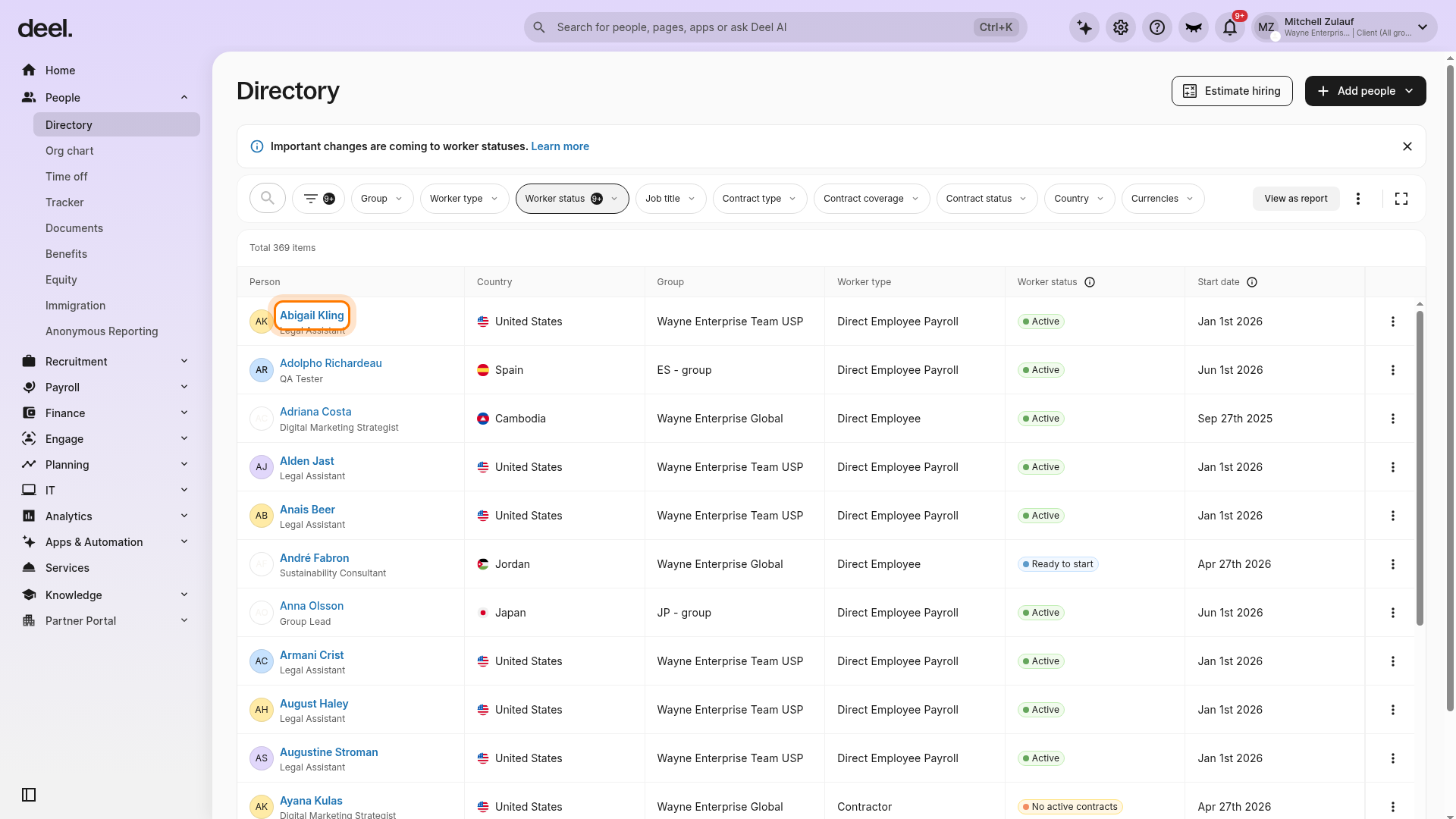
- In the Directory table, select the required worker's name.
- Select the name in the Person column to open their profile.
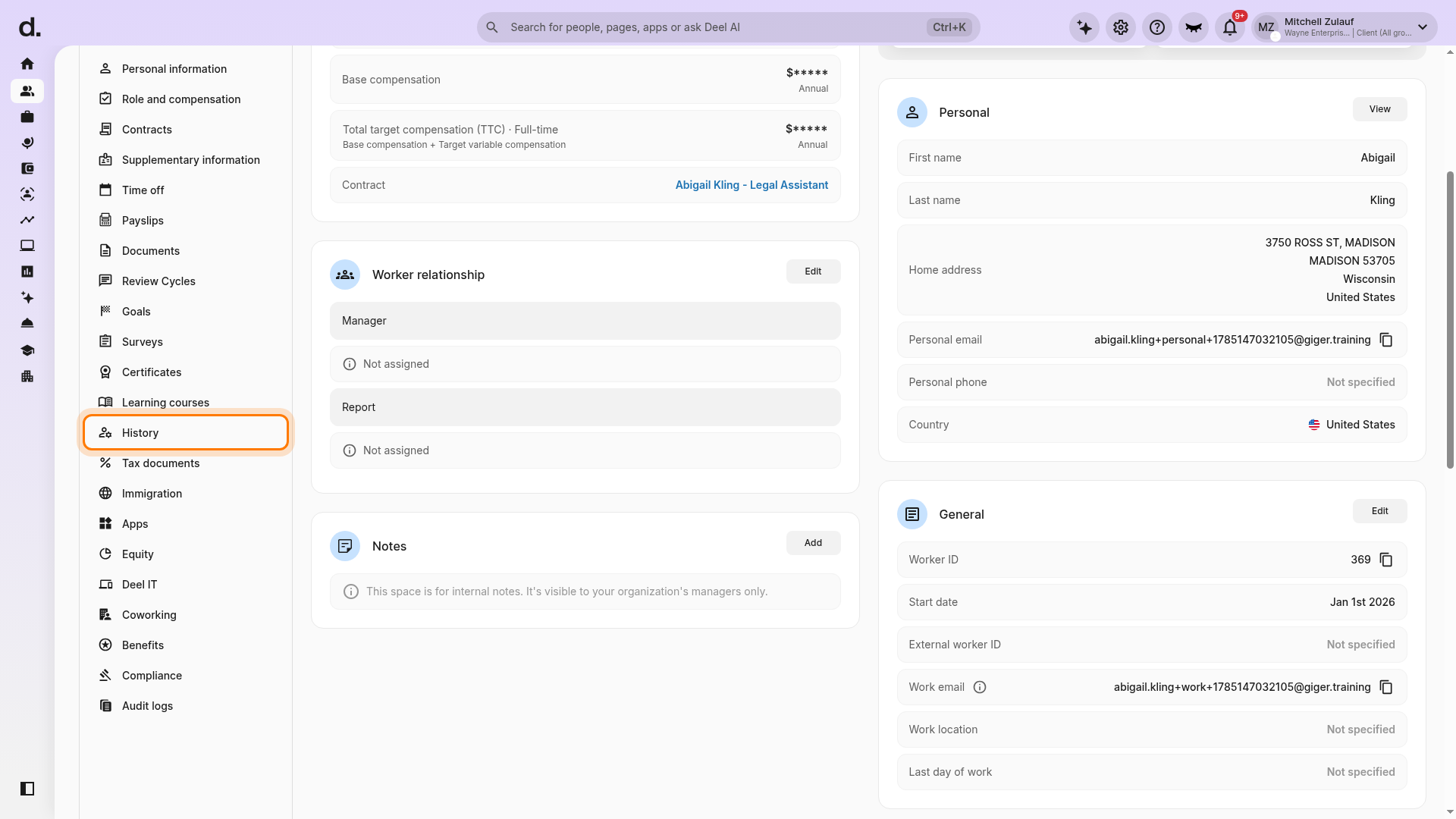
- In the worker profile's left-side navigation, scroll until History is visible.
- Select History.
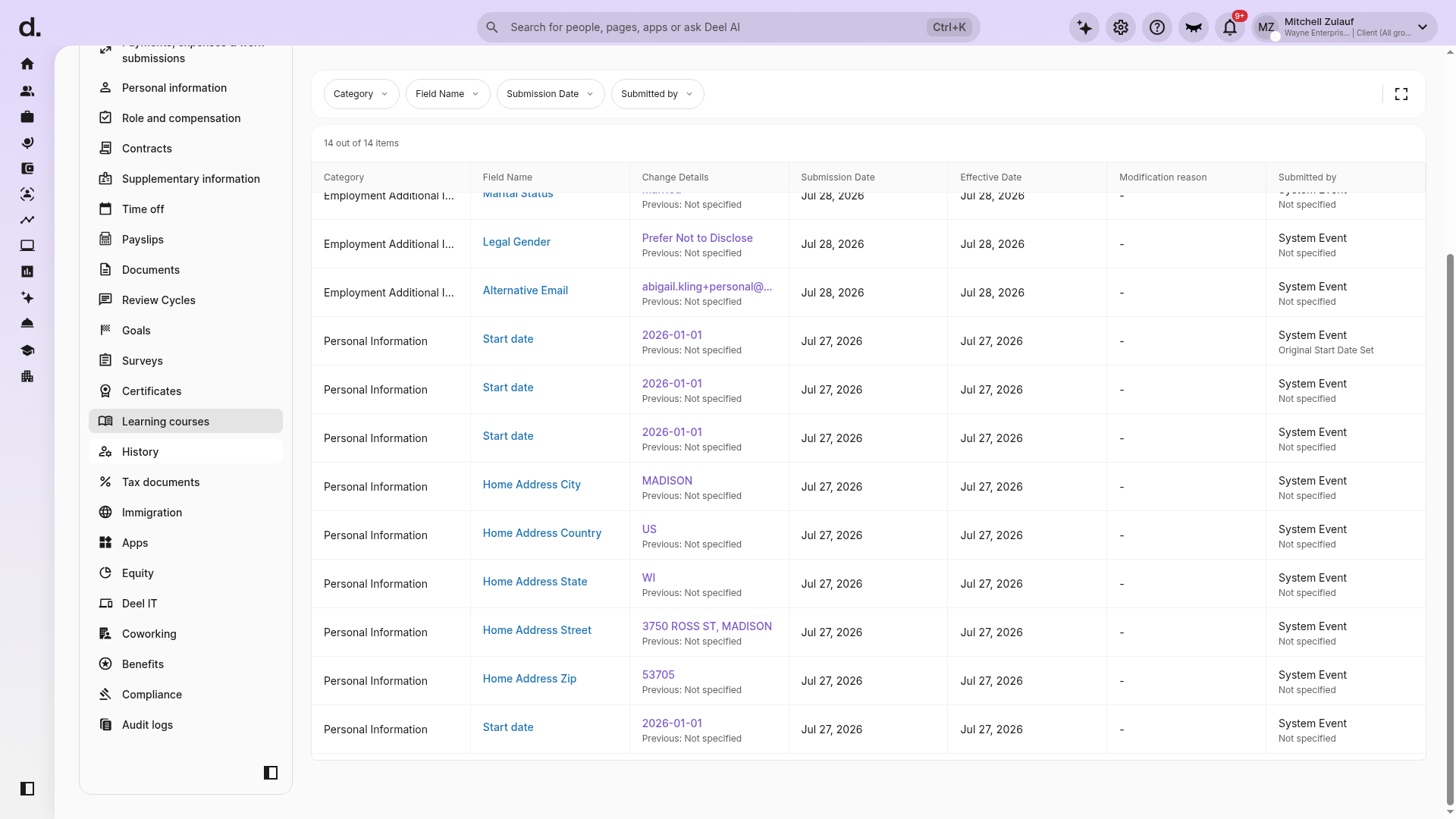
- Review the worker's change-log table.
- Use the Category, Field Name, Submission Date, and Submitted by filters to narrow the entries.
- The table includes Category, Field Name, Change Details, Submission Date, Effective Date, Modification reason, and Submitted by.
- The modification reason is shown when the feature is enabled.
If the table has no entries, clear or adjust the selected filters before concluding that the worker has no history.
People History Report:
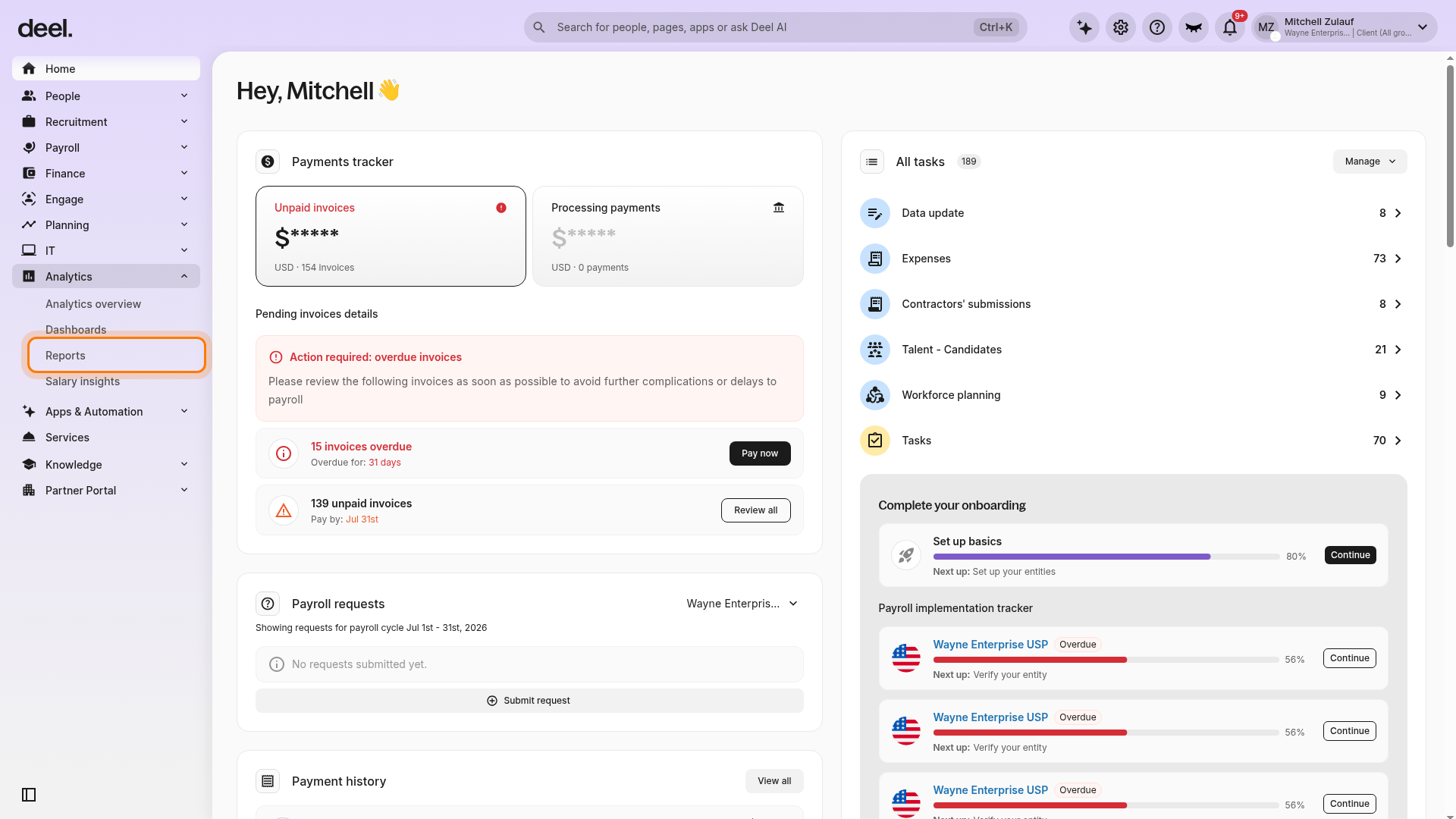
- In the left sidebar, select Analytics to expand its submenu.
- Select Reports.
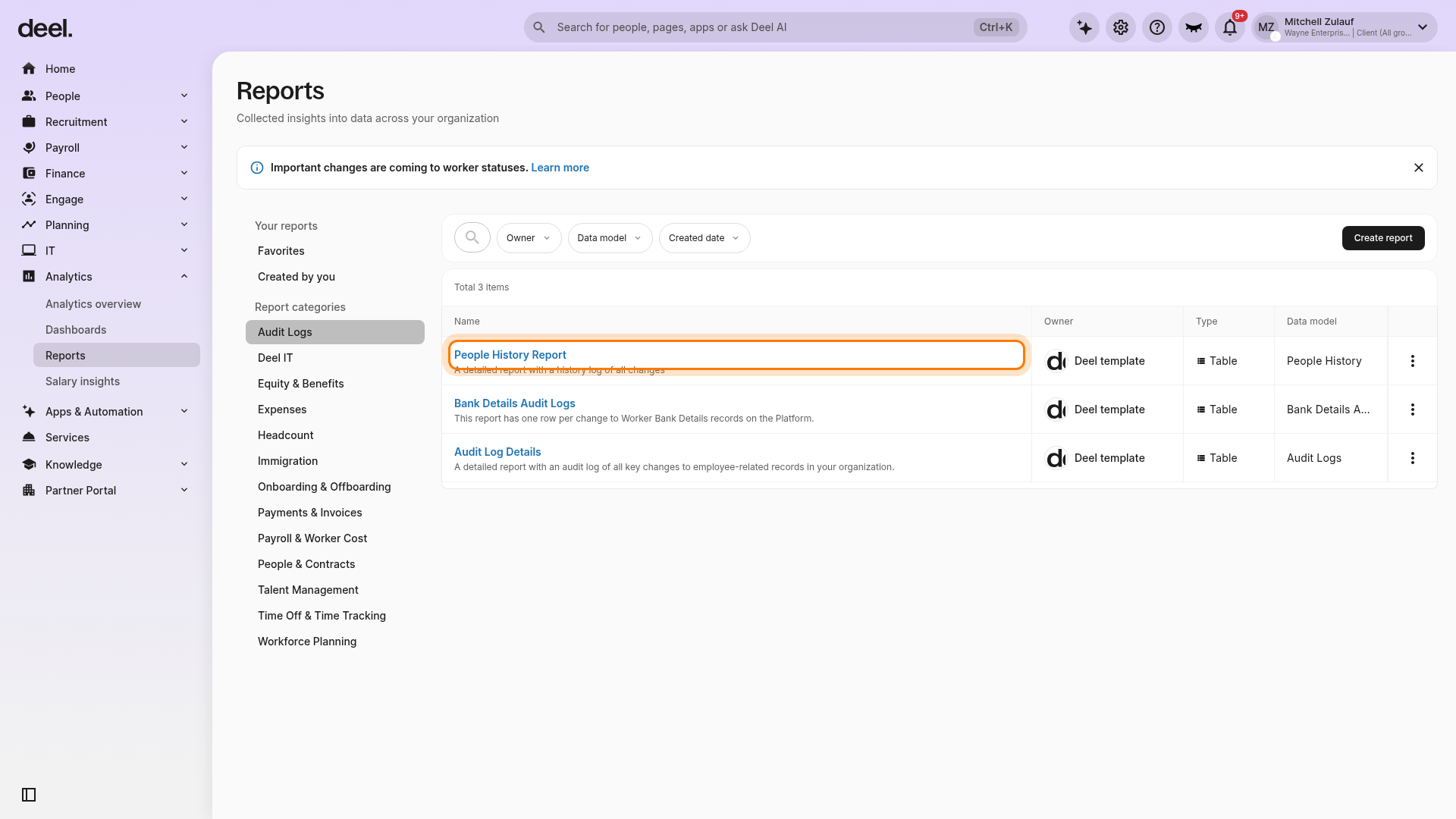
- On the Reports page, locate People History Report in the report list.
- Select its name to open it.
Confirm that the page header reads People History Report.
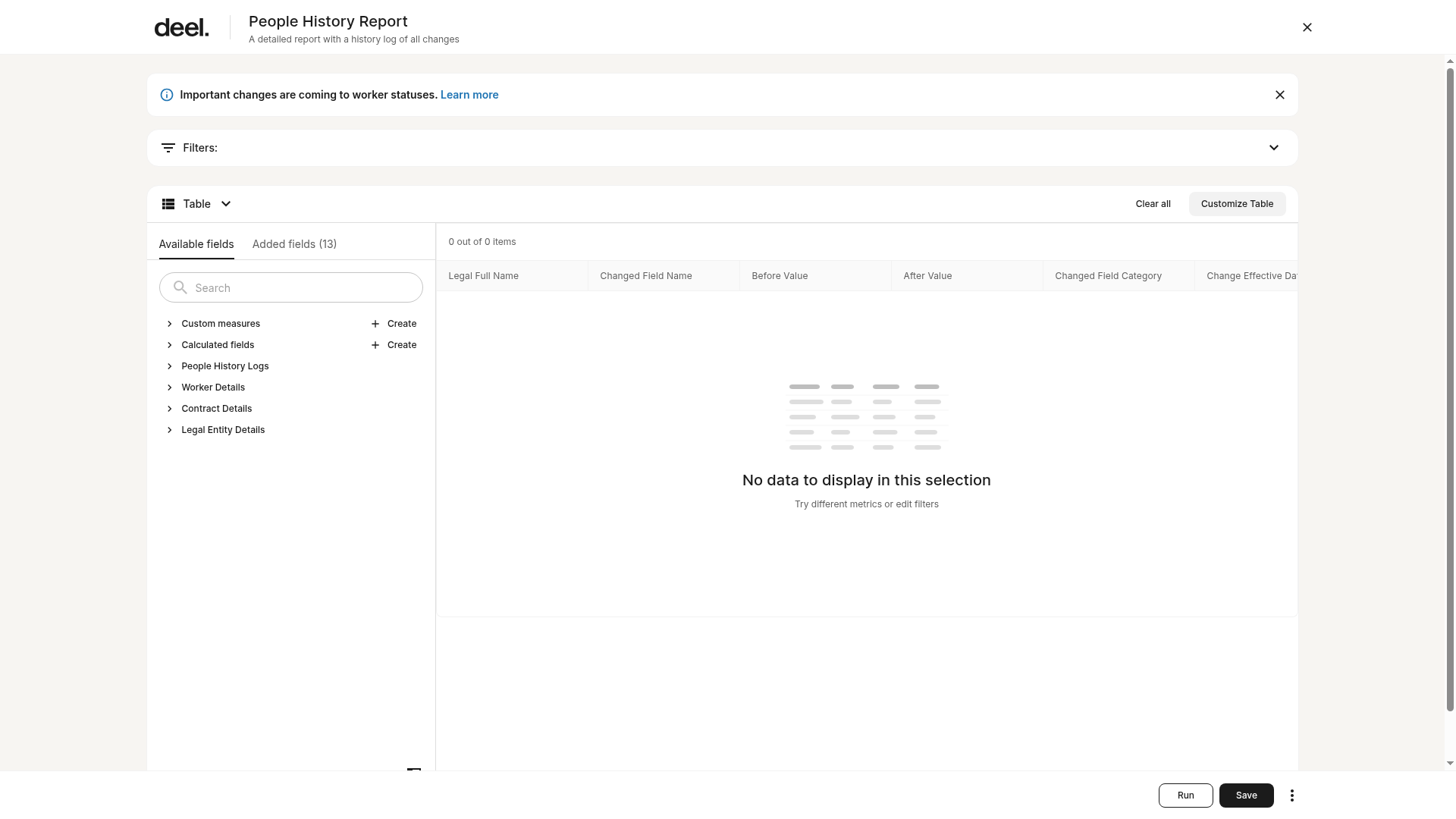
- Use Filters and the table field configuration to customize the report.
- Select Run to refresh the results as needed.
Select to Edit Columns to customize the report view. Select to Download Report to export.