
This article explains how clients can easily create a Direct Employee (HRIS) contract to hire a direct employee under their own entity.
These contracts are useful when you want to manage your employees through Deel and export the payroll reports to your providers.
This process only applies if the organization does not have an HRIS or if the client's HRIS is not integrated with the Deel platform. You can also mass-import direct employees on the platform directly using the mass-import contract creation tool.
In This Article:
Create a Direct Employee HRIS Contract
How to edit a direct employee contract
Frequently asked questions (FAQs)
Create a Direct Employee HRIS Contract
✅ Step 1 – Create an Employee contract
Go to People. Then, from the All People tab, click Add People. Click on Employee.
Please note you can create multiple contracts for your HRIS direct employee.
If the client wants to hire an employee and run their payroll under the client's own entity, select Direct Employee Payroll instead.
If the client wants to use Deel as the legal Employer of Record (EOR) to hire the worker, select EOR Employee instead.
✅ Step 2 – Set use Deel for HRIS, not Payroll
Clients must select We'll use Deel for HRIS, not Payroll, to manage your employees through Deel and export the payroll reports to your providers.
✅ Step 3 – Enter the Employee details
Provide the new hire's team Information, their personal details, and their contract location.
If an organization structure is configured by you, then you can also assign the worker an organization structure and configure worker relations while setting up their contract.
Click Continue.
✅ Step 4 – Enter the Job information
Provide a job title, location, employment type, contract term length, and any supplementary information. Select the start date in this step.
Deel will provide the client with the earliest possible start date that is permitted due to onboarding requirements. This will depend on the country of employment and if the worker is a new direct employee or a transferred employee.
Click Continue.
✅ Step 5 – Enter Compensation details
Enter the employee's compensation using the compensation component, including base salary, fixed allowances, variable compensation, and other individual details as needed. The component shows a live total annual payment summary that updates as changes are made.
The currency will be determined based on the employment country.
Click Continue.
About Contract Currencies
In some countries, clients now have the option to set the contract and/or salary payout in a non-local currency.
Clients can:
- Set a non-local contract currency while keeping the salary payout in local currency, or
- Choose a non-local salary payout currency, even if the contract is in the local currency
If foreign salary payout currency is selected, the exchange rate is locked at the time of payroll submission and will be used to calculate both salary payouts and local currency funding; this may result in FX fluctuation risk. Clients should be aware that actual funding (which happens a few days later) may differ due to exchange rate changes.
- This feature must be enabled by Deel on a per-entity basis. If you're interested in using foreign currency payroll options, please reach out to your CSM to have it enabled for your entity. This is only possible if the required country is supported for foreign currency payroll.
- If you're unable to select a foreign currency for contracts or payouts, it means the entity is not enabled yet or can't be enabled as the country is not supported.
✅ Step 6 – Choose Start Date
Select the start date during Job information in Step 4. In case the contractor has started several contracts with the company or comes back after some time away, the employment agreement contract start date still refers to the beginning of the contractor’s engagement with the company.
✅ Step 7 – (Optional) Set up Employment Agreement
Clients can opt to use custom templates, upload an employment agreement of their own, or select to forgo an employment agreement for now.
Click Continue.
✅ Step 8 – (Optional) Add Benefits and Extras to the contract
Clients can opt to add leased equipment, co-working space memberships, background checks and even equity grants to the contract.
✅ Step 9 – Review and Sign a new contract
Review the details and click the Edit button to make any changes to the newly created contract. When ready, select Review & Sign.
Once the contract is created, Deel will invite the employee to complete onboarding after all required approvals and organization signatures (if any) are completed. Clients can choose to send the invite to the employee’s personal email address or a custom email.
Multiple organization signers
Some organizations require more than one organization representative to sign HRIS employment contracts.
When multiple signers are required:
You can add multiple organization signers during contract creation
At least one signer is required before you can proceed
Organization signers must complete their signatures before the worker is invited
Signers sign in sequence and can see when their signature is required
The contract status updates after each signature
If approvals are also enabled for your organization, signing is blocked until all required approvals are completed.
Multiple signer requirements are configured by your organization in HRIS contract settings.
Witness signatures on HRIS contracts
Some organizations require a witness signature on employment contracts.
If this feature is enabled in your organization settings, contracts follow this signing order:
Organization signer(s) > Employee > Witness.
After the employee signs, they can optionally invite a witness by email. The invitation can be canceled at any time before the witness signs. The witness receives an email link to review the pre-signed contract and digitally sign.
Until the witness signs, the contract status shows Awaiting witness signature. The contract becomes active only after the witness's signature is completed.
How to Edit a Direct Employee Contract
✅ Step 1 – Open the employee contract
Go to People, then select the All People tab. Search for the applicable employee and open their profile.
✅ Step 2 - Click on View Contract
In the employee’s profile, scroll to the Role Details section and click View to access compensation and role information. Edit the applicable compensation details.
Clients can edit Direct Employee contract fields without triggering a signed amendment until the changes are submitted for review or approval.
Please ensure that you select the correct contract to edit for the employee.
Updates, including effective dates and modification reasons, are tracked in the change log and apply to all Direct Employee HRIS contracts, including pending invite and inactive profiles.
Approval requirements for contract amendments
Some organizations require internal approval for HRIS contract amendments (such as compensation, job title, or working hours changes).
When approval is required:
Contract amendments must be approved before they can be finalized or sent for signature
Amendments are read-only while pending approval
If an amendment is rejected, it becomes editable again and includes the rejection reason
Approved amendments automatically continue to signature if required, or complete immediately if no signatures are needed
Approval rules are configured by your organization using Deel’s approval settings.
Frequently Asked Questions
[ACCORDION] How can I see the profiles of the workers I’ve invited?
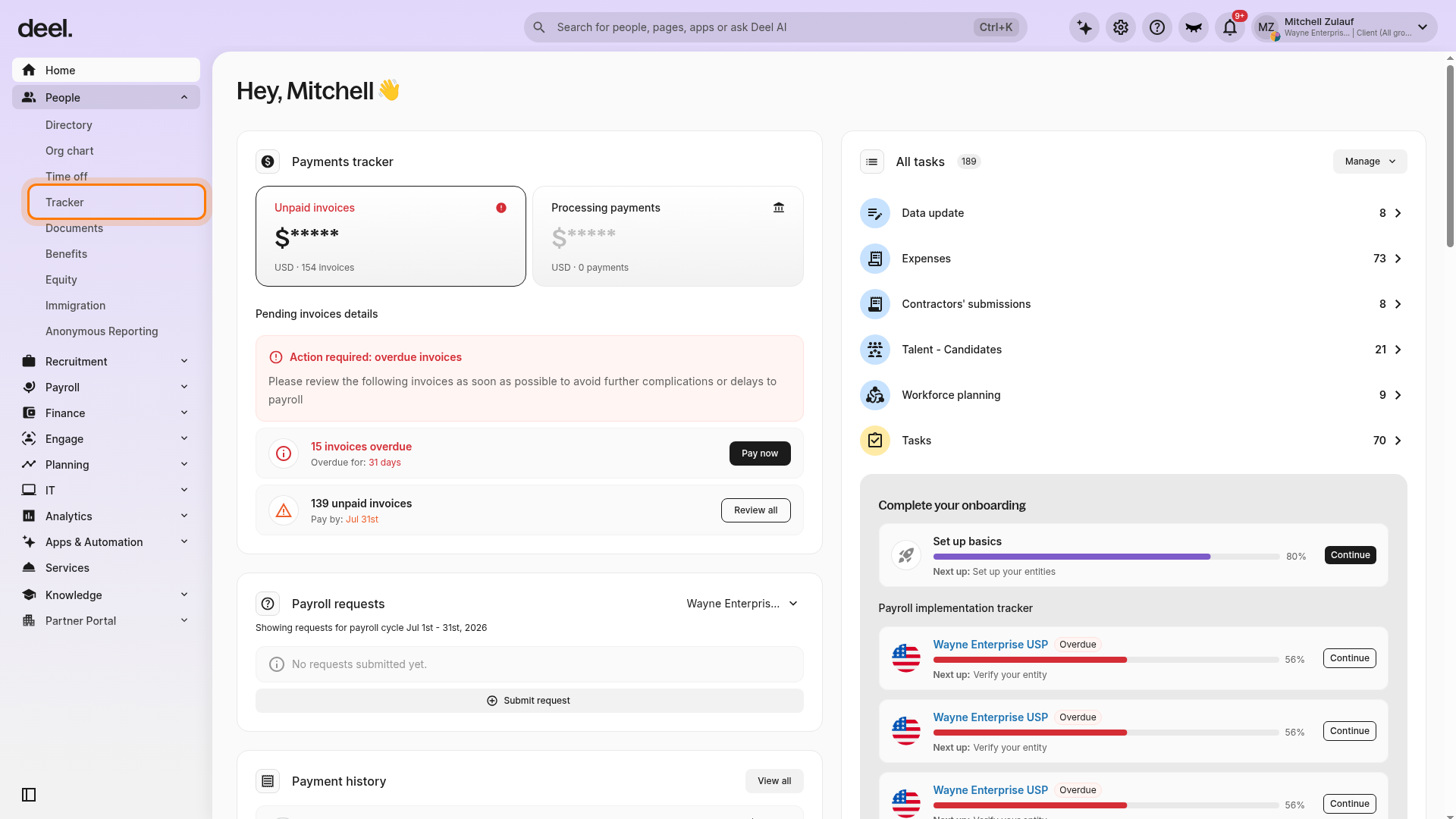
You can view all invited profiles directly in the Onboarding Tracker. To open it, click People in the left sidebar to expand its submenu, then select Tracker. Once you send an invitation, the worker will appear in the tracker with their onboarding status.
Confirm that the Tracker heading is displayed and Onboarding is the active tab. From here, you can:
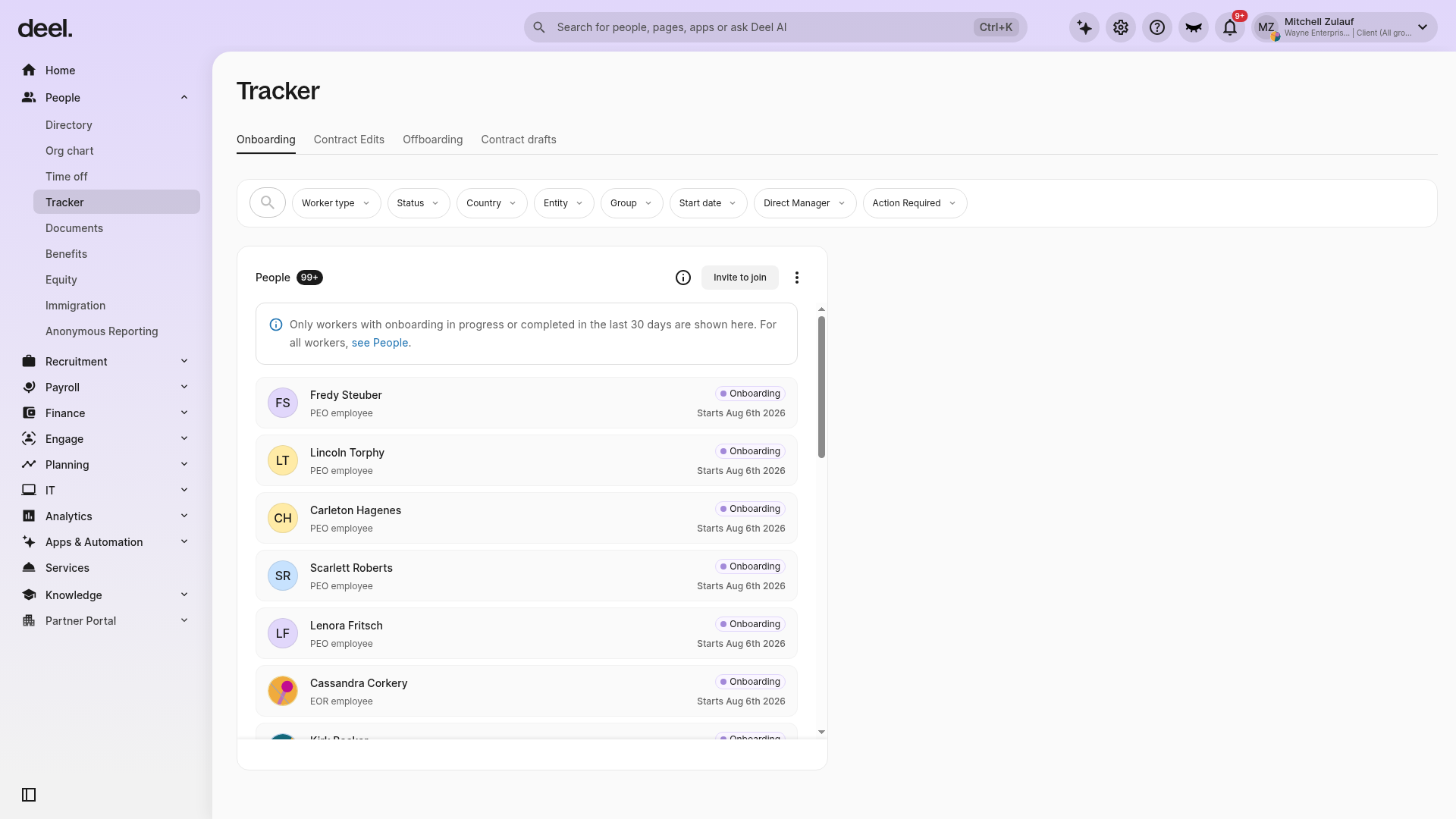
Track whether the worker has accepted the invitation.
See their onboarding progress step by step.
Manage and resend invitations if needed.
The Onboarding Tracker is the single place to manage invitations and monitor the onboarding journey for all worker types.
[ACCORDION] Can clients change the employment country for employees if they move?
Once the Direct Employee contract has been created, they can not change the employment country on the platform. Please contact us for further assistance.
[ACCORDION] What is the difference between an employment agreement, Contract Start Date, and Deel Start Date?
The employee agreement Contract Start Date is the date agreed upon date between the client and the employee for when their engagement with the company starts.
The Deel Start Date is the first date for which payroll will be processed for the employment contract.
Example Scenarios:
The employee started at the company before the company joined Deel as a customer.
- The Contract Agreement Start Date is the day (in the past) when the employee started to work for the company.
- The Deel Start Date is the first day of the first payroll cycle managed by Deel.
The employee starts to work for the employer after the company joined Deel as a customer.
- The Contract Agreement Start Date is the start date written on the contract.
- This time, the Deel Start Date is the same as the Contract Agreement Start Date because the payroll for this employee will be managed by Deel from the beginning of their contract with the employer.
[ACCORDION] Can someone else sign the contract that the client created?
Clients can sign contracts (agreements) themselves or have someone else sign on their behalf through a process known as delegate signing. They can invite any team member with Group Admin Access in Deel to sign as a delegate. If the chosen delegate does not have a Deel account, clients can invite them to sign as an external delegate.
An invitation to sign the contract as a delegate will be sent via email through the Deel platform. Once the client signature is completed by the client or their delegate, the contractor can be invited to sign and activate the contract.
More details on this process are available in the Delegate Signing Help Center article.
For more details on Group Admins and what they're permitted and unable to do, see this Help Center article on the different roles for group managers.
[ACCORDION] Why can’t I edit a contract after submitting changes?
If your organization requires approval for HRIS contract amendments, the contract becomes read-only while approval is pending. You can edit it again if the amendment is rejected or approvals are reset.