
This article explains how to access the Worker Onboarding Tracker, view worker checklists, see onboarding SLAs, send reminders, and understand onboarding status by worker type.
Before you begin
You must be:
- A Deel client admin with permission to view the People Tracker
- Permitted to send onboarding reminders if you need to send reminders
- The Tracker displays service level agreements (SLAs) for onboarding, so you can see the expected timeline at each stage of a worker's onboarding.
The Tracker's Onboarding tab shows workers whose onboarding is in progress or who completed onboarding within the last 30 days.
How to Access the Onboarding Tracker
Step 1 - Access the Worker Onboarding Tracker
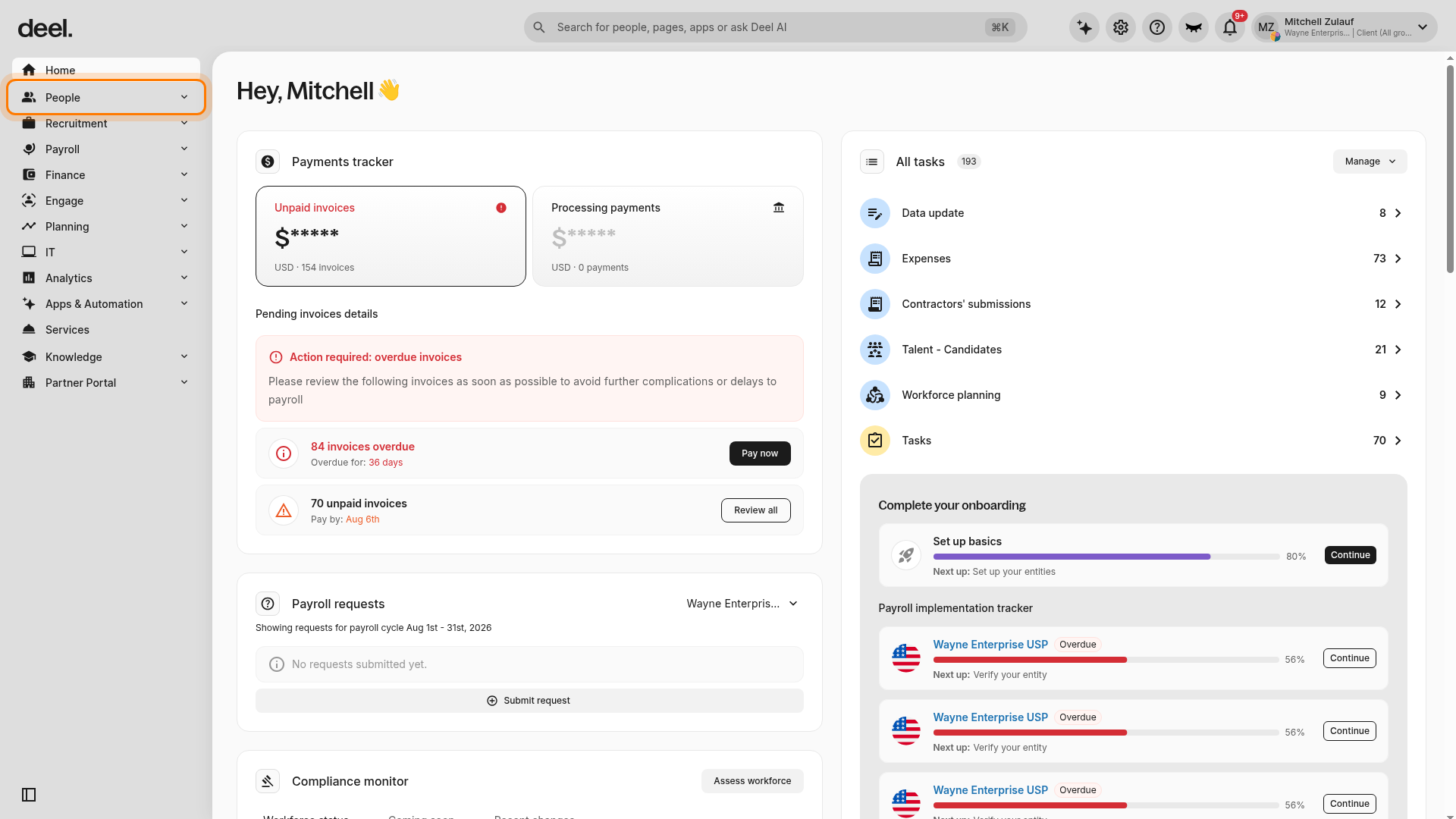
- In the left sidebar, select People to expand the menu. If People is already expanded, continue to the next step.
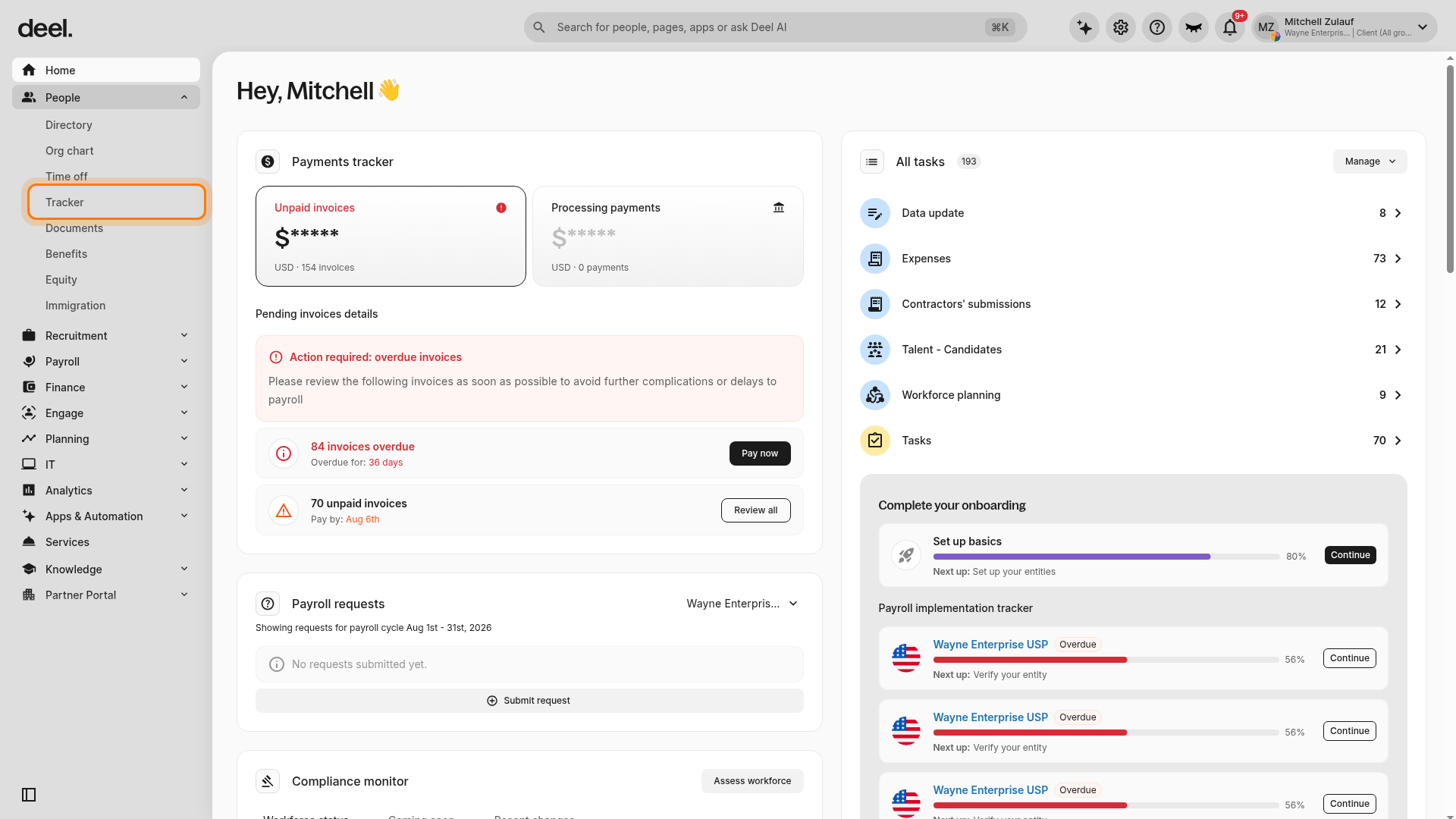
- Under People, select Tracker.
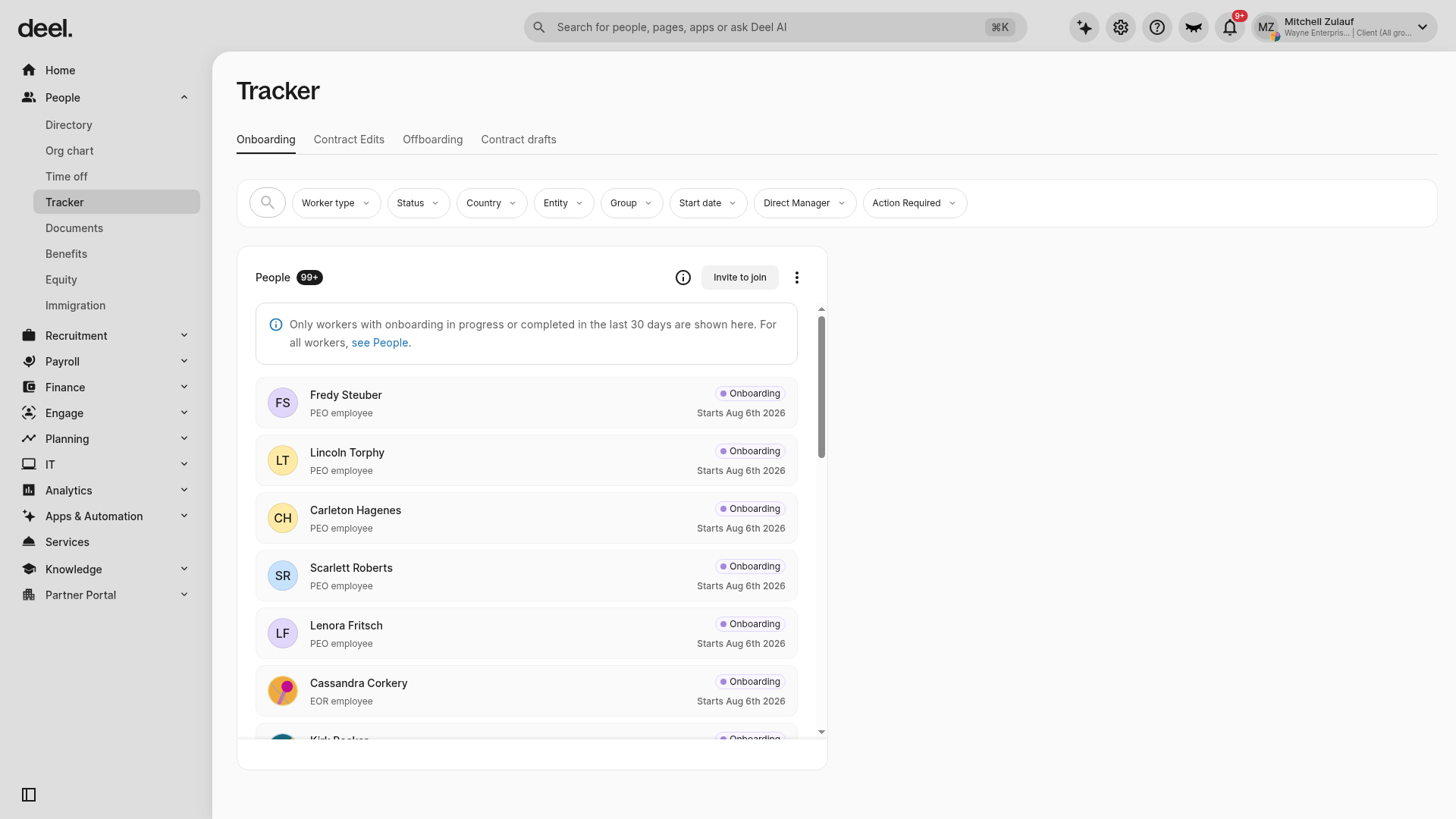
The Tracker workspace opens with the Onboarding tab selected. Use filters such as Worker type, Status, Country, Entity, and Start date to narrow the People list.
Step 2 - View a worker's onboarding checklist
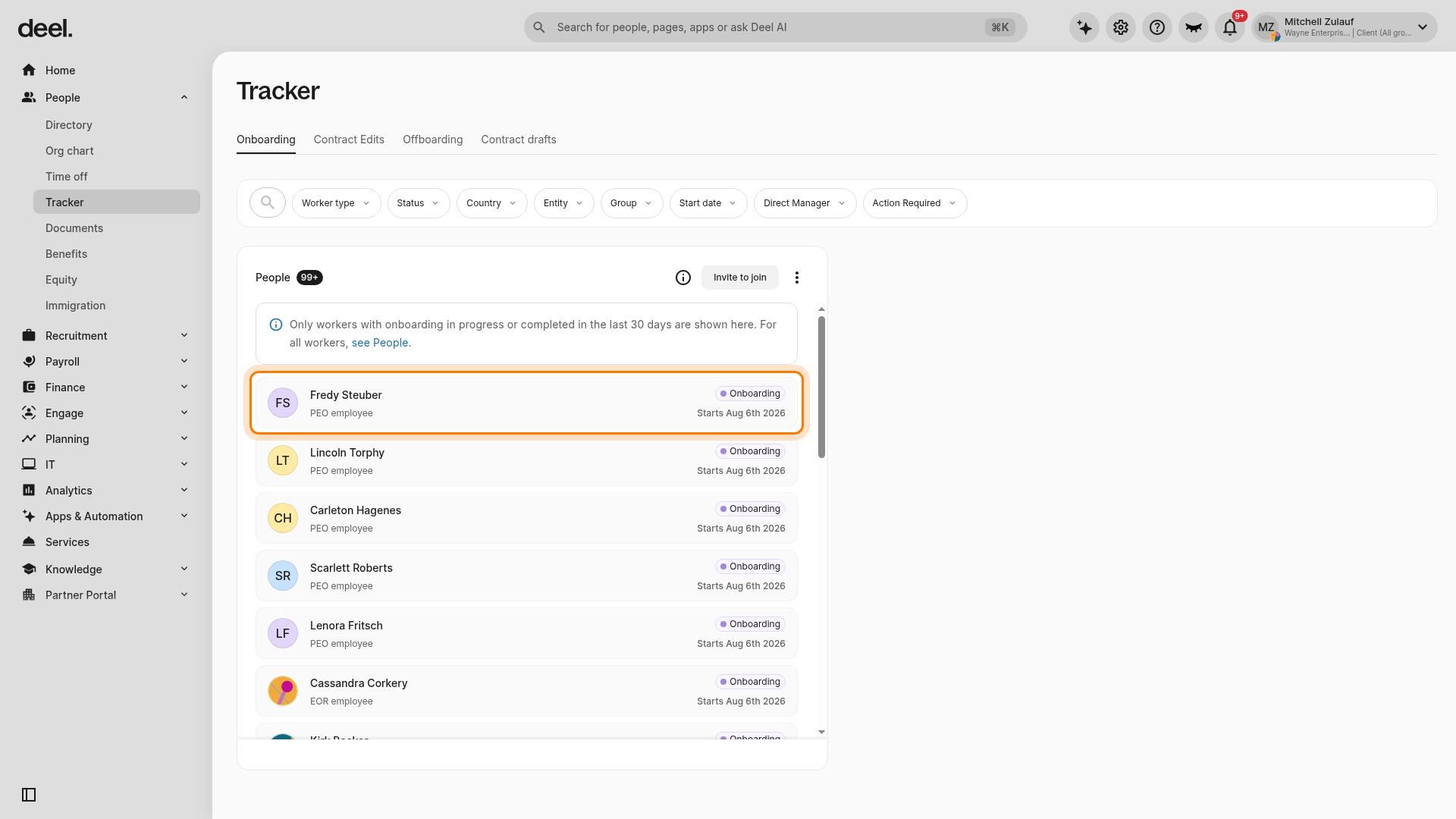
- On the Onboarding tab, find the worker whose tasks you want to review. Select a worker with an Onboarding status.
- Select the worker’s name to open their side panel. If necessary, scroll the People list or use the available filters to locate them.
- In the right-side panel, select Worker Checklist if it is not already selected.
The checklist shows onboarding progress, the number of tasks completed, the expected timeline for each stage of onboarding and individual task statuses. The displayed tasks and completion status vary by worker.
Step 3 - Send an onboarding reminder
Use this flow for a worker with outstanding onboarding tasks.
- Open the worker’s side panel from the Onboarding tab and ensure Worker Checklist is selected.
- In the onboarding status card, select the three-dot actions menu.
- Select Send reminder.
In Step 1 of the dialog, choose whether the worker’s line manager should receive a copy of the reminder:
- No sends the reminder only to the worker.
- Yes sends a copy to the worker’s line manager.
Select Continue.
- In Step 2, review the recipient information and the prefilled message. Update the message if needed, then select Send reminder.
Deel displays Reminder sent to confirm that the message was sent to the worker’s email address. Another reminder can be sent after 24 hours.
Step 4 - Review onboarding status by worker type
The Tracker behaves slightly differently depending on the worker type:
- Deel Employees (EOR): The Progress overview shows incomplete tasks, the SLAs for these tasks, the automatic reminder schedule, and the deadline to meet the start date. Click Get help from HR team in the worker profile if additional support is needed - Deel Support replies within 24 hours.
- Deel Payroll direct employees: Select the employee's name for the Progress overview. If the employee risks missing first payroll, send a reminder from the Worker Checklist actions menu.
- Deel HR direct employees: Open the Onboarding checklist directly.
- Contractors: Open the Onboarding checklist and send a reminder from the actions menu for incomplete tasks.
Frequently Asked Questions
How do I export worker onboarding status?
On the Tracker page, select the three-dot menu next to Bulk actions, then select Export worker information and click Export. The CSV report includes each worker's onboarding status.
What are SLAs in the onboarding Tracker?
SLAs show the expected timeline at each stage of a worker's onboarding, so you can see what to expect and plan ahead.