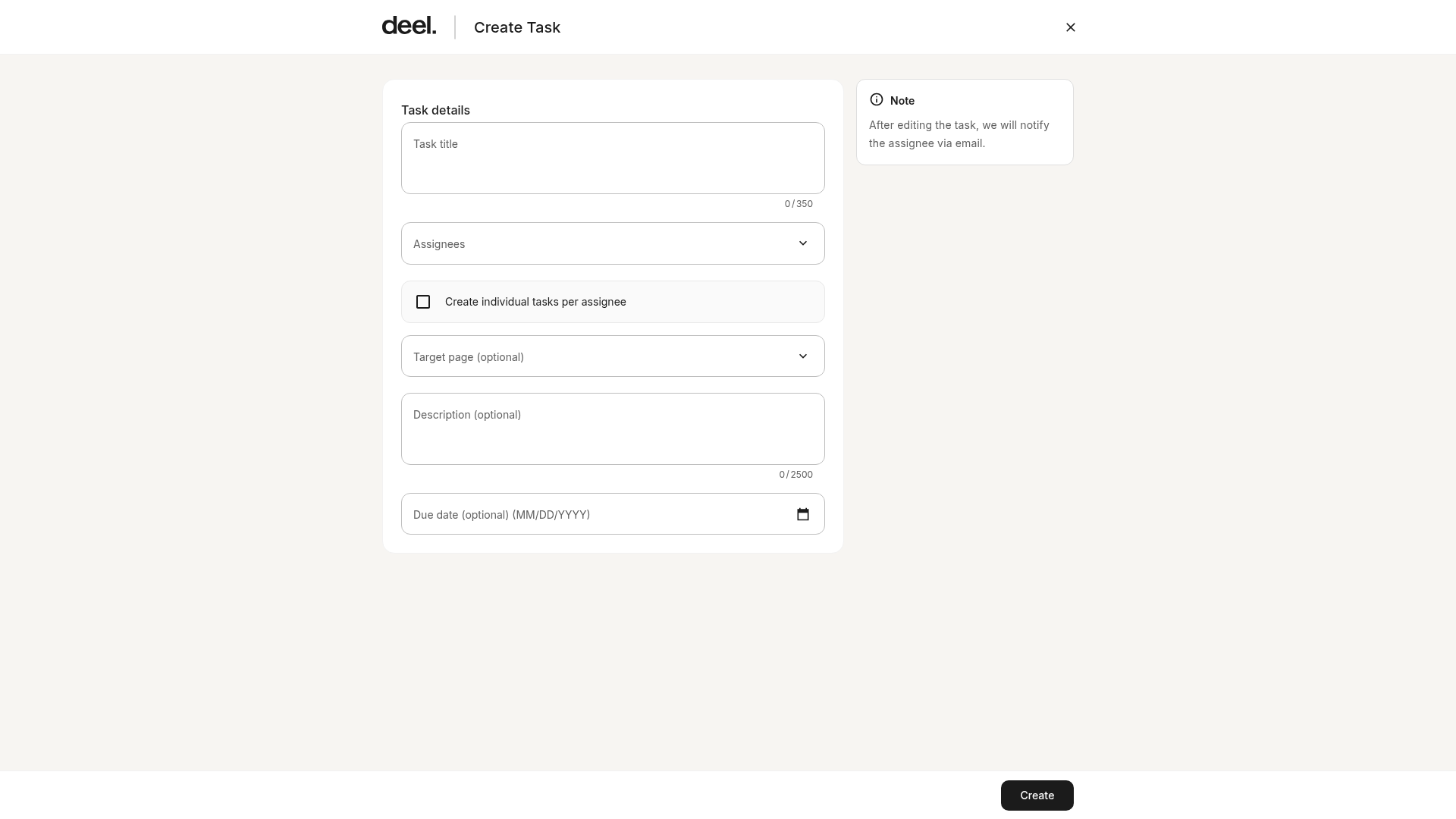
This article guides clients on how they can manually create and assign tasks to their organization’s workers.
Tasks can be directed to individual workers, groups, or teams. For each task, clients can specify a title, description, due date, and landing page for task completion, and set up reminders.
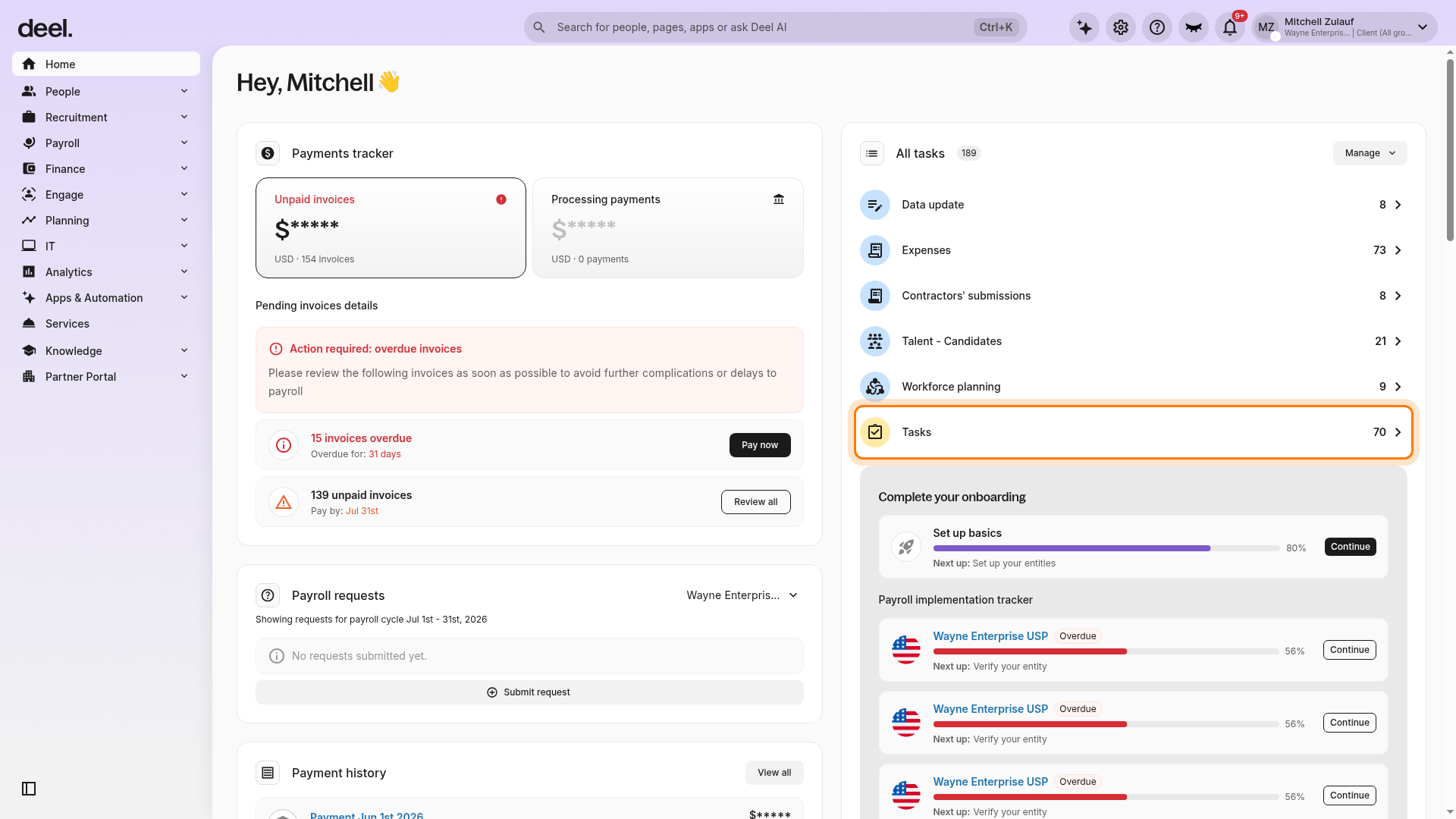
✅ Step 1 – Select the tasks section on the Home dashboard
On the Home dashboard, locate the All tasks widget on the right side of the page and select the Tasks row. The row may show a task count, which varies by organization.
Select the Tasks row itself, rather than another task category or an unrelated action in the widget.
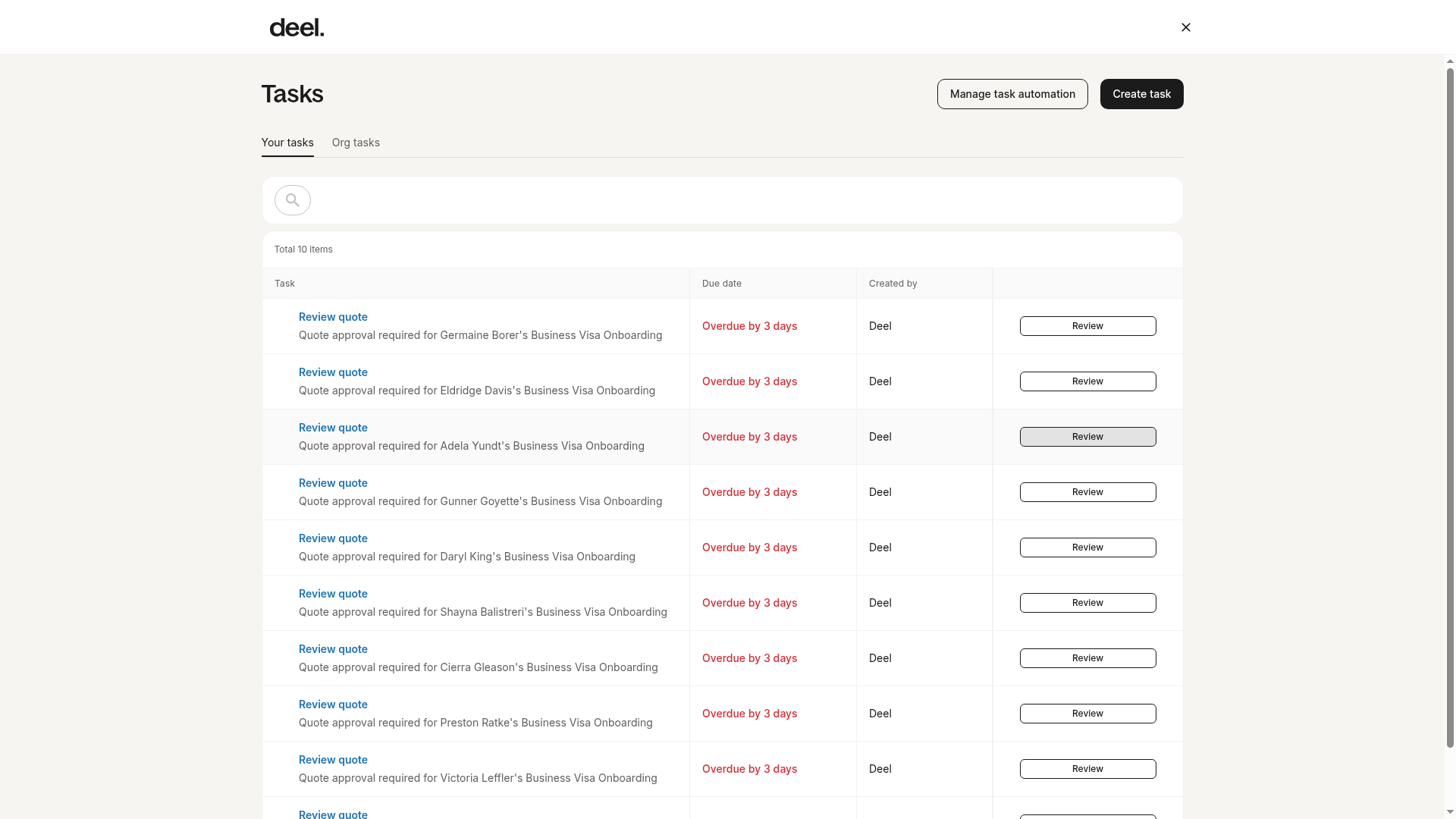
Wait for the Tasks page to load. Confirm that the page heading is Tasks and that the Your tasks tab and task list are visible.
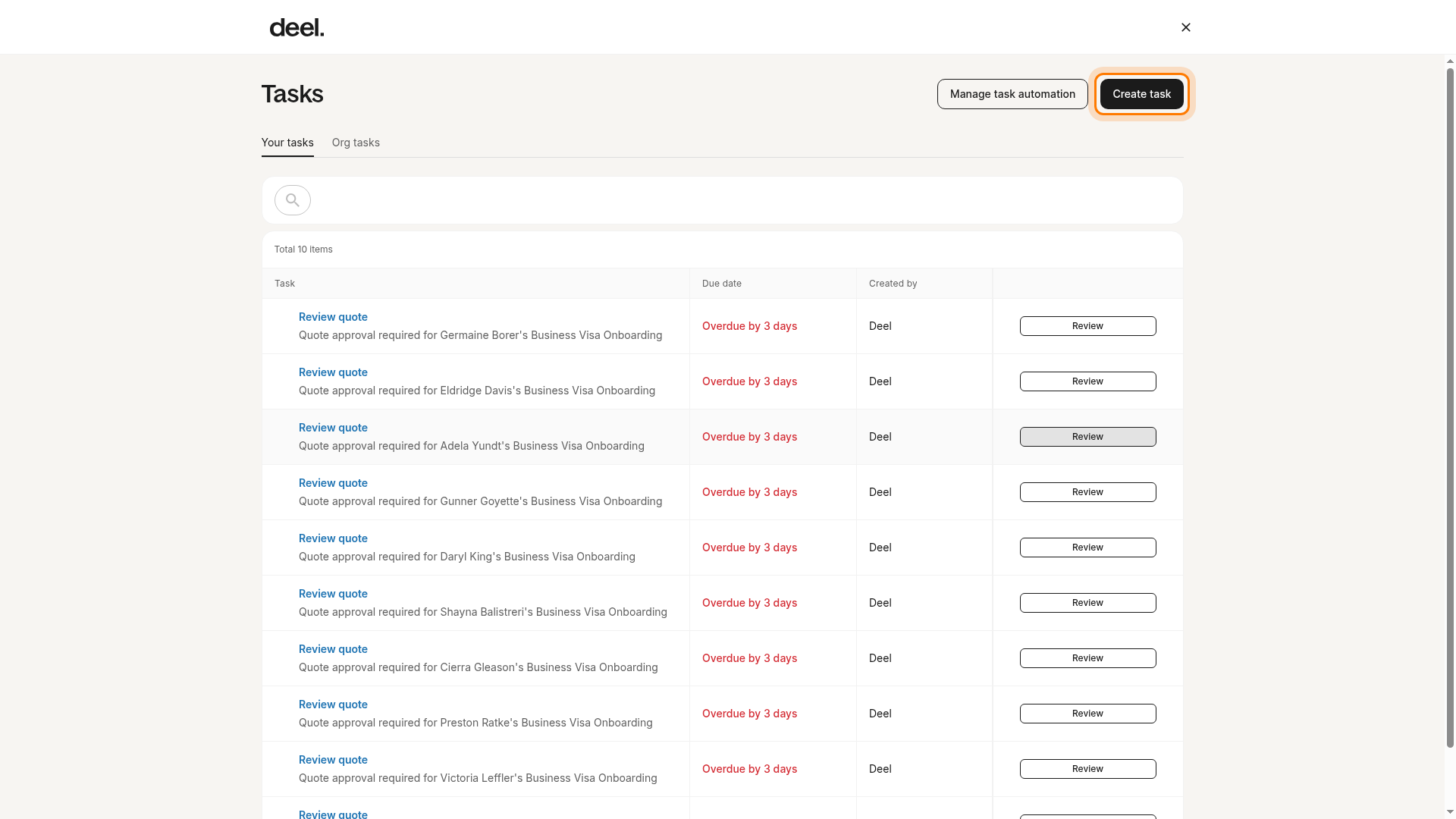
✅ Step 2 – Create a New Task
On the Tasks page, click the Create task button in the upper-right corner to open the task creation form.
Do not select Manage task automation; it opens automation settings instead.
Wait for the form to load. The form is open when the page header reads Create Task and the Task details section is visible.
✅ Step 3 – Add the Task details
Enter a Task title and select the Assignees: an individual worker, a group of workers, or an entire team within the organization.
If needed, select Create individual tasks per assignee.
Optionally, choose a Target page where assignees will be directed to complete the task, enter a Description, and set a Due date.
Expand Configure reminders to add reminder emails before the due date if needed.
Select Create to save and send the task.